

MQLTeam Gann Timer maps Gann-style time cycles from swing highs and lows onto the MetaTrader 5 price chart.
Markets move in price — and they also move in time. When several classic period counts land near the same date, they form a time cluster: a vertical band worth watching, not because it guarantees a turn, but because several independent clocks agree there.
Product page: MQLTeam Gann Timer on the Market
Follow MQLTeam — product notes, examples, and updates:
Where the idea comes from
The approach sits in the wider tradition of W.D. Gann time work: counting fixed periods forward from important swing highs and lows, using both trading days and calendar days. Classic lengths such as 72, 90, 120, 144, 180, 240, 270, 288, and 360 appear again and again in that literature.
When several of those counts meet near one date, analysts have long treated that date as a cluster — a time window to watch, often a few sessions before and after the center date — while still confirming direction with price. MQLTeam Gann Timer turns that map into live chart objects on MetaTrader 5: ZigZag swings, aggregated clusters, midlines, and optional alerts. It is a reading tool, not a claim that every cluster must reverse.
What you see on the chart
- ZigZag swings — the swing map the cycles are counted from. Clearest on the Daily chart.
- Vertical clusters — soft bands where Trading-Day (TD) and/or Calendar-Day (CD) periods stack. Labels such as 180TD or 360CD show which counts meet there.
- The midline — the center of each band. Many traders watch how price behaves as it approaches that line.
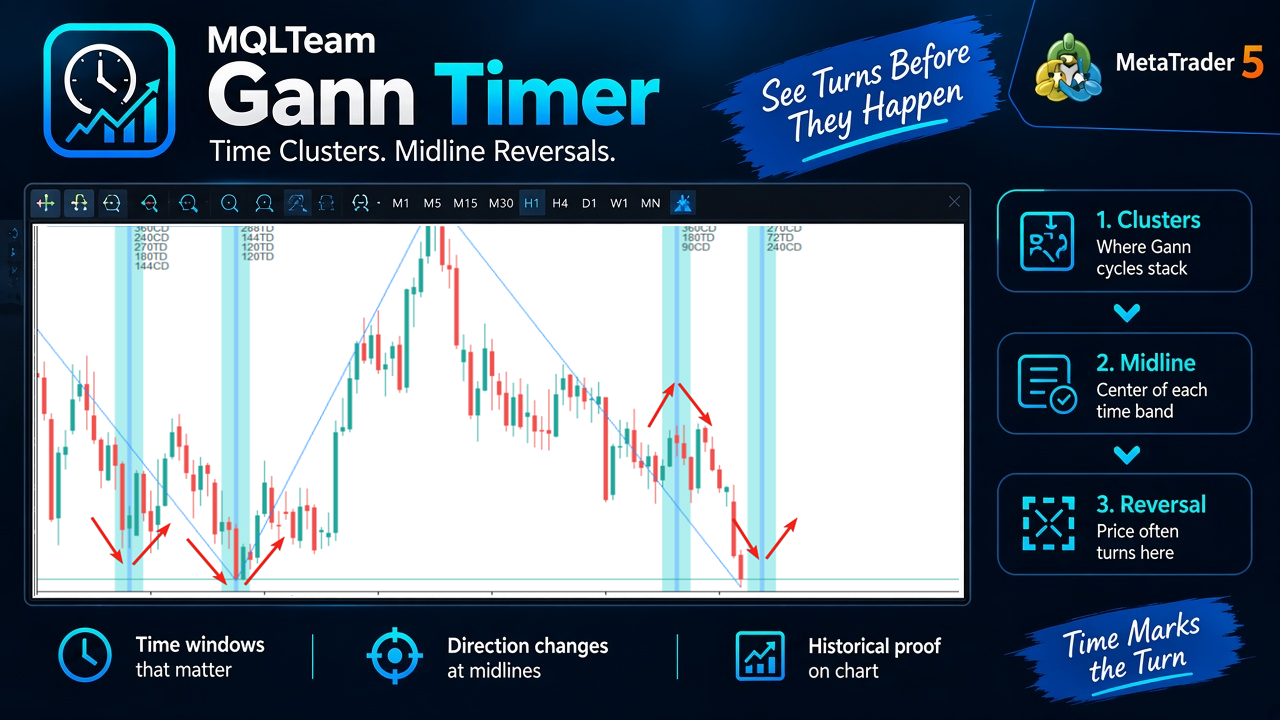
Price often turns near the center of a time cluster (midline). Use this as a map of attention — then confirm with your own price method.
Past vs future
Clusters that already passed history use one color family. Windows still ahead use another. You can scan the right edge of the chart and see what is scheduled next, without mixing it with what already printed.
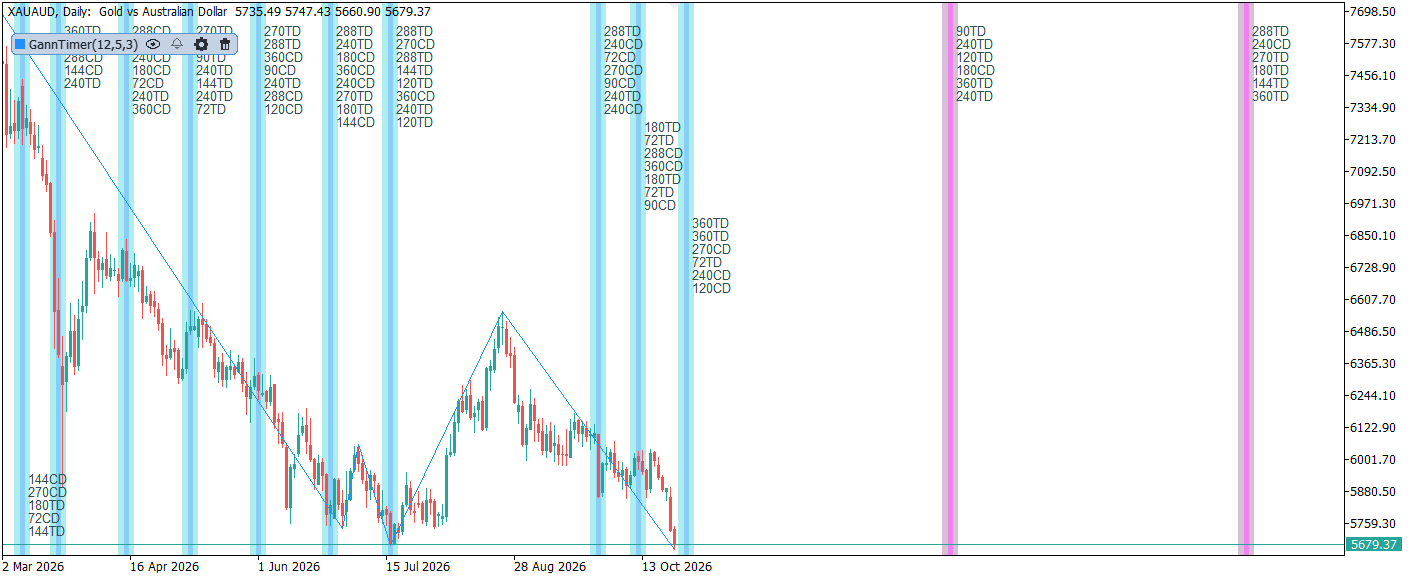
Historical clusters and future windows use different colors.
Live panel
Open the chip panel on the chart. The main ZigZag and cluster controls update while you watch. Hide a copy with the eye if you need a clean chart; the setup stays. Closing the panel writes the values back into the indicator inputs.
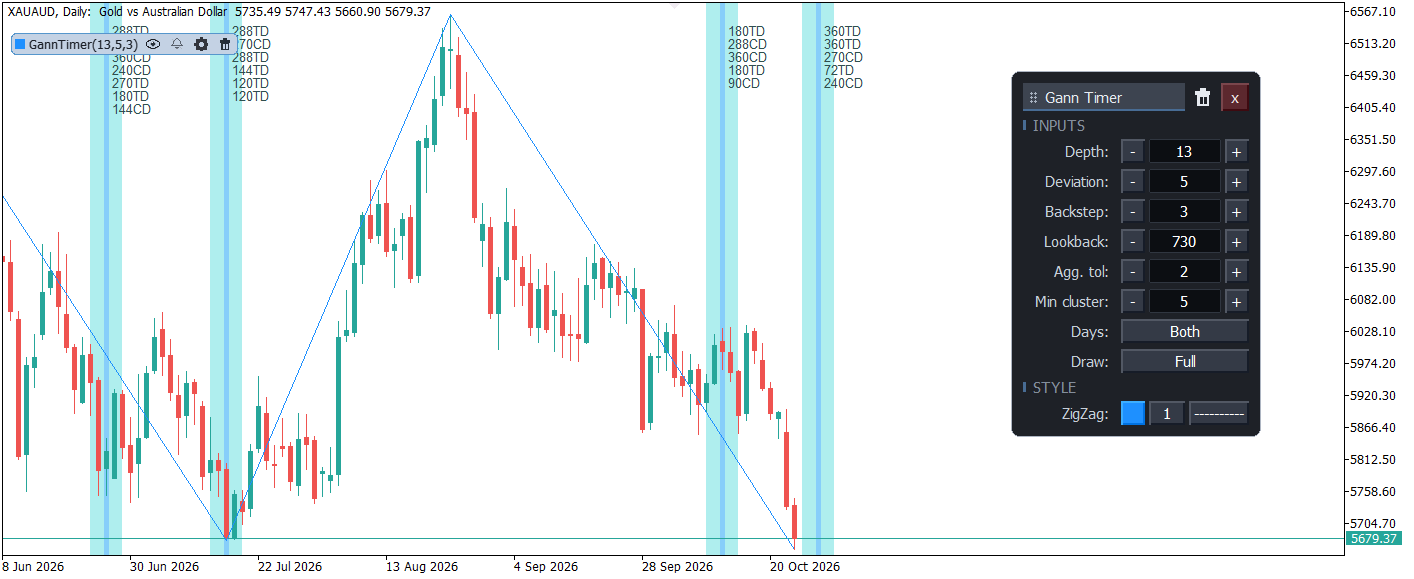
Live panel — ZigZag, Days, Draw, and cluster settings update without removing the indicator.
Inputs — what each control is for
Use this as a short map so nothing in the product feels unexplained. Start with defaults; change one family of settings at a time.
ZigZag map (which swings feed the cycles)
- Depth — main filter for how “major” a swing must be. Higher = fewer, larger pivots. On Daily charts this is usually the first knob to turn.
- Deviation / Backstep — classic ZigZag companions. Keep Backstep strictly less than Depth. On Daily they matter less than Depth unless set very high.
- Lookback (days) — how far back pivots are used to project cycles (for example ~2 years at 730).
- Min past candles — how much past context to keep visible for older clusters.
- Show ZigZag / ZigZag color — draw or hide the swing path used for counting.
Clustering (how dates become a band)
- Agg. tol (±days) — how close separate period hits must be to merge into one cluster. Larger = wider, fewer bands; smaller = tighter, more bands.
- Min cluster — minimum hits required before a cluster is drawn. Raise it to clear weak stacks; lower it to see thinner meetings.
- Show single (non-cluster) lines — when off (default), only aggregated clusters show. Turn on only if you want every lone period hit as well (busier chart).
Days and periods
- Days (panel) / Show Trading Days / Show Calendar Days — TD skips weekends (and missing holiday days); CD counts every calendar day. Both is the usual full map. On many crypto symbols TD and CD behave alike (7-day week).
- Period 72 … 360 — switches for each classic Gann length. Turn off periods you do not use to reduce labels and clusters.
What is drawn
- Draw (panel) — shortcuts: Full, Lines, Windows, Labels, or Minimal, instead of toggling each layer by hand.
- Show vertical lines — cluster midlines (centers).
- Show labels — TD/CD tags such as 180TD, 360CD.
- Show time windows — the shaded band around the cluster center (opportunity window around the date).
- Show past data — keep or hide historical clusters so you can focus on the right edge.
- Line / window colors (entered vs future) — separate look for windows you have already entered and windows still ahead.
- Label color / font size — readability on light or dark charts.
Alerts and host options
- Enable alerts — master switch.
- Alert on cluster date — notify on the center date.
- Alert on window entry — notify when price time enters the cluster window.
- Show panel / Show indicator — UI and visibility without removing the attach.
- Chip values — how the chip reads values (e.g. follow mouse).
- Max bars to calculate — performance / history depth for calculation.
Rule of thumb: fix the ZigZag map first (Depth), then Min cluster and Agg. tol for density, then Days/periods, then Draw for clutter.
Try it in five minutes
- Attach MQLTeam Gann Timer on a Daily chart of an instrument you know.
- Leave defaults first; then set Days → Both and Draw → Full if you want the full picture.
- Scroll history: do major swings land inside or near clusters more often than you expected?
- Look right: note the next future band and its midline — treat it as a calendar of attention.
- Tune Min cluster and Agg. tol if the chart feels crowded or sparse.
What it is — and is not
It is a time map from swing structure and classic period counts. It is not an auto-trading robot and not a claim that every midline must reverse. Ask a sharper question — “Is time lining up here?” — then decide with your method.
Market product: https://www.mql5.com/en/market/product/203700
Stay with MQLTeam
If this way of reading the chart is useful, stay close for notes, examples, and new tools.
→ MQL5 channel — https://www.mql5.com/en/channels/mqlteam
→ Telegram — https://t.me/MQLTeam
Short updates beat missing the next release.




