

Many MetaTrader products can send alerts, trade notifications, signal updates and system messages directly to Telegram.
To use Telegram delivery, you usually need two values:
1. Telegram Bot Token 2. Telegram Chat ID
This guide shows how to create a Telegram bot, get its token, find your private chat ID, and allow Telegram API access in MT4 / MT5.
This guide can be used for any MetaTrader tool that sends Telegram messages through a Telegram bot. It explains how to create a bot, get the Bot Token, find your Chat ID and allow Telegram WebRequest access in MetaTrader.
The same setup can also be used with Signalator MQL products that support Telegram alerts, including scanners, monitoring tools, notification utilities and future Signalator trading workflow products.
You can use the same Telegram credentials in Signalator products or in any other MT4 / MT5 Expert Advisor, utility or script that supports Telegram Bot API delivery.
1. Create a Telegram bot with BotFather
Open Telegram and search for:
@BotFather
BotFather is the official Telegram bot used to create and manage Telegram bots.
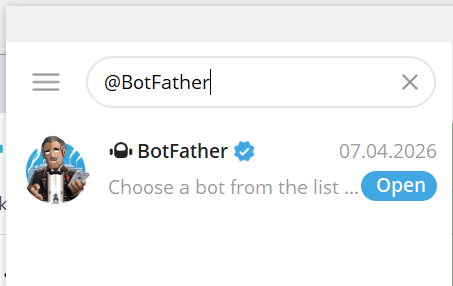
Open BotFather and send:
/newbot

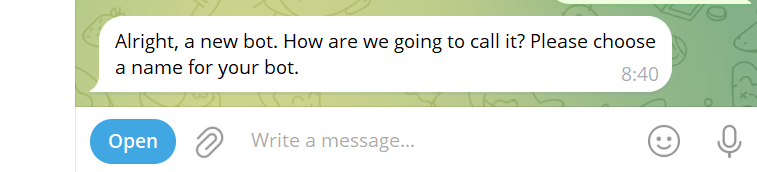
BotFather will ask you to choose a display name for your new bot.
Example:
My MetaTrader Alerts
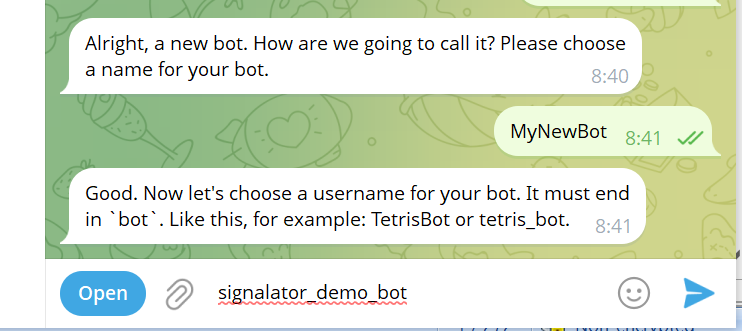
After that, BotFather will ask you to choose a bot username. The username must end with bot .
Example:
MyMetaTraderAlerts_bot
If the username is available, BotFather will create the bot and show you a bot token.
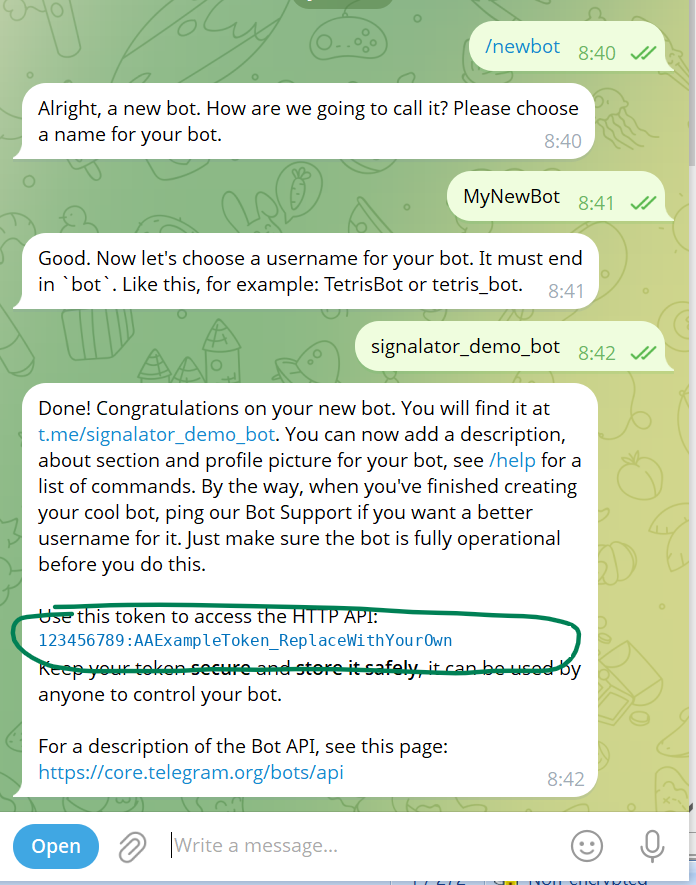
The bot token looks similar to this:
1234567890:AAExampleBotToken_ReplaceWithYourOwn
Copy and save this token. You will need it later in your EA or product settings.
Important: keep your bot token private. It works like a password for your Telegram bot. Anyone with this token may be able to send messages through your bot.
2. Start a private chat with your new bot
Telegram bots cannot send private messages to you until you start the bot first.
Search for the bot username you created.
Example:
@MyMetaTraderAlerts_bot
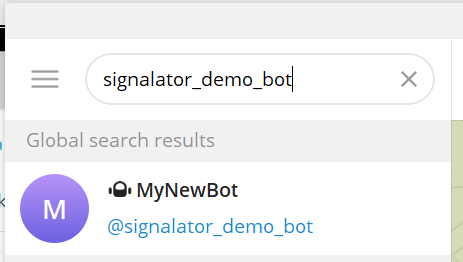
Open the bot chat and press Start.
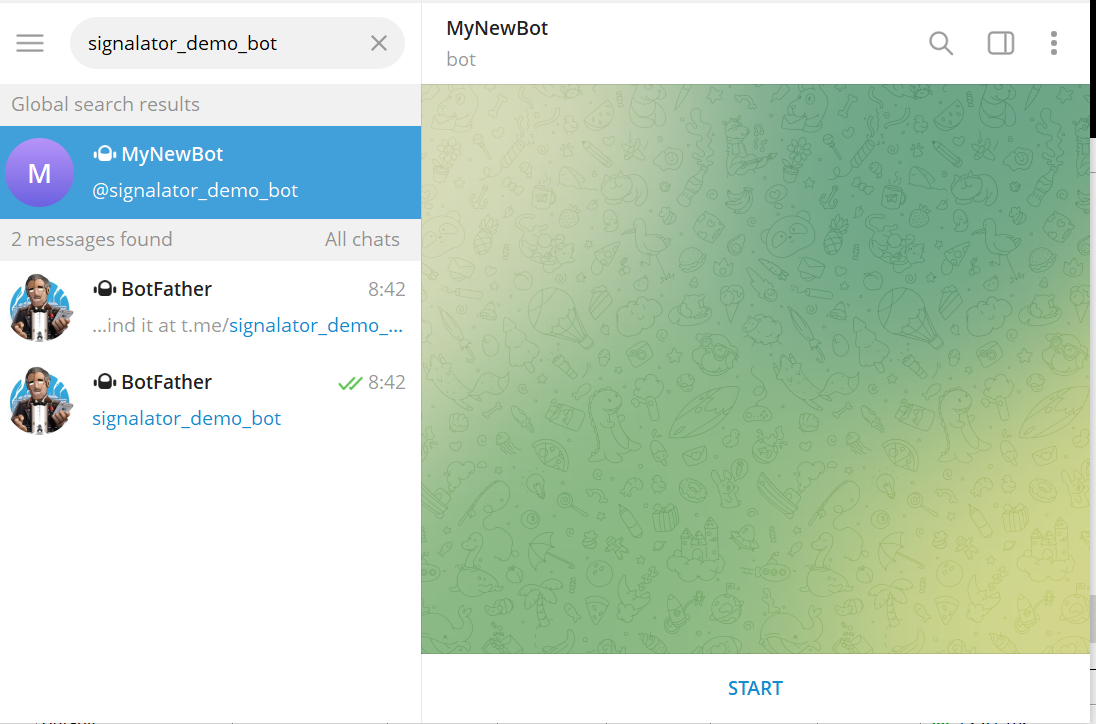
You can also manually send:
/start
Then send one simple message to the bot, for example:
test
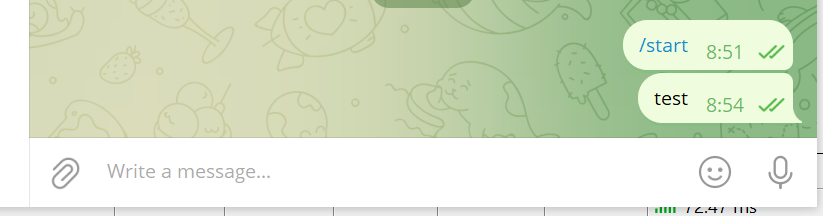
This activates your private Telegram chat with the bot.
3. Get your Telegram Chat ID
Now open your browser and use this address:
https://api.telegram.org/bot<YOUR_BOT_TOKEN>/getUpdates
Replace <YOUR_BOT_TOKEN> with the token you received from BotFather.
Example:
https://api.telegram.org/bot1234567890:AAExampleBotToken_ReplaceWithYourOwn/getUpdates

After opening this page, Telegram should return a JSON response.
Look for this part:
"chat":{"id":123456789

The number after "id": is your private Telegram Chat ID.
Example:
123456789
For private chat delivery, copy the value from:
chat → id
Do not confuse it with other fields. For private chats, from.id and chat.id may be the same, but for groups and channels they can be different. Always use chat.id .
Now you have the two required values:
Bot Token = from BotFather Chat ID = from getUpdates
4. Allow Telegram API in MT4 / MT5
MetaTrader blocks external web requests unless the destination URL is added to the allowed list.
In MT4 or MT5, open:
Tools → Options → Expert Advisors
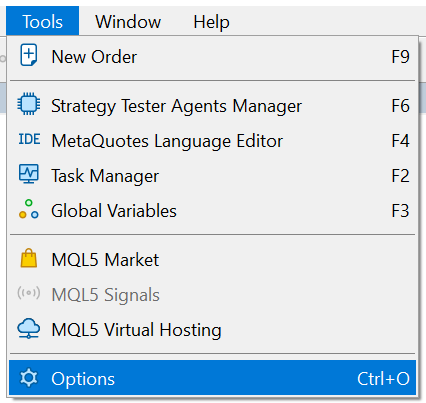
Enable:
Allow WebRequest for listed URL
Then add this URL:
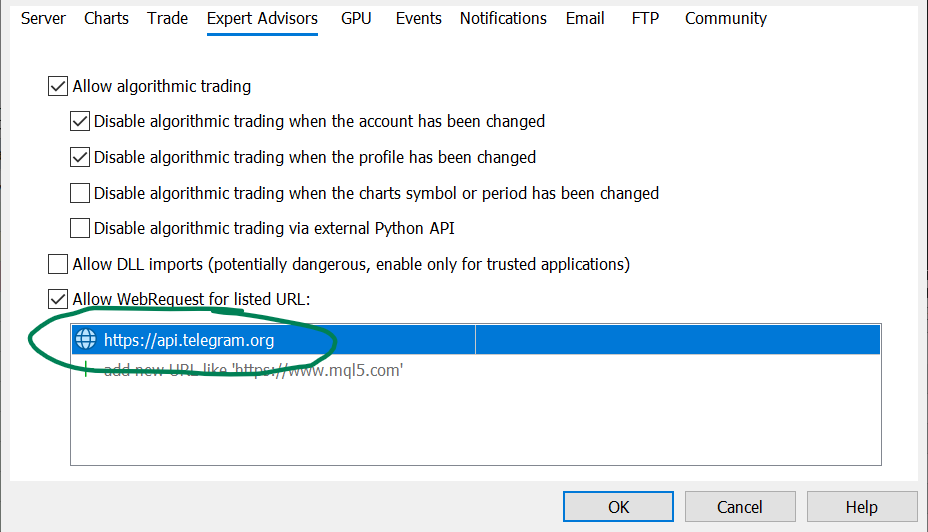
Click OK.
Now your MT4 / MT5 terminal can allow Expert Advisors and utilities to send Telegram API requests.
5. Use the Bot Token and Chat ID in your EA
Open the settings of your Telegram-enabled EA or utility and enter:
Telegram Enabled = true Bot Token = your bot token Chat ID = your chat ID
Then press the product’s Test Telegram, Send Test Message, or similar button if available.
A successful test message confirms that:
1. The bot token is correct 2. The chat ID is correct 3. The bot chat was started 4. MetaTrader WebRequest permission is configured 5. Telegram delivery is working
You can reuse the same bot token and chat ID in different Telegram-enabled products if you want messages delivered to the same Telegram chat.
6. Common problems and fixes
Problem: getUpdates shows an empty result
Example:
{"ok":true,"result":[]}
This usually means the bot has not received any messages yet.
Fix:
1. Open your new bot in Telegram 2. Press Start 3. Send test 4. Refresh the getUpdates page
Problem: Telegram message is not received
Possible reasons:
Wrong bot token Wrong chat ID Bot chat was not started Telegram API URL was not added in MT4 / MT5 EA setting Telegram Enabled is false Internet connection or VPS firewall issue
Problem: MetaTrader shows WebRequest error
Check that this URL is added exactly:
https://api.telegram.org
Do not add only:
api.telegram.org
Use the full HTTPS address.
Problem: It works in private chat but not in a group or channel
Private chats, groups and channels use different chat IDs.
For groups and channels, the bot must be added to the group or channel first. For channels, the bot usually needs administrator permission to post messages.
7. Final notes
After completing this setup, you can use Telegram delivery in Signalator products or any other MT4 / MT5 tool that supports Telegram Bot API alerts.
The basic setup is always the same:
Create bot → Get bot token → Start chat → Get chat ID → Allow Telegram API in MetaTrader → Send test message
Once this is done, you can receive trading alerts, signal updates, trade copier notifications, monitoring messages and other MetaTrader events directly in Telegram.




