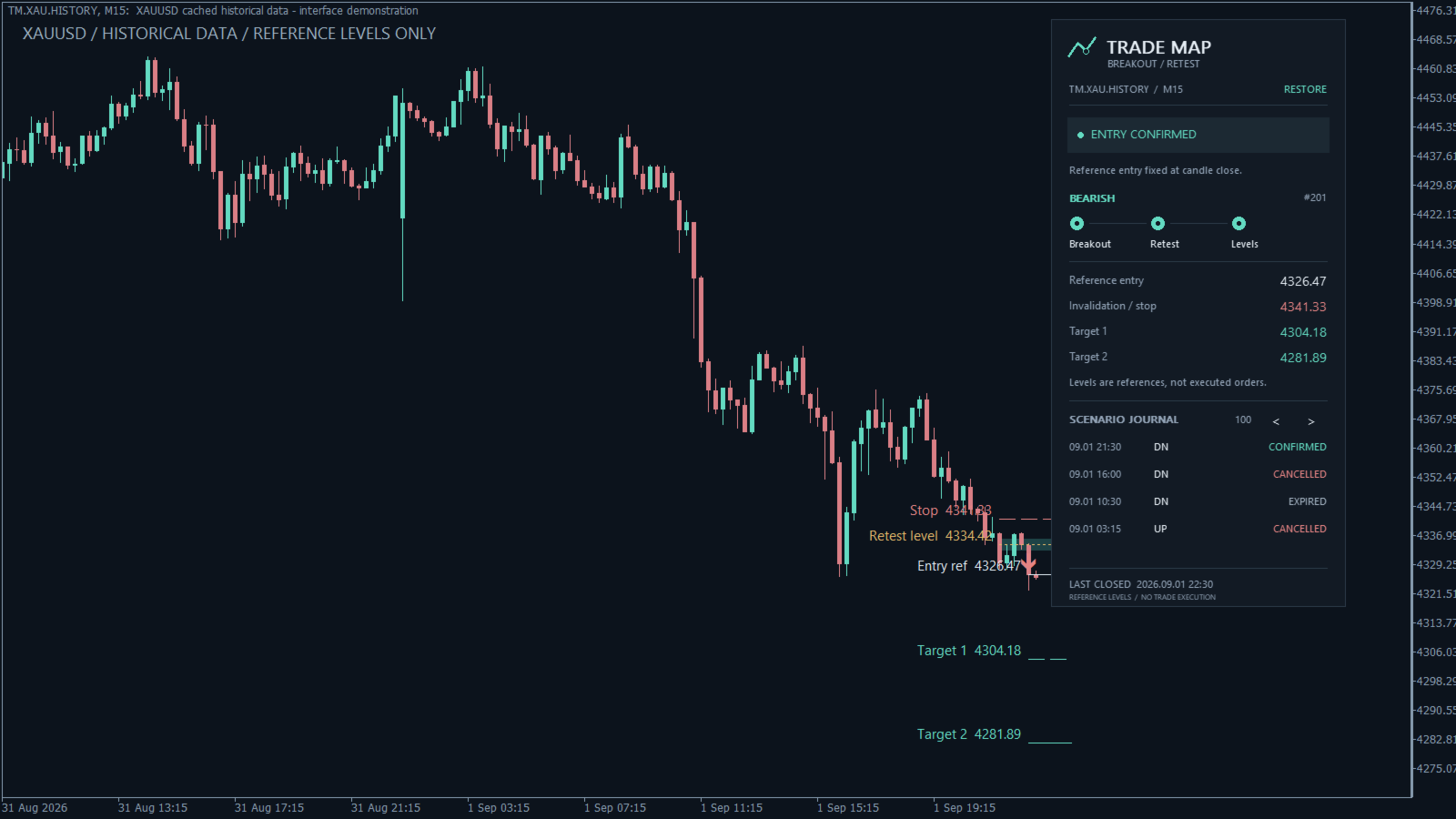
Trade Map is a visual breakout-and-retest indicator for desktop MetaTrader 5. It explains when a scenario is waiting, confirmed, tracking or finished. It does not open or manage trades.
Open Trade Map MT5 on the Market.
Try the free Market demo
- Open desktop MetaTrader 5. Under Tools → Options → Community, sign in with your MQL5 login. This is separate from your broker account.
- Open Market in the Navigator and find Trade Map MT5. Open its page and download the free demo. The Free Demo button on the website also offers to open MetaTrader 5.
- Open View → Strategy Tester, or press Ctrl+R. Choose Indicators and Trade Map MT5. Select your broker's symbol and timeframe. XAUUSD M15 matches the presentation examples; symbol suffixes are supported.
- Choose a historical period for which the terminal has data. Start with the default inputs and the Every tick model. Start the test; indicator testing opens the visual chart automatically. Reduce playback speed or pause to read the map.
The free Market demo runs in the visual Strategy Tester. It cannot be attached to a normal online chart. This restriction is applied by MetaTrader, not by a custom license system in Trade Map.
The tester also has chart-event limitations. Use the visual demo to evaluate calculations, states and reference levels. Fit Map and clickable journal navigation are intended for normal desktop charts; tester restrictions can prevent these clicks from working.
Install the purchased or rented version
In desktop MT5, use the same MQL5 account that purchased or rented the indicator. Open Market → My Purchases, install Trade Map MT5, and attach it from Navigator → Indicators → Market to a chart. Let the historical candles finish loading.
No DLL permission or Algo Trading permission is required. Popup alerts are disabled by default. Begin with the default settings and one chart so each state is easy to follow.
Read one scenario
Wait for retest: a completed candle has broken the prior range. The retest band and invalidation level are frozen. There is no confirmed reference entry yet.
Entry confirmed: a completed retest candle met the rules. Its close becomes the entry reference; the stop and two targets are fixed. The defaults are 1.5R and 3R, where R is the distance from the entry reference to the stop.
Tracking levels: confirmation occurred on an earlier candle. The indicator is observing those existing levels. This label is not a new entry signal.
Invalidated, Retest expired or Too late to enter: the pending idea did not become a usable confirmation under the configured rules. No entry is implied.
Stop touched, TP1 then stop or Target touched: these describe later candle highs and lows relative to the reference levels. They are not executed fills or trading returns.
Fit the map and inspect history
On a normal desktop chart, click Fit Map to include the selected stop and targets in the chart's vertical scale. Restore returns to the previous scale.
Enlarge the chart to show the journal. Select a row to inspect an older scenario; the panel identifies history review and moves the chart to that period. Back to latest returns to the newest scenario. Journal arrows change the visible page. The journal retains cancelled and stopped scenarios as well as target touches.
Frequently asked questions
Why is there no recent signal? A qualifying breakout and retest may not exist. Scanning or waiting is a valid state. Check the state and the last closed-candle time before interpreting an old journal record as current.
Why does it say Need more closed bars? The terminal needs more historical candles. Let history synchronize, choose a longer test period, or use a symbol with sufficient data. With the default trend filter, at least 51 prior candles are needed before breakout detection can begin.
Why are no trades or profit figures shown in the tester? This is an indicator. It draws analytical references and submits no orders. An empty trade report is not a failed trading system test.
Do the levels change after confirmation? Future candles do not move a confirmed entry, stop or target. Reinitializing with different settings, available history or a different reconstruction window can produce a different journal. The default window is 6,000 closed candles; the newest 100 scenarios are retained in memory.
What does Order unknown mean? One candle touched the stop and a previously unreached target. OHLC candles cannot establish which happened first. Trade Map preserves that uncertainty.
Does it work only on gold? It uses the chart's actual symbol and timeframe. XAUUSD M15 is the presentation example, not a promise of profitable settings. Evaluate the behavior on your own broker's data.
Can I use it on MT4, a phone or WebTerminal? Version 1.00 is an MQL5 indicator for desktop MetaTrader 5. MT4 and the mobile/web terminals do not run this EX5 indicator.
Why are some panel elements missing? The panel adapts to the available chart size. Maximize or enlarge the chart to display the full journal.
Where can I get support? Use the product comments or MQL5 messaging. Include the MT5 build, symbol including any suffix, timeframe, inputs, and the relevant error text. Do not send account passwords.
What the examples establish
Historical examples demonstrate the interface and calculation rules. Entry is a candle-close reference; spread, commission, slippage, gaps and actual execution are not modeled. A target touch is not proof of a profitable trade or future returns.
Platform references: Market demo restrictions and event handling in the tester.