
Introduction
Flintridge Trader Pro is a non-repainting multi-moving-average crossover signal and trade-management indicator for MetaTrader 4 and MetaTrader 5. It detects entries from the crossover of a close-based MA against an open-based MA — with selectable ALMA, HullMA, or TEMA smoothing and an alternate higher-timeframe confirmation — then automatically attaches a complete trade plan: one stop loss and three take-profit targets, with a state machine that tracks the trade from entry to close. It adds swing-based supply and demand zones with automatic Break-of-Structure conversion, three MetaTrader-only accuracy filters, a multi-section dashboard, and a full alert package.
This manual covers installation, attachment, every input group, reading the chart and dashboard, configuring alerts, three preset strategy templates, and troubleshooting.
Download the indicator:
- MetaTrader 5: Flintridge Trader Pro MT5
- MetaTrader 4: Flintridge Trader Pro MT4
TIP: This indicator is designed for traders who want a structured, rules-based crossover system with risk management built in — not just arrows. It works on any symbol and any timeframe available in MetaTrader.
Installation Guide
Flintridge Trader Pro is distributed through the MQL5.com Market. Installation is automatic — there are no files to copy.
Step 1 — Purchase and Auto-Install
- Purchase the indicator from the MQL5 Market product page
- The indicator installs automatically into your MetaTrader terminal
- Open MetaTrader and press Ctrl+N to open the Navigator panel
- Expand Indicators ▸ Market
- Find Flintridge Trader Pro in the list
Step 2 — Attach to a Chart
- Drag the indicator from the Navigator onto any chart
- The input dialog opens
- Review or adjust the inputs (defaults are tuned for swing trading)
- Click OK to attach
IMPORTANT: Do not manually copy any files. The MQL5 Market handles all file placement and updates automatically. There is no Data Folder step.
If you do not see the indicator in your Navigator after purchase, restart MetaTrader. If it still does not appear, check View ▸ Toolbox ▸ Journal for messages and verify your MQL5.com account is logged in via Tools ▸ Options ▸ Community.
First Impression — What You See on the Chart
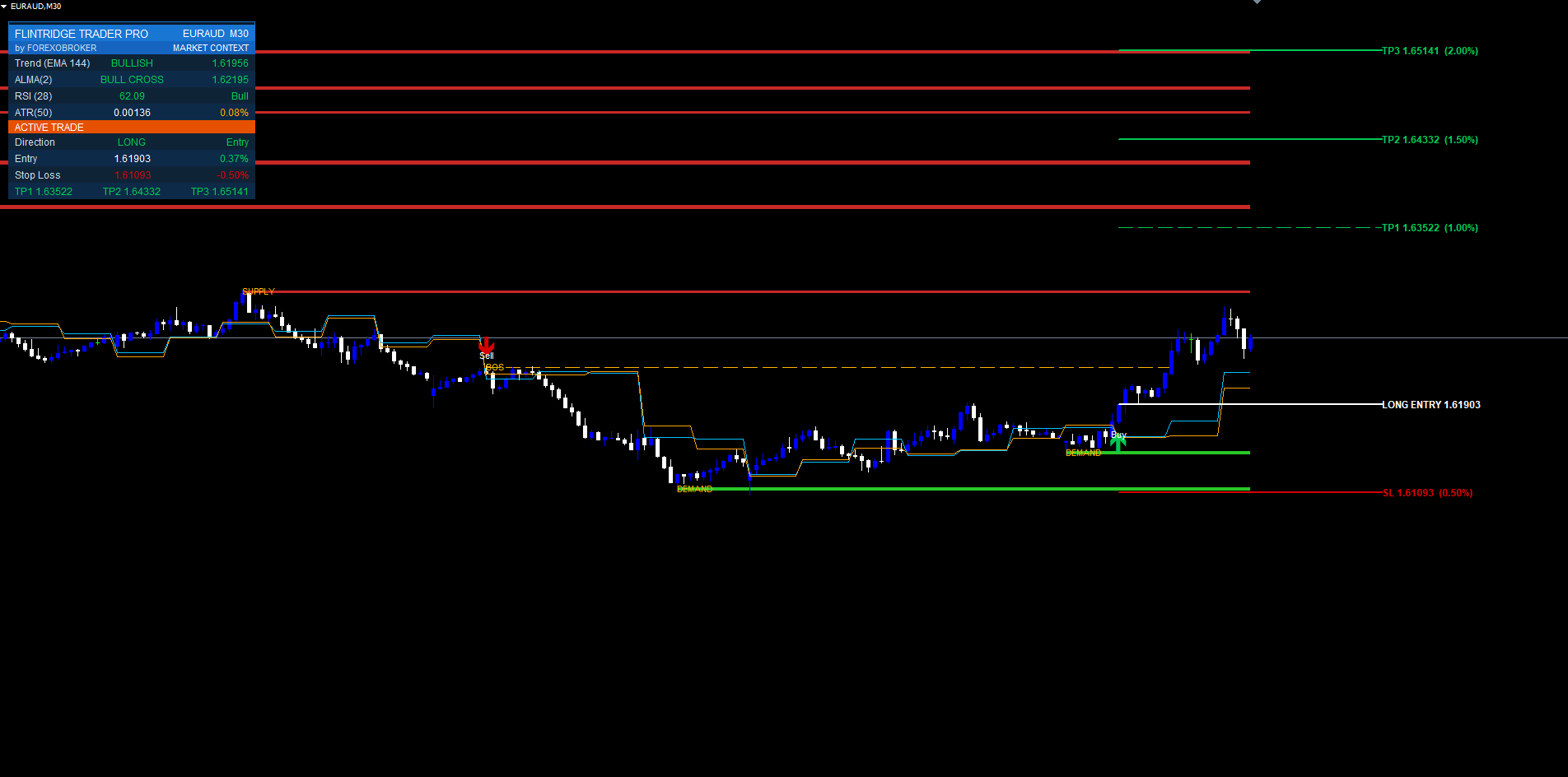
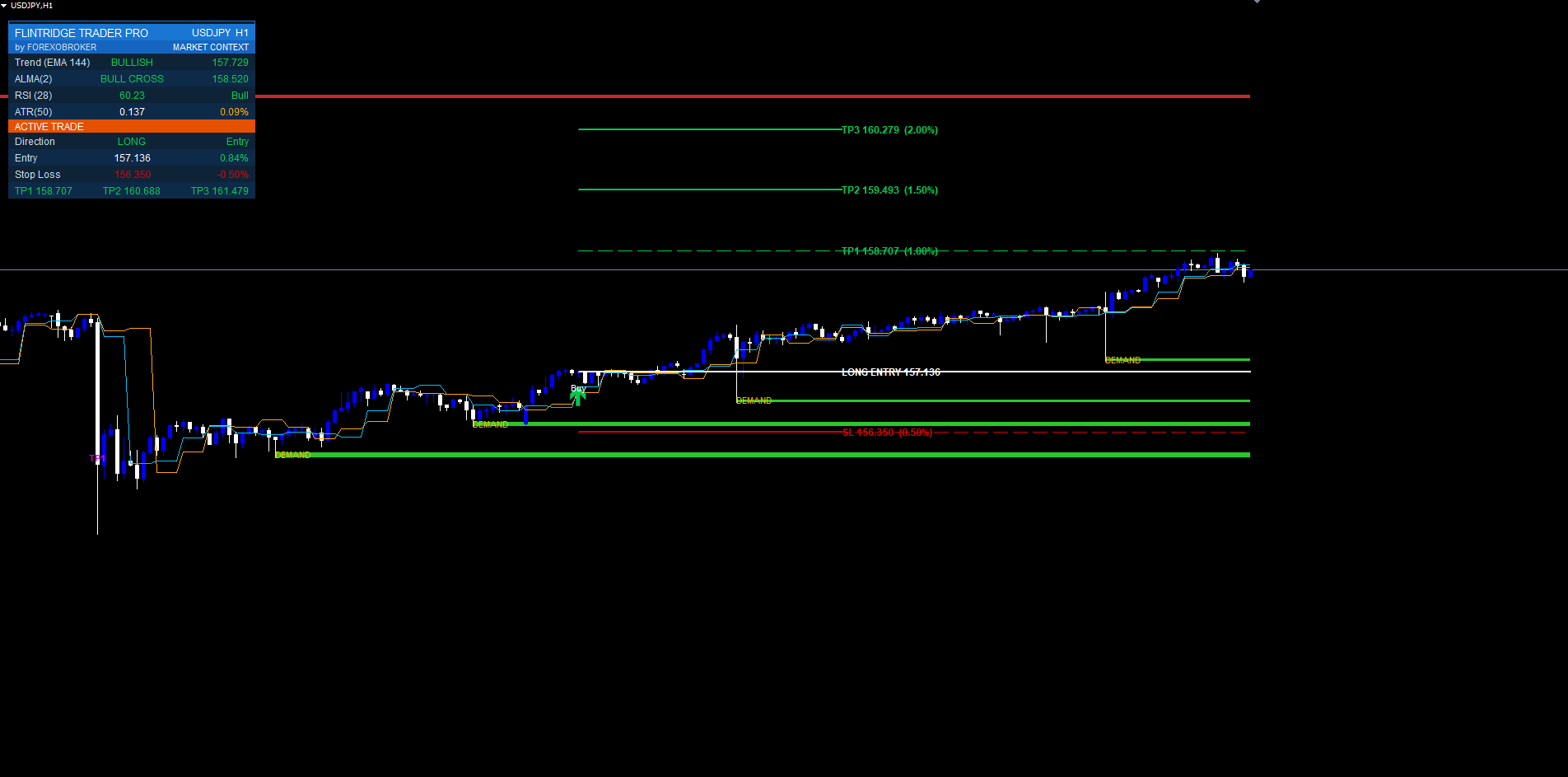
Once attached with default inputs, the indicator immediately draws:
- The EMA-144 trend line running through price (the trend filter reference)
- Swing-based supply zones (bands above price) and demand zones (bands below price), each with a POI midline through its center
- BOS-converted levels where price has broken an old zone — relabeled and recolored to show the flip
- Historical BUY/SELL labels at every confirmed signal in the visible history
- Exit markers ( TP1 HIT / TP2 HIT / TP3 HIT / SL HIT ) on the bars where those events occurred
- The multi-section dashboard in the chosen corner showing live market context and any active trade
If a trade is currently active (the last signal has not yet hit SL or TP3), the chart also shows the entry, SL, and TP1/TP2/TP3 lines projected forward with right-edge price tags, and the dashboard's ACTIVE TRADE section is populated.
If the chart looks cluttered, open the inputs and toggle off the zones, the dashboard, or the SL/TP projection individually.
Reading the Signal Labels
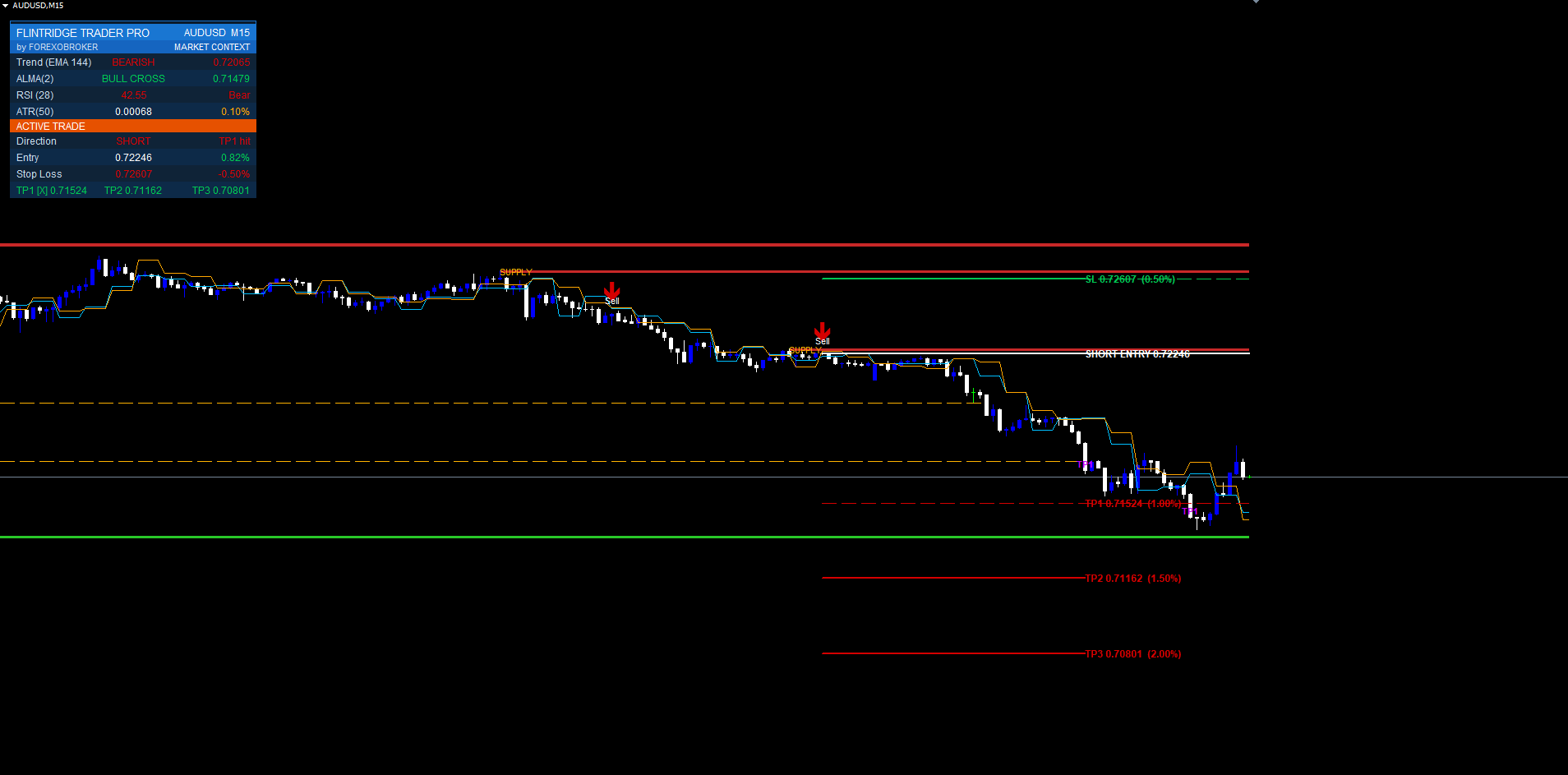
A signal is two elements drawn at the signal bar:
- A Wingdings arrow placed below the bar low (BUY) or above the bar high (SELL), colored to match the trade direction
- A bold text label further from the candle reading BUY or SELL (ASCII only, for full font/locale compatibility)
A signal only prints if it passed every active filter: the close-MA/open-MA crossover fired, the alternate higher-timeframe engine agreed, price was on the correct side of the EMA-144, RSI-28 was not at the blocking extreme, and the signal cooldown had expired. Because of that, every arrow on the chart is a fully filtered, non-repainting entry.
As the trade runs, exit markers appear on the exact bars where each event happened:
- TP1 HIT — price reached the 1.0% first target
- TP2 HIT — price reached the 1.5% second target
- TP3 HIT — price reached the 2.0% third target (trade fully closed)
- SL HIT — price hit the 0.5% stop (trade closed as a loss)
Signal arrows and exit markers stay permanently on the chart so you can scroll back and review every trade the system would have taken. Only the forward-projected SL/TP lines are removed when a trade closes.
Input Parameter Groups
Signal Engine
Controls the multi-MA crossover core.
| Field | Value |
|---|---|
| MA Type | ALMA (default), HullMA, TEMA |
| MA Period | 2 |
| ALMA Sigma | 5 |
| ALMA Offset | 0.85 |
| Use Heikin Ashi Source | false |
| Delay Offset (non-repaint) | 1 |
| Enable Signals | true |
Higher-Timeframe Confirmation
| Field | Value |
|---|---|
| Use Alternate-TF Confirmation | true |
| Higher-TF Multiplier | 8 |
When enabled, a BUY/SELL only prints if the ×8 higher-timeframe copy of the engine agrees with the direction. Disable only if you intend to trade counter-trend deliberately.
Supply / Demand Zones
| Field | Value |
|---|---|
| Swing Length | 10 |
| Zones to Keep | 20 |
| ATR Box Width Factor | 2.5 |
| Show POI Midline | true |
| Auto BOS Conversion | true |
Risk Management
| Field | Value |
|---|---|
| Stop Loss % | 0.5 |
| Take-Profit 1 % | 1.0 |
| Take-Profit 2 % | 1.5 |
| Take-Profit 3 % | 2.0 |
| Project Last Signal (bars) | 40 |
| Show SL/TP Lines | true |
All distances are a percentage of entry price, so the plan is automatically correct on every symbol with no per-instrument retuning.
Accuracy Filters (MetaTrader-only)
| Field | Value |
|---|---|
| Use EMA-Trend Filter | true |
| EMA-Trend Period | 144 |
| Use RSI Filter | true |
| RSI Period | 28 |
| Signal Cooldown (bars) | 15 |
The EMA filter allows BUYs only above EMA-144 and SELLs only below it. The RSI filter blocks overbought BUYs and oversold SELLs. The cooldown enforces a minimum bar gap between entries.
Dashboard
| Field | Value |
|---|---|
| Show Dashboard | true |
| Dashboard Position | Top Right |
| Font Size | 9 |
| Margin (px) | 10 |
| Offset X (px) | 0 |
| Offset Y (px) | 20 |
| Column Width (px) | 140 |
Alerts
| Field | Value |
|---|---|
| Master Alerts Enable | true |
| Popup Alerts | true |
| Email Alerts | false |
| Push Notifications | false |
| Alert on BUY/SELL | true |
| Alert on Any Entry | false |
| Alert on TP1/TP2/TP3 Hit | true |
| Alert on SL Hit | true |
| Alert on Any Exit | false |
Misc
| Field | Value |
|---|---|
| Object Prefix | FTP_ |
| Max History Bars | 3000 |
Every input is range-validated in OnInit. A value outside its permitted range fails initialization with INIT_PARAMETERS_INCORRECT , preventing accidental misuse.
Reading the Dashboard
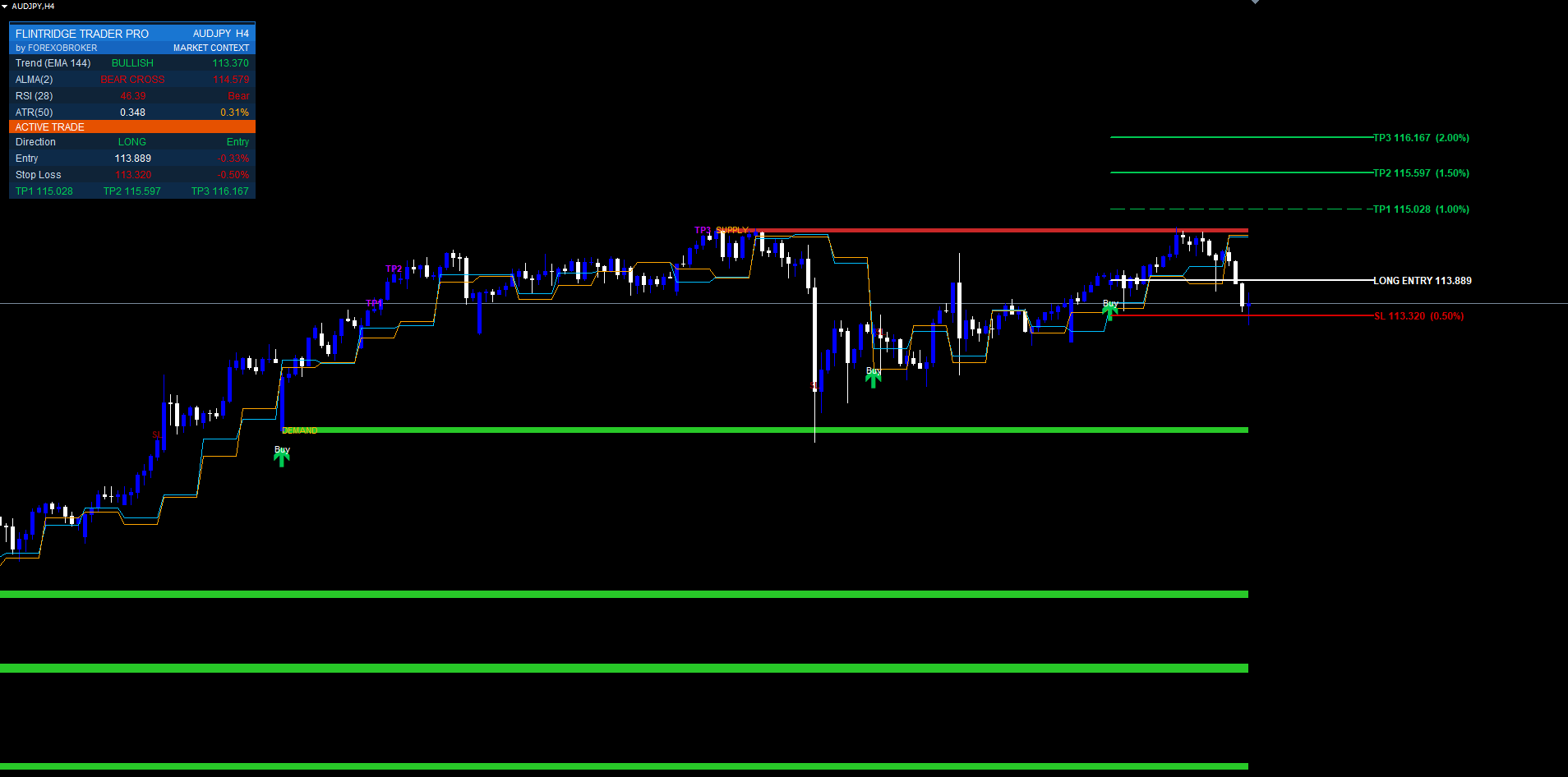
The dashboard has three sections.
Header — FLINTRIDGE TRADER PRO brand title, by FOREXOBROKER , and the current symbol with its timeframe.
MARKET CONTEXT — four live readouts:
- EMA-144 Trend — BULLISH (price above EMA-144) or BEARISH (below), colored. Tells you which direction the trend filter is currently allowing.
- MA-Cross — the live close-MA vs open-MA state, so you can watch a signal build before it confirms.
- RSI-28 — the current RSI value and state (OB / OS / Neutral). Tells you whether the exhaustion filter is currently blocking a direction.
- ATR-50 — the 50-period ATR, the volatility context that scales zone widths.
ACTIVE TRADE — populated only when a trade is live:
- Direction — LONG / SHORT / WAITING
- Entry — the entry price
- Live P&L % — open profit/loss as a percentage of entry, updated every tick
- SL — the stop-loss price
- TP1 / TP2 / TP3 — the three targets, each gaining a hit tick ( * ) once reached
The dashboard updates every tick. The MARKET CONTEXT section is the most useful for anticipating signals — when EMA-144 Trend is BULLISH, MA-Cross is turning up, and RSI-28 is Neutral, conditions favor an imminent BUY.
To reposition, change Dashboard Position to one of the six corners, then nudge with Offset X / Offset Y. The default Offset Y of 20 keeps it below the symbol/timeframe toolbar area.
Configuring Alerts
Alerts are delivered through three independent channels, each gated by the Master Alerts Enable switch plus its own channel toggle.
Popup Alerts
The simplest channel. With Popup Alerts = true, every enabled event produces a MetaTrader popup dialog. Best for active sessions at your computer.
Push Notifications (MetaTrader Mobile App)
- Install the MetaTrader mobile app (iOS or Android)
- In the app, go to Settings ▸ Chat and Messages and note your MetaQuotes ID
- In desktop MetaTrader, go to Tools ▸ Options ▸ Notifications
- Tick Enable Push Notifications and paste your MetaQuotes ID
- In the indicator inputs, set Push Notifications = true
Push delivers the same message text straight to your phone's lock screen.
Email Alerts
- In MetaTrader, go to Tools ▸ Options ▸ Email
- Tick Enable and configure your SMTP server, sender, recipient, and credentials
- Click Test to confirm delivery
- In the indicator inputs, set Email Alerts = true
Email is slower (typically 5–30 s of SMTP latency) but useful for archival and downstream automation.
Event Categories
Within those channels, each event category is independently switchable:
- Alert on BUY/SELL — entry signals (the main event)
- Alert on Any Entry — one combined toggle for any BUY or SELL
- Alert on TP1/TP2/TP3 Hit — trade-management progress
- Alert on SL Hit — stop hit
- Alert on Any Exit — one combined toggle for any TP or SL
A typical active-trader setup: Popup on, BUY/SELL + TP/SL enabled, the rest off. A typical observer setup: Email channel only, everything enabled.
Alerts are silenced during the initial historical replay when the indicator attaches — only fresh events from new bars after attachment alert — and the same bar can never fire the same alert twice.
Three Preset Strategies
Starting points. Tune from there based on your symbol and timeframe.
Scalping (M1 / M5 majors)
MA Type = HullMA MA Period = 2 Use Heikin Ashi Source = true Use Alternate-TF Confirm = true Higher-TF Multiplier = 8 Signal Cooldown (bars) = 8 EMA-Trend Period = 144 RSI Period = 28 Stop Loss / TP1 / TP2 / TP3 = 0.30% / 0.60% / 0.90% / 1.20%
Fast HullMA with Heikin Ashi smoothing for the cleanest fast signals, tighter percentage targets for fast markets, and all three accuracy filters left on because scalping needs the noise control most.
Swing Trading (M30 / H1 / H4 — default)
(All defaults work well — this is the design target.)
MA Type                    = ALMA
MA Period                  = 2
Use Alternate-TF Confirm   = true
Signal Cooldown (bars)     = 15
Stop Loss / TP1 / TP2 / TP3 = 0.5% / 1.0% / 1.5% / 2.0%
The default configuration. Raise the cooldown or switch to a longer MA period for fewer, stronger signals.
Conservative (H4 / D1 — fewer, stronger setups)
MA Type = TEMA MA Period = 4 Use Alternate-TF Confirm = true Signal Cooldown (bars) = 24 EMA-Trend Period = 144 RSI Period = 28 Stop Loss / TP1 / TP2 / TP3 = 0.7% / 1.5% / 2.5% / 4.0%
Smoother TEMA, a slower MA period, a long cooldown, and wider percentage targets to absorb H4/D1 volatility and catch extended trends.
Troubleshooting
Indicator shows in Navigator but does not attach. Check View ▸ Toolbox ▸ Journal (Ctrl+T). The most common cause is an out-of-range input value — every input is range-validated. Verify periods and percentages are within their permitted ranges.
No signals on the chart. The accuracy filters may be discarding everything in the current regime (e.g., a flat market where price hugs the EMA-144). Confirm enough history is loaded, then temporarily disable the alternate-TF confirmation or the RSI filter to see the raw crossover, and re-enable once you understand what the filters are removing.
Too many signals. Raise the Signal Cooldown, enable the alternate-TF confirmation if off, or switch MA Type to TEMA for smoother behavior.
Zones or BOS levels look wrong. Zones form only on confirmed swings (both sides of the pivot complete). On a fresh chart with little history, scroll back or use a higher timeframe so enough swings exist for the detector.
Dashboard is in the wrong position. Change Dashboard Position to a corner, then nudge with Offset X / Offset Y. The default Offset Y of 20 clears the symbol/timeframe toolbar.
Alerts fire during initial attachment. This should not happen on the current version. If it does, remove and re-add the indicator from the Navigator to pick up the latest Market release.
SL/TP lines disappeared. They are intentionally removed when the trade closes (SL hit or TP3 hit). The signal arrow and exit markers stay. Check the dashboard ACTIVE TRADE section — if it shows WAITING, the trade has closed.
Different signals on MT4 vs MT5. Both builds should produce identical signals at identical bar timestamps. If they differ, verify both are on the same symbol with identical inputs and have refreshed history (right-click chart ▸ Refresh).
Download the indicator:
- MetaTrader 5: Flintridge Trader Pro MT5
- MetaTrader 4: Flintridge Trader Pro MT4
CONTACT & SUPPORT
- Email: info@forexobroker.com
- Questions: Use the Comments section on the product page or send a private message
- Bug Reports: Please include your broker name, account type, and a screenshot
-
✅ All MQL Tools: https://www.mql5.com/en/users/forexobroker/ ✅
--------------------------------------------------------------------------------------------------------------
🏦 **Broker I use**: https://icmarkets.com/?camp=55869
🏦 **Broker For EU Traders I use 1**: https://www.ictrading.com?camp=91414
🏦 **Broker I use 2**: https://one.exnessonelink.com/boarding/sign-up/a/c_thuv62ocfq
💻 **VPS**: https://chocoping.com/processing/aff.php?aff=738
💼 **Companies I use for getting funded**:
Fundednext: https://fundednext.com/?fpr=kestutis39
The5ers: https://www.the5ers.com/?afmc=16kl
FTMO: https://trader.ftmo.com/?affiliates=nRAyOhmFRnEnFdOpdLeh
Risk Disclaimer
Trading foreign exchange and CFDs on margin carries a high level of risk and may not be suitable for all investors. You may sustain a loss exceeding your initial investment. Trend Quorum is a technical analysis tool and does not guarantee profitable trades. Past performance is not indicative of future results. The authors accept no liability for any loss arising from use of the indicator. By using Trend Quorum you acknowledge sole responsibility for your trading decisions.



