HAVEN: Telegram Notifications Connection Guide
This guide provides a step-by-step explanation of how to create a Telegram bot, obtain the necessary IDs, and connect notifications to Haven Expert Advisors in the MetaTrader 5 terminal.
Telegram notifications allow you to quickly receive information about trading events (opening and closing of deals, balance, periodic reports, EA status changes) directly to your phone or computer, eliminating the need to keep the terminal constantly open or regularly check the VPS.
Prerequisites
- Telegram messenger installed (on PC or a mobile device).
- An active MetaTrader 5 trading terminal.
- A Haven Expert Advisor that supports the Telegram Notifications settings block.
- A stable internet connection on the computer or VPS where the terminal is running.
Quick Connection Steps
- Create a Telegram bot via the official @BotFather and copy the Bot Token.
- Prepare your target chat (personal dialogue, private group, or channel).
- Find the exact numeric Chat ID using the utility bot @username_to_id_bot.
- Allow WebRequest requests for https://api.telegram.org in MetaTrader 5 settings.
- Enter the retrieved details into the input parameters of your Haven Expert Advisor.
- Activate the g_tg_enable_notifications switch.
- Check the Experts tab and wait for the test or first trading notification.
Step 1. Creating a Telegram Bot and Obtaining the Bot Token
All Telegram bots are created through a single official tool.
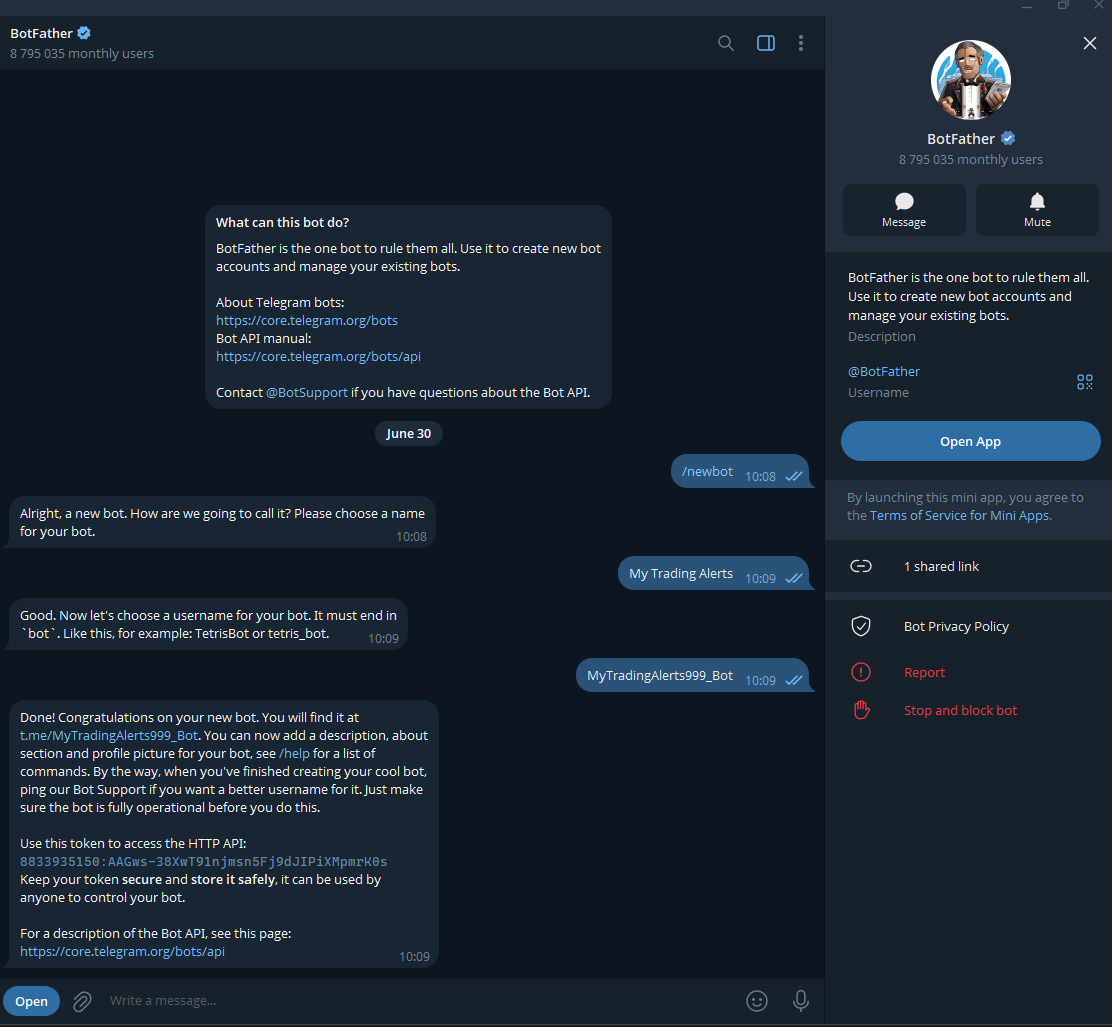
- Open Telegram and type in the search bar: @BotFather (look for the blue verification checkmark, avoid fakes). Click the Start button.
- Send the following command to the chat:
| /newbot |
- The bot will ask you to enter a name (Name) for your robot. This is the visible display name that will show up in the chat header. Write any name you like, for example:
| My Trading Alerts |
- Next, you need to enter a username (Username) for the bot. This is its unique handle in Telegram. The username must be written in Latin characters and must end with the word 'bot'. For example:
| MyTradingAlerts_Bot |
- If the username is taken, try another one. Upon successful creation, @BotFather will send a final message containing your Bot Token (a long alphanumeric string like 1234567890:AAExampleTokenExampleToken).
Copy this token completely. It will be required for the EA configuration in the g_tg_bot_token parameter.
Step 2. Preparing the Chat for Notifications
Decide on your preferred format for receiving messages and follow the corresponding action:
- Option A. Direct chat with the bot (only for you): Click the link of your newly created bot (provided by @BotFather, resembling t.me/YourBot). Press the Start button and send any text message to it (e.g., test). Without this initial step, Telegram prevents bots from sending unsolicited messages to users.
- Option B. Group (if notifications are needed for a team or investors): Create a standard Telegram group (or open an existing one) and add your created bot to the member list through settings. Make sure to send a message to the group.
- Option C. Channel (for broadcasting signals/reports to an audience): Create a channel, open administrators management, add your bot, and make sure to grant it the 'Post Messages' permission.
Step 3. Obtaining the Chat ID via @username_to_id_bot
To ensure the EA knows which exact chat window to send messages to, it needs a unique internal identifier — the Chat ID.
- Find the specialized service bot @username_to_id_bot in Telegram search and run it (click the Start button).
- Obtaining a personal ID: As soon as you click start, the bot will immediately reply with your personal profile ID.
- Obtaining a group or channel ID: Locate any text message you (or any other member) wrote in your target group or channel, right-click it (or long-press on mobile), and choose Forward. Send this forwarded message to @username_to_id_bot.
- In response, the bot will send the exact ID of that chat.
Important: For channels and public groups, the numeric ID always begins with a minus sign (e.g., -1001234567890). Copy it entirely, including the minus sign. This is the value you will paste into the EA's g_tg_chat_id parameter.
| 🛑 WARNING! IT IS STRICTLY FORBIDDEN TO SHARE YOUR BOT TOKEN AND CHAT ID WITH THIRD PARTIES OR PUBLISH THEM OPENLY (ON FORUMS, IN CHATS, OR ON SCREENSHOTS). ANYONE WHO OBTAINS ACCESS TO THIS COMBINATION CAN SEND SPAM, MALICIOUS LINKS, AND SCAM SCHEMES ON BEHALF OF YOUR BOT TO YOUR PERSONAL CHATS, GROUPS, OR CHANNELS. |
Step 4. Configuring WebRequest in MetaTrader 5
By default, the trading terminal blocks any EA attempts to communicate with third-party websites on the internet due to security reasons. We need to whitelist the Telegram servers.
- Open MetaTrader 5.
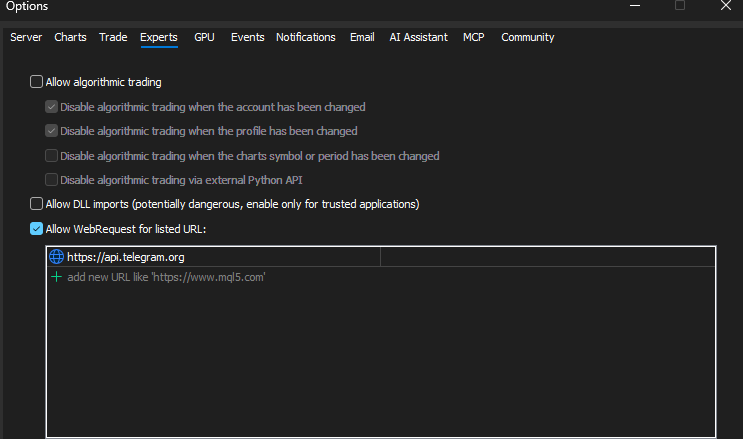
- In the top menu, go to: Tools -> Options -> Expert Advisors tab.
- Check the box next to 'Allow WebRequest for listed URL'.
- Double-click 'Add new URL' (+ Add new URL) and carefully enter the address with no typos:
- Press *Enter*, then click OK to save settings.
Step 5. Configuring the Haven EA's Input Parameters
Open the EA's properties on the chart and navigate to the input parameters (Inputs). Find the dedicated Telegram Notifications section and fill it in as follows:
| Parameter | Type / Value | What to specify |
|---|---|---|
| g_tg_enable_notifications | true | Activates the notification module. |
| g_tg_bot_token | string (text) | Your unique token from Step 1 ( 123456... ). |
| g_tg_chat_id | string (text) | The numeric Chat ID from Step 3 (including the minus sign for channels/groups). |
| g_tg_thread_id | string (text) | Leave blank. This is strictly used if you are sending notifications to a group with the 'Topics' (Forum Threads) feature enabled to point to a specific thread. |
| g_tg_filter_by_magic | true / false | Highly recommended to be set to true. The module will only send notifications for orders initiated by this EA. If set to false, the bot will send notifications for absolutely all trades on the account, including manual trades and trades from other EAs. |

Step 6. Verifying Correct Startup
After clicking 'OK' in the EA's parameters, make sure to open the Experts tab in the Toolbox panel (at the bottom of the MT5 terminal) and examine the system logs.
- Successful start: You will see the line:
[TELEGRAM] Telegram Notifier: Initialized. Notifications enabled. — this means your details are correct, the syntax is valid, and the module is ready to operate. - Terminal configuration error: The message
[TELEGRAM] Telegram Notifier: WebRequest not allowed in Terminal settings indicates that you forgot to perform Step 4 or made a typo in the site URL. - Blank fields: The log
[TELEGRAM] Telegram Notifier: Please fill in 'bot_token' and/or 'chat_id' in the EA input parameters... means you forgot to copy and paste the values into the EA's settings.

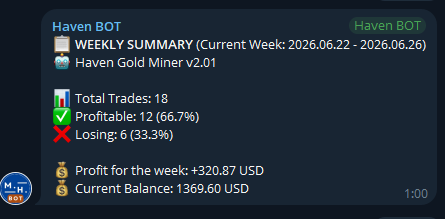
Setup Result: Example of a Completed Notification
Congratulations, the setup is complete! Now, as soon as the Haven EA executes a trade, secures profit, closes a grid of orders, or compiles daily statistics, an informative message with transaction details will instantly arrive in your Telegram.

Troubleshooting and FAQs
1. The MT5 log says 'Initialized', but no messages are sent to the chat
- Cause: You probably haven't clicked the Start button inside the bot itself (Step 2, Option A) or you forgot to grant the bot administrator privileges to post messages (if utilizing a channel). Telegram blocks the delivery.
- Solution: Send a direct message to your bot or check its permissions in the channel, then restart the EA.
2. Messages are arriving, but not for all orders on the account
- Cause: You have the parameter g_tg_filter_by_magic = true enabled.
- Solution: This is a standard protective configuration of Haven EAs to avoid spamming you with irrelevant details. If seeing manual trading or other utilities' trades in this chat is critical for you, switch this parameter to false.
3. Authorization error in the terminal logs after sending a request
- Cause: The Bot Token or Chat ID was copied incorrectly. Missing just one character or adding an extra space at the beginning or end of the string will cause this error.
- Solution: Copy the token again from @BotFather and the ID from @username_to_id_bot, completely clear the input fields, and carefully paste them into the parameters. When copying a channel ID, do not forget the minus sign ( - ).
4. The @username_to_id_bot robot outputs my personal profile ID instead of the group ID
- Cause: You simply sent a direct text message to the bot or sent a link to the group.
- Solution: You need to open the group itself, find any message inside, click the Forward button, and forward it directly to @username_to_id_bot. The bot reads the source chat parameters only through message forwarding.
Quick Verification Checklist
Verify that your minimum operational parameter configuration looks like this:
| g_tg_enable_notifications = true |
And inside MT5 settings ( Tools -> Options -> Expert Advisors ) the following URL must be added: https://api.telegram.org .