Chart Manager — Multi-Window Layout Tool for MetaTrader 5

This article provides a detailed overview of Chart Manager — an application for MetaTrader 5 that automatically arranges detached chart windows around the terminal in a flexible grid. You will learn how to set up a workspace for multi-symbol trading, work with SubCharts mini-charts, and manage chart properties — all in one application.
Contents
1. Introduction
If you trade multiple instruments simultaneously, you have likely faced the same problem: detached chart windows in MetaTrader 5 need to be manually dragged, resized, and aligned next to the terminal. Add a new symbol or change the number of charts — and the entire arrangement has to be redone. This takes time that would be better spent on market analysis.
Chart Manager solves this problem. It is an application for MetaTrader 5 that automatically opens detached chart windows for selected symbols and arranges them around the terminal in a customizable grid. You specify the snap side, the number of columns and rows, gaps — and all windows instantly line up in the desired order. Change any parameter, and the layout updates immediately.
In addition to managing chart window arrangement, Chart Manager includes SubCharts — compact mini-charts in subwindows of the main chart that display different timeframes of the same symbol. This allows you to see a multi-timeframe picture without opening additional charts.
The application is designed for those who do not need indicator signals — just convenient chart arrangement and a quick overview of multiple timeframes. If you need indicator signal monitoring across many symbols, take a look at Symbol Screener by the same author.
The application is built on a custom graphical engine with a high-quality interface:
- Dark and light themes — switch with one click; all interface elements adapt automatically.
- Resizable windows — window sizes can be changed, and content automatically adapts to new dimensions.
- Grab-and-scroll — scroll elements by dragging anywhere within the window area, just like on smartphones.
- High-quality graphics — smooth rendering of all controls with rounded forms.
- DPI-aware scaling — the interface scales correctly and looks sharp on screens with any resolution.
In this article, I will walk you through all the features of Chart Manager and explain how to use it to organize your workspace.
2. Application Overview
Chart Manager consists of several windows, each responsible for its own area of functionality. All windows share a unified design style and work together: changes in one window are instantly reflected in others. Let us examine each of them in detail.
2.1. Main Window
When Chart Manager is launched, a compact main window appears on the chart, serving as the control center of the application. 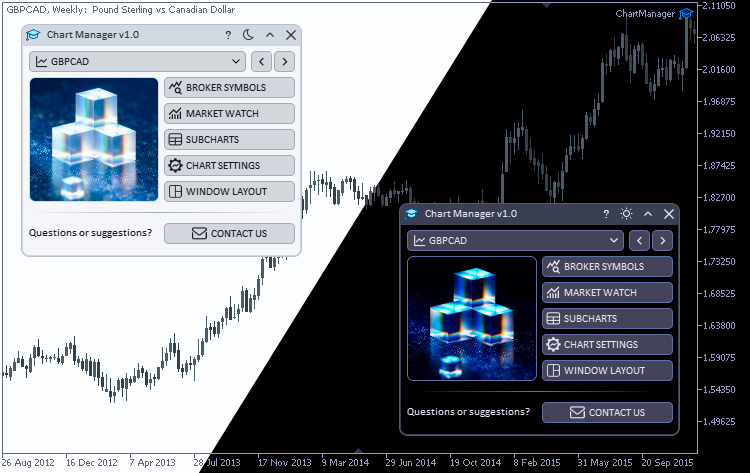
Chart Manager main window in light and dark themes
At the top of the window there is a symbol dropdown list with a chart icon. It contains all symbols from the terminal's Market Watch. To the right of the list are navigation buttons (left/right arrows) that allow you to quickly switch between symbols — the main terminal chart updates automatically.
Below is an image that adapts to the current theme. To the right of it is a block of quick-access buttons for the main application functions:
- BROKER SYMBOLS — opens the window with all available broker symbols.
- MARKET WATCH — opens the window for managing the list of tracked symbols and chart subwindows.
- SUBCHARTS — opens the mini-chart settings window.
- CHART SETTINGS — opens the chart properties settings window.
- WINDOW LAYOUT — opens the window for managing detached window arrangement.
Each button is accompanied by a themed icon that automatically recolors to match the text color of the current theme.
2.2. Broker Symbols Window
The Broker Symbols window provides access to all trading instruments available from the current broker.

Broker Symbols window
At the top of the window there is a control panel:
- Category filter (Path) — a dropdown list with a checkbox that filters symbols by broker groups (e.g., Forex\Major, Crypto, Stocks, etc.). The number of symbols in each group is shown in parentheses next to the group name.
- SPECIFICATION — a button that opens the specification window for the selected symbol, displaying all trading conditions (contract size, tick size, margin, etc.).
- MARKET WATCH — a button for quick navigation to the Market Watch window.
- Add to Market Watch — a toggle that adds the selected symbol to the terminal's Market Watch or removes it.
The SPECIFICATION button opens the Symbol Specifications window with the full specification of the selected trading instrument. At the top of the window there are two buttons:
- OPEN CHART — opens a new chart window with this symbol in the terminal.
- EXPORT CSV — exports all symbol specification data to a CSV file.
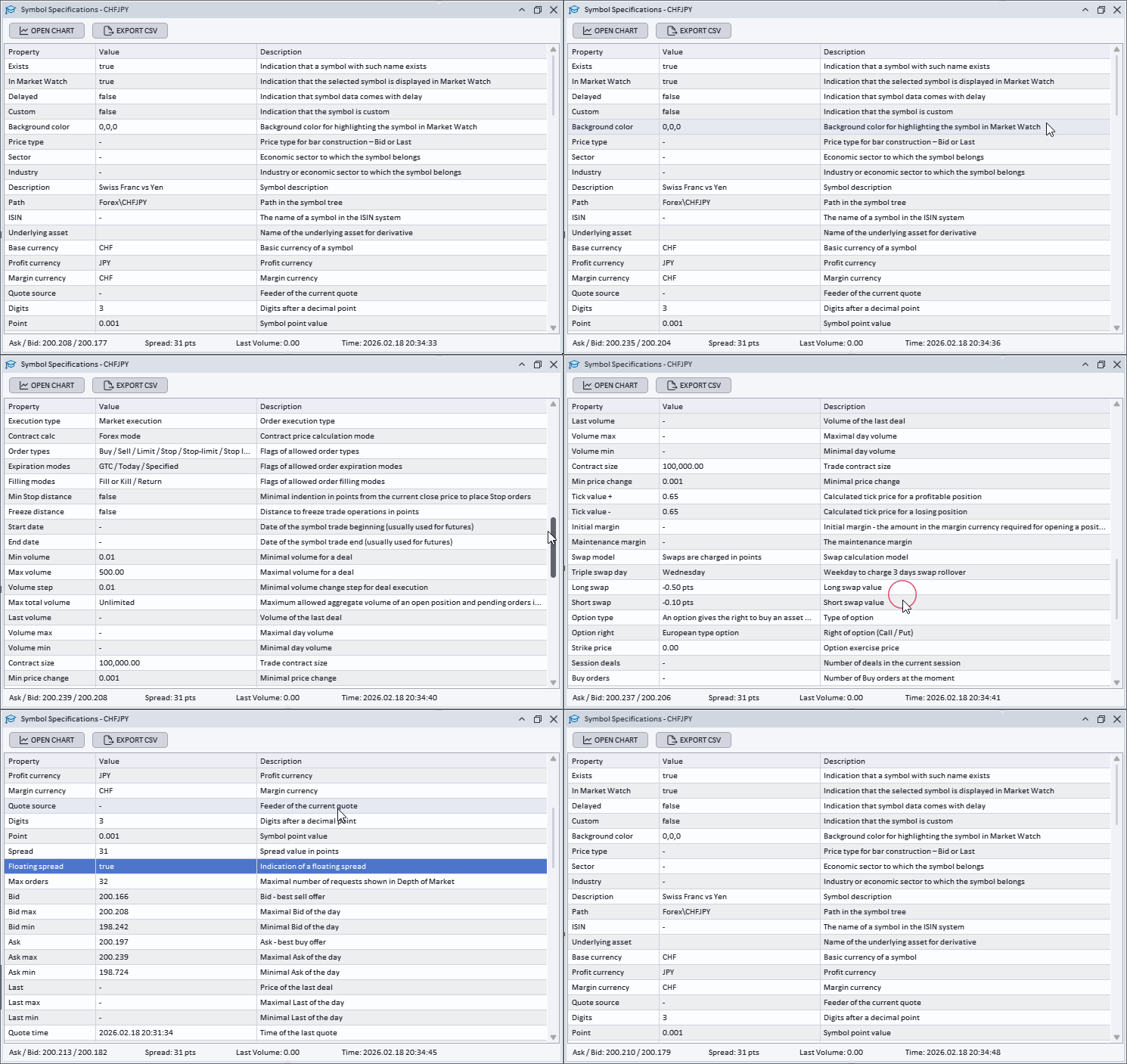
Symbol specification window
The main part of the Broker Symbols window is a table with the following columns:
- Symbol — the symbol name with a checkbox for multiple selection.
- Spread — the current spread.
- Swap Long / Swap Short — swap values.
- Trade Allowed — whether trading is allowed for the symbol.
- Market Watch — whether the symbol is in Market Watch.
- Path — the broker's symbol category.
The set of columns may be expanded in future updates based on user requests.
Symbols that have already been added to Market Watch are highlighted in the table with a distinct color for quick visual identification. The table supports sorting by any column, column width adjustment, and page-by-page navigation via the Pagination element at the bottom of the window.
To add symbols to Market Watch in bulk, check the desired rows and use the toggle — all checked symbols will be added or removed at once.
2.3. Market Watch Window
The Market Watch window is the central place for managing the list of tracked symbols, selecting timeframes, and creating subwindows with mini-charts.
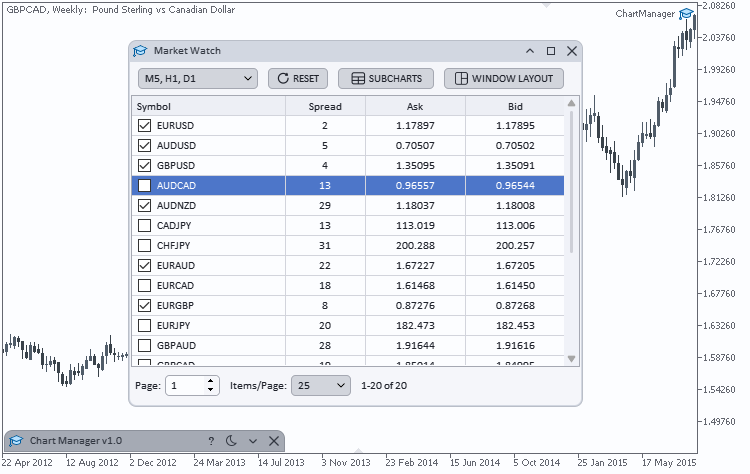
Market Watch window
The top panel contains the following elements:
- Timeframes — a dropdown list with checkboxes for selecting timeframes. Any number of timeframes can be enabled — a separate mini-chart will be created for each one in the symbol's subwindow.
- RESET — clears all checked symbol checkboxes and removes the created subwindows.
- SUBCHARTS — opens the mini-chart settings window.
- WINDOW LAYOUT — opens the detached window arrangement settings.
The main part of the window is a table of symbols from the terminal's Market Watch with the following columns:
- Symbol — the symbol name with a checkbox.
- Spread — the current spread.
- Ask / Bid — current prices.
The table supports two modes for working with subwindows:
- Row selection mode — clicking a row creates a subwindow with mini-charts for the selected symbol. When another symbol is selected, the previous subwindow is replaced with a new one.
- Checkbox mode — when multiple symbols are checked, a separate subwindow is created for each one. All subwindows are displayed simultaneously, allowing you to view charts for several instruments on one screen.
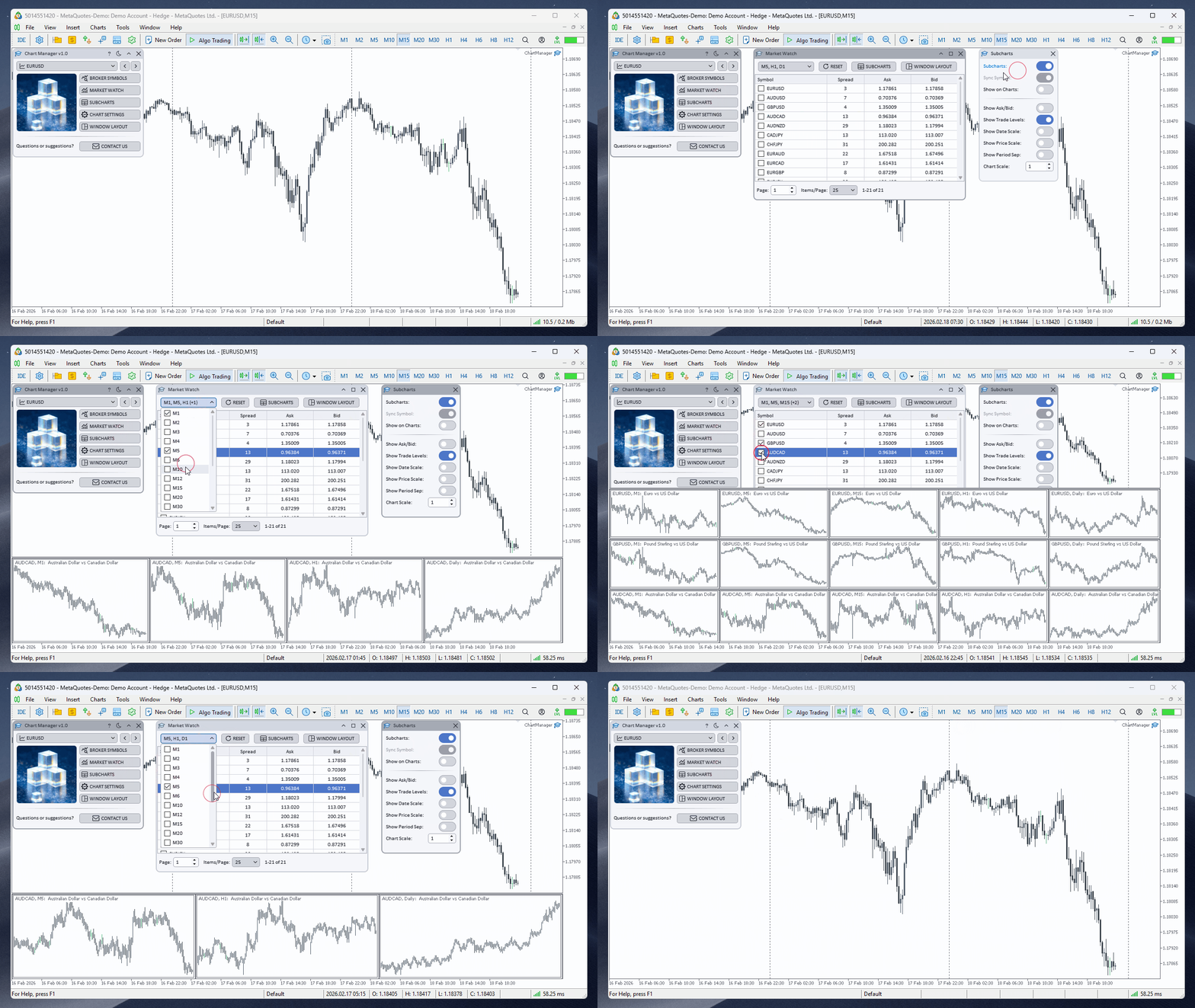
Managing mini-charts in subwindows
Each subwindow displays mini-charts for all timeframes selected in the Timeframes dropdown. When the set of timeframes changes, mini-charts in all subwindows update automatically.
Clicking any mini-chart switches the main terminal chart to the corresponding symbol and timeframe. This provides quick navigation: you see the overall picture across all instruments in the subwindows and switch to detailed analysis or trade execution on the desired symbol with a single click.
At the bottom of the window there is a Pagination element with page-by-page navigation for working with a large number of symbols.
2.4. Subcharts Window
The Subcharts window allows you to manage mini-charts in subwindows and configure their appearance.
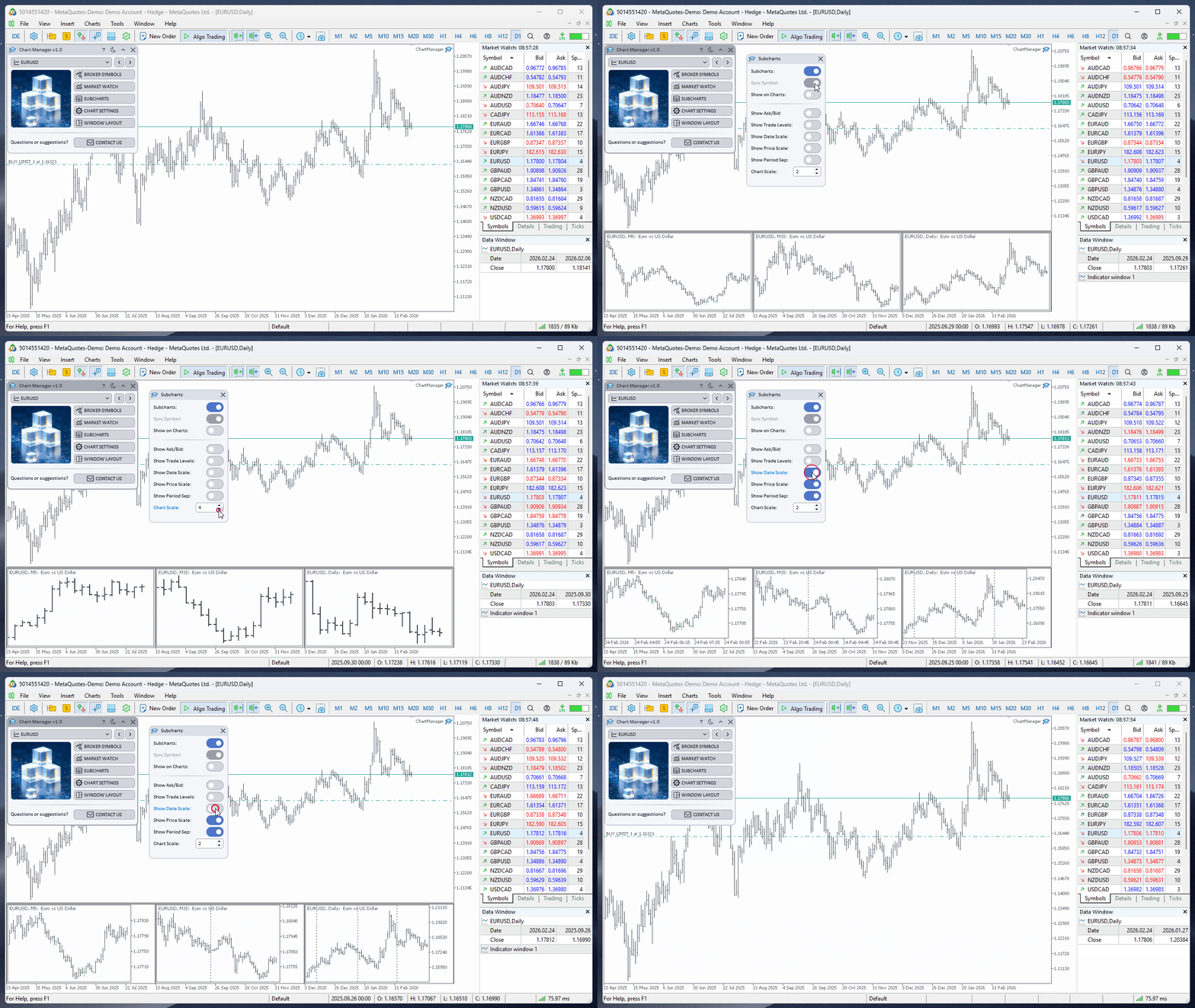
Subcharts window
At the top of the window there are the main toggles:
- Subcharts — the main toggle that enables and disables mini-charts.
- Sync Symbol — synchronizes the mini-chart symbol with the current symbol on the main chart. When active, mini-charts update automatically when the symbol on the main chart changes. Available only when Chart Window Mode is enabled in the Window Layout window.
- Show on Charts — displays mini-charts not only in the main chart's subwindows but also on detached chart windows.
Below are the display settings for mini-chart elements:
- Show Ask/Bid — display Ask and Bid lines.
- Show Trade Levels — display levels of open positions and pending orders.
- Show Date Scale — show the date scale.
- Show Price Scale — show the price scale.
- Show Period Sep — show period separators.
- Chart Scale — mini-chart scale (from 0 to 5).
Changes are applied instantly to all mini-charts. If Show on Charts is active, settings also apply to mini-charts on detached windows. All parameters are saved automatically and restored on the next application launch.
2.5. Window Layout
The Window Layout window is the key feature of Chart Manager. This is where you configure the automatic arrangement of detached chart windows around the terminal.
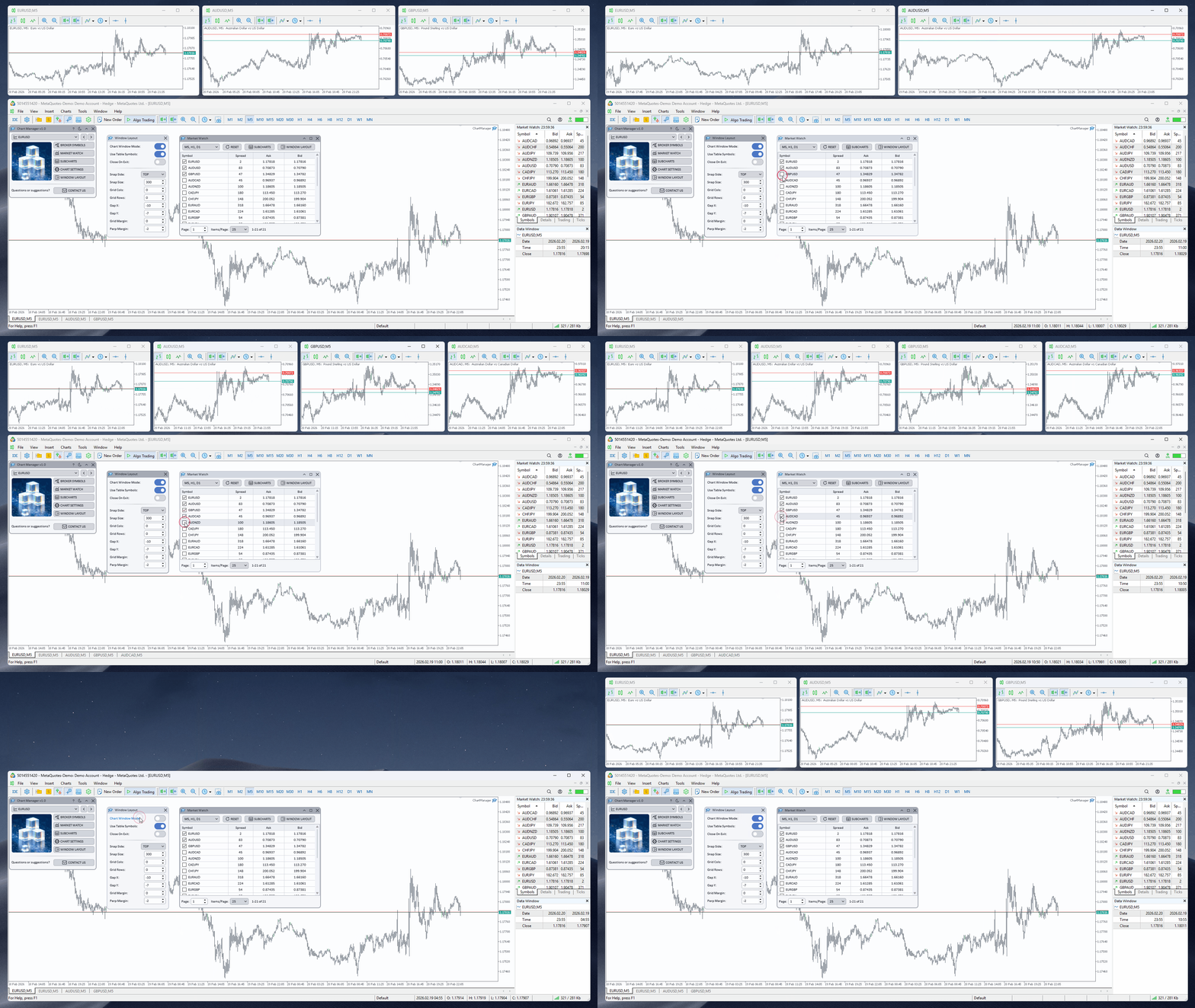
Window Layout window
At the top of the window there are three toggles:
- Chart Window Mode — the main toggle. When enabled, the application automatically opens detached chart windows for the selected symbols and arranges them in a grid next to the terminal. When disabled, windows are closed or undocked (depending on the Close on Exit setting).
- Use Table Symbols — links window creation to the symbol list in the Market Watch table. When active, chart windows are created automatically for all symbols checked in the table. Add or remove a symbol — the window appears or disappears.
- Close on Exit — determines behavior when Chart Window Mode is turned off. When active, all detached windows are closed. When inactive, windows remain on screen but are no longer managed by the application.
Below are the grid parameters:
- Snap Side — the side where windows are snapped to the terminal. Four options are available: Right, Left, Top, and Bottom. Chart windows are placed on the selected side of the terminal window.
- Snap Size — the width (for Left/Right) or height (for Top/Bottom) of the area occupied by chart windows. Specified in pixels. The larger the value, the more screen space is allocated to charts.
- Grid Cols — the number of columns in the grid. When set to 0, the number is calculated automatically based on the number of symbols.
- Grid Rows — the number of rows in the grid. When set to 0, the number is calculated automatically.
- Gap X — the horizontal gap between chart windows in pixels. Can be negative to make windows overlap.
- Gap Y — the vertical gap between chart windows. Can also be negative.
- Grid Margin — the margin of the entire grid from the terminal edge (on the snap side).
- Perp Margin — the grid margin from the perpendicular edge of the terminal window.
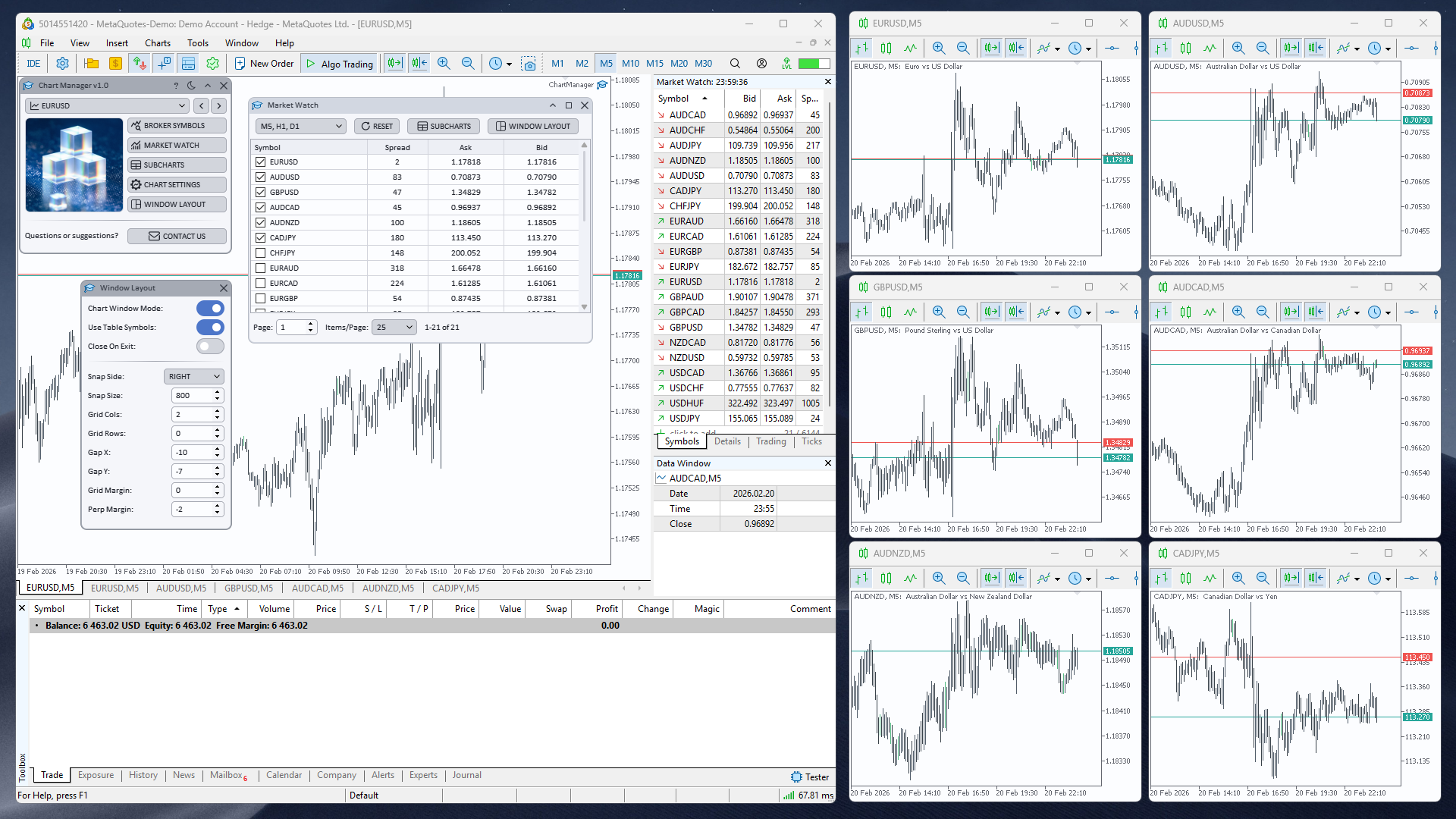
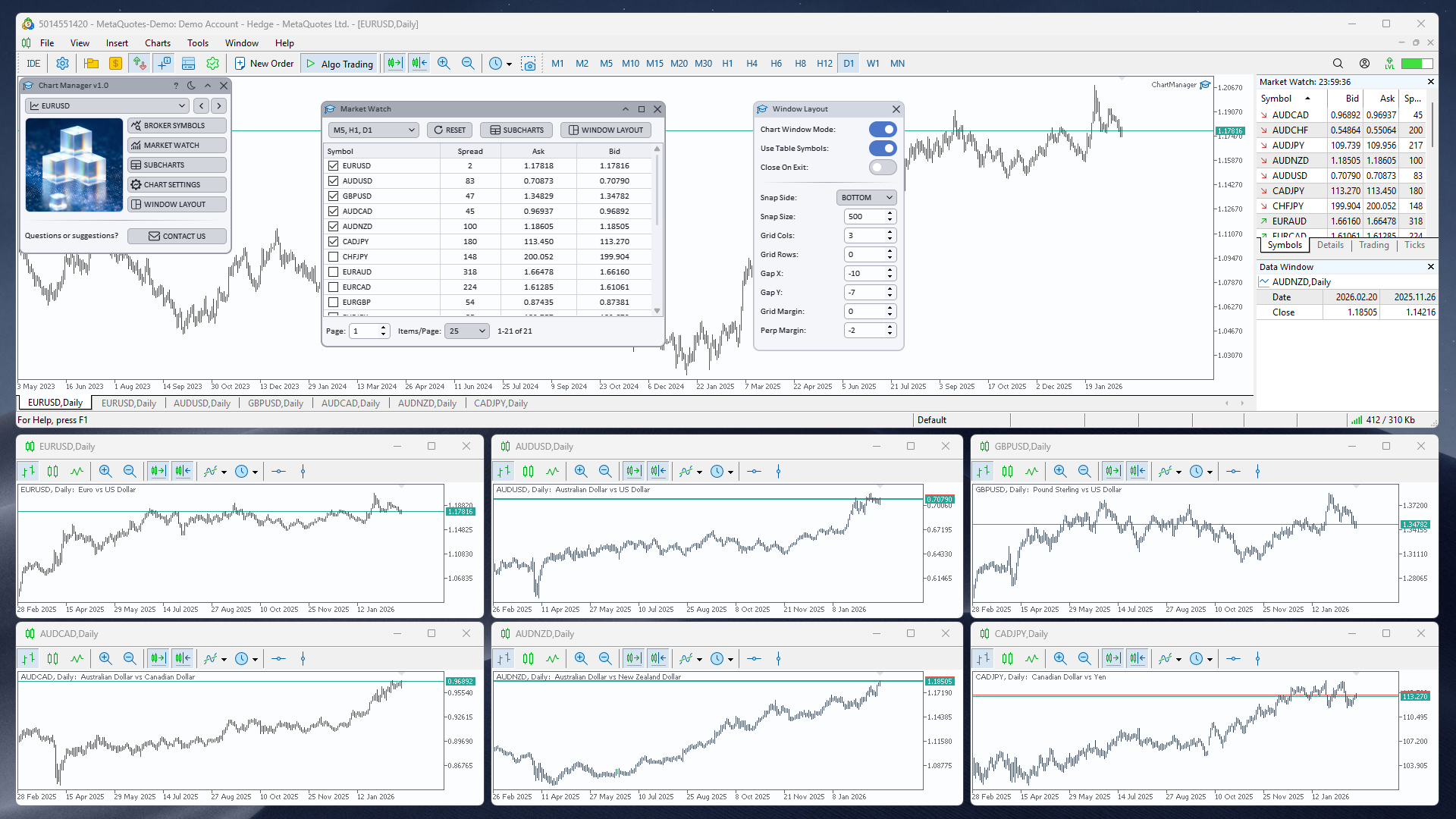
Example of different grid configuration (Right)
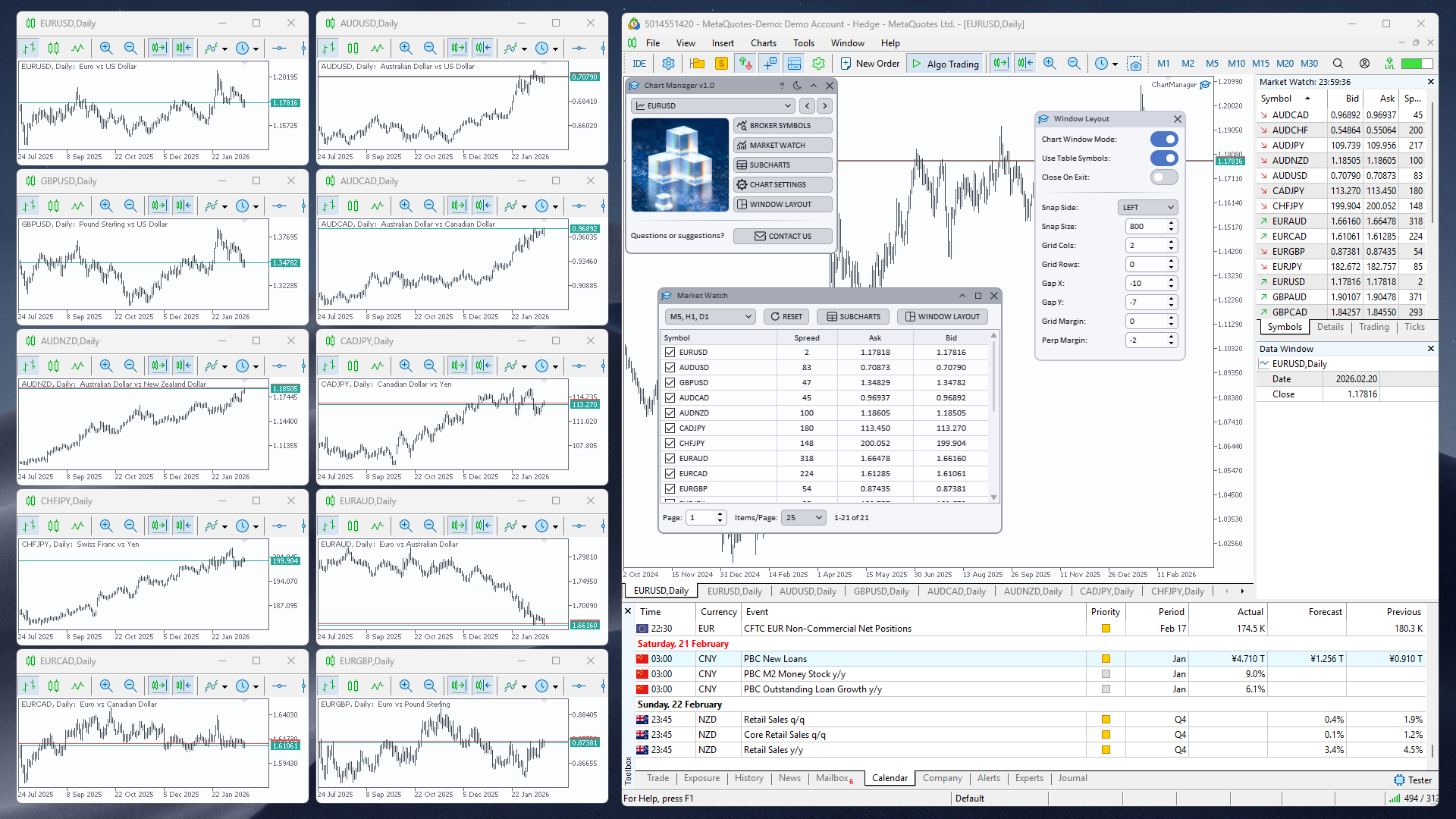
Example of different grid configuration (Bottom)
Example of different grid configuration (Left)
All parameters are applied instantly: change a value in the input field — and the window arrangement updates immediately. This lets you find the optimal configuration by experimenting and seeing the result right away.
Typical usage scenarios:
- Charts to the right of the terminal — the classic option: terminal on the left, charts in a grid on the right. Convenient for widescreen monitors.
- Charts below — the terminal occupies the top of the screen, charts are arranged in a horizontal strip below. Suitable for high-resolution monitors.
- Minimal gaps — set Gap X and Gap Y to negative values so windows sit tightly together or slightly overlap, making maximum use of screen space.
2.6. Chart Settings Window
The Chart Settings window allows you to configure chart display properties and apply them to the main chart and/or detached windows.
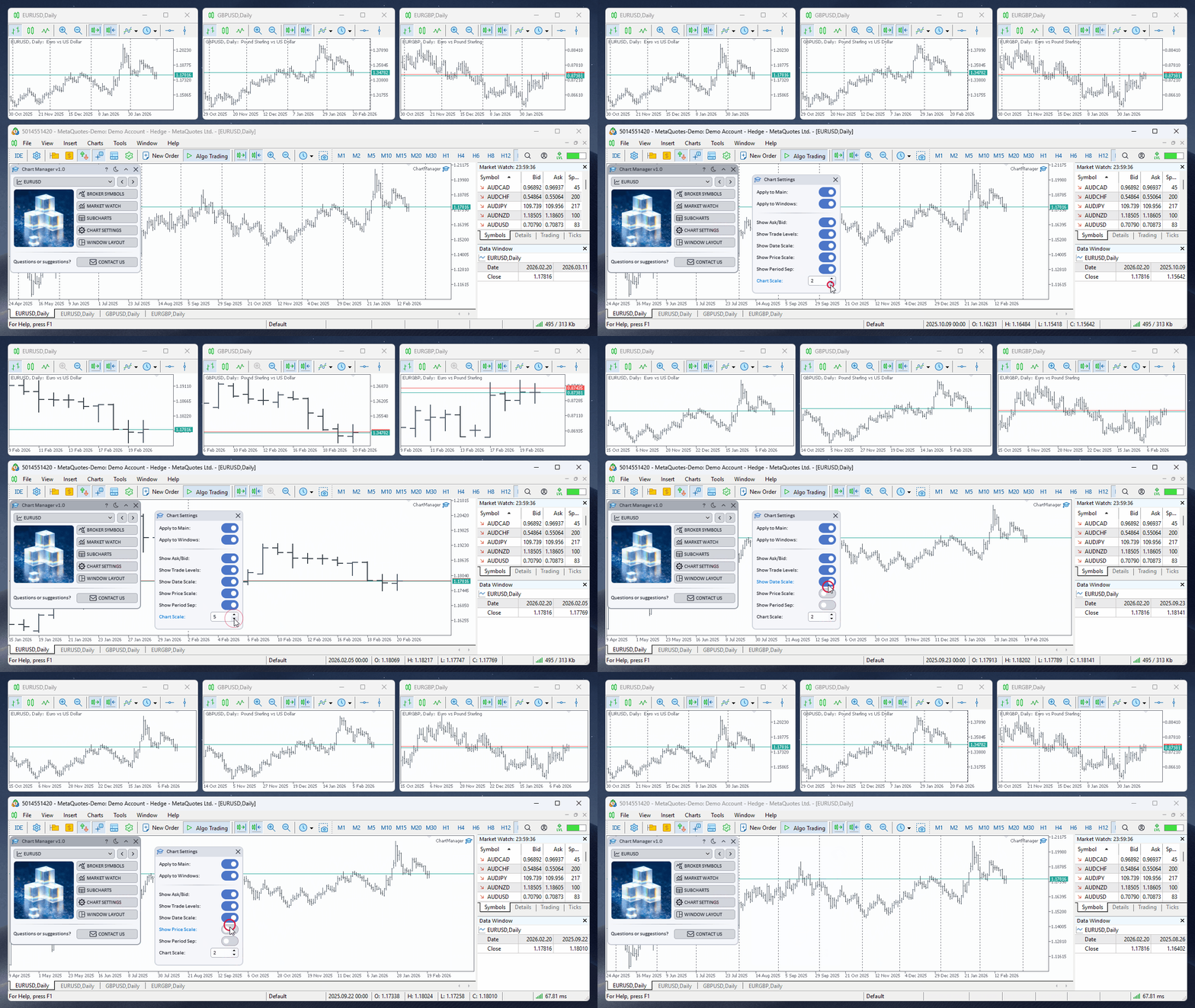
Chart Settings window
At the top of the window there are two scope toggles:
- Apply to Main — apply settings to the main terminal chart.
- Apply to Windows — apply settings to all detached chart windows.
Both toggles can be activated simultaneously so that settings apply to both the main chart and all detached windows.
Below are the chart properties:
- Show Ask/Bid — display Ask and Bid lines.
- Show Trade Levels — display levels of open positions and pending orders.
- Show Date Scale — show the date scale.
- Show Price Scale — show the price scale.
- Show Period Sep — show period separators.
- Chart Scale — chart scale (from 0 to 5).
Changes are applied instantly. This is convenient when you need to quickly bring all charts to a uniform look — for example, hide the date and price scales on all detached windows to save space, or enable trade levels on the main chart.
3. How to Use
Below is the installation procedure and instructions for setting up SubCharts mini-charts on detached windows.
3.1. Installation and Launch
The application is available in the MQL5 Market: Chart Manager. After downloading, Chart Manager will automatically appear in the terminal's navigator: Navigator → Expert Advisors → Market. Drag Chart Manager onto any chart or double-click it. The main application window will appear on the chart, ready to use.
3.2. Working with SubCharts
SubCharts create mini-charts in the main chart's subwindows, displaying different timeframes of the same symbol. Combined with detached windows, this provides a multi-timeframe overview for each instrument.
- Open the Subcharts window from the main window and enable the Subcharts toggle.
- In the Market Watch window, select timeframes in the Timeframes dropdown.
- Open the Window Layout window and enable Chart Window Mode — the application will create detached chart windows for the checked symbols.
- Check symbols with checkboxes — a subwindow with mini-charts will be created for each symbol.
- In the Subcharts window, enable Show on Charts — mini-charts will appear not only in the main chart's subwindows but also on each detached window.
- Enable Sync Symbol so that mini-charts update automatically when the symbol on the main chart changes.
- Adjust the display: show or hide date and price scales, trade levels, Ask/Bid lines.
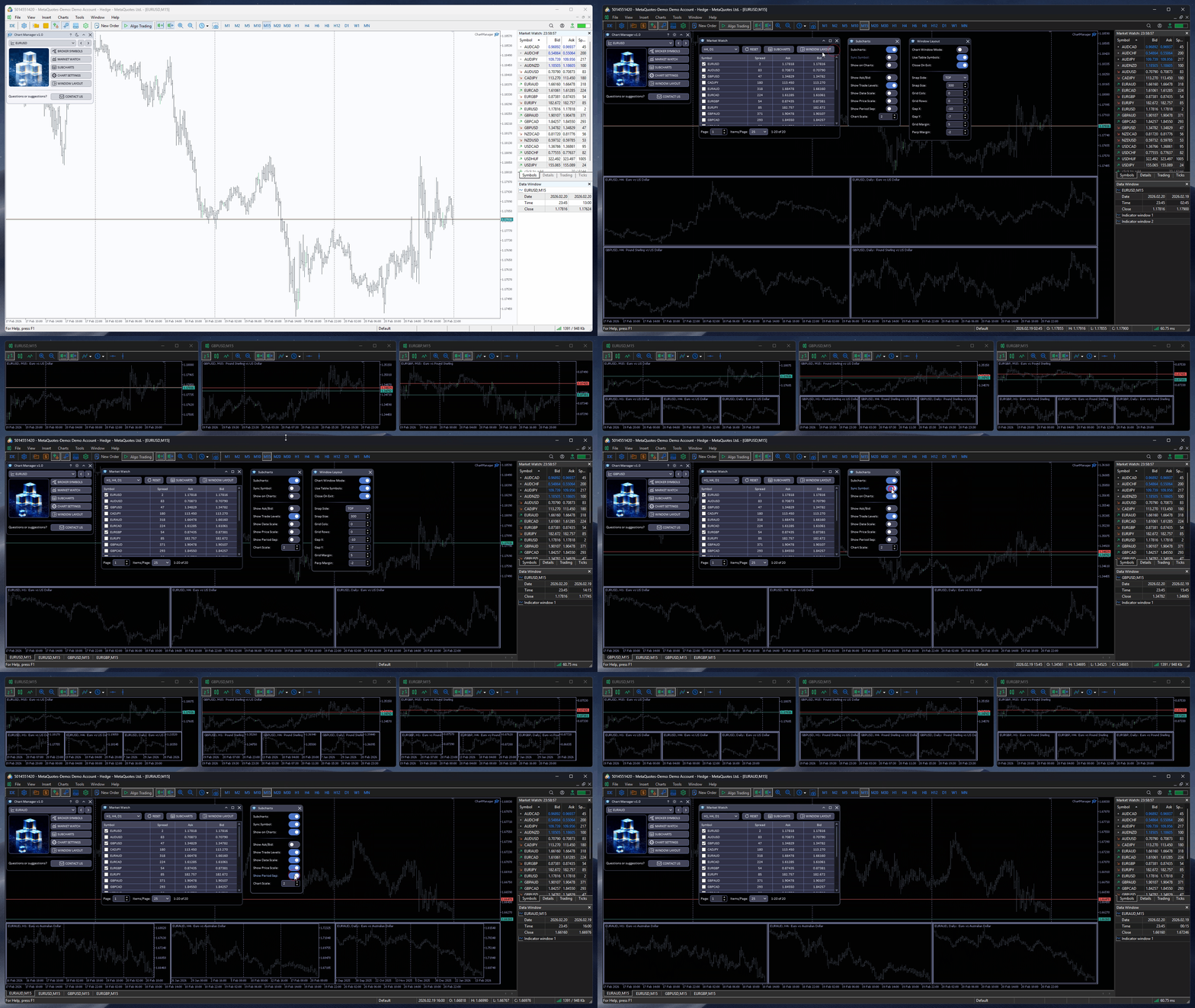
SubCharts on the main chart and on detached windows
Clicking any mini-chart switches the main terminal chart to the corresponding symbol and timeframe, providing instant navigation.
4. Practical Examples
Below are several scenarios that demonstrate how Chart Manager helps in everyday trading.
4.1. Multi-Symbol Trading Workspace
You trade 6–8 currency pairs and want to see their charts simultaneously. Open the Window Layout window, set Snap Side = Right, Grid Cols = 2, Grid Rows = 4. Enable Chart Window Mode and Use Table Symbols. Eight charts will automatically line up in a 2×4 grid to the right of the terminal.
Now add a new symbol to the Market Watch table — its window will appear automatically and the grid will rearrange. Remove a symbol — the window closes. You manage your workspace simply by checking and unchecking boxes in the table.
4.2. Multi-Timeframe Overview with SubCharts
You need to see multiple timeframes for each traded symbol. Enable the Subcharts toggle in the Subcharts window and select timeframes M15, H1, and D1 in the Market Watch window. Enable Show on Charts — and mini-charts with the selected timeframes will appear on each detached chart window.
Now each detached window shows not only the main timeframe of the symbol but also mini-charts of other timeframes right in the subwindows. You get a complete multi-timeframe picture without having to open additional charts manually.
4.3. Rearranging the Layout When Switching Trading Sessions
In the morning you trade the Asian session on JPY pairs; during the day you switch to the European session with EUR/GBP/CHF. Instead of manually rearranging charts, simply change the checked symbols in the Market Watch table — chart windows will automatically close for the old symbols and open for the new ones, and the grid will rearrange.
If different sessions require a different layout (e.g., 3 charts in the morning, 6 during the day), change the Grid Cols and Grid Rows parameters — the arrangement updates instantly. All settings are saved automatically, so the next time you launch the application you will get the same configuration you were working with last time.
5. Conclusion
Chart Manager is a tool that saves time and automates workspace organization in MetaTrader 5. Instead of manually dragging and resizing windows, you get automatic chart arrangement in a customizable grid with instant updates whenever anything changes.
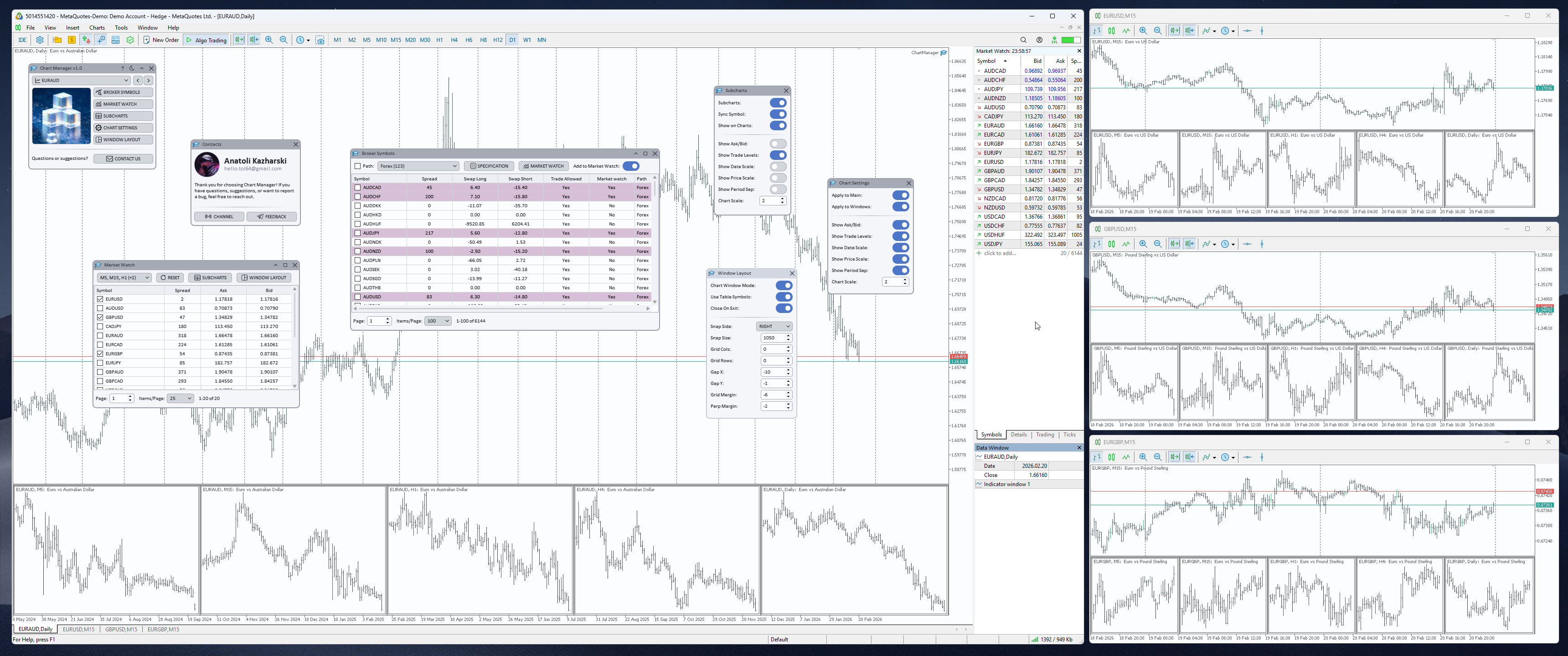
Chart Manager — all application windows on the chart
Key features that make your workflow more efficient:
- Automatic arrangement — detached chart windows are placed around the terminal in a grid with a single toggle.
- Flexible grid settings — snap side, columns, rows, gaps, and area size — changes are applied instantly.
- Linked to the symbol list — windows are created and closed automatically when the tracked symbol list changes.
- SubCharts — mini-charts with different timeframes in subwindows, with the option to display them on detached windows.
- Unified chart settings — display properties are applied to all charts simultaneously.
- Instant navigation — clicking a mini-chart switches the main chart to the desired symbol and timeframe.
If you also need indicator signal monitoring across many symbols and timeframes, take a look at Symbol Screener — an application by the same author that complements Chart Manager with analytical capabilities.
If you have questions, suggestions, or found a bug — contact me.
Happy trading!