

Building a Prop-Firm Compliance Monitor in MQL5 (Part 1): Account Rules and Persistent Settings
 1 113
1 113
 1
1

Introduction
You are deploying an Expert Advisor to monitor a prop-firm account, and you need it to do more than display balance and equity. It must reliably apply the correct rule set to the correct account even after EA removal, terminal restart, or server changes. In practice, two failures occur frequently: settings are lost or re-entered between runs, and identical numeric logins on different trading servers can cause configuration mix-ups. A third risk is late detection of invalid inputs, such as zero, negative, or oversized percentages and incorrectly ordered thresholds. If these values reach later drawdown calculations, the resulting compliance checks become mathematically unreliable.
Part 1 builds the fail-safe foundation required to eliminate these problems before compliance monitoring begins. We separate volatile runtime measurements from persistent rule configuration, enforce fail-fast input validation, and implement account-specific SQLite persistence keyed by account login and trading server. By the end of this part, the EA can identify the active account, validate its rule configuration before continuing initialization, create or open its SQLite database, and save or synchronize the correct rule set for the current account/server pair. We will confirm each behavior through clear success and failure messages in the Experts log.
Creating the Prop-Firm Guard Foundation
Before the EA can identify accounts, validate rules, or persist settings, it needs a stable application foundation with clearly defined lifecycle and status types. We therefore begin with the minimal Expert Advisor structure, add the required Standard Library dependency, and define the common status vocabulary that later monitoring and protection logic will use.
Creating "PropFirmGuard.mq5"
Create a new Expert Advisor named "PropFirmGuard.mq5" in MetaEditor. Add the EA properties and include the Standard Library trade class:
//+------------------------------------------------------------------+
//|                                                PropFirmGuard.mq5 |
//|                                  Copyright 2026, MetaQuotes Ltd. |
//|                                             https://www.mql5.com |
//+------------------------------------------------------------------+
#property copyright "Copyright 2026, MetaQuotes Ltd."
#property link      "https://www.mql5.com"
#property version   "1.00"

//+------------------------------------------------------------------+
//| Standard Library                                                 |
//+------------------------------------------------------------------+
#include <Trade\Trade.mqh>
CTrade will be required when protective actions are introduced later, so the trade library is included from the beginning.
Add the basic Expert Advisor lifecycle at the end of the file:
//+------------------------------------------------------------------+
//| Expert initialization function                                   |
//+------------------------------------------------------------------+
int OnInit()
  {
   return(INIT_SUCCEEDED);
  }

//+------------------------------------------------------------------+
//| Expert deinitialization function                                 |
//+------------------------------------------------------------------+
void OnDeinit(const int reason)
  {
  }

//+------------------------------------------------------------------+
//| Expert tick function                                             |
//+------------------------------------------------------------------+
void OnTick()
  {
  }
These handlers provide the initial lifecycle without introducing monitoring or persistence logic.
Defining the Required Enumerations
The EA will use named states for compliance conditions, profit-target progress, and protection behavior. Add the following enumerations below the Standard Library include:
//+------------------------------------------------------------------+
//| Enumerations                                                     |
//+------------------------------------------------------------------+
//| Represents the general compliance condition of the account.      |
//+------------------------------------------------------------------+
enum ENUM_COMPLIANCE_STATUS
  {
   COMPLIANCE_SAFE = 0,          // Account is operating within configured limits
   COMPLIANCE_WARNING,           // Account is approaching a compliance limit
   COMPLIANCE_CRITICAL,          // Account is very close to a compliance limit
   COMPLIANCE_BREACHED           // A configured compliance limit has been breached
  };

//+------------------------------------------------------------------+
//| Profit target status                                             |
//+------------------------------------------------------------------+
//| Represents progress toward the configured account profit target. |
//+------------------------------------------------------------------+
enum ENUM_TARGET_STATUS
  {
   TARGET_IN_PROGRESS = 0,       // Target is still being pursued
   TARGET_NEARING,               // At least 90% of the target has been reached
   TARGET_REACHED                // Required target balance has been achieved
  };

//+------------------------------------------------------------------+
//| Protection action                                                |
//+------------------------------------------------------------------+
//| Defines what Prop Firm Guard should do when a monitored rule     |
//| requires protective action.                                      |
//+------------------------------------------------------------------+
enum ENUM_PROTECTION_ACTION
  {
   PROTECTION_WARN_ONLY = 0,     // Report the condition without closing positions
   PROTECTION_CLOSE_AFFECTED,    // Close positions affected by the triggering rule
   PROTECTION_CLOSE_ALL          // Close every open account position
  };
These enumerations define the common status vocabulary used throughout the EA: overall compliance severity, profit-target progress, and the protective action to take when a rule is triggered. Part 1 only declares these states; their logic will be implemented later.
Compile "PropFirmGuard.mq5" in MetaEditor. The file should build successfully with the basic lifecycle and enumeration definitions in place. No runtime test is required yet because the EA does not read account data or perform compliance monitoring.
Defining the Prop-Firm Configuration
With the EA foundation in place, the next requirement is to define the rule set that belongs to the monitored prop-firm account. These values cannot remain as loosely related runtime inputs because they will later need to be validated, associated with a specific account identity, and persisted reliably across restarts. We therefore begin by defining the user-facing Inputs and the account settings structure that will hold the persistent rule configuration.
Adding the Input Groups
Open "PropFirmGuard.mq5" and add the following input block below the enumeration definitions and above the event-handler functions.
//+------------------------------------------------------------------+
//| Inputs                                                           |
//+------------------------------------------------------------------+
input group "General"
input int    InpTimerSeconds            = 1;      // Dashboard update interval in seconds
input int    InpDashboardX              = 10;     // Dashboard horizontal position
input int    InpDashboardY              = 105;    // Dashboard vertical position
input bool   InpEnableAlerts            = true;   // Enable terminal alerts
input bool   InpEnablePushNotifications = false;  // Enable mobile push notifications

input group "Prop Firm Rules"
input double InpInitialAccountBalance  = 20000.0; // Initial prop-firm account balance
input double InpDailyDrawdownPercent   = 5.0;     // Maximum permitted daily drawdown
input double InpOverallDrawdownPercent = 10.0;    // Maximum permitted overall drawdown
input double InpProfitTargetPercent    = 8.0;     // Required profit target

input group "Warning Levels"
input double InpWarningLevelPercent  = 70.0;      // Loss limit usage that triggers warning
input double InpCriticalLevelPercent = 90.0;      // Loss limit usage that triggers critical state

input group "News Filter"
input bool   InpEnableNewsFilter       = true;    // Enable economic news monitoring
input ENUM_CALENDAR_EVENT_IMPORTANCE InpNewsImportance = CALENDAR_IMPORTANCE_HIGH; // Minimum monitored importance
input int    InpMinutesBeforeNews      = 10;      // Restricted minutes before news
input int    InpMinutesAfterNews       = 10;      // Restricted minutes after news
input bool   InpAllowNewsHolding       = true;    // Allow positions to remain open during news

input group "Protection Actions"
input ENUM_PROTECTION_ACTION InpDailyDrawdownAction   = PROTECTION_WARN_ONLY; // Daily breach action
input ENUM_PROTECTION_ACTION InpOverallDrawdownAction = PROTECTION_WARN_ONLY; // Overall breach action
input ENUM_PROTECTION_ACTION InpNewsRestrictionAction = PROTECTION_WARN_ONLY; // News restriction action
The input names and grouping match the final EA configuration. The table below summarizes their purpose.
| Input | Purpose in the EA |
|---|---|
| InpTimerSeconds | Defines the periodic monitoring interval. |
| InpDashboardX | Sets the dashboard horizontal position. |
| InpDashboardY | Sets the dashboard vertical position. |
| InpEnableAlerts | Enables terminal alerts. |
| InpEnablePushNotifications | Enables optional mobile push notifications. |
| InpInitialAccountBalance | Defines the original account balance used by the compliance rules. |
| InpDailyDrawdownPercent | Defines the maximum permitted daily drawdown. |
| InpOverallDrawdownPercent | Defines the maximum permitted overall drawdown. |
| InpProfitTargetPercent | Defines the required account profit target. |
| InpWarningLevelPercent | Defines when loss-limit usage enters the warning state. |
| InpCriticalLevelPercent | Defines when loss-limit usage enters the critical state. |
| InpEnableNewsFilter | Enables Economic Calendar monitoring. |
| InpNewsImportance | Sets the minimum event importance to monitor. |
| InpMinutesBeforeNews | Defines the restricted period before an event. |
| InpMinutesAfterNews | Defines the restricted period after an event. |
| InpAllowNewsHolding | Defines whether affected positions may remain open during a restricted news window. |
| InpDailyDrawdownAction | Selects the response to a daily drawdown breach. |
| InpOverallDrawdownAction | Selects the response to an overall drawdown breach. |
| InpNewsRestrictionAction | Selects the response to an active news restriction. |
Not every input is used in Part 1. The rule percentages and warning thresholds are validated immediately, while the remaining inputs are defined now so the EA keeps a stable long-term configuration as later components are added.
Representing Account Configuration
The input block describes what the user has configured, but persistent storage also needs to identify which trading account owns those rules. For this reason, the EA keeps the main account configuration in an SAccountSettings structure.
Add the following structure below the input block.
//+------------------------------------------------------------------+
//| Account settings structure                                       |
//+------------------------------------------------------------------+
//| Stores the main prop-firm rules associated with this account.    |
//+------------------------------------------------------------------+
struct SAccountSettings
  {
   long     accountLogin;           // Trading account login
   string   accountServer;          // Broker trading server
   double   initialBalance;         // Initial prop-firm account balance
   double   dailyDrawdownPercent;   // Maximum daily drawdown
   double   overallDrawdownPercent; // Maximum overall drawdown
   double   profitTargetPercent;    // Required profit target
   datetime updatedAt;              // Last settings update time
  };
This structure stores the core rule set together with the account identity needed for persistence: the login, trading server, and last update time. The login and server will later be used together to identify the correct settings record in SQLite.
For a quick check, compile the EA and attach it to a chart. Open the Inputs tab and confirm that the five input groups appear with the expected default values and that the protection-action inputs provide their selectable enumeration values.
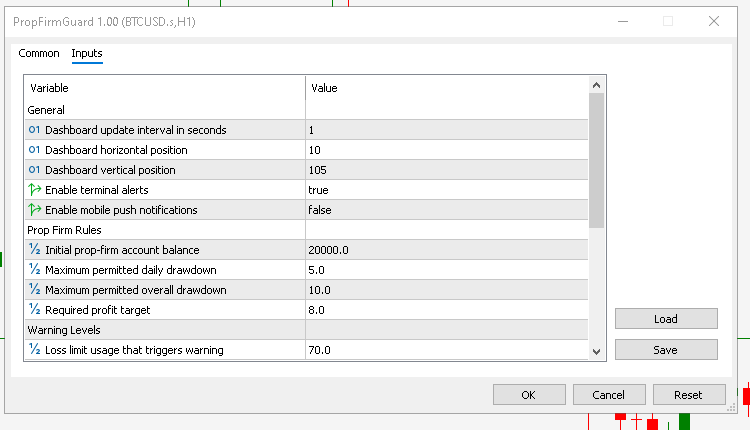
No persistence behavior is expected yet because the SQLite layer has not been added.
Reading the Live Trading Account
The persistent rule configuration defines what limits the account must obey, but compliance decisions must be based on the account’s current trading state. These are two different kinds of data: the rules should remain stable across restarts, while balance, equity, floating profit or loss, and status can change continuously. Keeping them separate prevents volatile account measurements from being mixed with the stored rule set and gives the EA a clear basis for later compliance calculations.
Creating SAccountState
Open "PropFirmGuard.mq5" and add the following structure above SAccountSettings:
//+------------------------------------------------------------------+
//| Account state structure                                          |
//+------------------------------------------------------------------+
//| Holds the live account values required by the monitoring logic.  |
//+------------------------------------------------------------------+
struct SAccountState
  {
   long                    login;       // Trading account login number
   double                  balance;     // Current account balance
   double                  equity;      // Current account equity
   double                  floatingPL;  // Current floating profit or loss
   ENUM_COMPLIANCE_STATUS  status;      // Current overall compliance status
  };
SAccountState holds the live values read from MetaTrader 5, while SAccountSettings holds the persistent configuration. Keeping them separate avoids mixing changing account measurements with stored rule definitions.
After the structure definitions, add the global objects that will hold both forms of state:
//+------------------------------------------------------------------+
//| Global variables                                                 |
//+------------------------------------------------------------------+
SAccountState    g_accountState;     // Latest monitored account state
SAccountSettings g_accountSettings;  // Persisted prop-firm settings
g_accountState will be refreshed as account values change, while g_accountSettings will later be synchronized with SQLite.
Implementing UpdateAccountState()
Add the following function above the event-handler functions:
//+------------------------------------------------------------------+
//| Update account state                                             |
//+------------------------------------------------------------------+
void UpdateAccountState()
  {
//--- Read the current account values
   g_accountState.login = AccountInfoInteger(ACCOUNT_LOGIN);
   g_accountState.balance = AccountInfoDouble(ACCOUNT_BALANCE);
   g_accountState.equity = AccountInfoDouble(ACCOUNT_EQUITY);

//--- Derive the current floating profit or loss
   g_accountState.floatingPL = g_accountState.equity - g_accountState.balance;

//--- Initialize compliance status before rule calculations are added
   g_accountState.status = COMPLIANCE_SAFE;
  }
The function reads the current account login, balance, and equity, then derives floating profit or loss as equity minus balance. Since no compliance calculations exist yet, the status is initialized to COMPLIANCE_SAFE.
Updating Initialization
The account state should be populated as soon as the EA starts. Replace the current OnInit() with:
//+------------------------------------------------------------------+
//| Expert initialization function                                   |
//+------------------------------------------------------------------+
int OnInit()
  {
//--- Collect the current account state
   UpdateAccountState();

   return(INIT_SUCCEEDED);
  }
For a quick verification, temporarily print the collected values immediately after UpdateAccountState() and compare the login, balance, equity, and floating profit or loss with the values shown in MetaTrader 5.
Validating the Account Rules
The EA can now read the live account state and expose the rule configuration, but those values must not be used until they have been validated. Invalid percentages, an unusable initial balance, or incorrectly ordered warning and critical thresholds would make later drawdown and profit-target calculations mathematically unreliable. To prevent such errors from propagating into monitoring logic, the EA validates the configuration during initialization and stops immediately when a required condition is not satisfied.
Defining the Validation Rules
The current configuration must satisfy the following conditions:
| Input | Validation Condition |
|---|---|
| InpInitialAccountBalance | > 0 |
| InpDailyDrawdownPercent | > 0 && <= 100 |
| InpOverallDrawdownPercent | > 0 && <= 100 |
| InpProfitTargetPercent | > 0 && <= 100 |
| InpWarningLevelPercent | > 0 && < InpCriticalLevelPercent |
| InpCriticalLevelPercent | InpWarningLevelPercent > && < 100 |
| News-window minutes | cannot be negative |
The percentage checks prevent zero, negative, or oversized values from reaching later calculations. The warning threshold must remain below the critical threshold, while the critical threshold must stay below 100%. News restriction windows may be zero, but not negative.
Implementing ValidateComplianceInputs()
Open "PropFirmGuard.mq5" and place the following function above UpdateAccountState():
//+------------------------------------------------------------------+
//| Validate compliance inputs                                       |
//+------------------------------------------------------------------+
bool ValidateComplianceInputs()
  {
//--- Validate the initial account balance
   if(InpInitialAccountBalance <= 0.0)
     {
      Print("Prop Firm Guard: Initial account balance must be greater than zero.");

      return(false);
     }

//--- Validate the daily drawdown percentage
   if(InpDailyDrawdownPercent <= 0.0 ||
      InpDailyDrawdownPercent > 100.0)
     {
      Print("Prop Firm Guard: Daily drawdown percentage must be between 0 and 100.");

      return(false);
     }

//--- Validate the overall drawdown percentage
   if(InpOverallDrawdownPercent <= 0.0 ||
      InpOverallDrawdownPercent > 100.0)
     {
      Print("Prop Firm Guard: Overall drawdown percentage must be between 0 and 100.");

      return(false);
     }

//--- Validate the profit target percentage
   if(InpProfitTargetPercent <= 0.0 ||
      InpProfitTargetPercent > 100.0)
     {
      Print("Prop Firm Guard: Profit target percentage must be between 0 and 100.");

      return(false);
     }

//--- Validate the warning threshold
   if(InpWarningLevelPercent <= 0.0 ||
      InpWarningLevelPercent >= InpCriticalLevelPercent)
     {
      Print("Prop Firm Guard: Warning level must be greater than 0 and below the critical level.");

      return(false);
     }

//--- Validate the critical threshold
   if(InpCriticalLevelPercent <= InpWarningLevelPercent ||
      InpCriticalLevelPercent >= 100.0)
     {
      Print("Prop Firm Guard: Critical level must be above the warning level and below 100.");

      return(false);
     }

//--- Validate the news restriction windows
   if(InpMinutesBeforeNews < 0 ||
      InpMinutesAfterNews < 0)
     {
      Print("Prop Firm Guard: News restriction minutes cannot be negative.");

      return(false);
     }

   return(true);
  }
The function rejects invalid configurations early and prints a specific diagnostic message for the first failed rule. This prevents incorrect settings from reaching later calculations or persistence.
Integrating Validation into OnInit()
Validation should run before the account state or any later persistence logic begins using the configured values. Replace the current OnInit() with:
//+------------------------------------------------------------------+
//| Expert initialization function                                   |
//+------------------------------------------------------------------+
int OnInit()
  {
//--- Reject invalid compliance settings before initialization continues
   if(!ValidateComplianceInputs())
      return(INIT_PARAMETERS_INCORRECT);

//--- Collect the current account identity and financial state
   UpdateAccountState();

   return(INIT_SUCCEEDED);
  }
INIT_PARAMETERS_INCORRECT clearly identifies the failure as an input-configuration problem. If validation succeeds, initialization continues normally.
For a short verification, attach the EA with the default inputs and confirm normal initialization. Then set InpInitialAccountBalance to 0; initialization should stop with:
Prop Firm Guard: Initial account balance must be greater than zero.
You can also test the threshold ordering with:
InpWarningLevelPercent  = 95
InpCriticalLevelPercent = 90
The EA should reject the configuration and report:
Prop Firm Guard: Warning level must be greater than 0 and below the critical level.
Restore the valid defaults before continuing.
Creating the SQLite Persistence Layer
The EA can now validate its configuration and read the active trading account, but the rule set still exists only in runtime memory. If the EA is removed or MetaTrader 5 is restarted, that state cannot be relied on to remain available. Reliable monitoring therefore requires persistent storage that can recover the correct configuration for the correct account. To achieve this, Prop Firm Guard uses SQLite and identifies each stored configuration by the combination of account login and trading server.
Identifying Persistent Settings by Account and Server
Persistent settings are identified by the combination of account login and trading server, because the same numeric login may exist on different servers. The required account identity is therefore:
account login + trading server
ACCOUNT_LOGIN provides the login number, while ACCOUNT_SERVER provides the server name. This pair will later be used to save and retrieve the correct settings record.
Adding the Database Globals
Extend the existing global-variable block with the database filename and connection handle:
//+------------------------------------------------------------------+
//| Global variables                                                 |
//+------------------------------------------------------------------+
SAccountState    g_accountState;     // Latest monitored account state
SAccountSettings g_accountSettings;  // Persisted prop-firm settings
string g_databaseName = "prop_firm_compliance.sqlite"; // SQLite database file
int    g_database     = INVALID_HANDLE;                // Active SQLite database handle
g_databaseName keeps the SQLite filename in one place, while g_database stores the active database handle.
Implementing OpenDatabase()
Place the following function below UpdateAccountState():
//+------------------------------------------------------------------+
//| Open database                                                    |
//+------------------------------------------------------------------+
bool OpenDatabase()
  {
//--- Open or create the SQLite database
   ResetLastError();

   g_database = DatabaseOpen(g_databaseName,
                             DATABASE_OPEN_READWRITE |
                             DATABASE_OPEN_CREATE);

   if(g_database == INVALID_HANDLE)
     {
      Print("Prop Firm Guard: Could not open database ",
            g_databaseName,
            ". Error: ",
            GetLastError());

      return(false);
     }

   Print("Prop Firm Guard: Database opened successfully: ",
         g_databaseName);

   return(true);
  }
DATABASE_OPEN_READWRITE allows the EA to read and write persistent data, while DATABASE_OPEN_CREATE creates the file automatically when it does not yet exist. The returned handle is stored in g_database and checked before initialization continues.
Implementing CloseDatabase()
Add the cleanup function immediately after OpenDatabase():
//+------------------------------------------------------------------+
//| Close database                                                   |
//+------------------------------------------------------------------+
void CloseDatabase()
  {
//--- Ignore the request when no database connection is active
   if(g_database == INVALID_HANDLE)
      return;

//--- Close the active SQLite connection
   ResetLastError();

   DatabaseClose(g_database);

   int errorCode = GetLastError();

   if(errorCode != 0)
     {
      Print("Prop Firm Guard: Database close reported error: ",
            errorCode);
     }
   else
     {
      Print("Prop Firm Guard: Database closed successfully.");
     }

//--- Clear the stored database handle
   g_database = INVALID_HANDLE;
  }
CloseDatabase() releases the connection during deinitialization and resets the handle to INVALID_HANDLE, preventing later code from treating a closed database as active.
Integrating the Database Lifecycle
Replace the current OnInit() with the following version:
//+------------------------------------------------------------------+
//| Expert initialization function                                   |
//+------------------------------------------------------------------+
int OnInit()
  {
//--- Reject invalid compliance settings before initialization continues
   if(!ValidateComplianceInputs())
      return(INIT_PARAMETERS_INCORRECT);

//--- Collect the current account identity and financial state
   UpdateAccountState();

//--- Open the SQLite persistence layer
   if(!OpenDatabase())
     {
      Print("Prop Firm Guard: Database initialization failed.");

      return(INIT_FAILED);
     }

   return(INIT_SUCCEEDED);
  }
The database is opened only after input validation succeeds and the current account state has been collected.
Next, replace OnDeinit() with:
//+------------------------------------------------------------------+
//| Expert deinitialization function                                 |
//+------------------------------------------------------------------+
void OnDeinit(const int reason)
  {
//--- Close the SQLite connection
   CloseDatabase();

//--- Record the MetaTrader deinitialization reason
   Print("Prop Firm Guard removed. Deinitialization reason: ", reason);
  }
For a short verification, attach the EA with valid inputs and confirm that the Experts tab reports:
Prop Firm Guard: Database opened successfully: prop_firm_compliance.sqlite
Remove the EA and confirm:
Prop Firm Guard: Database closed successfully.
Reattaching the EA should open the same SQLite file without database errors.
Storing Account-Specific Settings
Opening the SQLite database is not enough by itself; the EA still needs a storage structure that prevents one account configuration from being confused with another. The "settings" table therefore stores both the rule values and the account identity, with account login and trading server forming a composite key. This gives each account/server pair a single persistent configuration record that can be restored and updated predictably across later EA sessions. Creating the settings Table
The table stores the account identity together with the four core prop-firm rule values:
| Field | Purpose |
|---|---|
| account_login | Identifies the trading account. |
| account_server | Identifies the broker server associated with the account. |
| initial_balance | Stores the configured initial account balance. |
| daily_drawdown_percent | Stores the maximum daily drawdown percentage. |
| overall_drawdown_percent | Stores the maximum overall drawdown percentage. |
| profit_target_percent | Stores the configured profit target percentage. |
| updated_at | Records when the settings were last updated. |
A composite primary key on (account_login, account_server) ensures that each account/server pair has only one settings record.
Open "PropFirmGuard.mq5" and add the following function below CloseDatabase():
//+------------------------------------------------------------------+
//| Ensure database tables exist                                     |
//+------------------------------------------------------------------+
bool EnsureDatabaseTables()
  {
//--- Define persistent storage for each account/server pair
   string settingsTable =
      "CREATE TABLE IF NOT EXISTS settings ("
      "account_login INTEGER NOT NULL,"
      "account_server TEXT NOT NULL,"
      "initial_balance REAL NOT NULL,"
      "daily_drawdown_percent REAL NOT NULL,"
      "overall_drawdown_percent REAL NOT NULL,"
      "profit_target_percent REAL NOT NULL,"
      "updated_at INTEGER NOT NULL,"
      "PRIMARY KEY(account_login, account_server)"
      ");";

//--- Create the settings table when it does not already exist
   ResetLastError();

   if(!DatabaseExecute(g_database,
                       settingsTable))
     {
      Print("Prop Firm Guard: Could not create settings table. Error: ",
            GetLastError());

      return(false);
     }

   return(true);
  }
CREATE TABLE IF NOT EXISTS makes initialization repeatable. SQLite creates the table on the first run and leaves the existing table unchanged on later attachments, preserving any records already stored.
Implementing the Database Request Helpers
Saving and loading structured values will use prepared statements. Their request handles must be finalized after use, including when an operation fails. The helpers below centralize statement execution and request cleanup. Place FinalizeDatabaseRequest() below EnsureDatabaseTables():
//+------------------------------------------------------------------+
//| Finalize database request                                        |
//+------------------------------------------------------------------+
void FinalizeDatabaseRequest(const int request)
  {
//--- Ignore invalid database requests
   if(request == INVALID_HANDLE)
      return;

//--- Release the prepared database request
   ResetLastError();

   DatabaseFinalize(request);

   int errorCode = GetLastError();

   if(errorCode != 0)
     {
      Print("Prop Firm Guard: Could not finalize database request. Error: ",
            errorCode);
     }
  }
Immediately after it, add ExecuteDatabaseRequest():
//+------------------------------------------------------------------+
//| Execute prepared database statement                              |
//+------------------------------------------------------------------+
bool ExecuteDatabaseRequest(const int request,
                            const string operation)
  {
//--- Execute the prepared database statement
   ResetLastError();

   bool result = DatabaseRead(request);

   int errorCode = GetLastError();

//--- Accept normal completion when no result row is returned
   bool success =
      (result || errorCode == ERR_DATABASE_NO_MORE_DATA);

   if(!success)
     {
      Print("Prop Firm Guard: Database error while ",
            operation,
            ". Error: ",
            errorCode);
     }

//--- Release the request after execution
   FinalizeDatabaseRequest(request);

   return(success);
  }
ExecuteDatabaseRequest() executes a prepared statement through DatabaseRead() and then finalizes its request handle. For statements such as INSERT and UPDATE, ERR_DATABASE_NO_MORE_DATA is accepted as normal completion because no result row is returned.
Initializing the Table During Startup
The table must exist before any account settings can be saved or restored. Replace the current OnInit() with the following version:
//+------------------------------------------------------------------+
//| Expert initialization function                                   |
//+------------------------------------------------------------------+
int OnInit()
  {
//--- Reject invalid compliance settings before initialization continues
   if(!ValidateComplianceInputs())
      return(INIT_PARAMETERS_INCORRECT);

//--- Collect the current account identity and financial state
   UpdateAccountState();

//--- Open the SQLite persistence layer
   if(!OpenDatabase())
     {
      Print("Prop Firm Guard: Database initialization failed.");

      return(INIT_FAILED);
     }

//--- Ensure the required persistence schema exists
   if(!EnsureDatabaseTables())
     {
      Print("Prop Firm Guard: Could not initialize database tables.");

      CloseDatabase();

      return(INIT_FAILED);
     }

   return(INIT_SUCCEEDED);
  }
The startup order is now validation, account-state collection, database opening, and schema initialization. If table creation fails, the database is closed before initialization stops.
For verification, compile and attach the EA with valid inputs. The database should open and the "settings" table should initialize without SQLite errors. Remove and reattach the EA once more; initialization should succeed again because the existing table is preserved. The database is now ready to hold account-specific settings, but no settings row has been written yet.
Saving and Restoring Account Rules
With the database schema in place, the EA can now make persistence useful during startup. It must distinguish between a first attachment, where no settings record exists yet, and a later attachment to the same account/server pair, where the existing record should be reused. The startup logic therefore loads the matching record when available, synchronizes it with the current Inputs, and saves the result back to the same account/server entry. This prevents duplicate records while keeping the current Inputs authoritative.
Implementing SaveAccountSettings()
Add the following function below the database request helpers:
//+------------------------------------------------------------------+
//| Save account settings                                            |
//+------------------------------------------------------------------+
bool SaveAccountSettings()
  {
//--- Prepare the account-settings write statement
   string sql =
      "INSERT OR REPLACE INTO settings ("
      "account_login,"
      "account_server,"
      "initial_balance,"
      "daily_drawdown_percent,"
      "overall_drawdown_percent,"
      "profit_target_percent,"
      "updated_at"
      ") VALUES (?1, ?2, ?3, ?4, ?5, ?6, ?7);";

   int request = DatabasePrepare(g_database, sql);

   if(request == INVALID_HANDLE)
     {
      Print("Prop Firm Guard: Could not prepare settings save request. Error: ",
            GetLastError());

      return(false);
     }

//--- Bind the current account settings to the prepared statement
   if(!DatabaseBind(request, 0, g_accountSettings.accountLogin) ||
      !DatabaseBind(request, 1, g_accountSettings.accountServer) ||
      !DatabaseBind(request, 2, g_accountSettings.initialBalance) ||
      !DatabaseBind(request, 3, g_accountSettings.dailyDrawdownPercent) ||
      !DatabaseBind(request, 4, g_accountSettings.overallDrawdownPercent) ||
      !DatabaseBind(request, 5, g_accountSettings.profitTargetPercent) ||
      !DatabaseBind(request, 6, g_accountSettings.updatedAt))
     {
      Print("Prop Firm Guard: Could not bind settings values. Error: ",
            GetLastError());

      FinalizeDatabaseRequest(request);
      return(false);
     }

//--- Execute and finalize the prepared write request
   if(!ExecuteDatabaseRequest(request, "saving account settings"))
      return(false);

   return(true);
  }
SaveAccountSettings() writes the current g_accountSettings values to the "settings" table using a prepared statement with bound parameters. INSERT OR REPLACE inserts a new row when the account/server pair does not exist and updates the existing row when that primary-key combination is already present.
Implementing LoadAccountSettings()
Add the following function below SaveAccountSettings():
//+------------------------------------------------------------------+
//| Load account settings                                            |
//+------------------------------------------------------------------+
bool LoadAccountSettings()
  {
//--- Build the current account/server lookup
   string accountServer = AccountInfoString(ACCOUNT_SERVER);

   string sql =
      "SELECT "
      "account_login,"
      "account_server,"
      "initial_balance,"
      "daily_drawdown_percent,"
      "overall_drawdown_percent,"
      "profit_target_percent,"
      "updated_at "
      "FROM settings "
      "WHERE account_login = ?1 AND account_server = ?2;";

   int request = DatabasePrepare(g_database, sql);

   if(request == INVALID_HANDLE)
     {
      Print("Prop Firm Guard: Could not prepare settings load request. Error: ",
            GetLastError());

      return(false);
     }

//--- Bind the current account identity
   if(!DatabaseBind(request, 0, g_accountState.login) ||
      !DatabaseBind(request, 1, accountServer))
     {
      Print("Prop Firm Guard: Could not bind settings search values. Error: ",
            GetLastError());

      FinalizeDatabaseRequest(request);
      return(false);
     }

//--- Read the matching settings record
   ResetLastError();

   if(!DatabaseRead(request))
     {
      int errorCode = GetLastError();

      FinalizeDatabaseRequest(request);

      //--- No row means this account/server pair has not been saved yet
      if(errorCode == ERR_DATABASE_NO_MORE_DATA)
         return(false);

      Print("Prop Firm Guard: Could not read account settings. Error: ",
            errorCode);

      return(false);
     }

//--- Read and validate the stored column values
   long   accountLogin;
   string storedServer;
   double initialBalance;
   double dailyDrawdown;
   double overallDrawdown;
   double profitTarget;
   long   updatedAt;

   if(!DatabaseColumnLong(request, 0, accountLogin) ||
      !DatabaseColumnText(request, 1, storedServer) ||
      !DatabaseColumnDouble(request, 2, initialBalance) ||
      !DatabaseColumnDouble(request, 3, dailyDrawdown) ||
      !DatabaseColumnDouble(request, 4, overallDrawdown) ||
      !DatabaseColumnDouble(request, 5, profitTarget) ||
      !DatabaseColumnLong(request, 6, updatedAt))
     {
      Print("Prop Firm Guard: Could not read stored settings columns. Error: ",
            GetLastError());

      FinalizeDatabaseRequest(request);
      return(false);
     }

//--- Restore the stored values into the account settings structure
   g_accountSettings.accountLogin           = accountLogin;
   g_accountSettings.accountServer          = storedServer;
   g_accountSettings.initialBalance         = initialBalance;
   g_accountSettings.dailyDrawdownPercent   = dailyDrawdown;
   g_accountSettings.overallDrawdownPercent = overallDrawdown;
   g_accountSettings.profitTargetPercent    = profitTarget;
   g_accountSettings.updatedAt              = (datetime)updatedAt;

//--- Release the completed read request
   FinalizeDatabaseRequest(request);

   return(true);
  }
LoadAccountSettings() searches for the current account/server pair and, if found, copies the stored values into g_accountSettings. If no row exists, the function returns false; this is the normal first-time configuration case rather than a database failure. Other database errors are reported separately.
Implementing InitializeAccountSettings()
InitializeAccountSettings() combines the load and save operations into the startup behavior required by the EA. Add it below LoadAccountSettings():
//+------------------------------------------------------------------+
//| Initialize account settings                                      |
//+------------------------------------------------------------------+
bool InitializeAccountSettings()
  {
//--- Check whether this account/server pair already has stored settings
   bool settingsFound = LoadAccountSettings();

//--- Associate the settings with the current trading account
   g_accountSettings.accountLogin = g_accountState.login;
   g_accountSettings.accountServer = AccountInfoString(ACCOUNT_SERVER);

//--- Synchronize persistence with the current Inputs values
   g_accountSettings.initialBalance = InpInitialAccountBalance;
   g_accountSettings.dailyDrawdownPercent = InpDailyDrawdownPercent;
   g_accountSettings.overallDrawdownPercent = InpOverallDrawdownPercent;
   g_accountSettings.profitTargetPercent = InpProfitTargetPercent;
   g_accountSettings.updatedAt = TimeCurrent();

//--- Save the synchronized configuration
   if(!SaveAccountSettings())
      return(false);

//--- Report whether the record was created or synchronized
   if(settingsFound)
      Print("Prop Firm Guard: Account settings restored and synchronized.");
   else
      Print("Prop Firm Guard: New account settings saved.");

   return(true);
  }
The function first checks whether a stored record exists, then associates g_accountSettings with the current account identity, copies the current Inputs values into the structure, and saves the synchronized configuration back to SQLite.
The current Inputs remain authoritative. For example, if InpDailyDrawdownPercent was previously stored as 5.0 but the trader changes it to 6.0 before reattaching the EA, the existing record is recognized and then updated with the new value rather than restoring the older configuration.
Adding Account Settings to Initialization
The "settings" table must exist before the account configuration can be loaded or saved. Replace the current OnInit() with:
//+------------------------------------------------------------------+
//| Expert initialization function                                   |
//+------------------------------------------------------------------+
int OnInit()
  {
//--- Reject invalid compliance settings before initialization continues
   if(!ValidateComplianceInputs())
      return(INIT_PARAMETERS_INCORRECT);

//--- Collect the current account identity and financial state
   UpdateAccountState();

//--- Open the SQLite persistence layer
   if(!OpenDatabase())
     {
      Print("Prop Firm Guard: Database initialization failed.");

      return(INIT_FAILED);
     }

//--- Ensure the required persistence schema exists
   if(!EnsureDatabaseTables())
     {
      Print("Prop Firm Guard: Could not initialize database tables.");

      CloseDatabase();

      return(INIT_FAILED);
     }

//--- Restore and synchronize the account-specific settings
   if(!InitializeAccountSettings())
     {
      Print("Prop Firm Guard: Could not initialize account settings.");

      CloseDatabase();

      return(INIT_FAILED);
     }

   return(INIT_SUCCEEDED);
  }
The startup sequence now validates the configuration, collects the current account state, opens SQLite, ensures the schema exists, and initializes the settings for the current account/server pair.
Verifying Persistence
Use one final persistence check for this section.
Start with:
Initial balance: 20000
Daily DD:        5
Overall DD:      10
Profit target:   8
On the first attachment, the Experts tab should report:
Prop Firm Guard: New account settings saved.
After reattaching the EA with the same configuration, it should report:
Prop Firm Guard: Account settings restored and synchronized.
Then change InpDailyDrawdownPercent to 6 and attach the EA again. The same account/server record should be reused, with the stored daily drawdown value synchronized to 6.0 rather than creating a duplicate row.
Completing the Part 1 EA Lifecycle
Part 1 is ready only when the complete startup chain succeeds in the required order: validate the Inputs, read the live account state, open SQLite, ensure the schema exists, and initialize the settings for the current account/server pair. The final lifecycle combines these steps and reports a clear success message only after each required stage has completed. If any validation or persistence step fails, initialization stops before monitoring can begin.
Final Part 1 OnInit()
One additional input is validated here: InpTimerSeconds. Although periodic monitoring is introduced later, the configured interval must already be valid.
Replace the current OnInit() with:
//+------------------------------------------------------------------+
//| Expert initialization function                                   |
//+------------------------------------------------------------------+
int OnInit()
  {
//--- Validate the future monitoring interval
   if(InpTimerSeconds < 1)
     {
      Print("Prop Firm Guard: Timer interval must be at least 1 second.");

      return(INIT_PARAMETERS_INCORRECT);
     }

//--- Reject invalid compliance rules before initialization continues
   if(!ValidateComplianceInputs())
      return(INIT_PARAMETERS_INCORRECT);

//--- Collect the current account identity and financial state
   UpdateAccountState();

//--- Open the SQLite persistence layer
   if(!OpenDatabase())
     {
      Print("Prop Firm Guard: Database initialization failed.");

      return(INIT_FAILED);
     }

//--- Ensure the required persistence schema exists
   if(!EnsureDatabaseTables())
     {
      Print("Prop Firm Guard: Could not initialize database tables.");

      CloseDatabase();

      return(INIT_FAILED);
     }

//--- Restore and synchronize the account-specific settings
   if(!InitializeAccountSettings())
     {
      Print("Prop Firm Guard: Could not initialize account settings.");

      CloseDatabase();

      return(INIT_FAILED);
     }

   Print("Prop Firm Guard initialized successfully.");

   return(INIT_SUCCEEDED);
  }
Final Part 1 OnDeinit()
OnDeinit() remains minimal and closes the SQLite connection because Part 1 has not yet introduced timer events or chart objects.
Replace the current OnDeinit() with:
//+------------------------------------------------------------------+
//| Expert deinitialization function                                 |
//+------------------------------------------------------------------+
void OnDeinit(const int reason)
  {
//--- Close the SQLite connection
   CloseDatabase();

//--- Record the MetaTrader deinitialization reason
   Print("Prop Firm Guard removed. Deinitialization reason: ", reason);
  }
For the final Part 1 verification, compile and attach the EA with valid inputs. The Experts tab should show successful database initialization and either creation or synchronization of the current account/server settings record, followed by:
Prop Firm Guard initialized successfully.
After removing the EA, the database should close successfully. Reattaching it to the same account and server should reuse the existing settings record rather than creating a duplicate.
Verifying the Part 1 Implementation
The final verification should confirm the complete Part 1 outcome rather than test each component in isolation. A successful implementation must reject invalid configuration before startup continues, read the current account state correctly, create or reopen the SQLite database, reuse the same settings record for the same account/server pair, synchronize that record with the current Inputs, and close the database cleanly when the EA is removed. The Experts log provides the observable success and failure signals for each of these checks.
Checking the Live Account State
Attach the EA to a chart and temporarily print the values collected by UpdateAccountState(). Compare the reported account login, balance, equity, and floating profit or loss with the values shown by MetaTrader 5.
The floating profit or loss should equal:
equity - balance
After confirming the values, remove the temporary diagnostic output.
Checking Input Validation
Attach the EA first with its default configuration and confirm that initialization succeeds. Then test an invalid initial balance:
InpInitialAccountBalance = 0 The Experts tab should report:
Prop Firm Guard: Initial account balance must be greater than zero.
Restore the balance and test the warning and critical thresholds:
InpWarningLevelPercent  = 95
InpCriticalLevelPercent = 90
Initialization should stop with:
Prop Firm Guard: Warning level must be greater than 0 and below the critical level.
Next, test the monitoring interval:
InpTimerSeconds = 0 Initialization should stop with:
Prop Firm Guard: Timer interval must be at least 1 second. Restore InpTimerSeconds to a valid value before continuing. Restore valid input values before continuing.
Checking SQLite Persistence
Attach the EA using a known rule configuration, for example:
Initial balance: 20000
Daily DD:        5
Overall DD:      10
Profit target:   8
For a new account/server record, the Experts tab should report:
Prop Firm Guard: New account settings saved.
Attach the EA again to the same account and server. The existing record should now be recognized:
Prop Firm Guard: Account settings restored and synchronized.
Next, change:
InpDailyDrawdownPercent = 6 and attach the EA again. The same account/server record should be reused, with the stored daily drawdown value synchronized to 6.0. A normal startup should end with messages similar to:
Prop Firm Guard: Database opened successfully: prop_firm_compliance.sqlite
Prop Firm Guard: Account settings restored and synchronized.
Prop Firm Guard initialized successfully.
When the EA is removed, the database connection should close cleanly:
Prop Firm Guard: Database closed successfully.
The composite key also prevents settings from being shared accidentally between identical login numbers on different trading servers. If another account is available with the same numeric login but a different ACCOUNT_SERVER value, attaching the EA there should create or use a separate settings record for that login/server pair. Returning to the original server should restore and synchronize its original record rather than the record associated with the other server.
These checks cover the main Part 1 outcomes without repeating verification after every small implementation step.
Conclusion
Part 1 delivers a practical and verifiable foundation for Prop Firm Guard. The EA now enforces fail-fast validation of the main configuration inputs, reads the live account values separately from persistent rules, opens or creates the SQLite database, ensures the required schema exists, and stores account settings using account login + trading server as the composite identity.
The startup behavior can now be verified directly from the Experts log. On a first attachment, the EA should save a new settings record. On a later attachment to the same account and server, it should restore and synchronize the existing record rather than create a duplicate. Invalid input values stop initialization with a clear diagnostic message, while a successful startup ends with the database opened, the account settings initialized, and the EA reporting that initialization completed successfully. When the EA is removed, the database connection is closed cleanly.
Two design choices are central to this result. SAccountState holds volatile live measurements such as balance, equity, and floating profit or loss, while SAccountSettings holds the persistent rule configuration. In addition, the current Inputs remain authoritative during synchronization, so changing a rule value updates the existing account/server record predictably.
At this point, removing and reattaching the EA to the same account and trading server should not create a new settings record. The existing record is recognized, synchronized with the current Inputs, and reused.
Attachments
The attachment for this article is PropFirmGuard.mq5, containing the completed Part 1 source code. If your implementation does not compile correctly or your persistence behavior differs from what was demonstrated, you can download the file and compare it with your current version.
The Part 1 source has also been published as an Algo Forge release:
https://forge.mql5.io/CHACHAIAN/PropFirmGuard/releases/tag/v1.0-part-1-r1
Warning: All rights to these materials are reserved by MetaQuotes Ltd. Copying or reprinting of these materials in whole or in part is prohibited.
This article was written by a user of the site and reflects their personal views. MetaQuotes Ltd is not responsible for the accuracy of the information presented, nor for any consequences resulting from the use of the solutions, strategies or recommendations described.


 The MQL5 Standard Library Explorer (Part 15): Building a Market-Regime Classifier with dataanalysis.mqh
 Neural Networks in Trading: Decomposition Instead of Scaling (Conclusion)
 Market Simulation: Position View (VI)
 Cricket Algorithm (CA)

- Free trading apps
- Over 8,000 signals for copying
- Economic news for exploring financial markets
You agree to website policy and terms of use