

The Power of MetaTrader 5: From Step-by-Step Debugging to EX5 Protection in a Unified Environment
 3 503
3 503
 1
1

Introduction
In the world of algorithmic trading, a trading idea is only the starting point. The real value of a product begins to emerge not when the first line of code is written, but during the repeated cycles of refinement, validation, and preparation for live operation.
Many developers still treat MetaEditor as an advanced text editor. For years, they use manual debugging methods: filling logs with thousands of print statements, spending hours visually inspecting text files, and guessing at the causes of slippage, false signals, or frozen loops. This approach turns development into a chaotic and unsystematic search process where the most valuable resource — time — is constantly wasted. Code reliability in this process remains uncertain.
Building an automated trading system requires more than just a convenient development environment and a powerful programming language. It also demands tools for debugging and calibration.
The MetaTrader 5 development and trading system offers a fundamentally different standard. The platform's power lies not only in the expressiveness of the MQL5 language, which is inherited from object-oriented C++, but also in the speed with which a developer can move through the entire workflow: "Finding bugs → Fixing issues → Optimizing execution speed → Protecting the final .ex5 application".
At the center of this process is MetaEditor — a comprehensive integrated development environment (IDE) that covers every stage of the MQL5 application development lifecycle. MetaEditor includes specialized tools for each step in the chain:
- Step-by-step debugging using real ticks
- Hardware-level profiling of code execution time
- Direct integration with C++ DLLs to accelerate performance-critical calculations
- Cloud-based cryptographic protection for binary code
This is not just a collection of convenient features, but a carefully designed development ecosystem that reduces development time and minimizes the risk of failure when implementing trading ideas.
In this article, we will walk through the complete lifecycle of creating a trading robot: project setup, debugging program logic, identifying performance bottlenecks, isolating mathematically intensive calculations into a C++ DLL, and finally protecting intellectual property with MQL5 Cloud Protector.
As a practical example, we will develop our own indicator based on Bollinger Bands, which is included in the MetaTrader 5 terminal package. We will add signal visualization, interactive settings, and virtual trade performance calculations. You can later use this indicator as a foundation for testing your own ideas.

Figure 1: From Idea to Profit
Test Indicator: Project Requirements
We will develop a test indicator for debugging and profiling. The indicator will feature the following functionality:
- Display Buy/Sell signal arrows and Stop/Take points
- Use the standard Bollinger Bands (BB) indicator to generate signals
- Support two signal modes: reversal from the upper/lower BB boundaries and breakout through the BB boundaries
Reversal Mode:
- If the bar closes above the upper BB boundary, generate a Sell signal, set Take Profit at the BB middle line, set the Stop Loss at the same distance as the Take Profit.
- If the bar closes below the lower BB boundary, generate a Buy signal, set Take Profit at the BB middle line, set the Stop Loss at the same distance as the Take Profit.
Breakout Mode:
- Swap Buy and Sell, swap Take Profit and Stop Loss positions.
Only one entry signal may remain active until either the Take or Stop is reached. After that, the signal tracking and arrow display cycle begins again.
If an opposite signal appears at bar close, the position should reverse.
Additional practical conditions:
- Skip the first hours of a new trading day (configurable number of hours)
- Do not trade during the last hour before market close
- Close all positions at the end of the trading day (closing hour is configurable)
Display signals on the chart:
- Buy — green upward arrow
- Sell — red downward arrow
- Stop — yellow cross
- Take — blue cross
The indicator operation result is shown below:
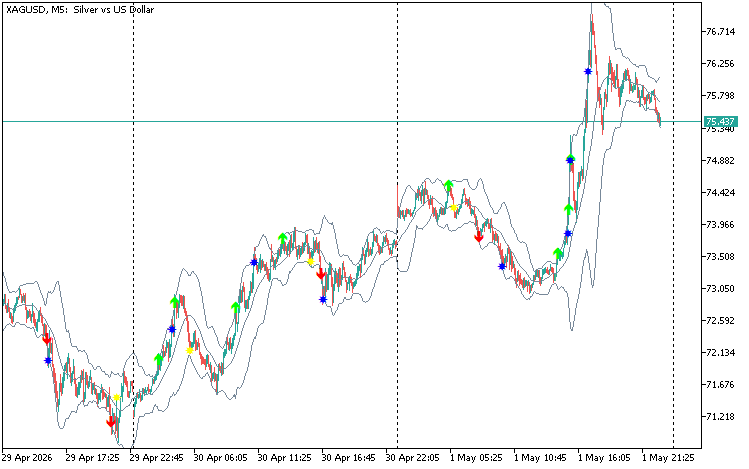
Figure 2: Test Indicator Signals
The full indicator source code is available in the file BB_Signal_Indicator.mq5 attached to this article.
Project Setup: The Foundation of Development and Debugging
Let's begin with the foundation — proper project organization. Preparing the development environment in advance saves significant time even before you run your first test.
Any serious project starts not with writing code, but with building the right environment for that code. As a full-featured IDE, MetaEditor provides tools for automating routine tasks, allowing developers to focus on logic rather than chart settings and configurations. Let's look at the key components that form the basis of efficient development.
Creating a Project: From a Single File to a System
Working with single .mq5 files is acceptable during prototyping, but serious development requires a project.
A project is a separate file with the .mqproj extension that stores program settings, compilation parameters, and information about all related files. For convenient project management, a dedicated tab is provided in the Navigator. All files, such as include, resource, header and other files are arranged into categories on this tab.
How to create a project from a source file:
- In the Navigator window, select the existing MQ5 file (BB_Signal_Indicator.mq5 in our case)
- Right-click and choose 'New Project from Source' from the context menu.
A .mqproj file will automatically be created in the same directory:
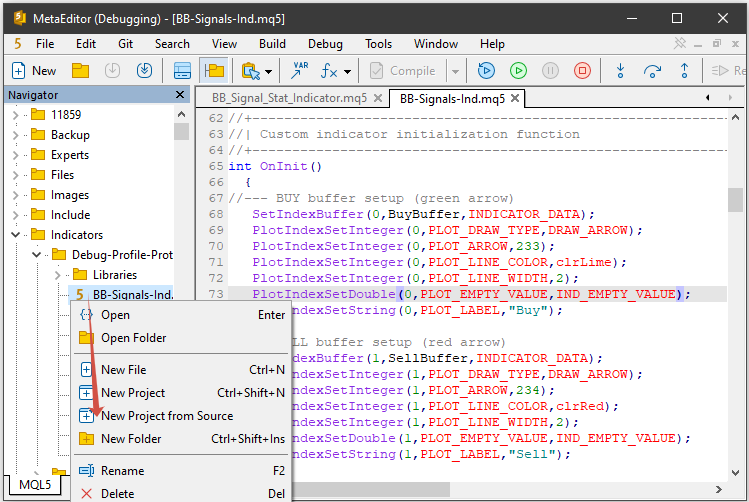
Figure 3: Creating a Project from a Source File
What a Project Provides:
- Centralized management of all program files
- Automatic dependency tracking (#include, #resource)
- Separate compilation settings independent of source code
- Version control and change tracking.
The wizard also allows you to create empty projects. This is a useful feature for non-standard development projects with specific file structures for which the default templates are not suitable. In this case, only an empty .mqproj configuration file is created. Source files must be added manually later.
Notes
- If the project is created from an existing source file, the project name is inherited from that file. If you create a new project, you will be prompted to specify the project name manually.
- It is also recommended to create a dedicated directory for storing all project files and folders.
Project Properties: Centralized Configuration
Project settings are accessed through the project's context menu via Properties. This dialog replaces manual editing of #property directives in source code.
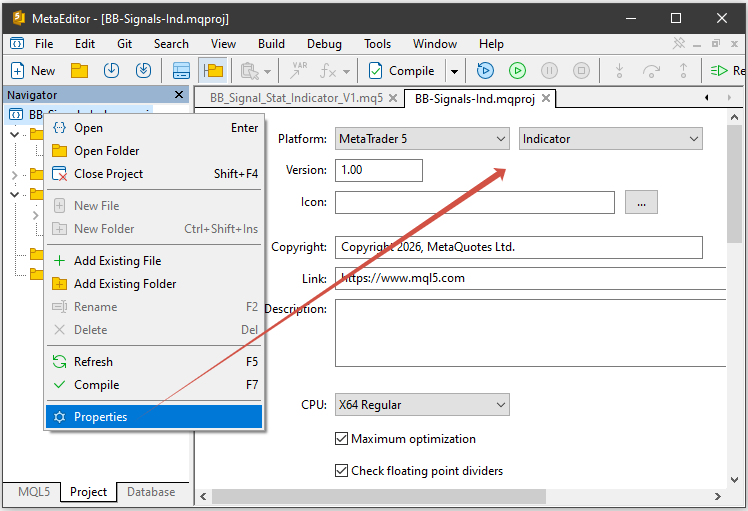
Figure 4: Project Properties
Main Properties:
- Program Type — defines the executable module type generated during compilation.
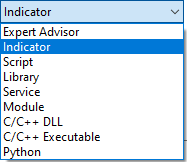
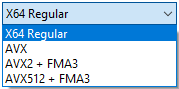
- Project CPU — allows selecting either the standard instruction set (X64 Regular) or extended CPU instruction sets used during compilation.
- Copyright — information about the copyright, equivalent to #property copyright in the source code.
- Link — a link to the developer's website, equivalent to #property link in the source code.
- Version — program version, equivalent to #property version in the source code.
- Icon — program icon, equivalent to #property icon in the source code.
- Description — program description, equivalent to #property description.
Optimization and Performance Settings:
- Maximum optimization — applications compiled without optimization build faster but execute more slowly. Disable optimization during debugging if necessary, but enable it for release builds.
- Check floating point divisors — disabling divisor checks slightly improves performance because division-by-zero errors are no longer verified during runtime execution.
- Use optimization cache (for Expert Advisors) — during optimization, the Strategy Tester stores results in a cache. Results are saved for each set of inputs. Re-running optimization with identical parameters allows MetaTrader 5 to reuse cached results instead of recalculating them. The exception is mathematical calculations where fresh computation may be required regardless of existing cache entries. In such cases, disable the 'Use optimization cache' option in the project settings. Even when caching is disabled, testing results are still stored so that all completed passes remain available in Strategy Tester reports.
Indicator Properties:
- Calculate indicator on every tick in tester — force indicators to calculate on every incoming tick. The option only affects operations in the Strategy Tester. In the live platform environment, indicators are always recalculated on every tick.
However, when testing an Expert Advisor that uses indicators, the Strategy Tester calculates indicator values only when the EA explicitly requests indicator buffer data. This significantly speeds up testing and optimization when the Expert Advisor does not need indicator values at each tick. If your indicator requires calculations on every tick, enable this option.
Indicators are also forcibly recalculated on every tick in the following cases:
- Visual testing mode is enabled
- The indicator uses EventChartCustom(), OnChartEvent(), or OnTimer()
- The indicator was compiled with a build earlier than 1916
Note
Project properties always take precedence over properties specified in source code. If settings are defined both in the project and in source code (even with different values), the project settings will be used.
Managing Project Files in the Navigator
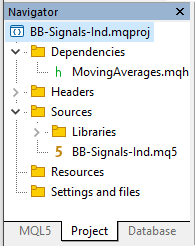
Automatic File Addition:
- Files included via #include automatically appear under Dependencies in the Navigator
- Header files appear under Headers
- Resources (images, sounds, etc.) included via #resource appear under Resources.
- MQ5 source files appear under Sources.
Manual File Addition:
-
Files can also be added manually using the project context menu, via 'Add Existing File' or 'Add Existing Folder'. The 'Add Existing Folder' command allows you to bulk-add all supported files from a selected directory into the project.
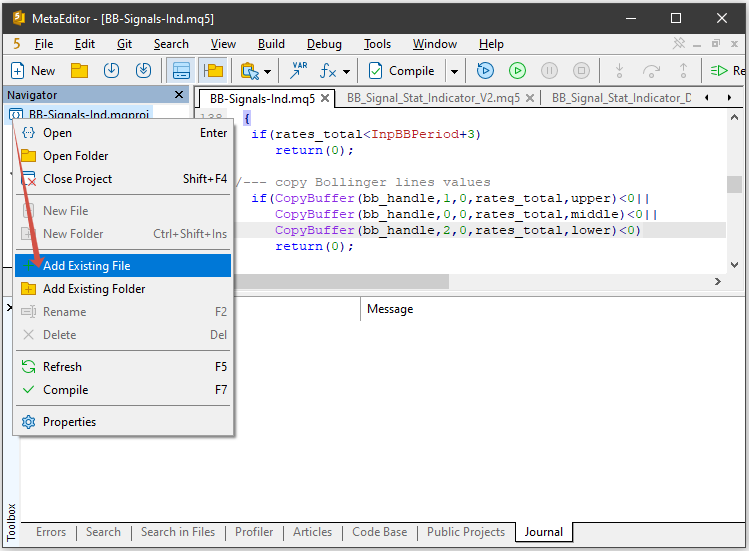
Figure 5: Adding Files Manually
Note
When a file is added manually, it is not automatically included in the program code and is not copied into the project directory. The file is simply linked to the project so it appears in the project navigator.
Files can be removed through the project context menu by selecting Delete on the desired file. When deleting a file from the project, the system offers two options:
- Remove — excludes the file from the project while keeping it on disk.
- Delete — completely removes the file both from the project and from the hard drive.
Be careful when deleting files. Accidentally removing a source file may result in permanent code loss.
Additional Sections:
- Settings and files — this section can be used to add auxiliary files such as testing configurations or chart templates.
Use the debug.tpl Template
Many developers overlook the file named debug.tpl located in the terminal directory \profiles\templates. This is a significant missed opportunity that reduces development and testing efficiency. Here's how it works: when debugging is launched (F5 key), MetaEditor creates a temporary chart in the MetaTrader 5 terminal. If a debug.tpl file exists in the templates folder, the terminal automatically applies its settings to that chart.
The practical advantage is that you can preconfigure this template with all required indicators, levels, grid settings, and chart properties. For example, if your robot trades using Bollinger Bands, simply add the indicator to the template. Every time debugging starts, the chart will already be fully configured and will include the indicator, eliminating manual setup.
Since pressing F5 during debugging happens constantly throughout development, this significantly streamlines the workflow.
Preconfiguring the Debugging Environment
Debugging environment settings are located in MetaEditor under: "Tools → Options → Debug/Profile". Configure the default parameters that will be used every time the debugger launches.
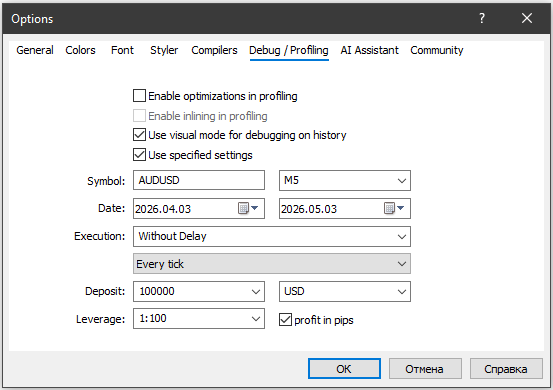
Figure 6: Debugging Environment Settings
Main Debugging and Profiling Settings:
- Symbol — specify the trading instrument your application is designed for (for example, EURUSD) and the timeframe used by the strategy (for example, H1 for medium-term systems).
- Date — when debugging historical data, you can immediately define the desired time range. Visual testing in the Strategy Tester will run on this interval.
- Enable optimization during profiling — when searching for bottlenecks, disable optimization to clearly see which lines of code consume the most execution time. Keep in mind that the resulting performance metrics will differ from release builds; for final benchmarks, re-enable optimization.
- Enable inlining during profiling — with inlining enabled, function code is inserted directly into the call site, significantly improving execution speed. However, this complicates function profiling. To obtain cleaner profiling reports, disable inlining.
- Use visual mode for debugging on historical data — by default, historical debugging runs in non-visual mode inside the Strategy Tester, but this option allows visual mode to be enabled manually. Profiling on historical data is always performed in non-visual mode.
Profiling historical data in visual mode is generally pointless because most system resources are spent rendering charts rather than executing MQL logic. For testing graphical functionality (panels, objects, interfaces, etc.), real-time mode is usually sufficient since the program runs directly on a normal chart.
- Use specified settings — enables or disables certain settings for debugging and profiling. When enabled, the program launches using the selected symbol and timeframe. Historical debugging also uses these parameters for visual testing. If disabled, the fields below become unavailable for editing.
If no symbol or timeframe is specified in the Debug/Profile tab, MetaEditor uses the first symbol in the Market Watch window and the H1 timeframe by default.
Compilation: Errors and Warnings
Pressing F7 compiles source code into an executable .ex5 file. During compilation, the Toolbox/Errors tab in MetaEditor may display two types of messages:
- Errors — critical issues that prevent creation of the .ex5 file.
- Warnings — code sections that may potentially cause runtime problems (for example, using an uninitialized variable). The .ex5 file is still generated, but warnings are issued.
Warnings should not be ignored. The best practice when working in MetaEditor is to consider code ready for testing only when the number of Warnings equals zero (and naturally, the number of Errors equals zero as well). Compilation flags in project settings can enforce this discipline by treating warnings as errors, forcing developers to eliminate code ambiguities before execution.
Once all project files are properly organized, debugging and profiling settings are configured, templates are prepared, and the compiler produces a clean build without errors or warnings, it is time to move to the most important stage: identifying and fixing logical errors using the built-in debugger.
Step-by-Step Debugging: Examine Your Code Under a Microscope
At the previous stage, we created the project structure and added all necessary files, but the algorithm's logic still exists only in theory. Step-by-step debugging in MetaEditor allows you to look inside a running program, pause execution at any moment, and inspect the current state and values of variables. Let's look at how to use the built-in debugger to test the logic of an MQL5 program.
MetaEditor supports two debugging modes: real-time debugging and historical debugging. Its flexibility comes from deep integration with both the trading terminal and the Strategy Tester. Each mode solves different tasks:
1. Debugging on Real-Time Data
This mode launches by pressing F5 on a dedicated chart in the MetaTrader 5 terminal, which receives live ticks from the broker's server. The chart opens automatically using settings from the debug.tpl template. This mode is ideal for testing robot or indicator reactions to live market events, verifying interface event handling (OnChartEvent) or testing timer events (OnTimer).
Essentially, this is the program running live. You observe how the code responds to incoming ticks in real time. However, there is one drawback: debugging speed is limited by the actual speed of incoming market ticks.
When an Expert Advisor is launched in this mode, the word Debugging appears next to its name in the upper-right corner of the chart, indicating that the chart is operating in debugging mode.
2. Debugging on Historical Data
This mode launches using Ctrl+F5 inside the Strategy Tester. Saved historical ticks are sequentially fed into the Expert Advisor or indicator, replaying market history over the selected interval. This is the primary mode for validating trading logic. It allows you to run algorithms through years of historical data in minutes and detect rare situations (such as gap behavior or high-volatility events).
MetaEditor settings also allow enabling visual mode to view the chart during debugging by using the 'Use visual mode for debugging on historical data' located in the Debug/Profile tab.
Breakpoints — Stop and Think
The core element of debugging is the Breakpoint. A breakpoint is a marker placed on a line of source code instructing MetaEditor/MetaTrader 5 to pause execution when that line is reached. Breakpoints can be toggled by double-clicking the gray margin beside the line number or by pressing F9 with the cursor on the desired line.

Why Use Breakpoints? Instead of trying to guess later where and why an error occurred, you can proactively inspect critical sections of code (such as lot size calculations or trade signal generation). Execution pauses before the marked line runs, allowing you to inspect input variables and intermediate values, read string contents, etc. In other words, you can verify whether variables actually contain the values you expect.
Code Navigation — Step Through Execution
Once execution is paused, the developer gains nearly complete control over the program. The only thing that cannot be done is editing code on the fly. MetaEditor provides three primary commands for step-by-step execution:
- Step Into — pressing F11. Executes one line of code. If the line contains a function call, the debugger enters that function and pauses at its first line. You can then continue stepping through the function body line by line pressing F10 or F11.
- Step Over — pressing F10. Executes one line of code. If the line contains a function call, the debugger executes the entire function without entering it and stops at the next line.
- Step Out — pressing Shift+F11. Executes the remaining part of the current function and pauses immediately after returning to the calling code.
Code Analysis Tools — Call Stack and Watch Window
Simply pausing execution is not enough. You also need to understand the current state of the program. This is handled through the Toolbox\Debug tab.
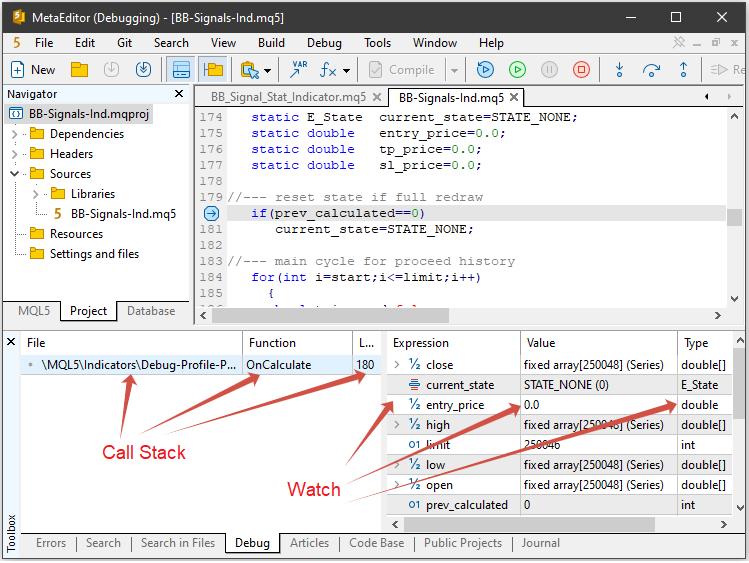
Figure 7: Code Analysis Tools
Call Stack (the Call Stack window in Figure 7) displays the execution history of the program. It shows the chain of files and functions that led to the current breakpoint. The top entry of the Call Stack represents the currently executing function. In Figure 7, it is the OnCalculate() function. The bottom entry represents the entry point. In Figure 7, it is again the OnCalculate() function — they match in this case. The first column in the Call Stack list displays the file name, while the last column displays the line number.
Double-clicking any function in the call stack instantly moves the editor cursor to the line where that function was called. This is indispensable when analyzing complex programs with deeply nested function calls.
Watch Window (the Watch window in Figure 5) allows real-time monitoring of variable values. To add a variable to the Watch List, select the variable in code and press Shift+F9 (or choose Add Watch from the context menu), and the variable will be added to the list. After each execution step (F10 or F11), watched variables are refreshed. Changed values are highlighted for convenience.
In addition to the values and names, the Watch window also displays variable types. For arrays, the list provides the dimension and the time series attribute (Series), if specified.
You can enter simple expressions such as a+b directly into the watch list and immediately see the result without modifying source code. Expandable lists allow viewing the contents of structures and arrays.
The built-in MetaEditor debugger transforms debugging into a structured analytical process. You control time (historical or real-time execution), manage space (through the call stack) and view the state (through variable inspection). This makes finding and fixing logical errors in programs much faster.
But once the program behaves correctly, another question arises: Is it fast enough? If the code works but performs poorly, the next tool in MetaEditor's arsenal becomes essential: the Profiler.
Finding Bottlenecks with the Profiler, or How to Improve Program Performance
In most cases, performance issues are caused by inefficient code. This is where the Profiler becomes invaluable — a tool that measures the execution time of every function and even individual lines of code.
Before profiling execution speed, make sure compiler optimizations are disabled. In MetaEditor, open Tools/Options and go to the Debug/Profile tab. Why is this important? By default, the compiler optimizes code: it removes unnecessary variables, merges groups of operations, and applies function inlining.
If profiling is enabled for optimized code, the results become difficult to interpret because the actual execution structure and sequence no longer match what you see in the editor. The profiler should work with "honest" code.
Profiling on Real-Time Data
For programs operating in real time, execution speed is critically important. MetaEditor provides a convenient way to evaluate the execution cost of different code sections. To do this, start code profiling and let the program run for some time. For indicator profiling, a few minutes is usually sufficient.
Profiling is launched on a special chart using the MetaEditor menu: Debug/Start Profiling on Real Data. This can be used to evaluate interface responsiveness or incoming tick processing.
Notes
- After launching, allow the robot to run long enough for all critical functions to execute: initialization, indicator calculations, trading operations. If a function is never called, it will not appear in the report.
-
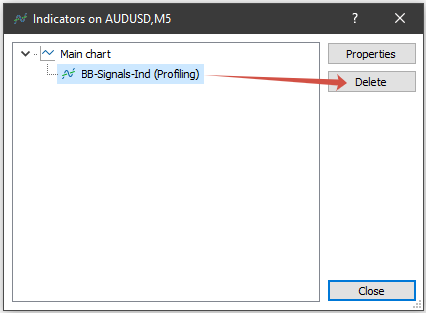
For maximum accuracy, it is recommended not to stop debugging by pressing Stop (Shift+F5). Instead, remove the Expert Advisor or indicator directly from the chart. This guarantees proper shutdown of all processes and ensures profiling statistics are saved correctly.
Profiling on History Data
Historical profiling is launched through the MetaEditor menu command: Debug/Start Profiling on History Data. In this mode, profiling runs inside the Strategy Tester. This is the primary mode for finding bottlenecks because it allows the program to be tested across large historical intervals very quickly.
Analyzing the Results
After profiling is complete, results appear in the Toolbox/Profiler tab. Two key metrics are displayed for each function:
- Total CPU Activity — shows the percentage of time a function spent inside the call stack. This includes execution of the function itself and time spent inside all functions it calls.
- Self CPU Activity — shows the percentage of time spent executing only the commands inside the function itself, excluding nested calls.
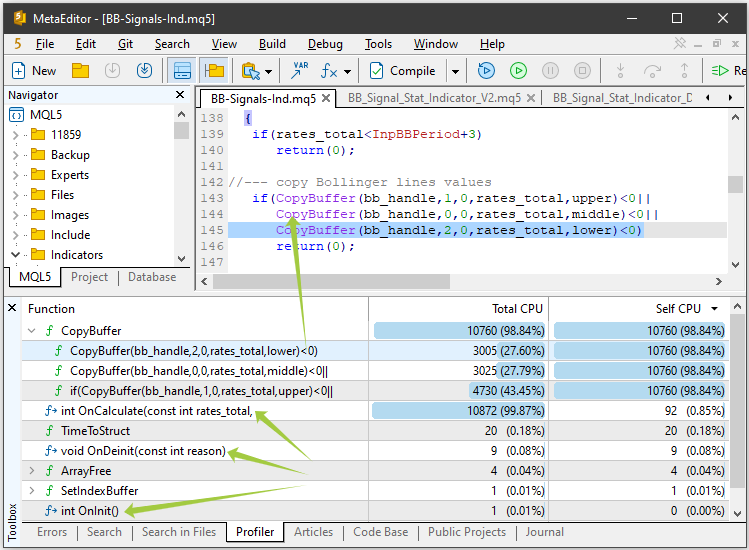
Figure 8: Real-Time Profiling Results — Functions by Calls
Understanding Profiling Results
Let's examine Figure 8. The three functions marked with green arrows show the highest activity levels. These are event handlers (identified by the f→ icon) used by the indicator. These are OnInit(), OnDeinit(), OnCalculate(). The first two functions have near-zero values for both Total Activity and Self Activity. This is expected, because they execute only during initialization and during shutdown. They perform relatively simple tasks:
- OnInit() configures indicator buffers and creates a handle for the standard Bollinger Bands indicator;
- OnDeinit() — releases the Bollinger Bands handle and clears the comment string.
The third function OnCalculate() shows Total Activity = 99.9% This is also expected. Once OnInit() completes successfully, the indicator spends almost all of its lifetime processing incoming ticks, so the processing time is spent on this function.
However, despite its extremely high Total Activity, OnCalculate() has very low Self Activity = 0.23%. This tells us that the function itself is fast, but it calls another, much slower function internally. So if optimization is required, we should optimize not OnCalculate() itself, but whatever it calls.
To investigate further, switch the profiler view to 'Functions by Lines':
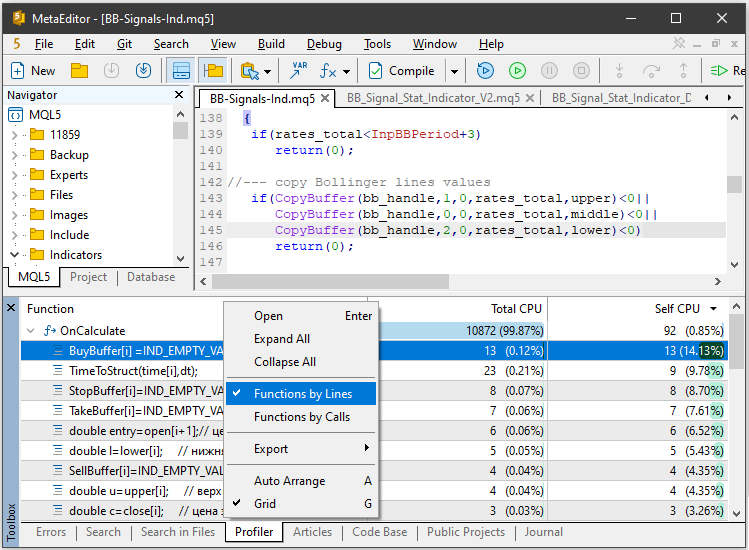
Figure 9: Real-Time Profiling Results — Functions by Lines
We can see in Figure 9 that the line with the highest Total Activity contains three calls to the standard indicator buffer-copying function: CopyBuffer(...). This is a system-level function. It is fast by itself, but internally it calls terminal kernel functions. We cannot optimize the terminal's internal implementation, but we can reduce the amount of transferred data (bars). In our case, however, this is already optimized because only the most recent unprocessed bars are copied.
As a result, we can conclude that our simple indicator is already implemented quite efficiently.
Exporting Data
For further analysis, profiling results can be exported to Open XML (Excel), HTML, or CSV formats. This is useful for comparing the performance of different algorithm versions or maintaining a history of project optimizations.
But what if you identify a bottleneck in the program that can no longer be optimized using MQL5 alone? For example, what if complex statistical calculations or cryptographic operations still consume too much time even after extensive optimization? In that case, it is necessary to step outside the MetaEditor "sandbox". Let's see how the power of C++ can be integrated directly into an MQL5 project.
C++ Integration: When MQL5 Gives Way to Native Code
MQL5 allows performance-critical components to be moved into dynamic libraries (DLLs) written in C++. Wherever necessary, you can move performance-critical parts to native C++ code to gain additional execution speed. This is where MetaEditor demonstrates its uniqueness as a development environment, effectively removing the boundary between languages.
Migrating to C++ should not become an end in itself. It is a tradeoff between maintenance complexity and execution speed. Use this approach if:
- The profiler shows that a function consumes a disproportionate amount of CPU resources and cannot be simplified algorithmically.
- You need to use ready-made solutions (for example, machine learning libraries or specialized mathematical packages) that have no equivalents in MQL5.
Let's enhance our experimental indicator by adding calculation and display of virtual trading statistics. The start date for calculations will be specified through the indicator's input parameters. The updated version of the indicator is shown below:
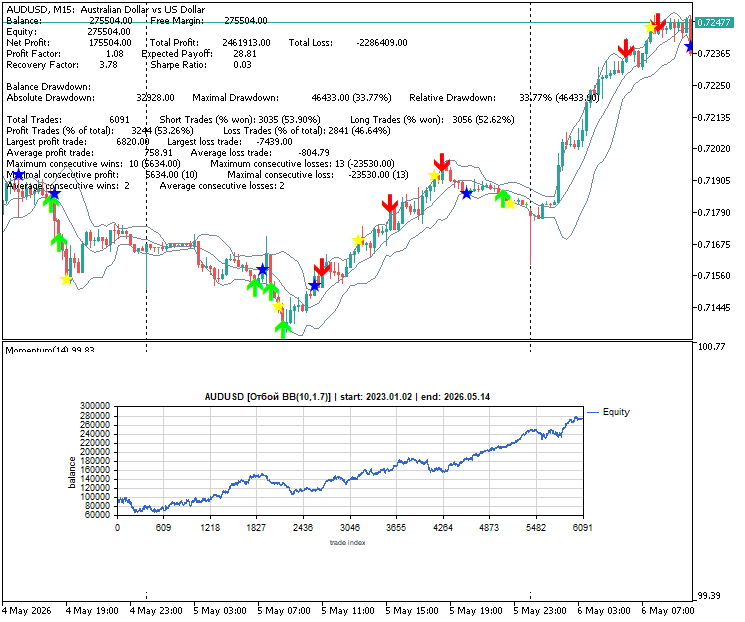
Figure 10: Test indicator with statistical calculations
The full source code is available in the file BB_Signal_Stat_Indicator_V2.mq5 attached to this article.
Now let's run the indicator through the profiler:
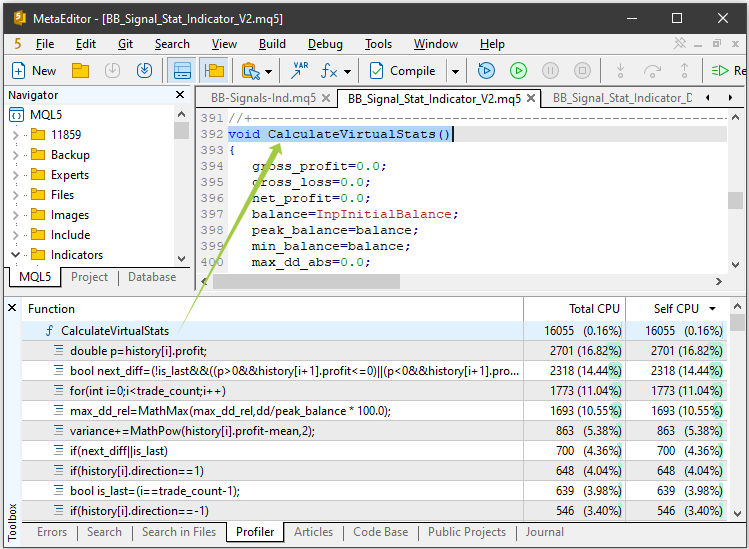
Figure 11: Profiling the indicator with historical statistical calculations
A new statistics function appears: CalculateVirtualStats(). Suppose we decide to move it into a DLL for future expansion and more advanced calculations in commercial versions of the application. In this case, updating the statistical engine only requires replacing the DLL library without recompiling the entire project.
MetaEditor as a C++ Editor
Many developers do not realize that MetaEditor is not limited to MQL. It can work with C++ source files (.cpp and .h) just as easily as with .mq5 files. How to create a library inside MetaEditor:
- Create a .cpp file inside your project folder (for example, in the Libraries section).
- Write the function code. It is important to use the __stdcall or __cdecl calling convention so that MQL5 can correctly interact with the library.
- Press F7 (Compile). MetaEditor automatically calls an external compiler and builds the DLL file. For C++ compilation, MetaEditor uses Microsoft Visual Studio installed on your computer (Visual Studio 2008 or later, including Express and Community editions).
The Visual Studio architecture must match the architecture of your MetaEditor installation, meaning you need the 64-bit version of Microsoft Visual Studio. MetaTrader 5 and MetaEditor support only 64-bit Windows operating systems.
To import functions from a DLL into MQL5 code, use the following declaration:
//+------------------------------------------------------------------+
//| Import function from DLL                                         |
//+------------------------------------------------------------------+
#import "StatsCalculator.dll"
   void CalculateStatsDLL(const TradeRecord &p_history[],int p_trade_count,double initial_balance,VStatResult &res);
#import
Here, a single function is imported: CalculateStatsDLL(). This function calculates trading statistics using the supplied virtual trades. The results are returned through the structure VStatResult &res, which is populated internally inside the DLL.
Inside the indicator code, the original statistics function should be replaced with:
//+------------------------------------------------------------------+
//| Wrapper for DLL function call                                    |
//+------------------------------------------------------------------+
void CalculateVirtualStats(const TradeRecord &p_history[],int p_trade_count,double initial_balance,VStatResult &res)
  {
   //--- validate trade count (comparing arrays with NULL is prohibited in MQL5)
   if(p_trade_count<=0) return;
   CalculateStatsDLL(p_history,p_trade_count,initial_balance,res);
  }
An additional check ensures that the trade array is not empty, providing extra protection against runtime errors. The full indicator source using the DLL implementation is available in the file BB_Signal_Stat_Indicator_DLL.mq5 attached to this article.
Once the algorithm has been debugged, performance optimized, and critical components moved into C++, the final stage begins — protecting the finished product. In commercial algorithmic trading, the strategy source code is the primary asset.
Protecting the Final EX5 File: A Cloud Shield for Intellectual Property
Although the EX5 executable format is already highly resistant to decompilation, commercial distribution requires additional guarantees. This is where the MQL5 Cloud Protector service comes into play. It provides an even higher level of protection.
How the Protection Works: Cryptography Without Compromise
Many developers are cautious about cloud-based protection services because they fear source code leakage. MQL5 Cloud Protector was specifically designed to eliminate these risks entirely.
- Local compilation: The program is first compiled into an EX4/EX5 file on the user's local machine. Additional protection is applied only to the compiled executable — the source code is never transmitted anywhere.
- Transmission of binary data only: Only the executable portion of the file is sent through a secure connection to the online service, where it is encrypted using modern asymmetric algorithms and signed with a unique private key.
- Native compilation and encryption: On the server side, modern asymmetric encryption is applied. The code is transformed into native machine code — the same type of protection used in the MetaTrader Market. The only difference is that the resulting file is not tied to a specific computer. It can run on any machine just like a standard EX4/EX5 application.
This level of protection makes reverse engineering and modification of the EX5 program virtually impossible.
Integrating Protection into the Executable: The Commercial Standard
To create an executable with additional protection, open the project or the main MQL source file and run Tools → MQL5 Cloud Protector. This launches an automatic compilation and cloud-processing sequence. The final executable file is created in the same directory as the project or the main MQ5 source file.
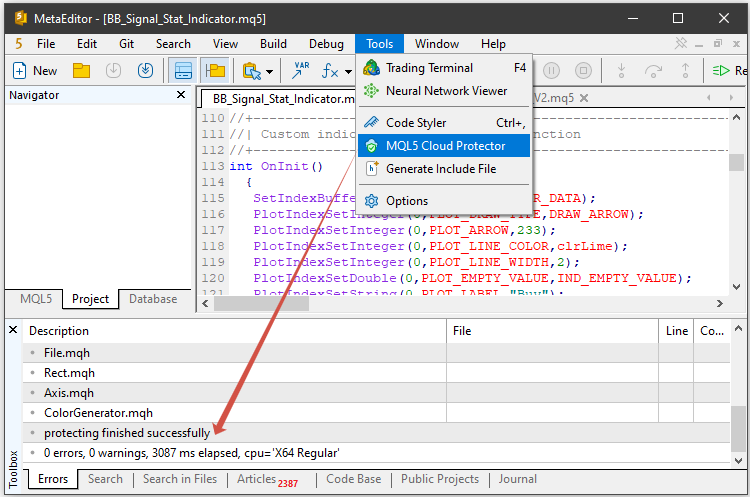
Figure 12: Integrating protection into the executable
MQL5 Cloud Protector solves three main tasks related to commercial distribution:
- Preventing decompilation
- Flexible distribution
- Preserving and even improving performance — unlike obfuscation techniques, cloud-native compilation maintains or improves execution speed through optimization at the machine instruction level.
Protecting the final executable file is the logical conclusion of the development cycle described at the beginning of this article. With MQL5 Cloud Protector, your product evolves from a prototype into a secure commercial solution ready for scaling.
Conclusion
In modern algorithmic trading — where competition is measured in milliseconds and the cost of a mistake may equal an entire deposit — development quality depends on the sophistication of the tools mastered by the programmer and the algo trader. We have walked through the complete lifecycle of an MQL5 application: from the initial idea to final cryptographic protection of the finished product.
The key conclusion is clear: MetaEditor is just as strong an argument for choosing MetaTrader 5 as the MQL5 language itself. A programming language defines what can be built. A development environment defines how quickly, reliably, and efficiently it can be built. MetaEditor brings structure and discipline to the coding process:
- The built-in debugger replaces endless guesswork and log analysis with precise inspection of call stacks and variable states/values.
- The profiler provides objective performance metrics, replacing subjective impressions with numbers.
- Integration with C++ through DLLs removes the limitations of a high-level language for computationally intensive tasks.
- MQL5 Cloud Protector solves the problem of intellectual property protection, making commercial distribution of algorithms both secure and legitimate.
A developer who masters all these tools shortens the path from idea to implementation and gains a significant competitive advantage. And the entire workflow is managed through a single MetaEditor interface.
Recommended materials for learning MetaEditor and MetaTrader 5:
- MetaEditor Help topics: Debug, Profiling, C++ DLL, and Cloud Protector.
- Article: How to Quickly Develop and Debug a Trading Strategy
List of attachments:
| File Name | Description |
|---|---|
| BB_Signal_Ind.mq5 | Code of a test indicator that displays signals as arrows on a chart |
| BB_Signal_Stat_Indicator_V1.mq5 | Code of a test indicator that displays signals as arrows and virtual trading statistics |
| BB_Signal_Stat_Indicator_V2.mq5 | Code of a test indicator that displays signals as arrows, virtual trading statistics, and a balance curve |
| BB_Signal_Stat_Indicator_DLL.mq5 | Code of a test indicator that displays signals as arrows, virtual trading statistics, and a balance curve, and also uses a DLL library |
| StatsCalculator.zip | Code for creating a DLL for calculating virtual trading statistics in Visual Studio 2019 |
Translated from Russian by MetaQuotes Ltd.
Original article: https://www.mql5.com/ru/articles/22395
Warning: All rights to these materials are reserved by MetaQuotes Ltd. Copying or reprinting of these materials in whole or in part is prohibited.


 Eagle Strategy (ES)
 Beyond GARCH (Part II): Measuring the Fractal Dimension of Markets
 MQL5 Wizard Techniques you should know (Part 90): Fenwick Tree Money Management with 1D CNN in MQL5
 Determining Fair Exchange Rates Using PPP and IMF Data

- Free trading apps
- Over 8,000 signals for copying
- Economic news for exploring financial markets
You agree to website policy and terms of use