

Market Simulation (Part 06): Transferring Information from MetaTrader 5 to Excel
 4 727
4 727
 1
1

Introduction
One of the things that most often complicates life for some MetaTrader 5 users is the fact that it lacks certain features, so to speak.
Many people, especially non=programmers, find it very difficult to transfer information between MetaTrader 5 and other programs. One such program is Excel. Many use Excel as a way to manage and maintain their risk control. It is an excellent program and easy to learn, even for those who are not VBA programmers. However, transferring information between MetaTrader 5 and Excel is not one of the simplest tasks, especially if you have no programming knowledge.
Nonetheless, it is extremely useful, as it greatly simplifies life for those who just want to trade while using Excel as a tool to manage operational risk. But without proper programming knowledge, you will certainly find yourself relying on unknown programs or simply giving up on using MetaTrader 5 because you are unable to transfer information from the platform into Excel.
Fortunately, Excel provides some very interesting ways to achieve this. We'll talk about them in more detail later. Unfortunately, MetaTrader 5 does not include any built-in feature that allows us to send information directly to Excel. You either need programming knowledge or must acquire some tool capable of performing the transfer.
Understanding the Problem
Let's begin by understanding the initial challenges involved, as well as the most common methods of transferring data between programs and Excel. One of the most common methods is using RTD (Real-Time Data) or DDE (Dynamic Data Exchange). However, both solutions involve knowledge of how to program COM (Component Object Model) interfaces, and many programmers do not actually possess this skill. And even if you manage to develop such a solution, it will not be particularly flexible.
Both RTD and DDE are unidirectional communication methods, meaning they simply create a bridge between one system and another. They do not allow for certain features that would be especially interesting to use, particularly when dealing with Excel. But because Excel natively supports these systems, they are useful, since they provide a type of real-time communication.
But let's think more broadly. How often do you truly need real-time data in Excel? Most of the time, a slight delay is perfectly acceptable. And here I'm not referring to those who want to use Excel as a control system for an automated trading robot. If you are using MetaTrader 5, you will undoubtedly want the calculations to happen inside the platform, not send them to Excel. Letting Excel calculate a position and then making your Expert Advisor decide inside MetaTrader 5 based on Excel's results simply makes no sense.
However, if you trade positions that may last two days or more or if you trade long/short pairs, you will certainly want Excel to assist you in managing your capital more smoothly and in making risk-control decisions. In such cases, you want Excel to receive quotes or information automatically. Just imagine working with long/short pairs and having 20 positions open. You would have to manually update 40 quotes daily or hourly, depending on your strategy.
The risk of making mistakes is huge, not to mention the time wasted manually transferring 40 quotes one by one. What a chore.
Thus, many people look for solutions to this problem. One such solution is to use quotes coming directly from the web.
Web Solution
This web solution is based on using Excel itself to perform updates for us automatically. But here lies a small issue.
Although it is easy to create, it is not ideal. This is because there will be a delay between quotes, sometimes larger, sometimes smaller. This is largely due to the fact that most financial information services are paid.
There is no such thing as a free lunch, especially when money is involved.
I am not here to judge whether charging for such services is right or wrong. The question is: what's the point of using this method if you already have a platform like MetaTrader 5 in your hands?
When you use this type of solution, open the spreadsheet associated with your Google account, and inside that sheet, enter the following command:
GoogleFinance
By adding this command to a cell in the online spreadsheet, you can retrieve various types of data related to the asset you want. All this data will update periodically. There is usually a delay between updates. If you are managing a position that can change only after several days, this delay is not really a problem. This is fine for buy-and-hold scenarios, but if you are trading, things become more complicated.
Returning to the main point: once you have fully configured the online spreadsheet, you can save and export it for use elsewhere. The export is not truly an export. What you really want is to extract the values that the GoogleFinance function retrieves and transfer them into another spreadsheet - this one on your computer - so you can work comfortably.
Although this solution works for many cases, it is not suitable for others. In many situations, we actually need the quote (and usually just the quote) with minimal delay. However, no matter what you do, you cannot achieve an update frequency of less than one minute using this solution. This can be seen in Image 01.
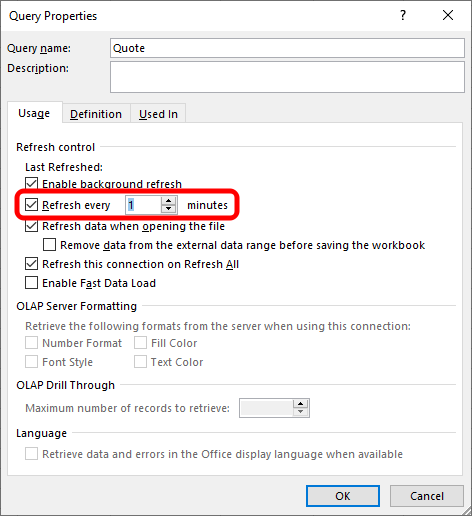
Figure 01 - Properties Window
In Image 01, we see the properties window that sets the update frequency of the component being imported by Excel. If you don't know or have never seen this window, don't worry. I will show how to get there. But note the following: even if you set the minimum time to one minute here, it does not mean that the quote itself updates every minute, since the GoogleFinance function does not refresh that quickly.
So you must be aware of what we are doing here. I am presenting a way for you to get the asset quote with a one-minute delay. If your intention is to get real-time quotes updated at every price change, you must use a different approach than the one shown here. But the solution here will work well in most situations, for a wide range of problems. This is because you will notice that the programming required is very simple to understand, and the communication between MetaTrader 5 and Excel is highly effective.
Understanding the Implementation
There are more complex solutions involving Python to obtain real-time quotes, and simpler ones using RTD or DDE. But this one can be developed directly in MQL5, is easy and quick to implement, and at the same time elegant and pleasant to use.
The first thing you need to understand is that MetaTrader 5 has four basic application types. Each is suitable for a different purpose.
- Expert Advisor: the well-known EAs or robots are MetaTrader 5 applications that allow us to send orders or trade requests to the exchange server. These programs are primarily intended for this type of task.
- Indicators: they These allow us to add or display information on the chart. They serve various purposes involving price monitoring to show something specific for which they were programmed.
- Scripts: they allow us to perform a task. They typically enter and exit the chart quickly, not remaining active for long. However, they are always attached to a specific chart.
- Services: like scripts, services usually perform a specific task, starting and stopping quickly. But unlike scripts, services are not attached to any specific chart. They remain active even when no chart is open in the MetaTrader 5 terminal.
As you may have noticed, all application types in MetaTrader 5 have their purpose. But only services operate independently of any chart being open on the platform, making them the best option.
Note: Although services and scripts behave differently (since scripts are tied to a chart), in terms of code, services and scripts are practically identical. The only thing distinguishing them is that a service contains the following property enabled:
#property service
The presence of this line in a script turns it into a service.
Therefore, the solution we will use involves creating a service. But as I just mentioned, you may also use it as a script. In that case, however, it will be tied to a chart. The only actual code change needed is to remove the property shown above. We will return to this shortly when we examine the code itself.
Beginning the Implementation
Since some readers of this article may not be very familiar with Excel, I will show how to do the necessary steps in it, at least the basics. If this does not apply to you, you may skip to the next section, where I will explain how to implement the service in MQL5 so it can be used in MetaTrader 5 and send the desired data directly to Excel.
Before doing anything, you must edit a small file that will later be used by MetaTrader 5. But you cannot place this file anywhere on your system. For security reasons, MQL5 does not allow access to arbitrary locations in your computer's file system. Therefore, to do things correctly, you will need to open MetaEditor and, in the navigation pane, follow the steps shown in Animation 01 below:
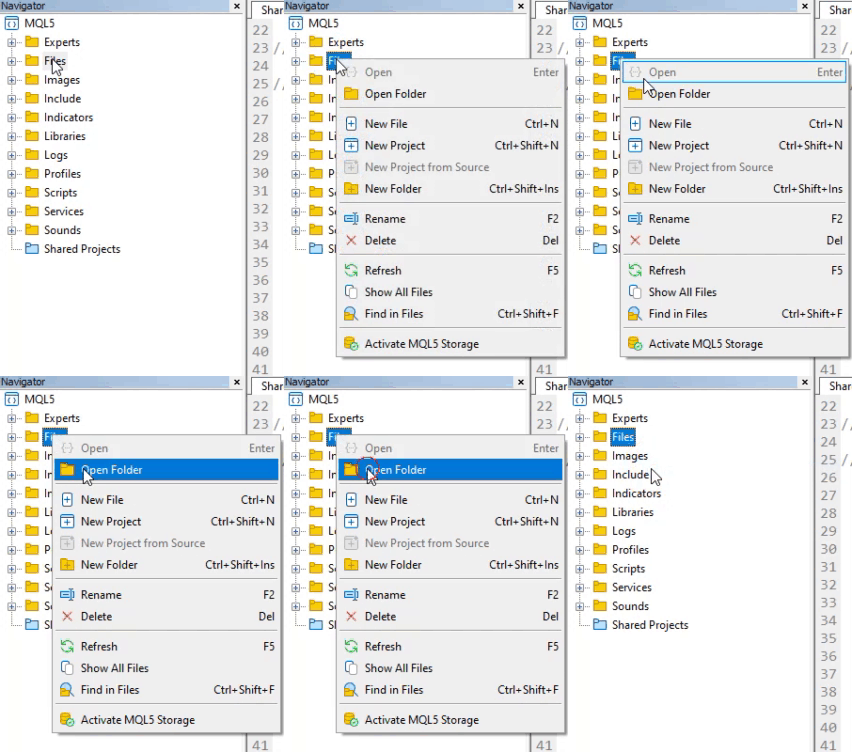
Animation 01 – Accessing the correct directory
When you do this, your operating system's file explorer will open, and you will find yourself in the FILES folder inside the MQL5 directory. The file you need to create must initially be placed in this folder. Inside it, create the following file, shown below. This is just an example of what we will actually be doing.
PETR4;
VALE3;
ITUB3;
Save this file with the name QUOTE.CSV. But do not close the file explorer yet. We will need it in the next step to make it easier to locate the file we have just saved.
Now open Excel with a blank worksheet and follow the sequence below to link this QUOTE.CSV file to the spreadsheet we are creating.
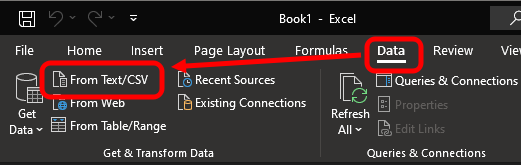
Figure 02
In Figure 02, you see where the option we need is located. If it is not visible in your version of Excel, look for it under Get Data. In any case, you must select the option to import data from a text file. It is similar to importing data from the web, but here we will use a local file.
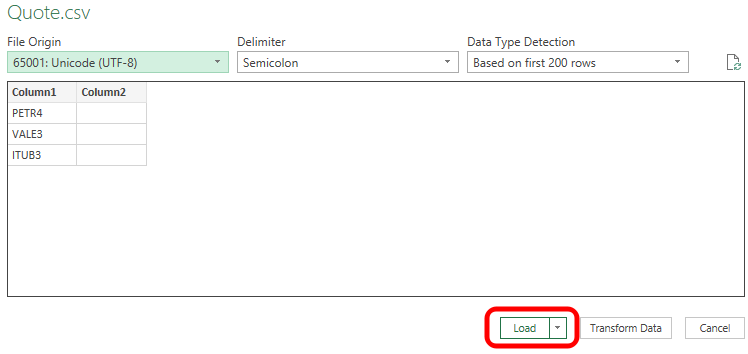
Figure 03
After selecting the option shown in Figure 02, a file browser window will open. Navigate through it to the directory indicated earlier using the operating system file explorer, until you locate QUOTE.CSV inside the MQL5 directory. When you find it, confirm your selection, and you will see the content shown in Figure 03. Pay attention to the file loading settings displayed at the top of Figure 03. If everything is correct, click the arrow next to the Load button and select Load To... You will then be taken to Figure 04.
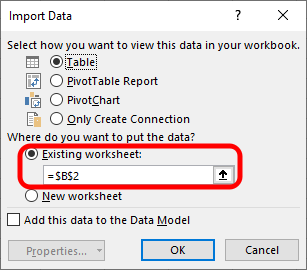
Figure 04
In Figure 04, you can select where the data will be placed in the spreadsheet. Since this is only a demonstration, leave the selection as indicated in the highlighted area. Then click OK, and the result will appear as shown in Figure 05.
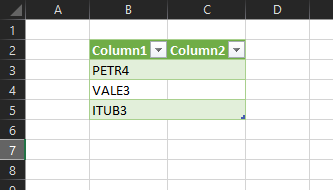
Figure 05
Alright. The data is loaded. But one thing is still missing: telling Excel how and when the data should be updated. Remember, we are not using an RTD or DDE server. So we must explicitly tell Excel when to refresh these data; otherwise, they will never update. If you have sufficient VBA knowledge, you could create something more sophisticated. But here I want everything to remain simple so anyone can accomplish the intended result. So, in order for Excel to know how and when to update the data in QUOTE.CSV, you need to access what is shown in Figure 06.
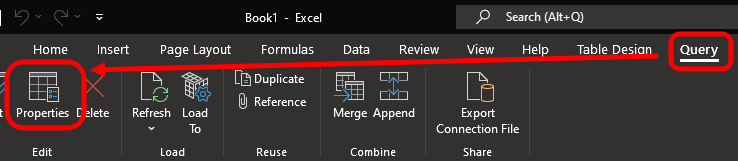
Figure 06
When you select the table in Excel, the Query tab becomes active. In this tab, select the Properties element shown above. When you click this element, you will first see exactly what is shown in Figure 07.
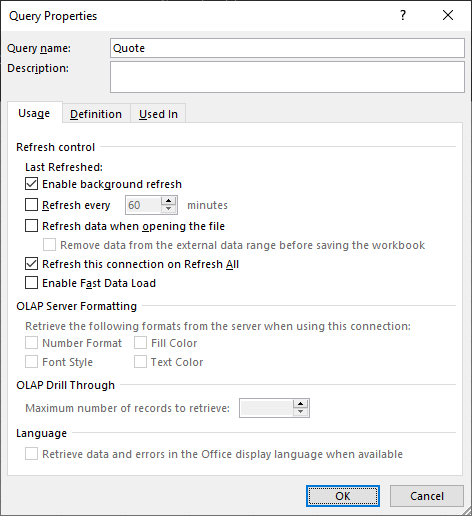
Figure 07
Look carefully at Figure 07. In this window, you must modify a few settings so that Excel can automatically update the data for us. But note that the object being updated is only the table we just created based on the data coming from QUOTE.CSV. So adjust the settings in Figure 07 as shown in Figure 08.
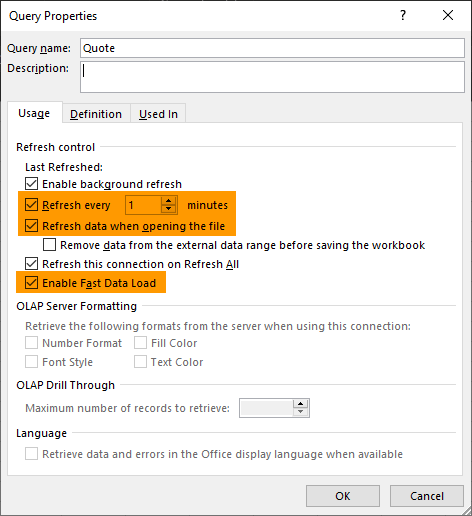
Figure 08
As soon as you confirm the changes by clicking OK, Excel will follow the defined configuration. Thus, approximately every 60 seconds, it will update the spreadsheet data as the file changes. Try it yourself: open the file in a text editor and add values like the example below.
PETR4;30.80
VALE3;190.31
ITUB3;25.89
Save QUOTE.CSV, but there is no need to close the text editor. Wait a bit and check Excel. Almost like magic, you will see the spreadsheet update to what is shown in Figure 09.
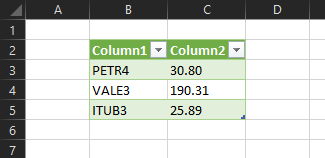
Figure 09
Modify the values again using the text editor until you fully understand what is happening. Notice that from this point on, we can do quite a lot without resorting to complex or convoluted solutions. Another interesting point worth mentioning is that you can use local network sharing. This way, Excel can run on a different computer than MetaTrader 5. They do not necessarily need to be on the same machine.
Implementing the Service in MQL5
In the explanation given in the previous section, I mentioned the use of a file and where you must place it. But now, to actually finalize this article, we need to create the service that will run in MetaTrader 5. However, do not worry - the implementation here will be very simple to create and use. At the end of this article, you will even find a demonstration video to help clear up any doubts about how to operate the system.
First of all, I must say that, unlike what appears in the demonstration video, you do not actually need to have the assets displayed in the Market Watch window. In the video, the assets are shown so that you can follow along and see how the process unfolds. But in a typical execution, this is not required. You may simply run the service, and it will not interfere with the assets in Market Watch nor with MetaTrader 5 performance.
Assuming you have created the file we need, as shown in the previous section, we can move on to the service code and understand how everything will truly function. The complete service code can be seen below:
01. //+------------------------------------------------------------------+
02. #property service
03. #property copyright "Daniel Jose"
04. #property description "Quote sharing service between"
05. #property description "MetaTrader 5 and Excel"
06. #property version   "1.00"
07. //+------------------------------------------------------------------+
08. input string user01 = "Quote.csv"; //FileName
09. //+------------------------------------------------------------------+
10. class C_ShareAtExcel
11. {
12.     private :
13.             string  szSymbol[],
14.                     szFileName;
15.             int     maxBuff;
16.             bool    bError;
17. //+------------------------------------------------------------------+
18. inline void Message(const string szMsg)
19.                     {
20.                             PrintFormat("Sharing service with Excel: [%s].", szMsg);
21.                     }
22. //+------------------------------------------------------------------+
23.     public  :
24. //+------------------------------------------------------------------+
25.             C_ShareAtExcel(string szArg)
26.                     :bError(true),
27.                      maxBuff(0),
28.                      szFileName(szArg)
29.                     {
30.                             int     file;
31.                             string  sz0, szRet[];
32.
33.                             if ((file = FileOpen(szFileName, FILE_CSV | FILE_READ | FILE_ANSI)) == INVALID_HANDLE)
34.                             {
35.                                     Message("Failed");
36.                                     return;
37.                             }
38.                             while (!FileIsEnding(file))
39.                             {
40.                                     sz0 = FileReadString(file);
41.                                     if (StringSplit(sz0, ';', szRet) > 1)
42.                                     {
43.                                             ArrayResize(szSymbol, maxBuff + 1);
44.                                             szSymbol[maxBuff] = szRet[0];
45.                                             StringToUpper(szSymbol[maxBuff]);
46.                                             maxBuff++;
47.                                     }
48.                             }
49.                             FileClose(file);
50.                             bError = false;
51.                             Message("Started");
52.                     }
53. //+------------------------------------------------------------------+
54.             ~C_ShareAtExcel()
55.                     {
56.                             ArrayResize(szSymbol, 0);
57.                             Message("Finished");
58.                     }
59. //+------------------------------------------------------------------+
60.             void Looping(int seconds)
61.                     {
62.                             string  szInfo;
63.                             int     file;
64.
65.                             while ((!_StopFlag) && (!bError))
66.                             {
67.                                     szInfo = "";
68.                                     for (int c0 = 0; c0 < maxBuff; c0++)
69.                                             szInfo += StringFormat("%s;%0.2f\r\n", szSymbol[c0], iClose(szSymbol[c0], PERIOD_D1, 0));
70.                                     if ((file = FileOpen(szFileName, FILE_TXT | FILE_WRITE | FILE_ANSI | FILE_SHARE_WRITE)) != INVALID_HANDLE)
71.                                     {
72.                                             FileWriteString(file, szInfo);
73.                                             FileClose(file);
74.                                     };
75.                                     Sleep(seconds * 1000);
76.                             }
77.                     }
78. //+------------------------------------------------------------------+
79. };
80. //+------------------------------------------------------------------+
81. C_ShareAtExcel *share;
82. //+------------------------------------------------------------------+
83. void OnStart()
84. {
85.     share = new C_ShareAtExcel(user01);
86.
87.     share.Looping(2);
88.
89.     delete share;
90. }
91. //+------------------------------------------------------------------+
Source code of the service
As you can see, the code is very compact. But as is my habit, we use a class here so that, should we decide in the future, we can reuse this code for other purposes. However, nothing prevents you from creating the same logic within a single procedure, with all of it placed inside the OnStart function.
But let’s go into the details and explain how the code works. This way, even if you are just starting out with MQL5, you will be able to adapt it to send other information to Excel. Note: Although I am referring to Excel here, nothing prevents you from transferring data to other programs or systems.
On line 2 we have the property directive that tells MQL5 that the code must be treated as a service. If you want to use it as a script instead, simply disable or remove line 2. Doing so will not affect the code operation; it will simply attach the script to a chart so it can run.
On line 8, we give the user the option to define which file will be used. Remember that the file must be created and edited as explained in the previous section; otherwise, the system will not work.
On line 10, we begin defining our class. Pay attention to line 12, where a private clause is declared. This means that everything from that point onward will be private to the class and cannot be accessed externally. We then declare some global variables for the class, and immediately after, on line 18, we create a procedure to standardize messages printed in the terminal. These messages indicate what the service is doing.
On line 24, we declare a public clause. From this point onward, everything inside the class can be accessed as part of the class interface. Immediately after, on line 26, we begin creating the class constructor. It will receive as an argument the file name to be used. Notice that the programming is done as though the class is not part of the service code. This is the correct way to work with object-oriented programming (OOP). Even though we have the information present on line 8, we think as if we do not; instead, it is passed later.
Now, on line 33, we attempt to open the specified file. If we fail to open it for reading, we inform the user using line 35, and the code returns at line 36. However, if the file can be accessed, we begin reading it. The reading occurs line by line, using the loop that starts on line 38. Line 40 reads one complete line from the file. On line 41, we isolate the asset symbol from any other information present in the line. We use semicolon (;) as the separator.
If line 41 indicates valid data, we allocate a new position in memory and store the asset symbol there. The symbol does not need to be in uppercase, because on line 45 we normalize it. Also note that there is no check to verify whether the asset symbol actually exists. In other words, it is up to you to provide a valid symbol. But such verification is not strictly necessary here. If you make a mistake, Excel will show odd results, and you will quickly notice and correct the error. Therefore, symbol validation in MQL5 is not required.
If everything goes well, we close the file and inform the terminal that the service is active - this is done on line 51.
The next thing we see in the code is the class destructor, which begins on line 54. With only two lines, this destructor frees the allocated memory and informs that the class is being removed from the system task list.
Now, on line 60, we have the main procedure of our program. This procedure keeps the class running in a loop until the service is stopped. The loop begins on line 65. Note carefully: this loop is not executed in a way that overloads the processor or platform. Between iterations, we wait a certain amount of time so other tasks may run. This delay is specified in seconds as an argument to the procedure. That argument is used on line 75, where we have a pause before the next loop iteration.
Now comes the real "magic" inside this loop. On line 67, we clear the content of the string that will be written to the file. To ensure that writing happens as quickly as possible - since it may occur exactly when Excel is reading the file (and yes, this can happen) - we execute a loop starting at line 68. This loop constructs the data to be written to Excel at line 69. At this point, you may place anything. Literally anything.
Once the loop on line 68 finishes, we attempt to access the file on line 70. Attention: normally, attempting to write to a file while another application is reading it causes access errors. Some of these errors can lead to failures in data transfer. This type of issue is well-known when working with Producer–Consumer algorithms But fortunately, MQL5 allows us to use the FILE_SHARE_WRITE flag, which informs the system that simultaneous file access is allowed.
If we successfully open the file for writing, we write everything in a single operation on line 72. Then we immediately close the file on line 73.
Thus the cycle completes, and the loop continues for as long as the service runs.
Conclusion
In this article, you learned how to transfer data from MetaTrader 5 to Excel in a very simple and effective way. This approach is ideal for those who want to monitor a portfolio or manage trades that do not require real-time updates.
In the video below, you can see how the system works and clarify any doubts that may arise from details involving financial data usage. Since the system is very simple and the explanations in the article are more than enough for anyone to use the code, there will be no attachments. Everything will depend entirely on the assets you actually intend to monitor.
Translated from Portuguese by MetaQuotes Ltd.
Original article: https://www.mql5.com/pt/articles/11794
Warning: All rights to these materials are reserved by MetaQuotes Ltd. Copying or reprinting of these materials in whole or in part is prohibited.
This article was written by a user of the site and reflects their personal views. MetaQuotes Ltd is not responsible for the accuracy of the information presented, nor for any consequences resulting from the use of the solutions, strategies or recommendations described.

 Price Action Analysis Toolkit Development (Part 50): Developing the RVGI, CCI and SMA Confluence Engine in MQL5
 Automating Trading Strategies in MQL5 (Part 40): Fibonacci Retracement Trading with Custom Levels
 Neural Networks in Trading: Hierarchical Dual-Tower Transformer (Hidformer)
 Self Optimizing Expert Advisors in MQL5 (Part 17): Ensemble Intelligence

- Free trading apps
- Over 8,000 signals for copying
- Economic news for exploring financial markets
You agree to website policy and terms of use
The "quote.csv" file must be saved as ANSI in the encoding.
It's still not working, there's another error, to be discovered...