

Market Simulation: (Part 11): Sockets (V)
 1 438
1 438
 0
0

Introduction
In the previous article, "Market Simulation (Part 10): Sockets (IV)", we talked about xlwings and its ability to integrate Python with Excel. Okay, although all of this might seem very distant and inapplicable to us here in the replication/modeling system. And before you frown at the prospect of integrating Python and Excel, let's see how we can (to some extent) control MetaTrader 5 through Excel using xlwings. What we demonstrate here will primarily focus on educational objectives. However, don't think that we can only do what will be covered here. We can do much more. However, you will need to understand how xlwings controls Excel via Python. This is the only way to gain full control over MetaTrader 5 from Excel, even without using Excel. Thus, you will be able to control MetaTrader 5 from Python.
Let's start with the basics
First, we need to do something very simple. It should really work. Let's start with an example from the xlwings documentation but explain it in a different way. Then you will understand why we can run Python inside Excel.
We will proceed from the simplest. In any editor, let's write and save the Python code shown in the image below:
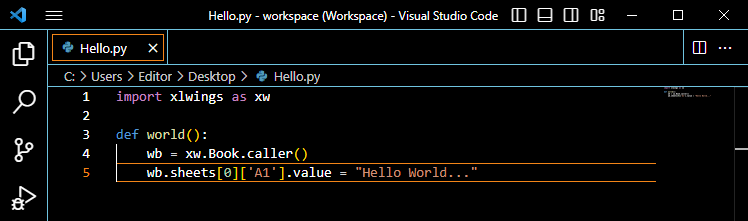
Please note some details in the image, for example, where we are saving the file. But the most important thing is the file name. This name will be very important later. Now, pay attention that this Python script references something. In this case, we are referring to an Excel spreadsheet. But which specific sheet? Don't worry, let's go step by step. Before we figure out which sheet it is, please note that in line 05 we will write text to a specific cell.
However, for the code to work, the spreadsheet must be open in an Excel session. This is related to line 04. It is this line that establishes the connection to know on which sheet we will write the text. Then we will do the following: open Excel and add a new sheet so that Excel looks like the image below:
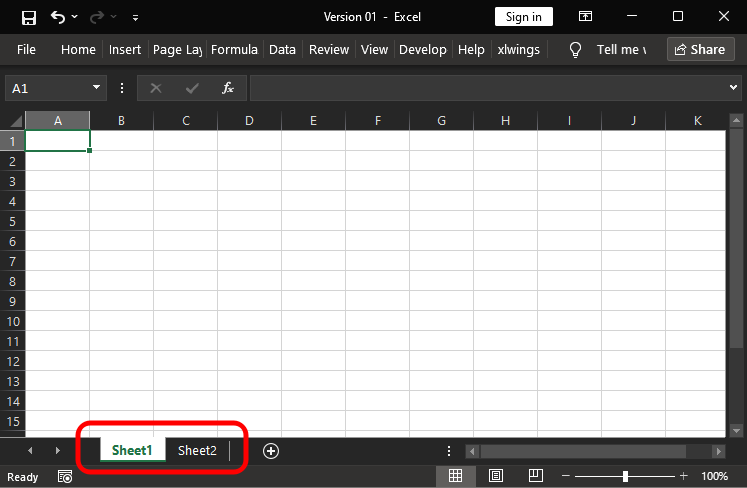
Now, pay attention. Currently, we can select one or more sheets in Excel. Why are we doing this? The reason is that we are going to create a macro that will be triggered when Sheet1 is selected. This way, to call the macro, we won't have to add extra elements. We'll simply press ALT + F11 to open Excel VBA and enter the code shown in the image below:
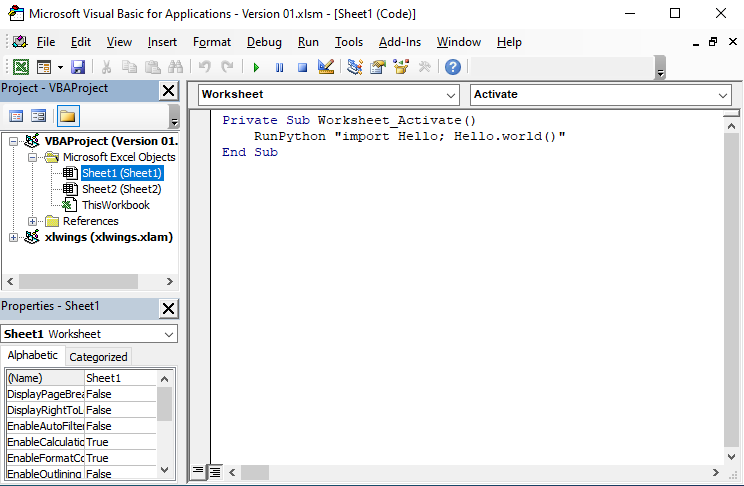
Please note that the code belongs to Sheet1. Once this is activated, this small VBA script will be executed. Now, let's look at line 03 of the code. For this line to be processed correctly, a reference to xlwings must be added. We explained how to do this in the previous article. After referencing xlwings, we can run the Python script. But how?
As you can see, we are importing the file saved in the first image of this topic. For VBA to know where the file is located, we need to provide its name along with the directory it's in. However, since our spreadsheet is saved in the same directory, there is no need to specify which directory.
Now, for VBA (or more precisely, xlwings) to know which part of the Python script will be executed, we specify this after the semicolon. Then, we return to Excel and switch to another sheet. When we do this, the result will be as shown in the image below:
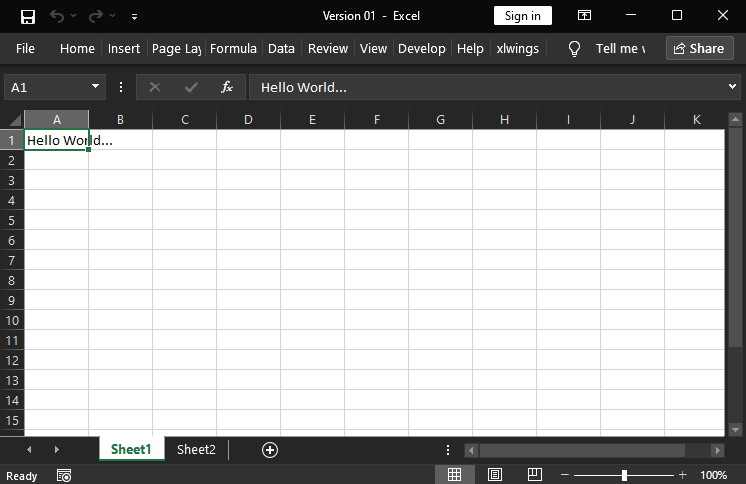
Perfect. You have just seen how Python can perform tasks inside Excel, replacing much of VBA. I say "much" because we will still need to perform some actions in VBA for Python to execute what you programmed in the script.
But what does this have to do with MetaTrader 5? Stay calm, we are getting close to the explanation. If you are not familiar with Python, what we just did a moment ago might seem trivial. However, if you are already learning (or even programming in) Python, your eyes probably lit up when you imagined the possibilities this simple "Hello, world" has opened up for us.
Well, if we can write, we can also read. Remember, I said that although we could use an RTD or DDE server to send data to Excel, it would be a waste of time? The information would only be sent to Excel, and we would not be able to use the calculations made in Excel to control MetaTrader 5.
Since we can use Python to write and read data directly in Excel, we can start thinking a bit further. This enables controlling an Expert Advisor from Excel, which only requires creating a communication bridge between Excel and MetaTrader 5. But if we don't want to use Excel, we can do the same using Python.
However, some traders don't even look at the chart. They work solely based on price. And what is the best way to analyze fundamental indicators? Precisely this, dear reader: an Excel spreadsheet. But not only Excel—other tools are also necessary alongside it. In this case, however, we will focus on the basics, as the idea is to show how to create something else that we will build another time.
Planning the connection between Excel and MetaTrader 5
To establish a connection between Excel and MetaTrader 5, we need an efficient and easy-to-implement method. One of the best ways to do this is by using sockets. This is because a socket allows you to use Excel on one computer and MetaTrader 5 on another, as well as run both on the same machine. How these settings are chosen should be controlled by the trader. That is, if someone wants to dedicate one computer to MetaTrader 5 and another to Excel, sockets make this possible. And even if the trader prefers to run both programs on the same machine, this can be done without changing the communication protocol. In short, sockets are a very practical tool.
Okay, but how will we do it? This is a matter of personal choice. However, since we are demonstrating how Python is used in Excel—and we already know that Python scripts can be used in MetaTrader 5—this opens up many possibilities. The main one is creating a Python server that we can use both in MetaTrader 5 and in Excel. But before doing that, let's think it through. Python allows us to read and write values directly into the spreadsheet. However, as we explained earlier, this should ideally be done via sockets. Therefore, to run the client, we need either MetaTrader 5 or Excel. At this point, it is clear that if we create a server running on MetaTrader 5, we will need to program the client in Excel. However, MQL5 makes it possible to create a client that works directly with an Expert Advisor in a very simple way.
Now, I think you understand that we need to do some programming. So, let's start with something simple—no complicated or confusing elements. That's how the idea of creating an echo server came about. It will be used solely to test the connection between Excel and MetaTrader 5, since this is the simplest form of socket programming.
Creating an echo server
Since this is the simplest server code, don't expect too much from it. The idea is to test how Excel will work with a server written in Python. Let's take a look at what needs to be done. First, we will create the server code in Python. It can be seen below:
01. import socket
02. import xlwings as xw
03.
04. def Echo():
05.         wb = xw.Book.caller()
06.         server = socket.socket(socket.AF_INET, socket.SOCK_STREAM)
07.         server.bind(("127.0.0.1", 27015))
08.         wb.sheets[0]['A1'].value = "Waiting connection..."
09.         server.listen(1)
10.         client, addr = server.accept()
11.         client.send("Wellcome to Server in Python\n\r".encode())
12.         wb.sheets[0]['A2'].value = str(f"Client connected by {addr}")
13.         while True:
14.             info = client.recv(512)
15.             if not info:
16.                 break
17.             client.send(b"Echo Server:" + info)
18.         wb.sheets[0]['A3'].value = "Client disconnected"
19.         client.close()
Python script
«But is that all?" Yes, that's it — with one small remark. This code is designed to interact with Excel and generate reports on what is happening on the server. If you're already familiar with Python, this code probably won't excite you much. But if you have no idea what's going on, let's take a look at what this Python script actually does.
In lines 01 and 02, we tell Python which modules we need. In line 04, we begin building the procedure. This will be used later in VBA. But first, let's understand this part in Python. In line 05, we essentially connect to Excel. In lines 08, 12, and 18, we place the execution status into the Excel sheet, just as we did in the previous topic.
All the remaining lines are part of the echo server. An important detail is that this server allows only one connection at a time. That is, once a client connects, the server becomes locked to that client and will not accept other connections. When the client closes the connection, the server shuts down. This may not seem very versatile, but remember — we are just testing.
Another detail, perhaps even more important, is found in line 07. Notice the value specified there. This value, in IPv4 format, indicates that only connections from a client with the specified address will be accepted. In this case, it refers to local host. That means both the client and the server must be on the same machine. Whether it's physical or virtual, the important thing is that both are in the same «boat».
You can change this value to another address where the client is expected — it could even be a website. However, if you don't know it or simply want to allow connections from any address, just set the value to "0.0.0.0". In this case, Python (or more precisely, the socket) will understand that any address is valid for a client connection. Remember: only one client is allowed at a time.
Okay, but what if we want to handle many more clients? What should we do? In that case, we would need to handle connections in threads — just like we did in C++ code. However, in Python, this is even simpler. But for our current purposes, it's not necessary. It is enough for us that this server accepts a connection and sends back an echo.
Now that we have the server code in Python, we can do the same thing we did in the previous topic. «That is, use the RunPython function to start the server, right?» Exactly. But let's make a small change to the VBA code from the previous topic. The VBA code will look like this:
1. Private Sub Worksheet_Activate()
2.     MsgBox "Call Server..."
3.     RunPython "import Server_Echo; Server_Echo.Test()"
4. End Sub
VBA script
The simplicity of this code is striking. Note that in line 03, we only changed the file name and the name of the called procedure. The key detail is in line 02. This line is needed so that you can see when the server is attempted to be called again. Let's try switching to another sheet to activate the server. On the second attempt to start it, Python will display an error warning. But this isn't exactly an error- it's just that the code does not check whether the server is already active. Something similar would happen if two clients tried to connect in the same session. I will leave these experiments as homework. After that, you will understand the limitations of this educational code and will be able to make the necessary adjustments.
Should I provide already fixed, fully functional code that can be used as an echo server? In my opinion, that would be useless. It's much better if you try to figure these issues out on your own. Try to create a solution. That way, both the knowledge and the underlying concept of sockets will stick much better. Fixing these shortcomings is not difficult- I've already given hints on how to resolve them. All that remains is to understand what is happening and eliminate the issue.
So, this part is ready. Now, let's take a look at the MQL5 client.
We implemented the client in MQL5 — echo version
Just like on the server side, we could also implement the code entirely in Python. But we are preparing for what we will do later. So, let's forget about Python for a moment and focus on MQL5. The client-side code is shown below:
01. //+------------------------------------------------------------------+
02. #property service
03. #property copyright "Daniel Jose"
04. #property description "Echo Server Test Service."
05. #property description "Requires that the Python server is running in Excel."
06. #property version   "1.00"
07. //+------------------------------------------------------------------+
08. input string     user00 = "127.0.0.1";   //Address
09. input int        user01 = 27015;         //Port
10. //+------------------------------------------------------------------+
11. void OnStart()
12. {
13.     char buff[], resp[];
14.     int sock = SocketCreate(), ret;
15.     uint len;
16.     string szMsg;
17.
18.     if (sock == INVALID_HANDLE)
19.     {
20.         Print("Unable to create socket. Error: ", GetLastError());
21.         return;
22.     }
23.     if (!SocketConnect(sock, user00, user01, 1000))
24.     {
25.         Print("Connection with the address [", user00, "] in port ", user01, " failed. Error code: ", GetLastError());
26.         SocketClose(sock);
27.         return;
28.     }
29.     while (!_StopFlag)
30.     {
31.         szMsg = TimeToString(TimeLocal(), TIME_DATE | TIME_SECONDS);
32.         len = StringToCharArray(szMsg, buff) - 1;
33.         Print("To Server: ", szMsg);
34.         if (SocketSend(sock, buff, len) != len)
35.         {
36.             Print("Error code: " , GetLastError());
37.             break;
38.         };
39.         szMsg = "";
40.         do
41.         {
42.             len = SocketIsReadable(sock);
43.             ret = SocketRead(sock, resp, len, 1000);
44.             if (ret > 0)
45.                 szMsg += CharArrayToString(resp, 0, ret);
46.         }while ((ret <= 0) && (!_StopFlag));
47.         Print("From Server: ", szMsg);
48.         Sleep(1000);
49.     }
50.     SocketSend(sock, buff, 0);
51.     SocketClose(sock);
52. }
53. //+------------------------------------------------------------------+
Service in MQL5
Before we discuss this code, let's look at one small detail that needs to be configured for everything to work properly. Yes, we need to tell MetaTrader 5 that we allow opening a socket. First of all, it is necessary to specify the recipient address. This is done as follows:
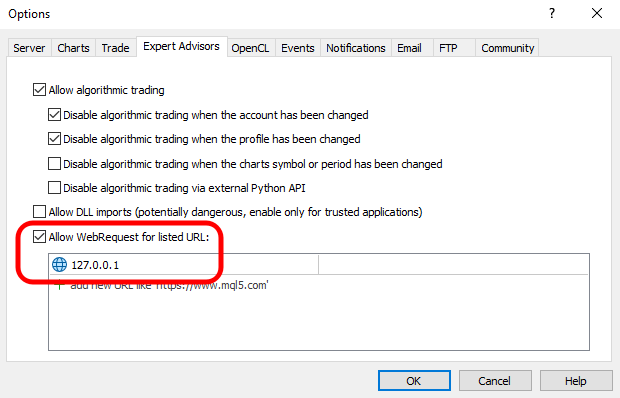
Once this is done, we will be able to see how the MQL5 client code works. The first thing that will likely catch your attention is line 02. Indeed, we can use a Service to implement the socket. Indicators are the only application type that cannot implement sockets. Otherwise, we have complete freedom when using other application types.
You will probably find this code similar to what we've seen in previous articles. Indeed, that is the case. All socket-oriented code is very similar. Therefore, everything discussed above remains valid. The only real difference is in line 50.
Now you might ask yourself: why does this line exist? To understand this, we need to look at the Python server code. There, you can see that in line 15, when the server receives incorrect or empty information, it shuts down. That is exactly what line 50 does — although, honestly, this is not the best way to have the server and client communicate that the connection is being closed. But for initial purposes and basic testing, we can live with it for now. Thus, while the client is connected to the server, we will see the following in MetaTrader 5:
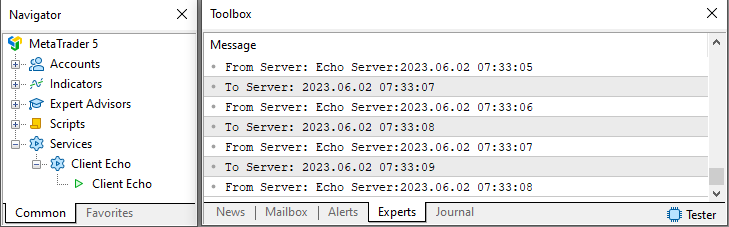
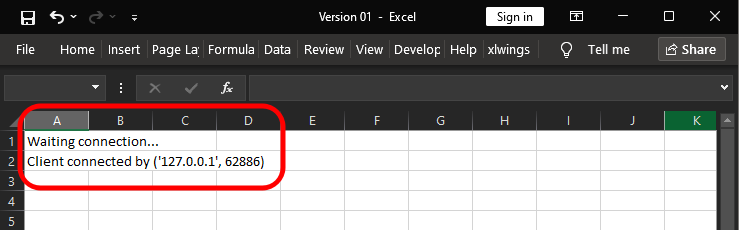
Please note that we are echoing the information in real time. It's simple, but it helps to understand how the communication process unfolds. If you look at the next image, which will be displayed in Excel, you can grasp what we are talking about.
Issues to resolve before the next step
Okay. But this is the simplest out of the basics. However, before we move on to the next stage and examine the full code, let's remember once again that the purpose of this code is purely educational. I would like to take a moment to reflect on where we currently stand.
For those with experience, none of this will come as a surprise. But I suspect that you may not yet be very experienced in using sockets. To be honest, I’m concerned that early in your learning, you might think everything is perfect and that simply following a recipe will make sockets work correctly.
However, reality is not quite so rosy. Not that it’s anything terrifying — sockets are nothing to be afraid of. In fact, sockets are one of the simplest communication tools available. Whether it’s communication between programs, across different platforms (i.e., operating systems), or even between different computers — say, using a Raspberry Pi alongside a PC — sockets simplify interaction between elements that may be vastly different from one another. But if certain precautions aren’t taken, you will run into serious problems, or at least encounter difficulties understanding and resolving the obstacles that inevitably arise.
Let’s revisit our small implementation, which already works and enables information exchange between Excel and MetaTrader 5. Unlike previous articles, where we used a single server running in the command line, here you might accidentally try something we wouldn’t normally do deliberately: running two servers in the same environment. That is, we have one system console with one server already running; we open another console in the same operating system session and attempt to run the same server in this new prompt. If you don’t know what will happen in this case, feel free to try it. You’ll see that it’s somehow impossible. This reveals a problem that many people — even experienced ones — don’t fully understand about sockets (at least theoretically).
If you launch the mini-chat server from one prompt, you will under no circumstances be able to launch the same server from another console within the same operating system session. That is a fact.
Now recall that the mini-chat server uses port 27015, and the echo server — which will run via Excel — also uses the same port. Therefore, theoretically, we have a conflict of interest here. One might assume the operating system would not allow a server to interfere or attempt to listen on the same port using the same protocol. In this case, we are using the TCP protocol. However, we could use TCP on one server and UDP on the other. In that scenario, there would be no issue using the same port.
But when we use the same port, the same protocol, and the same host, things get a bit more complicated.
I want to emphasize this point so that those aiming to become advanced users of sockets understand that working with them requires certain precautions. I want you — before you see how the communication between Excel and MetaTrader 5 is actually implemented — to understand what happens when two different servers use the same resources. In this case: the same protocol, the same port, and the same host. To grasp this, first open the mini-chat server and let it wait for a connection.
Now open the echo server in Excel and leave it waiting for a connection as well. That is, we’ll have something resembling this:
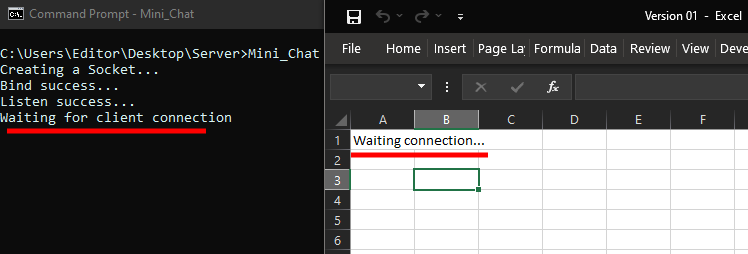
Now the question is: Before testing, I want you to think about which of the servers will accept the connection from the client. In other words, which one will start listening and responding to client requests? Remember that in both cases, we are using very simple code — no validation of whether the client matches the server, no filtering of what type of request the server should expect.
I'm not sure if you truly understand what I'm trying to explain. The point is that although these two servers are different, they are using the same resources: the same port, the same protocol (TCP), and the same host. This is precisely what makes working with sockets so challenging. If we have a server designed to meet specific requirements and we unknowingly spin up another server using the same resources, we may prevent clients from receiving the correct response to their requests.
Therefore, it is crucial to understand that the code I am showing here is NOT complete. It is intended solely for personal use and educational purposes. Real-world server code follows much stricter usage rules and must adhere to robust design principles.
In many cases, some might say the solution is simple: «Just change the protocol or the port — that will resolve the conflict between servers». That is true. Even a simple solution like placing one server on one machine and another on a different machine would solve the problem, even if both use the same port and protocol.
But the question remains: In the image above, which of the two computers will respond to a client's connection request? To figure this out, it's enough to know which server was started last. That is, if no client has connected yet, the first client to attempt a connection will connect to the last server that was started. Once that server is stopped, the server started immediately before it will begin handling new client requests.
An important note: If a client is connected to a server and that server is shut down, the connection is lost, and the client will not automatically reconnect to another server. That's not how it works. A new connection request is required from the client side. Only then will it be able to connect to the server that is now listening on that port, using that protocol — assuming the port, protocol, and host are the same as those of the stopped server.
Concluding thoughts
Although today's article did not demonstrate the actual implementation enabling message exchange between Excel and MetaTrader 5, I wanted to take the opportunity to explain something I consider very important. I don't want you — especially if you're new to sockets — to think that using them is the eighth wonder of the world, nor do I want you to be disappointed when you discover they don't magically solve all your problems.
Sockets are among the most complex and, at the same time, simplest tools in the computing world. If you understand how they work, they can be immensely helpful. But if you treat them as trivial and assume you can use them however you like, without reflection or real understanding, they will cause you serious headaches.
At the beginning of this article series on the replication/modeling service, we considered using sockets to build the entire replication/modeling system. In a sense, that would have been much simpler from an architectural standpoint — we would only need to send tick data directly to the port that MetaTrader 5 uses to connect to the real trade server. However, after further thought, I abandoned that idea. Why? Because it would require techniques whose practical application I prefer not to explain. But I do want you to reflect on this. See you in the next article, where we will explore how Excel can send data to MetaTrader 5 and how MetaTrader 5 can respond to requests from Excel.
| File | Description |
|---|---|
| Experts\Expert Advisor.mq5 | Demonstrates interaction between Chart Trade and the Expert Advisor (requires Mouse Study). |
| Indicators\Chart Trade.mq5 | Creates a window for configuring the order to be sent (requires Mouse Study). |
| Indicators\Market Replay.mq5 | Creates controls to interact with the replication/modeling service (requires Mouse Study). |
| Indicators\Mouse Study.mq5 | Enables interaction between graphical controls and the user (required for both replay and real market trading). |
| Servicios\Market Replay.mq5 | Creates and maintains the market replication/modeling service (core file of the entire system). |
| Код VS C++ Server.cpp | Creates and maintains a socket server developed in C++ (mini-chat version). |
| Python Server.py | Creates and maintains a Python socket for communication between MetaTrader 5 and Excel. |
| ScriptsCheckSocket.mq5 | Allows testing the connection with an external socket. |
| Indicators\Mini Chat.mq5 | Implements a mini-chat via an indicator (requires a running server). |
| Experts\Mini Chat.mq5 | Implements a mini-chat in an Expert Advisor (requires a running server). |
Translated from Portuguese by MetaQuotes Ltd.
Original article: https://www.mql5.com/pt/articles/12744
Warning: All rights to these materials are reserved by MetaQuotes Ltd. Copying or reprinting of these materials in whole or in part is prohibited.
This article was written by a user of the site and reflects their personal views. MetaQuotes Ltd is not responsible for the accuracy of the information presented, nor for any consequences resulting from the use of the solutions, strategies or recommendations described.

 From Basic to Intermediate: Struct (V)
 Market Simulation (Part 14): Sockets (VIII)
 From Basic to Intermediate: Struct (VI)
 From Basic to Intermediate: Struct (III)

- Free trading apps
- Over 8,000 signals for copying
- Economic news for exploring financial markets
You agree to website policy and terms of use