Trade Control Center
- 实用工具
- 版本: 1.0
- 激活: 10

大多数管理面板只显示自己下的订单,或者图表本身所在的品种。Trade Control Center 把账户里的每一笔持仓和每一笔挂单——手动开的、手机开的、别的终端开的、任何 EA 开的——放进同一张表,覆盖所有品种。默认情况下,它不会平掉也不会停掉任何东西,除非按下按钮,或者先设好上限和动作。它不判断行情,也不给出接下来该做什么的建议。
■ 面板长这样
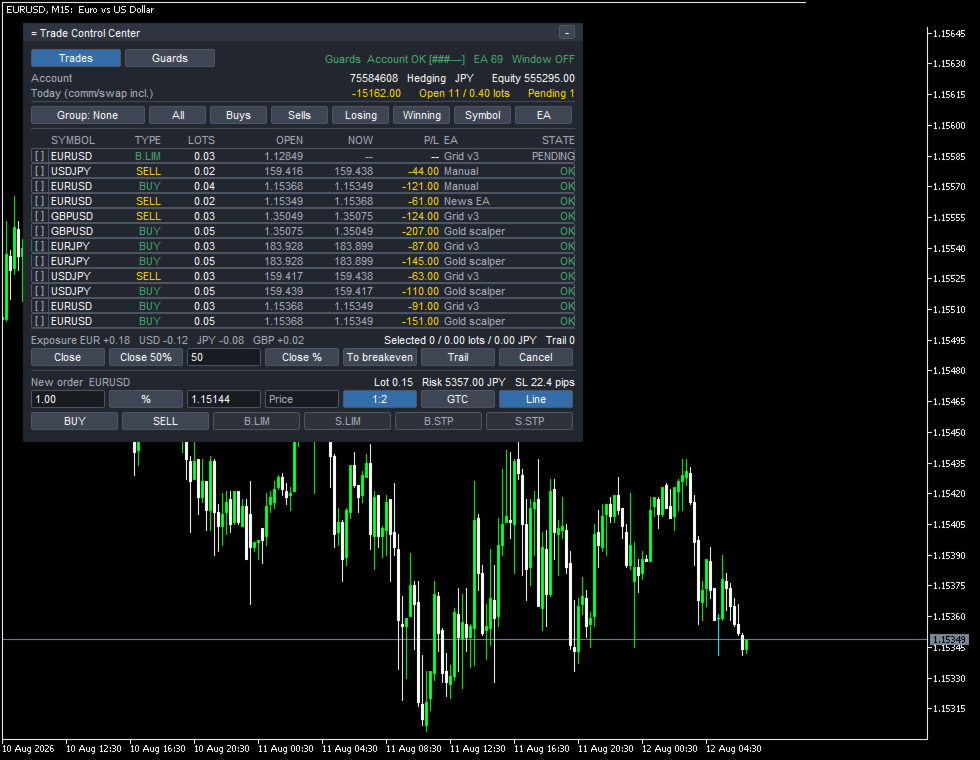
打开 Trades 页,看到的就是这张表,另外还有一个 Guards 页面,专门显示三层额度的状态:
= Trade Control Center
Trades Guards Guards Account OK [###---] EA 69 Window OFF
Today (comm/swap incl.) -15162.00 Open 11 / 0.40 lots Pending 1
Group: None All Buys Sells Losing Winning Symbol EA
SYMBOL TYPE LOTS OPEN NOW P/L EA STATE
[ ] EURUSD B.LIM 0.03 1.12849 -- -- Grid v3 PENDING
[x] USDJPY SELL 0.02 159.416 159.438 -44.00 Manual OK
[x] EURUSD BUY 0.04 1.15368 1.15349 -121.00 Manual OK
[x] EURUSD SELL 0.02 1.15349 1.15368 -61.00 News EA OK
[x] GBPUSD SELL 0.03 1.35049 1.35075 -124.00 Grid v3 OK
[x] GBPUSD BUY 0.05 1.35075 1.35049 -207.00 Gold scalper OK
[x] EURJPY BUY 0.03 183.928 183.899 -87.00 Grid v3 OK
[x] EURJPY BUY 0.05 183.928 183.899 -145.00 Gold scalper OK
[x] USDJPY SELL 0.03 159.417 159.438 -63.00 Grid v3 OK
[x] USDJPY BUY 0.05 159.439 159.417 -110.00 Gold scalper OK
[x] EURUSD BUY 0.03 1.15368 1.15349 -91.00 Grid v3 OK
[x] EURUSD BUY 0.05 1.15368 1.15349 -151.00 Gold scalper OK
Exposure EUR +0.18 USD -0.12 JPY -0.08 GBP +0.02
Selected 11 / 0.40 lots / -1204.00 JPY Trail 0
Confirm? (5s) Close 50% 50 Close % To breakeven Trail Cancel
New order EURUSD Lot 0.15 Risk 5357.00 JPY SL 22.4 pips
1.00 % 1.15144 Price 1:2 GTC Line
BUY SELL B.LIM S.LIM B.STP S.STP
Close 11 position(s), 0.40 lots, -1204.00 JPY?
这几行数字都能对得上。表里一共十二行,最上面那行 B.LIM 还没成交,是挂单,不算持仓,剩下十一行的 LOTS 相加正好是 0.40。按下操作按钮之前,面板先把这十一行的 P/L 加总,结果是 -1204.00,和确认文字里写的金额一致,用户自己在页面上就能核对。Selected 11 那里,十一个勾选框打了勾,只有一个没打——因为 Losing 和 Winning 这两个预设不会选中挂单,挂单还没有结果,谈不上结果高于零还是低于零。Exposure 那一行是从同一张表的 LOTS 算出来的:EURUSD 的买单 0.04、0.03、0.05 和卖单 0.02,加上 EURJPY 的买单 0.03、0.05,按方向正负相加,正好是 EUR +0.18,挂单的 0.03 不计入。New order 那一行的 Lot 0.15 和 Risk 5357.00 JPY,是止损点数乘以手数,再用同一张表里的 USDJPY 汇率换算成账户货币得出的,不用另外查表。顶部的 EA 69 是这个账户里识别到的来源总数,Guards 页一次只能显示几行,要滚动才能看完,两边数字对不上不代表算错。Grid v3、Gold scalper、News EA 这些名字不是用户自己起的,是对应的 EA 自己写在订单备注里的字,没有魔术号的交易归入 Manual。Account OK 后面的方括号是一条分格的进度条,显示这一层额度已经用掉多少,用到底就变成 LOCKED。
表可以按 None / Symbol / EA / Direction 折叠合并,点击列标题就能重新排序。Exposure 只把各币种的持仓手数按方向相加,不做多空判断,也不给风险高低的结论;金、指数一类分不出两种货币的品种归到 Other,同样只是把数量加起来,不带方向。
■ 来源怎么找到
启动时会把过去 30 天(InpHistoryDays)的成交历史扫一遍,识别出所有来源;之后只补最近的新增,不再重复扫全部。持仓和挂单上带的魔术号,会各自变成表里的一行,没有魔术号的交易归为 Manual。表里显示的名字不是用户填的,是对应 EA 自己写在订单备注里的字,已经现成可用,不用额外设置。来源最多记录 128 个,超出的部分不会被悄悄漏掉——面板文字和日志都会点名说明,并提示把 InpHistoryDays 调短来腾出位置。
■ 选中之后怎么执行
逐行勾选,或者用预设一次选中一批——全部、多单、空单、结果低于零的、结果高于零的、按品种、按来源。不管用哪种方式,面板都先把即将发生的事情换算成具体数字摆出来,按钮才会进入倒计时;按钮会变成 Confirm? (5s) 这样的倒计时,结束前必须再按一次才会执行,期间放着不管就什么都不会发生。这次会话里第一次要自动执行操作的时候,面板会多确认一遍(First action of this session),之后才照常走这套两步确认加倒计时的流程。对选中的目标,能做的操作一共六种——全部平仓、平掉一半、按输入的比例平仓、把止损移到保本价、开始跟踪止损、撤销挂单。
■ 下单
新单的手数是从愿意承担的风险和止损距离反推出来的(InpRiskValue),下单前会显示 Lot 和 Risk。止损线可以直接在图表上拖动,或者输入价格,手数和风险会跟着联动。除了市价单,还有四种挂单类型,到期方式由经纪商能接受的种类决定;止盈可以按止损距离的倍数同时设好:
1:1 / 1:1.5 / 1:2
新单永远只认加载了这个工具的那张图表的品种——表里虽然列出所有品种,下单却只对着这一个,原因是止损线和挂单价格都是靠这张图表定出来的。
■ 三层额度
三层各自独立运行、独立触发:账户整体(连手动交易也算在内,InpAccountDailyLimit / InpAccountTotalLimit)、每个 EA 单独一层(按结果、持仓数或手数)、以及交易时段(InpWindow)。用到额度的 80%(InpWarnPercent)那一行就变黄色警示,到达上限就变成 LOCKED,理由会写清楚。
EA Today Open Daily STATE
Gold scalper -1570.00 4/0.20 -3617.24 [###---] OK
Grid v3 -2597.00 4/0.12 -2782.49 [######] WARN
News EA -3250.00 1/0.02 -2226.00 [######] LOCKED
Outside the trading window - new orders are blocked
Daily 那一列写的是换算成账户货币的上限金额,后面跟着一条进度条;News EA 当天已经到 -3250.00,超过上限 -2226.00,所以是 LOCKED。Grid v3 的 -2597.00 相对上限 -2782.49 已经过了 80%,所以是 WARN;Gold scalper 的 -1570.00 相对 -3617.24 还没到 80%,所以仍是 OK。这张截图里的额度不是默认值——账户层默认更宽松,EA 层和时段层默认是关闭的,截图是为了同时呈现四种状态才特意调低的。时段到点自动恢复,当天额度和持仓数、手数的额度也会在同一个重置时刻自动恢复;唯一不会自动恢复的是账户累计额度的锁定,要人看过之后按两次 Unlock 才能解除。账户层和时段层没有 Stop the chart 这个动作。
■ 触发之后的三种动作
达到上限之后可以选的动作,按层分别设置,一共三种。默认是 Alert only(InpDefaultAction):什么都不平、什么都不停,那一行变红,理由写出来。Close and lock 会平掉范围内的持仓、撤掉相关挂单,但并不能让那个 EA 停手——它照样会继续开单,这个工具就继续把新开的单平掉,每来回一次都要付一次点差的成本,次数和累计成本会显示在屏幕上,也会写进日志。Stop the chart 只针对 EA 层,会把那个来源所在的图表关掉,即使 Algo Trading 处于关闭状态也能执行,是不依赖 DLL、真正让某一个 EA 停下来的唯一办法;关闭前会先保存图表模板,保存不成功就不关,并说明原因。EA 层这一动作从不触碰没有魔术号的手动交易,但账户层和时段层的额度,对手动交易同样有效。
■ 对冲账户上才成立
把不同来源的交易分开处理,只有在对冲账户上才成立——净额账户会把同一品种的持仓合并成一笔,魔术号也就不再能区分谁是谁。这个工具启动时会先读取账户类型,遇到净额账户就自动退回到只看不动的状态,并在屏幕上一直提示,按 EA 折叠这个选项也会跟着关闭。
■ 它做不到的事
它不能命令别的 EA 停止交易,MQL5 里没有这样的接口,能做的只是平掉对方开的单、持续平掉对方重新开的单,或者关掉那个 EA 所在的图表。下单永远只认所加载图表的那个品种。净额账户上,EA 分层完全不起作用。Algo Trading 关闭时不能开单也不能平仓,但表格、折叠、数字照常运作,Stop the chart 依然可以执行。
■ 演示与运行环境
策略测试器只给一个品种、一张图表、一个 EA,这个工具原本要处理的情形在里面根本不会出现,所以测试器里它会用另一个魔术号自己下几笔练习单来填满表格(可用 InpTesterDemo 关闭),屏幕上会一直显示 Tester self-test,真实账户上它从来不会自己开单。测试器里能看到表格、选择、二次确认、下单和额度从 OK 到 WARN 再到 LOCKED 的过程,但看不到多品种同表、一个 EA 被锁住而其他仍在交易的样子——这些要在挂了多个 EA 的模拟账户上验证。
47 项参数分成九个分组:
Display / Order entry / Guards: account / Guards: per EA / Guards: trading window / Guards: common / Alerts / Panel / Tester
全部带着默认值,不用另外准备 set 文件就能直接运行。运行环境是 MetaTrader 5,对冲账户,占用一张空闲图表,不调用 DLL、不发起任何外部网络请求、不读写任何外部文件——发布前已用程序核对过。
这个工具只是把账户里已经有的东西排好,在设好额度和动作之后按规则执行,并写清楚原因——它不会说接下来该做什么,只记录发生过什么,也不对您的交易结果作任何承诺。交易存在亏损的风险,建议先在模拟账户上试用。