Trade Control Center
- 유틸리티
- 버전: 1.0
- 활성화: 10

■ Trade Control Center
많은 계좌 관리 도구는 자신이 낸 주문이나 차트의 종목만 보여줍니다. Trade Control Center는 다릅니다. 수동이든 스마트폰이든 다른 기기든 어떤 EA든, 계좌에 있는 모든 포지션과 대기 주문을 종목 구분 없이 하나의 표로 모읍니다. 버튼을 직접 누르거나 한도와 동작을 미리 정해 두어야만 청산되거나 멈추며, 그 전에는 아무 일도 일어나지 않습니다. 다음에 무엇을 사고팔아야 하는지는 말하지 않습니다.
■ 화면과 숫자 확인
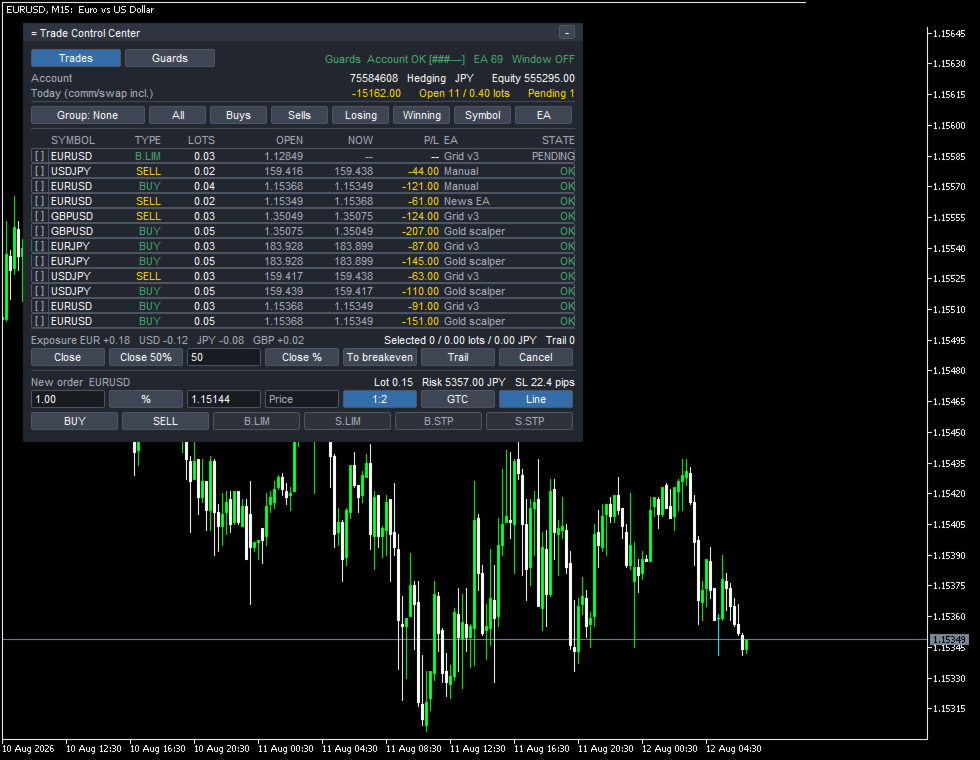
Trades 화면에는 아래와 같이 표가 그대로 나옵니다.
= Trade Control Center
Trades Guards Guards Account OK [###---] EA 69 Window OFF
Today (comm/swap incl.) -15162.00 Open 11 / 0.40 lots Pending 1
Group: None All Buys Sells Losing Winning Symbol EA
SYMBOL TYPE LOTS OPEN NOW P/L EA STATE
[ ] EURUSD B.LIM 0.03 1.12849 -- -- Grid v3 PENDING
[x] USDJPY SELL 0.02 159.416 159.438 -44.00 Manual OK
[x] EURUSD BUY 0.04 1.15368 1.15349 -121.00 Manual OK
[x] EURUSD SELL 0.02 1.15349 1.15368 -61.00 News EA OK
[x] GBPUSD SELL 0.03 1.35049 1.35075 -124.00 Grid v3 OK
[x] GBPUSD BUY 0.05 1.35075 1.35049 -207.00 Gold scalper OK
[x] EURJPY BUY 0.03 183.928 183.899 -87.00 Grid v3 OK
[x] EURJPY BUY 0.05 183.928 183.899 -145.00 Gold scalper OK
[x] USDJPY SELL 0.03 159.417 159.438 -63.00 Grid v3 OK
[x] USDJPY BUY 0.05 159.439 159.417 -110.00 Gold scalper OK
[x] EURUSD BUY 0.03 1.15368 1.15349 -91.00 Grid v3 OK
[x] EURUSD BUY 0.05 1.15368 1.15349 -151.00 Gold scalper OK
Exposure EUR +0.18 USD -0.12 JPY -0.08 GBP +0.02
Selected 11 / 0.40 lots / -1204.00 JPY Trail 0
Confirm? (5s) Close 50% 50 Close % To breakeven Trail Cancel
New order EURUSD Lot 0.15 Risk 5357.00 JPY SL 22.4 pips
1.00 % 1.15144 Price 1:2 GTC Line
BUY SELL B.LIM S.LIM B.STP S.STP
Close 11 position(s), 0.40 lots, -1204.00 JPY?
맨 위 대기 주문 행은 아직 체결되지 않았으므로 포지션 수에 넣지 않고, 나머지 11행의 LOTS를 모두 더하면 0.40이 되어 화면 위쪽 Open 11 / 0.40 lots와 정확히 같습니다. 같은 11행의 매매의 금액 결과(P/L)를 모두 더하면 -1204.00이 되어 청산 전 확인 문구의 금액과 정확히 같습니다. Losing과 Winning은 대기 주문을 선택하지 않습니다. 아직 체결되지 않아 매매의 금액 결과가 나오지 않았기 때문이며, All은 대기 주문도 함께 고릅니다. Exposure의 통화별 숫자(EUR +0.18)는 같은 표의 EURUSD와 EURJPY의 LOTS를 부호 붙여 더한 값일 뿐이며, 대기 주문의 로트는 포함하지 않고 많고 적음을 가리지 않습니다. 두 통화로 나눌 수 없는 금이나 지수 CFD는 Other로 모입니다. New order 줄의 Lot 0.15와 Risk 5357.00 JPY는 감수할 위험 비율과 손절 거리를 곱해, 같은 표의 환율로 계좌 통화로 환산한 값입니다. 화면 위쪽 EA 69 자리 숫자와 Guards 화면에 보이는 줄 수가 다른 것은, Guards가 몇 줄만 보여 주고 스크롤되기 때문입니다. Grid v3, Gold scalper, News EA 같은 이름은 사용자가 붙인 것이 아니라 그 EA가 자기 주문에 남긴 코멘트이고, 매직넘버가 없는 주문은 Manual로 모입니다. Account 자리의 눈금은 한도 사용량을 여섯 단계로 보여 줍니다.
드롭다운의 None / Symbol / EA / Direction 중 하나로 표를 접을 수 있고, 열 머리글을 클릭하면 그 열 기준으로 정렬됩니다.
■ 주문 주체 자동 인식
시작할 때 InpHistoryDays로 정한 30일치 거래 내역을 훑어 매직넘버를 모두 찾고, 이후에는 달라진 부분만 반영합니다. 이름은 사용자 입력이 아니라 그 EA가 자기 주문에 남긴 코멘트이며, 매직넘버가 없으면 Manual로 표시됩니다. 128개까지 다루며, 넘는 만큼은 누락되지 않고 이유 문구와 로그에 이름을 남기며 InpHistoryDays를 줄이는 대처법도 보여줍니다.
■ 선택과 실행
행을 하나씩 체크하거나, 표에 있는 일괄 선택 버튼을 눌러 고를 수 있습니다. 버튼을 누르면 먼저 무슨 일이 일어날지 숫자로 보여주고, 버튼이 Confirm? (5s)처럼 남은 시간으로 바뀌어 다시 누르지 않으면 아무 일도 일어나지 않습니다. 그날 첫 자동 개입 전에는 First action of this session 문구로 한 번 더 동의를 구합니다.
■ 신규 주문
로트 크기는 감수할 위험(InpRiskValue)과 손절 거리로부터 역산해 정하며, 손절선은 차트에서 드래그하거나 가격을 입력하면 로트와 예상 손실액이 따라 바뀝니다. 시장가 외에 네 가지 대기 주문을 낼 수 있고 브로커가 받아들이는 유효기간만 보여주며, 익절은 손절 거리 비율(1:1 / 1:1.5 / 1:2)로 함께 걸 수 있습니다. 표는 모든 종목을 보여주지만, 신규 주문은 언제나 이 도구를 올려 둔 차트의 종목 하나로만 나갑니다.
■ 삼중 감시
계좌 전체(수동 거래 포함), EA 한 개씩, 거래 가능 시간대라는 세 층이 독립적으로 동작합니다. 계좌 층은 일일·누적 손실 한도(InpAccountDailyLimit / InpAccountTotalLimit)를, 시간대 층은 InpWindow로 정한 범위를 봅니다. 한도의 80%를 넘으면 경고 상태가 되고(InpWarnPercent), 닿으면 LOCKED가 되며 이유가 함께 나옵니다. 계좌·시간대 층에는 Stop the chart가 없습니다. 시간대 한도는 다시 거래 가능 시간대가 되면, 일일·건수·로트 한도는 날짜가 바뀌면 풀리지만, 누적 손실 한도만은 사람이 확인한 뒤 두 번 눌러야 풀립니다.
Guards 화면의 일부를 그대로 옮기면 다음과 같습니다.
EA Today Open Daily STATE
Gold scalper -1570.00 4/0.20 -3617.24 [###---] OK
Grid v3 -2597.00 4/0.12 -2782.49 [######] WARN
News EA -3250.00 1/0.02 -2226.00 [######] LOCKED
Outside the trading window - new orders are blocked
Daily 열은 한도를 계좌 통화로 환산한 금액이고, 옆의 여섯 단계 눈금이 사용량을 보여줍니다. News EA는 오늘의 결과 -3250.00이 한도 -2226.00을 넘어 LOCKED로 바뀌었고, -2597.00이 한도 -2782.49의 80%를 넘은 Grid v3는 WARN, -1570.00이 -3617.24의 80%에 못 미친 Gold scalper는 OK로 남아 있습니다. 이 화면의 한도는 기본값이 아니며, 기본값은 이보다 여유 있고 EA별·시간대 한도는 처음엔 꺼져 있습니다. 여러 상태를 한 화면에 담기 위해 한도를 낮춰 찍었습니다.
■ 한도에 닿았을 때의 동작 세 가지
한도별로 동작을 고를 수 있습니다(InpDefaultAction). 기본값 Alert only는 아무것도 닫지 않고 줄이 빨갛게 바뀌며 이유만 알립니다. Close and lock은 범위 안 포지션을 청산하고 대기 주문을 취소하지만 그 EA 자체는 멈추지 못하며, EA가 계속 새로 진입하면 이 도구도 그때마다 다시 청산해, 그 횟수와 누적 비용을 화면과 로그에 남깁니다. 정말로 멈추려면 Stop the chart를 씁니다. 이 동작은 EA별로만 쓸 수 있고, 그 EA가 올라간 차트를 닫습니다. Algo Trading이 꺼져 있어도 이 동작만은 실행됩니다. EA별 층은 매직넘버 없는 거래를 건드리지 않지만, 계좌·시간대 층의 한도는 수동 거래에도 그대로 걸립니다.
■ 헤징 계좌 전용
한 EA의 거래를 다른 EA와 구분하는 것은 헤징 계좌에서만 성립합니다. 네팅 계좌는 종목별로 포지션이 하나로 합쳐져 매직넘버로 구분할 방법이 없으므로, 시작할 때 계좌 종류를 확인해 네팅 계좌라면 관찰 전용 모드로 전환되며 그 사실을 화면에 띄우고, EA 기준 접기는 쓸 수 없습니다.
■ 할 수 없는 일
MQL5에는 다른 EA에게 거래를 멈추라고 지시하는 방법이 없습니다. 할 수 있는 것은 그 EA가 낸 것을 청산하는 일, 다시 낼 때마다 청산을 반복하는 일, 그 EA의 차트를 닫는 일 세 가지뿐입니다. 신규 주문은 이 도구를 올린 차트의 종목으로만 나가고, 네팅 계좌에서는 EA별 구분이 되지 않으며, Algo Trading이 꺼져 있으면 신규 주문도 청산도 못 합니다. 하나의 차트를 독점하므로 다른 차트에 올리면 실행을 거부합니다.
■ 전략 테스터로 먼저 확인
Strategy Tester는 종목 하나, 차트 하나, EA 하나만 줍니다. 테스터 안에서는 다른 매직넘버로 작은 연습용 거래를 스스로 내어 표를 채우며(InpTesterDemo), 화면에 Tester self-test 문구가 계속 떠 있습니다. 실계좌에서는 스스로 주문을 내지 않습니다. 여러 종목이 함께 있는 표나 EA 하나만 멈추고 나머지는 움직이는 모습은 EA를 여러 개 띄운 데모 계좌에서 확인해야 합니다.
■ 입력 파라미터와 동작 환경
입력 파라미터는 모두 47개이며 아래의 아홉 개 그룹으로 정리되어 있고, 모두 기본값 그대로 작동해 별도의 set 파일이 없어도 됩니다.
Display / Order entry / Guards: account / Guards: per EA / Guards: trading window / Guards: common / Alerts / Panel / Tester
MetaTrader 5의 헤징 계좌, 빈 차트 한 장을 대상으로 만들었으며, DLL 호출·외부 통신·외부 파일이 전혀 없음을 출시 전에 자동 검사로 확인했습니다.
■ 마지막으로
이 도구는 계좌에 이미 있는 것을 정리해서 보여주고, 한도와 동작을 정해 두면 그대로 실행한 뒤 이유를 기록으로 남길 뿐, 다음에 무엇을 사고팔아야 하는지는 말하지 않으며, 어떤 성과도 약속하지 않습니다. 거래에는 손실 위험이 따르므로 먼저 데모 계좌에서 시도해 보시기 바랍니다.