Trade Control Center
- Yardımcı programlar
- Sürüm: 1.0
- Etkinleştirmeler: 10

Trade Control Center nedir
Çoğu panel yalnızca kendi açtığı işlemleri ya da grafiğin sembolünü gösterir. Trade Control Center, kaynağı ne olursa olsun (elle, telefondan, başka bir terminalden, herhangi bir EA'dan) hesaptaki bütün pozisyonları ve bekleyen emirleri tek bir tabloda, bütün semboller boyunca toplar. Bir düğmeye basılana ya da bir limit ve eylem seçilene kadar hiçbir şey kapanmaz. Alım satım kararı vermez, sinyal üretmez; hesapta zaten var olanı düzenler.
Panel görünümü
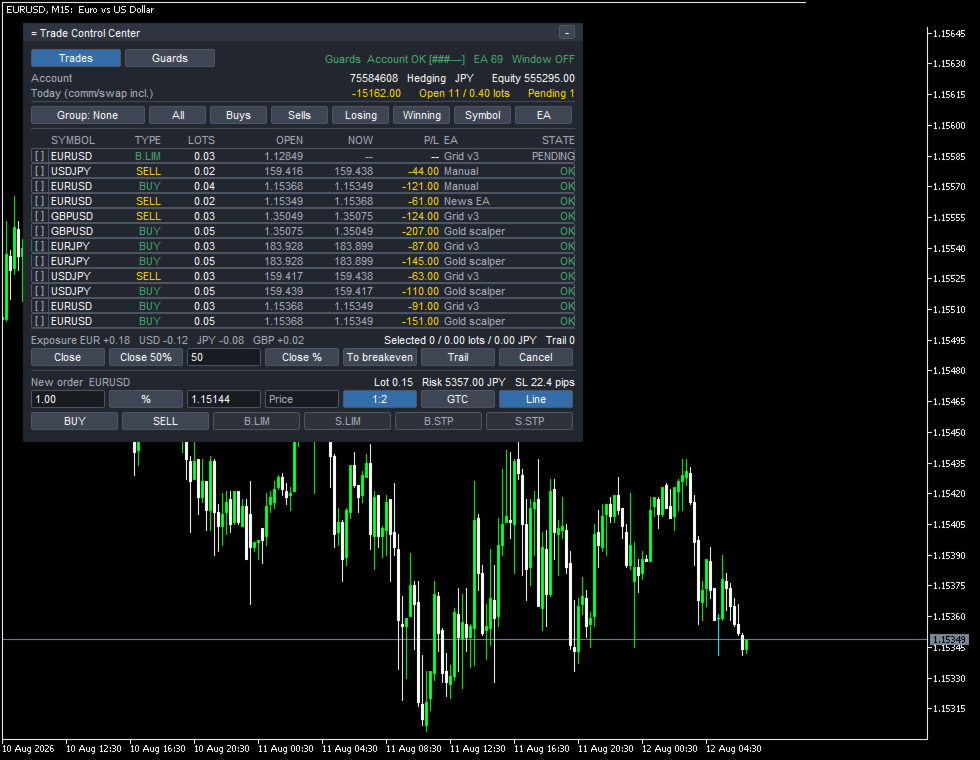
= Trade Control Center
Trades Guards Guards Account OK [###---] EA 69 Window OFF
Today (comm/swap incl.) -15162.00 Open 11 / 0.40 lots Pending 1
Group: None All Buys Sells Losing Winning Symbol EA
SYMBOL TYPE LOTS OPEN NOW P/L EA STATE
[ ] EURUSD B.LIM 0.03 1.12849 -- -- Grid v3 PENDING
[x] USDJPY SELL 0.02 159.416 159.438 -44.00 Manual OK
[x] EURUSD BUY 0.04 1.15368 1.15349 -121.00 Manual OK
[x] EURUSD SELL 0.02 1.15349 1.15368 -61.00 News EA OK
[x] GBPUSD SELL 0.03 1.35049 1.35075 -124.00 Grid v3 OK
[x] GBPUSD BUY 0.05 1.35075 1.35049 -207.00 Gold scalper OK
[x] EURJPY BUY 0.03 183.928 183.899 -87.00 Grid v3 OK
[x] EURJPY BUY 0.05 183.928 183.899 -145.00 Gold scalper OK
[x] USDJPY SELL 0.03 159.417 159.438 -63.00 Grid v3 OK
[x] USDJPY BUY 0.05 159.439 159.417 -110.00 Gold scalper OK
[x] EURUSD BUY 0.03 1.15368 1.15349 -91.00 Grid v3 OK
[x] EURUSD BUY 0.05 1.15368 1.15349 -151.00 Gold scalper OK
Exposure EUR +0.18 USD -0.12 JPY -0.08 GBP +0.02
Selected 11 / 0.40 lots / -1204.00 JPY Trail 0
Confirm? (5s) Close 50% 50 Close % To breakeven Trail Cancel
New order EURUSD Lot 0.15 Risk 5357.00 JPY SL 22.4 pips
1.00 % 1.15144 Price 1:2 GTC Line
BUY SELL B.LIM S.LIM B.STP S.STP
Close 11 position(s), 0.40 lots, -1204.00 JPY?
Group: None / Symbol / EA / Direction ile tablo katlanır, sütun başlığı tıklanınca sıralanır. Exposure satırı açık pozisyonlardaki lotları döviz bazında artı/eksi işaretini koruyarak toplar, yorum yapmaz; iki para birimine ayrıştırılamayan semboller (altın, endeks CFD'leri gibi) Other altında toplanır.
Open 11 / 0.40 lots, 12 satırın tamamını saymaz: en üstteki B.LIM bekleyendir, pozisyon sayılmaz; kalan 11 satırın LOTS toplamı 0,40'tır. Close 11 position(s), 0.40 lots, -1204.00 JPY? istemi de bunu doğrular: P/L sütunundaki 11 sonuç toplanınca -1204,00 çıkar. Selected 11 yazsa da 11 kutu işaretli, 1 kutu boştur; bekleyen emrin henüz sonucu olmadığından Losing ve Winning onu seçmez. Exposure EUR +0,18 USD -0,12 JPY -0,08 GBP +0,02 de aynı tablodan çıkar: EURUSD ve EURJPY satırlarının lotları artı/eksi işaretini koruyarak toplanır, bekleyen emir girmez. Lot 0.15 Risk 5357.00 JPY satırındaki lot, risk yüzdesiyle zarar-durdur mesafesinin çarpımından çıkar, aynı tablodaki USDJPY kuruyla hesap para birimine çevrilir; ara adımlar yazılmaz, tamamı panelin kendi sayılarıyla doğrulanabilir. EA 69, Guards ekranındaki dokuz satırla eşleşmek zorunda değildir; o ekran birkaç satır gösterip kaydırılır. Grid v3, Gold scalper, News EA gibi adlar kullanıcının verdiği isim değil, EA'nın kendi emrine bıraktığı yorumdur; magic numarasız işlemler Manual satırında toplanır. Account OK [###---], kullanılan limit payını altı bölmeli bir çubukla gösterir.
Kaynak bulma
Araç açılışta son 30 günün (InpHistoryDays) geçmişini tarayarak kaynakları kendiliğinden bulur; kurulum gerektirmez, isim de elle girilmez. Kaynak sayısının üst sınırı 128'dir; aşıldığında yeni kaynak sessizce dışarıda bırakılmaz, ekranda ve günlükte adıyla bildirilir, InpHistoryDays'i kısaltmak çözüm olarak gösterilir.
Seçim ve uygulama
Satırlar tek tek işaretlenir ya da aynı düğme grubuyla (All, Buys, Sells, Losing, Winning, Symbol, EA) toplu seçilir. Seçime uygulanabilecek altı işlem vardır: kapatmak, yarısını kapatmak, girilen bir yüzdeyi kapatmak, zarar-durdur seviyesini başabaşa çekmek, trailing stop başlatmak, bekleyen emri iptal etmek. Önce ne olacağı sayılarla yazılır — Close 11 position(s), 0.40 lots, -1204.00 JPY? gibi; düğme Confirm? (5s) şeklinde geri sayıma döner, beş saniye içinde yeniden basılmazsa hiçbir şey uygulanmaz. Oturumdaki ilk otomatik müdahaleden önce First action of this session ile ayrı bir onay daha istenir.
Yeni emir
Lot miktarı, seçilen risk (InpRiskValue) ve zarar-durdur mesafesi üzerinden bulunur; sonuç, göndermeden önce Lot 0.15 Risk 5357.00 JPY SL 22.4 pips satırında görünür. Durdur çizgisi grafikte sürüklenebilir ya da fiyat elle yazılabilir, lot ve risk bu değeri izler. Piyasa emrinin yanında dört tür bekleyen emir vardır (B.LIM, S.LIM, B.STP, S.STP), süresi aracı kurumun kabul ettiği seçeneklerle sınırlıdır. Durdur mesafesine oranlı bir hedef seviyesi de ayarlanabilir: 1:1 / 1:1.5 / 1:2. Tablo bütün sembolleri listelese de, yeni emirler her zaman panelin grafiğinin sembolünde açılır.
Üç bağımsız sınır katmanı
Hesabı üç katman izler: hesabın tamamı (elle açılan işlemler dâhil, InpAccountDailyLimit, InpAccountTotalLimit), her EA kendi başına (kayıp, pozisyon sayısı, toplam lot) ve bir zaman aralığı (InpWindow). Bir satır, limitin InpWarnPercent oranını (80'i) aştığında sarıya döner ve WARN olur, limite ulaşınca kırmızıya döner ve LOCKED olur; gerekçesi ekranda yazılı olarak gösterilir.
EA Today Open Daily STATE
Gold scalper -1570.00 4/0.20 -3617.24 [###---] OK
Grid v3 -2597.00 4/0.12 -2782.49 [######] WARN
News EA -3250.00 1/0.02 -2226.00 [######] LOCKED
Outside the trading window - new orders are blocked
Daily sütunu, limitin hesap para birimine çevrilmiş tutarını altı bölmeli göstergeyle verir; Today bu tutara ulaşınca satır kilitlenir — News EA'da -3250,00, -2226,00'ı aştığından LOCKED'tır. Grid v3'te -2597,00, -2782,49'un yüzde 80'ini geçtiğinden WARN; Gold scalper'da -1570,00, -3617,24'ün yüzde 80'ine ulaşmadığından OK'tır. Bu görüntüdeki limitler varsayılan değil: hesap normalde daha gevşek başlar, EA başına ve zaman aralığı limitleri ilk kurulumda kapalıdır; dört durumu tek ekranda göstermek için bilerek düşürülmüştür.
Saat, zaman aralığının içine yeniden girdiğinde bu sınır kendiliğinden açılır; günlük kayıp ile pozisyon/lot sınırları da gün değişim saatinde kendiliğinden açılır. Toplam kayıp sınırı kendiliğinden açılmaz, yalnızca gözden geçirilip Unlock'a iki kez basılınca açılır. Hesap ve zaman aralığı katmanlarında Stop the chart yoktur: ikisi de tek bir grafiğe bağlı değildir.
Limit aşımında üç eylem
Varsayılan eylem Alert only'dir (InpDefaultAction): hiçbir şey kapanmaz, satır kırmızıya döner, gerekçe yazılır. Close and lock aralıktaki pozisyonları kapatır, bekleyen emirlerini iptal eder; EA'yı durdurmaz. EA yeniden açmaya devam ederse panel kapatmayı sürdürür, her seferinde bir spread tutarında maliyete yol açar; sayı ve birikmiş maliyet ekranda ve günlükte gösterilir. Stop the chart yalnızca EA başına katmanda vardır, o kaynağın grafiğini Algo Trading kapalı olsa bile kapatır. EA başına katman magic numarasız işlemlere dokunmaz; hesap ve zaman aralığı katmanları elle açılan işlemlere de uygulanır.
Hedging hesap tasarımı
EA'ların işlemlerini birbirinden ayırmak yalnızca hedging hesaplarda mümkündür; netting hesabında terminal aynı sembolün pozisyonlarını birleştirdiğinden hiçbir araç bu ayrımı yapamaz. Araç açılışta hesap türünü okur; netting hesabında yalnızca izleme moduna geçer, bunu ekranda gösterir ve EA'ya göre gruplamayı kaldırır.
Yapamadıkları
- Başka bir EA'ya işlem yapmayı bırakmasını söyleyemez; MQL5'te böyle bir API yoktur. Yapabildiği: o EA'nın açtığı pozisyonları kapatmak, yeniden açılanları kapatmaya devam etmek, o EA'nın grafiğini kapatmak.
- Netting hesabında EA'ya özgü ayrım çalışmaz.
- Algo Trading kapalıyken emir gönderemez, pozisyon kapatamaz; tablo ve Stop the chart yine çalışır.
- Yeni emirler yalnızca panelin grafiğinin sembolünde açılır.
- Zaten gerçekleşmiş bir işlemi geri alamaz.
Demo ve kurulum
Strateji Sınayıcısı tek bir sembol, tek bir grafik, tek bir EA verir. Bu aracın var olma nedeni, farklı kaynaklardan gelen işlemlerin aynı hesapta bir arada olmasıdır; bu durum sınayıcıda hiç oluşmaz. Bu yüzden yalnızca sınayıcıda, araç kendisi farklı bir magic numarasıyla (InpTesterDemo) küçük deneme işlemleri açıp tabloyu doldurur; ekranda sürekli Tester self-test yazar. Gerçek hesapta kendiliğinden hiç işlem açmaz.
47 parametre dokuz grupta toplanmıştır: Display / Order entry / Guards: account / Guards: per EA / Guards: trading window / Guards: common / Alerts / Panel / Tester. Her parametrenin çalışan bir varsayılanı vardır, set dosyası olmadan da çalışır. MetaTrader 5 için, hedging hesaplarda, tek bir boş grafikte çalışacak şekilde tasarlanmıştır; DLL çağrısı yapmaz, dışarıya ağ isteği göndermez, dış dosya kullanmaz. Bunların hepsi yayına çıkmadan önce denetlenmiştir.
Bu araç hesapta zaten var olanı tek bir tabloda düzenler; bir limit ve eylem seçildiğinde bunu uygular, nedenini yazar, bundan sonra ne olacağını söylemez, hiçbir sonuç vaat etmez. İşlem yapmak kayıp riski taşır; önce demo hesapta denenmesi önerilir.