
Prop Guard Pro
- Утилиты
- Версия: 1.0

PropGuard Pro is a professional-grade risk management Expert Advisor built specifically for prop firm traders. It monitors your account in real time, enforces drawdown limits, time-based rules, and position constraints — then auto-closes trades the instant a rule is breached. Never fail a funded challenge because of a preventable mistake again.
━━━ KEY FEATURES ━━━
✦ Real-Time Drawdown Enforcement
• Daily and total drawdown tracking based on your funded account size (not the live balance)
• Supports both percentage-based and fixed-dollar limits
• Optional trailing drawdown (high-water mark based) for firms that require it
• Early warning alerts when approaching limits — before it's too late
✦ Automatic Position Closure
• Instantly closes all positions on drawdown breach — no manual intervention needed
• Auto-close before overnight cutoff and Friday weekend close
• Configurable close times to match your firm's exact rules
✦ News Blackout Protection
• Reads the built-in MQL5 economic calendar automatically
• Blocks trading before and after high-impact news events
• Configurable currency filter, impact level, and buffer minutes
✦ Session Filter & Position Limits
• Restrict trading to specific session hours
• Enforce max open positions, max daily trades, and max lot size per position
✦ Live Canvas Dashboard
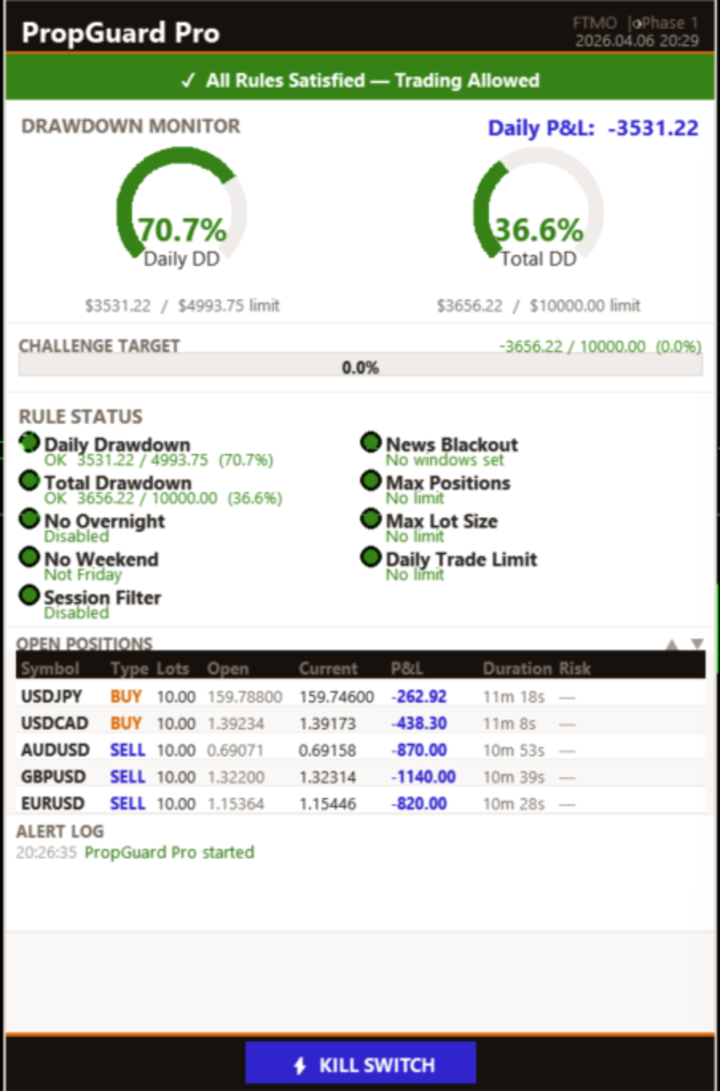
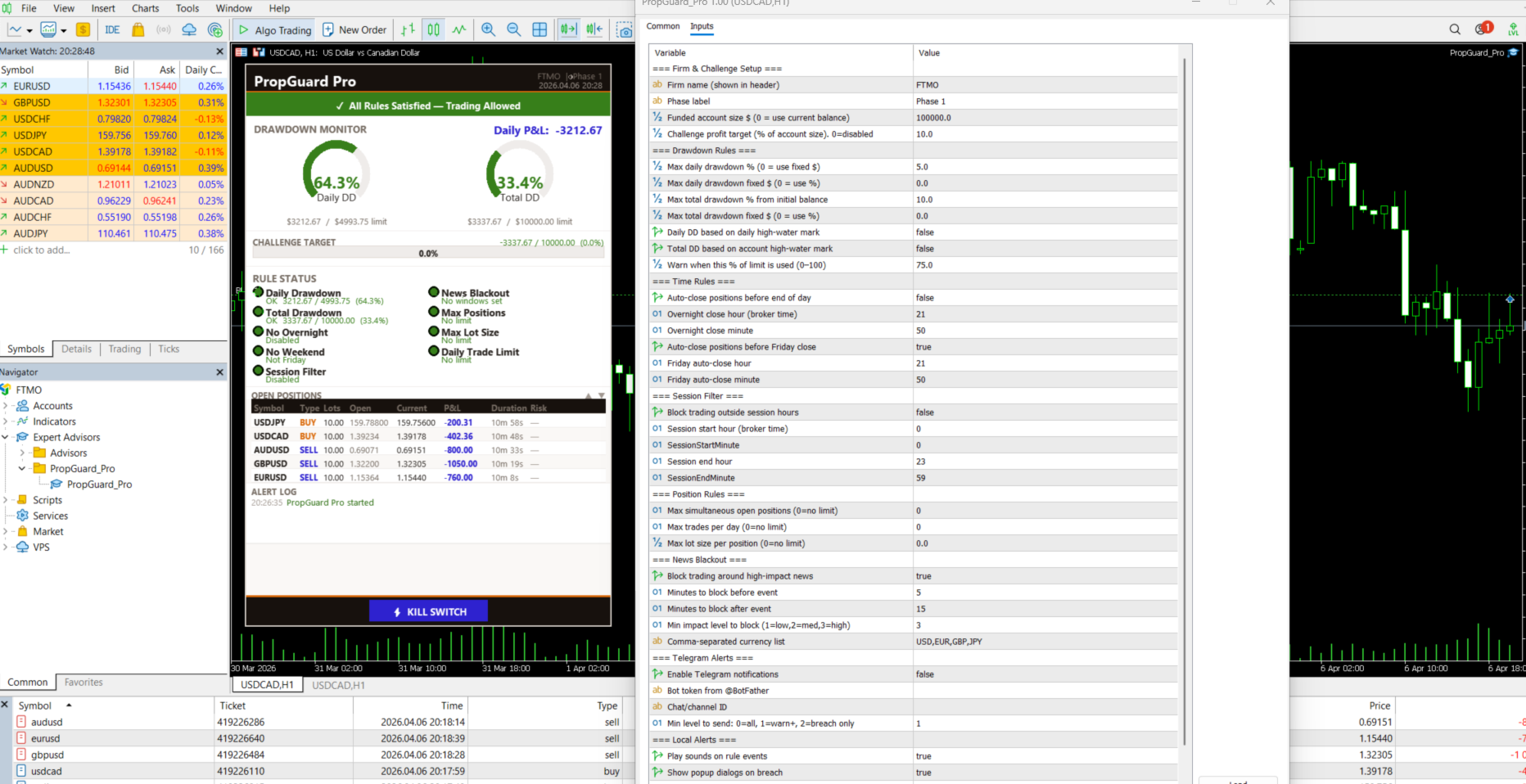
• Beautiful on-chart panel with arc gauges, rule checklist, trade table, and alert log
• Dark and light themes — toggle with one click
• Challenge profit target progress bar
• Manual kill switch button to instantly flatten all positions
• Press H to show/hide the dashboard
✦ Telegram & Sound Alerts
• Get instant Telegram messages on warnings and breaches — even when away from the screen
• In-terminal sound alerts and popup notifications
• Rate-limited to avoid spam
✦ Preset Files Included
• Ready-made .set files for FTMO, Funded Next, and E8 Funding — just load and go
• Easily create your own presets for any prop firm
━━━ HOW IT WORKS ━━━
1. Attach PropGuard Pro to any chart
2. Enter your funded account size (e.g. 100000) and drawdown rules
3. The EA monitors every tick — when a rule is breached, positions are closed automatically
4. The dashboard shows live status of all 9 rules at a glance
━━━ INPUT PARAMETERS ━━━
— Firm & Challenge Setup —
• FirmName — Your prop firm name (displayed in dashboard header)
• ChallengePhase — Phase label (e.g. "Phase 1", "Funded")
• AccountSize — Funded account size in $. All % calculations are based on this value. Set 0 to use current balance
• TargetProfitPct — Challenge profit target as % of account size. Set 0 to disable progress bar
— Drawdown Rules —
• MaxDailyDD_Pct — Maximum daily drawdown in % (default 5). Set 0 to use fixed $
• MaxDailyDD_Fixed — Maximum daily drawdown in fixed $ amount. Set 0 to use %
• MaxTotalDD_Pct — Maximum total drawdown in % from account size (default 10)
• MaxTotalDD_Fixed — Maximum total drawdown in fixed $. Set 0 to use %
• UseTrailingDailyDD — Use daily high-water mark instead of start-of-day balance
• UseTrailingTotalDD — Use account high-water mark instead of account size
• WarningThresholdPct — Trigger warning alerts at this % of the limit (default 75)
— Time Rules —
• NoOvernightTrades — Auto-close all positions before end of day
• OvernightCloseHour / Minute — Overnight close time in broker time (default 21:50)
• NoWeekendTrades — Auto-close all positions before Friday close
• FridayCloseHour / Minute — Friday close time in broker time (default 21:50)
— Session Filter —
• UseSessionFilter — Block new trades outside defined session hours
• SessionStartHour / Minute — Session open time (default 08:00)
• SessionEndHour / Minute — Session close time (default 17:00)
— Position Rules —
• MaxOpenPositions — Maximum simultaneous open positions. Set 0 for no limit
• MaxDailyTrades — Maximum number of trades per day. Set 0 for no limit
• MaxLotSize — Maximum lot size per single position. Set 0 for no limit
— News Blackout —
• UseCalendarBlackout — Enable news event trading blackout
• NewsMinsBefore — Minutes to block trading before a news event (default 5)
• NewsMinsAfter — Minutes to block trading after a news event (default 15)
• MinNewsImpact — Minimum impact level: 1 = Low, 2 = Medium, 3 = High (default 3)
• MonitoredCurrencies — Comma-separated list of currencies to monitor (default "USD,EUR,GBP,JPY")
— Telegram Alerts —
• TelegramEnabled — Enable Telegram bot notifications
• TelegramBotToken — Bot token from @BotFather
• TelegramChatId — Your Telegram chat or channel ID
• TelegramMinLevel — 0 = send all, 1 = warnings + breaches, 2 = breaches only
Note: Add https://api.telegram.org to Tools → Options → Expert Advisors → Allow WebRequest
— Local Alerts —
• SoundAlertsEnabled — Play sound on warnings and breaches
• PopupAlertsEnabled — Show popup alert dialog on breach
— Dashboard Appearance —
• DashboardTheme — Dark or Light theme
• PanelX / PanelY — Dashboard position on chart
• PanelWidth — Dashboard panel width in pixels (default 560)
• ShowDashboard — Show or hide the dashboard panel
━━━ REQUIREMENTS ━━━
• MetaTrader 5 (Build 3000+)
• Works on any symbol and timeframe — attach to one chart to protect the entire account
• For Telegram alerts: allow WebRequest to https://api.telegram.org in terminal settings
━━━ KEY FEATURES ━━━
✦ Real-Time Drawdown Enforcement
• Daily and total drawdown tracking based on your funded account size (not the live balance)
• Supports both percentage-based and fixed-dollar limits
• Optional trailing drawdown (high-water mark based) for firms that require it
• Early warning alerts when approaching limits — before it's too late
✦ Automatic Position Closure
• Instantly closes all positions on drawdown breach — no manual intervention needed
• Auto-close before overnight cutoff and Friday weekend close
• Configurable close times to match your firm's exact rules
✦ News Blackout Protection
• Reads the built-in MQL5 economic calendar automatically
• Blocks trading before and after high-impact news events
• Configurable currency filter, impact level, and buffer minutes
✦ Session Filter & Position Limits
• Restrict trading to specific session hours
• Enforce max open positions, max daily trades, and max lot size per position
✦ Live Canvas Dashboard
• Beautiful on-chart panel with arc gauges, rule checklist, trade table, and alert log
• Dark and light themes — toggle with one click
• Challenge profit target progress bar
• Manual kill switch button to instantly flatten all positions
• Press H to show/hide the dashboard
✦ Telegram & Sound Alerts
• Get instant Telegram messages on warnings and breaches — even when away from the screen
• In-terminal sound alerts and popup notifications
• Rate-limited to avoid spam
✦ Preset Files Included
• Ready-made .set files for FTMO, Funded Next, and E8 Funding — just load and go
• Easily create your own presets for any prop firm
━━━ HOW IT WORKS ━━━
1. Attach PropGuard Pro to any chart
2. Enter your funded account size (e.g. 100000) and drawdown rules
3. The EA monitors every tick — when a rule is breached, positions are closed automatically
4. The dashboard shows live status of all 9 rules at a glance
━━━ INPUT PARAMETERS ━━━
— Firm & Challenge Setup —
• FirmName — Your prop firm name (displayed in dashboard header)
• ChallengePhase — Phase label (e.g. "Phase 1", "Funded")
• AccountSize — Funded account size in $. All % calculations are based on this value. Set 0 to use current balance
• TargetProfitPct — Challenge profit target as % of account size. Set 0 to disable progress bar
— Drawdown Rules —
• MaxDailyDD_Pct — Maximum daily drawdown in % (default 5). Set 0 to use fixed $
• MaxDailyDD_Fixed — Maximum daily drawdown in fixed $ amount. Set 0 to use %
• MaxTotalDD_Pct — Maximum total drawdown in % from account size (default 10)
• MaxTotalDD_Fixed — Maximum total drawdown in fixed $. Set 0 to use %
• UseTrailingDailyDD — Use daily high-water mark instead of start-of-day balance
• UseTrailingTotalDD — Use account high-water mark instead of account size
• WarningThresholdPct — Trigger warning alerts at this % of the limit (default 75)
— Time Rules —
• NoOvernightTrades — Auto-close all positions before end of day
• OvernightCloseHour / Minute — Overnight close time in broker time (default 21:50)
• NoWeekendTrades — Auto-close all positions before Friday close
• FridayCloseHour / Minute — Friday close time in broker time (default 21:50)
— Session Filter —
• UseSessionFilter — Block new trades outside defined session hours
• SessionStartHour / Minute — Session open time (default 08:00)
• SessionEndHour / Minute — Session close time (default 17:00)
— Position Rules —
• MaxOpenPositions — Maximum simultaneous open positions. Set 0 for no limit
• MaxDailyTrades — Maximum number of trades per day. Set 0 for no limit
• MaxLotSize — Maximum lot size per single position. Set 0 for no limit
— News Blackout —
• UseCalendarBlackout — Enable news event trading blackout
• NewsMinsBefore — Minutes to block trading before a news event (default 5)
• NewsMinsAfter — Minutes to block trading after a news event (default 15)
• MinNewsImpact — Minimum impact level: 1 = Low, 2 = Medium, 3 = High (default 3)
• MonitoredCurrencies — Comma-separated list of currencies to monitor (default "USD,EUR,GBP,JPY")
— Telegram Alerts —
• TelegramEnabled — Enable Telegram bot notifications
• TelegramBotToken — Bot token from @BotFather
• TelegramChatId — Your Telegram chat or channel ID
• TelegramMinLevel — 0 = send all, 1 = warnings + breaches, 2 = breaches only
Note: Add https://api.telegram.org to Tools → Options → Expert Advisors → Allow WebRequest
— Local Alerts —
• SoundAlertsEnabled — Play sound on warnings and breaches
• PopupAlertsEnabled — Show popup alert dialog on breach
— Dashboard Appearance —
• DashboardTheme — Dark or Light theme
• PanelX / PanelY — Dashboard position on chart
• PanelWidth — Dashboard panel width in pixels (default 560)
• ShowDashboard — Show or hide the dashboard panel
━━━ REQUIREMENTS ━━━
• MetaTrader 5 (Build 3000+)
• Works on any symbol and timeframe — attach to one chart to protect the entire account
• For Telegram alerts: allow WebRequest to https://api.telegram.org in terminal settings






































Very good risk management EA! Working as intended to auto-close trades once daily drawdown is reached.