Omni Device AI Utiility and Indicator
- 유틸리티
- 버전: 1.0
- 활성화: 10

Only for serious Traders (This Utility uses AI but you can use it without AI as well, you need to get an API key and add the webrequest URL, read the relevant paragraphs to understand how it needs to be done. If you already know to get an API key and add the URL and input the API key in the input parameters, then dont need to read deployment instructions)
OMNI DEVICE AI
- trend signals with a complete trade plan, a simulated track record and an AI second opinion
OMNI DEVICE AI is a chart tool for traders who decide for themselves. It marks rule-based BUY and SELL signals, draws the whole trade plan for every signal (entry, stop, two targets, break-even and trailing stop), keeps a simulated track record of its own signals with costs included, and has an AI Advisor button that asks the AI agent of your choice - Claude, ChatGPT, Grok, Gemini, DeepSeek or a custom one - for a reasoned second opinion before you act.
The program never opens, changes or closes a trade. It contains no trading function. Product type: Utility. It is one file and uses no DLL.
THE DASHBOARD
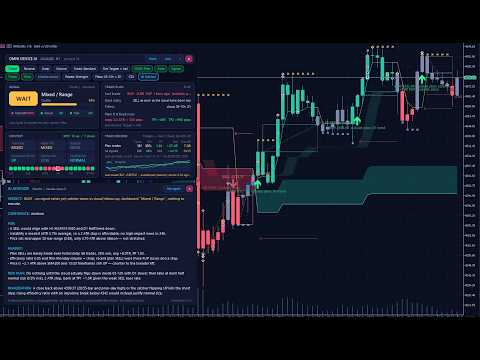
The dashboard is a set of floating cards that you can drag, or a docked strip under the chart that never covers price. Its buttons: Trend / Reversal / Scalp / Volume (what the Signal card evaluates), Mode (Standard, Strict, Loose), Exit scheme, OMNI Filter, Alerts, Signals, Trades, Plots, Module arrows, Palette, Filters, CSV, AI Advisor, Dock / Float, More / Less, minimise and close. The arrows and trade levels on the chart always follow the trend signal; the four strategy buttons change only the reading of the Signal card.
- SIGNAL card: BUY, SELL or WAIT, the market state (for example Bullish / Trend or Mixed / Range), a quality score from 0 to 100 built from the agreement of the modules and of the timeframes, the state of each module, and in plain words what the tool is waiting for.
- TRADE PLAN card: for a running signal the entry, stop, targets, the current result in R and in pips, a progress bar and the next management step, for example "at TP1 close 1/3 and move the stop to the entry". A size helper shows the lot size for your chosen risk per trade. When there is no position: the last trade, the condition for the next entry, the active filters, and the stop and target distances a signal would have right now.
- CONTEXT card: trend bias, higher-timeframe bias, trend strength, RSI momentum, volume and volatility against their averages, and a strip with the trend direction on 20 timeframes from M1 to W1.
- TRACK RECORD card: a simulated record of the tool's own signals on the history of your chart: number of trades, win rate, profit factor, net result in R, maximum drawdown in R, average win and loss, two equity curves (plan trades and all signals) and the last closed trade. Spread and commission are charged on every simulated trade. A Monte Carlo helper estimates the risk per trade that would have kept the simulated drawdown under your limit. These figures are a simulation on past data of your broker. They are not real trading results and they do not predict future results.
Alerts: a pop-up alert, and a push notification to your phone if you switch it on, for every new signal with entry, stop and targets, when a target is reached, when the stop should be moved, and when the trade ends. The CSV button exports all simulated trades for your own analysis.
WHAT YOU SEE ON THE CHART
- BUY and SELL arrows. A signal appears when the two trend modules, the Trend Breakout Catcher and the OMNI Cloud, come to agree on a direction. A Classic rule (the catcher turns while the cloud already agrees) can be chosen in the inputs. Signals are evaluated on closed bars.
- The trade plan of every signal, drawn as levels: entry, initial stop (2 x ATR by default), target 1 (1.5 R), target 2 (3 R), the move of the stop to break-even and the path of the trailing stop. R is the initial risk of the trade. A finished trade carries a tag with its result in R and the way it ended: TP, STOP, BREAK-EVEN, TRAIL or FLIP.
- Three exit schemes, changed with one click: Targets + break-even + trail, Stop + trail only, Opposite signal only.
- Entry filters, called the plan: a session window in server hours, agreement with the H4 and / or D1 trend, optional regime filters (efficiency ratio, ATR ratio) and direction (long, short or both). A signal that a filter refuses is still drawn with all its levels in a quieter colour and tagged "outside plan" with the reason. It is shown for your information and is not counted as a plan trade.
- Trend candles, the cloud, the catcher line with its band, ATR bands, reversal zones and the trailing-stop ribbon. Five colour palettes (Midnight, Graphite, Paper, Classic, Purple), or the tool leaves your own chart colours alone.
THE AI ADVISOR
Click AI Advisor on the dashboard. The tool sends one snapshot of the situation to the AI agent you chose and shows the answer in a window on the chart, usually within 5 to 40 seconds. The answer always has the same form: VERDICT (TAKE, TAKE SMALLER, WAIT or SKIP), CONFIDENCE, FOR, AGAINST, RISK PLAN and INVALIDATION. "Ask again" repeats the question with fresh data.
What is sent: symbol, timeframe, server time and current spread; the signal or position in question with entry, stop, targets and, if a filter refused it, which one; the state of the modules and the trend direction on 20 timeframes; volatility, momentum and price-structure figures; the tool's own simulated statistics on your chart, including how comparable past signals ended; medium and high impact events from the economic calendar of MetaTrader; your risk-per-trade setting; recent price bars of the chart timeframe, of H4 and of D1.
What is never sent: account number, name, balance, equity, open positions, orders or trade history. Nothing is sent to the author of this product. The request goes directly from your MetaTrader to the AI company whose key you entered. For your own inspection the tool saves what it sent, without the key, in MQL5\Files\AI_Advisor\last_request_(symbol)_(timeframe).txt and the answer in last_answer_(symbol)_(timeframe).txt.
The AI is instructed to use only the supplied data, to weigh the measured statistics, to be candid about uncertainty and never to promise a result. A language model cannot predict the market. Treat the answer as a second opinion, not as a signal service and not as financial advice. You can add your own standing instructions in the input AI_ExtraInstructions, for example: Answer in Spanish. I never hold trades over the weekend.
Cost of the AI: the AI companies charge for API usage, to your own account with them. This is separate from the price of this product, and a chat subscription such as ChatGPT Plus or Claude Pro does not cover API usage. One question is about 3,500 tokens of input plus a short answer. See the price list of the agent you choose; smaller models cost less per question.
SETUP
Step 1 - attach the tool
After the purchase the tool is in the Navigator under Expert Advisors > Market. Drag it onto a chart. MetaTrader runs one Expert per chart: if the chart already runs a trading robot, open a second chart of the same symbol for this tool. The dashboard appears after a few seconds. Everything except the AI Advisor works without further setup.
Step 2 - allow the address of your AI agent in MetaTrader (once per terminal)
MetaTrader blocks every internet address that is not on its list.
1. In MetaTrader 5 open the menu Tools > Options (or press Ctrl+O).
2. Open the tab Expert Advisors.
3. Tick "Allow WebRequest for listed URL".
4. Double-click the line with the plus sign below it ("add new URL like https://www.mql5.com"), type the address of your agent exactly as written here and press Enter.
5. Press OK. A restart is not needed.
Addresses to allow (one line per agent, nothing after it):
Claude (Anthropic): https://api.anthropic.com
ChatGPT (OpenAI): https://api.openai.com
Grok (xAI): https://api.x.ai
Gemini (Google): https://generativelanguage.googleapis.com
DeepSeek: https://api.deepseek.com
Custom agent: the protocol and host part of the address you typed into AI_Url
All models of one agent use the same address. For reference, these are the full addresses the tool calls:
Claude: https://api.anthropic.com/v1/messages
ChatGPT: https://api.openai.com/v1/responses
Grok: https://api.x.ai/v1/chat/completions
Gemini: https://generativelanguage.googleapis.com/v1beta/openai/chat/completions
DeepSeek: https://api.deepseek.com/chat/completions
Step 3 - get an API key and paste it
An API key is a long password that lets a program use your account at the AI company. You create it on the developer site of the company, not in its chat app. Copy it at once, because the sites show it only one time. Then open the inputs of the tool (press F7 on the chart), paste the key into AI_ApiKey, choose the same company in AI_Provider and press OK.
Claude (Anthropic)
1. Go to platform.claude.com (Claude Console) and sign in or create an account.
2. Open Settings > Billing and buy credits.
3. Open Settings > API keys and click Create key. Give it a name, choose an expiration (Never, if you do not want to renew it), set Linked account to yourself and choose a workspace for the key - the Default workspace is fine. This last point matters: a key without a workspace is refused with a message about anthropic-workspace-id.
4. Copy the key. It starts with sk-ant-.
Inputs: AI_Provider = Claude. Models in the list: Opus 5 (claude-opus-5, used when AI_Model is left on the recommended model), Fable 5.1 (claude-fable-5-1), Sonnet 5 (claude-sonnet-5), Haiku 4.5 (claude-haiku-4-5).
ChatGPT (OpenAI)
1. Go to platform.openai.com and sign in or create an account. This is the developer platform; a ChatGPT subscription is not needed for it.
2. Open Settings > Billing, add payment details and buy credits.
3. Open API keys and click Create new secret key. Copy the key. It starts with sk-.
Inputs: AI_Provider = ChatGPT. Models in the list: GPT-5.6 Terra (gpt-5.6-terra, the recommended one), GPT-6 Astra (gpt-6-astra), GPT-5.6 Sol (gpt-5.6-sol), GPT-5.6 Luna (gpt-5.6-luna).
Grok (xAI)
1. Go to console.x.ai and sign in or create an account.
2. Load the account with credits in the billing section.
3. Open API Keys, create a key and copy it.
Inputs: AI_Provider = Grok. Models in the list: Grok 4.6 (grok-4.6, the recommended one), Grok 4.5 (grok-4.5), Grok 4.3 (grok-4.3).
Gemini (Google)
1. Go to aistudio.google.com/apikey and sign in with a Google account. After you accept the terms, a new user gets a first project and a first key automatically; otherwise click Create API key.
2. Copy the key.
3. Google lists a free tier with request limits for some models. For regular use enable billing for the project in Google AI Studio.
Inputs: AI_Provider = Gemini. Models in the list: Gemini 3.8 Flash (gemini-3.8-flash, the recommended one), Gemini 3.1 Pro preview (gemini-3.1-pro-preview), Gemini 2.5 Pro (gemini-2.5-pro). If Google refuses an old key, create a new one on the same page: Google changed its key type in 2026.
DeepSeek
1. Go to platform.deepseek.com and sign in or create an account.
2. Top up the balance.
3. Open API keys, create a new key and copy it. It starts with sk-.
Inputs: AI_Provider = DeepSeek. Models in the list: DeepSeek V4 Pro (deepseek-v4-pro, the recommended one), DeepSeek Flash (deepseek-flash).
Custom agent
Any service that speaks the OpenAI chat-completions format. Inputs: AI_Provider = Custom, the full address in AI_Url, the model name in AI_CustomModel, the key in AI_ApiKey. Add the address to the WebRequest list as in step 2.
Model names change often. When a company retires a model of the list, type the id of its current model into AI_CustomModel. That input wins over the list, so no update of the product is needed.
Keep the key safe. It is stored with the settings of the chart on your computer. Chart templates, profiles and .set files contain it, so do not share them, and do not post screenshots of the inputs. If a key leaks, delete it on the site of the company and create a new one. Set a spending limit there if the company offers one.
MESSAGES OF THE AI WINDOW AND WHAT TO DO
- MetaTrader blocked the address (error 4014): the address is missing in Tools > Options > Expert Advisors or it is misspelled. Compare it letter by letter, including https:// at the start.
- No API key yet: AI_ApiKey is empty.
- HTTP 401 or 403: the key is wrong, deleted or expired, or it belongs to another company than the one chosen in AI_Provider.
- HTTP 400 with anthropic-workspace-id in the text: create a new Claude key and choose a workspace for it.
- HTTP 404: the company does not know the model name. Choose another model, or type the current id into AI_CustomModel. AI_Model must belong to the company chosen in AI_Provider.
- HTTP 429: the rate limit is reached, or no credit is left on your account with the company.
- HTTP 500 and above: the servers of the company are busy. Ask again later.
- Time-out: raise AI_TimeoutSec, choose a faster model or a lower AI_Effort.
- No answer arrived: open the Experts tab of the Toolbox. The tool writes one line per request there, never the key.
- Strategy Tester: the tester has no internet access, so the AI Advisor shows a built-in sample answer there. Everything else, including the buttons of the dashboard, can be tried in the visual mode of the tester.
INPUT PARAMETERS
Main control
- BarsToScan (500): bars on which the visual modules and arrows are drawn.
- OMNIFilter (true): the catcher arrows need the agreement of the cloud.
- TM_SignalMode (Agreement): Agreement = catcher and cloud come to agree, whichever turns last; Classic = the catcher turns while the cloud already agrees.
Trade manager: entries, exits, trailing stop
- TM_Enabled (true): draw entries, stops, targets and exits.
- TM_ExitMethod (Targets + break-even + ribbon trail): the exit scheme. The Exit button of the dashboard changes it too.
- TM_StopDistanceATR (2.0): initial stop in multiples of ATR 14.
- TM_TP1_R (1.5) and TM_TP2_R (3.0): the targets in R. At each target one third is closed.
- TM_BreakEven (true): move the stop to the entry at target 1.
- TM_TrailAfterBE (true): the stop trails on the ribbon only after break-even.
- TM_BreakEvenAtR (1.5): Stop + trail scheme: result in R that moves the stop to break-even.
- TM_FlipStopATR (4.0): Opposite-signal scheme: protective stop in ATR, 0 = none.
- TM_EntryNextOpen (true): the simulated entry is the open of the next bar; false = close of the signal bar.
Trade manager: entry filters
- TM_Direction (Long and short): allowed direction.
- TM_SessionOnly (true), TM_SessionStart (3), TM_SessionEnd (12): entries only inside this window of SERVER hours; the end hour is exclusive and the window may pass midnight.
- TM_MinEfficiency (0 = off): the efficiency ratio of the last 20 bars must reach this value.
- TM_MinAtrRatio (0 = off): ATR divided by its 50-bar average must reach this value.
- TM_TrendAgree (D1): only with the trend of H4, of D1, of both, or off.
- TM_MinEdgeR (-99 = off): evidence score gate, the expected R of similar past signals.
- TM_AddOns (0 = off) and TM_AddOnTouchATR (0.35): pullback add-ons once the stop is at break-even.
Trade manager: statistics, drawing, alerts
- TM_StatsBars (20000): history used for the track record.
- TM_DrawTrades (60): number of past trades drawn on the chart.
- TM_CostPoints (-1 = automatic): spread in points charged per simulated trade. Automatic uses the recorded spread of the entry bar and never less than TM_TypicalSpreadPct.
- TM_TypicalSpreadPct (0.012): typical spread in percent of the price. Bar history stores only the smallest spread of each bar, so a realistic floor is charged. Suggested values: gold 0.012, silver 0.05, EURUSD 0.005.
- TM_CommissionPct (0.005): round-trip commission in percent of the traded value, charged in the track record.
- TM_RiskPercent (1.0): risk per trade in percent of the balance, used by the size helper.
- TM_MaxDDPercent (20): drawdown limit of the Monte Carlo risk helper.
- TM_PushAlerts (false): send the alerts to your phone as push notifications too.
- TM_OriginalMarkers (false): hindsight markers, for study only.
- TM_HideModuleArrows (true): hide the small arrows of the single modules.
- TM_ShowSignals (true): BUY / SELL arrow at every signal bar.
- TM_ShowOutsidePlan (true): draw the levels of signals that the filters refuse.
Dashboard
- UI_Mode (Floating): floating cards or docked strip under the chart.
- UI_Columns (0 = automatic), UI_ScalePercent (0 = follow the Windows display scale), UI_X (12), UI_Y (28): layout, size and position.
- UI_Palette (Midnight): chart colours. The Palette button changes them and remembers the choice.
AI Advisor
- AI_Provider (Claude): the AI company.
- AI_Model (recommended model of the chosen company): must belong to the company above.
- AI_CustomModel (empty): any model id typed by hand; wins over the list.
- AI_ApiKey (empty): your key.
- AI_Url (empty = the standard address of the company): needed only for Custom.
- AI_WebRequest_NOTE: a reminder of the addresses, nothing to set.
- AI_Effort (medium): how hard the model thinks, where the company supports it. Higher is slower and costs more.
- AI_TimeoutSec (90): give up after this many seconds.
- AI_ExtraInstructions (empty): your own standing instructions to the advisor.
- AI_ClaudeFallback (true): Claude Opus 5 and Fable 5.1 only: if the model declines a request, Anthropic may run it on its fallback model.
This program
- Host_PollMs (300): how often the tool looks for a new question, in milliseconds.
- Host_Log (true): one journal line per AI request, never the key.
GOOD TO KNOW
- Works on every symbol and timeframe of MetaTrader 5. The default filters (session 03 to 12 server time and agreement with the D1 trend) come from the author's tests on XAUUSD H1. Server time differs between brokers. On other symbols and timeframes compare Plan trades with All signals on the Track Record card - the Filters button switches the two filters off and on - and set the filters to what your own chart shows.
- Attach the tool to every chart on which you want it. Each chart keeps its own settings.
- The tool does not trade and does not manage positions. The size helper reads your balance only on your computer.
- Trading involves risk of loss. Signals, simulated statistics and AI answers are information, not advice. Past and simulated results do not predict future results.