Tick Data Exporter
- ユーティリティ
- バージョン: 1.20
- アクティベーション: 10

The primary function of this script, Tick Data Exporter, is to efficiently extract historical tick data.
Tick data represents the most granular level of market data, capturing every single price change.
The script downloads this data from a broker and formats it into CSV files for external quantitative analysis.
Five things tick data shows that bars permanently hide:
- Spread microstructure: Bars give you one spread number per period (typically the spread at bar close). Ticks show you the spread literally tick-by-tick. The widening seconds before high-impact news is invisible in bars; in ticks it's a billboard. Same for the "spread blink" some brokers do at session opens — they widen for 200ms and tighten back. Bar data smears it out.
- Quote frequency as a volatility proxy: When a market is "thinking," ticks come in slowly — maybe 1 to 2 per second. When it's reactive, you get 30 to 50 per second. Tick density itself, separate from price movement, is a real signal. Some professional traders watch quote frequency more than they watch price. A sudden burst of ticks without much price change can precede a directional move by tens of seconds.
- Bid/ask asymmetry: In tick exports you see flag patterns like a BID-only update followed milliseconds later by an ASK-only update. That pattern reveals which side of the market is leading. Sustained bid-leading versus ask-leading often precedes directional moves by several seconds. Bar data has no concept of this — bars only show you the resulting price, not the order in which the bids and asks moved.
- True touch quality: When you ask "did price touch this level?" using bar data, you check bar high or bar low. Tick data tells you not just whether, but how many times, for how long, and at what spread. Three completely different texture-of-touch readings for the same level.
- Sub-bar reversal mapping: A bar that opens at the low and closes at the high (a strong bull bar) tells you nothing about the *path*. Did price spike to the high in the first 30 seconds and chop sideways? Did it grind up steadily? Did it spike, retrace 90%, then break out? These three patterns produce nearly identical bars and very different next-bar behavior. Tick data reconstructs the path.
When NOT to use tick data:
Tick data has costs that bar data doesn't: file size, fetch time, and analytical complexity. The tool isn't right for every question. Use bar data instead when:
- You're studying multi-day or multi-week trends. Bar data on the right TF is plenty.
- You only care about open/high/low/close values. Bars deliver these directly; ticks would require aggregation.
- You're correlating multiple symbols. The OHLC exporter's wide format is far better for this. Tick timestamps don't align across symbols.
- You're working in Excel without much patience.
Settings:
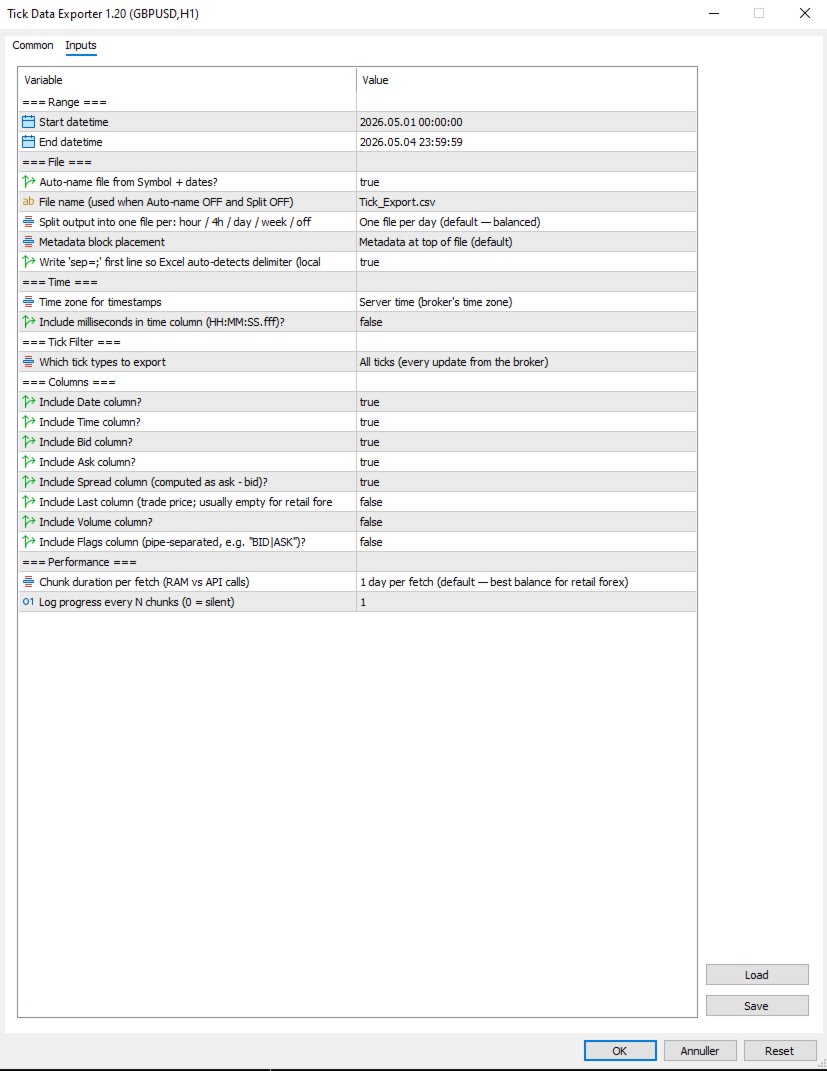
=== Range ===
- Start datetime: First moment to fetch ticks for, in server (broker) time. Inclusive.
- End datetime: Last moment to fetch ticks for, in server (broker) time. Exclusive of the very last second by convention. Must be after Start datetime. Always specify a date range.
=== File ===
- Auto-name file from Symbol + dates?: When true, output filenames are derived from symbol, date(s), and split granularity (e.g. EURUSD_TICKS_2026-05-04_13h.csv). When false, uses File name (used when Auto-name OFF and Split OFF), with date/hour suffixes appended for split-mode exports to avoid collisions.
- File name (used when Auto-name OFF and Split OFF): Manual filename (used only when Auto-name file from Symbol + dates? is false). For split exports, the relevant date or date_HHh suffix is inserted before the .csv extension automatically.
- Split output into one file per: hour / 4h / day / week / off: How to slice the export into separate files. Off = single file for whole range. 1H/4H = one file per hour or 4-hour window (good for news-window analysis). 1D = one per day (default, balanced). 1W = one file per week (long-range exports). Boundaries align to natural clock units.
- Metadata block placement: OFF, TOP, or BOTTOM. Top is default; choose BOTTOM if you plan to use Excel's freeze-top-row feature on the data.
- Write 'sep=;' first line so Excel auto-detects delimiter (locale-safe)?: When true, writes 'sep=;' as the very first line of the file. Excel reads this hint and automatically uses semicolon as the delimiter for that file regardless of the OS regional setting. Recommended on European locales (Danish, German, French) where Excel's default delimiter is comma.
=== Time ===
- Time zone for timestamps: Time zone for the Date and Time columns. Server = broker's time zone. UTC = GMT/no offset (best for cross-system data analysis). Local PC = your machine's time zone.
- Include milliseconds in time column (HH:MM:SS.fff)?: When true, the Time column shows HH:MM:SS.fff with millisecond precision. Important for high-frequency tick data where multiple ticks per second are common. Adds a few characters per row but doesn't significantly increase file size. Recommended ON for serious analysis.
=== Tick Filter ===
- Which tick types to export: Which tick types to export. ALL = everything the broker sent. BIDASK = only ticks that updated bid or ask (skips pure-volume ticks; reduces file size slightly). TRADES = only ticks marking actual trades (TICK_FLAG_LAST). Trades-only is rare-to-empty for retail forex but populated for indices, stocks, and centrally-cleared instruments.
=== Columns ===
Each column is independently toggleable. Disabling unused columns shrinks file size, sometimes meaningfully. For example, disabling Volume and Last on retail forex saves about 5% per row.
- Include Date column?: Include the Date column (ISO YYYY-MM-DD). Disable only if all your ticks are in one day and you don't need the date.
- Include Time column?: Include the Time column. Format depends on "Include milliseconds in time column (HH:MM:SS.fff)?".
- Include Bid column?: Include the bid price at the time of the tick.
- Include Ask column?: Include the ask price at the time of the tick.
- Include Spread column (computed as ask - bid)?: Include the spread (computed as ask - bid, rounded to symbol digits). Recommended ON; spread microstructure is one of the main reasons to use tick data.
- Include Last column (trade price; usually empty for retail forex)?: Include the last trade price. Empty for most retail forex (no actual trades reported); useful for indices/stocks. Default off because it's mostly empty.
- Include Volume column?: Include trade volume. Same caveat as Last — mostly zero for retail forex. Default off.
- Include Flags column (pipe-separated, e.g. "BID|ASK")?: Include the decoded tick flags column showing what changed in this tick (e.g. BID, ASK, BID|ASK, BID|ASK|LAST, BUY, SELL). Pipe-separated. Default off because most analyses don't need it; turn on for advanced microstructure work.
=== Performance ===
- Chunk duration per fetch (RAM vs API calls): Time window per API call. Smaller chunks use less RAM during fetch but require more API calls. Larger chunks use more RAM but finish faster. 1D is the right default for most retail forex use; bump to 1W if you have a beefy machine and large exports, drop to 4H or 1H if you're hitting memory issues.
- Log progress every N chunks (0 = silent): Log a progress line every N chunks. Set to 0 to silence intermediate progress (only the final 'mission accomplished' line will appear). Set to 5 or 10 to reduce spam on long exports.
Note that Chunk duration per fetch (RAM vs API calls) and Split output into one file per: hour / 4h / day / week / off are independent settings. Chunk size affects how the script *fetches* data internally; split granularity affects how the *output is sliced into files*. They can be set differently — for example, fetching in 1D chunks (efficient) but writing into 1H files (granular for analysis).
=== .CSV File Column reference ===
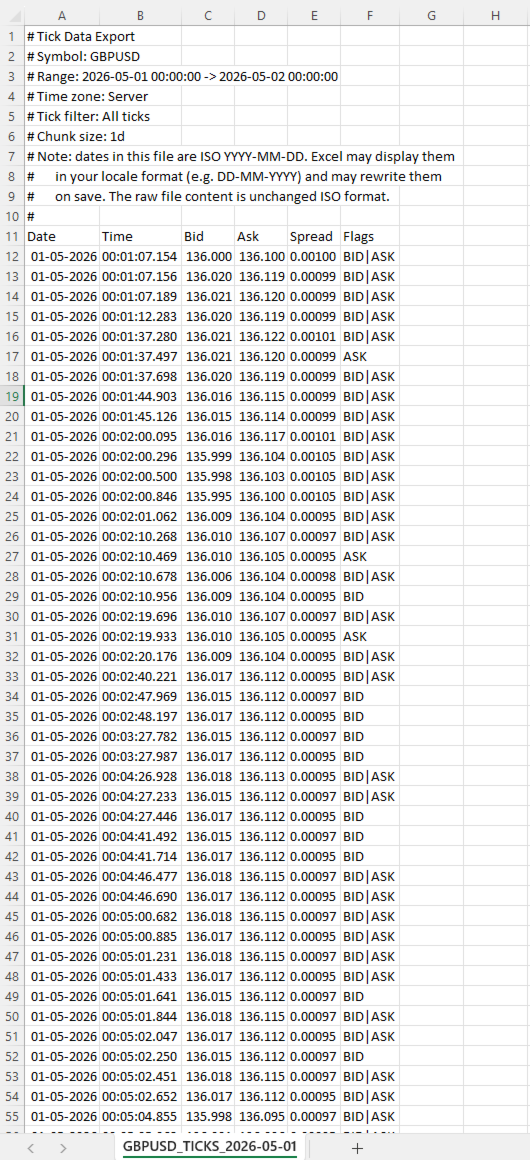
- Date: ISO YYYY-MM-DD Date of the tick in the chosen time zone. ISO format ensures unambiguous interpretation regardless of locale.
- Time: HH:MM:SS or HH:MM:SS.fff Time of the tick in the chosen time zone. Format depends on Include milliseconds in time column (HH:MM:SS.fff)?.
- Bid: Bid price at the time of this tick, formatted to the symbol's digit count.
- Ask: Ask price at the time of this tick.
- Spread: Computed as ask - bid, rounded to the symbol's digit count. This is the actual spread at this tick, not a bar-aggregated value.
- Last: Last trade price. Empty (or 0) when the broker didn't report a trade with this tick.
- Volume: Trade volume. Empty for most retail forex.
- Flags: Pipe-separated tokens Decoded tick flags. Tokens: BID (bid changed), ASK (ask changed), LAST (trade), VOL (volume update), BUY/SELL (trade direction). A single tick can have multiple flags, e.g. BID|ASK|LAST.
=== Important note about dates and Excel ===
Dates in the file are written in ISO YYYY-MM-DD format. Most tools (pandas, Python, R, plain text editors) read them exactly as written. Excel does not.
When you open a tick file in Excel, the Date column will be displayed in your locale's date format (DD-MM-YYYY in most of Europe, MM/DD/YYYY in the US). Excel auto-parses the ISO dates and re-displays them. If you save the file from Excel, Excel will also rewrite the dates to its locale format inside the file itself, mutating your original ISO data.
This is documented in the file's metadata block as a reminder. Two strategies to handle it:
• Treat Excel as a viewer only, never save changes. Open, inspect, close without saving.
• Read the file in pandas or Python instead of Excel. The ISO format works perfectly there.
If you specifically need Excel to leave dates alone, format the Date column as Text via the Data > From Text/CSV import wizard.
=== Tips & Examples ===
Choosing the right split granularity. The Split output into one file per: hour / 4h / day / week / off setting profoundly affects how the data is structured for analysis. Choosing the right value is about matching file granularity to your analysis question.
- SPLIT OFF Single file When you want one continuous tick stream for an entire range and intend to use pandas or Python to filter. Avoid for ranges over 1 day — files get too large to navigate.
- SPLIT 1H Hourly files Best for news-window analysis. FOMC, NFP, CPI: export the 4-6 hours around the event with SPLIT_1H, and you have one file per hour ready for separate analysis. Each hour-file is small enough to open in Excel.
- SPLIT 4H Session-aligned files Best for session-based analysis. Files align to 00/04/08/12/16/20 boundaries which roughly correspond to Asian/early-European/London/lunch/NY/NY-late session windows. A week's worth is 42 files but each one is tractable.
- SPLIT 1D Daily files (default) The general-purpose default. One day per file is a natural unit, files are 5-15 MB on retail forex, and pandas reads them quickly.
- SPLIT 1W Weekly files Long-range exports where weekly granularity is enough. A month-long export becomes 4-5 files instead of 30.
Example 1: Studying the FOMC announcement
FOMC rate decisions land at 19:00 server time on a specific Wednesday. You want to study what the spread, tick density, and price action looked like in the 2 hours leading up and 2 hours following the announcement.
Settings:
- Start datetime = D'2026.05.07 17:00:00' // 2 hours before FOMC
- End datetime = D'2026.05.07 21:00:00' // 2 hours after
- Auto-name file from Symbol + dates? = true
- Split output into one file per: hour / 4h / day / week / off = SPLIT_1H // hourly files for granular analysis
- Time zone for timestamps = EXPORT_TIME_SERVER
- Include milliseconds in time column (HH:MM:SS.fff)? = true // sub-second sequence matters around news
- Which tick types to export = TICK_ALL
- Include Flags column (pipe-separated, e.g. "BID|ASK")? = true // helps see bid-leading vs ask-leading patterns
- Chunk duration per fetch (RAM vs API calls) = CHUNK_1D // single fetch fine for 4 hours
Results: four files named EURUSD_TICKS_2026-05-07_17h.csv through _20h.csv. Each file is small (1-5 MB even with the 19h announcement file probably being the largest). You can open the announcement-hour file in Excel directly to inspect, or load all four in pandas to analyze tick density vs. price change.
What to look for: spread typically widens 30-60 seconds before the announcement (broker preparing for volatility), spikes to 5-10x normal at the moment of release, then tightens back over the next 5-15 minutes. Tick density goes from 1-2 per second pre-news to 50-100 per second in the first 30 seconds post-release.
Example 2: Comparing session-open behavior across a week
You want to see whether the spread blink at the London 08:00 open behaves consistently across all five trading days of a week.
Settings:
- Start datetime = D'2026.05.04 07:30:00' // Monday, 30 min before London
- End datetime = D'2026.05.08 09:00:00' // Friday, 1 hour after
- Auto-name file from Symbol + dates? = true
- Split output into one file per: hour / 4h / day / week / off = SPLIT_1D // one file per trading day
- Time zone for timestamps = EXPORT_TIME_UTC // UTC since session times are commonly stated in UTC
- Include milliseconds in time column (HH:MM:SS.fff)? = true
- Which tick types to export = TICK_ALL
- Chunk duration per fetch (RAM vs API calls) = CHUNK_1D
Results: five files, one per day. In each file, filter to roughly 06:30-08:00 UTC (London 07:00-09:00 wall clock). Compare spread evolution across the five days side by side.
What to look for: Mondays often have wider opens than midweek (weekend gap effects). Fridays often have tighter post-open spread (book is winding down).
Example 3: Detecting unusual tick density
You want to flag minutes where tick density was unusually high, as a signal that something interesting may have happened.
Settings:
- Start datetime = D'2026.05.04 00:00:00'
- End datetime = D'2026.05.04 23:59:59' // single full day
- Auto-name file from Symbol + dates? = true
- Split output into one file per: hour / 4h / day / week / off = SPLIT_OFF // single file for the whole day
- Time zone for timestamps = EXPORT_TIME_SERVER
- Include milliseconds in time column (HH:MM:SS.fff)? = true
- Which tick types to export = TICK_BIDASK // exclude pure-volume noise
- Include Flags column (pipe-separated, e.g. "BID|ASK")? = false // not needed for density analysis
- Chunk duration per fetch (RAM vs API calls) = CHUNK_1D
Results: one file containing the full day. In pandas, group by minute and count rows. Sort descending by count. The top 10 minutes are your high-density periods. Cross-reference timestamps against your economic calendar.
This is a powerful diagnostic technique: tick density highs often precede price moves by tens of seconds, and they correlate with events that don't always make the calendar (large institutional orders, broker-side liquidity shifts, sympathetic moves from correlated markets).
Example 4: Spread cost analysis for a Backtest
You're running a Backtest at a tight stop-loss (5-8 pips) and worried that the bar-aggregated spread reading is hiding intra-bar widening that would have stopped you out. You want the actual spread at every tick during the period.
Settings:
- Start datetime = D'2026.04.01 00:00:00'
- End datetime = D'2026.04.30 23:59:59'
- Auto-name file from Symbol + dates? = true
- Split output into one file per: hour / 4h / day / week / off = SPLIT_1D // one file per day, manageable chunks
- Time zone for timestamps = EXPORT_TIME_SERVER
- Include milliseconds in time column (HH:MM:SS.fff)? = false // for cost analysis, second precision is fine
- Which tick types to export = TICK_BIDASK
- Include Bid column? = false // you only need spread, not price
- Include Ask column? = false
- Include Spread column (computed as ask - bid)? = true
- Include Flags column (pipe-separated, e.g. "BID|ASK")? = false
- Chunk duration per fetch (RAM vs API calls) = CHUNK_1D
Results: 30 daily files, each containing only Date, Time, and Spread columns. Total volume ~50-150 MB for the month. In pandas, you can compute the empirical spread distribution: mean, p95, p99, max. Compare to the constant spread your Backtest assumed. Adjust your stop loss accordingly, or accept that some trades that worked in Backtest would have been stopped on actual spread spikes.
Example 5: Reconstructing a flash event
Something unusual happened on a chart at 14:32 — a sudden 15-pip spike followed by an immediate retrace. Bar data shows the move but not the path. You want millisecond-level detail of what actually happened.
Settings:
- Start datetime = D'2026.05.04 14:30:00' // 2 minutes before
- End datetime = D'2026.05.04 14:35:00' // 3 minutes after
- Auto-name file from Symbol + dates? = true
- Split output into one file per: hour / 4h / day / week / off = SPLIT_OFF // 5 minutes is one tiny file
- Time zone for timestamps = EXPORT_TIME_SERVER
- Include milliseconds in time column (HH:MM:SS.fff)? = true // critical for reconstructing path
- Which tick types to export = TICK_ALL
- Include Flags column (pipe-separated, e.g. "BID|ASK")? = true // see bid vs ask leading
- Chunk duration per fetch (RAM vs API calls) = CHUNK_1H
Results: one small file with potentially 5,000-15,000 ticks depending on event severity. Open in Excel directly. Plot bid and ask over time. The exact sequence of the spike — how many ticks at the spike high, the spread when it spiked, whether bid moved first or ask moved first — tells you whether this was a stop-hunt, a fat-finger order, a news leak, or genuine liquidity event.
This kind of post-mortem is the single best use case for tick data. Bar data shows the wound; tick data shows how it was inflicted.