PropFolio Command Manager Pro MT5
- ユーティリティ
-
Sarika G Talekar
 Dominate the Markets with
Institutional Edge
PropFolio Solutions delivers premium algorithmic trading tools for MT4, MT5 & cTrader — with robust license management for serious traders. - バージョン: 12.10
- アクティベーション: 5
Here is the corrected, MQL5-compliant version of your second product description.
I have removed the custom bullet point symbols, cleaned up the list formatting to use standard markdown, and organized the setup guide into clean, numbered steps.
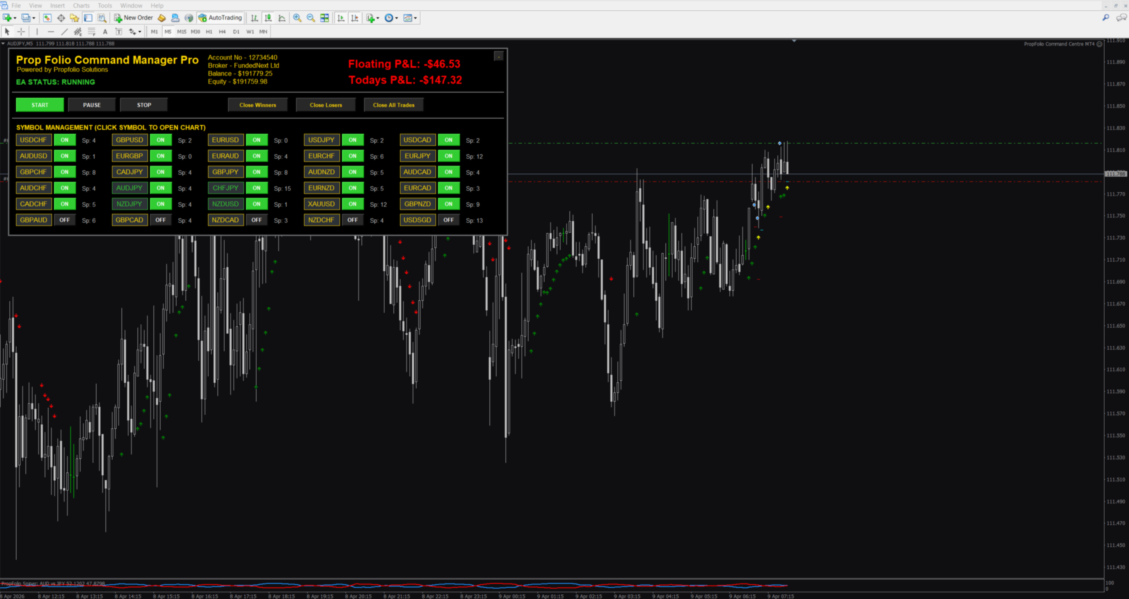
PropFolio Command Manager Pro is an advanced, multi-symbol execution terminal designed to automate your custom arrow indicators.
Simply enter the name of your arrow indicator into the settings, and the Command Manager will monitor up to 30 currency pairs, indices, or metals simultaneously from a single chart. When your indicator generates a signal, the EA verifies the trend using the built-in Higher Timeframe (HTF) algorithm, checks the live spread, and manages the trade execution based on your configured risk management settings.
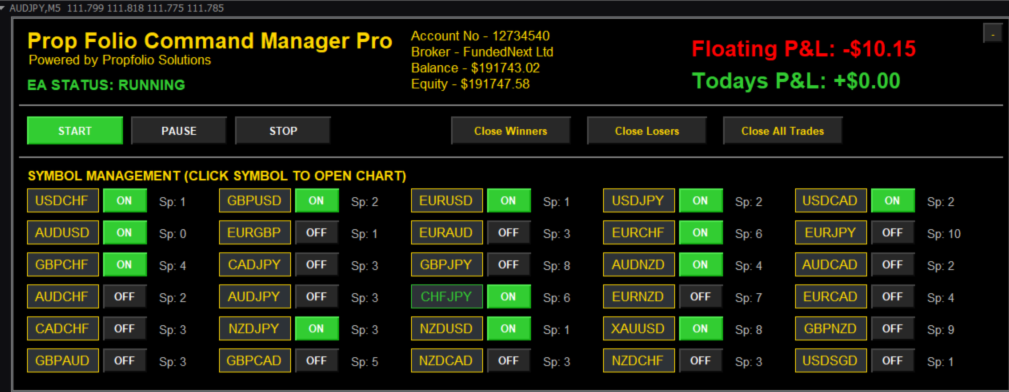
This tool features a draggable on-chart panel with state-preservation memory, smart asset-class risk splitting (allowing separate lot sizes for Forex versus Metals/Indices), live spread monitoring, and integrated trade management.
Key Features
-
Universal Custom Arrow Engine: Automate standard custom indicators. Input the exact file name and the Buy/Sell buffer numbers. Select between Intrabar execution or Confirmed Closed Bar execution.
-
Smart Asset Class Detection: Automatically detects if a symbol is Forex or a Metal/Index (e.g., XAUUSD, US30). Set completely separate fixed lot sizes or percentage risk profiles for FX pairs versus highly volatile assets.
-
30-Symbol Live Dashboard: Monitor and manage up to 30 custom symbols from one chart. Click any symbol on the dashboard to instantly switch the chart timeframe and symbol for quick visual inspection.
-
State Preservation Memory: The panel remembers its exact location, your toggled active pairs, and the PAUSE/START state even if you change timeframes or restart the terminal.
-
Live Spread Guard: A real-time spread monitor is displayed next to every pair. If the spread exceeds your custom limit, the EA automatically blocks entries to protect your account during high volatility or rollover periods.
-
Advanced Filtering: Includes a Higher Timeframe (HTF) Guard to calculate Base vs. Quote currency strength on higher timeframes, and an ADX Choppiness Filter to restrict signals in sideways markets.
-
Structural Stop Loss System: The EA calculates your Stop Loss based on the Highest High or Lowest Low of the previous specified number of candles, adding a dynamic ATR buffer.
-
Daily Equity Guard: Set your Daily Profit Target and Daily Max Loss in your account's deposit currency. The EA tracks floating and realized PnL, halting trading for the day if a limit is reached.
-
Premium Trade Management: Includes Auto-Breakeven, structural Candle-by-Candle trailing stops, and manual Close All Winners/Losers buttons directly on the dashboard.
Input Parameters Breakdown
-
Forex Execution & Risk: Custom Trade Comment, Fixed Lot vs % Risk, Structural SL (Candles), SL ATR Multiplier, Max Spread Allowed.
-
Metals / Indices Execution & Risk: Dedicated fixed lot or percentage risk settings specifically for volatile assets.
-
Custom Indicator Engine: Indicator Name (exact filename without extension), Buy / Sell Buffers, Signal Bar, HTF Filter, and ADX Minimum toggles.
-
Advanced Trade Management: Breakeven Target, Candle Trail distance, Daily Target / Loss limits.
-
Symbol Management: Auto Market Watch (loads the first 30 pairs) or comma-separated manual symbol input.
Setup & Installation Guide
Step 1: Finding Your Arrow Buffers For the EA to read your custom indicator, you must identify which data "Buffers" draw the Buy and Sell arrows.
-
Attach your custom arrow indicator to a normal chart.
-
Right-click the chart, select Indicators List, select your indicator, and click Edit.
-
Go to the Colors tab. You will see a list of numbered colors (0, 1, 2, 3...).
-
Match the numbers to your Buy and Sell arrows (e.g., if the Buy arrow is Blue on #0, your Buy Buffer is 0).
Step 2: Attaching the EA
-
Open exactly one blank chart (e.g., EURUSD, M5 timeframe). The EA manages all 30 symbols from this single chart.
-
Drag the Command Manager Pro EA onto the chart.
Step 3: Configuring the Inputs
-
In the Custom Arrow Engine section, type the exact filename of your indicator in the Indicator Name field (do not include the .ex4 or .ex5 extension).
-
Enter your Buy Buffer and Sell Buffer numbers from Step 1.
-
Set your preferred Risk % or Lot Sizes in both the Forex and Metals/Indices sections.
Step 4: Starting the EA
-
Click OK. The EA loads in a safe PAUSED state by default.
-
Review your symbol list on the dashboard and toggle any pairs ON or OFF.
-
Click the START button on the dashboard to begin monitoring for arrows.