Panic Close Pro
- Utilità
- Versione: 5.1
- Attivazioni: 5

Have you ever lost your profits because the market reversed while you were struggling to close multiple orders manually? In high-performance trading, every second counts.
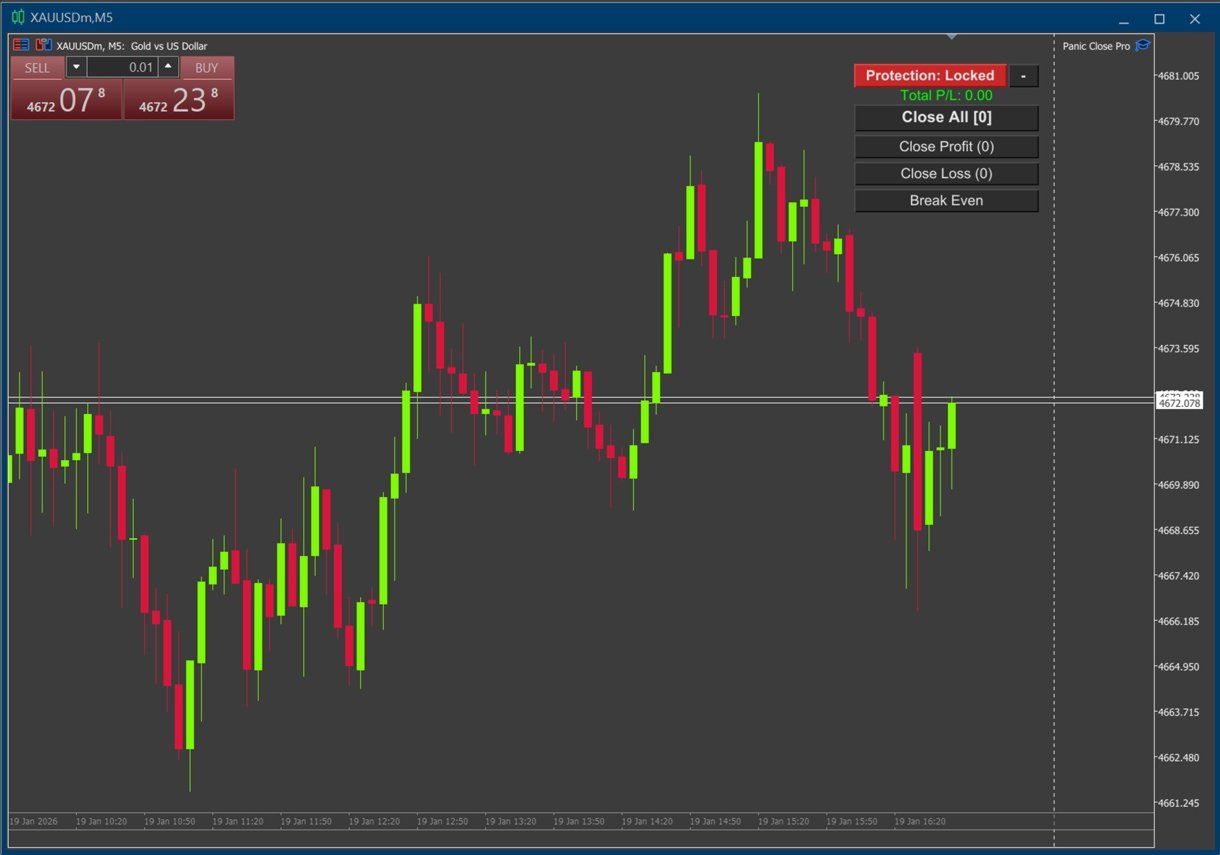
Panic Close Pro was developed to be your elite "emergency exit." It eliminates the hesitation and slowness of the standard terminal, delivering total control of your portfolio through a minimalist and ultra-fast dashboard.
- Brutal Agility: Close all orders, only Buys, or only Sells with a single click.
- Selective Management: Instantly exit only profitable positions or only those in drawdown.
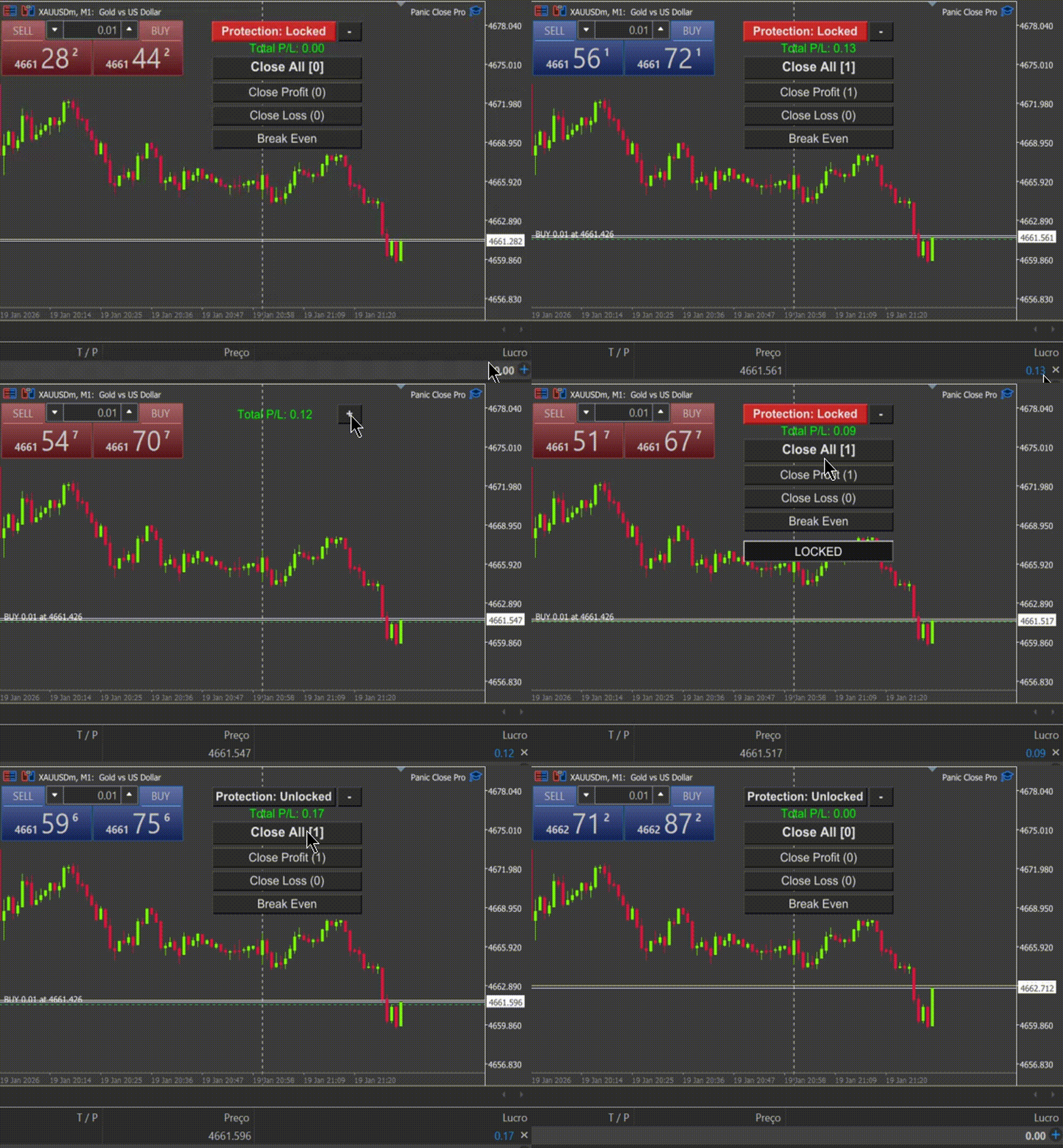
- Anti-Missclick Safety: The integrated protection lock system prevents accidental clicks, ensuring you only execute commands when you truly intend to.
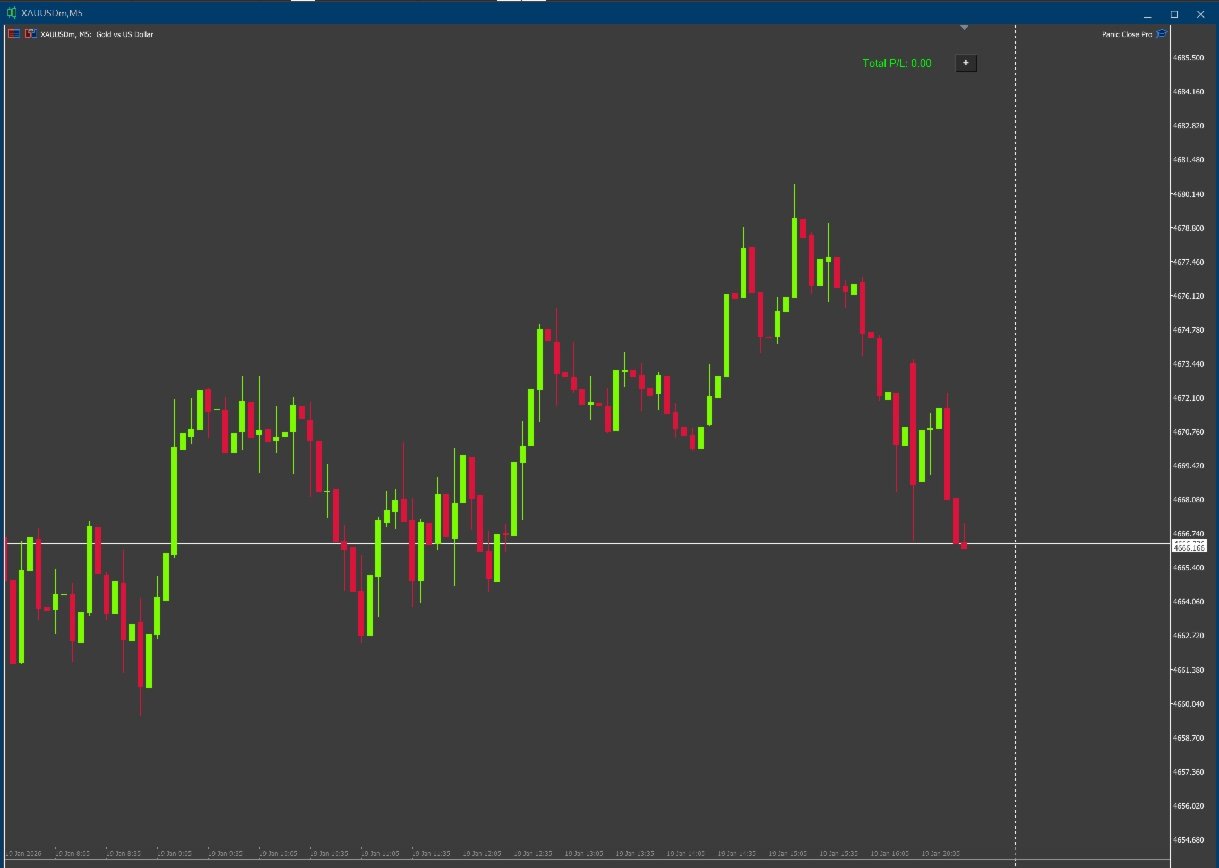
- Visual Comfort: The "Profit Monitor" mode transforms the panel into a discreet floating label, keeping your screen clean and focused on what matters: the chart.
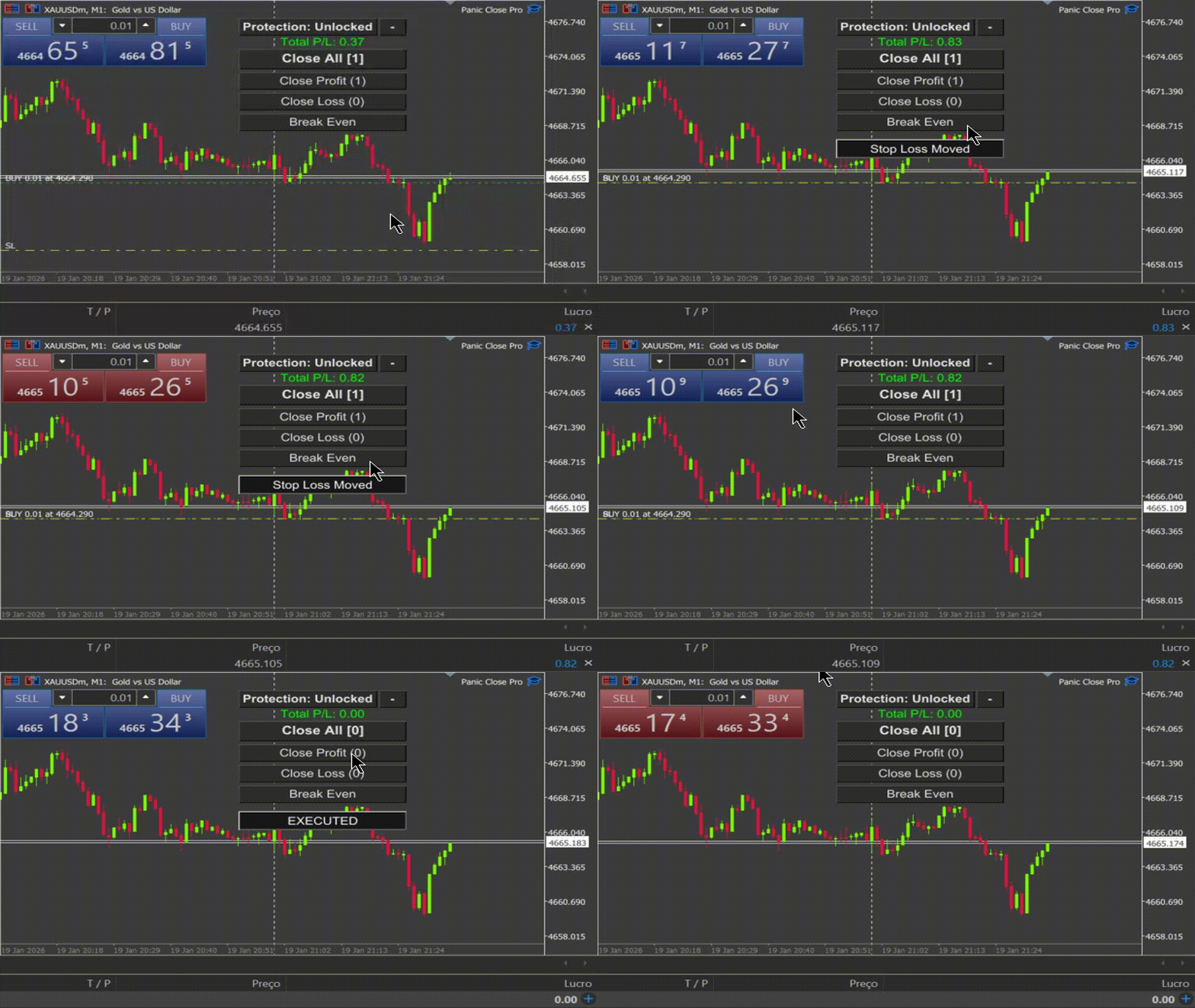
- Break Even Button: A strategic function that scans all your profitable orders and moves the Stop Loss (SL) exactly to the opening price. If an order lacks an SL, the system creates one automatically, ensuring you no longer risk a loss on that trade.
This isn't just a closing tool; it is the peace of mind that comes from knowing that, no matter what happens, you have a practical and fast ejection button at your fingertips.
🛠️ Configuration Guide (Parameters)
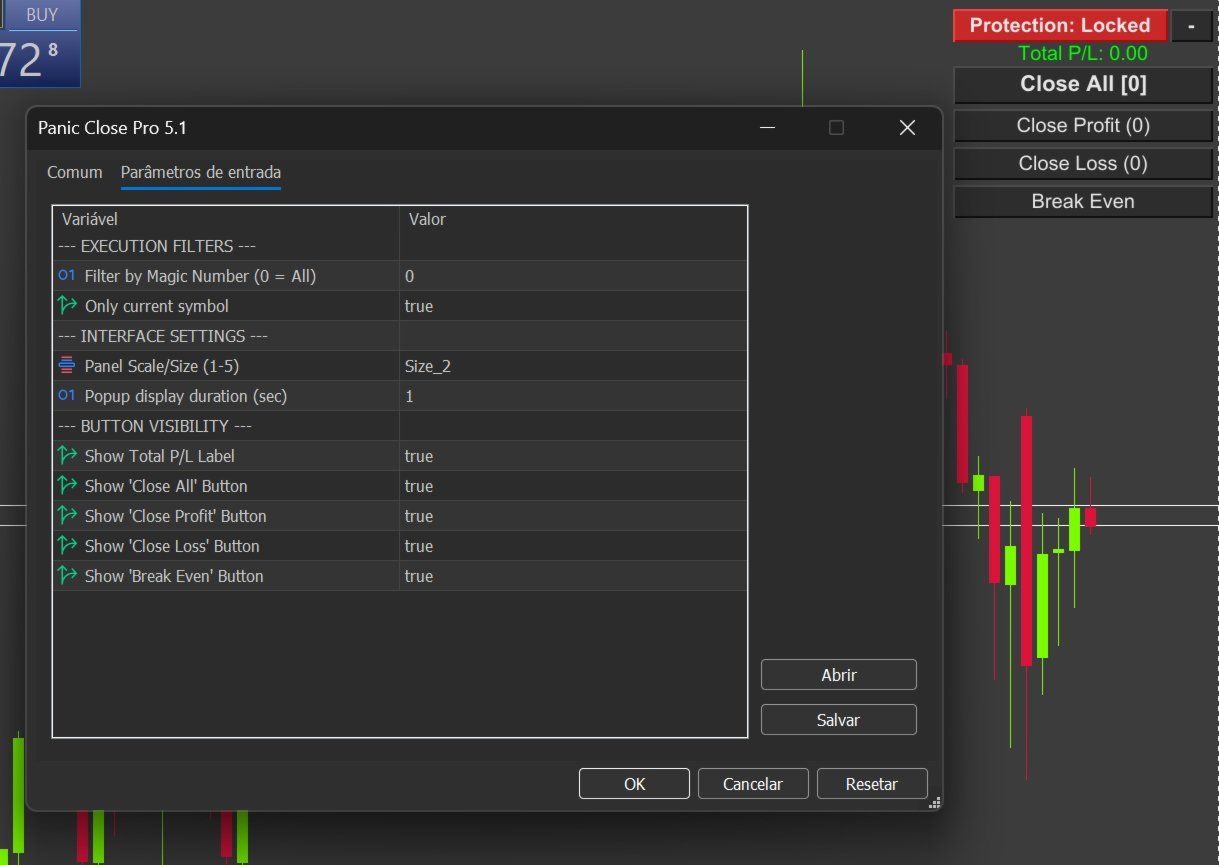
Panic Close Pro is intuitive, but here is a breakdown of each setting to help you extract maximum performance:
1. EXECUTION FILTERS
- Filter by Magic Number: Defines which orders the EA should control. If set to 0, it manages all orders on the account. If you input a specific ID, it will only control orders from that specific robot/strategy.
- Only current symbol: If set to True, the panel only affects orders for the asset currently on your screen (e.g., EURUSD only). If False, it manages orders across all assets simultaneously.
2. INTERFACE SETTINGS
- Panel Scale/Size: Adjusts the panel's size (from 1 to 5). Size 2 is the standard and ideal for most resolutions.
- Popup display duration: Sets how long the confirmation notification (e.g., "EXECUTED") remains visible. The default is 1 second to keep your view clear.
3. BUTTON VISIBILITY (Panel Customization)
Choose which buttons to display. Disable those you don't use to keep the interface even more compact:
- Show Total P/L: (True/False) Displays or hides the real-time total profit/loss label.
- Show Close All: (True/False) Displays the master button to close everything.
- Show Close Profit/Loss: (True/False) Displays the surgical buttons to close only winning trades or only losing ones.
- Show Break Even Button: (True/False) Displays the button to create/move the Stop Loss to the entry price. Note: It will never move an SL into a losing position.
💡 Usage Tips:
- Unlock to Act: Click the “Protection: Locked” (Red) button to unlock the execution buttons for immediate use.
- Minimize for Focus: Click the “-” button to activate Profit Monitor mode. This hides the controls and leaves only your floating result over the chart.