✔️ GUI Graphic Library MT4©: https://www.mql5.com/en/market/product/206760
✔️ GUI Graphic Library MT5©: https://www.mql5.com/en/market/product/206761
✔️ Full documentation, the element gallery and the Image to Code tool5: https://www.betasoft.dev/gui-graphic-library
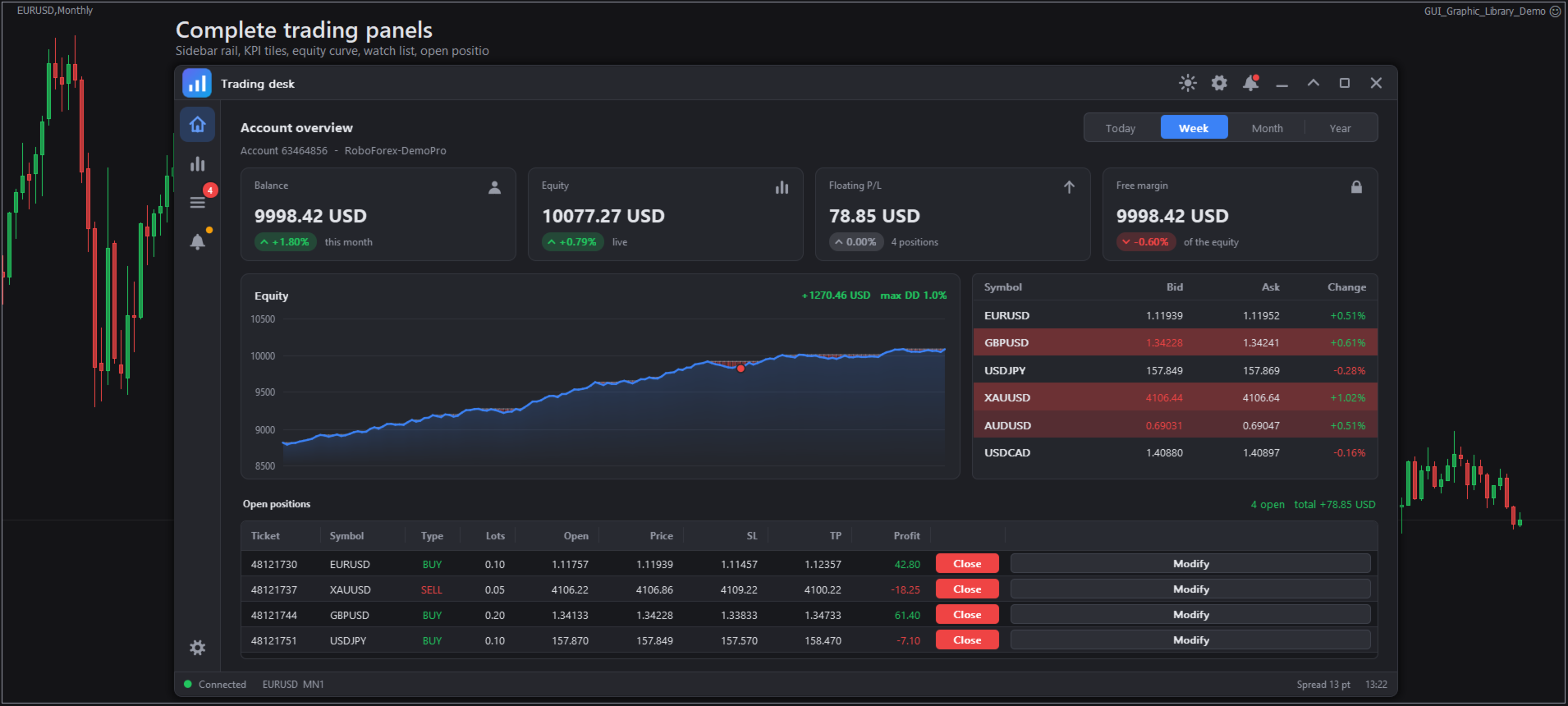
A positions table, an order ticket and a live chart.
GUI Graphic Library gives your Expert Advisors and indicators a complete interface: windows, tabs, menus, tables, charts, pickers, dialogs and trading widgets. Everything is drawn on one canvas, the same code works in MetaTrader 4 and MetaTrader 5, and the whole API is 15 functions.
This guide takes you from the download to your first working panel, and then to the tasks you will do most often. Every code sample uses only the public include file, so you can paste it into your own program.
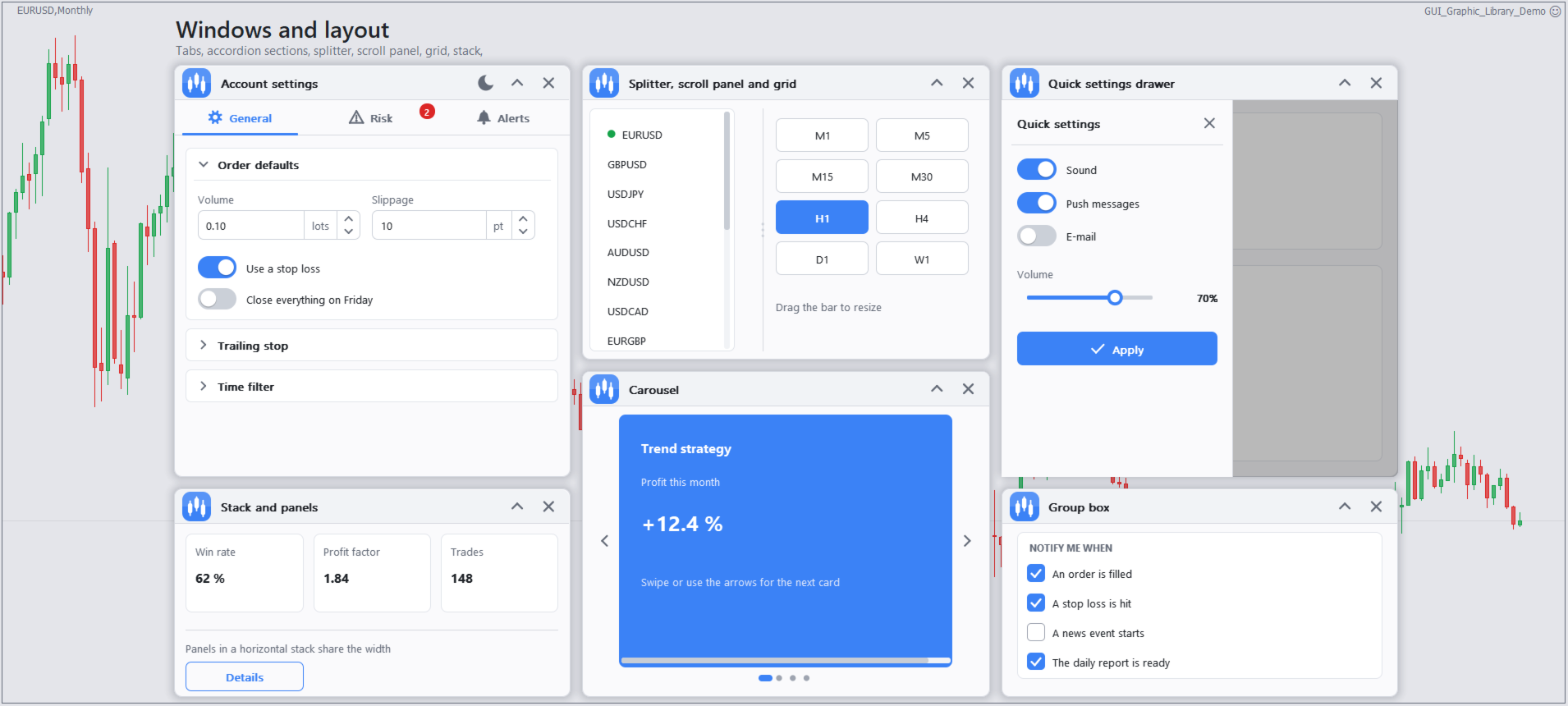
A small part of the 78 elements: buttons, inputs, sliders, and tabs.
1. Before you start
- MetaTrader 4 or MetaTrader 5 on Windows. Fonts and icons follow the Windows display scale (100, 125, 150 and 200 percent).
- MetaEditor, to compile the demos and your own programs.
- Nothing to allow in the terminal options: the library uses no DLL, makes no web requests and uses no terminal global variables.
- The MT4 and MT5 versions are separate products. Install the one that matches your terminal.
2. Installation
- In the terminal choose File, then Open Data Folder.
- Open the MQL5 folder (MetaTrader 5) or the MQL4 folder (MetaTrader 4).
- Copy each file into the folder shown in the table above: Libraries, Include, Experts and Indicators.
- Open each demo in MetaEditor and press F7. The result should read 0 errors, 0 warnings.
- Back in the terminal, refresh the Navigator (right click, Refresh) so the new programs appear.
The folders should look like this:
MQL5/
Include/GUI_Graphic_Library.mqh
Libraries/GUI_Graphic_Library.ex5
Experts/GUI_Graphic_Library_FullDemo.mq5
GUI_Graphic_Library_ElementTests.mq5
Indicators/GUI_Graphic_Library_IndicatorWindow.mq5
GUI_Graphic_Library_IndicatorChart.mq5
MQL4/ the same files with .mq4 and .ex4
Do not rename the library file. The include file loads it by that name.
Checks after installing
| Check | Where |
|---|---|
| The .ex5 (or .ex4) file is in Libraries | Data folder |
| The .mqh file is in Include | Data folder |
| The demo compiles with 0 errors | MetaEditor |
| The demo shows a window on the chart | Chart |
| The Experts tab has no "not supported" lines | Terminal, Toolbox |
What is inside GUI_Graphic_Library.mqh
The include file is small on purpose. Above the import block it declares the enums (object types, properties, events, themes and icons). The import block below loads the compiled library and lists its 15 functions. MetaTrader 5 loads the .ex5 file and MetaTrader 4 loads the .ex4 file, chosen by the compiler. You include the file, you never edit it.
#ifdef __MQL5__
#import "\\Market\\GUI_Graphic_Library.ex5"
#else
#import "\\Market\\GUI_Graphic_Library.ex4"
#endif
   string Gui_Version();
   bool   Gui_Create(const long chart=0,const string name="GUI_Graphic_Library",const int subwin=0);
   void   Gui_Destroy();
   void   Gui_ChartEvent(const int id,const long lparam,const double dparam,const string sparam);
   void   Gui_Timer();
   void   Gui_Update(const bool force=false);
   bool   Gui_NextEvent(ENUM_GUI_EVENT &event,int &sender,long &lparam,double &dparam,string &sparam);
   int    Gui_Add(const ENUM_GUI_OBJECT type,const int parent,const string name,const string text,const int x,const int y,const int w,const int h);
   int    Gui_Set(const int id,const ENUM_GUI_PROP prop,const string s="",const double a=EMPTY_VALUE,const double b=EMPTY_VALUE,const double c=EMPTY_VALUE,const double d=EMPTY_VALUE);
   string Gui_Get(const int id,const ENUM_GUI_PROP prop,const string s="",const double a=EMPTY_VALUE,const double b=EMPTY_VALUE);
   double Gui_GetNum(const int id,const ENUM_GUI_PROP prop,const string s="",const double a=EMPTY_VALUE,const double b=EMPTY_VALUE);
   int    Gui_SetArray(const int id,const ENUM_GUI_PROP prop,const double &values[],const double a=EMPTY_VALUE);
   int    Gui_AddImage(const string name,const uint &argb[],const int w,const int h);
   int    Gui_Find(const string name);
   void   Gui_BringToFront();
#import
The 15 functions in the order they appear:
| Function | What it does | Where you call it |
|---|---|---|
| Gui_Version | Returns the library version as text. | Anywhere |
| Gui_Create | Starts the GUI on a chart. Pass 0 for the current chart, a name for your program, and a sub-window number for indicators. Returns true when it worked. | OnInit |
| Gui_Destroy | Removes the GUI and everything it drew. | OnDeinit |
| Gui_ChartEvent | Gives the chart event (mouse, keys, clicks) to the library. | OnChartEvent |
| Gui_Timer | Runs the library's timers: animation, toasts, counters. | OnTimer |
| Gui_Update | Repaints what changed. Pass true to repaint everything. | End of each handler |
| Gui_NextEvent | Takes the next event from the queue (click, change, dialog result, trade request). Returns false when the queue is empty. | Event loop |
| Gui_Add | Creates an element and returns its id. You give the type, the parent, a name, the text, and x, y, width, height. | OnInit |
| Gui_Set | Changes a property or runs an action on an element. Returns -1 and logs a line if the element does not support it. | Anywhere |
| Gui_Get | Reads a property as text. | Anywhere |
| Gui_GetNum | Reads a property as a number. | Anywhere |
| Gui_SetArray | Sends a list of numbers to an element, for example a whole chart series. | Anywhere |
| Gui_AddImage | Registers a picture from an array of ARGB pixels, so elements can show it. The Image to Code tool on the website makes this array from a PNG. | OnInit |
| Gui_Find | Finds an element id by its name. | Anywhere |
| Gui_BringToFront | Moves the GUI above chart objects you drew after it. | After you create chart objects |
That is the whole interface. Everything else in this guide is a combination of these 15 calls.
3. Run the full demo
- Open a chart. A large window, for example 1280 by 720 pixels or more, shows the most.
- Drag GUI_Graphic_Library_FullDemo from the Navigator onto the chart.
- Use the section tabs at the top: Home, Use cases, Buttons, Inputs, Pickers, Data, Charts, Layout, Feedback, Trading and Settings.
The demo never sends orders unless you set the input InpLiveTrading to true. Leave it off on a live account. If you close the main window, the Expert Advisor removes itself.
Use GUI_Graphic_Library_ElementTests when you want to look at one element at a time: click a group in its chooser window.
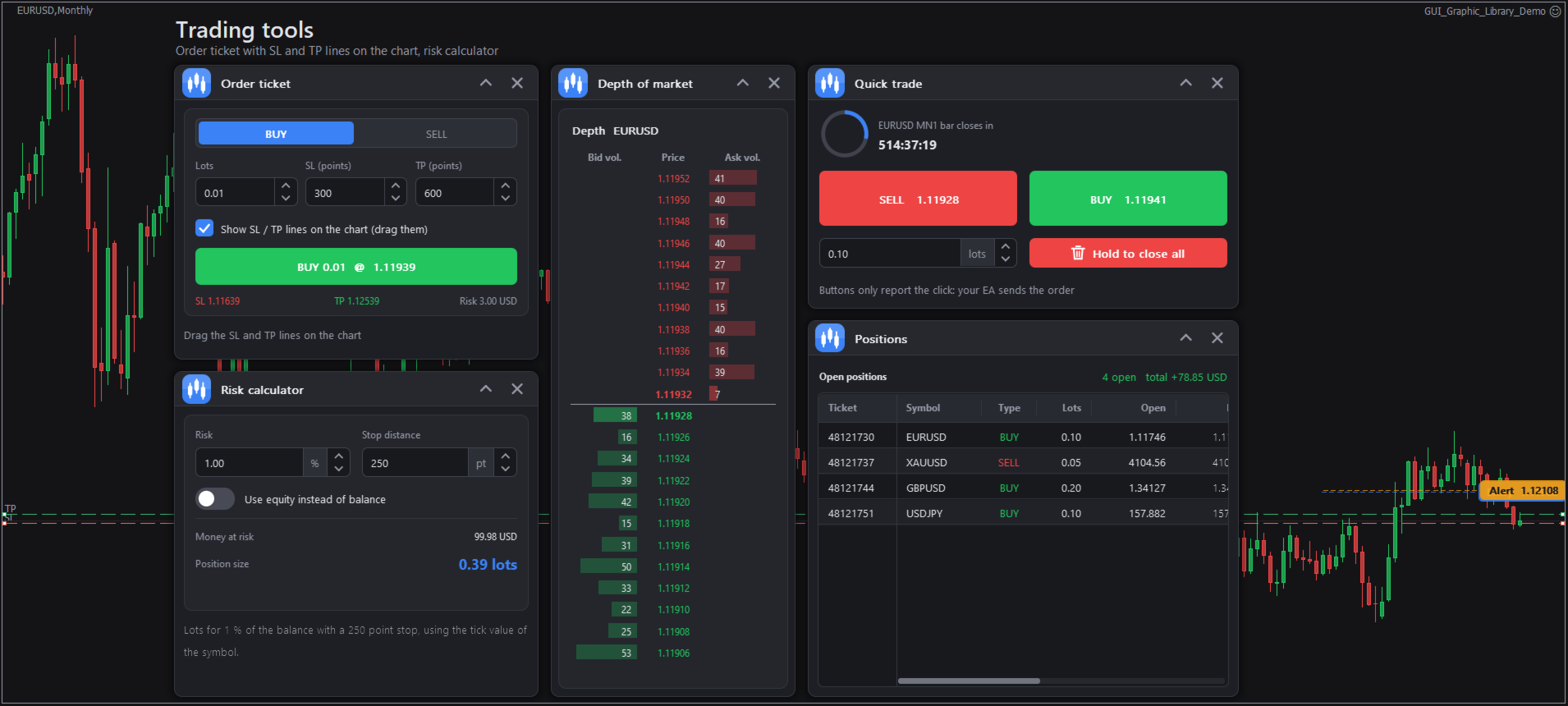
A dashboard built only from the library's elements.
4. Your first panel
This is a complete Expert Advisor: a window with a lot size box, a Buy button and a status line. It does not trade; it shows a message.
#include <GUI_Graphic_Library.mqh>
int wMain, spLots, btnBuy, lblInfo;
//+------------------------------------------------------------------+
//|                                                                  |
//+------------------------------------------------------------------+
int OnInit()
  {
   if(!Gui_Create(0, "MyPanel"))
      return INIT_FAILED;      // 0 = this chart
   Gui_Set(0, GUI_PROP_THEME, "", GUI_THEME_DARK);
   wMain = Gui_Add(GUI_OBJ_WINDOW, 0, "wMain", "My panel", 20, 40, 300, 170);
   Gui_Set(wMain, GUI_PROP_THEME_BUTTON, "", true);       // sun / moon button
   Gui_Set(wMain, GUI_PROP_MAIN_WINDOW, "", true);        // close asks to remove the program
   spLots = Gui_Add(GUI_OBJ_SPIN, wMain, "spLots", "", 10, 10, 280, 30);
   Gui_Set(spLots, GUI_PROP_RANGE, "", 0.01, 50, 0.01, 2); // min, max, step, digits
   Gui_Set(spLots, GUI_PROP_VALUE, "", 0.10);
   Gui_Set(spLots, GUI_PROP_SUFFIX, "lots");
   btnBuy = Gui_Add(GUI_OBJ_BUTTON, wMain, "btnBuy", "BUY", 10, 50, 280, 40);
   Gui_Set(btnBuy, GUI_PROP_STYLE, "", GUI_BUTTON_SUCCESS);
   Gui_Set(btnBuy, GUI_PROP_ICON, "", GUI_ICON_ARROW_UP);
   lblInfo = Gui_Add(GUI_OBJ_LABEL, wMain, "lblInfo", "Ready", 10, 100, 280, 20);
   Gui_Set(lblInfo, GUI_PROP_DIM, "", true);
   Gui_Set(0, GUI_PROP_REDRAW);
   return INIT_SUCCEEDED;
  }
//+------------------------------------------------------------------+
//|                                                                  |
//+------------------------------------------------------------------+
void ProcessEvents()
  {
   ENUM_GUI_EVENT ev;
   int sender;
   long l;
   double d;
   string s;
   while(Gui_NextEvent(ev, sender, l, d, s))
      if(ev == GUI_EVENT_CLICK && sender == btnBuy)
        {
         double lots = Gui_GetNum(spLots, GUI_PROP_VALUE);
         Gui_Set(lblInfo, GUI_PROP_TEXT, "Buy " + DoubleToString(lots, 2) + " lots");
         Gui_Set(0, GUI_PROP_TOAST, "Buy|" + DoubleToString(lots, 2) + " lots", GUI_NOTICE_SUCCESS, 3000);
        }
  }
//+------------------------------------------------------------------+
//|                                                                  |
//+------------------------------------------------------------------+
void OnDeinit(const int r)
  {
   Gui_Destroy();
  }
//+------------------------------------------------------------------+
//|                                                                  |
//+------------------------------------------------------------------+
void OnTimer()
  {
   Gui_Timer();
   ProcessEvents();
   Gui_Update();
  }
//+------------------------------------------------------------------+
//|                                                                  |
//+------------------------------------------------------------------+
void OnChartEvent(const int id, const long &l, const double &d, const string &s)
  {
   Gui_ChartEvent(id, l, d, s);
   ProcessEvents();
   Gui_Update();
  }
The pattern never changes:
- OnInit creates the GUI and the elements.
- OnChartEvent and OnTimer give events to the library, read the queue and call Gui_Update.
- OnDeinit destroys the GUI.
5. How the library thinks
- Ids. Gui_Add returns an integer id. Keep the ids you need, or find one later by name with Gui_Find("name"). Id 0 is the GUI itself: theme, toasts, dialogs, counters.
- Parents. Every element is added to a parent, a window or a container. Windows, menus and price labels use parent 0. For a tab, the parent is the tabs element and the returned id is the page you add children to.
- Properties. Gui_Set(id, property, text, a, b, c, d) changes a property or runs an action. Text goes in the text argument; numbers, colours and enums go in a to d. Gui_Get reads text and Gui_GetNum reads numbers.
- Events. The library queues what the user did. Read the queue with Gui_NextEvent.
- Coordinates are in pixels at 100 percent scale. The library multiplies them by the Windows display scale for you.
If you pass a property that an element does not support, nothing breaks: the call returns -1 and one line is written to the Experts log.
6. The tasks you will do most
Read what the user typed or chose
string name=Gui_Get(edName,GUI_PROP_TEXT);
double lots=Gui_GetNum(spLots,GUI_PROP_VALUE);
int    tab =(int)Gui_GetNum(tabs,GUI_PROP_SELECTED);
Tabs
int t=Gui_Add(GUI_OBJ_TABS,win,"tabs","",10,10,600,300);
int pOrders =Gui_Add(GUI_OBJ_TAB,t,"","Orders",0,0,0,0);    // returns the page
int pHistory=Gui_Add(GUI_OBJ_TAB,t,"","History",0,0,0,0);
Gui_Add(GUI_OBJ_BUTTON,pOrders,"b1","Close all",10,10,120,30);
Tables
int tb=Gui_Add(GUI_OBJ_TABLE,page,"tbl","",10,10,600,300);
Gui_Set(tb,GUI_PROP_ADD_COLUMN,"Symbol",120,GUI_ALIGN_LEFT);
Gui_Set(tb,GUI_PROP_ADD_COLUMN,"Strength",130,GUI_ALIGN_LEFT,GUI_COL_PROGRESS);
Gui_Set(tb,GUI_PROP_ADD_BUTTON_COLUMN,"Action",100,GUI_BUTTON_PRIMARY);
Gui_Set(tb,GUI_PROP_ADD_ROW,"EURUSD|64|Trade");
Gui_Set(tb,GUI_PROP_SORT,"",0,true);
A click on a button cell sends GUI_EVENT_CELL_BUTTON with the row in lparam and the column in dparam.
Charts
int ch=Gui_Add(GUI_OBJ_LINECHART,page,"chart","Price",10,10,500,260);
int ln=Gui_Set(ch,GUI_PROP_ADD_SERIES,"Close",clrDodgerBlue);    // returns the series index
double closes[]; CopyClose(_Symbol,PERIOD_H1,0,100,closes);
Gui_SetArray(ch,GUI_PROP_SERIES,closes,ln);                      // a whole series at once

int cd=Gui_Add(GUI_OBJ_CANDLECHART,page,"cd",_Symbol,10,280,500,260);
Gui_Set(cd,GUI_PROP_LOAD_BARS,_Symbol,80);
Gui_Set(cd,GUI_PROP_ADD_MA,"",20,clrDodgerBlue);
Gui_Set(cd,GUI_PROP_ADD_BANDS,"",20,2.0);
Dialogs and toasts
enum { CMD_CLOSE_ALL=500 };
Gui_Set(0,GUI_PROP_CONFIRM,"Close all|Close every position?|Close|Cancel",CMD_CLOSE_ALL);
// later, in the event loop:
if(ev==GUI_EVENT_DIALOG && Gui_GetNum(sender,GUI_PROP_CMD)==CMD_CLOSE_ALL && l==0)
   CloseAll();                       // l = button index, -1 = cancelled

Gui_Set(0,GUI_PROP_TOAST,"Order|Filled",GUI_NOTICE_SUCCESS,3000);
Themes and colours
Gui_Set(0,GUI_PROP_THEME,"",GUI_THEME_MIDNIGHT);   // DARK, LIGHT, MIDNIGHT, HIGHCONTRAST, SOFT
Gui_Set(0,GUI_PROP_ACCENT,"",clrOrange);
Gui_Set(0,GUI_PROP_RADIUS,"",10);
Remember windows and values
Gui_Set(0,GUI_PROP_AUTO_LAYOUT,"",true);   // load now, save when the GUI is destroyed
Gui_Set(0,GUI_PROP_LOAD_VALUES);            // in OnInit
Gui_Set(0,GUI_PROP_SAVE_VALUES);            // in OnDeinit
Both use small text files. No terminal global variables are used.
Do something every second
Gui_Set(0,GUI_PROP_COUNTER,"refresh",1000,true);   // name, ms, repeat
// in OnTimer:
if(Gui_GetNum(0,GUI_PROP_COUNTER_DONE,"refresh")!=0) RefreshNumbers();
7. A trade panel with your own order function
The order ticket, positions panel and risk calculator read the account and the symbol, then give you events. They never send orders. You decide what happens when the user clicks Buy or Sell.
#include <GUI_Graphic_Library.mqh>
#ifdef __MQL5__
#include <Trade\Trade.mqh>
CTrade g_trade;
#endif
input bool InpLiveTrading = false;   // send real orders
int g_ticket = 0;

//+------------------------------------------------------------------+
//|                                                                  |
//+------------------------------------------------------------------+
int OnInit()
  {
   if(!Gui_Create(0, "GUI_TradePanel"))
      return INIT_FAILED;
   int w = Gui_Add(GUI_OBJ_WINDOW, 0, "w", "Trade", 20, 40, 360, 260);
   Gui_Set(w, GUI_PROP_MAIN_WINDOW, "", true);
   g_ticket = Gui_Add(GUI_OBJ_ORDERTICKET, w, "ticket", _Symbol, 10, 10, 340, 212);
   Gui_Set(g_ticket, GUI_PROP_LOTS, "", 0.10);
   Gui_Set(g_ticket, GUI_PROP_STOP_POINTS, "", 300);
   Gui_Set(g_ticket, GUI_PROP_TP_POINTS, "", 600);
   Gui_Set(g_ticket, GUI_PROP_SHOW_LINES, "", true);  // SL and TP lines on the chart
   Gui_Set(0, GUI_PROP_CLEAR_EVENTS);
   return INIT_SUCCEEDED;
  }

//+------------------------------------------------------------------+
//|                                                                  |
//+------------------------------------------------------------------+
void MyTrade(const bool buy, const double lots, const double sl, const double tp)
  {
   if(!InpLiveTrading)
     {
      Print("Trading is off. Would ", buy ? "buy " : "sell ", lots, " lots");
      return;
     }
#ifdef __MQL5__
   if(buy)
      g_trade.Buy(lots, _Symbol, 0.0, sl, tp);
   else
      g_trade.Sell(lots, _Symbol, 0.0, sl, tp);
#else
   if(buy)
      OrderSend(_Symbol, OP_BUY, lots, Ask, 3, sl, tp, "GUI", 0, 0, clrGreen);
   else
      OrderSend(_Symbol, OP_SELL, lots, Bid, 3, sl, tp, "GUI", 0, 0, clrRed);
#endif
  }

//+------------------------------------------------------------------+
//|                                                                  |
//+------------------------------------------------------------------+
void ProcessEvents()
  {
   ENUM_GUI_EVENT ev;
   int sender;
   long l;
   double d;
   string s;
   while(Gui_NextEvent(ev, sender, l, d, s))
      if(ev == GUI_EVENT_TRADE)          // l: 0 buy, 1 sell   d: lots   s: "sl|tp" prices
        {
         string p[];
         StringSplit(s, '|', p);
         double sl = (ArraySize(p) > 0) ? StringToDouble(p[0]) : 0.0;
         double tp = (ArraySize(p) > 1) ? StringToDouble(p[1]) : 0.0;
         MyTrade(l == 0, d, sl, tp);
        }
  }

//+------------------------------------------------------------------+
//|                                                                  |
//+------------------------------------------------------------------+
void OnDeinit(const int r)
  {
   Gui_Destroy();
  }
//+------------------------------------------------------------------+
//|                                                                  |
//+------------------------------------------------------------------+
void OnTimer()
  {
   Gui_Timer();
   ProcessEvents();
   Gui_Update();
  }
//+------------------------------------------------------------------+
//|                                                                  |
//+------------------------------------------------------------------+
void OnChartEvent(const int id, const long &l, const double &d, const string &s)
  {
   Gui_ChartEvent(id, l, d, s);
   ProcessEvents();
   Gui_Update();
  }
Test it on a demo account first. Before sending real orders, also check the lot size against the symbol minimum, maximum and step, and the stop distance against the broker's stop level.
Positions work the same way: add GUI_OBJ_POSITIONS, then react to GUI_EVENT_POSITION (lparam is the ticket, dparam is 1 for Close and 2 for Modify).
8. Using it in an indicator
An indicator can draw the GUI in its own sub-window. Pass the number of that window to Gui_Create:
#property indicator_separate_window
int OnInit()
  {
   int sub=ChartWindowFind();
   Gui_Create(0,"GUI_MyIndicator",sub);
   // add windows and controls as usual
   return INIT_SUCCEEDED;
  }
To draw on the price chart from an indicator, use sub-window 0. The two indicator demos are complete examples. There is one GUI per program and chart, so give every program its own GUI name.
9. MetaTrader 4 and MetaTrader 5
| Topic | MetaTrader 4 | MetaTrader 5 |
|---|---|---|
| Library file | .ex4 | .ex5 |
| Context menu | Long press the left button, or Ctrl + click | Right click |
| Mouse wheel | Not sent by the terminal. Use the scroll bars. | Works |
| Depth of market | Add the levels yourself | Reads the market book |
| Economic calendar | Add the rows yourself | Loads from the terminal |
| Typing | Built-in US key map | Every keyboard layout works |
10. If something does not work
| Problem | What to do |
|---|---|
| Nothing appears on the chart | Check that Gui_Create returned true and read the last lines of the Experts tab. |
| The compiler cannot open GUI_Graphic_Library.mqh | The include file is not in the Include folder of the same data folder as your program. |
| The program cannot load the library at run time | The .ex5 or .ex4 file is missing from Libraries, or its name was changed. |
| A value changed in code does not show | Call Gui_Update() at the end of your handler. |
| The Experts tab says a property is not supported | That property does not exist for that element. Check the API reference. |
| Two programs fight on one chart | Give each one its own name in Gui_Create. |
| Chart lines cover the GUI | Call Gui_BringToFront() after you create chart objects. |
| Text is too small or too large | Set Gui_Set(0,GUI_PROP_SCALE,"",1.5), or restart the terminal after changing the Windows scale. |
| You want to see what the library is doing | Turn on Gui_Set(0,GUI_PROP_DEBUG,"",true) for the debug overlay. |
11. Tips
- Call Gui_Update() at the end of every handler. It repaints only what changed.
- Hidden tab pages and collapsed windows cause no repaint, so updating them from a timer is cheap.
- Use GUI_PROP_MAX_FPS to cap the frame rate if you run many charts.
- Use GUI_PROP_CLEAR_EVENTS at the end of OnInit to drop events queued while you built the panel.
- Use the Image to Code tool on the website to turn a PNG logo or icon into an array for Gui_AddImage.
- New enum values are only added at the end, so programs built with an older include file keep working after an update. Replace the library file and the include file together.
12. Where to go next
- Element gallery, installation, guide, API reference, Image to Code and help: https://www.betasoft.dev/gui-graphic-library
- MetaTrader 5 version: https://www.mql5.com/en/market/product/206761
- MetaTrader 4 version: https://www.mql5.com/en/market/product/206760
Your opinion is welcome. For questions or improvement ideas, please write in the product comments or send me a message on MQL5.com