
You have two positions open before a USD announcement. You want to know when the event takes place, how much exposure your positions have in common, and whether one of them is missing a Stop Loss. The AI tab in Multi Risk Manager Pro gives you a separate starting point for each question: NEWS DIGEST for the event and OPEN RISK for the positions. You can request both reviews from the chart and switch between their answers.
This guide covers the AI panel inside the Expert Advisor: how to configure it, what each of its 15 review buttons does, how to ask a follow-up question and how to save or share the result.
Multi Risk Manager Pro for MT5 · Multi Risk Manager Pro for MT4 · MQLEXP public channel on MQL5
1. Open AI on the MetaTrader Chart
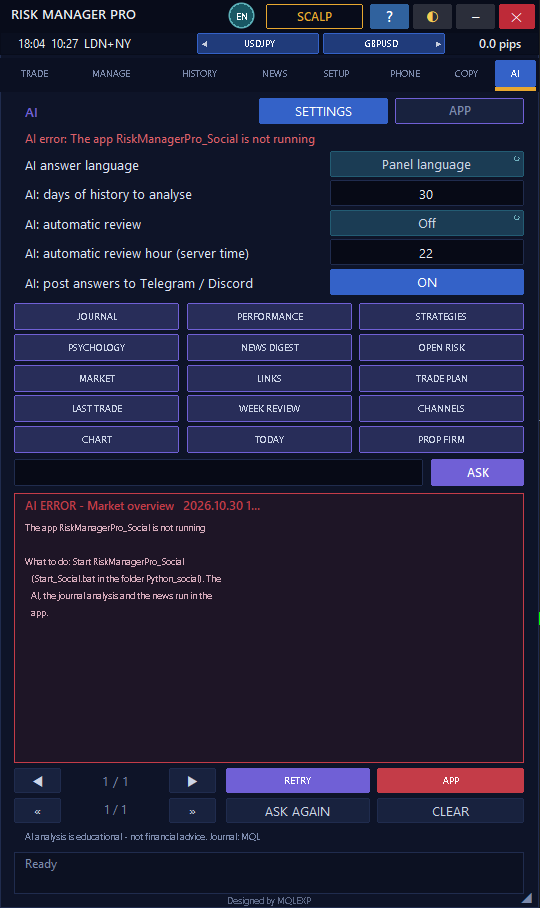
Attach Multi Risk Manager Pro to a chart and select AI in the panel’s main tab row. The review buttons, question box and answer area are all inside the EA. The Windows companion handles the connection to your chosen AI provider.
The two controls at the top lead to different settings:
- SETTINGS opens the EA’s review preferences, including language, history period, automatic reviews and posting.
- APP opens the AI page in the Windows companion, where you choose a provider and model, enter your API key and test the connection.
Read the status line before requesting a review. If it reports that RiskManagerPro_Social is not running, start the companion on the computer where MetaTrader is running. If the companion is online but requests still fail, open AI assistant → Settings in the app and use Test the AI connection.
2. Set the Language, History Period and Review Schedule
| EA setting | How to use it |
|---|---|
| AI answer language | Choose Panel language to receive answers in the interface language, or select English. |
| AI: days of history to analyse | Set the history window for reviews that use it. The documented default is 30 days. WEEK REVIEW specifically covers the last seven days. |
| AI: automatic review | Choose Off, Daily journal review, or Daily review and news digest. |
| AI: automatic review hour | Set the hour using broker server time. The documented default is 22:00. Compare the server clock with your local time before scheduling a review. |
| AI: post answers to Telegram / Discord | Enable this when you want answers delivered to a configured chat or channel. Check the destination and the account information included in the answer before sharing it. |
For a first session, leave automatic reviews off and request one review manually. You can check its language, scope and account details before scheduling the same workflow.
3. Choose Among the 15 Review Buttons
| Button | What it reviews | When to use it |
|---|---|---|
| JOURNAL | Recurring strengths, weaknesses and patterns in closed trades | When writing a journal entry for the selected history period |
| PERFORMANCE | Win rate, profit factor, expectancy, R and drawdown, with a summary grade | When you want to inspect the figures behind a performance assessment |
| STRATEGIES | Results grouped by strategy | When comparing trades tagged with different strategy labels |
| PSYCHOLOGY | Patterns such as increased trade frequency or larger size after losses | When looking for trades to revisit in your notes. Trade records can show a size change; your notes help explain the decision. |
| NEWS DIGEST | Calendar events, headlines and their relevance to your symbols | Before an announcement that may affect instruments you trade |
| OPEN RISK | Open positions, missing stops, currency exposure and relevant news | When checking the combined exposure of several positions |
| MARKET | D1, H4 and H1 context, levels, volatility and scenarios for the chart symbol | When comparing the same instrument across timeframes |
| LINKS | The news links you supplied in the companion | When you want a summary focused on your own source list |
| TRADE PLAN | The entry, stop, volume and risk of the plan drawn on the chart | After positioning the R Box and before submitting an order |
| LAST TRADE | The most recently closed trade | Immediately after an exit, while you still remember your reasoning |
| WEEK REVIEW | The last seven days of trading activity | When preparing a weekly journal entry |
| CHANNELS | Available results associated with Telegram or Discord signal channels | When comparing channel activity over the sample available |
| CHART | An image of the current chart | When your question depends on a visible line, zone or annotation. Choose a model that accepts images. |
| TODAY | A short pre-session briefing | When you want an overview before opening the more detailed reviews |
| PROP FIRM | Available room against the prop firm limits and rules you entered | When checking which threshold needs attention. Verify the figures against the firm’s own dashboard. |
4. Ask a Specific Question and Check the Answer
Suppose your demo account holds a buy on EURUSD and a buy on GBPUSD. Both positions include short USD exposure. Press OPEN RISK, read the answer, then type a narrower question into the input box and press ASK:
Which of my open positions share USD exposure? For each one, identify the symbol, direction and recorded Stop Loss. If a stop is missing, say which risk figure you cannot calculate.
Compare the reply with the open positions in MetaTrader. Check the tickets, directions and actual stop prices. Next, press NEWS DIGEST and look for events affecting USD, EUR or GBP. Verify the event time in the NEWS tab. You now have two distinct records: the positions held when you asked, and the calendar information available at that time.
Use CANCEL to stop a running request. If you change a stop, close a position or move the R Box afterward, use ASK AGAIN to rerun the last request with the updated context.
5. Read Long Answers and Return to Earlier Reviews
The panel has two pairs of navigation arrows. They serve different purposes:
- < and > move between pages of the current answer. Use these when the response is longer than the panel.
- « and » browse the last 20 answers. Use these to return to an earlier review, such as the OPEN RISK response you requested before NEWS DIGEST.
Use COPY to take an answer into your journal. Record the account label and request time beside it, especially for reviews of open positions or news. That gives you a reference when you read the entry after the positions have changed.
6. Analyze a Chart or Share One with a Review
CHART and +CHART appear in different parts of the workflow. Select CHART when you want the AI provider to analyze a chart image. Select +CHART when you want to attach a chart picture to an answer you are posting. Use SEND to deliver the answer to your configured Telegram or Discord destination.
Before either action, inspect the chart for account labels, trade comments and private annotations. For a first sharing test, use a private chat and check both the received text and the picture.
The most useful review ends with something you can verify: a missing stop in MANAGE, a closed trade in HISTORY, an event time in NEWS, or a proposed risk figure in the R Box. The AI tab helps you identify what to inspect. Order execution and account protection follow the rules configured in the EA.