Suppose you open a EURUSD position on your phone. You have already entered a Stop Loss, but you want your desktop trading panel to add a profit target and move the stop to breakeven if price reaches 1R. Which settings let the panel do that while preserving the stop and volume you chose on your phone?
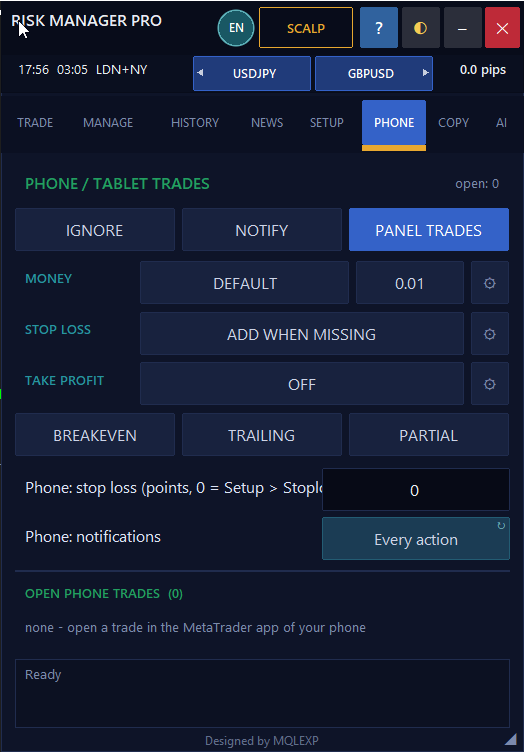
The PHONE tab in Multi Risk Manager Pro handles this workflow. You place the order through MetaTrader mobile or web. Once the position opens, the EA running on your desktop terminal detects the eligible trade and applies the rules you selected. This guide covers detection, protective levels, optional volume adjustment and a demo test you can verify in MetaTrader.
Multi Risk Manager Pro for MT5 · Multi Risk Manager Pro for MT4 · MQLEXP public channel on MQL5
1. Connect the Phone and Desktop to the Same Trading Account
Open MetaTrader on your PC or Windows VPS, sign in to the account you use on your phone and attach Multi Risk Manager Pro to a chart. Compare the account number and broker server on both devices. Keep the desktop terminal connected and enable algorithmic trading when you want the EA to modify positions.
Order entry takes place on the phone. Detection, stop adjustments, trailing and partial closes run in the desktop EA. The PHONE workflow runs inside MetaTrader and can be used independently of the Windows companion.
One platform difference matters before you switch on management. MT5 can identify eligible positions opened through mobile or web. MT4 does not record the same origin information, so the PHONE module treats all manual trades with magic number 0 as phone trades. On MT4, a manual order opened from the desktop can therefore receive the same rules as one opened from your phone.
2. Choose What the Panel Should Do
| PHONE mode | Effect |
|---|---|
| IGNORE | Leaves eligible trades outside the PHONE workflow. |
| NOTIFY | Reports detected activity so you can check which trades the EA recognizes. |
| PANEL TRADES | Includes eligible positions in panel management across symbols and applies the PHONE rules you enable. |
For a first demo test, select NOTIFY and open one position from the phone. Check the desktop panel for the detection notice. On MT4, you can also open a separate manual demo order from the desktop to see how the platform’s broader classification works. Once you understand which positions are included, choose PANEL TRADES and configure their management.
3. Add Missing Protection or Apply Your Own Levels
STOP LOSS and TAKE PROFIT each have three settings. OFF leaves that level alone. ADD WHEN MISSING supplies a level only when the position lacks one. ALWAYS SET applies the configured rule even when you entered a level on the phone.
For the EURUSD example, suppose you want to keep the mobile stop and let the panel supply a missing target:
- Select PHONE → PANEL TRADES.
- Set STOP LOSS → ADD WHEN MISSING. An existing mobile stop is preserved. If a stop is missing, the EA uses the configured PHONE stop distance in points. A value of zero uses the distance from SETUP → Stoploss.
- Set TAKE PROFIT → ADD WHEN MISSING. The documented PHONE target uses twice the stop distance.
- Leave MONEY → DEFAULT to retain the volume selected on the phone.
For a simple illustration, consider a buy filled at 1.10000 with a Stop Loss at 1.09800. The initial stop distance is 0.00200, or 1R. A target at twice that distance is 1.10400. After detection, open the position details in MetaTrader and check the prices the broker actually accepted.
4. Understand When PHONE Can Change the Volume
The lot size entered on your phone is the opening volume. Optional PHONE money management takes effect after entry, once the protective levels required by your selected mode are present.
| MONEY setting | What happens after entry |
|---|---|
| DEFAULT | Keeps the opening volume selected on the phone. |
| AFTER SL | Uses the position’s stop and the SETUP → Money configuration to calculate a target volume. |
| AFTER SL + TP | Waits until both the stop and target are present before calculating the adjustment. |
Suppose your demo position opens at 0.10 lots. After the stop is available, the configured calculation gives a target of 0.06 lots. On a symbol that supports the required volume step, the intended adjustment is a 0.04-lot partial close.
The adjustment can also increase exposure. If the calculated target is above the opening volume, the EA can add a same-direction trade at the available market price. That additional volume may enter at a different price from the original mobile order. Check the total volume and entry prices in MetaTrader, especially when testing AFTER SL for the first time.
5. Apply Breakeven, Trailing or a Partial Close
The PHONE tab provides three management switches. Their triggers use R, the position’s initial risk distance.
| Control | Documented PHONE behavior |
|---|---|
| BREAKEVEN | At 1R of favorable movement, attempts to move the stop to breakeven with a 10-point offset. |
| TRAILING | Starts at 1.5R, using a 300-point trailing distance and a 50-point step. |
| PARTIAL | At 1R, attempts to close 50% of the volume and move the stop to breakeven. |
In the EURUSD example above, the 1R price is 1.10200. For a first test, enable BREAKEVEN alone. If the trigger is reached, inspect the new Stop Loss in the terminal. Test PARTIAL separately on a volume that can be divided according to the broker’s lot step. Because both controls can act at 1R, separate tests make it easier to see which rule changed the position.
6. Verify the Result in OPEN PHONE TRADES
The OPEN PHONE TRADES list shows the positions classified by the module. Its summary displays the floating result, estimated money at risk at recorded stops and the number of trades without a stop. Read the risk figure together with that last count: a position with no recorded SL has no stop distance from which to calculate its exposure.
Each row provides BE, ½ and X controls for the individual trade. BE ALL and CLOSE ALL act on the broader list. Before using a batch control, review every included symbol, particularly on MT4 where desktop manual trades can also appear.
A useful first demo record has four entries: the volume and levels you submitted on the phone, the mode that detected the trade, the first adjustment the EA requested, and the resulting position in MetaTrader. That comparison shows exactly what PHONE changed and gives you a baseline before you enable additional rules.