How to Read an Order Flow Footprint Chart in MetaTrader 5: Delta, Imbalances and Trade Bubbles

A normal candle tells you where price opened, where it closed and how far it travelled. It does not tell you who was active inside it. A footprint chart opens the candle and shows the volume that traded at every price, split into buyers and sellers.
This article explains how to read a footprint chart in MetaTrader 5, what delta, imbalances and the point of control mean, and how traders use them. The examples come from the indicator Orderflow Footprint with Delta and Trade Bubbles.
In this article:
- What a footprint chart shows
- Three ways to read the cells
- Point of control, value area and the detail card
- Imbalances and stacked zones
- Order flow signals
- The trade bubbles window
- The delta and cumulative delta panel
- Settings on the chart
- How traders use a footprint chart
- Where the numbers come from
1. What a Footprint Chart Shows
Every footprint candle is divided into price rows, and every row has two numbers:
| Side | Position | What it counts |
|---|---|---|
| Bid | Left number | Volume that sold at market at that price - sellers who hit the bid |
| Ask | Right number | Volume that bought at market at that price - buyers who lifted the ask |
| Delta | Ask minus bid | Positive = buyers were more aggressive, negative = sellers were |
Under every candle the indicator prints its total delta (D) and total volume (V), so you can compare candles at a glance.
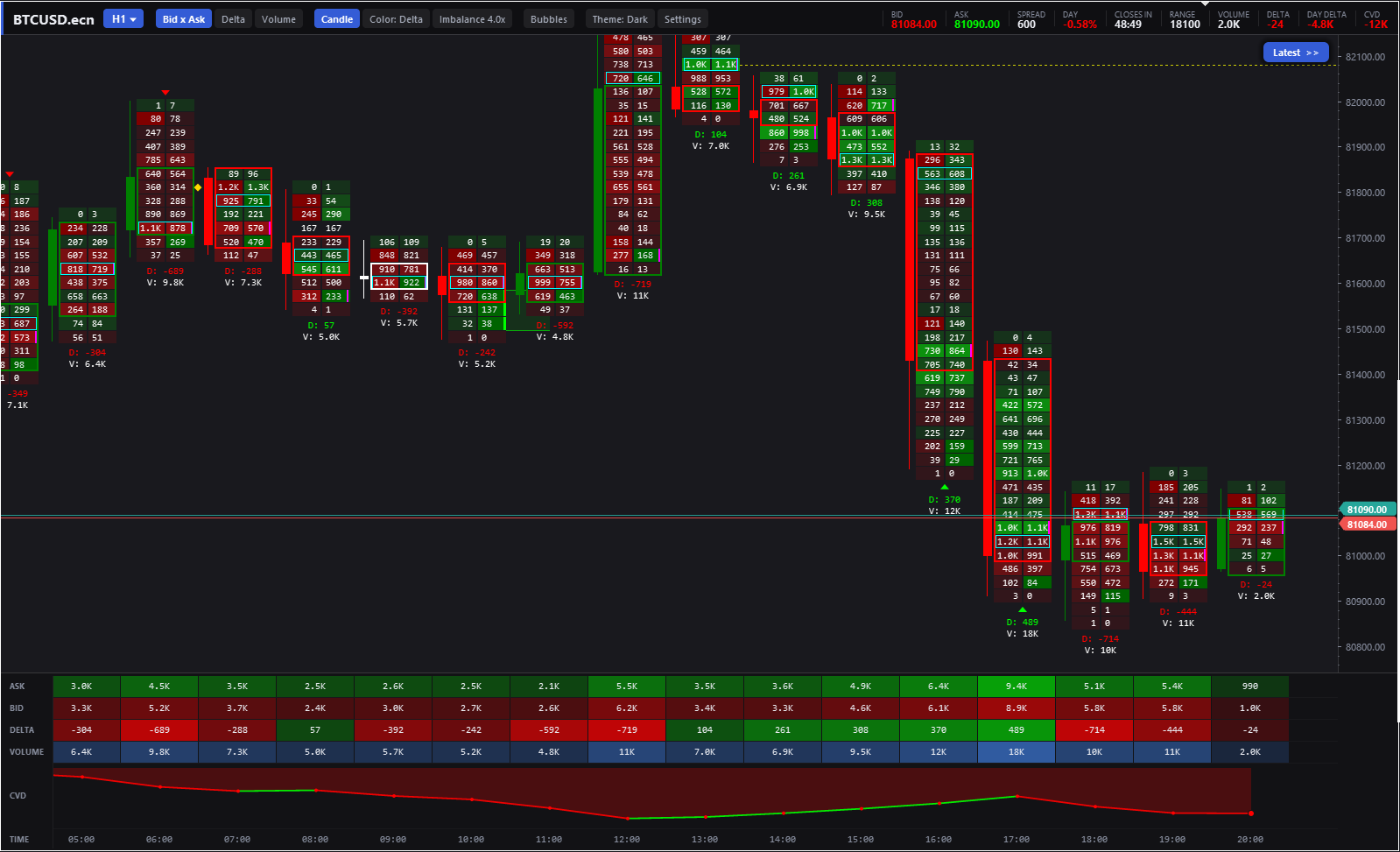
Bid x Ask footprint on H1 with cells coloured by delta. Top: the header bar with the symbol, timeframe menu, view buttons and live values. Bottom: the statistics panel and the cumulative delta line.
2. Three Ways to Read the Cells
The same footprint can be shown in three modes, switched with one click on the header bar:
| Mode | Each row shows | Best for |
|---|---|---|
| Bid x Ask | Both sides | The full picture - the classic cluster view |
| Delta | Ask minus bid | Seeing at once which side had the upper hand |
| Volume | Total volume | Finding where the market did the most business |
The Color button changes how the cells are shaded: a volume heatmap, green and red by delta, or each side by its own volume. Delta mode with side colouring is a quick way to scan a session for the rows where one side was clearly stronger.
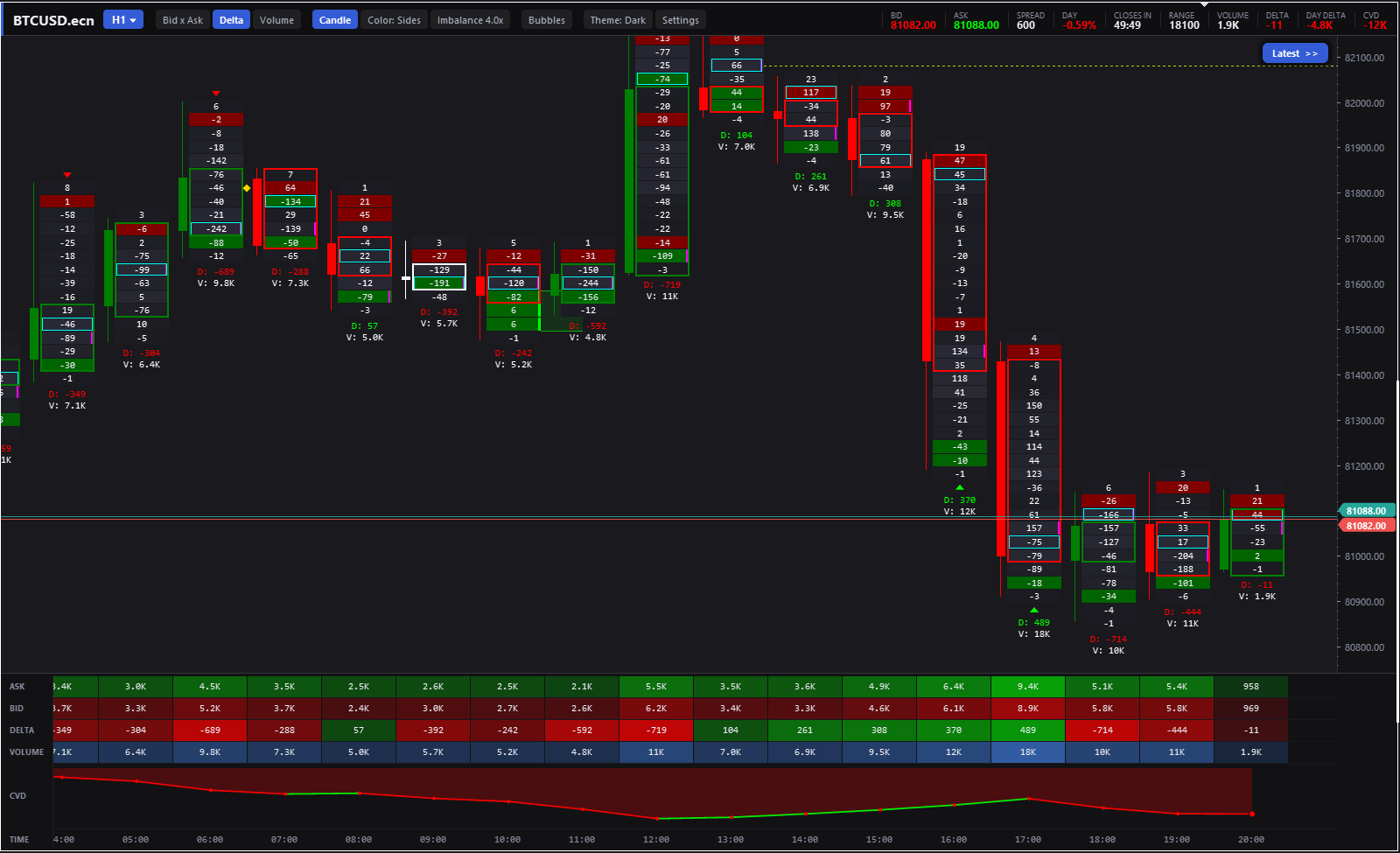
Delta mode with side colouring. Green rows had more buying at market, red rows more selling. The panel below gives the ask, bid, delta and volume of every candle.
3. Point of Control, Value Area and the Detail Card
These levels describe where a candle did most of its business:
| Level | Meaning | On the chart |
|---|---|---|
| VPOC - Volume Point of Control | The row with the largest volume | Yellow outline (optional) |
| TPOC - Time Point of Control | The row where price spent the most time | Cyan outline |
| Value Area (VAH / VAL) | The rows holding 70 percent of the volume around the VPOC, standard two-row method | In the detail card |
| Naked POC | A VPOC that price has not revisited yet | Dashed line to the right |
Move the mouse over any candle and the detail card shows all of its values: open, high, low and close, volume and delta, maximum and minimum delta, cumulative delta, VPOC, TPOC, value area, imbalance count, unfinished auctions and divergence status. Its last lines describe the row under the mouse: bid, ask, delta, volume and time.
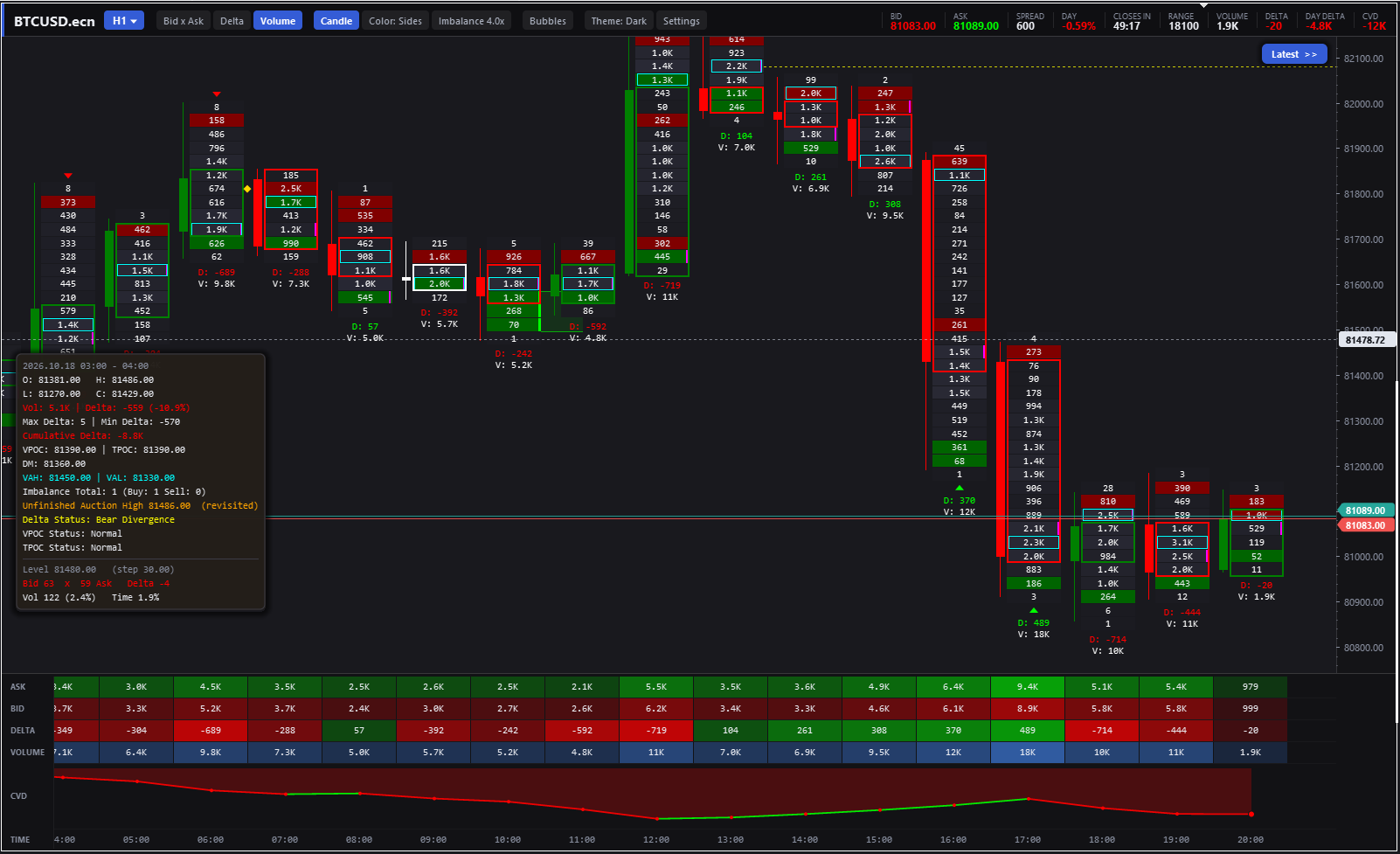
Volume mode with the detail card of a candle open.
4. Imbalances and Stacked Imbalance Zones
Footprint imbalances are read diagonally: the ask volume of a row is compared with the bid volume of the row below it. When one side is larger by the imbalance ratio, the cell is marked as a buy or sell imbalance.
| Rule | Default | Where to change it |
|---|---|---|
| Imbalance ratio | 3.0 | Header button, 1.5 to 5.0 |
| Minimum volume on the stronger side | 3 | Settings card |
| Count against an empty opposite row | On | Settings card |
| Rows for a stacked zone | 3 | Settings card |
When three or more imbalances of the same side stand on top of each other, they form a stacked imbalance. The indicator draws a zone from those rows to the right until price trades back into it. Many order flow traders watch these zones as areas where the aggressive side may defend its position on a retest.
5. Order Flow Signals
All signals are calculated after the candle has closed, so a mark does not appear and disappear while the candle is still forming. Each one can also show a short message on the chart, with an optional sound.
| Signal | Mark | What happened |
|---|---|---|
| Absorption | Gold diamond | Large volume at the top or bottom of a candle (2x the average row by default), but the candle closed in the other half - passive orders stopped the push |
| Exhaustion | Triangle beyond the extreme | A new swing high on negative delta, or a new swing low on positive delta |
| Unfinished auction | Orange mark and dotted line (off by default) | Selling volume at the candle high, or buying volume at the low - price often comes back |
| Delta divergence | Detail card | A rising candle with negative delta, or a falling candle with positive delta |
| Big trades | Bubble on the footprint | A single trade above the volume you set (needs real trade sizes) |
6. The Trade Bubbles Window
The footprint shows what happened inside each candle. The bubbles window shows what is happening right now. It is a small panel inside the chart where the latest trades appear as bubbles moving from right to left:
- Size follows the volume of the bubble.
- Colour follows the more active side - green buyers, red sellers.
- Rings mark the largest clusters, so bursts of activity stand out.
- Time lines with the clock time move with the bubbles.
Open it with the Bubbles button on the header. You can show from 15 to 300 seconds, drag the window anywhere on the chart and resize it from its corner.
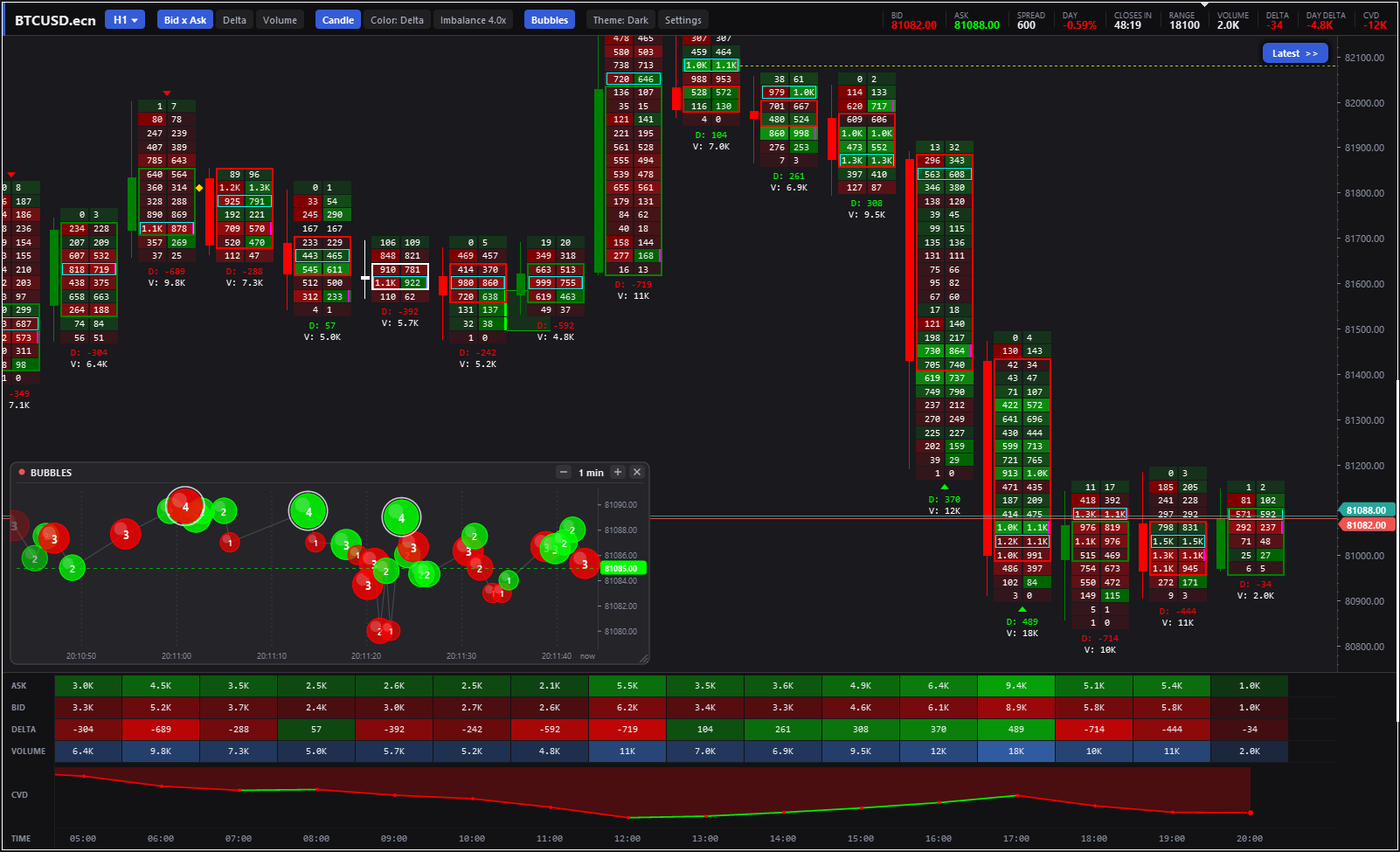
The bubbles window with one minute of trades. The ringed bubbles are the largest clusters.
7. Delta, Volume and Cumulative Delta Panel
Under the candles a statistics panel lines up the numbers of every candle on the screen - ask, bid, delta and volume - each cell shaded by its size, so strong candles are easy to find.
Below them the Cumulative Volume Delta (CVD) is drawn as a line graph. CVD adds the delta of each candle to a running total, so it shows whether buyers or sellers have been in control over time. When price makes a higher high but CVD makes a lower high, fewer aggressive buyers stand behind the new high - and the reverse at lows.
8. Settings on the Chart
You do not need to open the indicator properties to change the view. The Settings button opens a card with the main options, grouped like this:
| Group | Options |
|---|---|
| Footprint | Detail columns, volume and time percentage columns, delta column, VPOC, TPOC and delta maximum markers |
| Imbalance | Minimum volume, empty side rule, stacked zone rows |
| Levels and signals | Stacked zones, naked POC, unfinished auctions, absorption and exhaustion, big trades |
| Chart | History length, bottom panel, CVD row, automatic price fitting, bid and ask lines, detail card, theme |
| Alerts | Notifications |
Every change applies at once, and the choices are saved per chart.
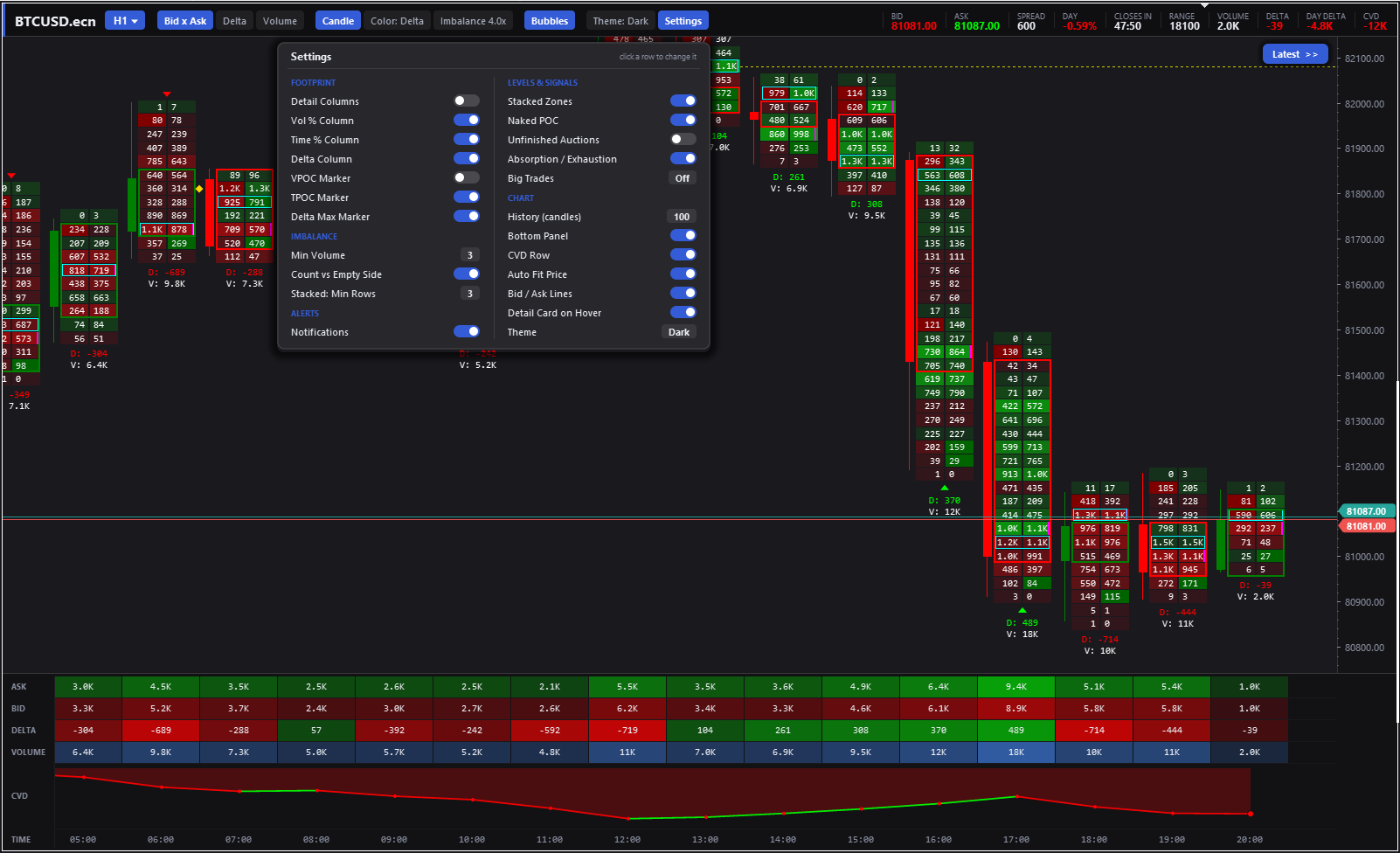
The settings card.
Moving around the chart:
- Zoom resizes the whole footprint, including fonts, columns and markers.
- Drag with the mouse to move the candles in time and in price.
- Mouse wheel, Page Up, Page Down, Home and End scroll through history.
- Latest button returns to the live candle.
9. Where the Numbers Come From
A footprint is only as good as the data behind it, so it is important to know what your broker sends:
| Symbol type | How buying and selling is measured |
|---|---|
| Exchange symbols (futures, stocks) with trade flags | Real trade volume and the exchange's buy or sell flags |
| Trades with bid and ask quotes | A trade above the middle of the spread is buying, below it selling |
| Forex and CFD symbols | No trade volume: each tick counts as one unit, its side follows the price direction. The footprint shows tick activity, not exchange volume |
The screenshots in this article were taken on a CFD symbol, so their numbers are tick counts.
Try It Yourself
You can test the indicator in the MetaTrader 5 Strategy Tester before you buy. Choose visual mode and the modelling "Every tick based on real ticks", because the footprint is built from tick data.
The product page has the full list of features and input parameters: Orderflow Footprint with Delta and Trade Bubbles.
If you have questions or ideas for new features, please write them in the comments below or DM.