Prop Gauge measures your account against three limits: daily loss, max drawdown and profit target. This post shows how to set them correctly. Wrong inputs give wrong percentages, so it is worth five minutes.
1. Preset or Custom rules
 The Preset input holds ready-made rules: FTMO 2-Step (Challenge, Verification, Funded account), FTMO 1-Step, or Custom rules.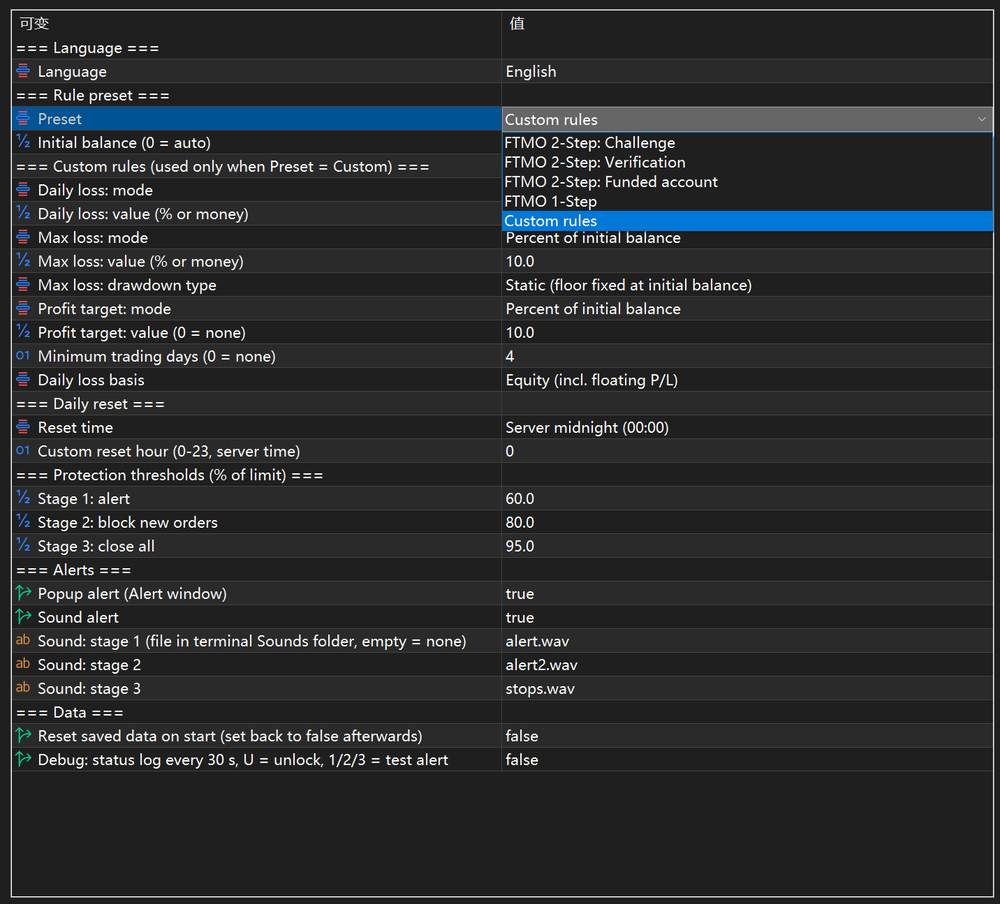
- Preset values reflect public information at release. Rules change, so compare them with your firm's current rules and use Custom when they differ. Prop Gauge is not affiliated with any prop firm.
- The Custom rules inputs are used only when Preset = Custom rules. With a preset they are ignored.
For example, FTMO 2-Step Challenge is a 5% daily loss, 10% static max loss, 10% profit target and 4 minimum trading days.
2. Initial balance
Limits are a percentage of the initial balance. With 0 (auto), Prop Gauge takes the balance at first run.
- New account: leave 0.
- Account that has already traded or been topped up: enter the real starting balance. Otherwise 5% is calculated from the wrong base and every bar is off.
Example: on a 100,000 account, a 5% daily limit is 5,000 and a 10% static max loss puts the floor at 90,000.
3. Custom rules
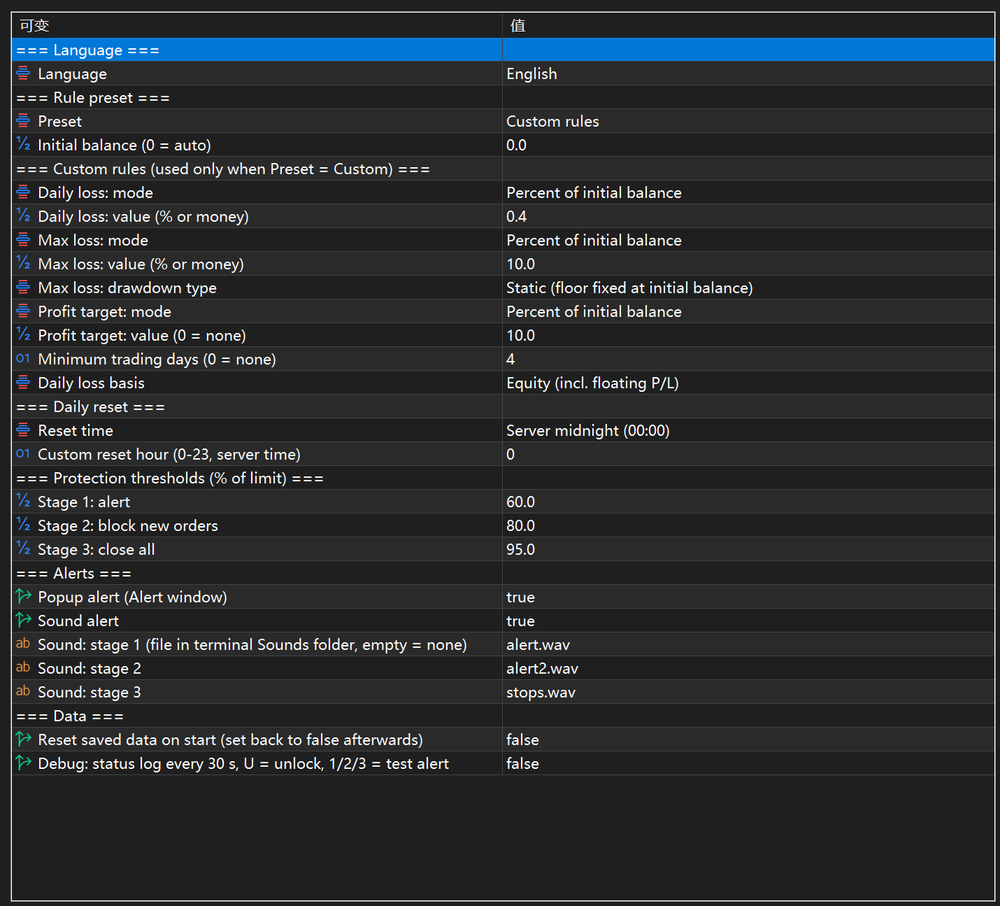
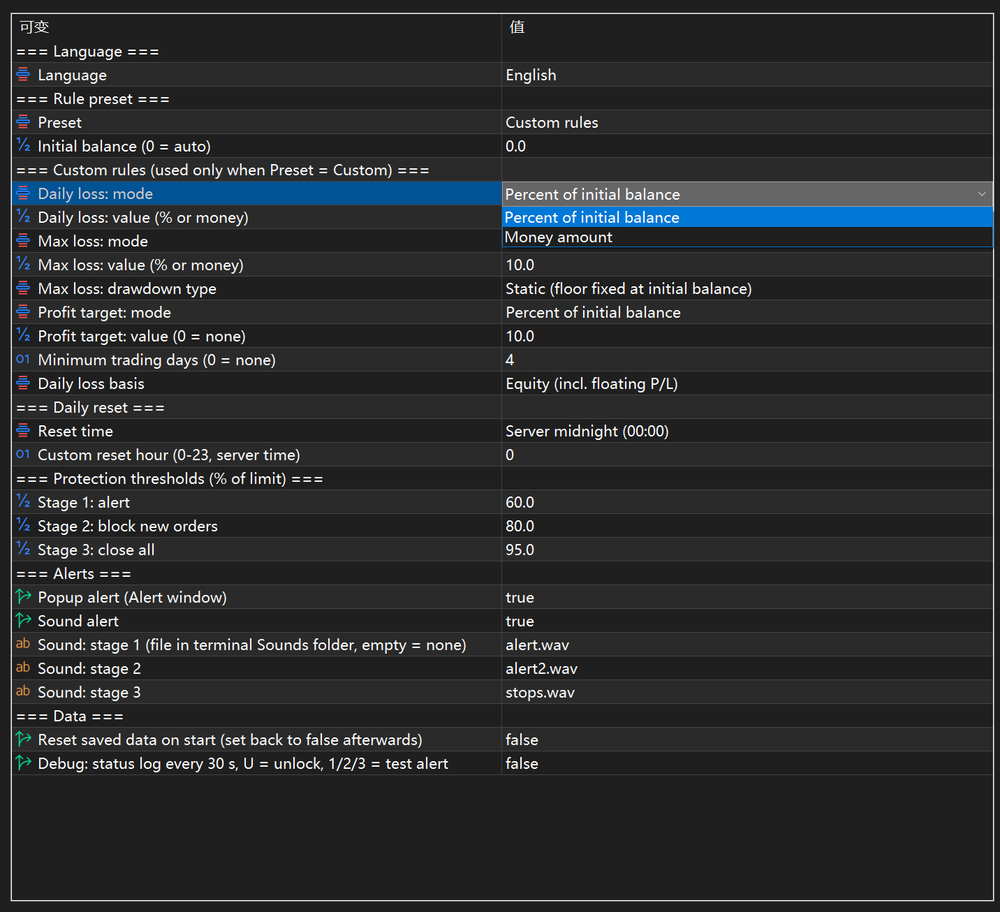
- Daily loss / Max loss / Profit target: each has a mode, Percent of initial balance or Money amount, and a value.
- Profit target 0 means no target; the panel shows "No target". Minimum trading days 0 means none.
- Max loss: drawdown type: Static (the floor stays at the initial balance minus the limit), Trailing (the floor follows peak equity) or Trailing, updated at end of day.
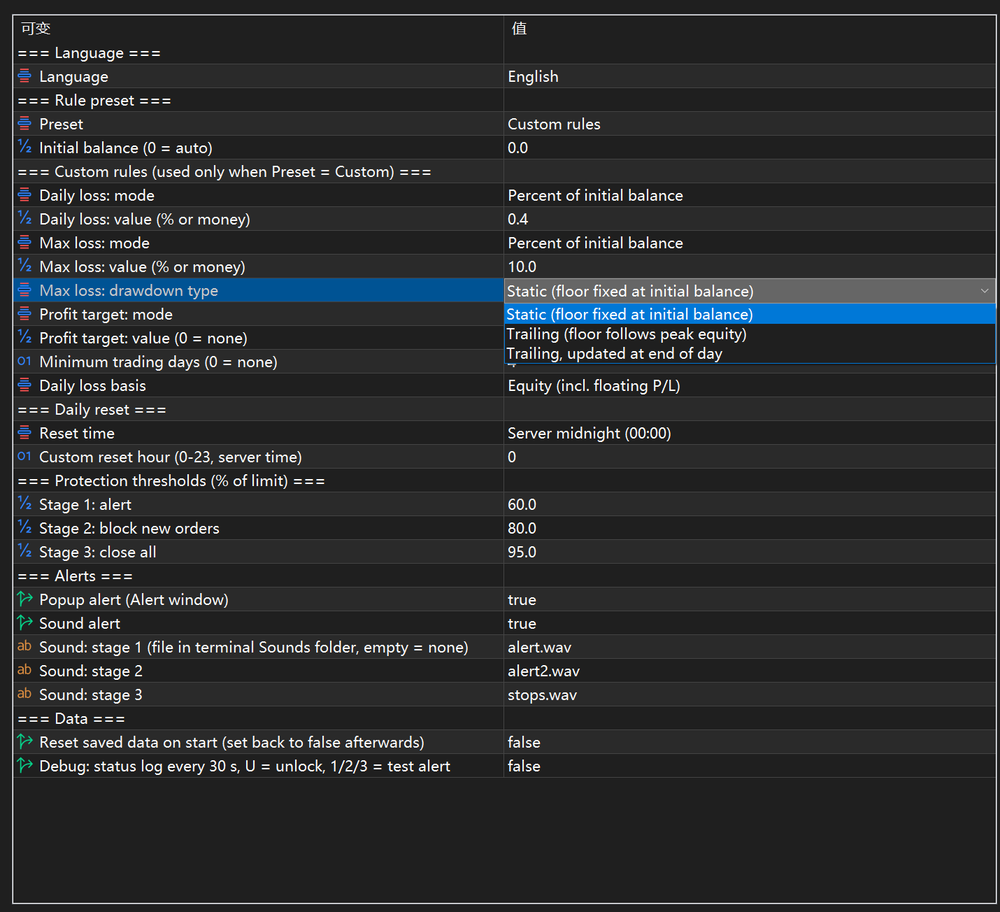 Pick the type your firm uses; the panel tag shows Static, Trailing or Trailing (EOD).
4. Daily loss basis
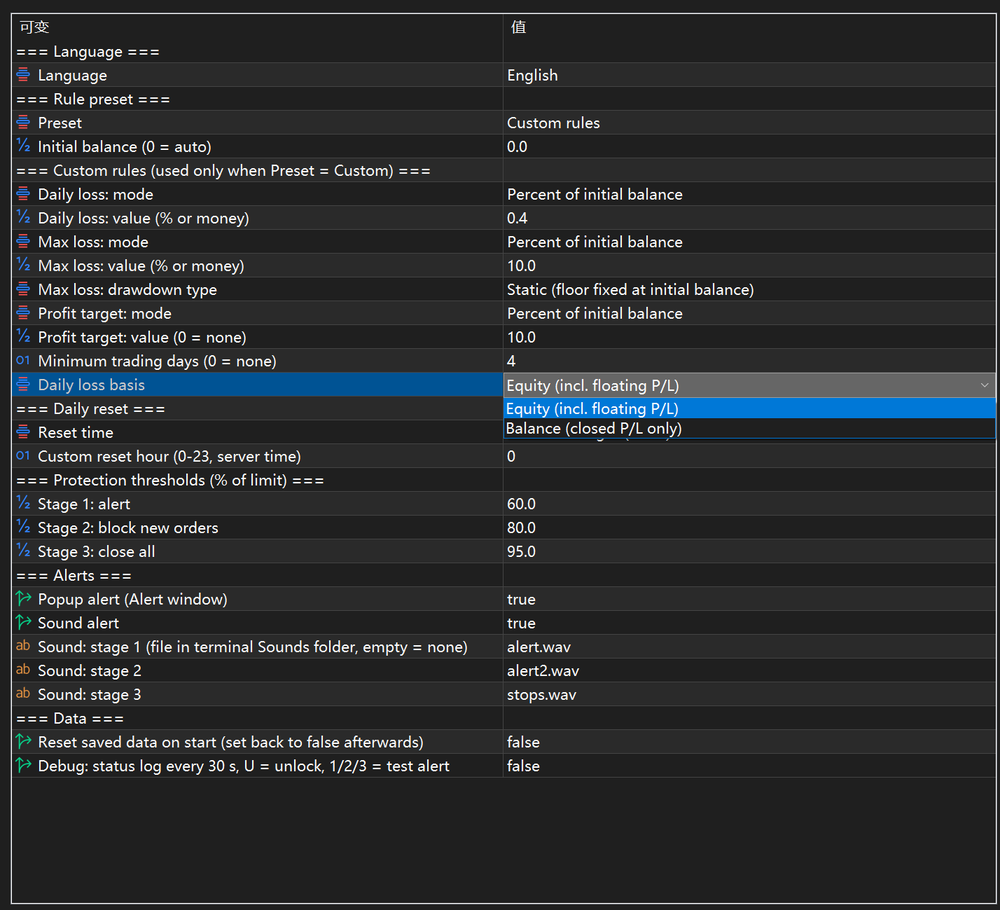
- Equity includes floating P/L, so an open losing trade counts immediately. This is what the FTMO presets use.
- Balance counts closed P/L only.Check which one your firm applies.
5. Daily reset time
 The day starts at Reset time: server midnight (00:00), or a custom hour (0–23, server time).
  If your broker's server time differs from your firm's reset time, choose Custom and enter the matching server hour. The panel shows the reset time under the daily loss bar, so check it there.
6. Thresholds
Stage 1 / 2 / 3 are percentages of each limit: 60 / 80 / 95 by default. They must satisfy 0 < alert < block < close ≤ 100; invalid values are rejected with a message.On a 5,000 daily limit the defaults act at 3,000 (alert), 4,000 (block new orders) and 4,750 (close all). Leave room for slippage, so do not set stage 3 at 100. What each stage does is covered in the next post (P4).
7. Check it, then start
Press OK and read the panel: preset name, thresholds and reset time should match what you chose. Setting up a new account or a new challenge? Set Reset saved data on start to true once, then back to false.
Presets are a convenience, not a guarantee. Always verify the numbers against your firm's rules. This is a monitoring aid, not investment advice.
Previous: installation (P2). Next: the three protection stages (P4). Product page:https://www.mql5.com/en/market/product/203058