

0
43
Top Trade Manager - User Guide: Features and How They Work
Top Trade Manager is a trade manager for MetaTrader 5 and MetaTrader 4. It does not open trades by itself: you decide every trade, and the panel handles the planning, the lot calculation and the management of the position. This guide explains each part of the panel.
1. Planning a Trade on the Chart
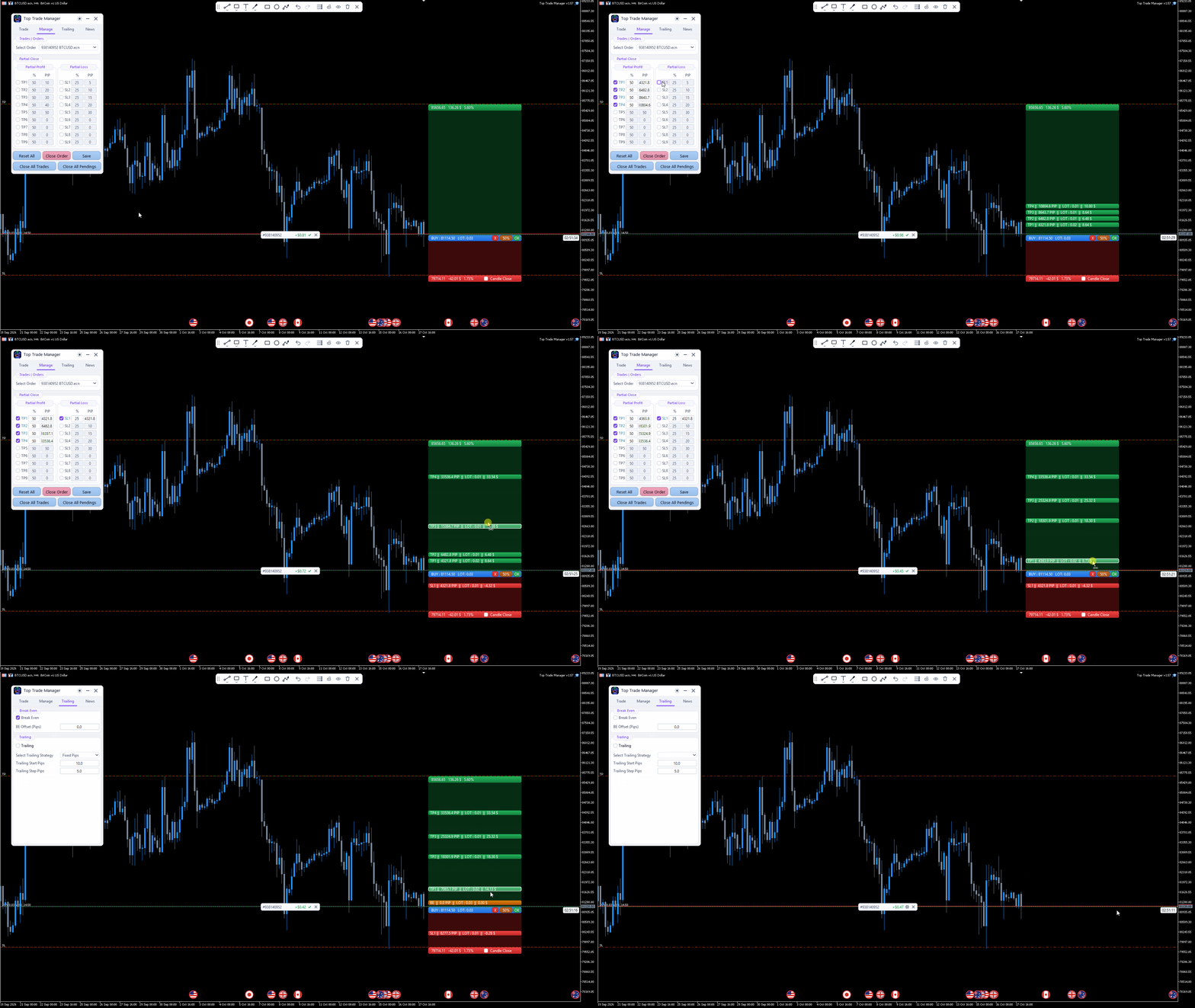
- Drag the entry, take profit and stop loss zones on the chart. Risk, reward, R:R ratio and lot size update while you move them.
- R:R Lock keeps your TP:R and SL:R ratio while you drag.
- Take profit and stop loss can be set by price or in pips.
- Pin a level to keep it in place while you move the others, then place or cancel the order from the zone.
2. Lot Calculation
- Choose the risk as a percentage of balance or equity, or as a fixed cash amount.
- The lot is rounded to your broker's lot step and reduced if free margin is not enough; the panel tells you when it does.
3. Orders
- Buy and Sell at market, or Buy and Sell pending: limit or stop is chosen from where the entry is placed.
- Close all trades or delete all pending orders with one click.
4. Managing Open Trades
- Each trade and pending order has a badge on the chart with its profit or loss, and buttons to close, close 50%, delete or modify it.
- Drag a trade's stop loss and take profit on the chart to modify them.
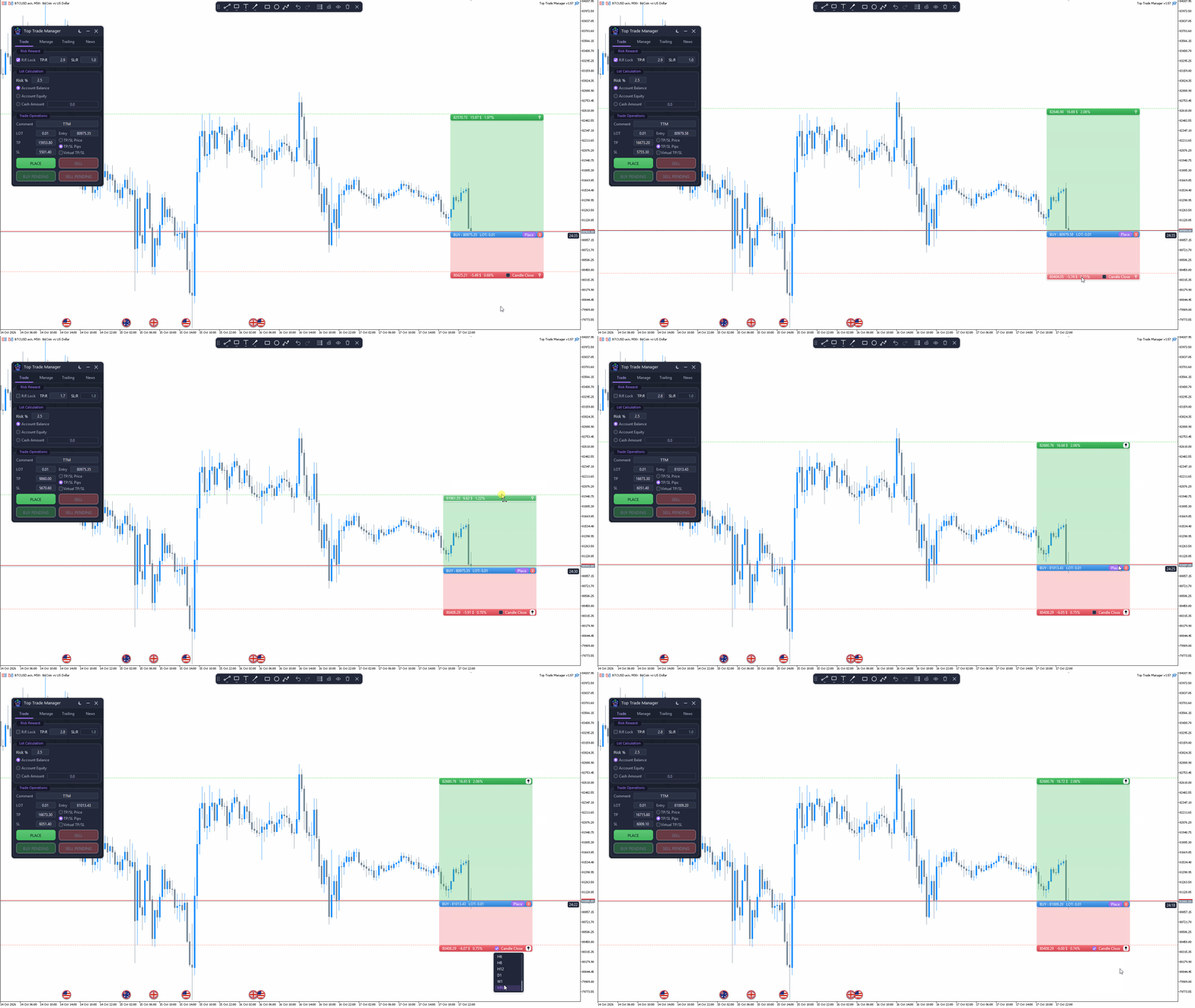
- The Manage tab lists your orders; select one to edit, save or reset its partial close plan.
5. Partial Close, Break Even and Trailing Stop
- Up to 9 partial take profits and 9 partial stop losses per trade, each closing part of the position.
- Break even with an offset in pips.
- Trailing stop by fixed pips, moving average, ATR, previous candle high/low, fractals or Parabolic SAR, with start, step and timeframe settings.
- Virtual TP/SL keeps the levels on your chart only; the EA closes the trade when they are reached.
- Candle Close stop loss closes the trade only when a candle of the chosen timeframe closes beyond the stop.
6. News Based on the ForexFactory Calendar
- The news data comes from the ForexFactory economic calendar, for this month and next month, with forecast, previous and actual values.
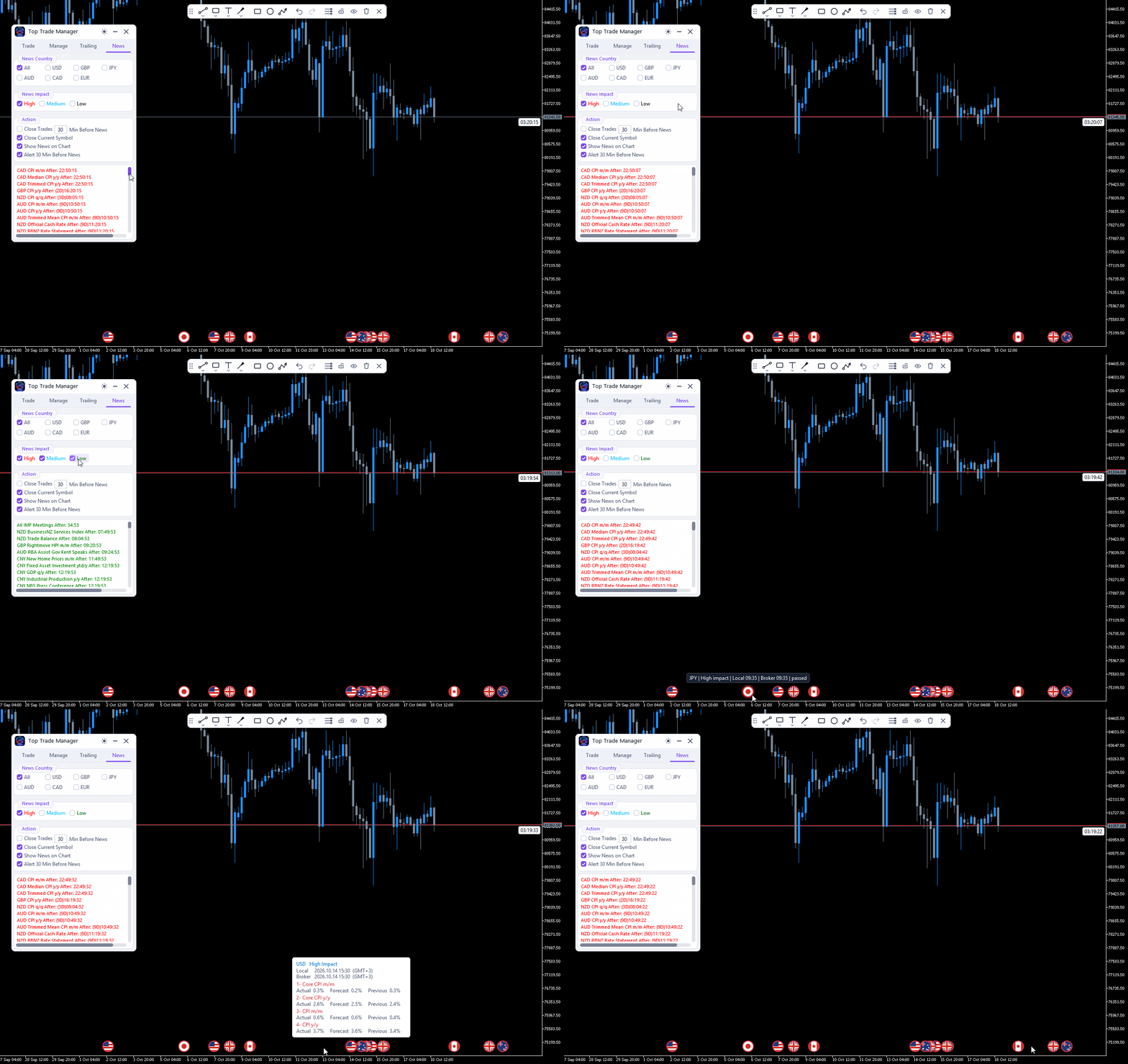
- Filter by currency (USD, EUR, GBP, JPY, AUD, CAD or all) and by impact (high, medium, low).
- High-impact releases appear as markers on the chart; click one for details in local and broker time.
- Alert 30 minutes before a release, and an option to close trades and delete pending orders a set number of minutes before news (all symbols or the current symbol only).
- Actual values of high-impact news are updated shortly after release.
7. Drawing Tools
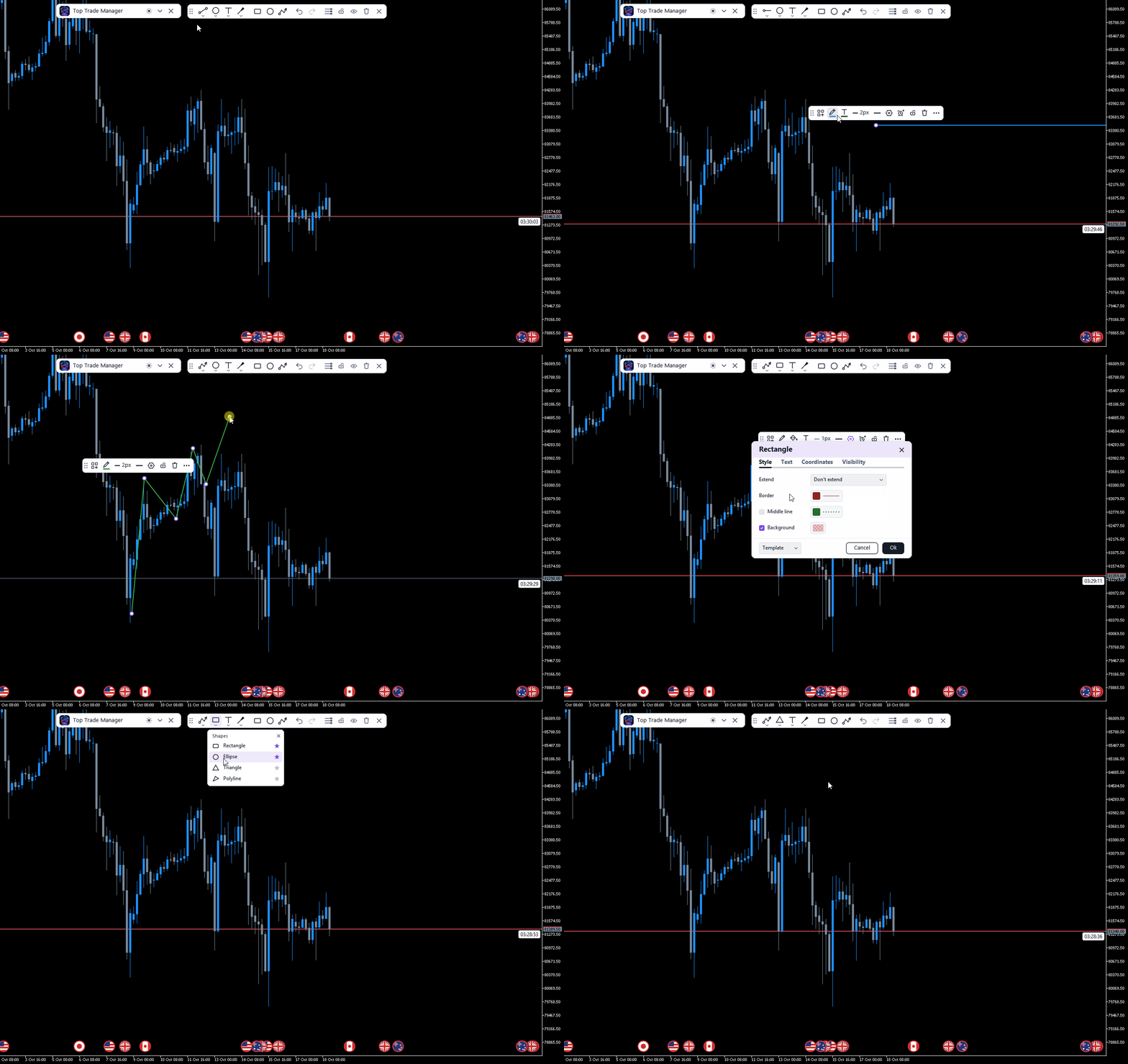
- Trend line, ray, extended line, horizontal line and ray, vertical line, cross line, arrow, rectangle, ellipse, triangle, polyline, path, brush and text.
- Each drawing has its own toolbar: templates, colours, thickness, line style, settings, price alert, lock, pin to screen and delete.
- Price alerts on lines and rectangles, undo and redo (Ctrl+Z / Ctrl+Shift+Z), hide or lock all drawings.
- Drawings are saved per chart. A candle countdown timer shows the time left in the current candle.
8. Notifications and Display
- On-chart notifications with sounds, and optional push notifications to your phone.
- Dark and light themes; the panel can be moved and folded, and its settings are saved per chart.
Good to know
- Virtual TP/SL, partial close and trailing stop work while the terminal runs with the EA on the chart; a VPS keeps them active around the clock.
- The news calendar is not downloaded in the Strategy Tester.