This is the complete user guide for AIX Analyst, an analytical indicator for MetaTrader 5. It covers installation, the panel, objects on the chart, scenarios, alerts and Telegram, analysis of your own markup, all inputs and the most common questions.
What it is and how it works
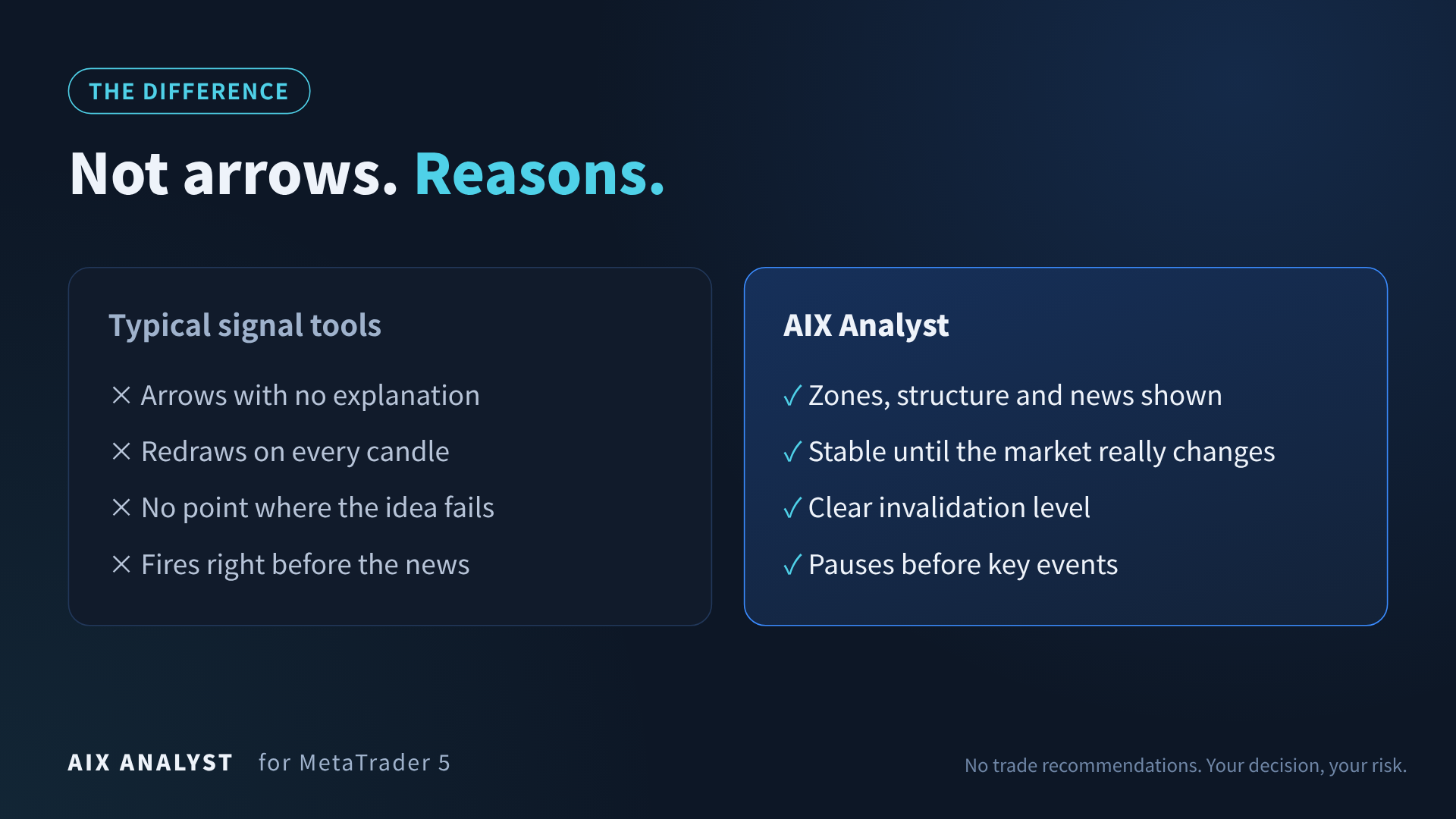
AIX Analyst brings together on one chart what traders usually look for in several places: levels, market structure, fundamentals from the economic calendar and logical scenarios of price movement. It is not a trading robot and not an "arrow" indicator: it does not open trades and does not tell you to buy or sell.
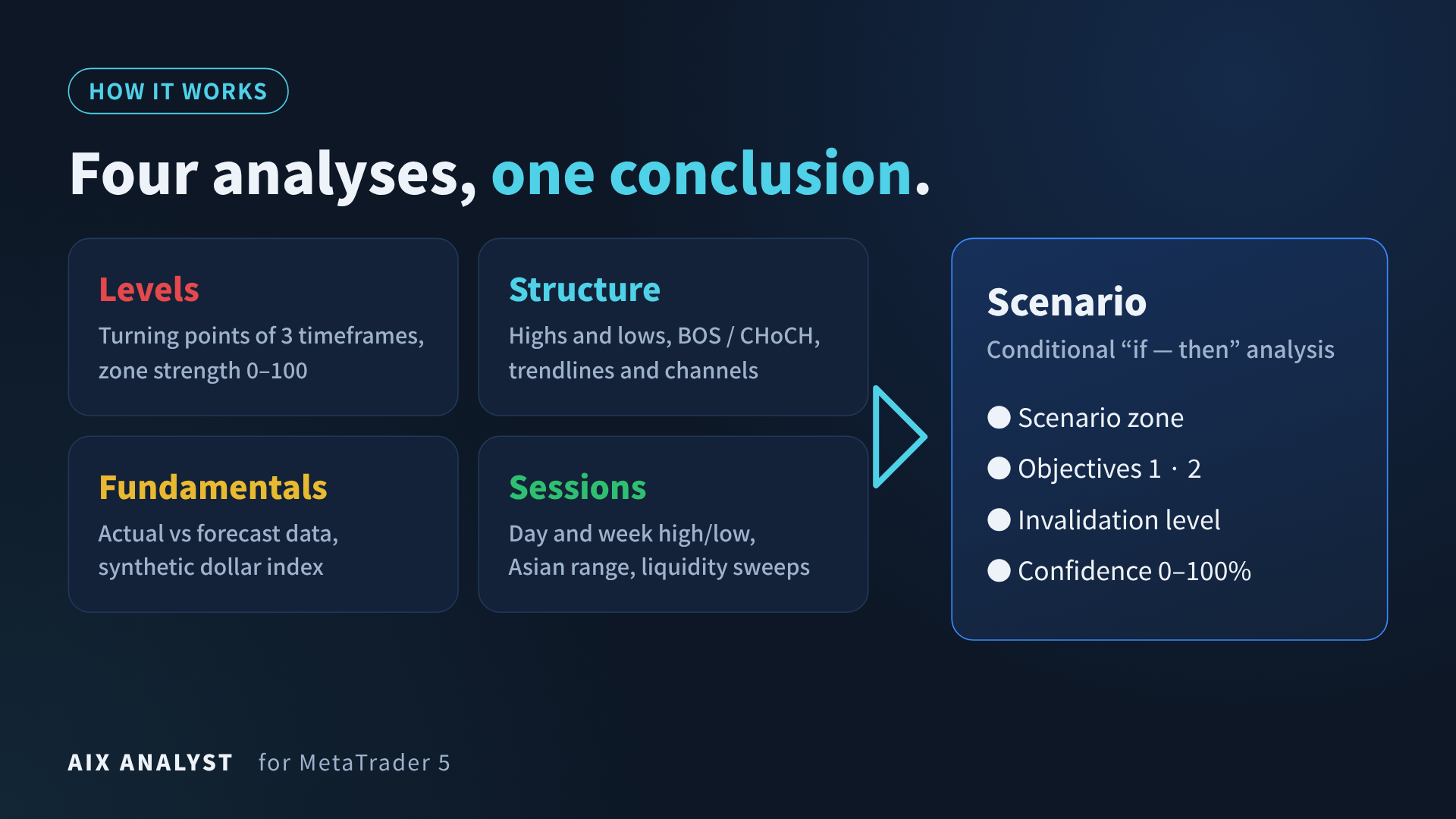
How it builds the picture:
- Levels — from real price turning points on three timeframes; every zone has a strength of 0–100 (number of reactions, timeframe, age, volume).
- Structure — higher and lower highs and lows, BOS and CHoCH breaks, trendlines, market regime.
- Fundamentals — actual economic calendar data versus forecast, weighted by importance and age, plus a synthetic US dollar index.
- Scenarios — the conclusion drawn from the three blocks above: where a reaction is logical, where the next objective is, and beyond which level the idea no longer makes sense.
All distances are measured in volatility (ATR), so the same algorithm works on currencies, metals, indices, oil and crypto without tuning.
Important: a scenario is conditional analysis ("if — then"), not a signal. Trading decisions and risk control are always yours.
Installation and first run
AIX Analyst alone is enough for analysis on the chart. For Telegram or Discord alerts you also need the free AIX Notifier expert.
The indicator
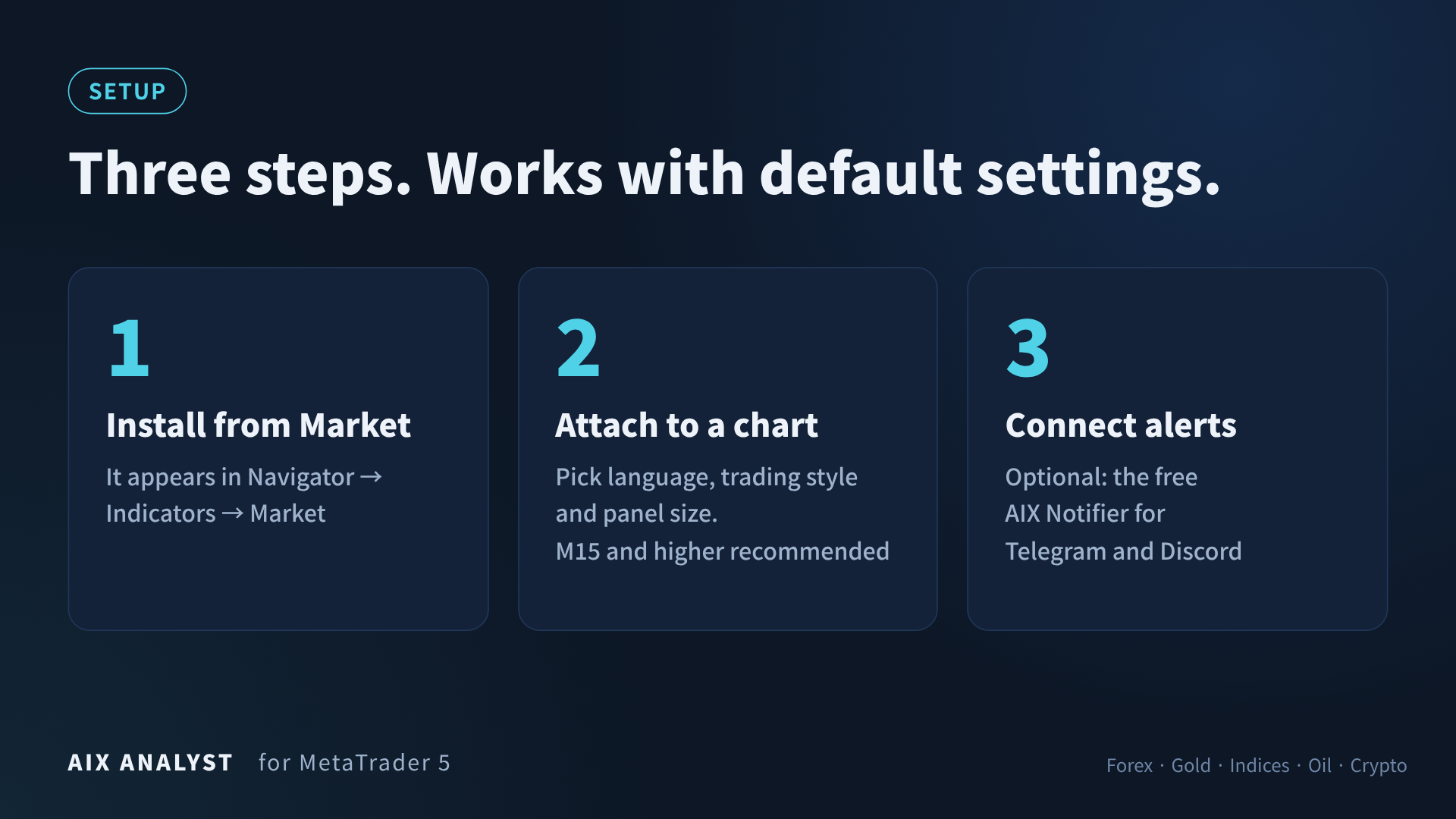
- After purchase or demo download, AIX Analyst appears in Navigator → Indicators → Market.
- Drag it onto a chart. To start, change just three inputs: Language, Trading style preset (Scalping, Intraday, Swing) and Panel scale.
- Click OK. For the first seconds the panel shows "Loading history…" — the terminal is downloading higher timeframes, this is normal.
Recommended chart timeframes are M15 and higher. The indicator works on M1–M5 too, but there are many more small events there.
Telegram alerts (AIX Notifier)
MetaTrader 5 indicators cannot access the internet on their own, so messages are sent by a separate expert. It does not trade.
- In Telegram open @BotFather, create a bot with /newbot and copy the token.
- In MetaTrader: Tools → Options → Expert Advisors → "Allow WebRequest for listed URL" and add api.telegram.org (for Discord — discord.com).
- Drag AIX Notifier onto any chart, paste the token into Bot token and enable "Allow Algo Trading".
- Send /start to your bot — the chat is detected automatically and you receive "AIX Notifier connected".
- On the AIX Analyst panel, in the "Tools" section, click "Test" — a message with a screenshot arrives within seconds.
Posting to a channel: add the bot to the channel as an administrator and post any message there — Notifier adds the channel to its list automatically. Or enter chat IDs separated by commas in Chat IDs (for example, your personal one and the channel's -100…).
Discord: in the Discord channel settings → Integrations → Webhooks create a webhook, copy its URL into Channel webhook URL and enable Send to Discord.
The panel
The panel reads top to bottom like a short analyst note. Clicking a section header collapses it; the mouse wheel over the panel scrolls it without moving the chart.
| Section | What it shows |
|---|---|
| Header | Symbol, instrument class, analysis timeframes, update time; badges for market regime, confidence and "PAUSE" before news |
| Scenario | The conclusion in plain words, main and alternative scenario, status, reference volume for your risk |
| News | Key events for the instrument's currencies over 48 hours with forecast and countdown |
| Levels | Zones above and below price: strength, state (price in zone, broken, retest), distance in ATR; session levels below |
| Scanner | Regime, confidence, fundamentals and distance to zone for up to 12 symbols; clicking a row opens the symbol; ⚡ — an event in the last 30 min |
| Technicals | Technical bias from −2 to +2, direction and ADX on each timeframe, structure breaks, liquidity sweeps |
| Fundamentals | Background of the instrument and of each currency, dollar index, the most influential events |
| Tools | Markup analysis buttons, "Report", "Send", "Test", layer toggles |
| Your markup | Appears only in the mode for analysing your own lines |
Buttons in the "Tools" section:
- Refresh — recalculate the analysis now.
- Reference point / Analyze markup / + Level / + Trend / Reset — working with your own markup (see "Analysing your own markup").
- Report — saves the analysis text and a screenshot to MQL5\Files\AIX.
- Send — sends the current analysis with a screenshot to Telegram/Discord.
- Test — a test alert to check the connection.
- Layers "Levels", "Trends", "Paths", "News", "Sessions" — show or hide the corresponding objects on the chart.
Objects on the chart
Hover over any object to see a tooltip with details. The picture is stable: zones and paths are redrawn only when the market has changed significantly.
| Object | Meaning |
|---|---|
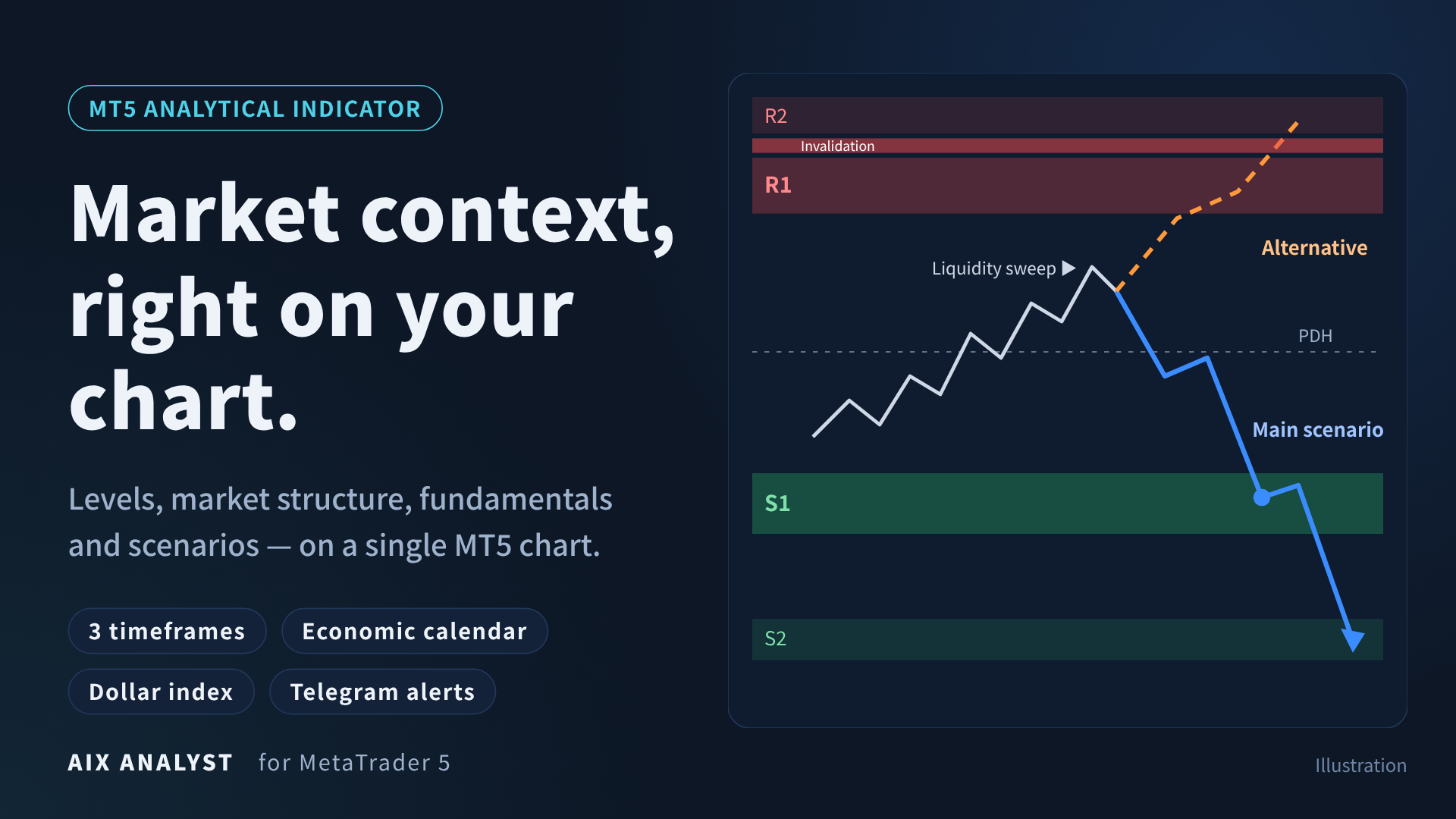
| Red zones R1, R2… | Resistance above price; the brighter the zone, the stronger it is |
| Green zones S1, S2… | Support below price |
| Gold zones | Your own levels in markup analysis mode |
| Solid blue line | Path of the main scenario: dots are possible stops at levels, the arrow is the final objective |
| Orange dashed line | Path of the alternative scenario |
| Red band | The area where the main scenario no longer makes sense |
| Grey dotted PDH/PDL, PWH/PWL, Asia, WO | Previous day and previous week high and low, Asian range, weekly open |
| Sweep arrow | Liquidity sweep: price pierced a level and closed back |
| Dotted BOS / CHoCH | Structure break: continuation or possible change of trend |
| Blue and purple lines | Trendlines and channels of the higher and middle timeframe |
| Orange vertical lines | Upcoming key news; a countdown to the nearest one in the bottom right corner |
Scenarios
A scenario is the conclusion of the analysis in "if — then" form: where a reaction is logical, which levels price may move to next, and beyond which level the idea stops being relevant. The indicator always gives two: the main one (most likely) and the alternative one (what happens if the market goes the other way).
Parts of a scenario
- Scenario zone — where exactly a reaction (a bounce from the zone) or a breakout level is expected.
- Objectives 1 and 2 — the next zones along the move, not an arbitrary number of points.
- Invalidation level — beyond it the scenario has not been confirmed.
- Confidence 0–100% — how well technicals, zone strength, structure and fundamentals agree. It is not a probability of profit but an estimate of how consistently the data point in one direction.
Market regime
| Regime | How the scenario is built |
|---|---|
| Range | Bounce from the edge of the range |
| Strong trend | Pullback to a zone or breakout with the trend |
| Trend | Pullback with the trend |
| Cautious | Signals contradict each other or key news is ahead — requirements for zones are higher |
Scenario statuses
- Waiting — price has not reached the scenario zone yet.
- Price in the scenario zone — the situation described by the scenario has occurred. From this moment the indicator follows this scenario to the end of its time horizon and does not jump to new ideas.
- Objective 1 / objective 2 — price has reached the corresponding zone.
- Not confirmed — price has passed the invalidation level.
Corridor and pause before news
- Corridor mode. If price is squeezed between close zones and there is too little room to the next one, the indicator says so directly and waits for a breakout from the corridor instead of a bounce scenario.
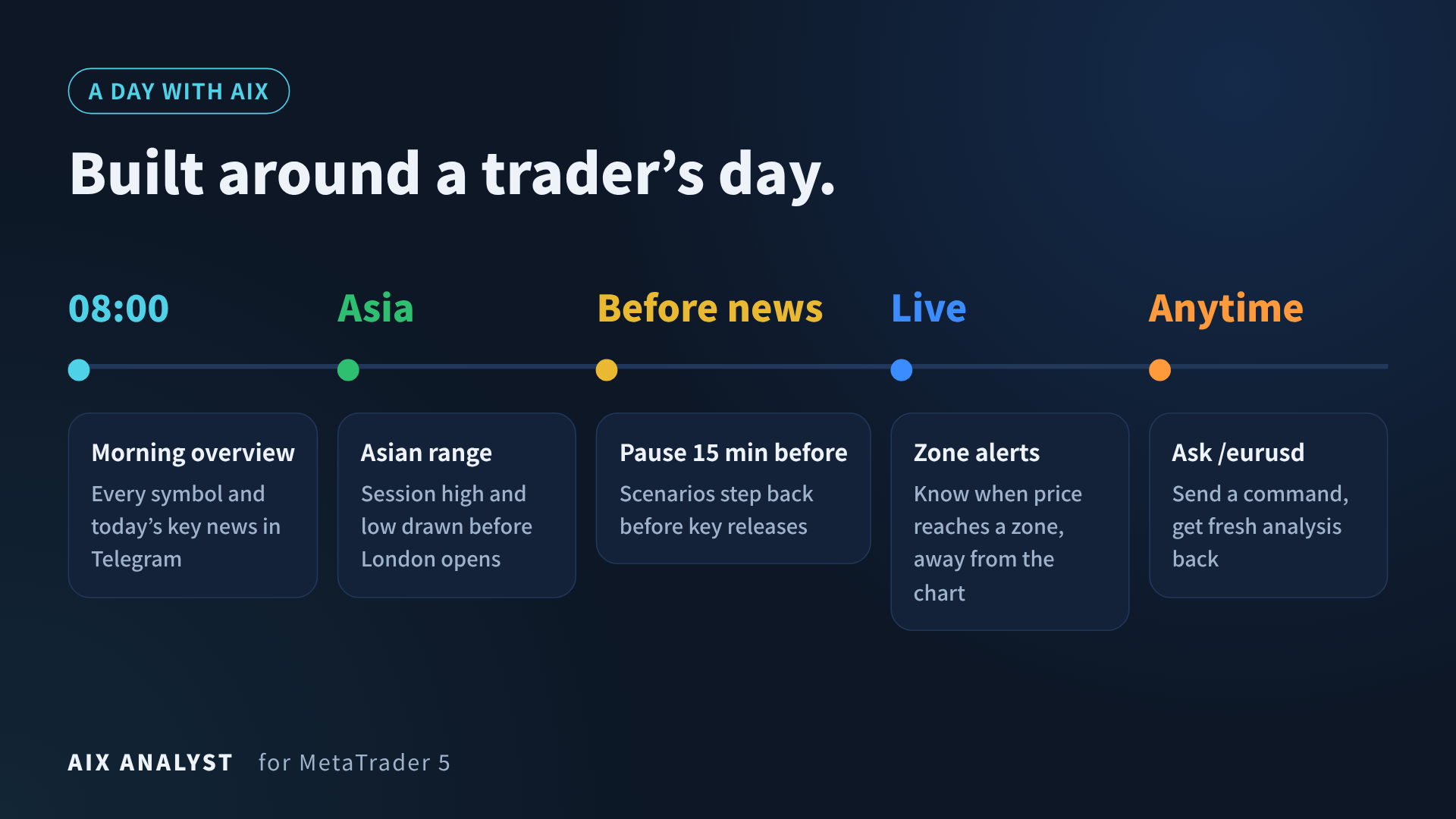
- Pause. 15 minutes before key news "PAUSE" appears in the header and the paths turn pale: levels may not work until the data is released.
Risk calculator. In the "Scenario" section the indicator shows the volume that matches your risk (Risk per trade or Fixed risk) at the distance to the invalidation level. It is a reference calculation for your own decision.
Alerts, scanner and Telegram
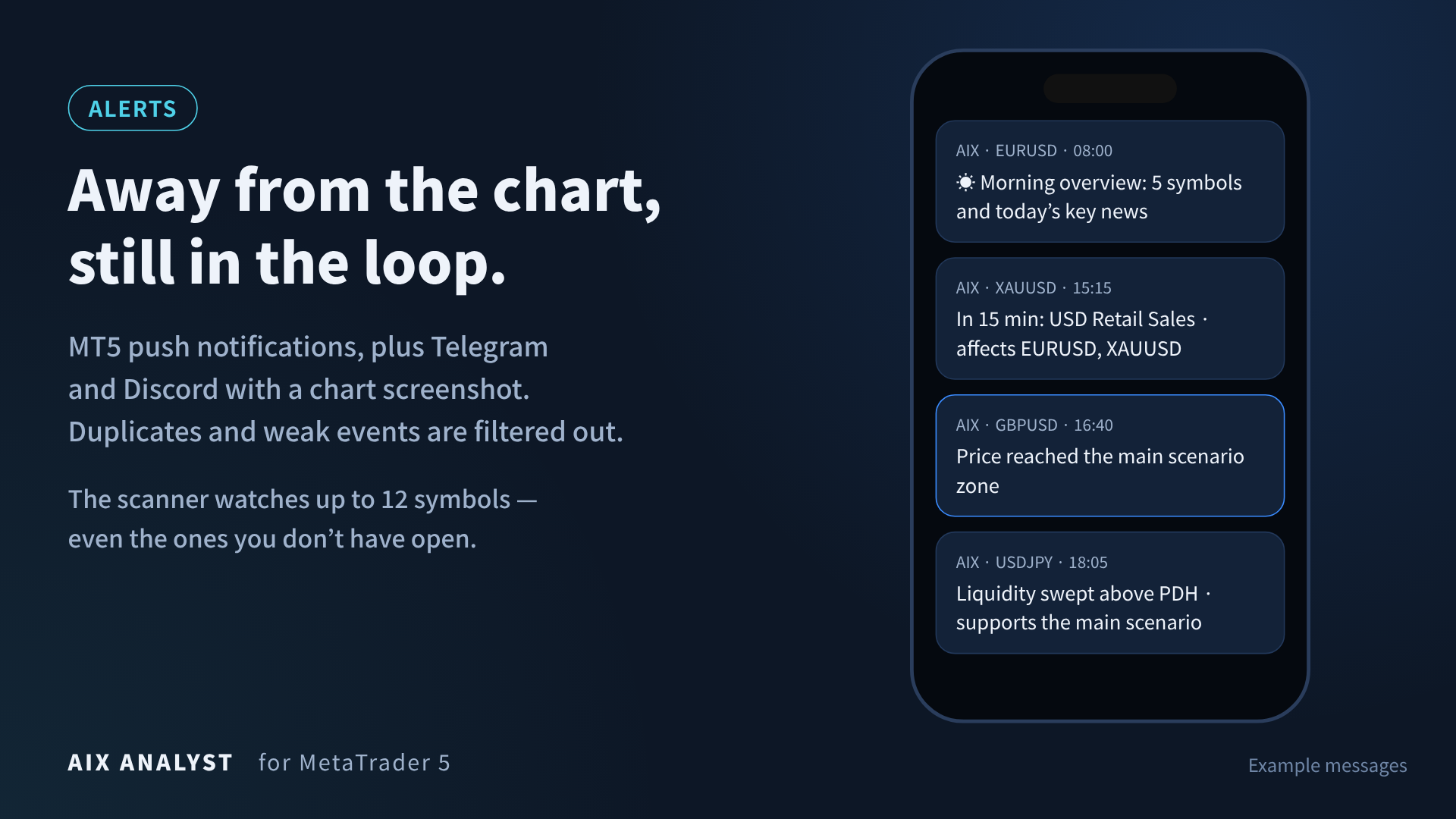
The indicator watches the market and reports changes in the analytical picture: in the terminal, with sound, via MetaTrader push and in Telegram/Discord with a chart screenshot.
What the messages are about
| Event | Example text |
|---|---|
| Price in the scenario zone | price in the main scenario zone: 1.12217–1.12333 |
| Objective reached | scenario: price reached the first objective (1.12010) |
| Scenario not confirmed | scenario not confirmed: price beyond 1.12360 |
| Entry into a strong zone | price in zone R1 (resistance) 1.12084–1.12209 (strength 100) |
| Liquidity sweep | Liquidity swept above PDH (1.12114) · confirms the main scenario |
| News in 15 min | in 15 min: USD Retail Sales m/m · affects: EURUSD, XAUUSD |
To keep messages few and to the point:
- the same event is not repeated within the set interval;
- scenarios and zone entries are sent only from the set confidence (60% by default);
- liquidity sweeps only at key levels and only when they confirm the main scenario;
- each news item arrives once, even with several charts open;
- quiet hours and weekends can be switched off in the settings.
If a new scenario points the same way for a currency as already active ones (for example, selling the dollar in both EURUSD and XAUUSD), a note is added to the message — in essence it is one idea.
Scanner
In the Symbols field of the Scanner group list up to 12 symbols separated by commas. The indicator runs the full analysis of each in the background and sends alerts for them even if the symbol's chart is not open. Such messages are marked 🔭 and come without a screenshot (another chart cannot be captured). If a chart of the symbol with AIX Analyst is open, that chart sends the alert — with a screenshot.
Morning overview
Every day at the set time (8:00 by default, weekdays only) one message arrives in Telegram: for each symbol the regime, confidence, fundamentals, main scenario and nearest levels, and at the bottom the day's key news.
Bot commands
| Command | Reply |
|---|---|
| /scan | Summary for all symbols |
| /digest | The morning overview right now |
| /eurusd, /xauusd… | Analysis of the symbol: a full report with a screenshot if its chart is open, or a text overview of a scanner symbol |
| /help | List of commands |
The bot replies only in your chats and only while the terminal with AIX Analyst and AIX Notifier is running.
Analysing your own markup
The indicator checks your lines the same way as its own: support or resistance, whether the algorithm confirms them, whether they agree with the trend and fundamentals — and builds scenarios from your point through your levels.
- Draw lines with standard MetaTrader tools (horizontal line, trendline, rectangle, Fibonacci, channel) or with the "+ Level" and "+ Trend" buttons on the panel.
- Click "Reference point" and click on the chart where the analysis should start. The point can be in the past to see how your idea would have played out.
- Click "Analyze markup". The "Your markup" section shows an assessment of each line, and the chart shows paths from your point. Your levels are highlighted in gold.
- Move or delete lines — the analysis updates automatically.
- "Reset" returns to normal mode.
While markup mode is on, no alerts are sent for this chart.
Settings reference
By default the indicator is set up to work without changes. Input names are as in the MetaTrader settings window.
| Group | Input | What it does |
|---|---|---|
| Panel | Language | Auto (terminal language) or one of 12 languages |
| Panel | Panel scale, X, Y, width | Size and position of the panel |
| Timeframes | Trading style preset | Custom, Scalping, Intraday, Swing — selects timeframes and sensitivity |
| Timeframes | Analysis timeframes | Auto (by chart timeframe) or Manual (three timeframes of your choice) |
| Levels on chart | Zones to show, Display range | Number of zones and display range |
| Levels on chart | Stable picture | Zones and paths change only on significant market changes |
| Fundamentals | Use the economic calendar, Instrument class, Currency 1/2 | Calendar and currencies if the broker names symbols non-standardly |
| Fundamentals | Pause scenarios around key events | Pause of scenarios before key news |
| Fundamentals | Synthetic US dollar index | Use of the dollar index built from major pairs |
| Scenarios | Min. entry zone strength | Minimum zone strength for a scenario |
| Scenarios | Invalidation buffer | Offset of the invalidation level from the zone, fraction of ATR |
| Scenarios | Min. reward/risk to target 1 | If there is too little room to the first objective, no bounce scenario is built (corridor mode) |
| Sessions and liquidity | Session levels, GMT offset, Asian session, Detect liquidity sweeps | Session levels and liquidity sweeps |
| Risk calculator | Risk per trade, Fixed risk | Percent or amount for the reference volume calculation |
| Alerts | Pop-up, Sound, Push, Telegram / Discord, screenshot | Alert channels |
| Alerts | Notify: zone / scenario / sweep / news | Which events to send |
| Alerts | only at key levels, only when it confirms the main scenario | Filters for liquidity sweeps (on) |
| Alerts | Scenario alerts only from confidence | Minimum confidence, 60% by default (0 = everything) |
| Alerts | Same alert not more often than | Repeat interval for the same event, min |
| Alerts | Quiet hours from / to, No alerts on Saturday and Sunday | Quiet hours in local time (-1 = off) |
| Telegram: overview and commands | Morning overview, hour, minute, weekend | The morning overview and its time |
| Telegram: overview and commands | Answer bot commands | Replies to /scan, /digest, /symbol |
| Scanner | Symbols, Alerts for the scanner symbols | List of scanner symbols and alerts for them |
FAQ
| Situation | What to do |
|---|---|
| The panel shows "Loading history…" for a long time | The terminal is downloading higher-timeframe history. Open the D1 chart of this symbol for a minute or wait |
| Fundamentals show "unavailable" | The strategy tester has no economic calendar — this is a MetaTrader limitation. On a live chart fundamentals work. If the broker names the symbol non-standardly, set Currency 1/2 manually |
| No Telegram messages | Check: AIX Notifier is running and algo trading is allowed; api.telegram.org is in the WebRequest list; /start was sent to the bot. Notifier's status is shown in the top left corner of its chart. Click "Test" |
| The bot does not post to the channel | The bot must be a channel administrator. Post any message in the channel — Notifier will find it by itself |
| A second person wrote to the bot but gets no messages | This is a safeguard: only the first personal chat is added automatically. To share the analysis, use a channel or add the chat ID to Chat IDs |
| The bot does not answer commands | Commands are handled by the indicator itself: it must be running and Answer bot commands = true. If there is no reply within 15 seconds, Notifier tells you what to check |
| Messages arrive in different languages | The language comes from each chart's Language setting — set the same one everywhere |
| Too many messages | Raise the confidence threshold, switch off unneeded events (zones, sweeps), enable quiet hours, use M15 and higher |
| The scanner does not work in the tester | By design: the tester works with one symbol only |
The indicator works only in MetaTrader 5. The calendar does not cover geopolitics, unscheduled statements or COT data — take them into account yourself. AIX Analyst is an analytical tool, not investment advice.
Questions and suggestions are welcome in the comments below.