
Smart Data Export Indicator (MT5/MT4): User Manual, CSV and JSON Lines Files, Columns and Settings

Smart Data Export Indicator is a free MetaTrader 5 indicator that writes chart data to CSV or JSON Lines files, with the columns you choose and a data card that explains every column. It is for people who analyse their charts with an AI assistant such as ChatGPT or Claude, a spreadsheet or Python. Smart Data Export Indicator MT4 is the free MetaTrader 4 version; differences are marked below. Both replace my free SmartDataExportEa. This manual applies to version 1.00.
What it exports
- Data file (CSV or JSON Lines): one row per closed bar, oldest first. New bars are added as they close.
- Data card (.md): units, warm-up rows, time zone and data quality, plus a prompt for an AI assistant.
- AI snapshot (.md, MT5 only): the last bars as a table to paste into a chat.
- Deals (optional): this account's deals (MT5) or closed orders (MT4).
Higher-timeframe values come only from bars that had already closed (no look-ahead). The indicator places no orders, uses no DLL and makes no web requests, so it can share a chart with your Expert Advisor.
Installation
- On the product page (MT5 or MT4) click Free Download; it opens MetaTrader. You can also find it in MetaTrader under Toolbox > Market (in MT4 the Market tab is in the Terminal window). Installed products are listed under Market > Purchased, where updates appear (Update).
- Drag the indicator from Navigator > Indicators > Market onto a chart. The defaults work, so you can simply click OK.
Exporting step by step
- Open a chart of the symbol. The rows use the chart timeframe unless you set Timeframe of the rows .
- Attach the indicator, choose the Range (by default the last 5000 closed bars), the columns and the indicators, for example RSI(14); EMA(50); ATR(14) , and click OK.
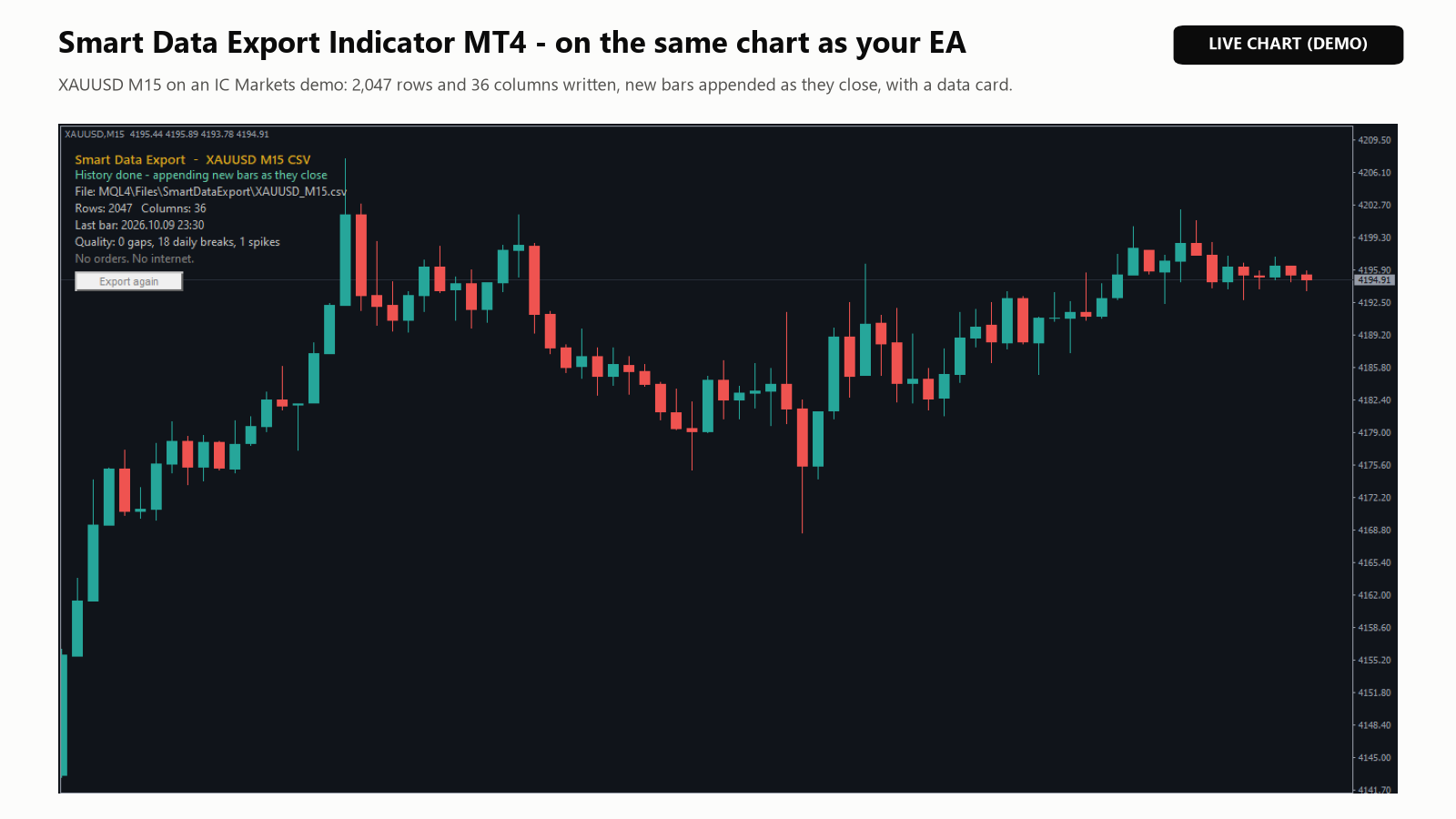
- Watch the status on the panel: what it is waiting for, then Exporting history... , then History done - appending new bars as they close (or Export finished if After the history is set to stop).
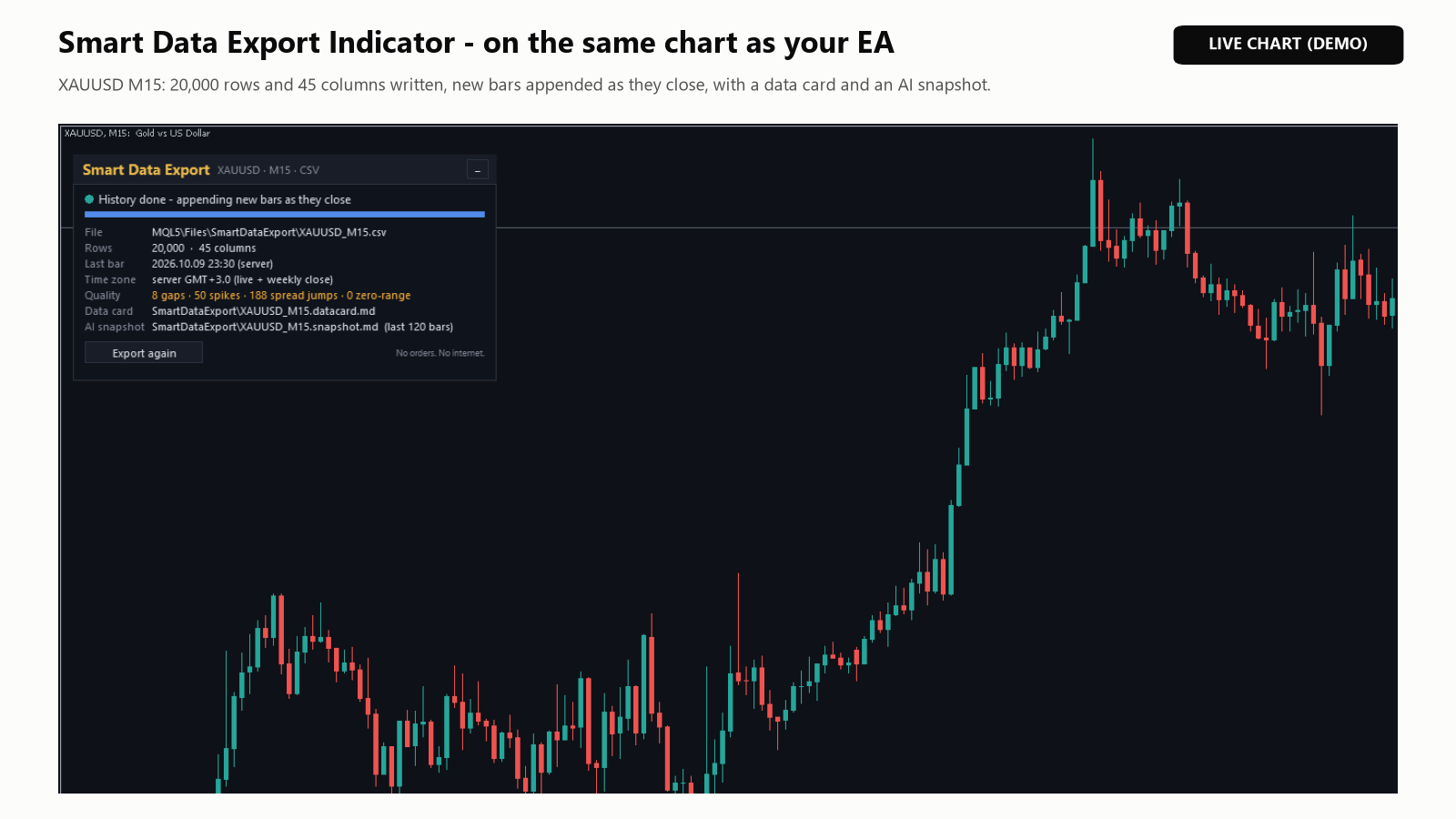
The status is green when done, orange while working or waiting, and red after an error. Warnings, such as an unknown indicator name, appear in orange after a ! and in the Experts tab. Export again reads the history again and rewrites all files.
Where the files go and what is in them
Files go to MQL5\Files\SmartDataExport (MT4: MQL4\Files\SmartDataExport ; File > Open Data Folder), or to Terminal\Common\Files\SmartDataExport with the common-folder input. In the Strategy Tester they go to the tester agent's folder (MT4: tester\files ), without an AI snapshot.
Each start of the export (attaching, changing an input, restarting MetaTrader, Export again) writes the data file again from the history; after that, rows are only added. To keep an older file, copy it or add {date} to the file name.
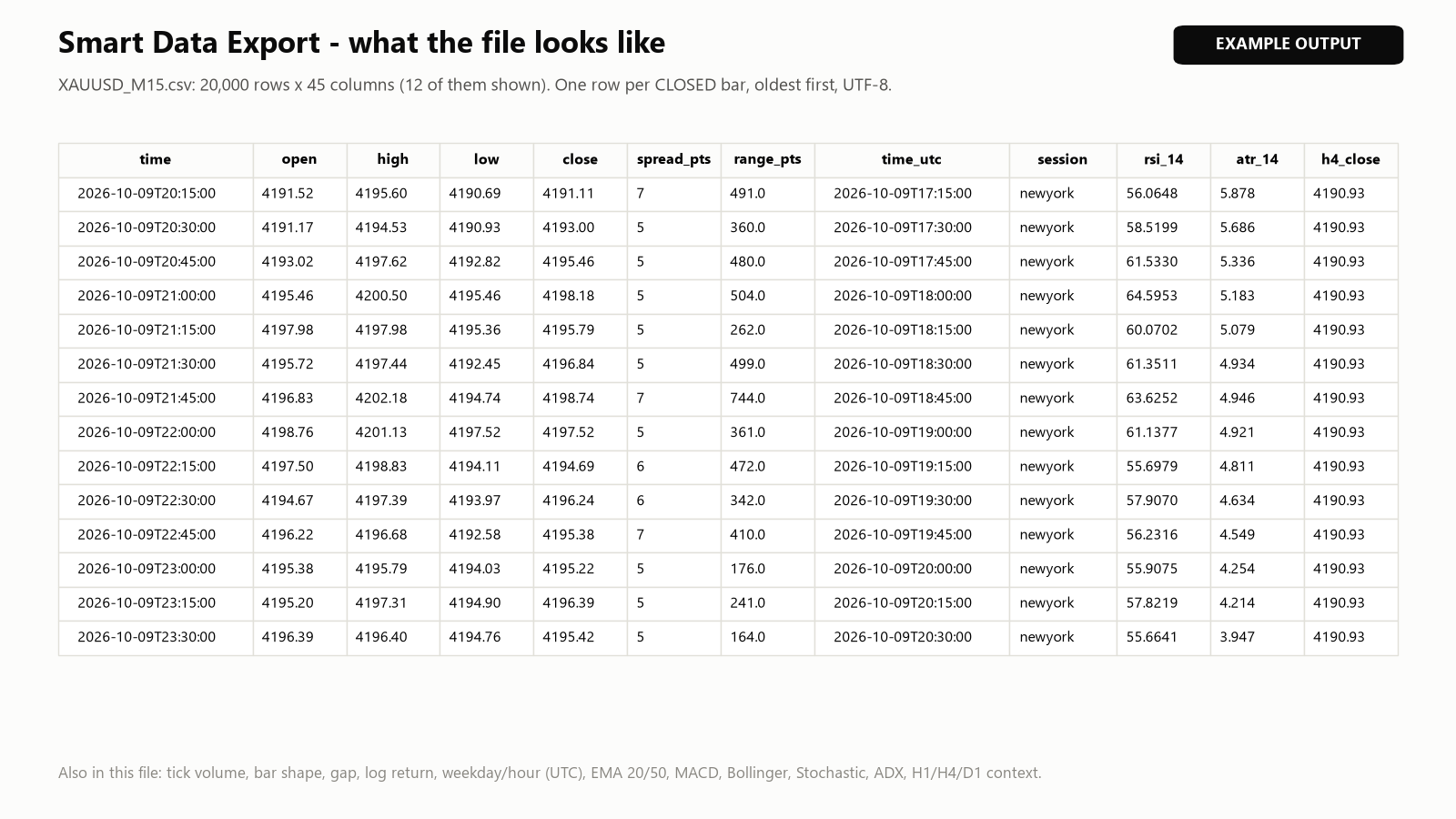
Data file, for example XAUUSD_M15.csv (or .jsonl ). Each row starts with the bar open time in server time. CSV files have a header row and use a decimal point; missing values are empty (null in JSON Lines). Then come:
- open, high, low, close, tick_volume , real_volume (MT5, if the broker provides it), spread_pts .
- In points: ret_pts (close - open), range_pts, body_pts, upper_wick_pts, lower_wick_pts , gap_pts (open - previous close); and log_ret = ln(close / previous close).
- time_utc (offset detected per week, so daylight saving is handled), dow_utc (1 = Monday), hour_utc , session : tokyo (9–18 JST), london (8–17 London), newyork (8–17 New York), joined with + or off.
- Indicators named after their settings, such as rsi_14 or macd_signal_12_26_9 ; custom buffers as custom_<name>_<buffer> .
- h4_open to d1_close (default timeframes): the last H4 and D1 bars that had closed by the close of the row.
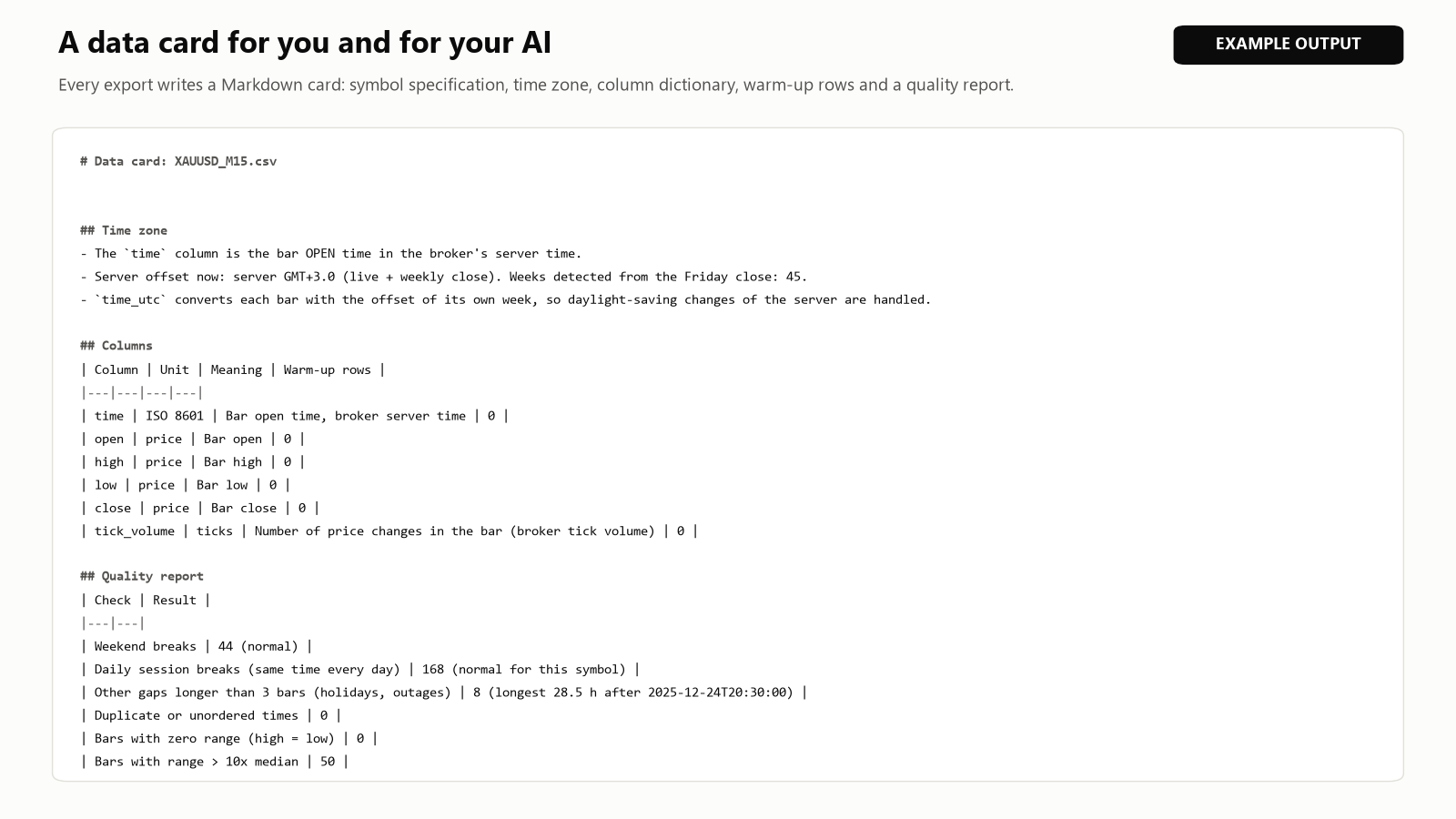
Data card, XAUUSD_M15.datacard.md , written when the history export finishes: dataset, symbol specification, time zone, every column with unit, meaning and warm-up rows, a quality report (breaks, gaps, duplicate times, zero-range bars, range spikes and, in MT5, spread jumps) and a prompt to copy. The MT4 card also lists warnings.
Deals: deals_last_365d.csv (MT5) with symbol, type, volume, price, profit, commission, swap, magic number and reason, or closed_orders.csv (MT4) with times, prices, profit, commission, swap, magic number and stop loss.
Using the files with an AI assistant or a spreadsheet
- Questions about the history. Attach the data file and the data card to the chat, copy the prompt from the end of the card and write your question on its last line. The prompt asks the assistant to treat each row as known only at its close, drop the warm-up rows, split the data in time and give confidence intervals.
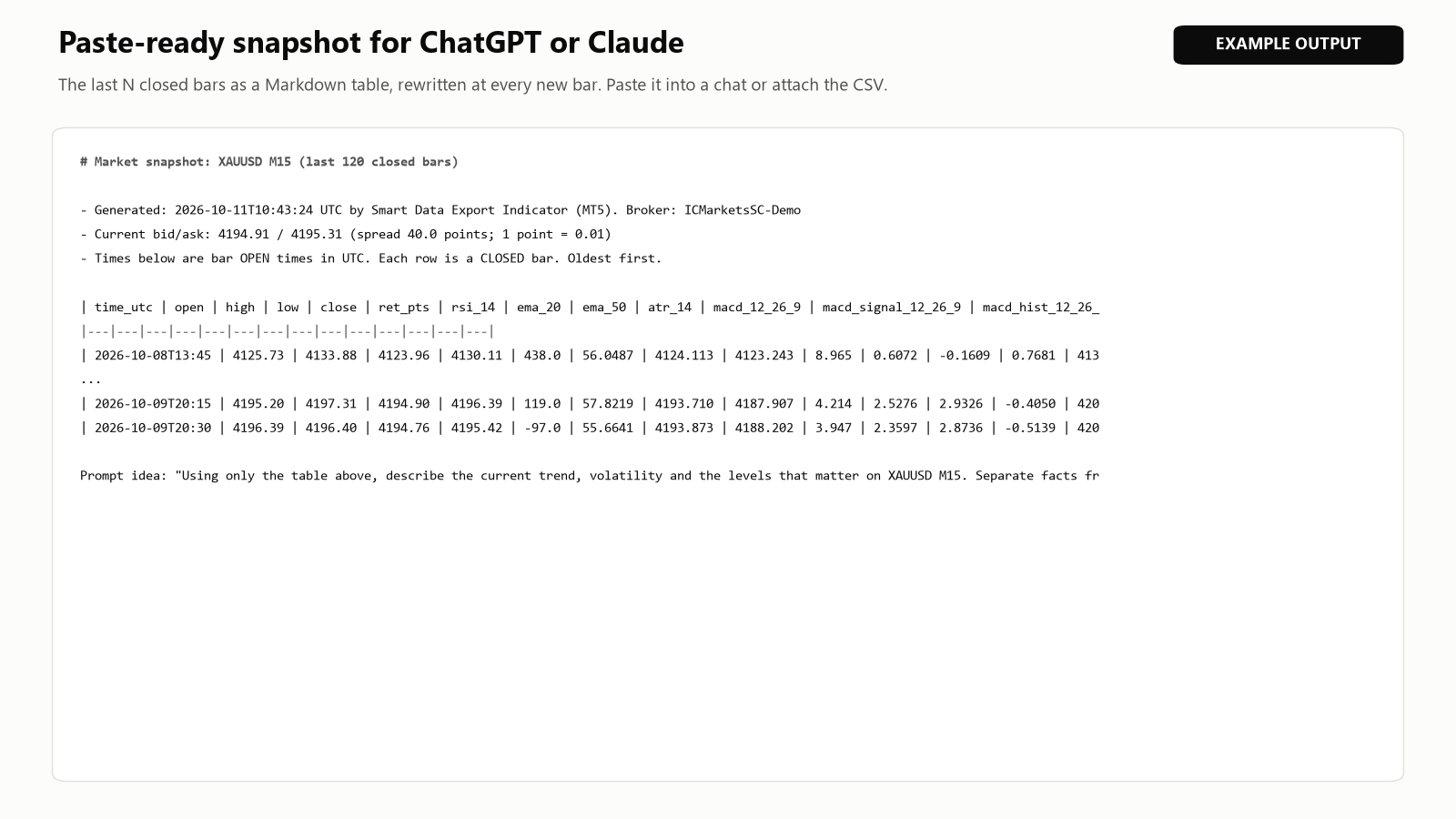
- The current market (MT5). Paste XAUUSD_M15.snapshot.md : the last 120 closed bars (up to 500) with UTC times, the bid and ask, up to 8 indicator columns and a prompt idea. It is rewritten at every new bar while the indicator appends.
- The assistant sees only the rows you give it. Treat its findings as ideas to check, not as signals.
- Excel and Python can read the file while rows are added. There is a UTF-8 BOM option for Excel and a semicolon format. If a program locks the file, new rows wait until it is free.
- Warm-up rows are listed in the data card. In MT5 their indicator values come from little history; MT4 leaves them empty.
Inputs
The names are the labels shown in the Inputs tab.
| Input | Default | What it does |
|---|---|---|
| Timeframe of the rows | current | current = chart timeframe. |
| Range | Last N closed bars | Or Date range (From / To) or All available history . |
| Last N closed bars (Range = last N bars) | 5000 | Bars to export. |
| From (Range = date range) | 2024.01.01 00:00 | Start of the date range. |
| To (0 = up to the last closed bar) | 0 | End of the date range. |
| After the history | Keep appending each new closed bar | Or Stop after the history export . |
| Open, High, Low, Close | true | Price columns. |
| Tick volume (and real volume if the broker provides it) | true | Volume columns. |
| Spread of the bar (points) | true | Spread column. |
| Bar shape: return, range, body, wicks, gap, log return | true | Bar shape columns. |
| Time features: UTC time, weekday, hour, session | true | Time columns. |
| Indicators, separated by ; | RSI(14); EMA(20); EMA(50); ATR(14); MACD(12,26,9); BB(20,2) | See below. Empty = none. |
| Custom indicators: Name:buffer,buffer; Name2:0 | (empty) | Your own indicators. |
| Higher-timeframe context (last CLOSED bar), separated by ; | H4; D1 | Timeframes not higher than the rows are skipped. |
| File name ({symbol} {tf} {date}) | {symbol}_{tf} | {date} = server date at the start. |
| Format | CSV, comma separated | Or CSV, semicolon separated or JSON Lines (one object per row) . |
| Time format of the 'time' column | ISO 8601 (2026-10-09T15:30:00) | Or Unix seconds or MetaTrader (2026.10.09 15:30) . |
| Save in the common folder (Terminal\Common\Files) | false | Common folder. |
| Write the data card (.md) | true | Data card. |
| AI snapshot: last N rows as a paste-ready .md (0 = off) | 120 | MT5 only. Up to 500. |
| Add a UTF-8 BOM (for Excel) | false | For Excel. |
| Price decimals (-1 = symbol digits) | -1 | Price decimals. |
| Also export this account's deals (closed trades) | false | Deals file. |
| Deals of the last N days | 365 | MT5 only. |
| Server GMT offset in hours (-99 = detect automatically) | -99 | Set only if the detected offset is wrong. |
| Show the status panel | true | Panel. |
| Panel X (pixels) | 12 | MT5 only. |
| Panel Y (pixels) | 28 | MT5 only. |
In MT4 the column switches are Columns: open, high, low, close , Columns: tick volume , Columns: spread (only rows appended live; MT4 bars have no spread) , Columns: return, range, body, wicks, gap, log return and Columns: UTC time, weekday, hour, session , and the deals switch is Also export this account's closed orders .
Indicator names: SMA, EMA, SMMA, LWMA, DEMA, TEMA, RSI, ATR, MACD, BB, STOCH, ADX, CCI, MFI, WPR, MOM, STDDEV, OBV, AO, SAR and ICHIMOKU (without Chikou, which uses later bars). Without brackets the defaults are used, for example RSI(14) or MACD(12,26,9). MyIndicator:0,1 exports buffers 0 and 1 of a custom indicator with its default inputs; the name is relative to MQL5\Indicators (MT4: MQL4\Indicators). Unknown names are skipped with a warning.
MT4 notes
- The panel is a few lines of text with an Export again button.
- No AI snapshot, no real volume, no DEMA or TEMA. spread_pts is empty for history rows, because MT4 does not store a spread for each bar; rows appended live get the current spread.
- A higher timeframe equal to the rows is skipped silently, a lower one with a warning. Higher-timeframe bars follow the broker's own boundaries; some brokers start H4 bars at 01:00.
- The first time, H1 (for the time zone) and the higher timeframes are downloaded from the broker; the indicator waits up to about a minute for each ( Waiting for higher-timeframe history... ). If a higher timeframe does not arrive, its cells stay empty; without H1 the time zone falls back to GMT+2 (GMT+3 in US summer time). The data card says so.
- A fresh chart often has about 2,000 bars. Scroll back or press Home to load more, then click Export again. "Max bars in history" and "Max bars in chart" (Tools > Options > Charts) also limit the depth.
- Closed orders are those shown in the Account History tab; change its period to include older orders.
Questions users ask
- Fewer rows than I asked for? Only bars loaded in the terminal can be exported. In MT5 raise "Max bars in chart" (Tools > Options > Charts), load more history and click Export again.
- The status says is it open in another program? Close the file there and click Export again.
- A higher timeframe is skipped with a warning. On an H4 or D1 chart the default H4; D1 contains a timeframe that is not higher than the rows. Remove it from the input.
- Several symbols? Attach a copy to each chart. With the default file name each symbol and timeframe gets its own file.
Product pages: Smart Data Export Indicator (MT5) and Smart Data Export Indicator MT4. If something is unclear, send me a private message on MQL5 with a screenshot of the panel and the last lines of the Experts tab.



