
If you work out the lot by hand before each trade, this post is for you.
It shows how Easy Trade Executor for MT5 does that step.
Terms first
- The lot is the size of a trade.
- A stop loss is a price where the trade closes to limit the loss.
- Risk is the part of your account you accept to lose on price if the stop loss is hit.
- Example: balance 1,000, risk 1%. The loss at the stop is 10, price only.
- An input is a setting in the tool's properties window in MT5.
What the panel does
You set the risk as a percent of your balance or your equity.
Equity is the balance plus or minus the result of open trades.
You choose balance or equity in the "Calculate Risk From" input.
The panel works out the lot from your risk and the stop loss distance.
Steps
- Add Easy Trade Executor to an MT5 chart.
- Press "Order" on the chart toolbar, or the L key. The panel opens with suggested levels.
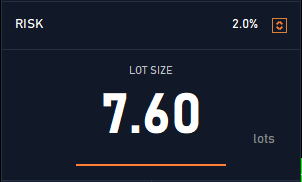
- Check the RISK field. The default is 2%.
- To change it, press the edit button or R, type the value, and press Enter.
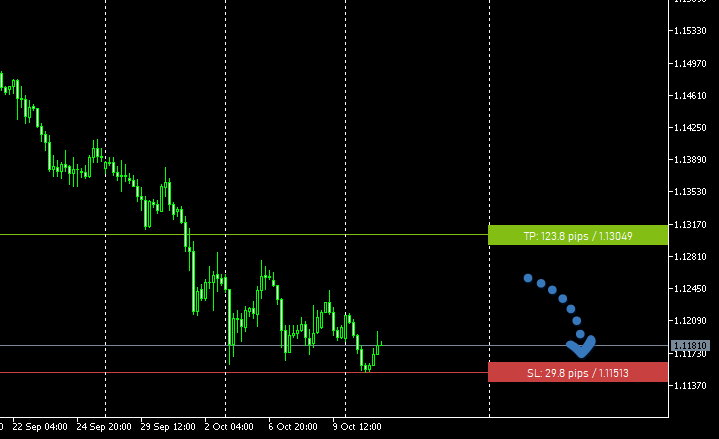
- Drag the stop loss label on the chart. You can also turn the mouse wheel over the label.
- The label shows the stop loss distance and the price.
- Read LOT SIZE on the panel. It updates while you drag.
Next post: what to set before your first order.
Easy Trade Executor for MT5 is on the MQL5 Market.
The chart belongs to the trader.


