

Haven Trading Simulator — User Guide and FAQ
1. Before You Start
Haven Trading Simulator (HTS) is a manual trading practice tool for MetaTrader 5. Replay historical price action, make virtual Buy and Sell decisions, use Stop Loss and Take Profit, and examine the outcome without placing broker orders.
This guide follows the actual controls in the current HTS interface, including three sizing modes (Risk %, cash risk and Lots), historical commission suggestions, net Take Profit previews, saved trainings and CSV reports.
| Workflow Open a broker chart → New training → Set dates, balance, risk and commission → Replay → Place virtual trades → Review History and Results → Save or export. |
Simulation only: HTS does not send Buy, Sell, SL or TP requests to your broker. Money amounts shown in new trainings are virtual and use the MT5 account currency.
Quick Start: Your First Training
- Open a normal broker chart for the instrument you want to practise, for example EURUSD. Attach Haven Trading Simulator to that chart.
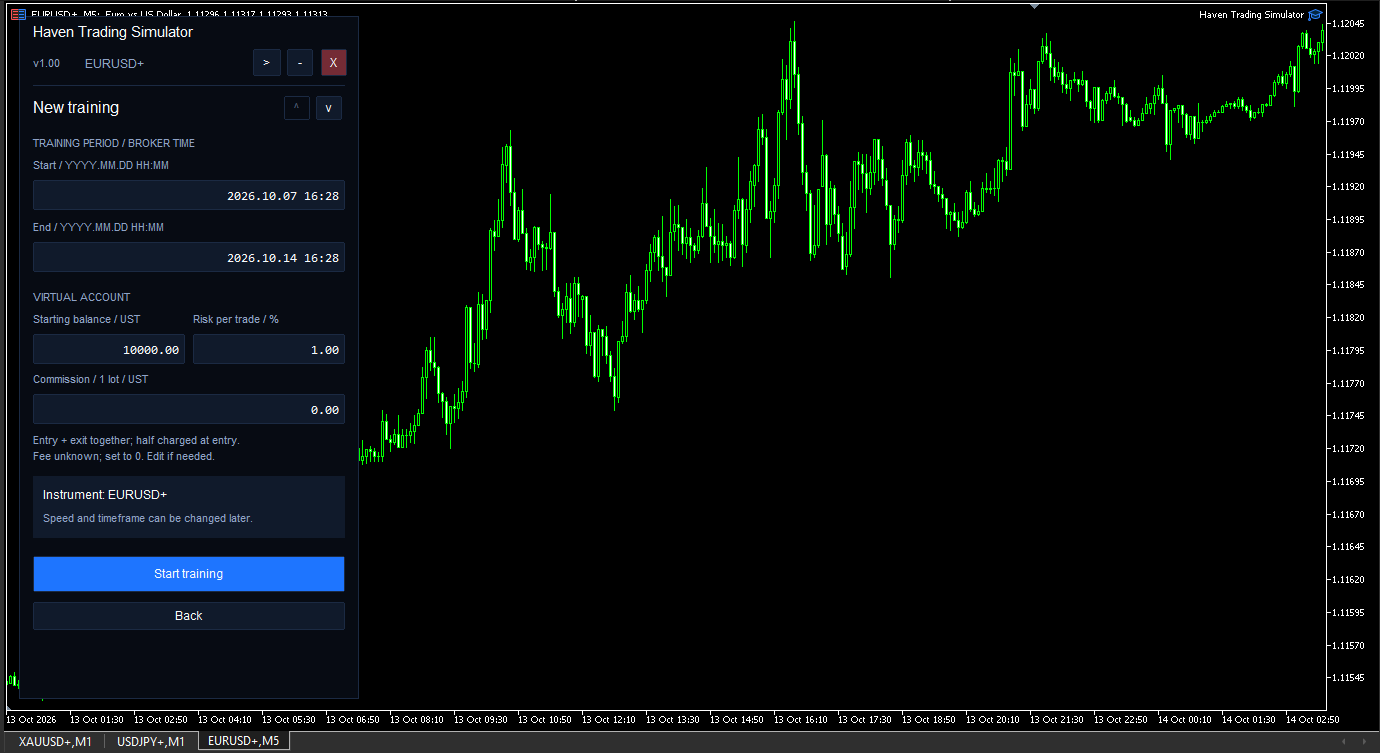
- On the welcome screen select New training.
- Choose Start and End in YYYY.MM.DD HH:MM format. Both values refer to the broker's chart time, and End must be in the past.
- Set Starting balance and Risk per trade / %. Review the suggested Commission / 1 lot (entry + exit together) and correct it if needed.
- Click Start training and wait until historical data is ready.
- Use New bar to advance manually, or Play to run playback. In Trade, choose Risk %, Risk [account currency] or Lots, inspect the preview and place a virtual order.
- After closing one or more virtual trades, check History and Results.
| First test: use a liquid symbol for which your broker provides sufficient M1 history. Start with a short past period and New bar before trying higher playback speeds. |
1. How HTS Uses Your Chart
HTS starts from a regular broker chart and temporarily switches the working chart to an HTS-managed historical training symbol. The original symbol and chart timeframe are retained so they can be restored when you exit normally.
The chart shows the historical price action available at the current training boundary. Later candles are not revealed in advance. The trading panel and the Replay controls belong to the same training workflow.
Because the replay symbol is simulated, do not treat its chart as a live broker market. If you want to work with a different broker instrument, begin a new training from the appropriate broker chart.
2. Replay Controls
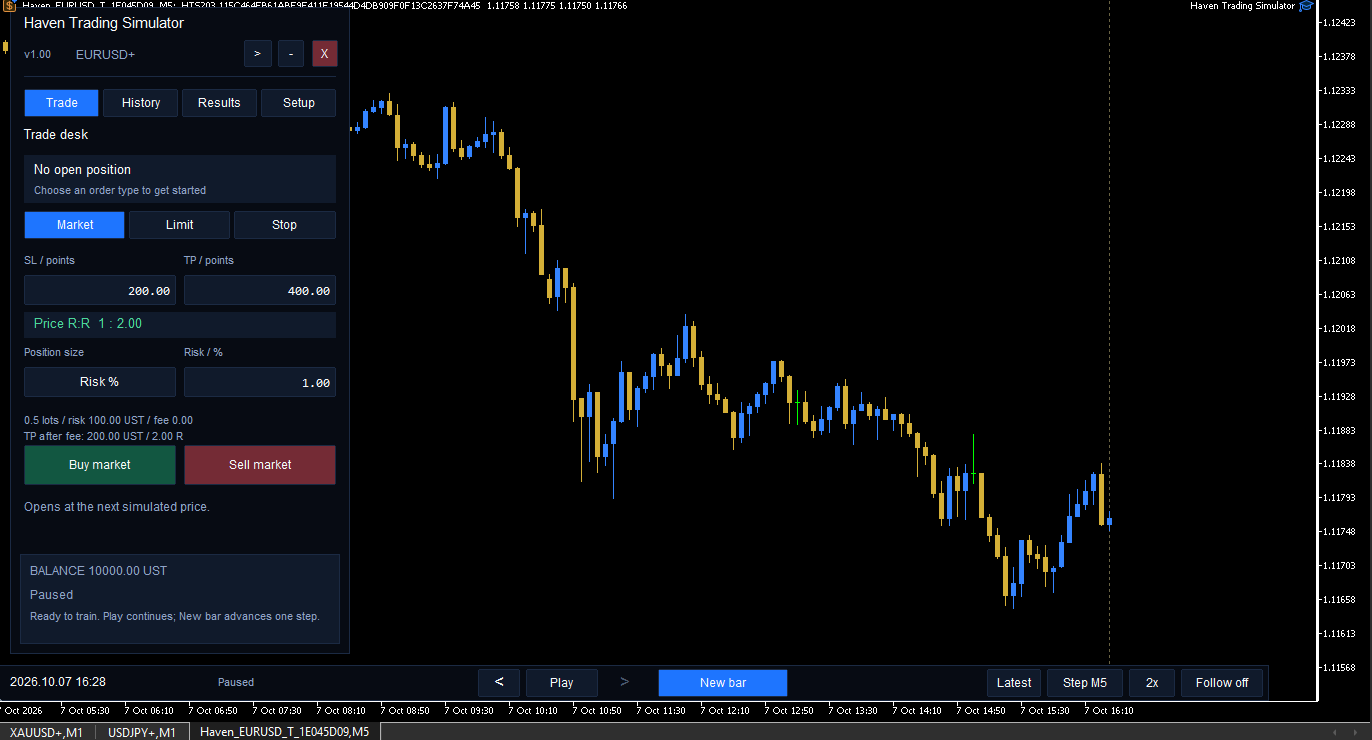
The bottom control bar drives the simulated timeline.
| Play / Pause | Automatically advance through the historical sequence, or stop playback. |
| New bar | Advance once by the selected interval. If a saved candle is partially processed, the button may read Finish candle. |
| Step M1 / Step [TF] | Switch the step interval between one minute and the current chart timeframe. This setting applies to both Play and New bar. |
| Speed | Cycle the target replay speed. Loading data can take longer than the selected pace. |
| < / > | Browse backward or forward through candles that have already been revealed. |
| Latest | Return to the most recently revealed candle without advancing trade time. |
| Follow on / off | Choose whether the chart follows the newest revealed candle automatically. |
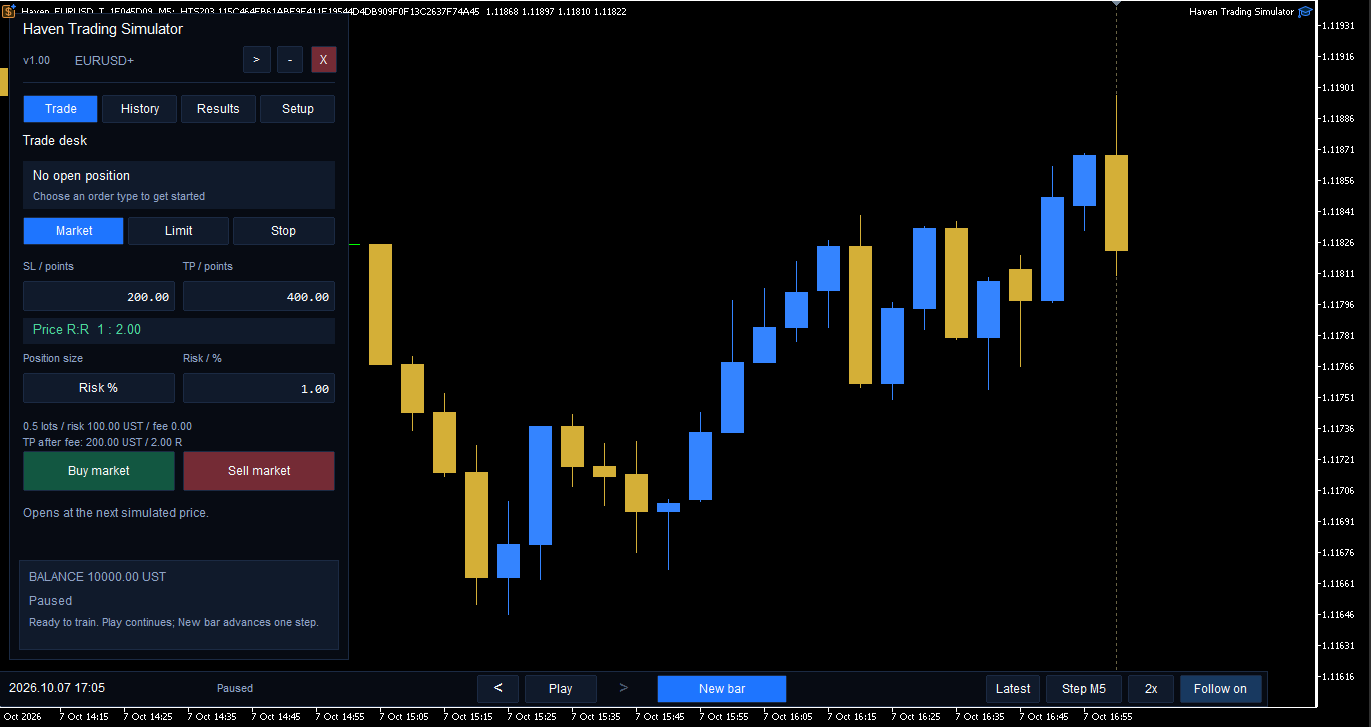
Review is not rewind trading
When you browse previously revealed candles, HTS enters Review. Reviewing does not undo transactions, change order fills, or shift the execution clock backward. Return to Latest to resume trading decisions.
3. Virtual Market Orders
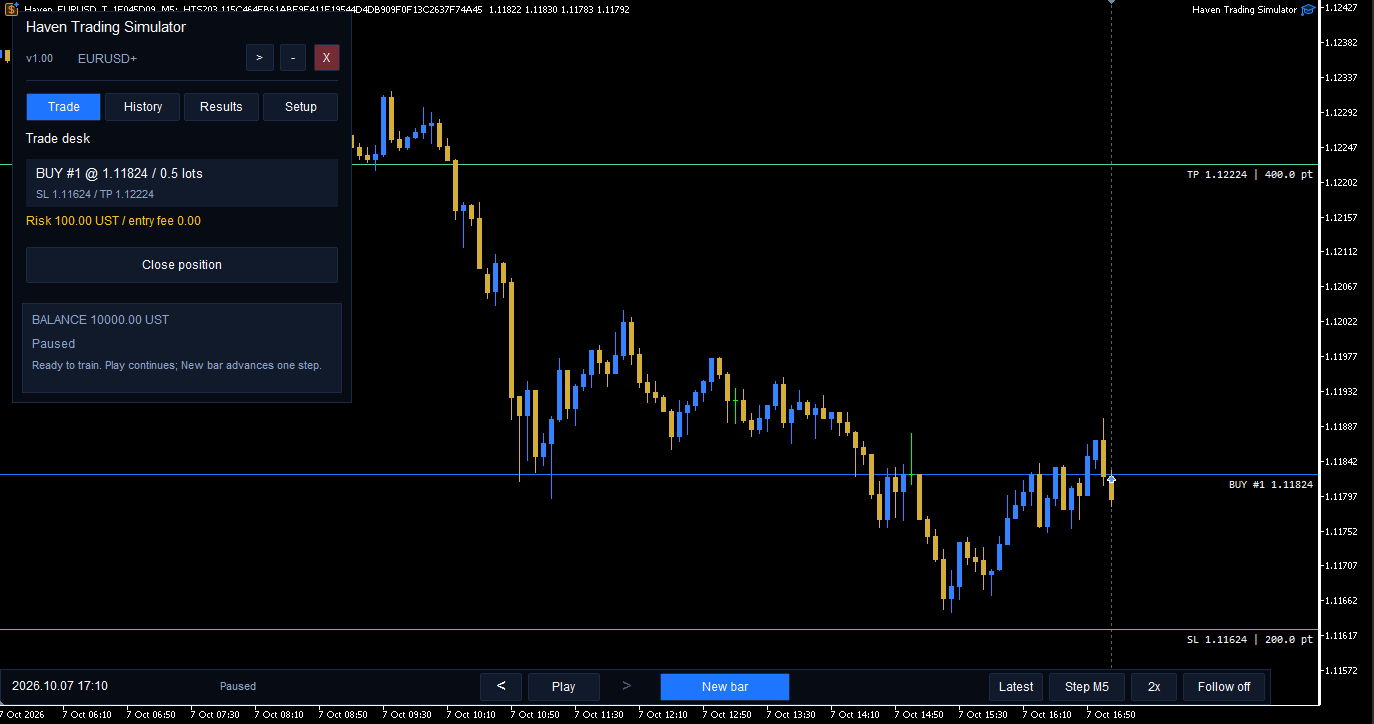
Select Trade → Market. Enter positive SL / points and TP / points distances. Then choose Buy market or Sell market.
A market command is queued rather than filled against the price already shown on the chart. Advance replay with Play or New bar to process the next eligible historical quote. The virtual SL and TP are based on the executed entry price.
Only one virtual position can be open at a time. To request an exit, use Close position and then advance replay. The exit takes place at a subsequent simulated price, not automatically at the price visible when you pressed the button.
4. Limit and Stop Orders
Select Limit or Stop in the Trade panel, then choose Buy or Sell:
- Buy Limit — buy below the current price.
- Sell Limit — sell above the current price.
- Buy Stop — buy above the current price.
- Sell Stop — sell below the current price.
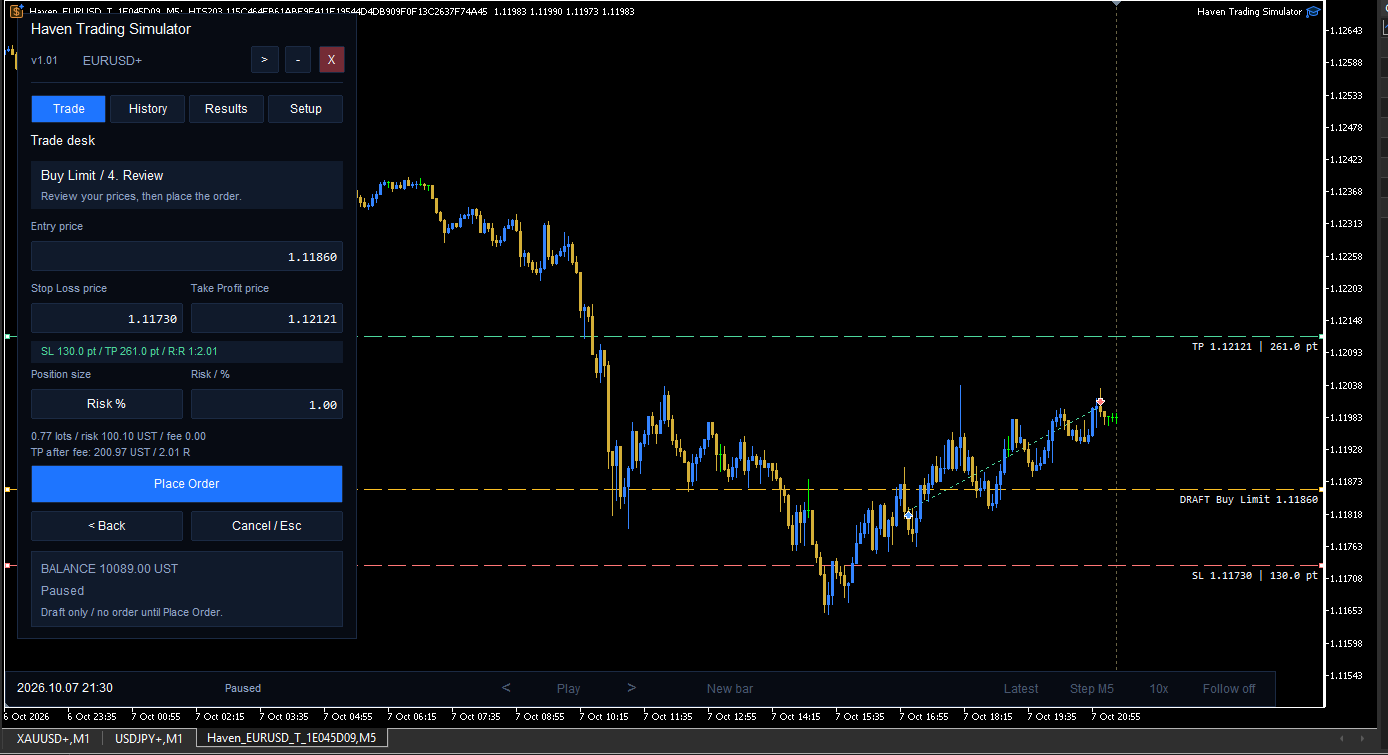
For these orders, HTS opens a chart-based setup. Choose the Entry, Stop Loss and Take Profit levels, or edit their exact price fields. Check that the levels are on the correct side for Buy or Sell, then press Place Order.
Before a pending order fills, its Entry, SL and TP levels can be adjusted on the chart. Once a position is open, its displayed SL/TP lines are not draggable trade-edit controls. An unfilled order may be cancelled with Cancel request.
| One position at a time: HTS is designed for sequential practice. It does not simulate a portfolio of simultaneous independent positions on the training chart. |
5. Position Sizing: Risk %, Cash Risk and Lots
In new trainings, the Position size button on the Trade tab cycles through three modes: Risk % → Risk [account currency] → Lots → Risk %. For example, an account in EUR displays Risk EUR. Changing this mode requires no open virtual position or waiting order.
| Risk % | HTS determines a broker-valid lot volume from the virtual balance, the initial Stop Loss distance and the chosen risk percentage. The estimated full round-trip commission is included in the risk budget. |
| Risk [currency] | Enter a fixed amount of virtual account currency to risk at the initial Stop Loss. HTS automatically finds an allowed lot size whose estimated loss including the full round-trip commission does not exceed that amount. The cash-risk budget must be positive, respect account-currency precision and cannot exceed the current virtual balance. |
| Lots | You enter the desired lot volume. HTS checks the broker's minimum, maximum, maximum aggregate volume where supplied, and volume step. The actual monetary risk depends on that volume and the Stop Loss distance. |
The preview shows the permitted lot size, initial cash risk and total commission. It also displays TP after fee as a monetary estimate and the associated R value. The market setup separately labels the price-distance ratio Price R:R; this is not the same as net R after commission. The projected Take Profit result is an estimate, not a guarantee of execution.
In the two automatic modes, lots are rounded down to the broker's allowed volume step. If even the minimum lot exceeds the budget, the order is rejected rather than silently increasing risk. In Lots mode, the actual risk can exceed a previously entered automatic budget, so check the preview carefully.
Example
With a virtual balance of 10,000 account-currency units and a Risk % setting of 1, the nominal risk budget is 100 account-currency units. HTS looks for an allowed lot size whose calculated Stop Loss loss plus full commission fits inside that budget. Because volumes use broker-defined steps, actual estimated risk may be lower than 100.
Alternatively, select Risk [currency] and enter 100 account-currency units: the same cash budget is used even if the virtual balance later changes. By contrast, Risk 1% recalculates the budget from the current balance. In either mode the estimated risk can be lower than the entered budget because of volume steps. This is a calculation example, not a suggested risk level.
6. Commission and Virtual Balance
The New training form labels the field Commission / 1 lot / [account currency]. Enter the total modeled commission for opening and closing one lot in the MT5 account currency. Enter 0 if you do not want to model commission.
HTS can prefill this value with a read-only estimate from recent complete same-symbol trades on your broker account, when enough consistent observations are available. The estimator checks up to 90 days of history and requires at least three usable complete positions with consistent per-lot fees. This is an estimate derived from historical deals, not an official broker tariff. If a dependable estimate is unavailable, the field starts at 0. Always check and edit the proposed figure before starting a training; partial data, fee schedules and other account conditions may cause it to differ from actual commissions.
HTS splits the calculated total commission between entry and exit. The virtual balance reflects the entry commission as soon as a position is open; after the trade closes, the balance includes the realized trading result and total commission. The simulator does not include unrealized price P/L in the displayed virtual balance.
| Net cash result = gross cash result − full round-trip commission For new trainings, Net R uses the net cash result divided by the trade's initial cash risk, including commission. Price-based R and cash-based Net R are different quantities. |
HTS records relevant symbol parameters (lot constraints, contract and tick-value information) when creating a new training. It needs compatible data from the broker to calculate monetary risk and results. The account currency is not always USD.
7. Execution Modes: Real Ticks and M1 OHLC
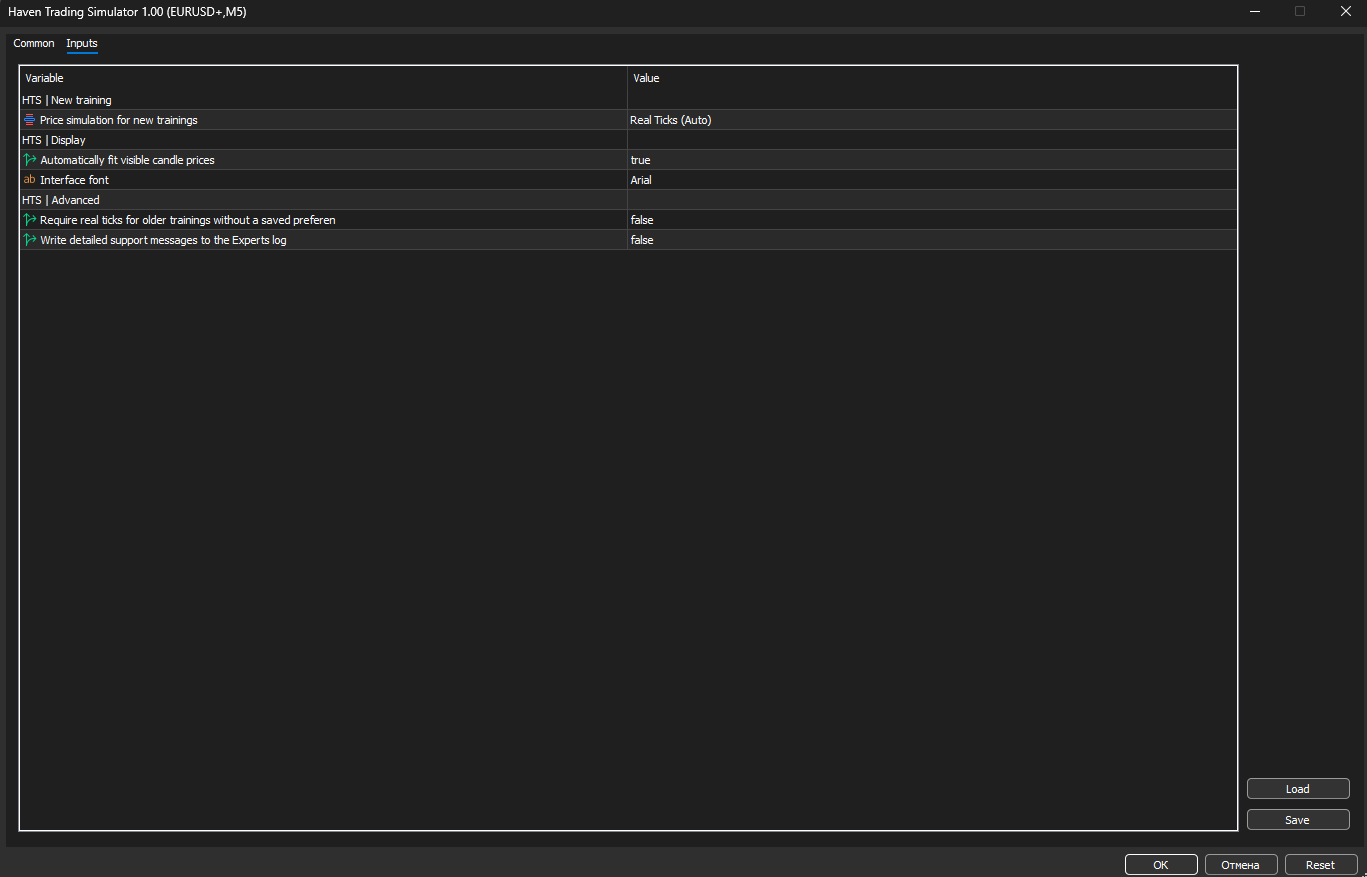
Choose the execution setting in the expert's Inputs → HTS | New training → Price simulation for new trainings. It applies to newly created trainings. Existing saved trainings keep their own execution settings.
| Real Ticks (Auto) | Uses available historical Bid/Ask ticks for virtual fills, with checks against broker M1 history. If suitable ticks are unavailable for a minute, HTS may use a controlled M1 fallback where valid or pause to request more history. |
| M1 OHLC (Fast) | Uses M1 candle information for execution. The true order of intraminute price changes is not fully known, so the modeled outcome can differ from a tick-based result. |
Important: Real Ticks changes execution calculations. It does not mean that every historical tick is animated individually on the candlestick chart. Real Ticks also does not guarantee exchange-grade execution accuracy.
8. History: Inspecting Individual Trades
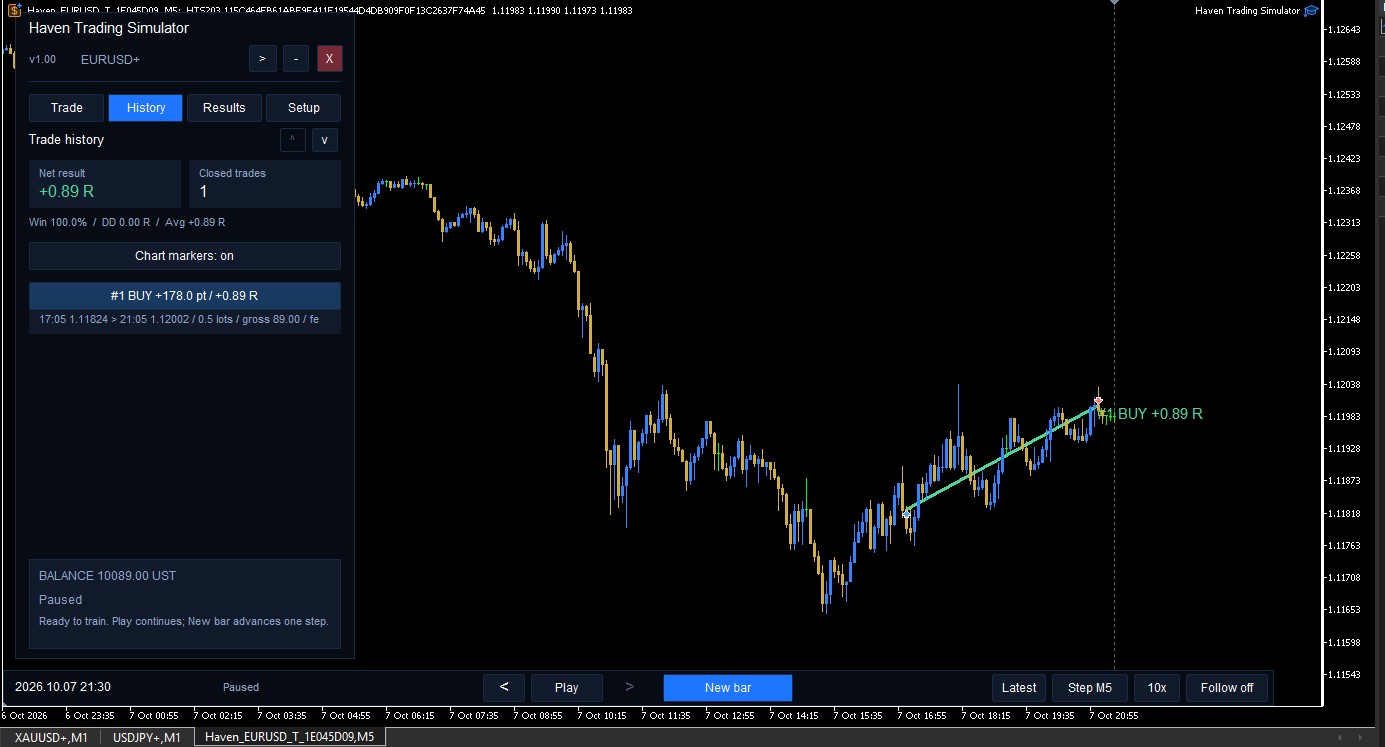
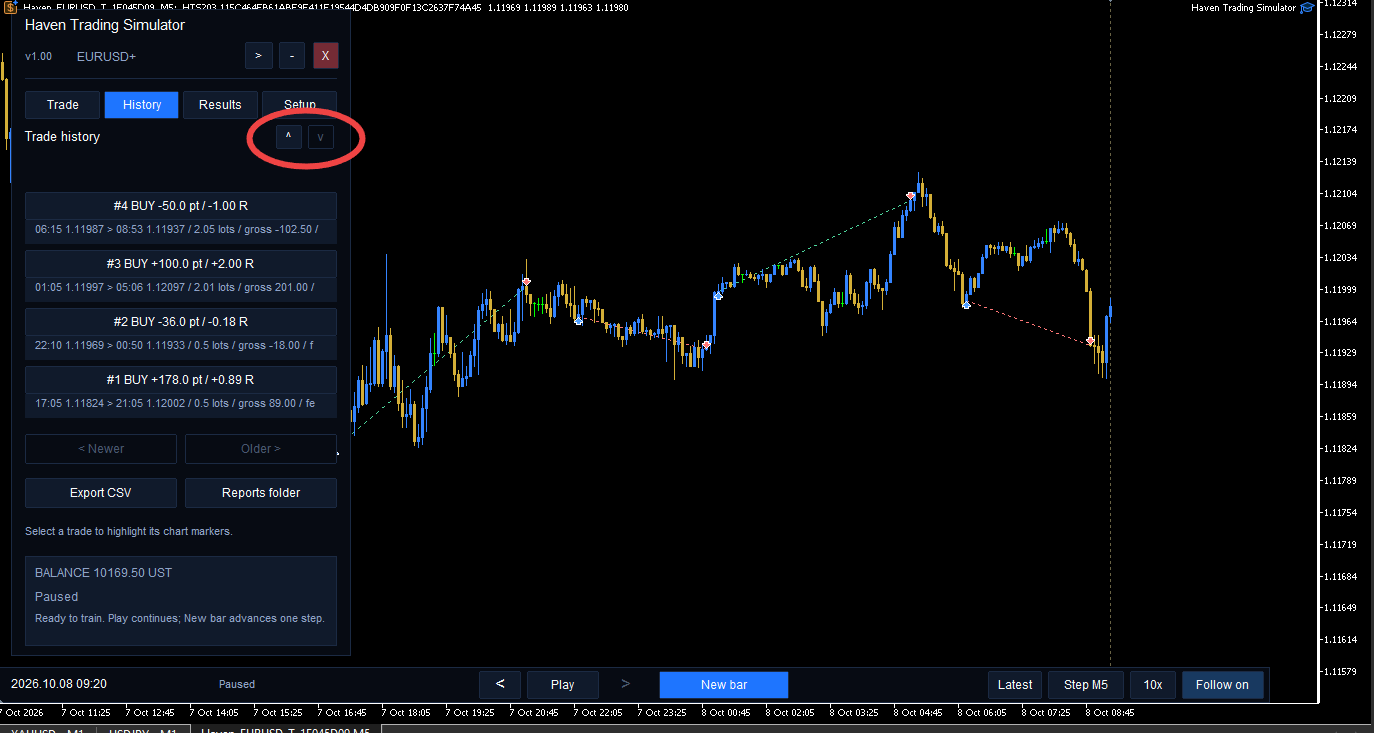
Use the History tab to review closed trades. For each trade, the list provides direction, result in points and R, prices and timing; new lot-based trainings also report volume, gross cash, fees and net cash in the detail row.
The Chart markers control turns historical trade markings on or off. Select a recorded trade in the list to highlight the associated entry and exit on the chart. Use < Newer and Older > to browse older records.
9. Results: Understanding the Statistics
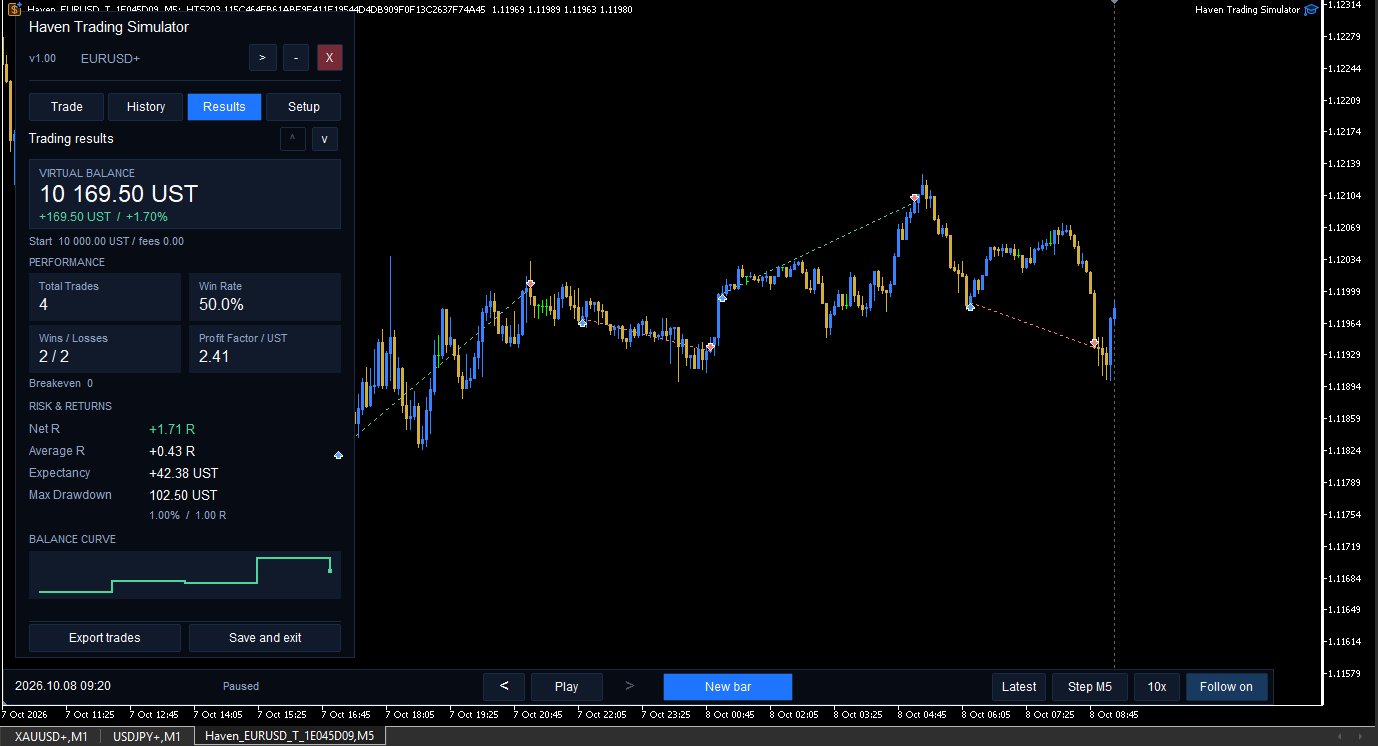
Open Results to see the performance summary for the current training.
| Virtual Balance | Starting capital plus realized net results, less the entry fee of any currently open position; unrealized price P/L is excluded. |
| Win Rate | Share of closed trades with a positive net result. |
| Net R / Average R | Sum and average of closed-trade R outcomes; for new money-based trainings these use commission-adjusted Net R. |
| Profit Factor | Ratio of total positive to total negative realized cash results where available. |
| Expectancy | Average realized cash result per closed trade for money-based trainings. |
| Max Drawdown | Largest modeled decline of the virtual balance, including entry commission events for new trainings; intratrade floating price drawdown is not included. |
| Balance Curve | Evolution of the virtual account across recorded trade events. It is not a continuously marked-to-market equity curve. |
10. Save, Resume, Reset and Multiple Trainings
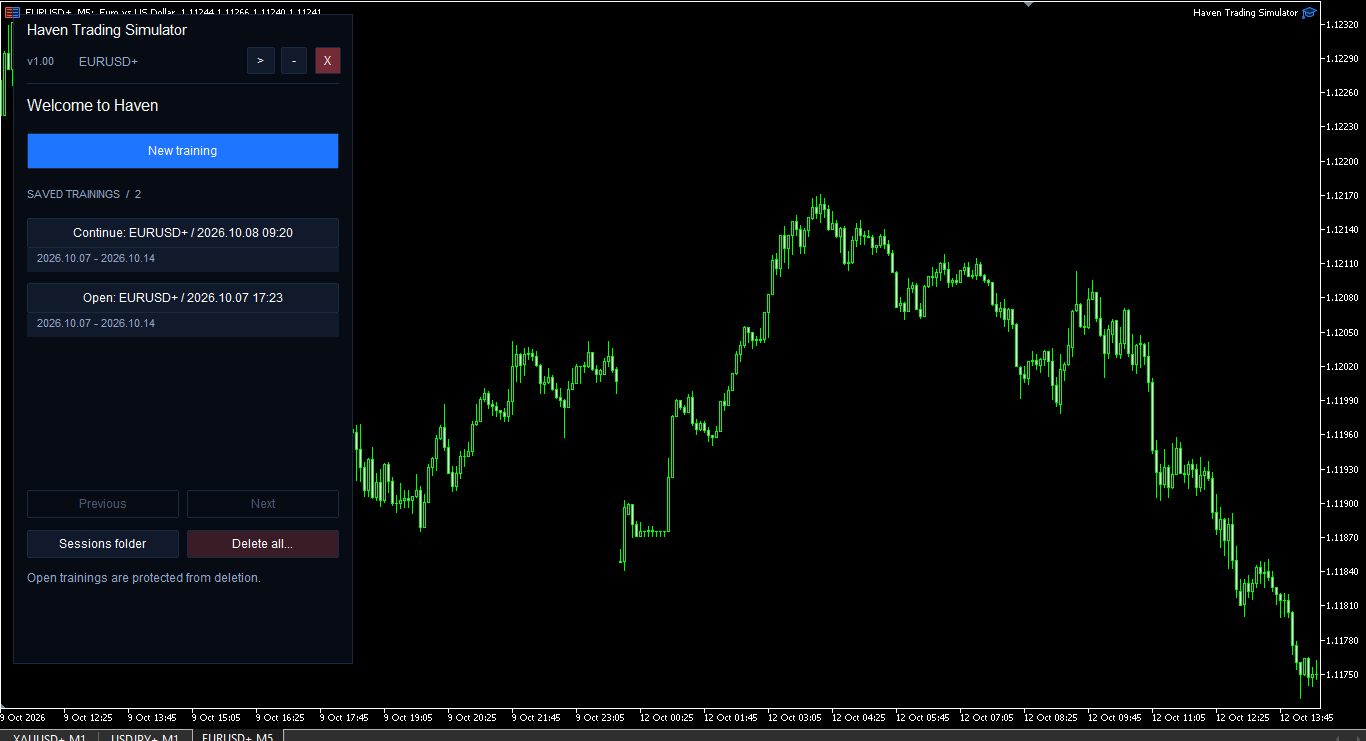
HTS saves a training's progress and can resume it later. From Setup, choose Saved trainings to return to the list, or Create another training to open a separate historical scenario. The saved record contains replay progress, trade results and any open virtual position or waiting order.
Save and exit ends the current HTS run while keeping saved training data. Use Reset training... only when you want to restart that training. Confirming a reset archives closed trades, and discards its current open position and pending order. Delete all... in the Saved trainings screen is a separate destructive cleanup action; do not use it to reset just one run.
11. Exporting CSV Reports
After closing a virtual trade, open History → Export CSV, or use the export action from Results. Select Reports folder to open the training's exported reports.
In addition to the usual trade time, direction, Entry, Exit, SL and TP columns, new money-based exports include Currency, Lots, InitialCashRisk, GrossCash, EntryCommission, ExitCommission, TotalCommission, NetCash and NetR. They also include the execution mode and flags showing the applicable history-processing conditions.
The exported file can be analyzed outside HTS in a spreadsheet or quantitative research environment. Time labels use the broker's server time rather than automatically converted UTC.
12. Main Settings
| Inputs: Price simulation for new trainings | Real Ticks (Auto) or M1 OHLC (Fast). Applies to new training creation. |
| Inputs: Automatically fit visible candle prices | Enable or disable HTS chart autoscaling. |
| Inputs: Interface font | Change the UI font if the default is unsuitable on the current system. |
| Inputs: Advanced options | Compatibility handling for older trainings and optional Experts diagnostics. Leave defaults unless troubleshooting. |
| Setup: Interface scale | Cycle the panel scale among 100%, 125% and 150%. |
| Setup: Simulated trading | See the saved commission and broker lot constraints for a money-based training. Position-size mode is selected separately on the Trade tab. |
Changing the chart timeframe changes how candles are displayed and may affect the chosen replay step. It does not rewrite the underlying saved M1 execution history.
Troubleshooting and FAQ
1. Do HTS orders reach my broker?
No. The trades, balance, SL, TP and commissions are virtual. The simulator does not send real trading instructions to the broker.
2. Why does the broker chart switch to another symbol?
HTS uses a managed historical training symbol to display only the candles available at the current replay point. Exit normally with Save and exit to let HTS restore the original chart configuration.
3. The Start training button does not create a training. What should I check?
Check that you attached HTS to an ordinary broker chart, that Start and End are valid broker-time dates in the past, that the broker offers historical M1 data, and that the instrument provides usable lot and money-calculation properties. Try another historical period if necessary.
4. What currency does Starting balance use?
It uses your MT5 account currency for new trainings. It is not always USD. All displayed monetary results and the commission input follow that same currency.
5. Is Commission the fee for one side or both sides?
It is the total round-trip fee for one lot. HTS allocates part of the fee to entry and the remainder to exit. If your broker quotes a per-side fee, convert it to a full open-and-close figure before entering it.
5a. Why did HTS suggest a commission automatically?
When sufficient consistent, complete historical deals for the same broker symbol are available, HTS estimates the fee per one lot for entry and exit combined. It does not obtain the broker's tariff directly. The proposed value is editable. If there is no reliable estimate, the field is set to zero; this does not prove that the broker charges no commission.
5b. What is the difference between Risk % and Risk [currency]?
Risk % derives the risk budget from the current virtual balance and changes with it. Risk [currency] uses the fixed amount you enter, subject to the available balance. Both select an allowed lot size and include the full simulated commission in the planned loss at Stop Loss.
5c. Why does TP after fee differ from Price R:R?
Price R:R compares price distances to Take Profit and Stop Loss. TP after fee includes the modeled commission and translates the projected result into account currency and a net R figure. These measures need not match.
6. Why is an automatic lot size smaller than expected?
Risk % and Risk [currency] consider the Stop Loss distance, the broker's allowed volume steps and the entire modeled commission. Rounding down to a valid lot is intentional; HTS does not increase volume beyond the requested risk budget.
7. Why is my manual lot rejected?
It must match the broker's minimum, maximum and step, as recorded when the training started. Check the Setup tab for lot restrictions and the specific error message.
8. Why did Buy market not open immediately?
The command is queued. Use Play or New bar to reach the next eligible historical quote. This avoids using an earlier already-visible price for a decision made afterward.
9. Can I move an existing position's SL and TP?
Pending order levels are editable before the order fills. For an open position, the SL/TP chart lines are displayed as non-editable levels in the current implementation.
10. Why did the replay pause while loading Real Ticks?
Some required historical ticks may be missing or inconsistent with broker M1 data. HTS can request more history, use a validated M1 fallback in eligible situations, or stop without silently skipping a problematic minute. Use the displayed Details and Retry controls where offered.
11. Will Real Ticks show each tick animated on the chart?
No. It is an execution-data option. Price candles still appear through the regular replay view.
12. Can I trade while reviewing older candles?
No. Review is for looking at candles already revealed. Press Latest to return to the present boundary of the virtual training.
13. Why does my virtual balance not change with the open trade's price?
HTS does not add floating unrealized price P/L to that displayed balance. It reflects realized results and, for a currently open lot-based trade, the paid entry commission.
14. Are broker spreads, commissions and slippage always reproduced exactly?
No. Historical quotes, the selected execution mode and the commission value you enter define the simulation. Actual live spreads, unavailable tick sequences, possible slippage, swaps and changing broker conditions can cause different real-world results.
15. What is the difference between Reset training and Delete all?
Reset training restarts one training and archives its closed-trade history. Delete all... performs cleanup of unused training data and exported reports after confirmation. Use the latter only if you intend permanent deletion.
16. What information helps when contacting support?
Provide your HTS version, broker name and server, symbol, chart timeframe, execution mode, a screenshot of the message or panel, and relevant entries from Toolbox → Experts. Never include passwords or sensitive account credentials.
Checklist Before You Begin
Confirm:
|
Haven Trading Simulator is intended for training and reviewing historical trading decisions. No broker orders are placed, and simulated outcomes do not guarantee live results.


