

This guide covers the most common issues users may encounter with CORVUX RADAR, along with step-by-step solutions. If your issue is not listed here, use the Product comments section on MQL5.com or send a private message through the MQL5 messaging system.

Panel Visibility Issues
Issue: The panel does not appear on the chart
Possible causes and solutions:
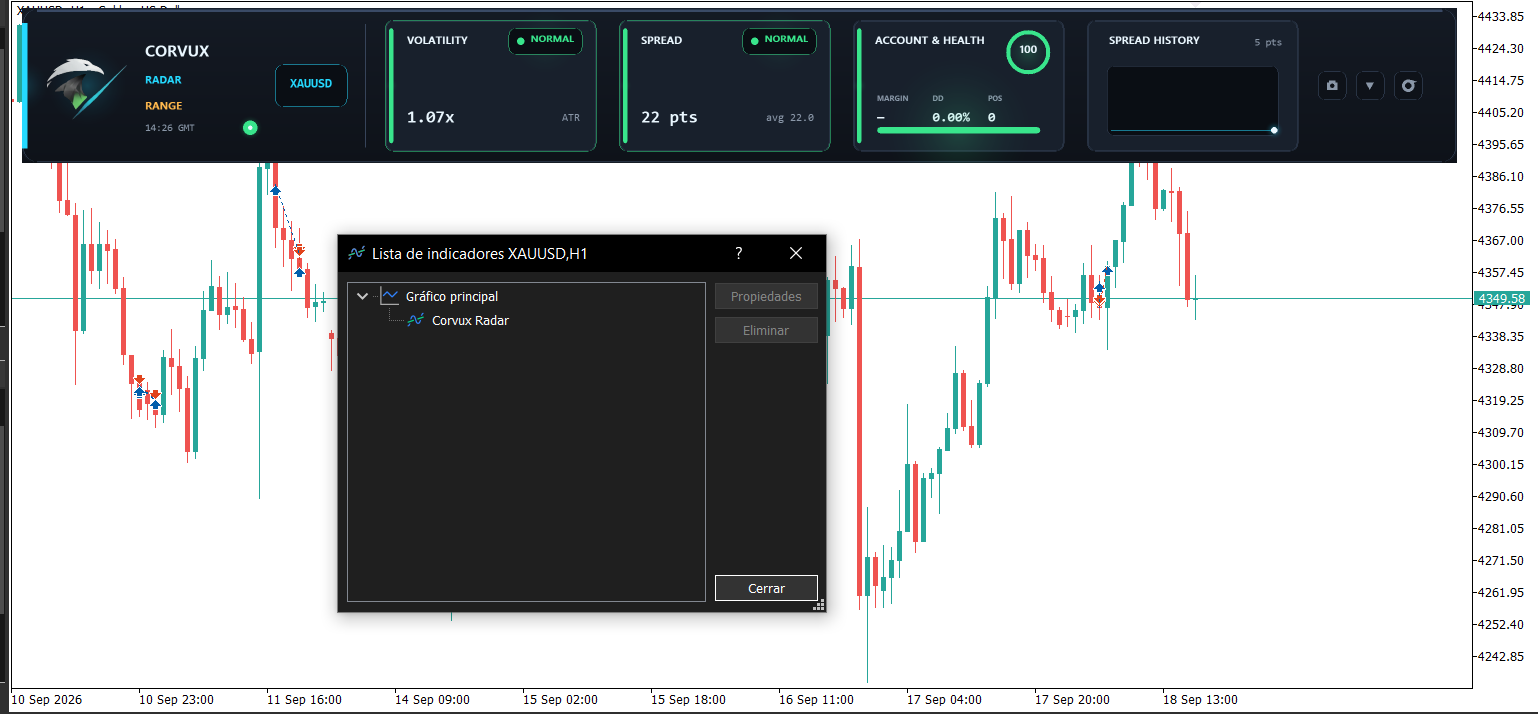
1. The indicator was not added to the chart correctly. Check the chart's indicator list (right-click on chart → Indicators List). If CORVUX RADAR is not there, add it again from the Navigator.
2. The chart window is too narrow. The panel adapts to chart width. If the chart is extremely narrow, the panel may be clipped. Resize the chart window to be wider.
3. The panel was moved outside the visible area. CORVUX RADAR is anchored to the top-left corner of the chart. If the chart is scrolled down, the panel may be hidden. Scroll back to the top.
4. The panel is minimized. Click the chevron button in the top-right corner of the panel to expand it.
5. The terminal requires a restart. Close and reopen MetaTrader 5.
Data Display Issues
Issue: The Volatility block shows "loading" instead of a value
Solution: The indicator needs enough ATR bars to calculate the baseline average. This typically resolves within a few seconds on an active chart. If the chart is inactive (weekend, holiday, or illiquid symbol), it may take longer. Wait 15-30 seconds and check again.
Issue: The Spread History block shows "Awaiting ticks" and no sparkline is drawn
Solution: The sparkline requires at least 2 spread samples to draw. On weekends or illiquid instruments, spread updates may be infrequent. Switch to a more liquid symbol (major FX pairs, gold, indices) to see the sparkline populate.
Issue: The Account block shows a dash for margin
Solution: This is expected behavior when no positions are open. The margin level is only displayed when there is at least one open position. When no positions are open, the block shows a dash and "No open positions".
Issue: The health score shows 100 but the overall state is WARNING
Solution: The health score is calculated as a weighted composite of the three component states (volatility, spread, account). If one component is in WARNING state but the others are NORMAL, the health score may still be relatively high while the overall state is WARNING. This is by design.
Spread Average Issues
Issue: The spread average resets unexpectedly
Solution: The spread average is reset in the following cases:
You double-click the Spread block to reset it manually.
You switch to a different symbol using the symbol badge.
You restart the terminal after a long period without ticks.
This is intentional behavior. The spread EMA is designed to adapt to changing market conditions.
Issue: The spread average is very different from my broker's displayed spread
Solution: CORVUX RADAR uses SymbolInfoInteger(SYMBOL_SPREAD) to read the current spread. This may differ from the spread displayed by your broker if the broker uses a different spread calculation method. The indicator's spread average is based on the same source as the broker's spread, but smoothed with an EMA.
Alert Issues
Issue: Alerts are not triggering even when the state changes
Solution: Check the following:
InpEnableAlert is set to true in the input parameters.
The alert cooldown period (InpAlertCooldownSec) has passed since the last alert. Default is 60 seconds.
The overall state has actually transitioned to WARNING or ANOMALY. A stable state does not trigger repeated alerts.
Issue: Alerts are triggering too frequently
Solution: Increase the InpAlertCooldownSec value to a higher number (e.g., 300 seconds). This prevents alert spam during volatile periods.
Issue: Sound alerts are not playing
Solution: Verify that InpEnableSound is set to true and that the sound file exists in your MetaTrader 5 Sounds folder. The default sound files are alert.wav, alert2.wav, and ok.wav.
CSV Log Issues
Issue: The CSV log is not being created
Solution: Check the following:
InpEnableCsvLog is set to true in the input parameters.
The terminal has write permissions to the MQL5/Files/ folder.
The log file is created only when a state change occurs. If the state remains stable, no entries are written.
Issue: The CSV log contains unexpected entries
Solution: The log records every state transition (NORMAL to WARNING, WARNING to ANOMALY, etc.) with timestamp, symbol, reason, and relevant metrics. If you see unexpected entries, review the state change history to understand what triggered them.
Multi-Symbol Issues
Issue: The symbol badge does not cycle between symbols when clicked
Solution: Verify that InpWatchSymbols contains a comma-separated list of additional symbols (e.g., "XAUUSD,GBPUSD,EURUSD"). If the list is empty, only the chart symbol is monitored, and clicking the badge has no effect.
Issue: The metrics for an additional symbol are not updating
Solution: Ensure that the additional symbol is available in your Market Watch (right-click on Market Watch → Symbols → Show All). If the symbol is not available, CORVUX RADAR cannot read its data.
Performance Issues
Issue: The indicator is using too much CPU or memory
Solution: CORVUX RADAR is designed to be lightweight. If you experience performance issues:
Increase InpUpdateSeconds to a higher value (e.g., 2 or 3 seconds).
Disable auto-snapshots (InpEnableAutoSnapshot).
Issue: The chart is slow or laggy when the panel is active
Solution: This may be caused by the supersampling rendering (SS_FACTOR). If performance is critical, consider reducing the visual quality. However, on modern hardware, CORVUX RADAR should have minimal impact on chart performance.
Product Link
You can find CORVUX RADAR on MQL5 Market here:
https://www.mql5.com/en/market/product/CORVUX_RADAR
Next Steps
Read the CORVUX RADAR - FAQ for answers to common questions.
If your issue persists, use the Product comments section or MQL5 messaging system for support