
Introduction
This manual is the complete operating reference for the Corex Smart Bear Bull Indicator for MetaTrader 4 and MetaTrader 5. It covers the quick-start workflow, every visual element drawn on the chart, every input parameter and its tuning advice, the alert configuration, three pre-tuned strategy presets, multi-symbol / multi-timeframe usage, and the most common troubleshooting items. Read it once end-to-end before you trade with the indicator and keep it open when you tune the parameters for the first time on a new market.
The indicator is a non-repainting trend re-entry tool. Its outputs — the cloud, the BULL / BEAR labels, the re-entry triangles, and the exit X marks — are locked at confirmed bar close and remain in place forever. There is no "wait and see" stage; what you see on the chart at the close of the bar is what you can trade.
Download the indicator:
- MetaTrader 5: Corex Smart Bear Bull Indicator MT5
- MetaTrader 4: Corex Smart Bear Bull Indicator MT4
Risk Disclaimer. Trading involves substantial risk and is not suitable for every investor. Past performance is not indicative of future results. Use a tested risk-management plan and a demo account before trading any indicator live.
1. Quick Start
For traders who want the indicator on the chart in under a minute:
- Purchase or download the demo from the MQL5.com Market.
- Open MetaTrader. Press Ctrl+N to open the Navigator panel.
- Expand Indicators > Market, find Corex Smart Bear Bull Indicator, and drag it onto your chart.
- Click OK in the input dialog (defaults are tuned for H1-H4 forex and work as a starting point on any market and timeframe).
- Wait for the first BULL or BEAR label to print at the bar close. Until then the indicator is in a "no opinion" state.
- Once a trend label has fired, watch for re-entry triangles inside that trend and exit X marks against it.
That is the full minimum workflow. Section 9 covers preset configurations once you are comfortable with the defaults.
2. Installation
MetaTrader 4 and MetaTrader 5
The indicator is sold via the MQL5.com Market. Once purchased (or downloaded as a demo), it installs automatically — there is no need to copy .ex4 / .ex5 files manually or open the data folder.
After purchase:
- Open MetaTrader and press Ctrl+N to open the Navigator panel.
- Expand Indicators > Market.
- Locate Corex Smart Bear Bull Indicator.
- Drag the indicator onto any chart.
- Adjust the input parameters in the dialog and click OK.
If the indicator is not visible under Indicators > Market, log out and back into your MQL5.com account from inside MetaTrader (Tools > Options > Community) and let the platform refresh the Market list.
3. Visual Elements
When the indicator is dropped on a chart, the following objects appear:
Three EMA lines. Fast (period 21, default lime), Medium (period 55, default gray), Slow (period 120, default dim gray, width 2). These are pure trend backdrop and do not feed into the signal logic.
Two Fusion lines. Fusion Slow (width 2) and Fusion Fast (width 1). Both rendered in bull-palette colors. These are the core of the engine.
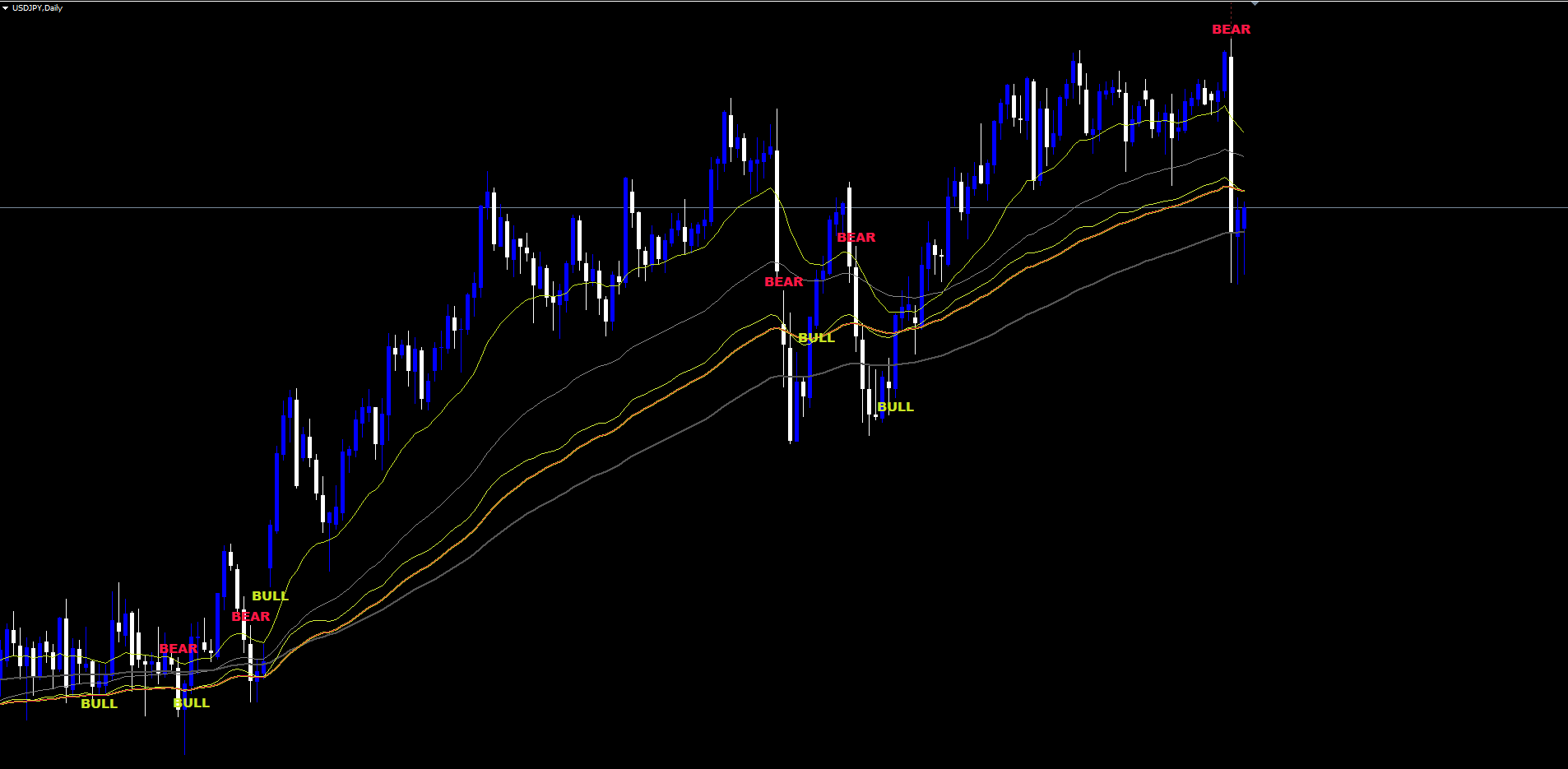
Trend cloud. A DRAW_FILLING band between Fusion Fast and Fusion Slow. Bright yellow-green when Fusion Fast > Fusion Slow (bullish regime). Crimson when Fusion Fast < Fusion Slow (bearish regime). The cloud is the at-a-glance regime confirmation.
BULL / BEAR labels. Text objects placed at the trend-flip bar's low (BULL, below the bar) or high (BEAR, above the bar). They print only on the bar where the regime first changed and only if the cooldown window has elapsed since the last label of the same direction.
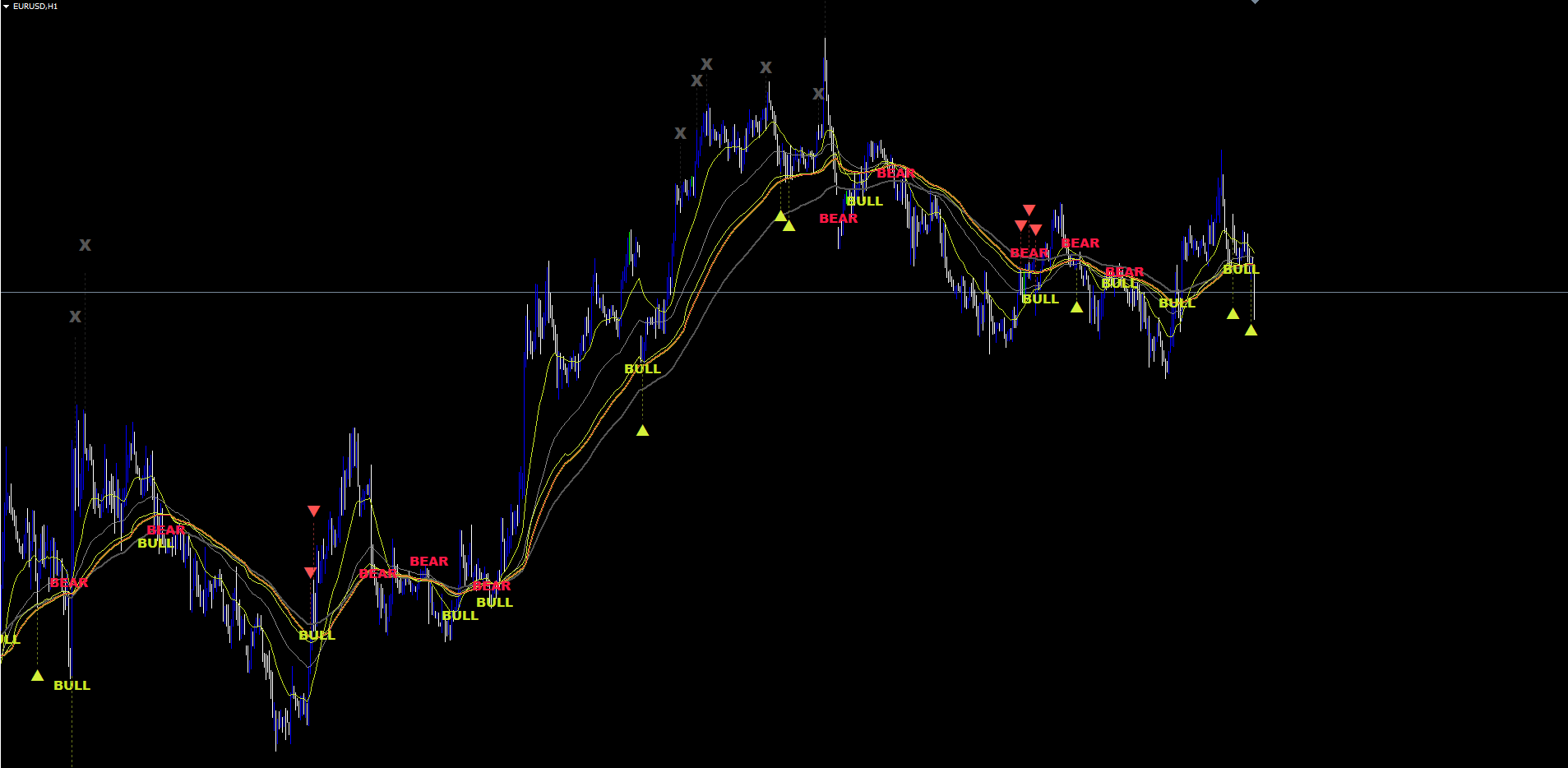
Re-entry triangles. A ▲ (long, lime) below the bar's low or ▼ (short, red) above the bar's high, drawn at an ATR-multiple offset from the candle. Triangles fire only when a confidence-passing signal arrives inside an active trend.
Exit X marks. A gray X placed in the opposite direction from a hypothetical position once the active trend gives up after an entry has been taken (a confidence-passing opposite signal arrives without flipping the trend label).
Dotted connector lines. Thin dotted vertical lines from the bar's high or low to the corresponding triangle or X. They are visual aids only and do not carry independent meaning.
All on-chart objects use the prefix CSBB_ so they are easy to identify and clean up.
4. Reading the Cloud
The cloud is the easiest thing on the chart to read. Two rules cover most of its use:
- Cloud color matches the bar's direction → trend is intact. Green cloud with green candles, red cloud with red candles: hold.
- Cloud color flips against the bar's direction → regime is rolling over. Watch the next bar close for a BULL or BEAR trend label.
Three secondary observations are worth knowing:
- A wide cloud means strong momentum. Fusion Fast and Fusion Slow have separated, which only happens when price is moving consistently in one direction.
- A pinched cloud means consolidation. The two Fusion lines have converged. Pinched clouds often precede flips.
- A flat cloud at a horizontal level means range-trading. The Fusion engine is not producing a directional bias; signals during this period are more likely to be the Pullback or Snap variety, not Continuation.
The cloud is intentionally rendered with DRAW_FILLING rather than per-bar rectangles; it is a single object on the chart and never causes performance issues.
5. Signal Sequence
The indicator runs a small state machine. The states transition only on confirmed bar close.
The Bull leg:
(Neutral / Bear) → BULL label fires → Bull state Bull state → Re-entry triangle (▲) at confidence-passing buy Bull state → Exit X above bar (gray X) at confidence-passing sell Bull state → BEAR label fires → Bear state
The Bear leg is symmetric:
(Neutral / Bull) → BEAR label fires → Bear state Bear state → Re-entry triangle (▼) at confidence-passing sell Bear state → Exit X below bar (gray X) at confidence-passing buy Bear state → BULL label fires → Bull state
Two practical implications:
- No triangle without a trend label first. In its initial state the indicator is "no opinion"; until a BULL or BEAR label has printed, no triangles can appear.
- An X mark inside a trend is not the same as a trend flip. An X means "a confidence-passing opposite signal arrived but the trend has not flipped yet". Treat it as a soft exit signal; treat the opposite trend label as a hard one.
6. Input Parameters Reference
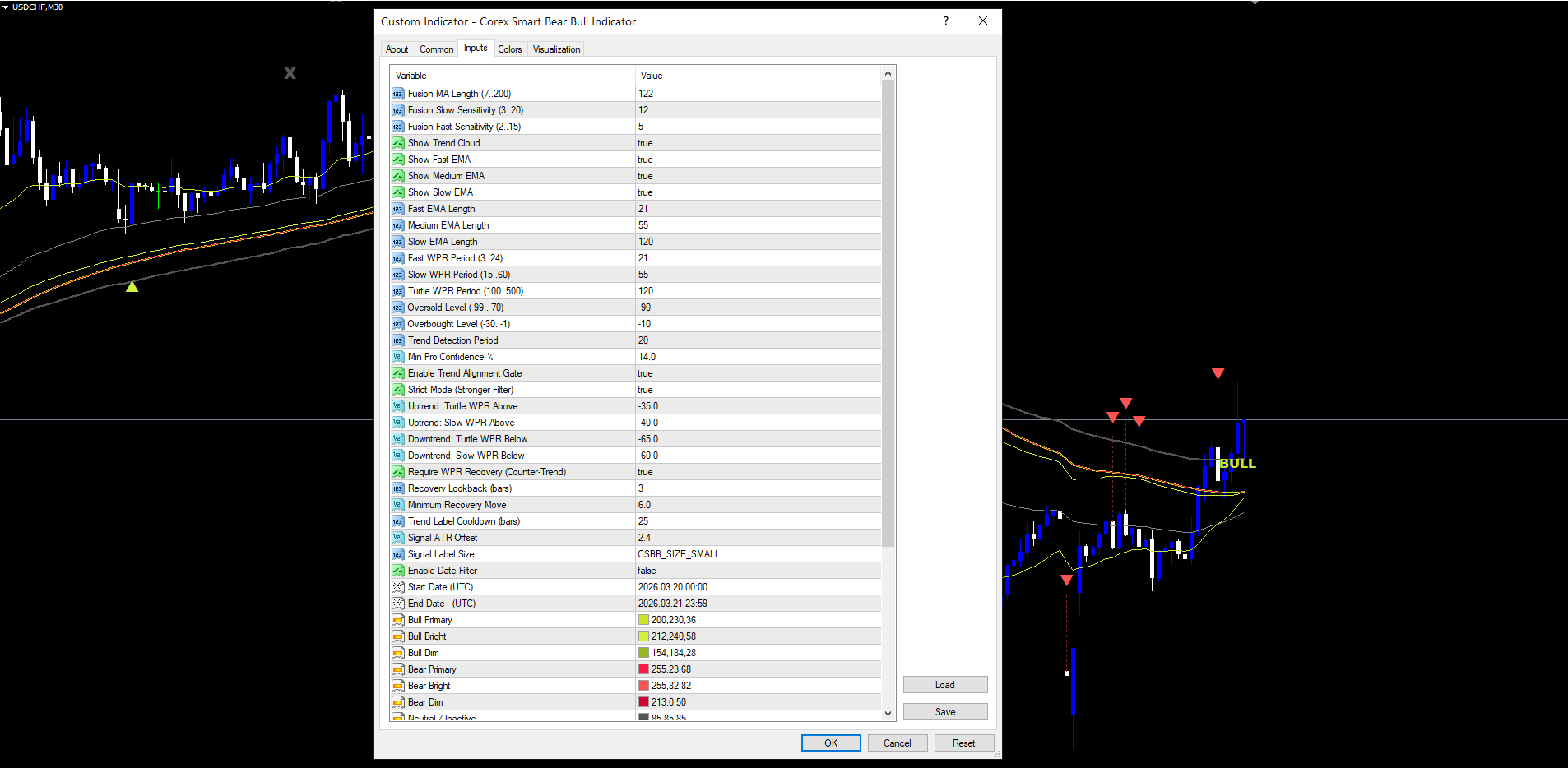
Defaults below match the source .mq5 declarations exactly.
Fusion System
| Input | Default | Range | Description |
|---|---|---|---|
| InpFusionLength | 122 | 7-200 | Length of the five-MA Fusion blend |
| InpSens1 | 12 | 3-20 | Slow EMA sensitivity over the Fusion blend |
| InpSens2 | 5 | 2-15 | Fast EMA sensitivity over the Fusion blend |
| InpShowCloud | true | bool | Draw the trend cloud |
EMA Settings
| Input | Default | Description |
|---|---|---|
| InpShowEmaFast | true | Toggle Fast EMA visibility |
| InpShowEmaMedium | true | Toggle Medium EMA visibility |
| InpShowEmaSlow | true | Toggle Slow EMA visibility |
| InpEmaFastLength | 21 | Fast EMA length |
| InpEmaMediumLength | 55 | Medium EMA length |
| InpEmaSlowLength | 120 | Slow EMA length |
AlphaX Pro Settings (Confidence and WPR)
| Input | Default | Range | Description |
|---|---|---|---|
| InpFastWPRPeriod | 21 | 3-24 | Fast Williams %R period |
| InpSlowWPRPeriod | 55 | 15-60 | Slow Williams %R period |
| InpTurtleWPRPeriod | 120 | 100-500 | Turtle (macro) Williams %R period |
| InpOversoldLevel | -90 | -99 to -70 | Fast WPR oversold cross threshold |
| InpOverboughtLevel | -10 | -30 to -1 | Fast WPR overbought cross threshold |
| InpProTrendLookback | 20 | 10-50 | WPR slope window |
| InpMinProConfidence | 14.0 | 0-100 | Minimum confidence to accept a signal |
| InpEnableProTrendGate | true | bool | Enable counter-trend protection gate |
| InpProTrendGateStrict | true | bool | Tighten gate by 5 points |
| InpProUptrendTurtleLvl | -35.0 | — | Uptrend Turtle WPR floor |
| InpProUptrendSlowLvl | -40.0 | — | Uptrend Slow WPR floor |
| InpProDowntrendTurtleLvl | -65.0 | — | Downtrend Turtle WPR ceiling |
| InpProDowntrendSlowLvl | -60.0 | — | Downtrend Slow WPR ceiling |
| InpEnableProRecoveryReq | true | bool | Require WPR recovery to bypass gate |
| InpProRecoveryBars | 3 | 2-10 | Recovery lookback window |
| InpProRecoveryMinMove | 6.0 | 2-20 | Minimum WPR recovery move |
Trend Filters and Date Window
| Input | Default | Range | Description |
|---|---|---|---|
| InpTrendCooldown | 25 | 1-200 | Bars between BULL / BEAR labels |
| InpSignalAtrOffset | 2.4 | 0-10 | ATR multiple for triangle / X placement |
| InpSignalLabelSize | SMALL | enum | TINY / SMALL / NORMAL |
| InpEnableDateFilter | false | bool | Restrict signals to a date range |
| InpStartDate | 2026-03-20 00:00 | datetime | Date window start (UTC) |
| InpEndDate | 2026-03-21 23:59 | datetime | Date window end (UTC) |
Theme Colors
| Input | Default | Description |
|---|---|---|
| InpBullPrimary | C'200,230,36' | BULL labels, Fusion Slow line |
| InpBullBright | C'212,240,58' | Re-entry long triangle, Fusion Fast line |
| InpBullDim | C'154,184,28' | Bull cloud documentation default |
| InpBearPrimary | C'255,23,68' | BEAR labels |
| InpBearBright | C'255,82,82' | Re-entry short triangle |
| InpBearDim | C'213,0,50' | Bear cloud documentation default |
| InpNeutralColor | C'85,85,85' | Exit X marks |
| InpEmaFastColor | C'200,230,36' | Fast EMA line |
| InpEmaMedColor | C'136,136,136' | Medium EMA line |
| InpEmaSlowColor | C'85,85,85' | Slow EMA line |
Alerts
| Input | Default | Description |
|---|---|---|
| InpAlertOnTrendChange | true | Fire on BULL / BEAR labels |
| InpAlertOnEntry | true | Fire on re-entry triangles |
| InpAlertOnExit | true | Fire on exit X marks |
| InpAlertPopup | true | Popup dialog |
| InpAlertPush | false | Mobile push notification |
| InpAlertEmail | false | |
| InpAlertSound | false | Play sound file |
| InpAlertSoundFile | "alert.wav" | Sound file name |
Note on cloud color. The trend cloud is rendered with MetaTrader's DRAW_FILLING style. To keep the MT4 and MT5 builds visually identical, the cloud colors are locked at the source #property indicator_color6 / 7 directives ( clrYellowGreen and clrCrimson ). The InpBullDim and InpBearDim inputs document the intended color but do not change the cloud at runtime.
7. Alert Configuration
Three event toggles cross four delivery channels for a 12-channel matrix.
Events
- InpAlertOnTrendChange — fires once when a BULL or BEAR trend label first prints at the bar close.
- InpAlertOnEntry — fires once when a re-entry triangle first prints at the bar close.
- InpAlertOnExit — fires once when an exit X mark first prints at the bar close.
Delivery channels
- InpAlertPopup — popup dialog inside the MT4 / MT5 window. No setup required.
- InpAlertPush — mobile push notification. Requires a one-time setup: in MetaTrader open Tools > Options > Notifications, paste your MetaQuotes ID from the MetaTrader mobile app, and tick Enable Push Notifications. Then set InpAlertPush = true .
- InpAlertEmail — email delivery. Requires SMTP setup: Tools > Options > Email, fill in your SMTP server, port (typically 465 or 587), authentication credentials, and From / To addresses. Then set InpAlertEmail = true .
- InpAlertSound — local sound file. Set InpAlertSound = true and put the desired .wav file in your Sounds folder; default is alert.wav which ships with MetaTrader.
Message format. Every alert is fired exactly once on the bar's first confirmed close. The wording is identical across MT4 and MT5:
Corex Smart Bear Bull: BULL trend (EURUSD M30) Corex Smart Bear Bull: BEAR trend (XAUUSD M15) Corex Smart Bear Bull: Re-entry LONG (GBPUSD M60) Corex Smart Bear Bull: Re-entry SHORT (USDJPY M5) Corex Smart Bear Bull: EXIT long (NAS100 M30) Corex Smart Bear Bull: EXIT short (BTCUSD M15)
The format is parser-friendly. If you forward alerts to a Telegram bot, Slack webhook, or trade copier, the EVENT keyword ( BULL trend , Re-entry LONG , etc.), the SYMBOL, and the TIMEFRAME are at fixed positions in the string.
Best practices.
- Use popup + sound when actively at the desk, push + email when away.
- Keep InpAlertOnTrendChange = true always; the BULL / BEAR labels are the highest-quality alerts the indicator produces.
- Disable InpAlertOnEntry if you only want to be notified at trend regime changes; this cuts alert volume by ~70% on busy markets.
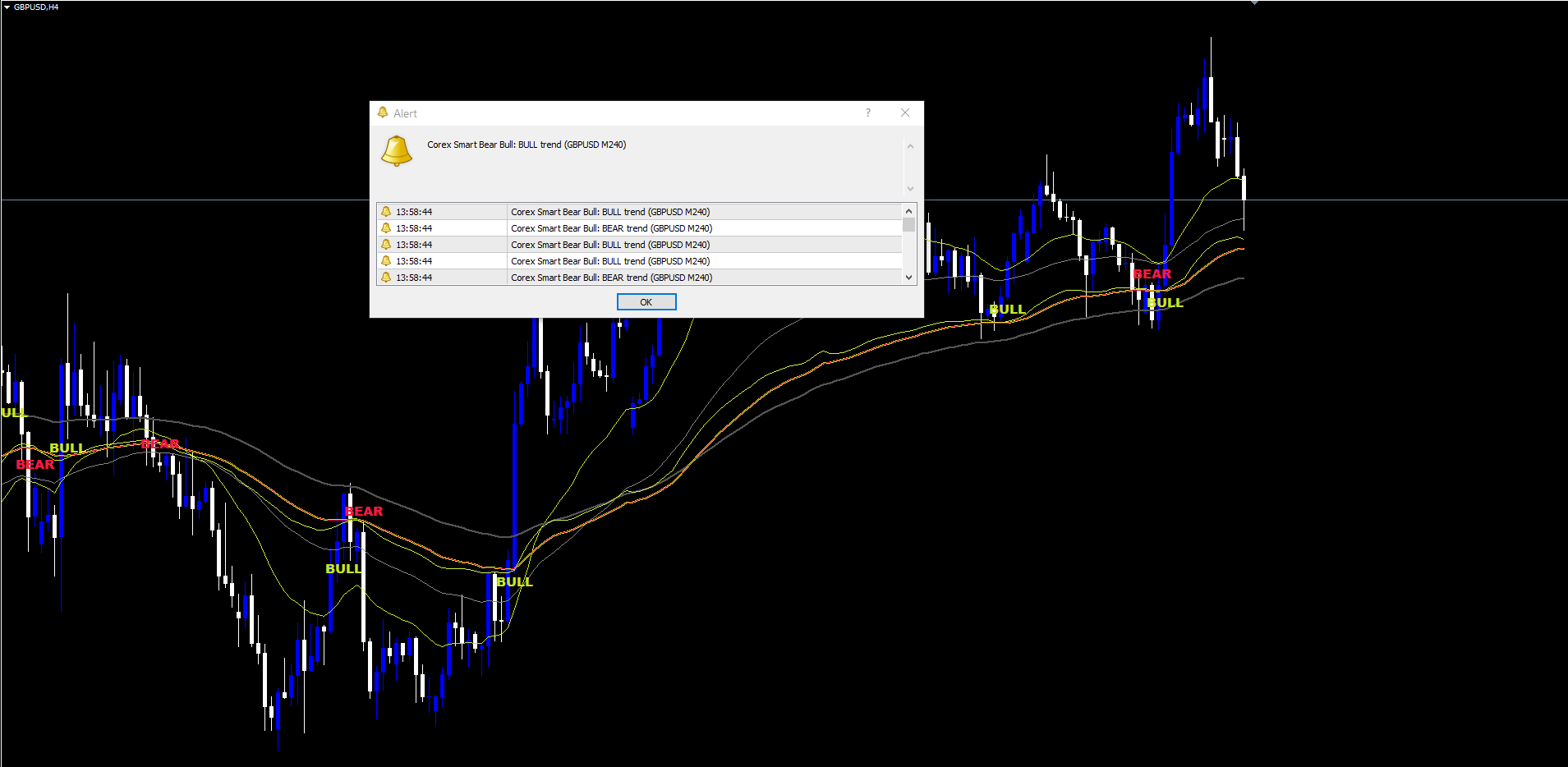
8. Trading Strategies
The indicator works as a stand-alone signal generator, but it is most useful when paired with a clear strategy template. Three pre-tuned configurations cover most styles.
Conservative (high confidence, fewer signals)
InpMinProConfidence = 35 InpEnableProTrendGate = true InpProTrendGateStrict = true InpEnableProRecoveryReq= false InpTrendCooldown = 50
Fewer triangles per chart, but each one is supported by multiple sub-triggers and high WPR / EMA alignment. Best for swing trading on H4 / D1, or for traders managing multiple charts who need a low signal-to-noise ratio.
Standard (defaults as shipped)
InpMinProConfidence = 14.0 InpEnableProTrendGate = true InpProTrendGateStrict = true InpEnableProRecoveryReq= true InpTrendCooldown = 25
Balanced configuration. The recovery-mode bypass means counter-trend re-entries can still appear when the WPR has bounced sharply, which is useful for trading reversals.
Aggressive (more signals, more noise)
InpMinProConfidence = 8.0 InpEnableProTrendGate = true InpProTrendGateStrict = false InpEnableProRecoveryReq= true InpTrendCooldown = 15
Lower confidence floor, gate threshold widened. Triangles appear earlier in moves and on lower-quality setups. Best for scalping on M5 / M15 where you have time to manage faster signals; pair with tighter stops.
9. Confidence Tuning by Timeframe
The confidence floor ( InpMinProConfidence ) is the single highest-impact tuning parameter. Recommended starting values:
| Timeframe | Suggested floor | Rationale |
|---|---|---|
| M1 - M5 | 25 - 40 | Higher floor compensates for the noisy WPR readings on very short bars |
| M15 - M30 | 15 - 25 | Standard floor with a small lift for noise |
| H1 - H4 | 10 - 18 | Default 14.0 sits inside this range |
| D1 - W1 | 8 - 14 | Lower floor; macro signals on these timeframes are inherently cleaner |
After you change the floor, watch a week of bars. Aim for 2-5 triangles per active trend on intraday charts, 1-3 per active trend on swing charts. If you see more than that, raise the floor; if you see fewer, lower it.
10. Trend Gate vs Recovery Mode
Two related toggles determine how the trend alignment gate behaves.
InpEnableProTrendGate . When true , signals against the macro trend are blocked unless Recovery Mode allows them through. When false , the gate is fully disabled and any sub-trigger that passes confidence will print.
InpEnableProRecoveryReq . Only matters when the gate is on. When true , the gate becomes "block by default, but allow if the Fast WPR has just bounced sharply from a deep extreme". When false , the gate is "block always, no exceptions".
Useful combinations:
- Gate ON, Recovery ON (default). Trades with the macro trend by default, but allows reversal entries when the WPR has clearly turned. Most flexible setting.
- Gate ON, Recovery OFF. Pure trend-following. The indicator will not produce counter-trend entries even on sharp reversal candidates.
- Gate OFF. All confidence-passing sub-triggers fire. Use only when you have an external context filter (e.g., a higher-timeframe analysis) and you want the indicator to surface every potential setup.
11. Multi-Symbol and Multi-Timeframe Use
The indicator is symbol- and timeframe-agnostic. Two workflows are common.
Multi-Symbol Single Timeframe. Open separate charts (e.g., EURUSD H1, GBPUSD H1, XAUUSD H1, NAS100 H1) each with the indicator attached. Set InpAlertPush = true so push notifications keep you on top of every chart from the mobile app. The (SYMBOL TIMEFRAME) suffix in every alert message lets you immediately see which chart fired.
Multi-Timeframe Single Symbol. Open the same instrument on three timeframes (e.g., XAUUSD H4, H1, M15). Use the higher timeframe for trend-label confirmation, the middle timeframe for re-entries, the lowest for entry-timing. Many traders only take re-entry triangles on the M15 if the H1 chart is in the same trend (BULL on both → take long re-entries; BULL on M15 but BEAR on H1 → skip).
The MT4 and MT5 builds carry identical signals, so a multi-platform setup (some charts on MT4, others on MT5) is consistent.
12. Troubleshooting
No signals appearing at all. Lower InpMinProConfidence (try 8 or 10). Disable InpEnableProTrendGate temporarily to isolate whether the gate is blocking. Check that you have at least 250 bars of history loaded — the indicator's internal 200-period EMA needs that many bars to begin.
Cloud not visible. Confirm InpShowCloud = true . Verify Fusion Fast and Fusion Slow are diverging on the chart — when they are stacked perfectly, the band is one pixel high and effectively invisible. Try shorter InpSens2 (e.g., 3) to widen the spread.
BULL / BEAR labels too frequent. Increase InpTrendCooldown from 25 toward 50 or 75. The cooldown is the minimum bars between two labels of the same direction; raising it filters out near-immediate re-flips.
Push notifications silent. Open Tools > Options > Notifications in MetaTrader, enter your MetaQuotes ID from the mobile app, tick Enable Push Notifications. Confirm InpAlertPush = true in the indicator inputs. Test by triggering any other built-in MT alert.
Email alerts silent. Tools > Options > Email with SMTP credentials. Test the email setup with the Test button in that dialog before relying on it in production. Set InpAlertEmail = true .
Triangles overlap candles. Raise InpSignalAtrOffset from 2.4 toward 3.5. The offset is in ATR multiples, so volatile markets will still need higher values.
MT4 vs MT5 different cloud colors. Both builds are locked to clrYellowGreen (bull) and clrCrimson (bear) at the source. If they differ, you are running a customized build; check the #property indicator_color6 directive in both files.
Indicator shows nothing on a fresh chart. Press Home in MetaTrader to scroll history all the way back. The indicator needs a minimum of 250 bars — typically not a problem on H1+ charts but possible on M1 / M5 with limited history.
13. FAQ
Q. Does the indicator repaint? A. No. All signal evaluation runs only on confirmed closed bars (shift ≥ 1). State mutations only occur when the bar's timestamp is newer than the last processed timestamp. Once a label, triangle, or X mark is printed, it does not move.
Q. Can I run this on crypto / indices / commodities? A. Yes. The indicator is symbol-agnostic. The session-anchored VWAP component will reset at the start of each UTC trading day for any symbol; the Williams %R thresholds work universally.
Q. Why is the indicator's cloud color not customizable through inputs? A. MT4's DRAW_FILLING style does not honor SetIndexStyle 's color override at runtime — colors must come from #property indicator_colorN . To keep the MT4 and MT5 builds visually identical, both lock the cloud color at compile time. The line colors (EMAs, Fusion lines) and the label / triangle / X colors are all input-driven normally.
Q. Do I need to manage stops and targets manually? A. Yes. Corex Smart Bear Bull is a signal indicator, not an EA. It tells you when to enter and when to exit; position size and stop placement are your responsibility. Many traders place stops at the most recent swing low / high or at a fixed ATR multiple from entry.
Q. Can I use the indicator inside an EA via iCustom ? A. Yes. The MT4 build exposes 7 buffers; buffers 0-2 are the EMA lines, 3-4 are the Fusion lines, 5-6 are the cloud's top / bottom. The signal events (BULL / BEAR / triangles / X) are drawn as chart objects rather than buffers, so EA integration through iCustom typically uses the cloud-direction buffer comparisons (buffer 4 vs buffer 3) for the regime, plus a polling loop on ObjectFind for the latest signal name.
Q. Why are some alerts firing on bars that closed minutes ago? A. The indicator fires alerts on the first confirmed close of a bar, not on every tick within that bar. If you reload the chart or change timeframes, MetaTrader will re-process the most recent bars; the indicator deduplicates correctly by timestamp so no double-alerts are fired, but you may see the very last alert print again on a fresh chart load. This is normal MetaTrader behavior, not repainting.
Q. Does it work on the Strategy Tester? A. Yes — both MT4 and MT5 builds are non-repainting and pass the Strategy Tester's bar-by-bar replay. Use the demo button on the Market page to test the indicator in the Strategy Tester before purchasing.
Q. Can I customize the alert messages? A. The message format is fixed. If you need a custom format (e.g., for a Telegram bot integration), use a small intermediary script or EA that consumes the indicator's chart objects via iCustom / ObjectFind and emits messages in your preferred format.
Download the indicator:
- MetaTrader 5: Corex Smart Bear Bull Indicator MT5
- MetaTrader 4: Corex Smart Bear Bull Indicator MT4
CONTACT & SUPPORT
- Email: info@forexobroker.com
- Questions: Use the Comments section on the product page or send a private message
- Bug Reports: Please include your broker name, account type, and a screenshot
-
✅ All MQL Tools: https://www.mql5.com/en/users/forexobroker/ ✅
--------------------------------------------------------------------------------------------------------------
🏦 **Broker I use**: https://icmarkets.com/?camp=55869
🏦 **Broker For EU Traders I use 1**: https://www.ictrading.com?camp=91414
🏦 **Broker I use 2**: https://one.exnessonelink.com/boarding/sign-up/a/c_thuv62ocfq
💻 **VPS**: https://chocoping.com/processing/aff.php?aff=738
💼 **Companies I use for getting funded**:
Fundednext: https://fundednext.com/?fpr=kestutis39
The5ers: https://www.the5ers.com/?afmc=16kl
FTMO: https://trader.ftmo.com/?affiliates=nRAyOhmFRnEnFdOpdLeh
Risk Disclaimer
Trading foreign exchange and CFDs on margin carries a high level of risk and may not be suitable for all investors. You may sustain a loss exceeding your initial investment. Trend Quorum is a technical analysis tool and does not guarantee profitable trades. Past performance is not indicative of future results. The authors accept no liability for any loss arising from use of the indicator. By using Trend Quorum you acknowledge sole responsibility for your trading decisions.




