

This is a user guide for setting up the MT5 to Telegram Proo EA.
MT5 version available here: MT5 To Telegram Proo
Stay updated with all my products, improvements, and the latest demo releases by joining my Telegram Channel, where I regularly share news and keep users informed.
The TMT5 to Telegram Proo is a simple yet powerful and fully customizable utility that allows you to send trading signals directly to Telegram, effectively turning your account into a signal provider. Message formatting is fully customizable, and for quick setup you can use predefined templates while enabling or disabling specific message components as needed.
For uninterrupted 24/7 signal delivery, the use of a VPS is highly recommended.
Demo Available
You can test the Telegram Signal Provider using a free demo version, allowing you to evaluate its features and ensure compatibility with your trading environment.
MT5 to Telegram Telegram Proo Demo
Installing the Demo Version:
- Launch MetaTrader, then click "File" in the top left corner.
- Select "Open Data Folder" from the drop-down menu.
- Navigate to your MQL5 directory.
- Access the 'Experts' folder within this directory.
- Use the link provided above to download the demo (.ex5 file) directly into the 'Experts' folder.
- Return to MetaTrader and locate 'Navigator'. Right-click and select 'Refresh' from the context menu.
- The demo should now be visible in the list. Simply drag and drop it onto your chart to initiate the setup.
Installation
Telegram Bot
Create a Telegram bot that will send messages from MT4 to a Telegram chat, channel, or group.
Set Up Telegram Bot
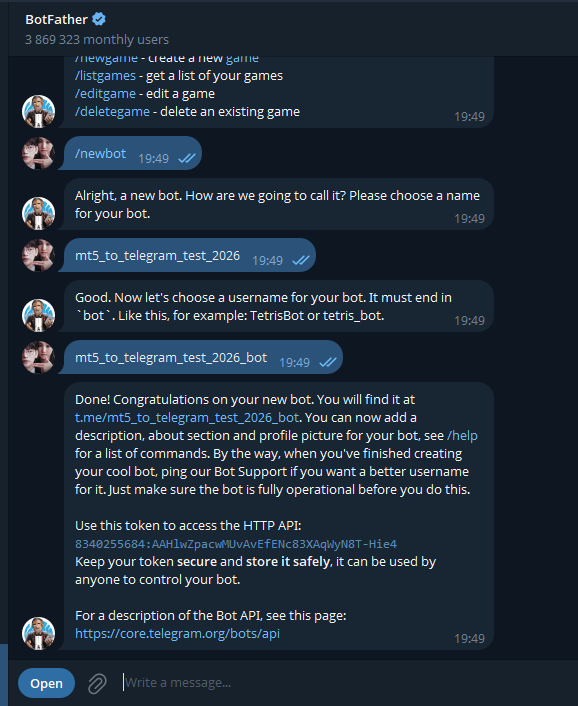
- Open Telegram and search for @BotFather
- Send /newbot and follow the instructions provided by BotFather
- Choose a name and a username for your bot
- You will receive a bot token (this token is required to access the Telegram HTTP API)
- Refer to the image below
Chat / Group ID
- Create the Telegram group or channel where you want the EA to send messages.
- Add your newly created bot to the group/channel and set it as an admin:
- Group Info → Manage Group → Administrators → Add Administrator → Your Bot → Save
- Send any message in the group/channel (e.g., "Test")—this is required to retrieve the group/channel ID.
- Replace <Token> in the following URL with the token obtained from BotFather: https://api.telegram.org/bot<token>/getUpdates
- Open the URL in your browser. If the page shows only {"ok":true,"result":[]} , send a new message in the group/channel and refresh the page.
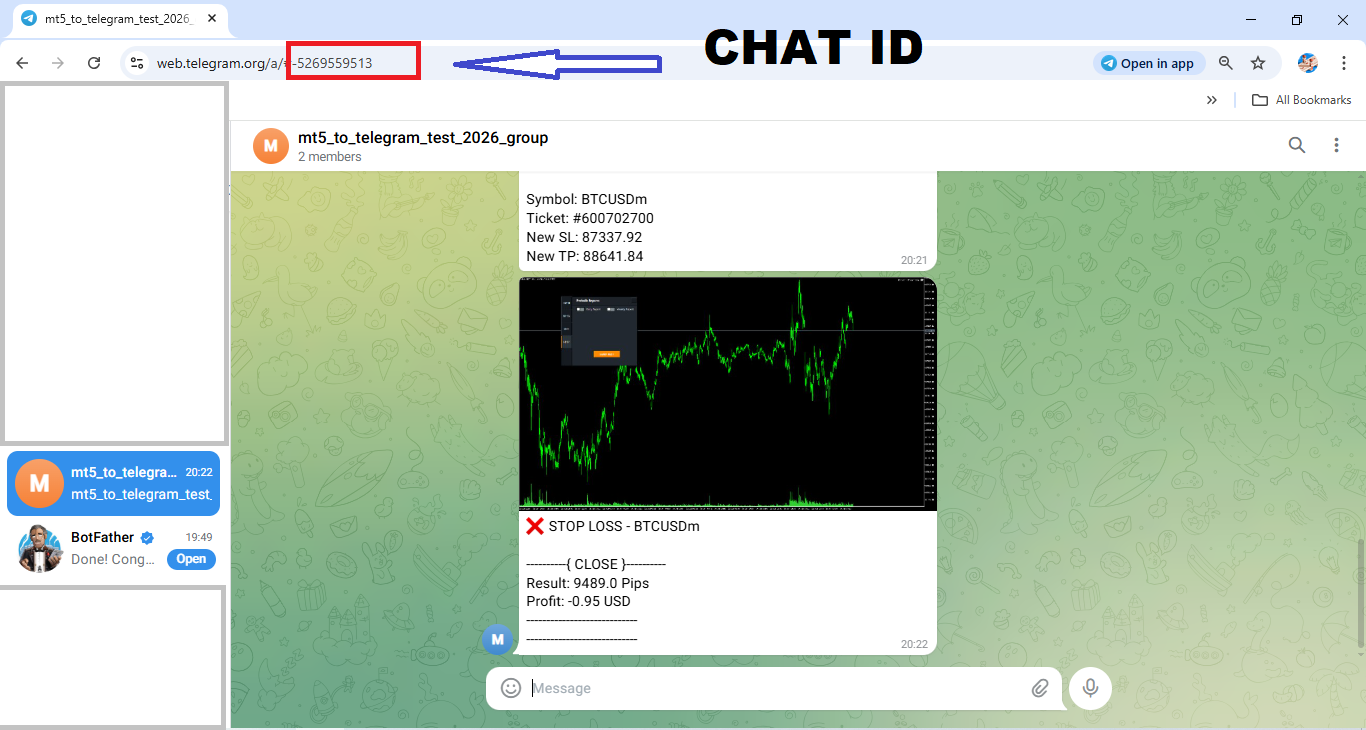
- Look for "chat":{"id": and copy the ID. It will look like -100133 or -5269559513 .
- Let's test the new inputs. In the following URL Replace <token> with your token and replace <ChatID> with your group/chat ID.
- Open the URL in your browser
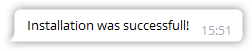
- https://api.telegram.org/bot<token>/sendMessage?chat_id=<ChatID>&text=Installation%20was%20successfull!
- You should now get the following message:
Easy way to do :
- open the group in your browser and copy the number after the # in the url ( see the image )
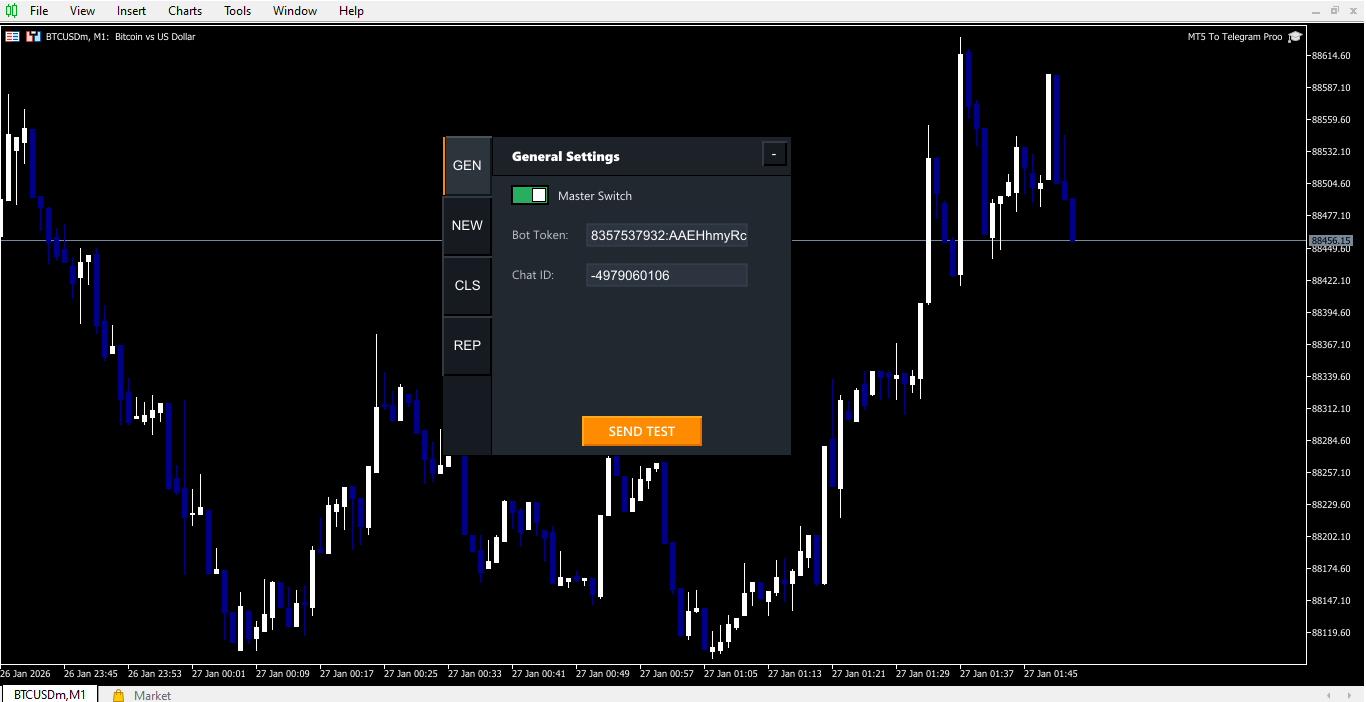
Enter the Chat ID and bot token into the EA inputs. The EA will automatically save them once entered.
Allow WebRequest
- Open your MT4 Terminal and go to "Tools" --> "Options" --> "Expert Advisors"
- Turn on the "Allow WebRequest for listed URL:" bracket and add the following URL:
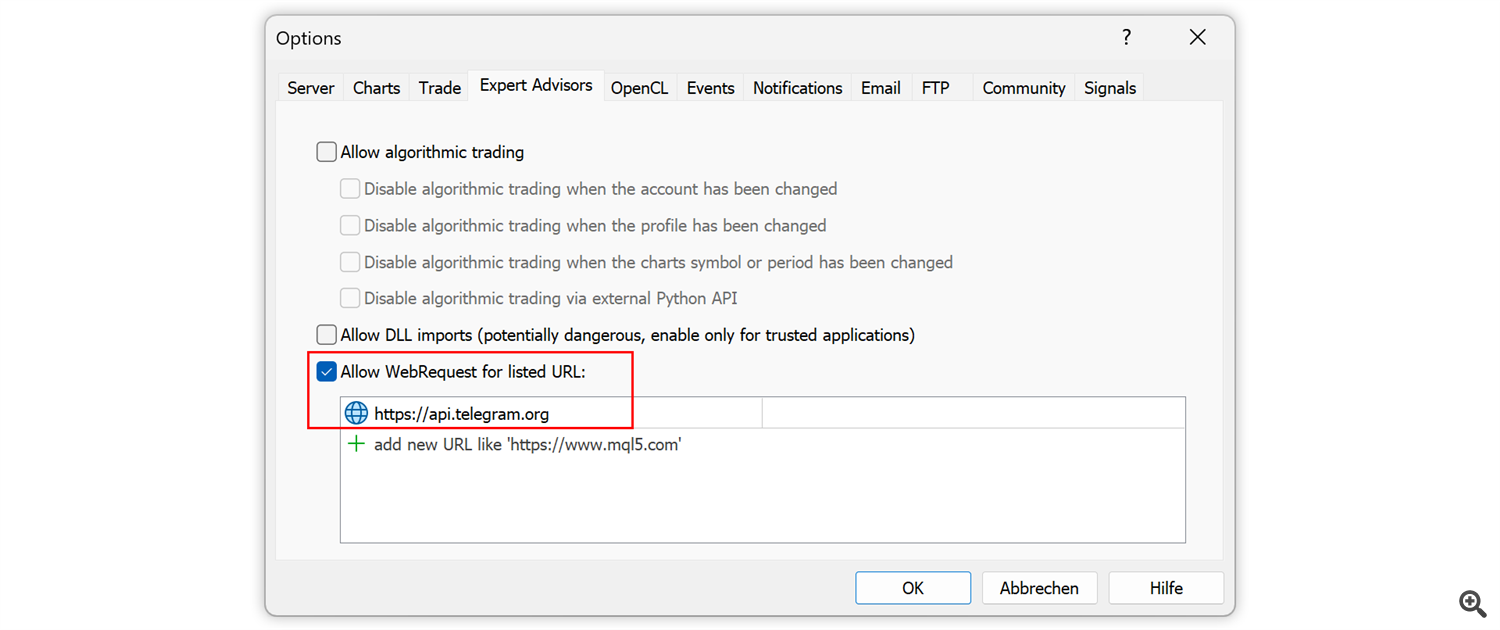
- Your MT5 to Telegram Poo is now ready to use!
- In the User Interface, you can customize all the inputs.
User Interface – Simple Mode
In this section, we explore the user interface for Simple Mode. This mode lets you send reports and customize the predefined message template by enabling or disabling specific message components. Simple Mode offers more control directly through the interface, while Advanced Mode relies mainly on configuring messages via text files.
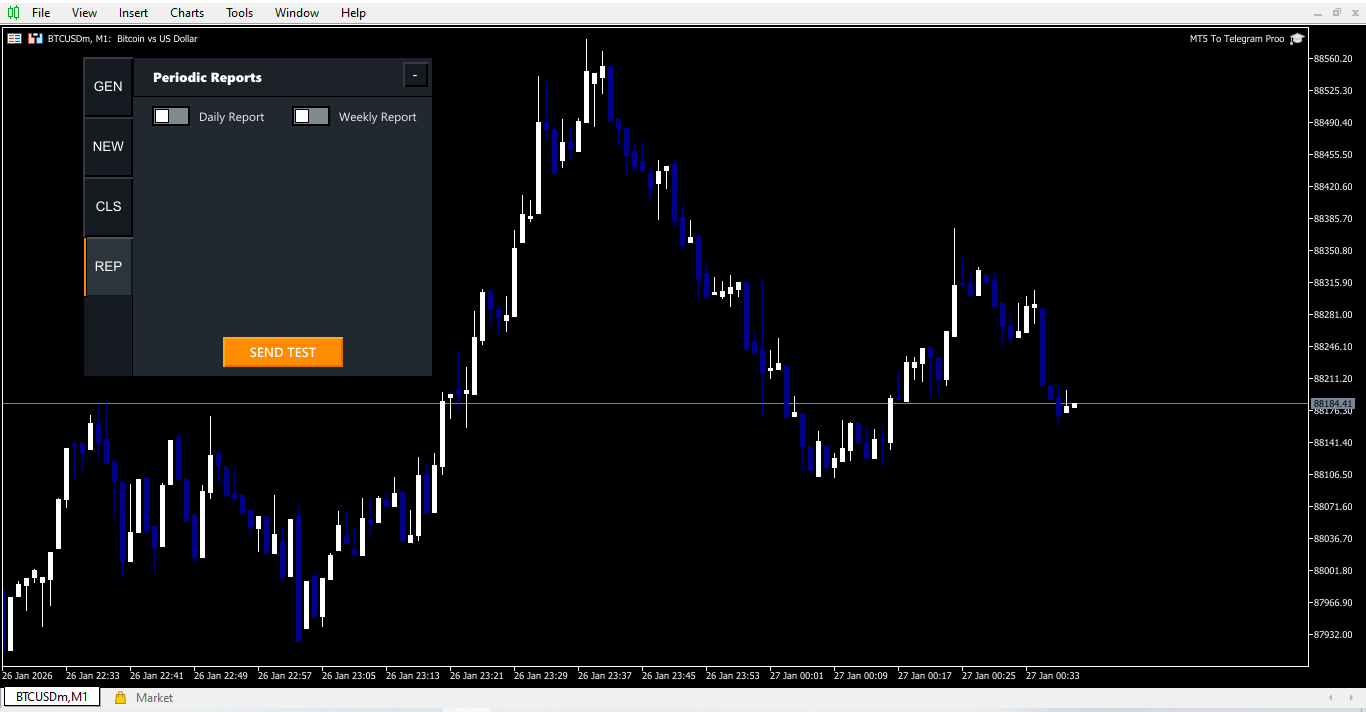
Periodic Rapport
You can select daily, weekly, or monthly reports. Pressing a report button will send the report directly to your Telegram channel. Use the Options button to open the settings menu for further customization.
Close Order Signals
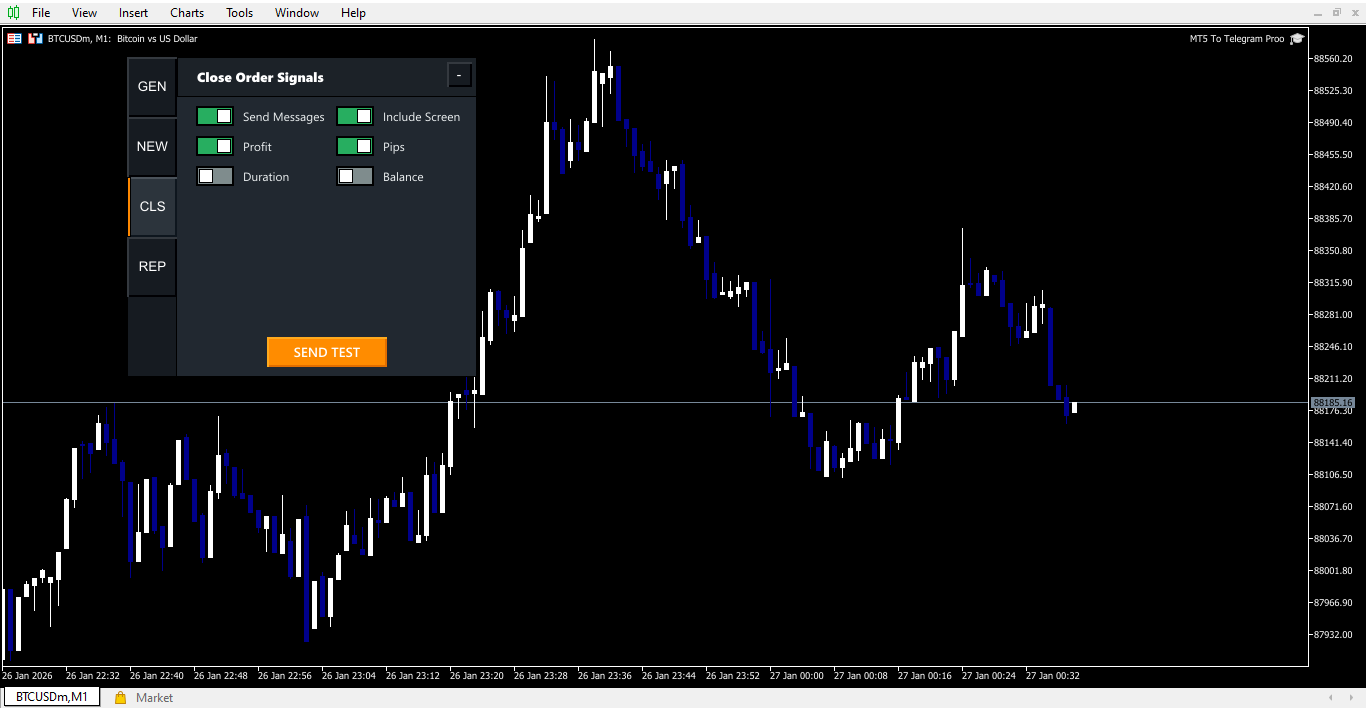
Activate the input to :
- Allows sending messages to Telegram
- Allows sending Profit to Telegram
- Allows sending Duration of trade to Telegram
- Allows include Screen shot
- Allows sending Pips
- Allows sending Balance
New Order Signals
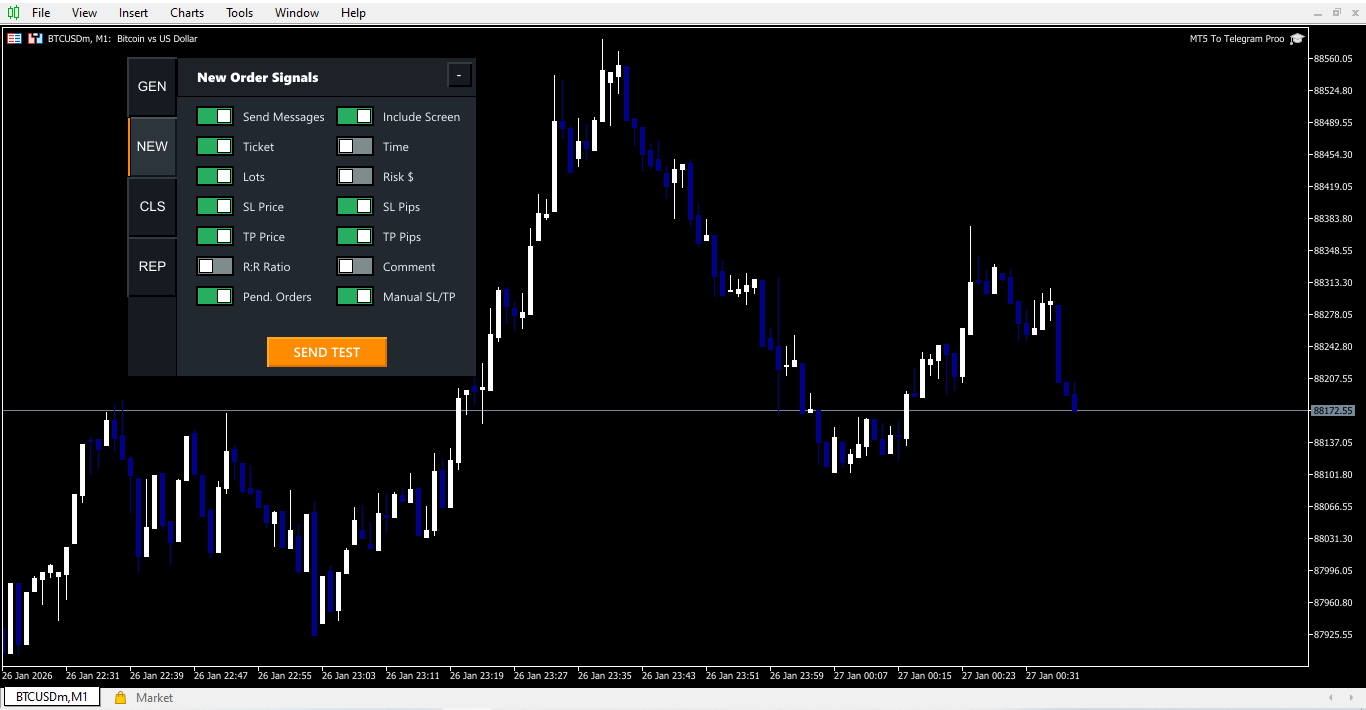
- Send Messages – Enable sending order signals to Telegram.
-
Ticket – Include order ticket in the message.
-
Lots – Show lot size of the order.
-
SL Price / SL Pips – Display Stop Loss as price or pips.
-
TP Price / TP Pips – Display Take Profit as price or pips.
-
Pend. Orders – Include pending orders in signals.
-
Include Screen – Attach a chart screenshot of the order.
-
Time – Optionally include order timestamp.
-
Risk $ – Show the calculated risk amount.
-
R:R Ratio – Include Risk:Reward ratio in the message.
-
Comment – Include custom comment for the order.
-
Manual SL/TP – Include manually set SL/TP in the message.
Test Messages
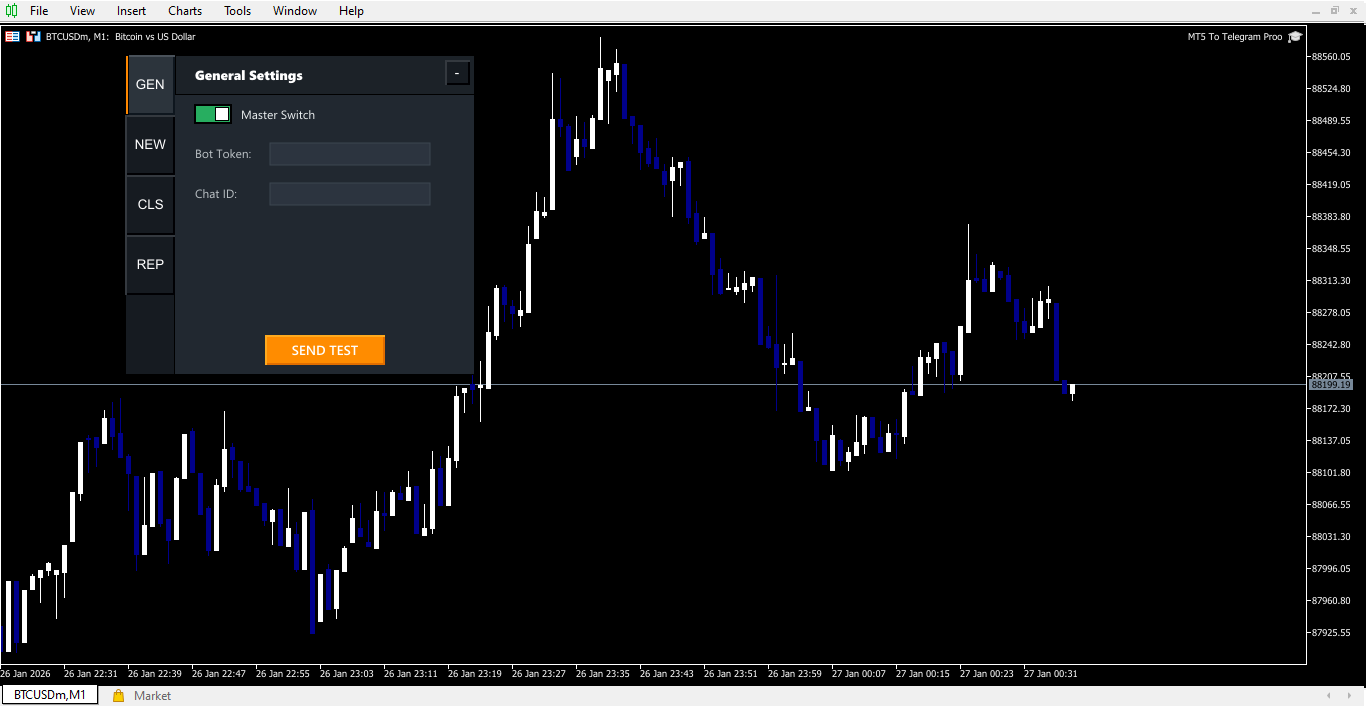
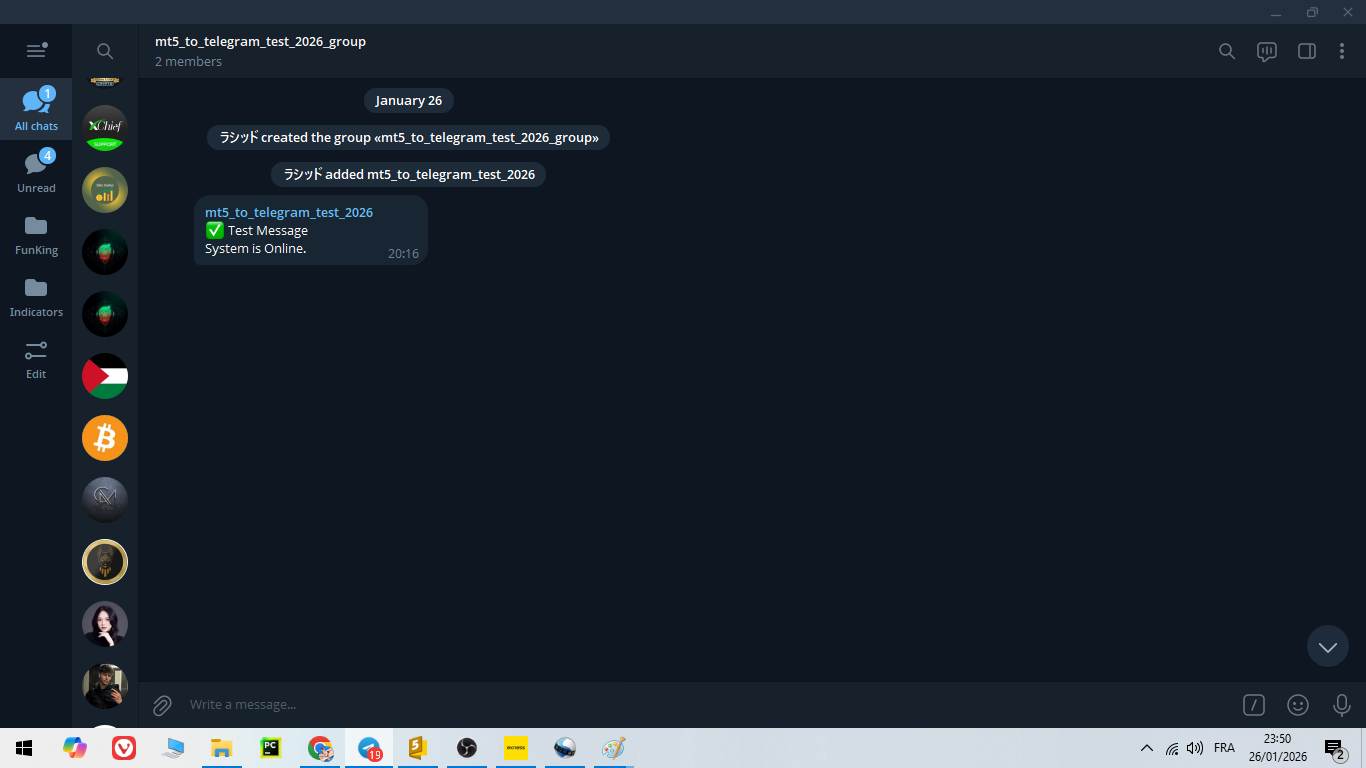
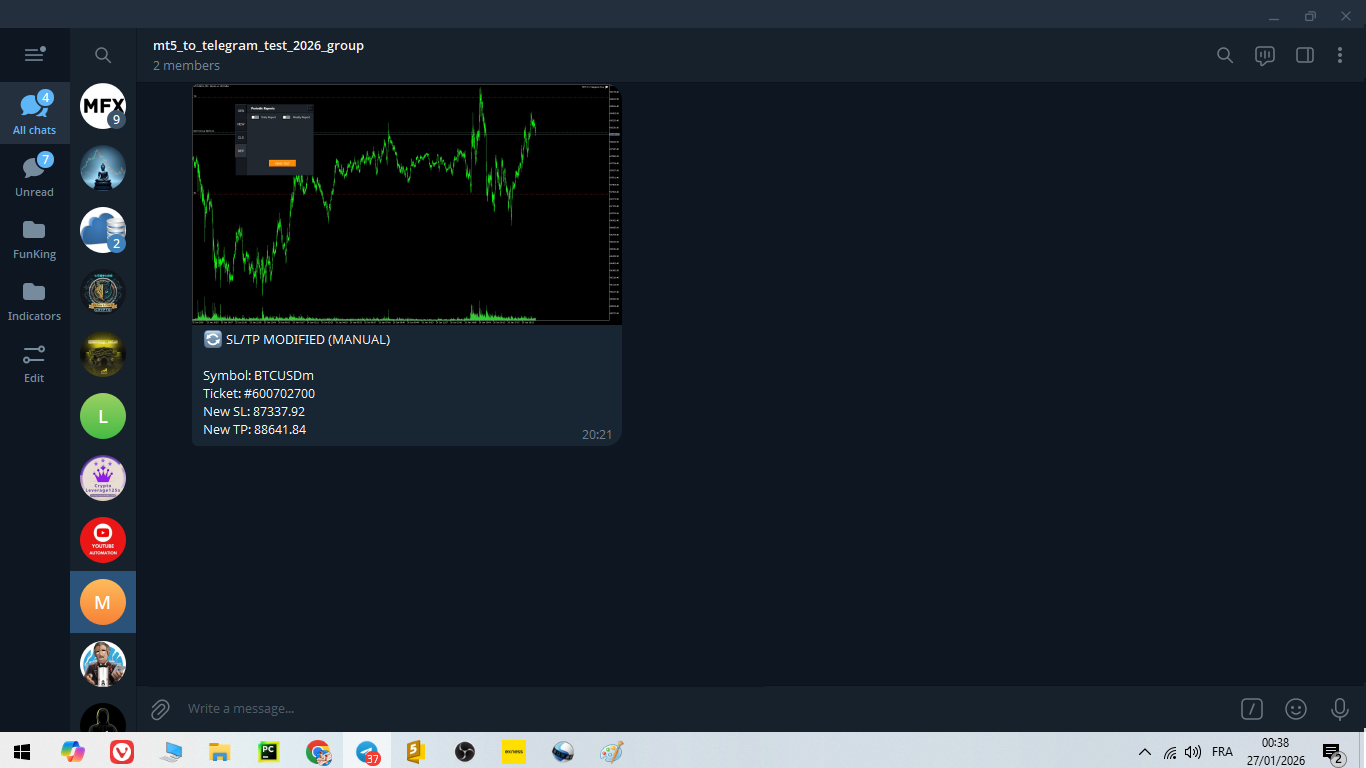
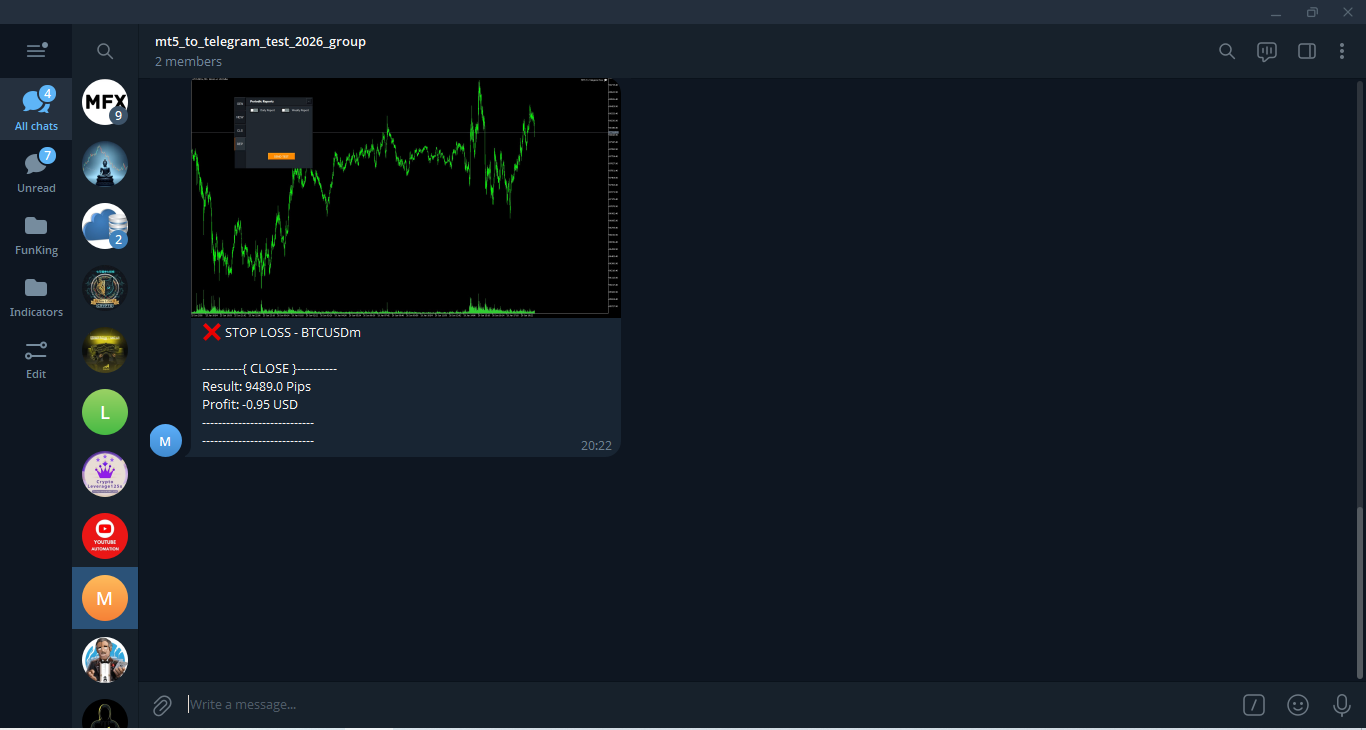
The Send test messages , once you set up your token and your chat id , can send a “test” message allowing to detecte if your set up i working or not . With the help of these messages, you can easily and instantly test the system without opening/closing real orders.
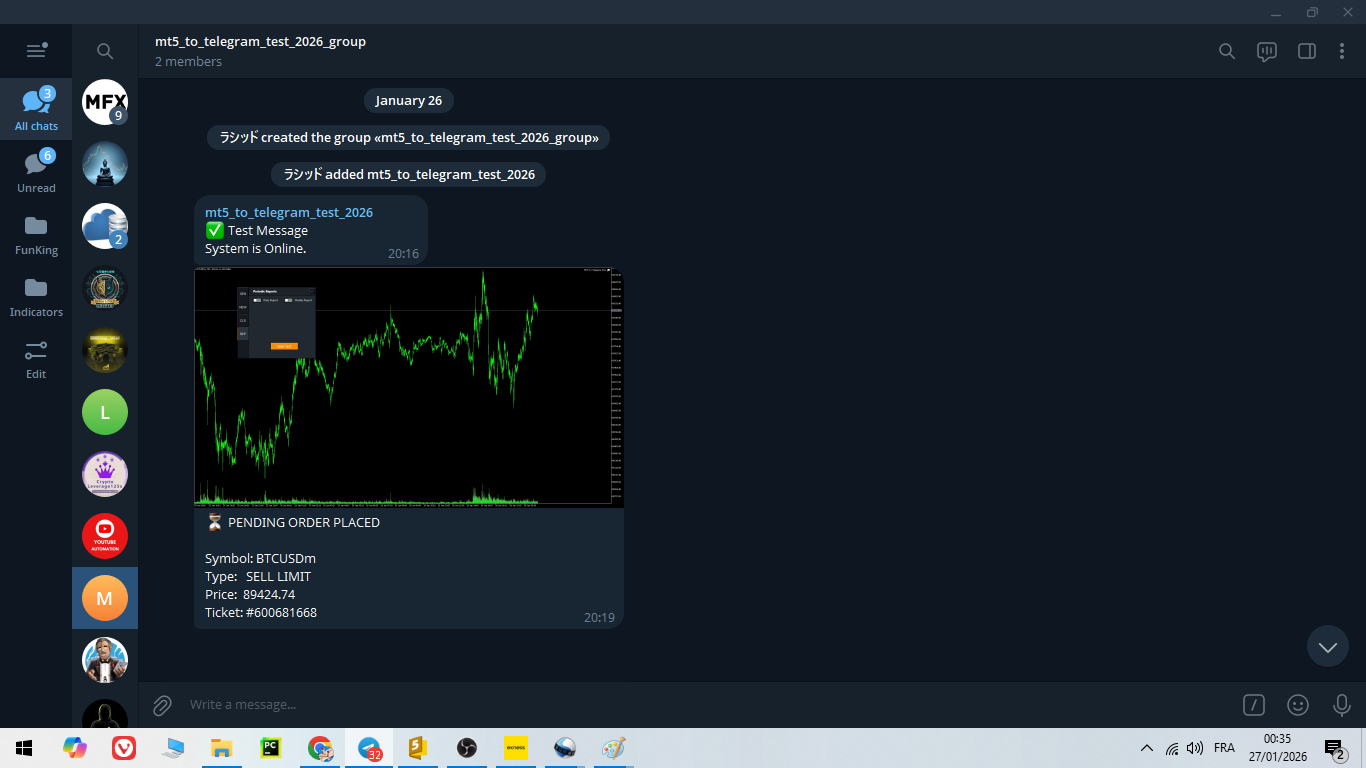
Limit order Signal
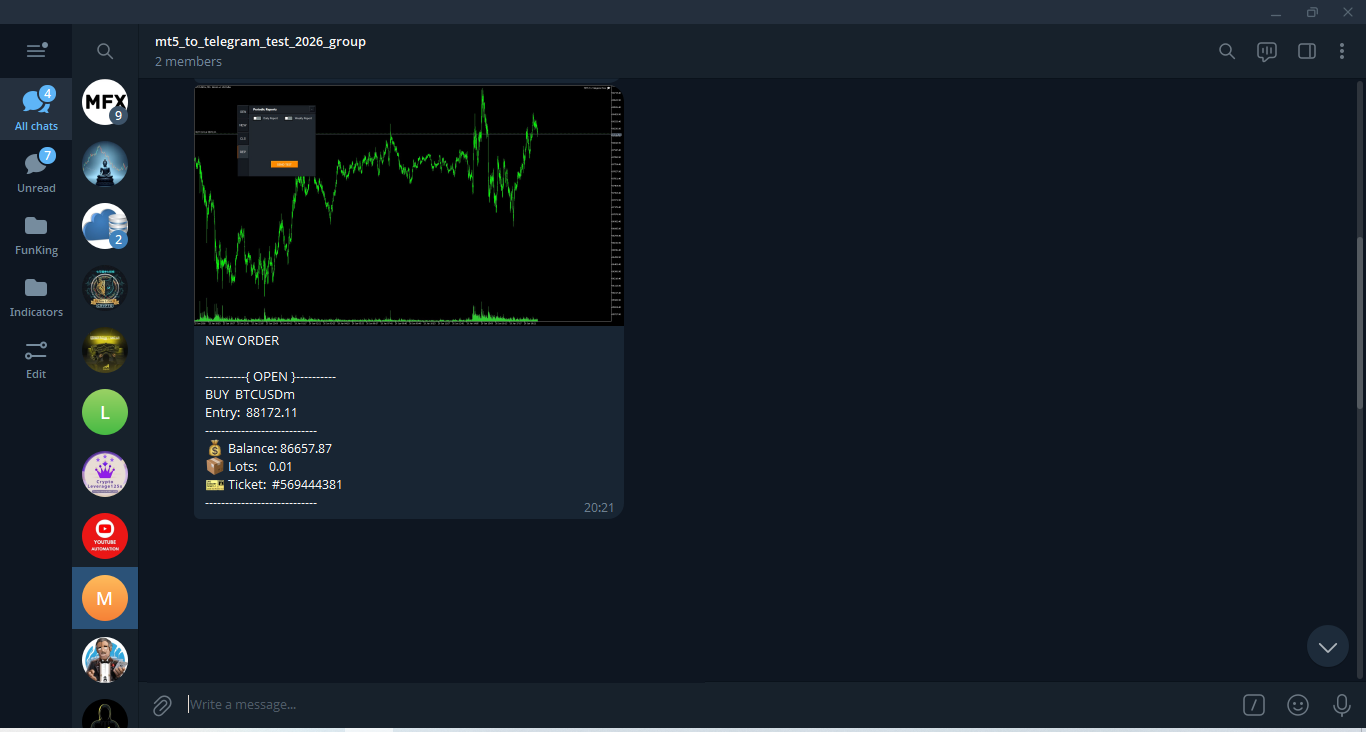
Buy & Sell Order Signal
Stop Loss Or Take Profit Modified Signal
Close Order Signal
Product Link
MT5 to Telegram Signal Provider: https://www.mql5.com/en/market/product/163040
For any inquiries contact the developer: https://www.mql5.com/en/users/white_trader




