

Controller Objects for Everything: Draggable Slider Control
 657
657
 0
0

What is this article about?
Traders and EA developers often need to change chart properties or EA parameters interactively — for example, chart scale, thresholds, or lot size. Standard input parameters are not designed for continuous on-chart adjustment, while plain edit fields offer limited visual and tactile control. A compact, reusable on-chart UI element is therefore useful: it should show the range and current value, allow changing the value by dragging a handle, validate numeric input, coexist with the chart event model (OnChartEvent) without interfering with normal chart interaction, and support multiple independent instances via unique names. In this article, we implement such a draggable slider as a reusable MQL5 class, explain its event-driven behavior, and demonstrate how to integrate it into an EA to control a chart property directly from the chart.
Building a Class and a Layout Diagram
A convenient and scalable way to organize the creation, management, and destruction of this control is to use object-oriented programming. It means that we'll create a class to handle all the events of this object. But before creating that class, we need a new EA. This EA file will handle the chart events for our control.
//+------------------------------------------------------------------+
//|                                  Draggable Slider control EA.mq5 |
//|            https://www.mql5.com/en/users/alireza.saeedian/seller |
//+------------------------------------------------------------------+
#property link      "https://www.mql5.com/en/users/alireza.saeedian/seller"
#property version   "1.01"
//+------------------------------------------------------------------+
//| Expert initialization function                                   |
//+------------------------------------------------------------------+
int OnInit()
  {
//---
   return(INIT_SUCCEEDED);
  }
//+------------------------------------------------------------------+
//| Expert deinitialization function                                 |
//+------------------------------------------------------------------+
void OnDeinit(const int reason)
  {
  }
//+------------------------------------------------------------------+
//| ChartEvent function                                              |
//+------------------------------------------------------------------+
void OnChartEvent(const int    id,
                  const long   &lparam,
                  const double &dparam,
                  const string &sparam)
  {
  }
//+------------------------------------------------------------------+
Now let's define the object we want to create.This control consists of a background (a rectangle label), a title, a track line, a draggable handle, two labels for the minimum and maximum values, and an edit box for the current value. You can see the scheme of this project in the picture below:

Figure 1: The scheme that shows which parts are needed to be implemented in this complex object.
Creating the class variables
//+------------------------------------------------------------------+
//|                                                  CDragHandle.mqh |
//|            https://www.mql5.com/en/users/alireza.saeedian/seller |
//+------------------------------------------------------------------+
#property link      "https://www.mql5.com/en/users/alireza.saeedian/seller"
//+------------------------------------------------------------------+
//|                                                                  |
//+------------------------------------------------------------------+
class CDragHandle
  {
public:
                     CDragHandle(void);                                          //constructor
                    ~CDragHandle(void);                                          //destructor
  };
Our first step is to create a new ".mqh" file and a new class called "CDragHandle."
//+------------------------------------------------------------------+
//| adding chart objects classes as an include file                  |
//+------------------------------------------------------------------+
#include <ChartObjects\ChartObjectsTxtControls.mqh> // chart objects text control module
Let's include chart objects in the class file before declaring the object members.
private:
   CChartObjectRectLabel m_Background;   //background object
   CChartObjectLabel     m_Name;         //name object
   CChartObjectRectLabel m_Line;         //line object
   CChartObjectRectLabel m_Handle;       //handle object
   CChartObjectLabel     m_Minimum;      //minimum object
   CChartObjectLabel     m_Maximum;      //maximum object
   CChartObjectEdit      m_Current;      //current value object

   bool                  m_created;      //if the object is created or not

   int                   m_Last_X;       //last x coordinate of mouse

   int                   m_X;            //x coordinates
   int                   m_Y;            //y coordinates
   int                   m_W;            //width size
   int                   m_H;            //height size

   string                m_name;         //name of object value
   double                m_minimum;      //minimum value
   double                m_maximum;      //maximum value
   double                m_value;        //value of the object
   int                   m_digits;       //number of digits for showing min max and current value
   string                m_prefix;       //unique object name

   color                 m_BackColor;    //background of all objects
   color                 m_TextColor;    //color of all the texts
   color                 m_HandleColor;  //handle color
   color                 m_LineColor;    //line color
Every class that creates or manages an object needs some variables in it. Most of the variables in the classes are private. Sometimes, we declare a variable as protected to allow derived classes to access it, but here we define all of them as private variables. Private members prevent external code from directly modifying the internal state of the class. Now, let's think about what variables do we need. First, we need 7 simpler objects to form a Draggable Slider control:
- We need a background that is behind all the objects. The important part about it is the background color and its border color.
- We need a label object that will show the name of this object. You can set any name to it, and it has left alignment.
- We need a thick object like a line, which is a rectangle label. Its background color is important for us.
- We need a small rectangle that works like a handle. With dragging this handle, we can adjust the value. The background's color and the border's color are important for us.
- We need another label for showing the minimum value. The text color is important for us, and the color should be the same as other texts.
- We need another label for showing the maximum value. The text color is important for us, and the color should be the same as other texts.
- This is the last object, and it is an edit box. This edit box shows the current value of the parameter that we are controlling. Its background color and text color are important. The current value can be changed either by dragging the handle or by typing a number into the edit box.
"m_created" indicates whether the chart objects were created successfully. "m_Last_X" tracks the last mouse X position during dragging. The remaining variables store the control's X/Y position and width/height. This class needs a prefix. This prefix name will give a unique name to all objects of this class, and it will help to have multiple draggable slider control at the same time. We need a text for the name, for the minimum value, for the maximum value, for the current value, and also for number of digits. We need to know the digit number because sometimes we use integer values and sometimes we use double values. Four colors are needed too. We need a background color, a text color, a color for the handle, and a color for the line. You can see all of these variables in the above code.
Defined Variables
//+------------------------------------------------------------------+
//| defines                                                          |
//+------------------------------------------------------------------+
#define MIN_OBJECT_WIDTH  200
#define MAX_OBJECT_WIDTH  400
#define MIN_OBJECT_HEIGHT 75
#define MAX_OBJECT_HEIGHT 150
#define MAX_DIGITS        8
To give better control to the user of this class, we need to set a maximum and minimum size for the object. We also need a maximum number for digits. These defined variables help the user to change the limits easily.
Creating and Configuring the Draggable Slider
public:
                     CDragHandle(void);                                          //constructor
                    ~CDragHandle(void);                                          //destructor
   void              Dimensions(int x, int y, int w, int h);                     //setting dimensions
   void              SetPrefix(string str);                                      //setting prefix
   void              SetDigits(int digits);                                      //setting digits
   void              SetName(string str);                                        //setting object name
   void              SetRange(double min, double max);                           //setting min and max value
   void              SetValue(double val);                                       //set the current value
   void              SetColor(color back, color text, color line, color handle); //set colors
   double            GetValue(void);                                             //get last current value
   bool              Create(void);                                               //create draggable slider control on the chart
   bool              Destroy(void);                                              //destroying all the parts of the object
   void              RefreshValues(void);                                        //refresh the values based on class variables
   void              RefreshNames(void);                                         //refresh the names based on class variables
   void              RefreshColors(void);                                        //refresh the colors based on class variables
   void              RefreshSizes(void);                                         //refresh the sizes based on class variables
   bool              ValidateRange(double min, double max);                      //Checking whether the values are meaningful
   void              EventHandle(const int32_t id, const long &lparam,
                                 const double &dparam, const string &sparam);    //Event Handler Function
   void              UpdateHandlePosition(void);
Every class has some functions to control the functionality of that class. In the above code, you can see the list of the functions.
Constructor
//+------------------------------------------------------------------+
//| constructor                                                      |
//+------------------------------------------------------------------+
CDragHandle::CDragHandle(void)
  {
   m_created       = false;
   m_Last_X        = -1;
   m_X             = 100;
   m_Y             = 100;
   m_W             = 200;
   m_H             = 75;
   m_name          = "Draggable Slider Control";
   m_minimum       = 0;
   m_maximum       = 10;
   m_value         = 0;
   m_digits        = 0;
   m_prefix        = "001";
   m_BackColor     = clrBisque;
   m_TextColor     = clrBlack;
   m_HandleColor   = clrSilver;
   m_LineColor     = clrLightBlue;
  }
Here we assign default values to all class members.
Destructor
//+------------------------------------------------------------------+
//| destructor                                                       |
//+------------------------------------------------------------------+
CDragHandle::~CDragHandle(void)
  {
   Destroy();
  }
A destructor function is needed when we are finishing our work with this class. In this function, we have "Destroy," which deletes all the objects from the chart.
Creating and Managing the Control Objects
Create Function//--- return if objects are created before if(m_created) return(false); bool result = true;This function returns false if objects are created before. The result variable will save object creation results.
//--- 1. create the background
   if(!m_Background.Create(ChartID(), m_prefix+"-DraggingHandle-Background", 0, m_X, m_Y, m_W, m_H))
      result = false;
   else
     {
      m_Background.Color(m_BackColor);
      m_Background.BackColor(m_BackColor);
     }
This function should be called from OnInit() . Every chart object has many different properties. For the background, we use x, y, w, and h for setting dimensions. A command to set the border and background colors.
//--- 2. create the name object and properties
   if(!m_Name.Create(ChartID(), m_prefix+"-DraggingHandle-Name", 0, m_X+5, m_Y+5))
      result = false;
   else
     {
      m_Name.Color(m_TextColor);
      m_Name.Description(m_name);
     }
For the name object, we leave a 5-pixel margin from the left and top edges to create a padding. We set the background color, border color, and alignment (to the left). We use the name variable to fill the text. This object is read-only.
//--- 3. create the line object and properties
   if(!m_Line.Create(ChartID(), m_prefix+"-DraggingHandle-Line", 0, m_X+5, m_Y+5+20+10, m_W-10, 5))
      result = false;
   else
     {
      m_Line.BackColor(m_LineColor);
      m_Line.Color(m_BackColor);
     }
For the line, we have a 5-pixel margin from the left (x+5) and a 5-pixel margin from the right (w-10). The height of this object is 5 pixels. We should also set the line color and a border color.
//--- 4. create the handle object and properties
   if(!m_Handle.Create(ChartID(), m_prefix+"-DraggingHandle-Handle", 0, m_X+5+((m_W-10)/2)-3, m_Y+30, 6, 15))
      result = false;
   else
     {
      m_Handle.BackColor(m_HandleColor);
      m_Handle.Color(m_BackColor);
     }
For the draggable slider control, we want to set it to the middle so the formula is (X+5+((W-10)/2)-3). We reduce 3 pixels because the width of the handle is 6 pixels, so the middle of the handle is in the middle of the line. We also should set the background handle color and a border color.
//--- 5. create the minimum object and properties
   if(!m_Minimum.Create(ChartID(), m_prefix+"-DraggingHandle-Minimum", 0, m_X+5, m_Y+50))
      result = false;
   else
     {
      m_Minimum.Color(m_TextColor);
      m_Minimum.Description(DoubleToString(m_minimum, m_digits));
     }
//--- 6. create the current value object and its properties
   if(!m_Current.Create(ChartID(), m_prefix+"-DraggingHandle-Current", 0, m_X+5+(1*(m_W-10)/3), m_Y+50, (m_W-10)/3, 20))
      result = false;
   else
     {
      m_Current.BackColor(m_BackColor);
      m_Current.BorderColor(m_BackColor);
      m_Current.Color(m_TextColor);
      m_Current.TextAlign(ALIGN_CENTER);
      m_Current.Description(DoubleToString(m_value, m_digits));
      m_Current.ReadOnly(false);
     }
//--- 7. create the maximum object and properties
   if(!m_Maximum.Create(ChartID(), m_prefix+"-DraggingHandle-Maximum", 0, m_X+5+(2*(m_W-10)/3)+50, m_Y+50))
      result = false;
   else
     {
      m_Maximum.Color(m_TextColor);
      m_Maximum.Description(DoubleToString(m_maximum, m_digits));
     }
Now 3 objects remain to create. The minimum, the maximum, and also an edit box that shows the current value of the box. We divide the width of the object into 3 parts. But first, we need to reduce 10 pixels because of the margin. So the width is w-10, and each part is (w-10)/3. The margin of Y from the top is 50 pixels. You can see the exact formula in the below code. Just keep in mind that minimum and maximum labels are read-only, but the current value is adjustable and is not read-only. The background of the texts is the same as the background color. The text color is black be default, and the border color is always the same as the background color.
//--- if all objects are created successfully
   if(result)
     {
      m_created=true;
      UpdateHandlePosition();
      return(true);
     }
//--- if all the objects aren't created successfully
   else
     {
      Destroy();
      return(false);
     }
Finally, because the value is set manually, we need to call the "Update Handle Position" function to synchronize the handle with the new value. Before doing so, we first verify that all objects have been created successfully.
Destroy Function
//+------------------------------------------------------------------+
//| Destroy all the objects                                          |
//+------------------------------------------------------------------+
bool CDragHandle::Destroy(void)
  {
   bool deleted = true;
//--- deleting all the objects one by one
   if(!m_Background.Delete())
      deleted = false;
   if(!m_Name.Delete())
      deleted = false;
   if(!m_Line.Delete())
      deleted = false;
   if(!m_Handle.Delete())
      deleted = false;
   if(!m_Minimum.Delete())
      deleted = false;
   if(!m_Current.Delete())
      deleted = false;
   if(!m_Maximum.Delete())
      deleted = false;
   m_created = false;
   m_Last_X   = -1;
//--- checking if all the objects are deleted
   if(deleted)
     {
      ChartSetInteger(ChartID(), CHART_MOUSE_SCROLL, true);
      return(true);
     }
   else
     {
      return(false);
     }
  }
In this function, we delete all the parts one by one, and we set -1 to the last mouse position, and also we set "m_created" to false. If the object is deleted successfully, we change the mouse scroll to true. The values "0" and "1" used for the mouse state in this article are related to MQL5 mouse move events: "0" indicates that the left mouse button is not pressed, while "1" indicates that it is pressed.
Updating the Control
Dimensions Function
//+------------------------------------------------------------------+
//| setting dimensions                                               |
//+------------------------------------------------------------------+
void CDragHandle::Dimensions(int x, int y, int w, int h)
  {
//--- checking the chart height and width
   int Chart_Width  = (int)ChartGetInteger(ChartID(), CHART_WIDTH_IN_PIXELS);
   if(Chart_Width<=0)
      Chart_Width  = 1920;
   int Chart_Height = (int)ChartGetInteger(ChartID(), CHART_HEIGHT_IN_PIXELS);
   if(Chart_Height<=0)
      Chart_Height = 1080;
//---
   if(w<=MAX_OBJECT_WIDTH && w>=MIN_OBJECT_WIDTH)
      m_W = w;
   else
      m_W = MIN_OBJECT_WIDTH;
//---
   if(h<=MAX_OBJECT_HEIGHT && h>=MIN_OBJECT_HEIGHT)
      m_H = h;
   else
      m_H = MIN_OBJECT_HEIGHT;
//---
   if(x>=0 && x<=Chart_Width-m_W)
      m_X = x;
   else
      m_X = 0;
//---
   if(y>=0 && y<=Chart_Height-m_H)
      m_Y = y;
   else
      m_Y = 0;
//---
   RefreshSizes();
  }
The very first function that we need is a function to set dimensions. This function will set X, Y, width, and height. In this class, we use setter and getter methods to control access to private members. In this function, first we find the width and the height of our chart in pixels. If we cannot find the chart width and height, the default value is the size of the Full HD monitors, which is 1920 pixels wide and 1080 pixels high. In the second step, we check whether the width and height are within the specified minimum and maximum limits. If they are not, we assign them the minimum values.
Set Prefix Function
//+------------------------------------------------------------------+
//| set the prefix                                                   |
//+------------------------------------------------------------------+
void CDragHandle::SetPrefix(string str)
  {
//--- setting the prefix variable
   if(str=="")
      m_prefix="001";
   else
      m_prefix=str;
//---
   RefreshNames();
  }
In this function, we assign the prefix value to the class variable. If the provided value is empty, the default value of "001" is assigned; otherwise, the specified value is used. Finally, all the object names must be refreshed.
Set Digits Function
//+------------------------------------------------------------------+
//| set the digits                                                   |
//+------------------------------------------------------------------+
void CDragHandle::SetDigits(int digits)
  {
   if(digits<0)
      m_digits = 0;
   else
      if(digits>MAX_DIGITS)
         m_digits = MAX_DIGITS;
      else
         m_digits = digits;
//---
   RefreshValues();
  }
In this function, we just accept digits more than or equal to 0, and the number of digits must not be more than the maximum digits that have been defined in the first part of the code. Finally, we refresh the values because the number format has changed.
Set Name Function
//+------------------------------------------------------------------+
//| set the object name                                              |
//+------------------------------------------------------------------+
void CDragHandle::SetName(string str)
  {
   if(str=="")
      m_name="Draggable Slider Control";
   else
      m_name=str;
//---
   if(m_created)
      m_Name.Description(m_name);
  }
The set name function updates the header text of the draggable object, which we refer to as the "NAME."
Set Range Function
//+------------------------------------------------------------------+
//| set the range - min - max                                        |
//+------------------------------------------------------------------+
void CDragHandle::SetRange(double min, double max)
  {
//---checking if the min and the max value are meaningful or not
   if(ValidateRange(min, max))
     {
      //--- setting the maximum and the minimum
      m_minimum = NormalizeDouble(min,m_digits);
      m_maximum = NormalizeDouble(max,m_digits);
      //--- The current value must remain within the new range
      if(m_value<m_minimum)
         m_value = m_minimum;
      if(m_value>m_maximum)
         m_value = m_maximum;
      //--- refresh texts and also handle position
      RefreshValues();
      UpdateHandlePosition();
     }
  }
First, this function validates the specified minimum and maximum values. It then stores them in the corresponding class variables. If the current object value falls outside the specified range, it is clamped to the nearest limit. Finally, the displayed value is updated, and the handle position is refreshed.
Set Value Function
//+------------------------------------------------------------------+
//| set the current value                                            |
//+------------------------------------------------------------------+
void CDragHandle::SetValue(double val)
  {
   if(ValidateRange(m_minimum, m_maximum))
     {
      //--- the value should be between minimum and maximum
      if(val<m_minimum)
         m_value = m_minimum;
      else
         if(val>m_maximum)
            m_value = m_maximum;
         else
            m_value = NormalizeDouble(val,m_digits);
      //--- refresh texts and also handle position
      RefreshValues();
      UpdateHandlePosition();
     }
  }
In this function, we again check the maximum and minimum values. If it is valid, we reset the class variable of the current value. Again we refresh the values, and we update the location of the handle.
Set Color Function
//+------------------------------------------------------------------+
//| set the colors                                                   |
//+------------------------------------------------------------------+
void CDragHandle::SetColor(color back, color text, color line, color handle)
  {
//--- changing colors
   m_BackColor   = back;
   m_TextColor   = text;
   m_LineColor   = line;
   m_HandleColor = handle;
//--- changing colors
   RefreshColors();
  }
This function changes the colors of different parts of the object. Finally, it will refresh all the objects on the chart.
//+------------------------------------------------------------------+
//| get the last current value                                       |
//+------------------------------------------------------------------+
double CDragHandle::GetValue(void)
  {
   return(m_value);
  }
This function is so simple. You just need to call this function, and it will return the last value of this object.
Refresh Functions (4 different functions)
//+------------------------------------------------------------------+
//| refresh the values                                               |
//+------------------------------------------------------------------+
void CDragHandle::RefreshValues(void)
  {
//--- if objects are created before
   if(m_created)
     {
      m_Minimum.Description(DoubleToString(m_minimum, m_digits)); //reset minimum
      m_Maximum.Description(DoubleToString(m_maximum, m_digits)); //reset maximum
      m_Current.Description(DoubleToString(m_value, m_digits));   //reset current value
      ChartRedraw();
     }
  }
//+------------------------------------------------------------------+
//| refresh the value of minimum, maximum and current value          |
//+------------------------------------------------------------------+
void CDragHandle::RefreshNames(void)
  {
   if(!m_created)
      return;
   string Name_Parts[];
//--- resetting the background object name
   StringSplit(m_Background.Name(), '-', Name_Parts);
   if(ArraySize(Name_Parts)>=3)
      m_Background.Name(m_prefix+"-"+Name_Parts[1]+"-"+Name_Parts[2]);
   ArrayFree(Name_Parts);
//--- resetting the Name object name
   StringSplit(m_Name.Name(), '-', Name_Parts);
   if(ArraySize(Name_Parts)>=3)
      m_Name.Name(m_prefix+"-"+Name_Parts[1]+"-"+Name_Parts[2]);
   ArrayFree(Name_Parts);
//--- resetting the line object name
   StringSplit(m_Line.Name(), '-', Name_Parts);
   if(ArraySize(Name_Parts)>=3)
      m_Line.Name(m_prefix+"-"+Name_Parts[1]+"-"+Name_Parts[2]);
   ArrayFree(Name_Parts);
//--- resetting the handle object name
   StringSplit(m_Handle.Name(), '-', Name_Parts);
   if(ArraySize(Name_Parts)>=3)
      m_Handle.Name(m_prefix+"-"+Name_Parts[1]+"-"+Name_Parts[2]);
   ArrayFree(Name_Parts);
//--- resetting the minimum object name
   StringSplit(m_Minimum.Name(), '-', Name_Parts);
   if(ArraySize(Name_Parts)>=3)
      m_Minimum.Name(m_prefix+"-"+Name_Parts[1]+"-"+Name_Parts[2]);
   ArrayFree(Name_Parts);
//--- resetting the maximum object name
   StringSplit(m_Maximum.Name(), '-', Name_Parts);
   if(ArraySize(Name_Parts)>=3)
      m_Maximum.Name(m_prefix+"-"+Name_Parts[1]+"-"+Name_Parts[2]);
   ArrayFree(Name_Parts);
//--- resetting the current object name
   StringSplit(m_Current.Name(), '-', Name_Parts);
   if(ArraySize(Name_Parts)>=3)
      m_Current.Name(m_prefix+"-"+Name_Parts[1]+"-"+Name_Parts[2]);
   ArrayFree(Name_Parts);
  }
//+------------------------------------------------------------------+
//| refresh the value of minimum, maximum and current value          |
//+------------------------------------------------------------------+
void CDragHandle::RefreshSizes(void)
  {
//--- return if objects are not created
   if(!m_created)
      return;
//---the background object
   m_Background.X_Distance(m_X);
   m_Background.Y_Distance(m_Y);
   m_Background.X_Size(m_W);
   m_Background.Y_Size(m_H);
//---the name object
   m_Name.X_Distance(m_X+5);
   m_Name.Y_Distance(m_Y+5);
//---the line object
   m_Line.X_Distance(m_X+5);
   m_Line.Y_Distance(m_Y+5+20+10);
   m_Line.X_Size(m_W-10);
   m_Line.Y_Size(5);
//---the handle object
   m_Handle.X_Distance(m_X+5);
   m_Handle.Y_Distance(m_Y+30);
   m_Handle.X_Size(6);
   m_Handle.Y_Size(15);
//---the minimum object
   m_Minimum.X_Distance(m_X+5);
   m_Minimum.Y_Distance(m_Y+50);
//---the current value object
   m_Current.X_Distance(m_X+5+(1*(m_W-10)/3));
   m_Current.Y_Distance(m_Y+50);
   m_Current.X_Size((m_W-10)/3);
   m_Current.Y_Size(20);
//---the maximum object
   m_Maximum.X_Distance(m_X+5+(2*(m_W-10)/3)+50);
   m_Maximum.Y_Distance(m_Y+50);
//---
   UpdateHandlePosition(); //we should update the handle position based on last sizes and values
  }
//+------------------------------------------------------------------+
//| Renewing colors based on class variables                         |
//+------------------------------------------------------------------+
void CDragHandle::RefreshColors(void)
  {
//---
   if(!m_created)
      return;
//--- the background object
   m_Background.Color(m_BackColor);
   m_Background.BackColor(m_BackColor);
//--- the name object
   m_Name.Color(m_TextColor);
//--- the line object
   m_Line.BackColor(m_LineColor);
   m_Line.Color(m_BackColor);
//--- the handle object
   m_Handle.BackColor(m_HandleColor);
   m_Handle.Color(m_BackColor);
//--- the minimum object
   m_Minimum.Color(m_TextColor);
//--- the current value object
   m_Current.BackColor(m_BackColor);
   m_Current.BorderColor(m_BackColor);
   m_Current.Color(m_TextColor);
//--- the maximum object
   m_Maximum.Color(m_TextColor);
   ChartRedraw(); //redraw the chart to reset the colors
  }
These four functions refresh different aspects of the control. First, refresh the number of minimum, maximum, and current objects. The second function refreshes object names by splitting the current name into three parts and replacing the prefix, but you should know that this method assumes the prefix uses the prefix-type-part format. The 3rd function refreshes the sizes of all parts. Finally, it is critical to call the update handle position function. Finally, is the refresh colors function. This one will check all class color variables and change the display of them if any of the colors have changed.
Validate Range Function
//+------------------------------------------------------------------+
//| Validating the minimum and maximum values                        |
//+------------------------------------------------------------------+
bool CDragHandle::ValidateRange(double min, double max)
  {
   if(min>=max)
     {
      Print("minimum is greater or equal to maximum");
      return(false);
     }
   else
     {
      return(true);
     }
  }
This function validates that the minimum value is less than the maximum value.
Set Numeric Value
//+------------------------------------------------------------------+
//| checking numeric value in a text                                 |
//+------------------------------------------------------------------+
bool SetNumericValue(string text, double &value)
  {
   int length = StringLen(text);
// Empty string
   if(length == 0)
      return false;
   bool has_digit = false;
   bool has_separator = false;
// Check every character
   for(int i = 0; i < length; i++)
     {
      ushort c = StringGetCharacter(text, i);
      // Digit: 0-9
      if(c >= '0' && c <= '9')
        {
         has_digit = true;
         continue;
        }
      // Decimal separator: dot or comma
      if(c == '.' || c == ',')
        {
         // Only one decimal separator is allowed
         if(has_separator)
            return false;
         has_separator = true;
         continue;
        }
      // Sign is allowed only at the beginning
      if(c == '-' || c == '+')
        {
         if(i != 0)
            return false;
         continue;
        }
      // Anything else is invalid
      return false;
     }
// There must be at least one digit
   if(!has_digit)
      return false;
// Convert comma to dot for StringToDouble()
   StringReplace(text, ",", ".");
// Convert the validated text to double
   value = StringToDouble(text);
   return true;
  }
When we are trying to enter a value in the current edit box, we may make a mistake by entering a letter or a non-numeric character. The function above will check the value we entered. If it is a number, it will return true otherwise, false.
Update Handle Position
//+------------------------------------------------------------------+
//| update the handle coordinates                                    |
//+------------------------------------------------------------------+
void CDragHandle::UpdateHandlePosition(void)
  {
   if(!m_created)
      return;
//--- minimum shouldn't be greater than maximum
   if(!ValidateRange(m_minimum, m_maximum))
      return;
//--- checking if the value is between minimum and maximum
   double val = m_value;
   if(val < m_minimum)
      val = m_minimum;
   if(val > m_maximum)
      val = m_maximum;
   double multiplier = (val - m_minimum) / (m_maximum - m_minimum);
   int point = m_Line.X_Distance() + (int)MathRound(m_Line.X_Size() * multiplier) - 3;
   m_Handle.X_Distance(point); //Setting the handle in the correct position
   ChartRedraw();
  }
This function changes the handle position based on the current value of the object. First, the object should be created. Second, the minimum and the maximum values should be valid. Third, the current value should be between the minimum and the maximum values. Finally, we change the handle position to the right position.
Handling User Interaction
//+------------------------------------------------------------------+
//| Object Event Function                                            |
//+------------------------------------------------------------------+
void CDragHandle::EventHandle(const int id, const long &lparam, const double &dparam, const string &sparam)
  {
//--- check whether object is created before or not
   if(!m_created)
      return;
//--- disable scroll charting while the cursor is over the control
   if(id==CHARTEVENT_MOUSE_MOVE) //if id is object move
     {
      //--- if the object is in the background object's boundaries
      if(lparam>=m_Background.X_Distance() && lparam<=m_Background.X_Distance()+m_Background.X_Size() &&
         dparam>=m_Background.Y_Distance() && dparam<=m_Background.Y_Distance()+m_Background.Y_Size())
        {
         ChartSetInteger(ChartID(), CHART_MOUSE_SCROLL, false);
        }
      else //we should turn on the scroll if the mouse is out of the object borders and we are not dragging it
         if(m_Last_X==-1)
           {
            ChartSetInteger(ChartID(), CHART_MOUSE_SCROLL, true);
           }
     }
//--- if we change the value of current value
   if(id==CHARTEVENT_OBJECT_ENDEDIT && sparam==m_Current.Name()) //if we end editing the current value object
     {
      //--- checking if the edit box is numeric value
      double value_1 = 0;
      if(!SetNumericValue(m_Current.Description(), value_1))
        {
         m_Current.Description(DoubleToString(m_value, m_digits));
         Print("Enter a numeric value!");
         ChartRedraw();
         return;
        }
      //--- checking minimum and maximum
      if(!ValidateRange(m_minimum, m_maximum))
         return;
      //--- checking if the current value is between minimum and maximum
      if(value_1<=m_minimum)
         value_1 = m_minimum;
      if(value_1>=m_maximum)
         value_1 = m_maximum;
      m_value = NormalizeDouble(value_1, m_digits); //setting the current value variable again
      UpdateHandlePosition();
     }
//--- of we drag the handle
   if(id==CHARTEVENT_MOUSE_MOVE) //if id is equal to object move
     {
      if(sparam=="1" && m_Last_X==-1) //clicked and held
        {
         //--- if we clicked and held the mouse in the borders of handle object
         if(lparam>=m_Handle.X_Distance() && lparam<=m_Handle.X_Distance()+m_Handle.X_Size() &&
            dparam>=m_Handle.Y_Distance() && dparam<=m_Handle.Y_Distance()+m_Handle.Y_Size())
           {
            m_Last_X = (int)lparam;
           }
        }
      //--- if we click and hold the left mouse click on the handle object
      if(m_Last_X!=-1)
        {
         int dif_m_X = (int)(lparam-m_Last_X); //finding the difference
         //--- limits of moving the handle object from left
         int new_x = m_Handle.X_Distance() + dif_m_X;
         int min_x = m_Line.X_Distance() - 3;
         int max_x = m_Line.X_Distance() + m_Line.X_Size() - 3;
         if(new_x < min_x)
            new_x = min_x;
         if(new_x > max_x)
            new_x = max_x;
         m_Handle.X_Distance(new_x); //moving handle object
         double percent_1 = (double)(m_Handle.X_Distance()+3-m_Line.X_Distance())/(double)(m_Line.X_Size()); //calculating the multiplier
         double value_1   = NormalizeDouble(m_minimum+((m_maximum-m_minimum)*percent_1), m_digits); //finding the current value
         //--- checking whether the value is between min and max
         if(value_1<=m_minimum)
            value_1 = m_minimum;
         if(value_1>=m_maximum)
            value_1 = m_maximum;
         m_Current.Description(DoubleToString(value_1, m_digits)); //resetting current object text
         m_value = value_1; //resetting the value
         m_Last_X = (int)lparam; //renew last mouse position for the new move
         ChartRedraw();
        }
      //if we released the left click of the mouse and if the handle was being held
      if(sparam=="0" && m_Last_X!=-1)
        {
         m_Last_X = -1; //release the handle movement
        }
     }
  }
This function has four parameters; we pass the event ID, the event's long parameter, the double parameter, and the string parameter. In this function, we have three parts.
- Setting mouse scroll to true or false.
- If we change the value in the edit box. This change will adjust the value variable and also move the handle in the correct position.
- The event of clicking, holding, and moving the handle.
Each OnChartEvent callback provides four parameters: "id", "lparam", "dparam", and "sparam." The first part shows the type of that event. For example, when you press a key, end editing an object, click on the chart, and so on. The long parameter and double parameter usually show the position of your clicking, where your mouse is. This means it usually shows the point. The string parameter sometimes shows the name of an object, and sometimes it shows the state of your mouse.
In the first part, we need the ID of the mouse move, but before being able to use that ID, which is 10, we should send a command in the EAs file to turn on the mouse move reading action. I call this function in the "OnInit function."
ChartSetInteger(ChartID(), CHART_EVENT_MOUSE_MOVE, true); //enable the event of mouse moveAfter enabling CHART_EVENT_MOUSE_MOVE, OnChartEvent is triggered on every mouse move. This is used to disable chart scrolling while the cursor is over the control, preventing the chart from scrolling during handle dragging. So now, let's explain that part of the code. First we check if there is a mouse move when it runs the "OnChartEvent" function and returns ID 10. Then we check if the position of the mouse is in the borders of our background; if it is, we set the mouse scroll to false and if it isn't, we set the mouse scroll to true.
Setting mouse scroll to true or false is for the case that we have just one object on the chart, and if we have a dashboard, the behavior may differ in a dashboard setup.
If you end the editing action of an object like an edit box, the ID of the event will be 3, and the string parameter of this object will be the name of that object. Our next step is to read the value from the object's description. This value is a string value, and we convert it to double type. We check if the entered value is between the minimum and the maximum. The next step is to calculate a multiplier. This multiplier shows how far we are from the minimum by a number between 0 and 1. Now, multiply the calculated ratio by the line's length, then add the result to the line's left position. Now we have the point where the center of the handle should be. At this point, subtract 3 pixels from the current position to reach the handle's left X coordinate. Finally, we should reset the current value of this object.
The third part of the event function is about dragging the handle. Again, we first need to check whether we're dealing with the mouse move event ID. When you move the mouse without holding the left mouse click, the string parameter will return "0," and if you move the mouse while you are holding the left mouse click, it will return "1."
- Mode 1: In mode 1, we are clicking on the handle object and holding the left key. In this mode, the "LastX" value is -1. This variable helps us find out in which situation we are. When this variable shows a value different from -1, it means that we've clicked on the object and are holding down the left mouse button. In this case, we set the last x-coordinate of the handle object.
- Mode 2: In mode 2, we first find how long the mouse moved. We set two limits to not let the mouse move the handle more than the line limits. The next step is for moving the handle object and also recalculating the current value of this object and resetting the value of the object.
- Mode 3: At this point, we've released the left mouse button, but the last X position is still a number greater than -1. So, by resetting this value to -1, we release the object.
Using the Slider to Control Chart Scale
Let's first include the class:
//+------------------------------------------------------------------+
//| include files and object instances                               |
//+------------------------------------------------------------------+
#include "CDragHandle.mqh"
CDragHandle drag;
Now, I want to make a real example. We all know that chart zoom has 6 modes. It ranges from 0 to 5. Now I would like to create an object that changes the chart zoom level by dragging the handle.
//+------------------------------------------------------------------+
//| Expert initialization function                                   |
//+------------------------------------------------------------------+
int OnInit()
  {
//---
   ChartSetInteger(ChartID(), CHART_EVENT_MOUSE_MOVE, true);      //enable the event of mouse move
   int value_2 = (int)ChartGetInteger(ChartID(), CHART_SCALE, 0); //finding last scale of the chart
//---
   drag.SetRange(0,5);                                            //set object range chart zooming starts at 0 and ends at 5
   drag.SetPrefix("001");                                         //set the unique prefix
   drag.SetDigits(0);                                             //setting the digits it is integer so digit number is 0
   drag.SetName("Chart Scale");                                   //set the name
   drag.SetValue((double)value_2);                                //set the initial value
   drag.SetColor(clrSilver, clrBlack, clrBrown, clrTurquoise);    //set colors
   drag.Dimensions(50, 50, 200, 75);                              //create objects based on x,y,w,h coordinates
   drag.Create();                                                 //create the object (call this last)
//---
   return(INIT_SUCCEEDED);
  }
//+------------------------------------------------------------------+
//| Expert deinitialization function                                 |
//+------------------------------------------------------------------+
void OnDeinit(const int reason)
  {
//---
   ChartSetInteger(ChartID(), CHART_EVENT_MOUSE_MOVE, false); //disable the event of mouse move when the program ends
   ChartSetInteger(ChartID(), CHART_MOUSE_SCROLL, true);      //enable the event of mouse scroll when the program ends
  }
The next step is to call the event function of this object. At the same time, we check if the value of this object is equal to the chart scale. So, if it is not, we should reset the value.
//+------------------------------------------------------------------+
//| ChartEvent function                                              |
//+------------------------------------------------------------------+
void OnChartEvent(const int    id,
                  const long   &lparam,
                  const double &dparam,
                  const string &sparam)
  {
   drag.EventHandle(id, lparam, dparam, sparam);                        //calling the event function of the Draggable Slider control object
   if(drag.GetValue()!=(int)ChartGetInteger(ChartID(), CHART_SCALE, 0)) //if the scale of chart is not equal to last value of the object
      ChartSetInteger(ChartID(), CHART_SCALE, (int)drag.GetValue());    //reset the chart scale based on last value of the object
  }
Now you can see what happens when I drag the handle.
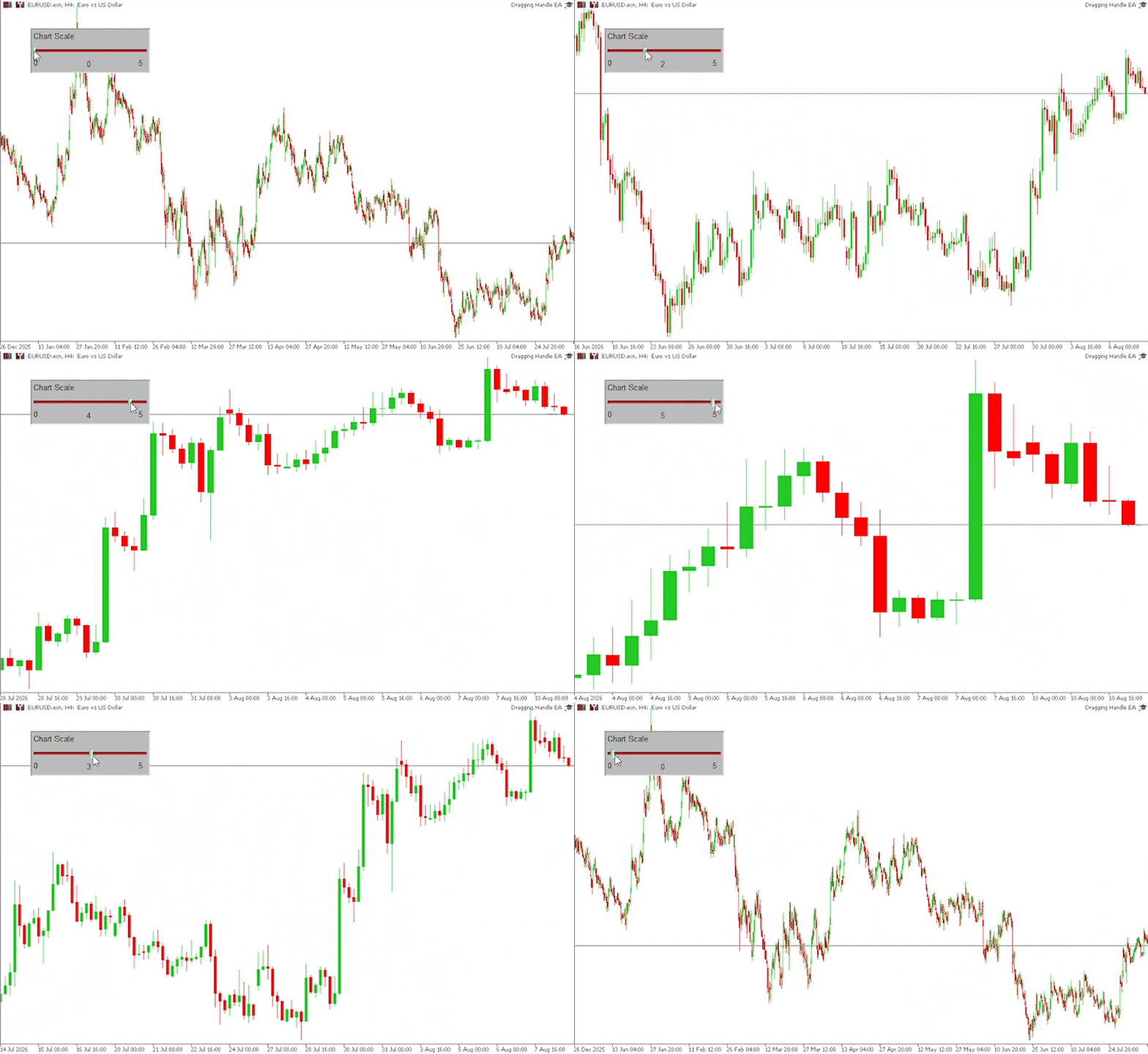
The chart scale changes when you drag the handle in the slider object.
Conclusion
We decomposed the slider into seven chart objects (background, title, track, handle, min/max labels, and a current edit box), packaged them into a single CDragHandle class, and bound its behavior to chart events: mouse move, hold, release, and end-edit. The resulting control provides range validation, numeric input checking, synchronization between the handle position and the numeric value, and coordinates with CHART_EVENT_MOUSE_MOVE to prevent chart scrolling while the user interacts with the control.
Publicly available methods let you configure and reuse the control: Dimensions(…), SetPrefix(…), SetDigits(…), SetName(…), SetRange(…), SetValue(…), SetColor(…), Create(), Destroy(), EventHandle(…), and GetValue(). The integration pattern is straightforward: enable CHART_EVENT_MOUSE_MOVE in OnInit, configure the slider's properties, call Create(), forward OnChartEvent parameters to EventHandle(…), apply the slider value to your target (for example, ChartSetInteger(CHART_SCALE, (int)drag.GetValue())), and restore the chart event settings in OnDeinit. The same pattern can be adapted to other chart properties and numeric EA parameters, making CDragHandle a practical, reusable building block for interactive chart UI in MQL5.
Files
| Number | Directory | Description |
|---|---|---|
| 1 | MQL5\Include\Object Controls\CDragHandle.mqh | Include file that has the class code |
| 2 | MQL5\Experts\Dragging Handle EA\Dragging Handle EA.mq5 | Source code of the EA |
Warning: All rights to these materials are reserved by MetaQuotes Ltd. Copying or reprinting of these materials in whole or in part is prohibited.
This article was written by a user of the site and reflects their personal views. MetaQuotes Ltd is not responsible for the accuracy of the information presented, nor for any consequences resulting from the use of the solutions, strategies or recommendations described.

 Hypothesis Testing for Trading Strategies — Proving Whether Your Edge is Real
 Price Action Analysis Toolkit Development (Part 79): Extending the Indicator Search Panel with Dynamic Input Parameter Configuration
 Motifs and Discords: Building a Matrix Profile from Scratch
 Implementing a Trade Throttle and Rate Limiter in MQL5

- Free trading apps
- Over 8,000 signals for copying
- Economic news for exploring financial markets
You agree to website policy and terms of use