Fibonacci Pilot Mini
- Yardımcı programlar
- Sürüm: 1.6

What Is Fibonacci Pilot Mini?
Fibonacci Pilot Mini is a semi-automatic Expert Advisor for MetaTrader 5. It assists the trader in placing Fibonacci-based trades by automating the mechanical steps after the trader has identified the swing. The trader performs the analysis; the EA handles lot sizing, entry price calculation, stop loss, take profit levels, and order placement.
Mini is the streamlined single-setup edition of Fibonacci Pilot Pro. It runs one trade setup at a time with a clean, minimal panel and no overlapping complexity. It is designed for traders who want fast, focused execution without managing multiple concurrent setups.
Important: The Fibonacci Pilot Mini, does not perform any trades automatically, it requires human interaction to perform the trades.
What the EA does
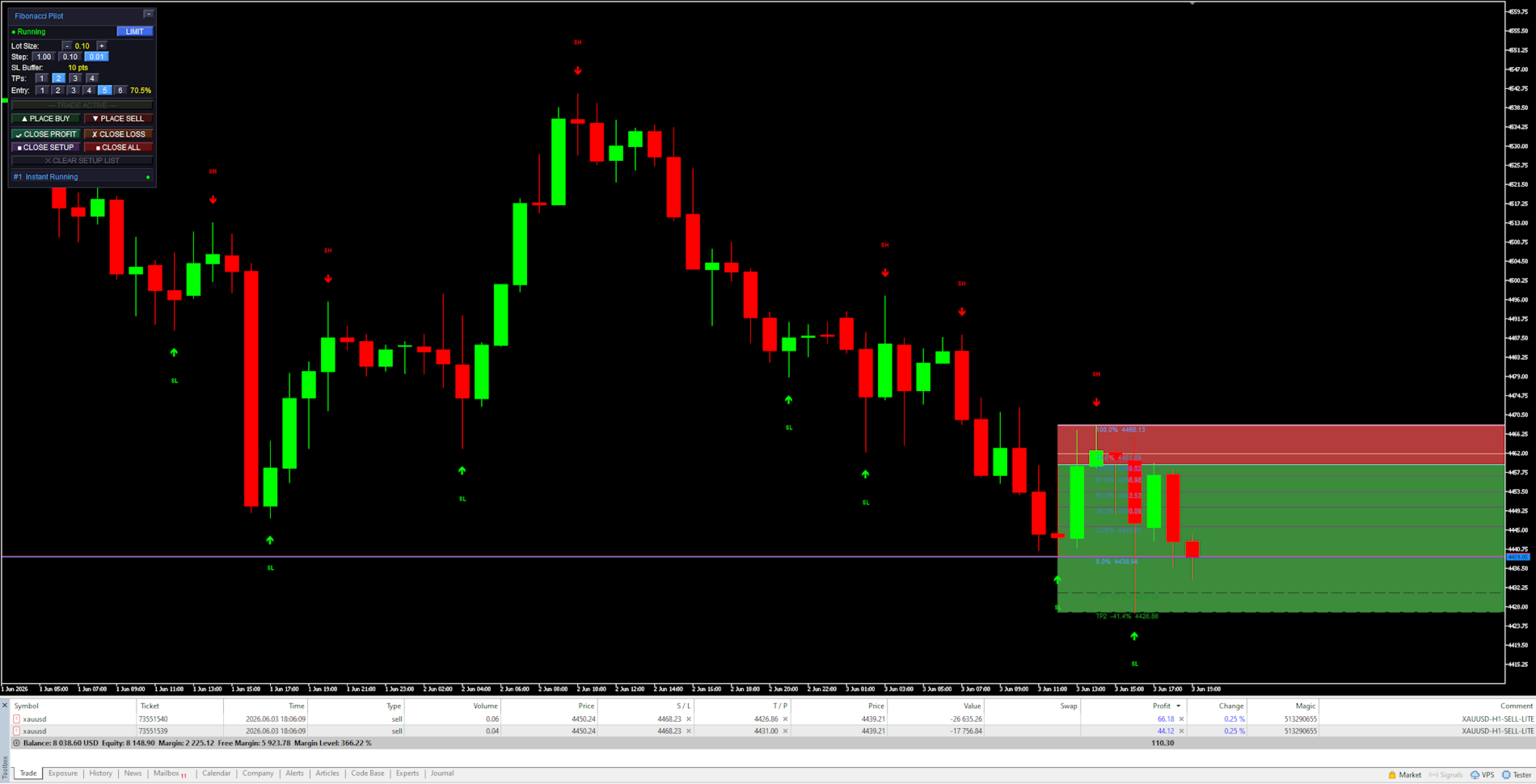
Detects and draws swing highs and swing lows on the chart automatically
Draws a full Fibonacci retracement grid between two user-selected price points (A and B)
Draws extension levels beyond point B as take profit targets
Calculates entry price, stop loss and up to 4 take profit levels from the Fibonacci grid
Places one or more market or limit orders with correct lot splits across TPs
Draws a color-coded risk zone (entry to SL) and reward zone (entry to last TP) on the chart
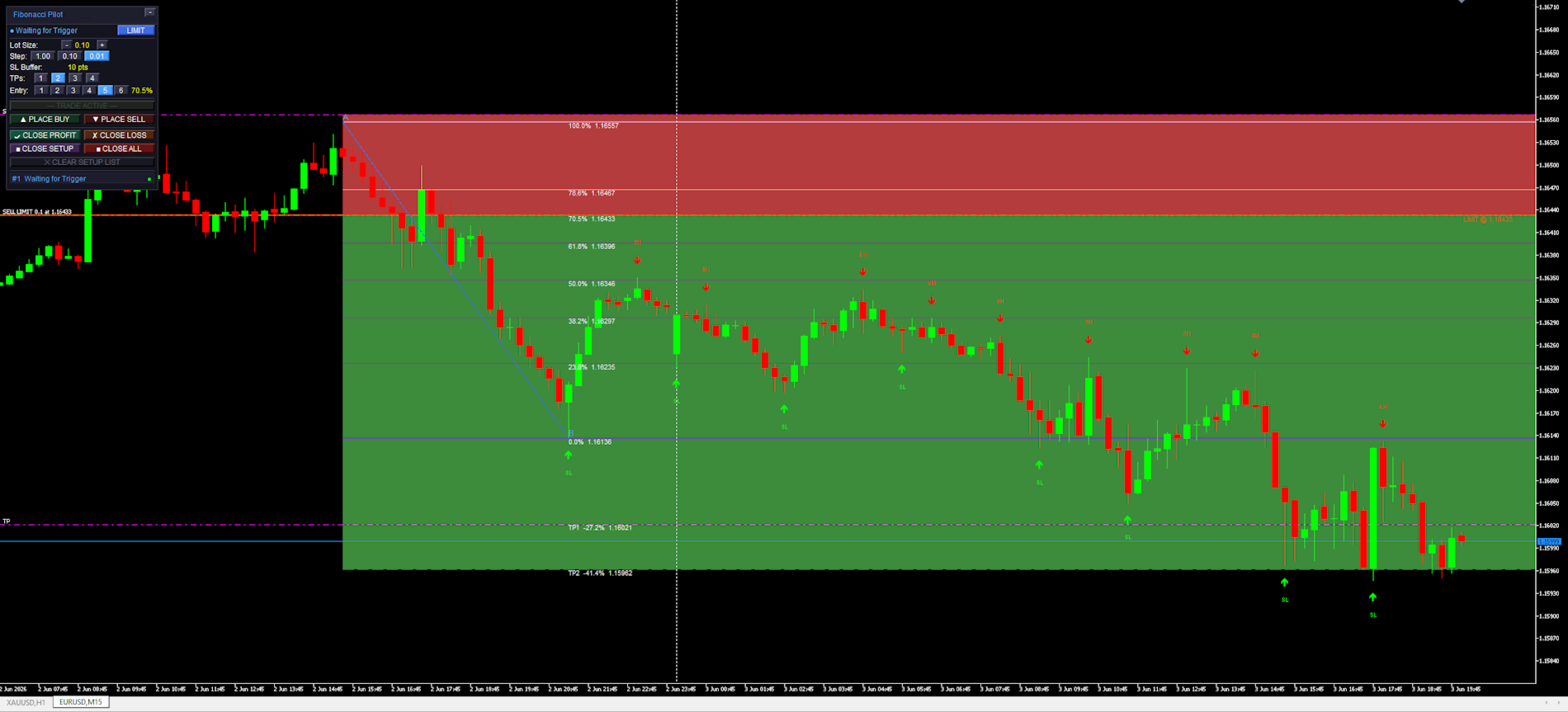
Shows a limit line with a stoplight color system as price approaches the entry level
Detects when a limit order is manually cancelled in the MT5 terminal and removes the setup
Restores an active setup automatically if the EA is reloaded or settings are changed
Draws a full Fibonacci retracement grid between two user-selected price points (A and B)
Draws extension levels beyond point B as take profit targets
Calculates entry price, stop loss and up to 4 take profit levels from the Fibonacci grid
Places one or more market or limit orders with correct lot splits across TPs
Draws a color-coded risk zone (entry to SL) and reward zone (entry to last TP) on the chart
Shows a limit line with a stoplight color system as price approaches the entry level
Detects when a limit order is manually cancelled in the MT5 terminal and removes the setup
Restores an active setup automatically if the EA is reloaded or settings are changed
What the trader does
Identifies a swing high and swing low on the chart
Clicks Point A then Point B on the chart to define the Fibonacci range
Selects the desired entry retracement level on the panel
Adjusts lot size and number of TPs
Presses PLACE BUY or PLACE SELL to execute
Clicks Point A then Point B on the chart to define the Fibonacci range
Selects the desired entry retracement level on the panel
Adjusts lot size and number of TPs
Presses PLACE BUY or PLACE SELL to execute
Mini supports one active setup at a time. For multiple concurrent setups on the same chart, use Fibonacci Pilot Pro.
In LIMIT mode the EA places a pending limit order at the entry level. A horizontal line with stoplight coloring shows the entry price and changes from red → yellow → green as price approaches. In INSTANT mode the order is placed at market price immediately.
Panel Reference:
Title bar:
Shows the EA name and version. The [−] button minimizes the panel to the title bar only. Click [−] again to restore.
State row:
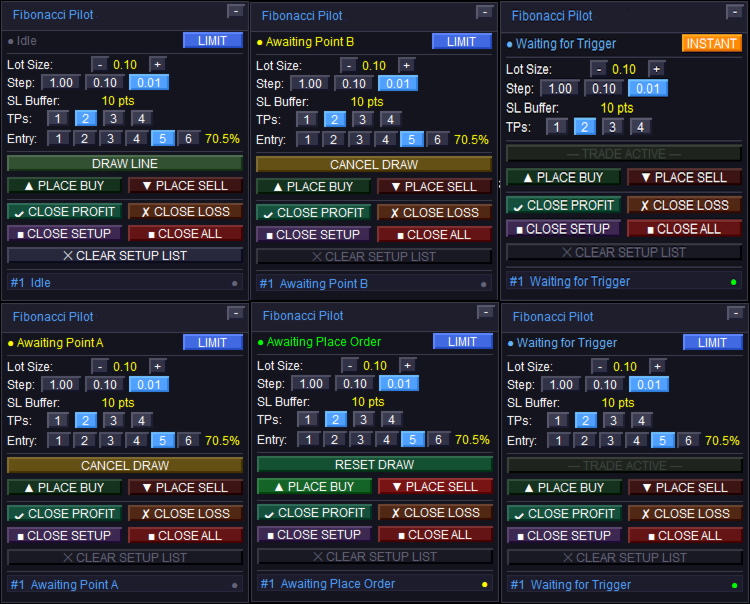
Shows the current EA state. The colored dot on the left indicates the setup status:
Idle — no active setup. DRAW LINE is available.
Awaiting Point A / Awaiting Point B — click on the chart to place the point.
Setup Ready — A and B are placed. Adjust entry level and press PLACE BUY/SELL.
Limit Active / Waiting for Trigger — limit order is live on the broker.
Instant Running — market order is live.
Closed — trade has been closed (TP, SL, or manual).
The LIMIT / INSTANT mode toggle button on the right switches order mode at runtime.
Idle — no active setup. DRAW LINE is available.
Awaiting Point A / Awaiting Point B — click on the chart to place the point.
Setup Ready — A and B are placed. Adjust entry level and press PLACE BUY/SELL.
Limit Active / Waiting for Trigger — limit order is live on the broker.
Instant Running — market order is live.
Closed — trade has been closed (TP, SL, or manual).
The LIMIT / INSTANT mode toggle button on the right switches order mode at runtime.
Lot Size row:
Shows the current lot size. Use [−] and [+] to adjust. The step selector [1.00] [0.10] [0.01] sets how much each press changes the lot size.
SL Buffer row:
Displays the current Stop Loss buffer in points as set in the inputs. This is informational — the value is set in the inputs dialog, not on the panel.
TPs row:
Selects how many Take Profit levels to use: [1] [2] [3] [4]. The active selection is highlighted. Each TP is calculated from a Fibonacci extension level beyond Point B.
Entry row:
Selects which Fibonacci retracement level is used as the entry price: [1] through [6] corresponding to FibLevel1–FibLevel6. The active level is highlighted and its percentage shown on the right. Only visible in LIMIT mode.
DRAW LINE button:
Starts the A→B drawing sequence. Changes to CANCEL DRAW while drawing. Shows RESET DRAW when a setup is ready but not yet placed. Dims to “— TRADE ACTIVE —” when a live trade is running to indicate it cannot be used.
PLACE BUY / PLACE SELL buttons:
Active only when a setup is ready (Setup Ready state). Places the order using the current lot size, TP count, SL buffer, and selected entry level. The EA automatically reorients A and B to match the chosen direction regardless of draw order.
CLOSE PROFIT / CLOSE LOSS:
Closes all open tickets for the current setup. CLOSE PROFIT closes only tickets currently in profit. CLOSE LOSS closes only tickets currently at a loss.
CLOSE SETUP / CLOSE ALL:
CLOSE SETUP closes the active setup’s tickets and removes chart objects. CLOSE ALL closes all open positions on the account (not limited to this setup).
CLEAR SETUP LIST:
Removes a closed or idle setup from the panel and clears all associated chart objects. Disabled (dimmed) when a live trade is active — close the trade first.
Chart Objects:
Swing arrows:
Red arrows pointing down mark Swing Highs (SH). Green arrows pointing up mark Swing Lows (SL). The SH and SL labels are centered above/below the arrow. Arrows are rendered in front of candles but behind the panel.
Fibonacci retracement lines:
Drawn between Point A (100%, SL side) and Point B (0%) as horizontal rays extending to the right. The 0% and 100% anchor lines use the panel accent color. The selected entry level uses the mode color (blue for limit, amber for instant). All other levels use “Retracement line color”.
Fibonacci extension lines:
Dashed lines drawn beyond Point B in the trade direction, one per active TP. Labeled with the TP number, extension percentage, and price. Use “Extension line color”.
Risk zone (red):
A filled rectangle from the entry price to the SL price. Drawn only after the order is placed. Shows the price range at risk for this trade.
Reward zone (green):
A filled rectangle from the entry price to the last active TP. Drawn only after the order is placed. Shows the potential reward range.
Limit entry line:
A solid horizontal line at the entry price. Color cycles based on how close price is to the entry: red (far) → yellow (approaching) → green (imminent). Thresholds are set by “Limit Trigger Line Near %” and “Limit Trigger Line Medium %”. Removed when the limit is triggered or cancelled.
Settings Reference:
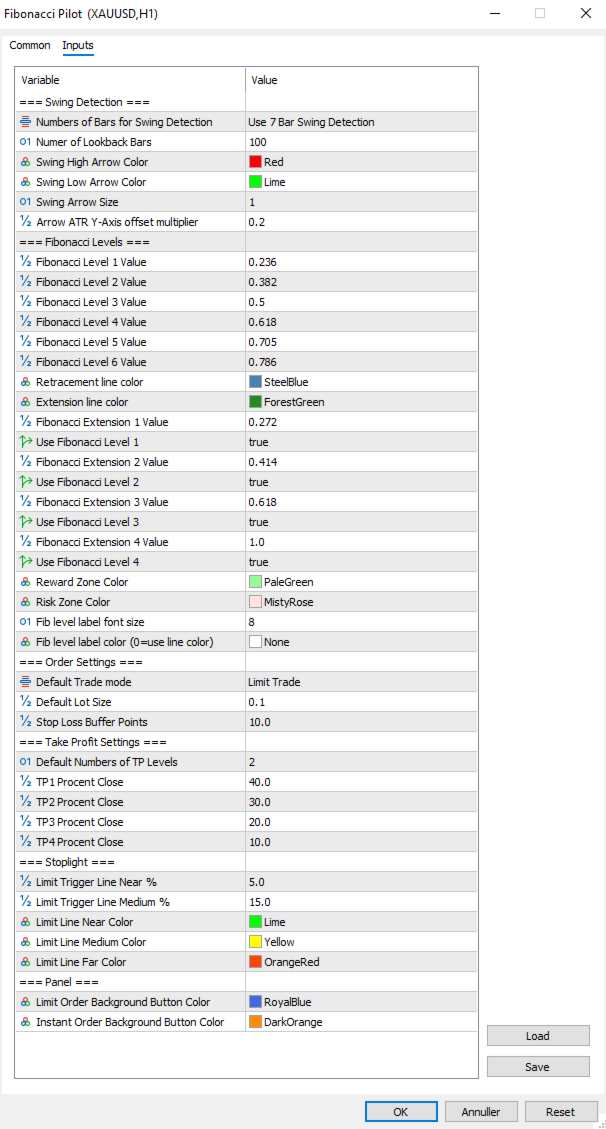
Swing Detection:
Controls how the EA identifies and draws swing highs and lows on the chart. These are visual aids only — the user selects the actual A and B points manually by clicking the chart.
Numbers of Bars for Swing Detection Number of bars used for swing detection. 3BAR: requires 1 bar each side. 5BAR: 2 bars each side. 7BAR: 3 bars each side. More bars = fewer but more significant swings.
Number of Lookback Bars Lower values show fewer recent swings; higher values show more historical swings. Range: any positive integer.
Swing High Arrow Color Color of the downward arrows marking Swing High points.
Swing Low Arrow Color Color of the upward arrows marking Swing Low points.
Swing Arrow Size (weight) of the swing arrow objects. Range: 1–5.
Arrow ATR Y-Axis offset multiplier Vertical distance between price and arrow, as a multiplier of the current ATR(14). Higher values push arrows further from the bars.
Number of Lookback Bars Lower values show fewer recent swings; higher values show more historical swings. Range: any positive integer.
Swing High Arrow Color Color of the downward arrows marking Swing High points.
Swing Low Arrow Color Color of the upward arrows marking Swing Low points.
Swing Arrow Size (weight) of the swing arrow objects. Range: 1–5.
Arrow ATR Y-Axis offset multiplier Vertical distance between price and arrow, as a multiplier of the current ATR(14). Higher values push arrows further from the bars.
Fibonacci Levels:
Defines the retracement ratios drawn between A and B, the extension ratios drawn beyond B as TP targets, zone colors, and label appearance.
Fibonacci Level X Value The six retracement ratios displayed on the grid. These are also the selectable entry levels [1]–[6] on the panel.
Retracement line color Color of all retracement lines except anchors and the active entry level.
Extension line color Color of all extension lines and their labels.
Fibonacci Extension X Value Extension ratios beyond Point B, used as TP1–TP4 targets. Calculated as range × ratio added beyond B.
Use Fibonacci Level X Enables or disables each extension line individually. Only enabled extensions are drawn and only up to the active TP count.
Reward Zone Color Color of the reward zone rectangle (entry to last TP). Light red by default — rename/recolor to suit your premium zone convention.
Risk Zone Color Color of the risk zone rectangle (entry to SL). Light green by default — rename/recolor to suit your discount zone convention.
Fib level label font size Font size for all Fibonacci level text labels on the chart.
Fib level label color Color for all Fibonacci level text labels. Set to NONE to use the line’s own color instead.
Order Settings:
Core parameters for how orders are sized and placed.
Default Trade mode Starting order mode when the EA loads. LIMIT: places a pending limit order at the entry level. INSTANT: places a market order immediately at current price. Can be toggled on the panel at runtime.
Default Lot Size Starting lot size shown on the panel when the EA loads. Adjusted per session using the panel controls.
Stop Loss Buffer Additional points added to the SL distance beyond Point A. For a BUY, SL = point A − buffer. For a SELL, SL = point A + buffer. This prevents stop-outs from normal spread/wick at the swing level.
Take Profit Settings:
Controls the default number of TPs and how lots are distributed across them.
Default Numbers of TP Levels Number of TP levels active when the EA loads (1–4). Changed per session on the panel.
TP1 Percentage Close Percentage of total lots closed at TP1.
TP2 Percentage Close Percentage of total lots closed at TP2.
TP3 Percentage Close Percentage of total lots closed at TP3.
TP4Percentage Close Percentage closed at TP4 when 4 TPs selected.
TP1 Percentage Close Percentage of total lots closed at TP1.
TP2 Percentage Close Percentage of total lots closed at TP2.
TP3 Percentage Close Percentage of total lots closed at TP3.
TP4Percentage Close Percentage closed at TP4 when 4 TPs selected.
The last active TP always absorbs any remaining lots to ensure the full position is always placed. Example with 2 TPs: TP1 = 40%, TP2 = 60% (not 30%). With 3 TPs: TP1 = 40%, TP2 = 30%, TP3 = 30%.
Stoplight:
Controls the color-changing limit entry line that shows how close price is to the pending entry level.
Limit Trigger Line Near % When price is within this percentage of the A–B range from the entry level, the limit line turns green (imminent trigger).
Limit Trigger Line Medium % When price is within this percentage of the A–B range, the line turns yellow (approaching). Beyond this threshold it shows red.
Limit Line Near Color Color of the limit line when price is close (imminent).
Limit Line Medium Color Color of the limit line when price is approaching.
Limit Line Far Color Color of the limit line when price is far from entry.
Panel:
Visual colors used on the trade panel.
Limit Order Background Button Color Color used for the LIMIT mode toggle button and the entry level line when in limit mode. Blue by default.
Instant Order Background Button Color Color used for the INSTANT mode toggle button and the entry level line when in instant mode. Amber by default.
Fibonacci Orientation:
Understanding how the EA orients the Fibonacci grid is important for correct use.
Point A — 100% anchor Always the Stop Loss side of the trade. For a BUY setup: Point A is the swing low (price the SL is placed below). For a SELL setup: Point A is the swing high (price the SL is placed above).
Point B — 0% anchor Always the entry side of the trade. For a BUY: Point B is the swing high (the swing from which price is retracing). For a SELL: Point B is the swing low.
The EA automatically reorients A and B when you press PLACE BUY or PLACE SELL, regardless of which point you drew first or in which direction. You may draw from bottom to top, top to bottom, left to right, or right to left — the direction buttons determine the final orientation.
Notes and Tips:
Setup persistence:
If you open the settings dialog and change any input, the EA reinitializes. Any active setup (limit pending or trade running) is automatically saved to MT5 Global Variables before the restart and restored afterward. Chart objects, fib lines and the limit line are all redrawn with the new settings applied.
Manual limit cancellation:
If you cancel a pending limit order directly in the MT5 terminal (Toolbox → Trade tab), the EA detects this automatically within one tick and removes the setup from the panel and chart.
One setup at a time:
Mini supports a single active setup. The DRAW LINE button dims with the label “— TRADE ACTIVE —” while a trade is live. To start a new setup, close or clear the current one first.
Lot sizing with fewer TPs:
When using fewer than 4 TPs, the remaining lot percentage is always allocated to the last active TP. No lots are silently discarded. Check the TP percentage inputs if you want specific splits.
Strategy Tester compatibility:
Fibonacci Pilot Mini is compatible with the MT5 Strategy Tester. Timer events, sounds and push notifications are automatically disabled in tester mode.
Difference from Fibonacci Pilot Pro:
The Mini edition intentionally omits: multiple concurrent setups, Mini HUD, trailing stop, breakeven move, per-level Fibonacci colors, swing filter passes (significance, amplitude, wick), ATR-based SL, internal limit engine, push notifications, CSV trade journal, panel position customization, and the Finetune HUD. For those features, use Fibonacci Pilot Pro.