EA Watchdog MT5
- Утилиты
-
Christian Kotschote
 I've been trading since 2021, with Expert Advisors since 2024, and today I run an EA portfolio across several accounts and brokers. As an engineer with a PhD, I'm used to building processes that leave little room for error.
- Версия: 1.0
- Активации: 10
Shows how much of each limit you set is used: equity drawdown, daily loss, open trades, EA silence and losing streak. Sends a message to the terminal, the MetaTrader app, email, Telegram or Discord when a limit is reached. EA Watchdog does not trade.
EA Watchdog MT5 shows how much of each limit you set is used - equity drawdown, daily loss, open trades, EA silence, losing streak - and sends a message when a limit is reached. The panel shows the warning state of each limit, including the state Near before the limit is reached. EA Watchdog does not trade. Do not rely on EA Watchdog as your only safeguard.
What EA Watchdog does
Many traders run Expert Advisors on a VPS or a PC and do not look at the terminal all day. A problem can stay unnoticed for hours: an Expert Advisor that has stopped trading, an unusual series of losses, an equity that has fallen far, too many open trades, a lost connection, Algo Trading switched off by mistake.
You set the limits. EA Watchdog compares the values of your account with them and tells you when a limit is reached. It sends one message when a limit is reached, and one message when the value is back to normal. It does not repeat itself with every check. If you want reminders, you can switch them on.
EA Watchdog runs as an Expert Advisor on its own chart. It reads the deal history and the open positions of your account. It does not open, change or close any order or position. It does not trade in the Strategy Tester either. It works with Algo Trading switched off.
What it watches
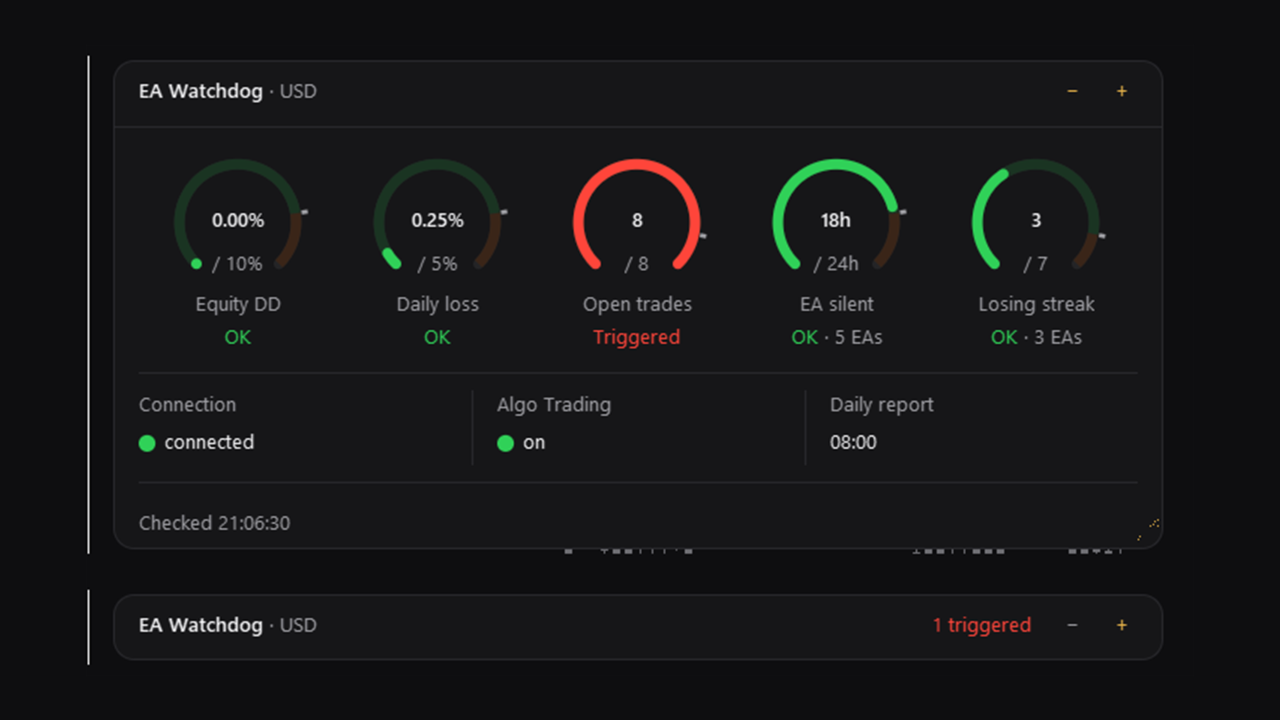
Each watch has its own alert threshold. The panel shows three warning states: OK, Near and Triggered. Near starts at a share of your limit (default 80 percent) and is shown in the panel. Messages are sent when a limit is reached (Triggered) and when the value is back to normal. The one exception is the losing streak: it also sends a note when the streak is as long as the normal value.
EA silent. A Magic Number has not traded for a number of hours of market time that you set (default 24). The clock runs only while the symbols of that Expert Advisor have live quotes, so weekends do not count. Holidays with quotes can be added by date.
Losing streak. The current series of losing trades of an Expert Advisor (per Magic Number) is as long as, or longer than, what is normal for it. The normal value is the longest streak of its backtest, which you can enter, or an estimate from its own results.
Equity drawdown. The equity has fallen from its highest value seen by EA Watchdog by more than your limit, in percent, as an amount, or both. Deposits, withdrawals, credit and bonus changes adjust the peak, so they do not count as drawdown.
Daily loss. The equity is below its value at the start of the day by more than your limit (default 5 percent). You set the hour at which the day starts.
Open trades. The number of open positions of the whole account has reached your limit. This includes all Expert Advisors, manual trades and trades placed from other terminals or devices on the same account. The number of pending orders is shown for information and does not count towards the limit. The default limit is 100 positions. It is high and only a starting point: set it to match your account.
Connection lost. The terminal has had no connection to the trade server for more minutes than you set (default 5).
Algo Trading off. Algo Trading is switched off in the terminal for more minutes than you set (default 2).
Daily report. One short message per day at a time you set, with equity, today's result, open positions and pending orders and the number of watches in each state. If the report arrives, the terminal and EA Watchdog were running at that time. If it does not arrive, something may be wrong with the terminal, the VPS or the internet.
Channels
Each message can go to any of these channels. Alert is on by default.
Alert: a pop-up with sound in the terminal.
Push: a notification to the MetaTrader app on your phone.
Mail: an email from the terminal.
Telegram: a message to your own bot. You need a bot token and a chat ID.
Discord: a message to a channel of your own Discord server. You need a webhook URL.
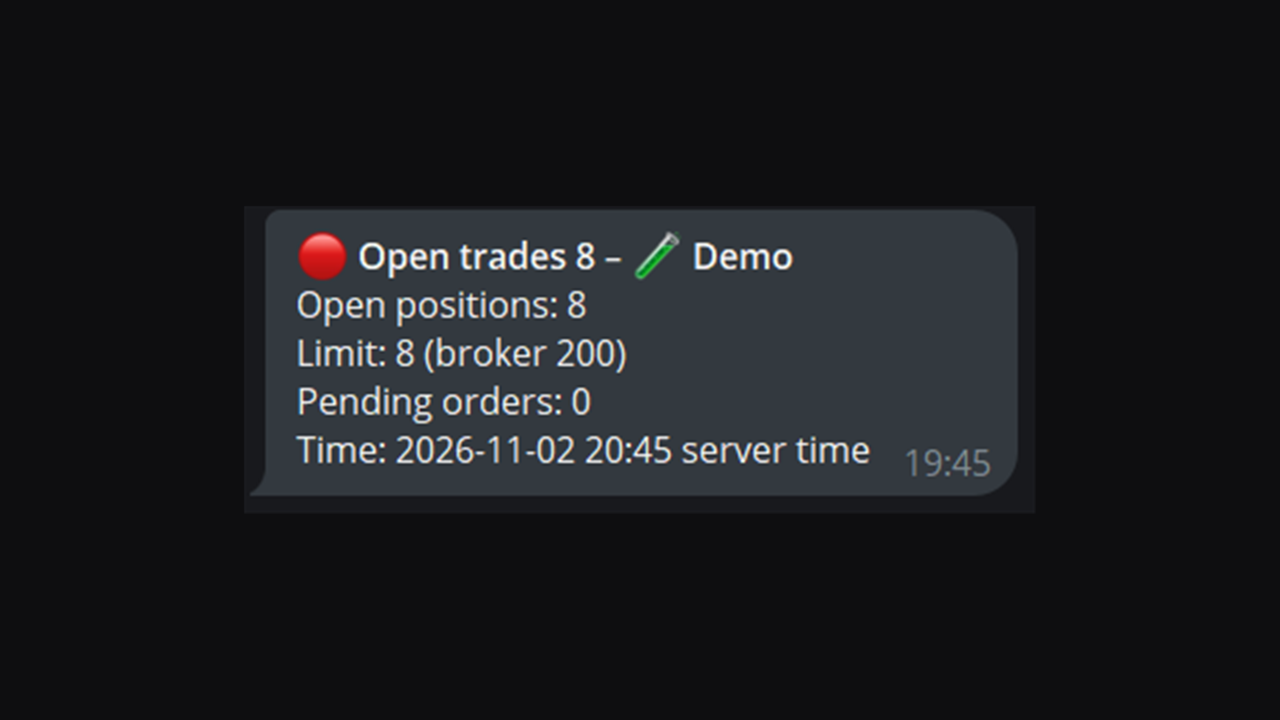
Messages have a clear layout: a header with the event and the name you gave the account, then one line per value, for example the value, the limit and the time. In Telegram and Discord the layout is a bold header and lines, or a coloured card with fields. A short preview is below.
Preview of a message
This is what a message looks like in Telegram. The values are examples. The name "Demo" is the Label you can set in the inputs. If you leave Label empty, the account number is used.
🔴 Equity drawdown 10.4% - 🧪 Demo
Drawdown: 1,298.00 USD (10.4%)
Limit: 10%
Peak > now: 12,480.00 > 11,182.00
Time: 2026-11-03 14:20 server time
(The first line is bold in Telegram. The arrow between the values is shown as ">" in this text.)
The other channels show the same facts in their own way. Push is one short line. Alert is one line in the terminal alert window, without emoji. The manual shows a preview for every channel and every watch.
The panel
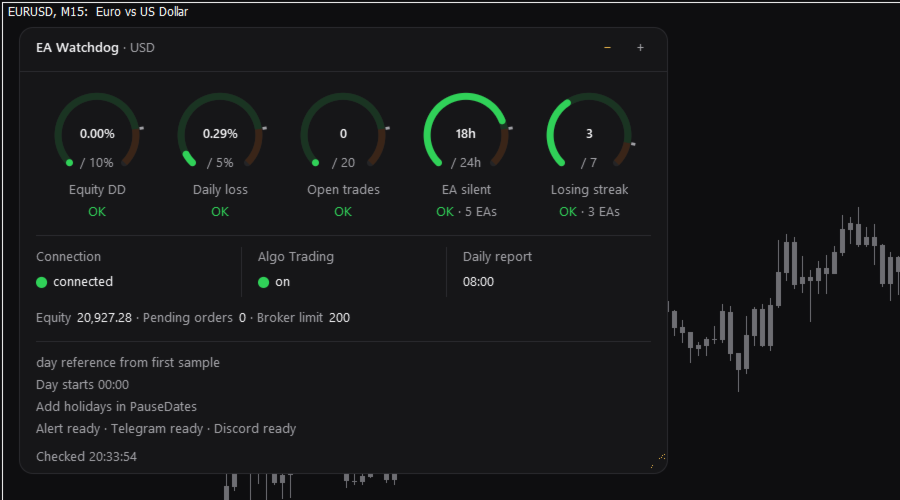
The panel is small and dark and has a fixed order. Each ring belongs to one watch that you switched on. It shows the current value in the middle, your limit below it, the name of the watch and the warning state as a word. The ring fills up as the value approaches the limit, and a small mark shows where Near starts. A full ring means that the limit is reached. A watch without a limit is not shown as a ring.
Under the rings are three status cells: Connection, Algo Trading and Daily report. Below them are the equity and, if Open trades is on, the pending orders. At the bottom you see the state of each channel, for example "Alert ok - Telegram ok - Discord ok", and the time of the last check.
Colours mark the warning state (green, orange, red) and are always accompanied by a word. Nothing flashes. You can switch between three sizes, and you can drag the width. The panel does not show your account number, name or server.
Set up in three steps
1. Open a new, empty chart of any symbol and attach EA Watchdog MT5 to it. Use one chart for it. MetaTrader allows one Expert Advisor per chart.
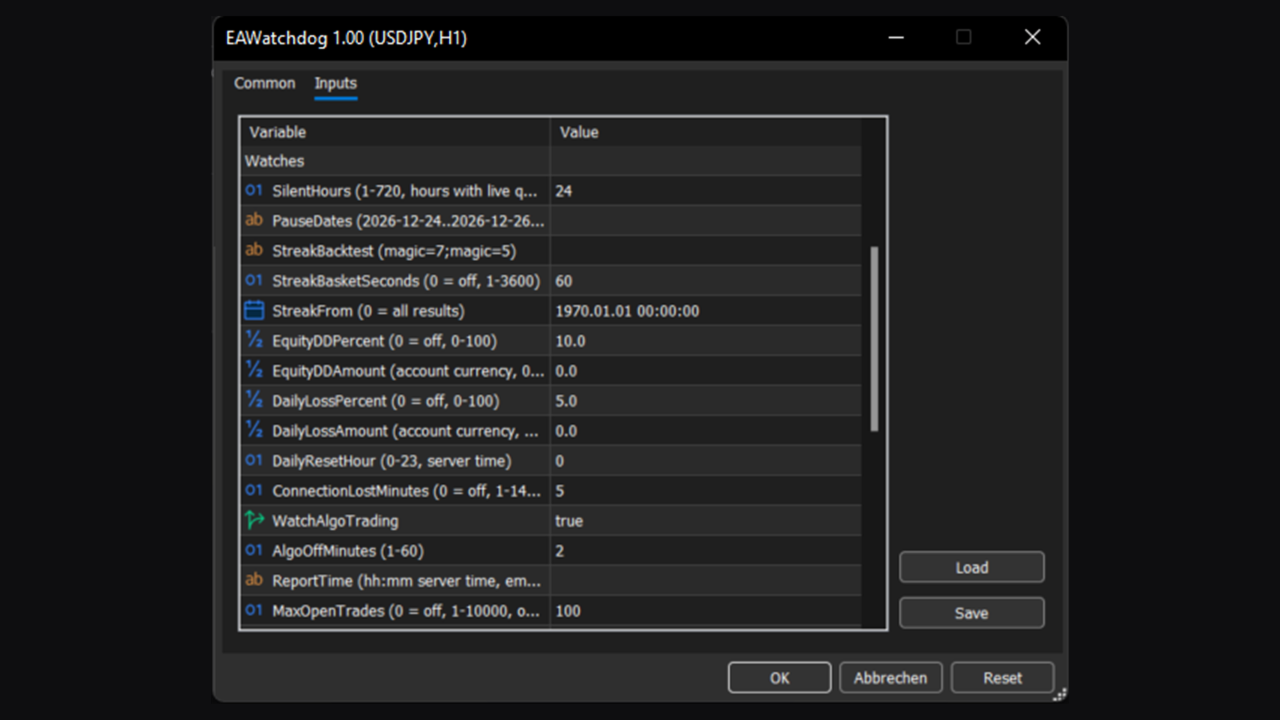
2. In the inputs, set your limits. By default, Equity drawdown is set to 10 percent, Daily loss to 5 percent and Open trades to 100 positions. Adjust them to your account; the default for Open trades (100) is high and only a starting point. EA silent, Losing streak, Connection lost and Algo Trading off are on by default.
3. Choose where messages go. Alert works at once. For Push, Mail, Telegram and Discord, follow the steps in the user manual. For Telegram and Discord you add one address to the terminal's list of allowed URLs.
After you set up Push, Mail, Telegram or Discord, EA Watchdog sends one test message to that channel, so that you can see that it works.
What EA Watchdog does not do
It does not trade. It does not close positions, delete orders or switch off Expert Advisors. It does not give advice and makes no forecast.
It shows no table of Expert Advisors and no trade history. It reports whether your own limits are reached.
It is not the rule check of any trading firm. The values come from the readings of EA Watchdog. Set your limits to match your own rules.
Privacy and what is sent
Without Push, Mail, Telegram or Discord, nothing leaves your terminal. EA Watchdog has no server of its own and sends nothing to the developer.
If you fill in Telegram or Discord, EA Watchdog sends message texts to that service, and only message texts: the event, a few values, the Label (or the account number, if Label is empty) and the time. It sends no deals, no positions and no history. It writes no files. It uses no DLL.
MetaTrader keeps input values in plain text. The Telegram token and the Discord webhook URL can be read in the input dialog, in chart templates and in .set files. Do not share screenshots of the inputs or .set files.
Good to know
EA Watchdog can only report what the terminal can see. If the terminal, the VPS or the internet connection is down, EA Watchdog cannot send anything at that time. After an internet outage, the messages are sent when the connection is back, with the time of the event. Push messages are not sent again.
Push and mail are handed to the terminal, and delivery is not confirmed. Telegram and Discord confirm that the message was accepted. Messages can be delayed or can fail. Do not rely on EA Watchdog as your only safeguard.
EA silent means no trading activity. It does not show whether the Expert Advisor is loaded on a chart. The clock is accurate to about 30 minutes per market pause.
Equity drawdown is measured from the highest equity that EA Watchdog has seen. It starts with the equity at the first start. While EA Watchdog is not running, it sees nothing, so the measured drawdown can be smaller than the real one. Removing EA Watchdog from the chart starts a new peak. Saved states older than four weeks are dropped.
Open trades counts what the account holds at the time of each check. Short peaks between two checks are not seen.
If you run EA Watchdog on two charts of the same account, only one of them sends messages.
Requirements
MetaTrader 5, hedging or netting account, any broker and symbol. A new chart of its own. For Push: your MetaQuotes ID in the terminal settings. For Mail: SMTP settings in the terminal. For Telegram and Discord: your own bot or webhook, and one entry for each in the terminal's list of allowed URLs (Tools, Options, Expert Advisors).
Texts and inputs are in English.
Manual and questions
The user manual explains every watch, the panel, all inputs with examples, the messages of each channel and the set-up of Telegram and Discord: https://www.mql5.com/en/blogs/post/779095
Questions and problem reports are welcome in the product comments or by private message on MQL5.