Ultimate Order Manager
- Утилиты
-
Sangjun Han
 Best Prop Firm
🌍 FTMO Global (Non-US):
https://join.ftmo.com/OXEQwmfJGvvNnlKxfXIR
FTMO US (United States): - Версия: 1.409
- Обновлено: 1 ноября 2026
Pending orders, positions, risk and schedules in one free MT5 workspace.
Trading with UBS (Ultimate Breakout System), running several EAs, or managing manual trades alongside them? Ultimate Order Manager helps you find the right orders, see where risk is concentrated, and review exactly which tickets you are about to manage.
A complete toolkit, shared free
I built UOM to bring the controls I wanted for my own trading into one practical workspace. I am sharing the complete toolkit free so other MT5 traders can use the same approach: clear account visibility, deliberate order management and results they can review.
Pending management, full hedging-position closure, SL-risk comparison, exposure and margin, daily monitoring, schedules and CSV exports are all included.
It’s great if you just want to step in manually without messing up your EA, that’s how I use it myself.
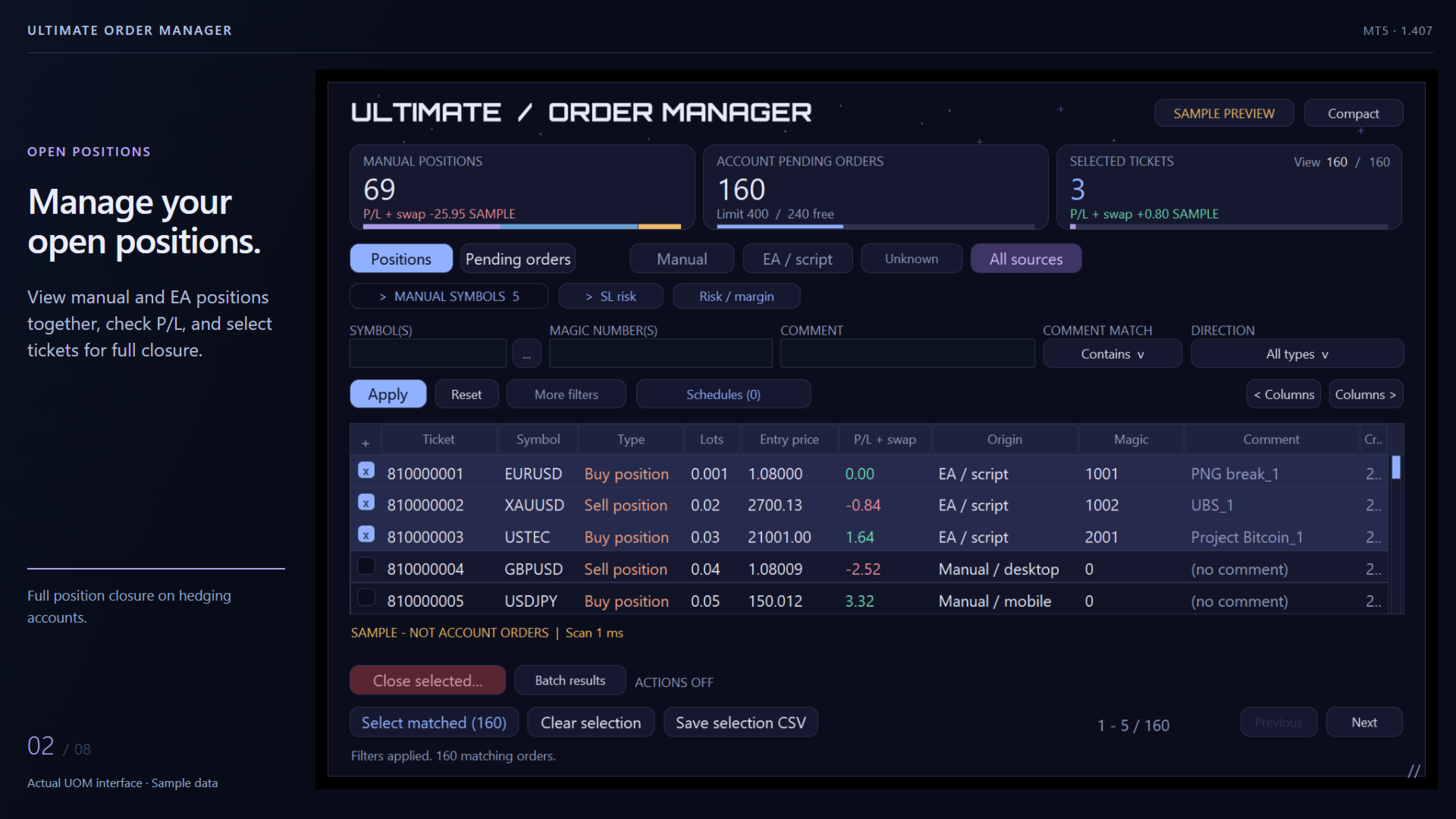
Keep your existing EA settings unchanged while scheduling position closures and pending order cancellations at your preferred time. Choose specific manual trades or target orders by symbol, Magic Number, or comment.
For more details, please refer to the PDF guide.
Find the right trades in a busy account
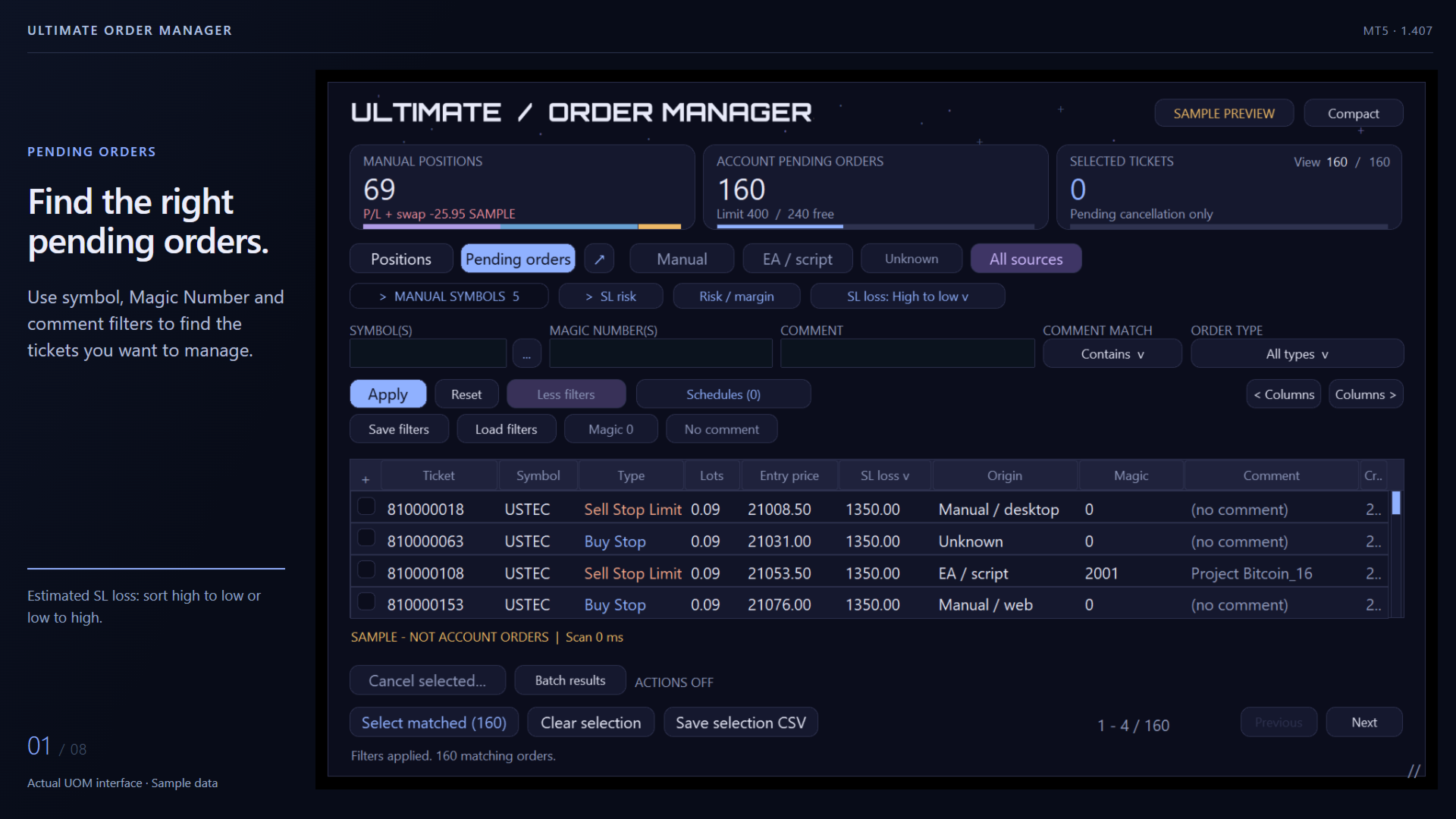
Combine Symbol, Magic Number and Comment filters to find one EA, several strategies or a specific set of manual trades. Choose Contains, Exact match or Excludes for comments, then save frequently used filters.
- Separate Manual, EA / script and Unknown origins.
- View all six supported pending-order types in an expandable table.
- See account pending count, the broker-reported limit and remaining capacity.
- Compare symbol-level order counts and pending lots, then select individual tickets or all filter matches.
Start with the largest SL loss
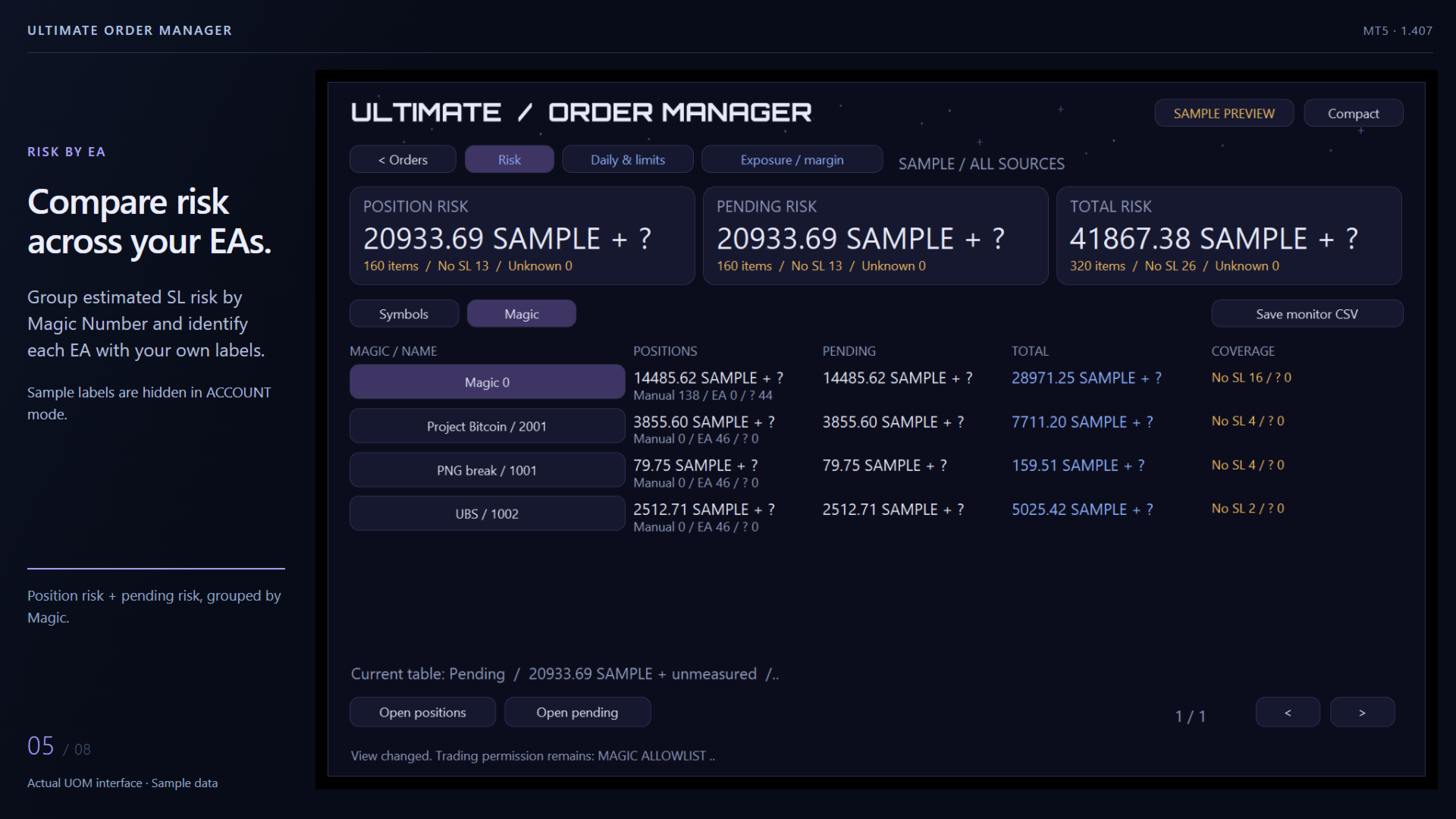
Sort pending orders from the largest to the smallest estimated SL loss, or reverse the order. Review the money at risk in account currency to spot outsized tickets and possible contract-size mismatches.
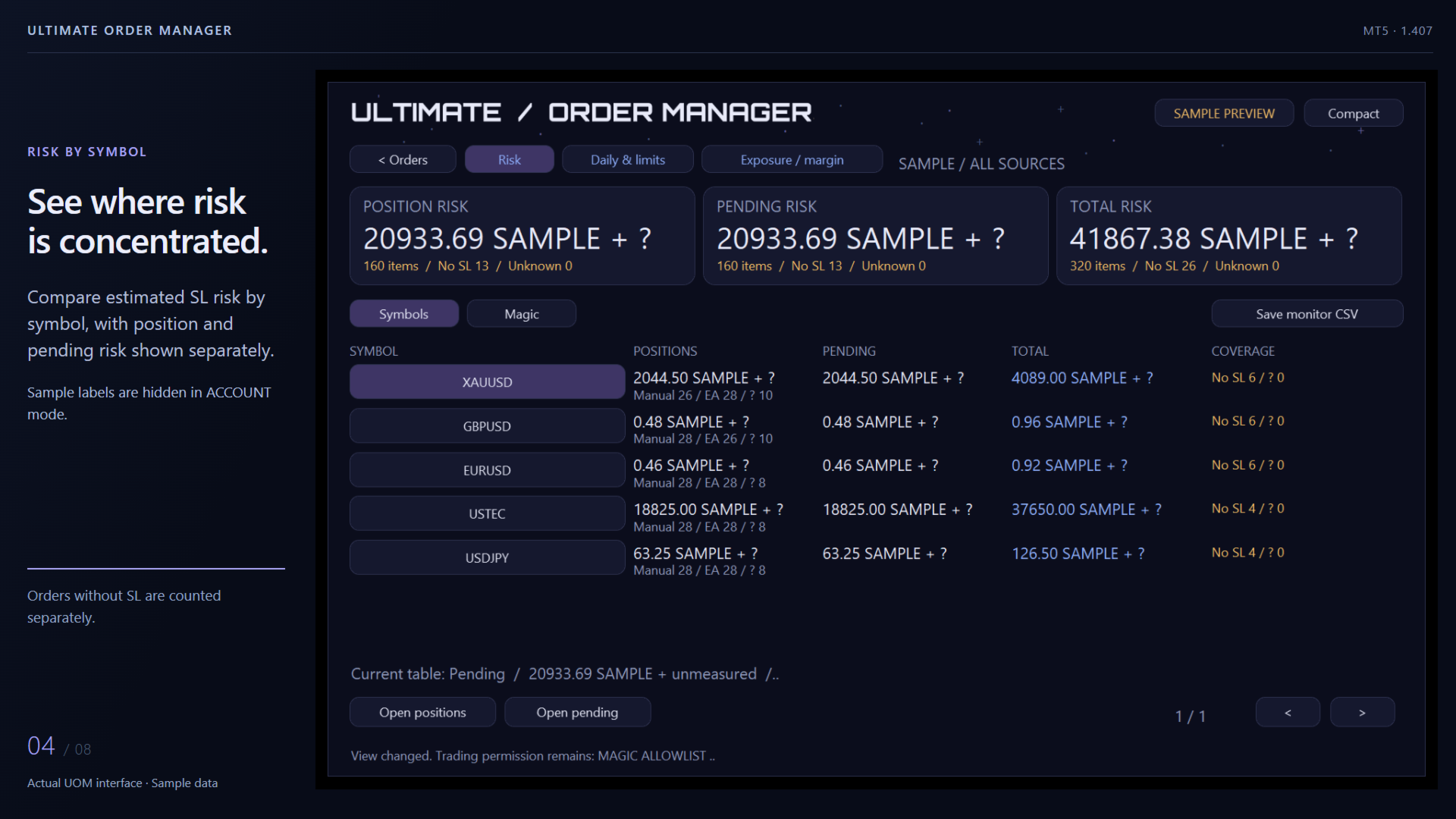
Compare total account risk by symbol and Magic, including open positions and pending orders. No SL and unavailable calculations remain clearly marked alongside the measured totals.
An institutional-grade mindset, made accessible.
Defined permissions, exact-ticket review and traceable results guide the way UOM handles order actions. These principles put deliberate control at the center of the workflow.
- Permissions before actions. Choose a management scope, allow the intended Magics and protect exceptions. Protected Magics take priority in every scope.
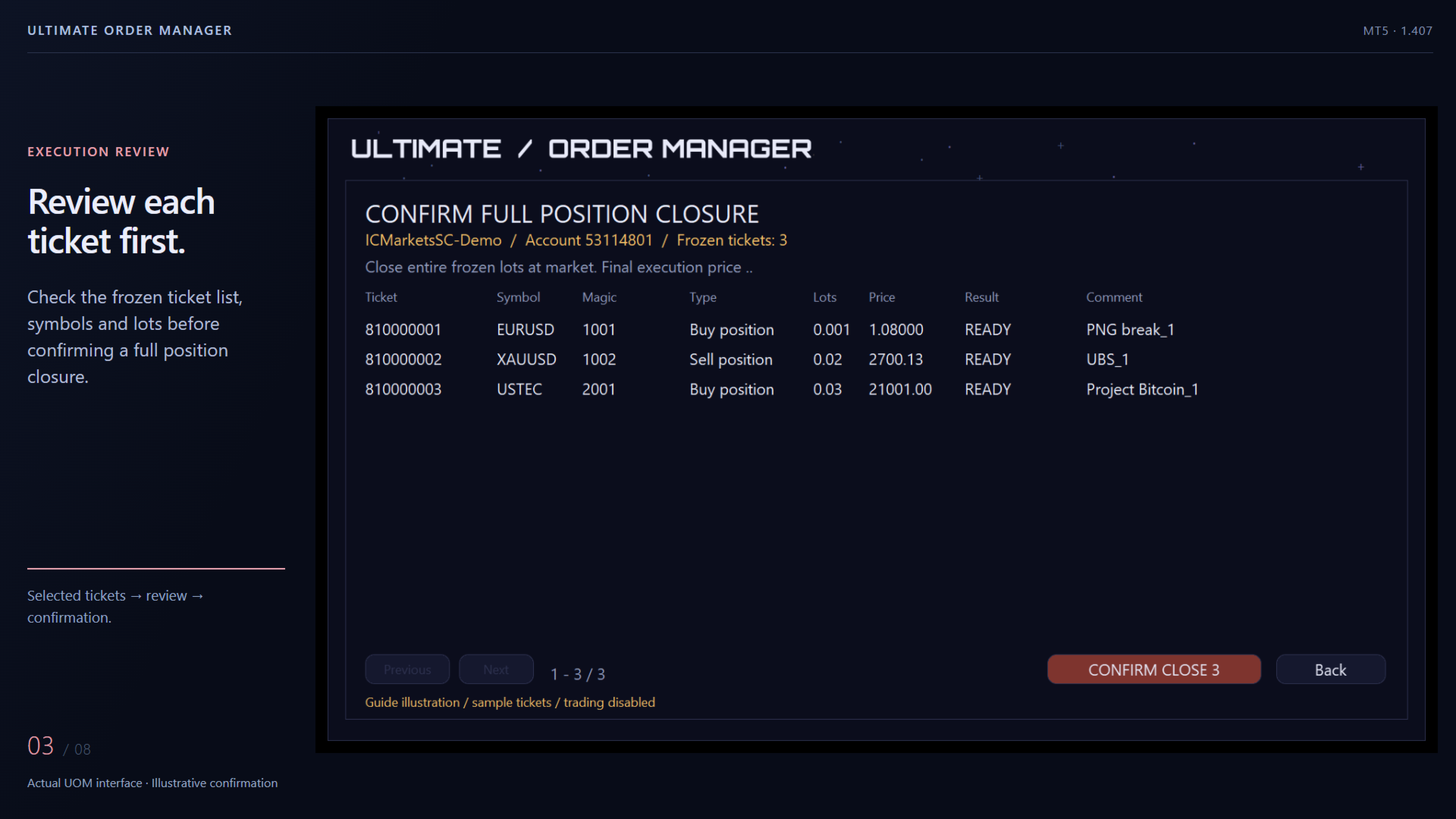
- Review before execution. Inspect the frozen ticket list before confirming cancellation or full closure. Targets are rechecked before requests are sent; changed or missing tickets are reflected in the results.
- A history check for uncertain results. Check status compares uncertain outcomes with broker order/deal history and updates the result CSV, without resending requests.
- Missed-time handling. Schedules outside their execution window are recorded as MISSED instead of silently catching up late after a timer interruption.
- A record after processing. Read ticket-level batch results and keep structured local audit records and CSV files for later review.
FIND > SELECT > REVIEW > EXECUTE
Plan the cleanup you want
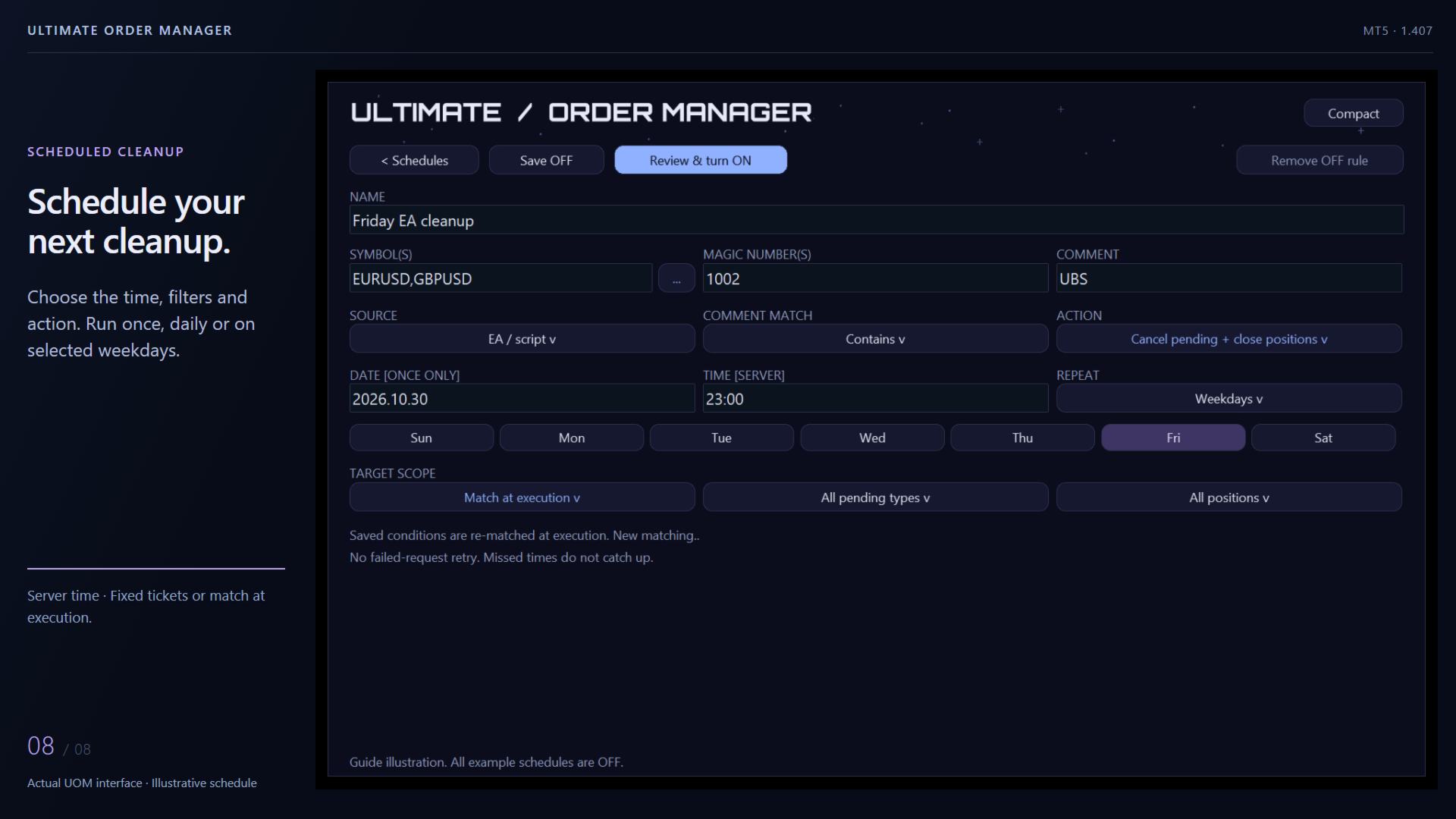
Create a schedule from your current filters. Choose once, daily or selected weekdays using broker-server time. Target the tickets selected now, or let the rule find matching orders when it runs. Saved rules keep their own conditions as you change the table filters.
For combined cleanup, UOM cancels pending orders first, then rereads and fully closes matching positions. Save the rule OFF, review it and explicitly turn it ON. Completed one-time rules remain OFF with their results visible.
See exposure, margin and the trading day
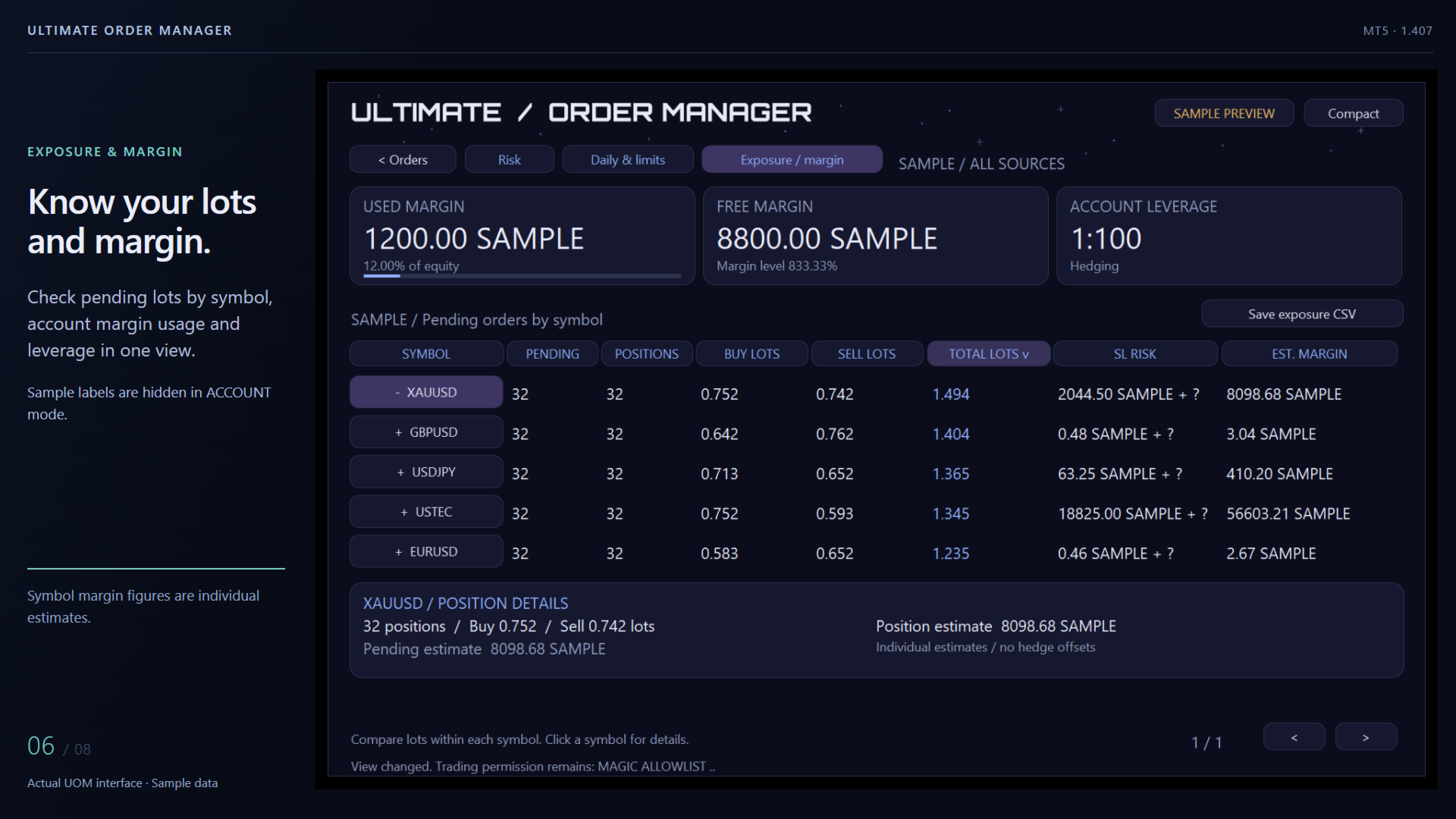
Compare symbol-level pending Buy, Sell and Total lots, position counts and individual margin estimates. The account cards show actual used margin, free margin, usage and leverage.
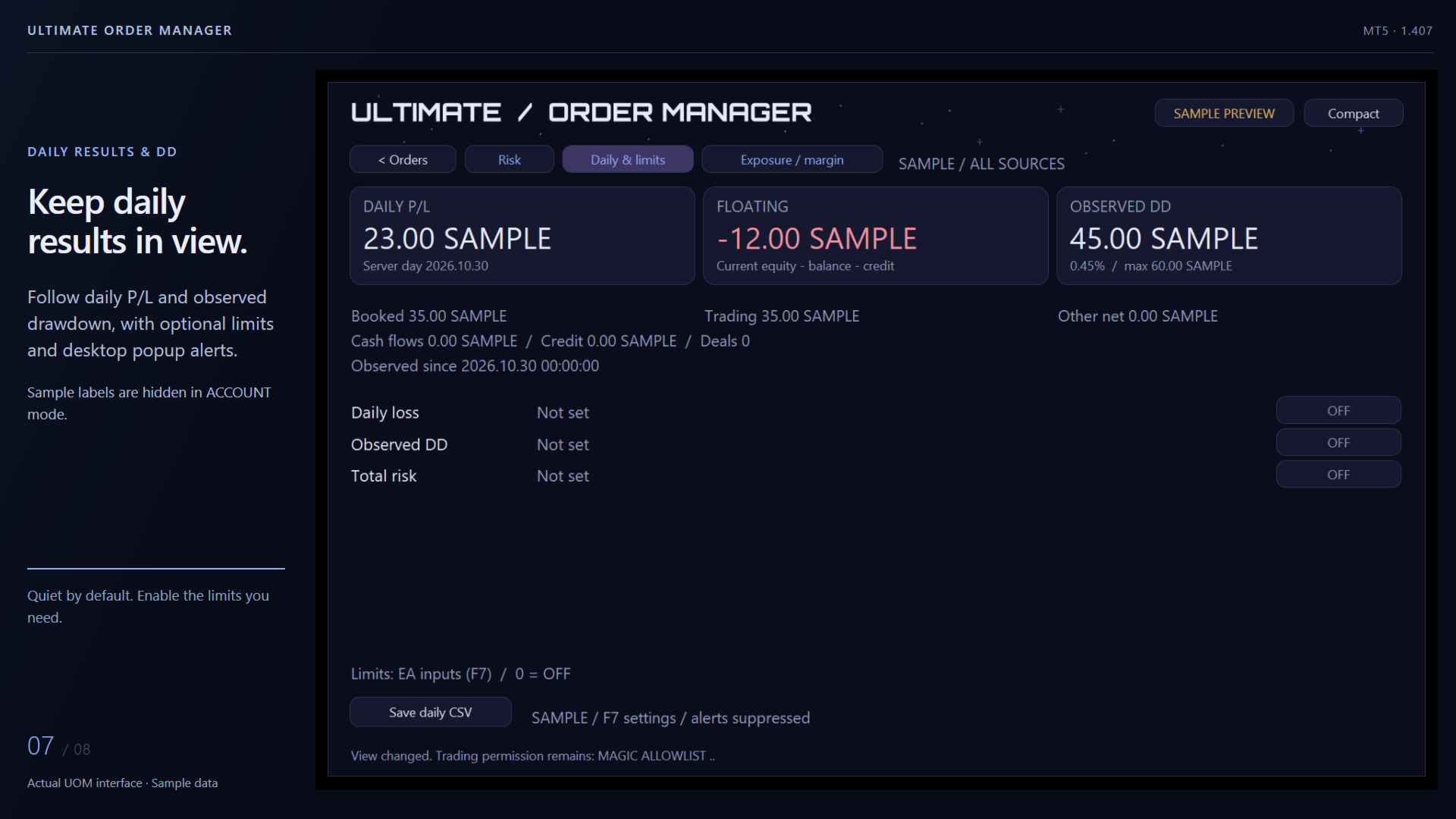
Daily & limits adds daily P/L and cash-adjusted observed drawdown. Limits start at 0 and Popup alerts starts false. Keep the dashboard quiet, or enable optional local warnings when a configured metric enters a limit state.
Review execution results and export risk data
Export selections, risk comparisons, exposure and margin, daily status and schedules to CSV. Batch results provides ticket-level outcomes; diagnostic files record the tool's own errors. Use Check status when a stopped batch contains uncertain results.
Quick start: viewing
- Install UOM through the MT5 terminal and attach it to a dedicated chart. Start with UI scale (%) = 100.
- Use ACCOUNT for account data, or SAMPLE PREVIEW to explore the built-in examples.
- Keep Enable close / cancel = false while viewing, filtering and exporting CSV.
Enable cancellation and full closure
- Press F7 and set Enable close / cancel = true.
- Turn on MT5 Algo Trading and allow trading for this EA in the Common tab.
- Choose Manage scope: PS_MANUAL for recognized manual trades, or PS_ALLOWLIST with Allowed Magics for selected EAs. Add Protected Magics for exceptions.
- In ACCOUNT, apply filters, select tickets, review the frozen list and confirm. Read Batch results afterward.
- For schedules, also complete Review & turn ON for each rule.
The 14 inputs
Start with the defaults. Set the action permissions when ready; Magic settings and risk alerts are optional.
| No. | Input | Default | Use |
|---|---|---|---|
| 1 | Sample preview | false | Choose the startup view. false opens ACCOUNT; true opens sample data. The top button switches the current view later. |
| 2 | UI scale (%) | 100 | Adjust panel scale from 80 to 150. Start at 100. |
| 3 | Enable close / cancel | false | Enable reviewed cancellation/full closure and scheduled actions. MT5 and EA trading permissions must also be enabled. |
| 4 | Manage scope | PS_MANUAL | Manual trades, an allowed Magic list, or all sources. Choose PS_ALLOWLIST to manage selected EAs; protection takes priority. |
| 5 | Max tickets per batch | 50 | Accept 1-1000 tickets per batch/run. An oversized set is blocked as a whole; narrow it or deliberately raise the limit. |
| 6 | Allowed Magics | blank | Comma-separated action permissions for PS_ALLOWLIST, for example 1001,1002. Separate from the table Magic filter. |
| 7 | Protected Magics | blank | Magics excluded from every close/cancel action scope. Blank adds no extra Magic exclusions. |
| 8 | Allow Magic 0 outside Manual | false | Extra permission for Magic 0 in PS_ALLOWLIST or PS_ALL. In allowlist mode, include 0 in Allowed Magics too. |
| 9 | Manual execution-panel Magics | blank | Nonzero Magics used by your own manual panels, so their orders join the Manual classification. |
| 10 | Magic labels (123=EA name) | blank | Readable group names, for example 1001=PNG break;1002=UBS;2001=Project Bitcoin. |
| 11 | Daily loss limit | 0 | Optional daily-loss threshold in account currency. 0 keeps it OFF. |
| 12 | Drawdown limit | 0 | Optional cash-adjusted observed-DD threshold in account currency. 0 keeps it OFF. |
| 13 | SL risk limit | 0 | Optional known position-plus-pending SL-risk threshold. 0 keeps it OFF; read missing/unknown coverage too. |
| 14 | Popup alerts | false | Local desktop popups on configured NEAR/LIMIT transitions, with a 60-second cooldown per metric. An unchanged state causes no repeat popup. |
FAQ
Is the complete tool free?
Yes. All features described here are included: pending management, full hedging-position closure, risk and margin views, daily monitoring, schedules and CSV.
Can I use it with Algo Trading off?
Viewing, filters, risk/margin analysis and CSV work with actions off. Sending close/cancel requests requires the F7 action switch, MT5 Algo Trading and the EA trading permission.
What does total risk include?
Known estimated SL losses across open positions and pending orders. Pending uses entry to SL; positions use the current close quote to SL. No SL and unavailable values remain separate. Actual outcomes can differ because of fills, gaps and costs.
Will limit warnings close trades or keep sending alerts?
Limits provide visual status and optional desktop popups. Close/cancel actions follow reviewed batches or enabled schedules. An unchanged warning state causes no repeated popup; there is a 60-second cooldown per metric.
Can I use schedules on my local PC?
Yes. Keep the PC, MT5 and UOM running, connected and authorized to trade at the chosen server time. Check the result after sleep, disconnection or market closure. Missed windows are recorded for review.
Which account type supports position closure?
Full ticket-level position closure uses an MT5 hedging account. Pending-order management also supports netting accounts.
Action scope
UOM focuses on pending cancellation and full hedging-position closure. Keep entries, partial closes and SL/TP adjustments in your execution tools. Broker permissions and session availability apply.
Download Ultimate Order Manager through MT5 Market and start with the quiet viewing defaults.