MT5 Execution Optimizer
- Утилиты
-
Abdeljalil El Kedmiri
 Would you like to order a new freelancer job for me (EAs, Excel Template)? : https://www.mql5.com/en/job/new?prefered=trader_rentable
 - Версия: 1.0
MT5 Execution Optimizer : Test Befor You Trade "Stop guessing why your trades fail. Measure your environment, diagnose the bottleneck, and verify your improvements."
Most traders blame their strategy when they lose money to slippage, requotes, or delayed fills. But often, the real culprit is a poor execution environment (bad VPS, slow broker, or high jitter).
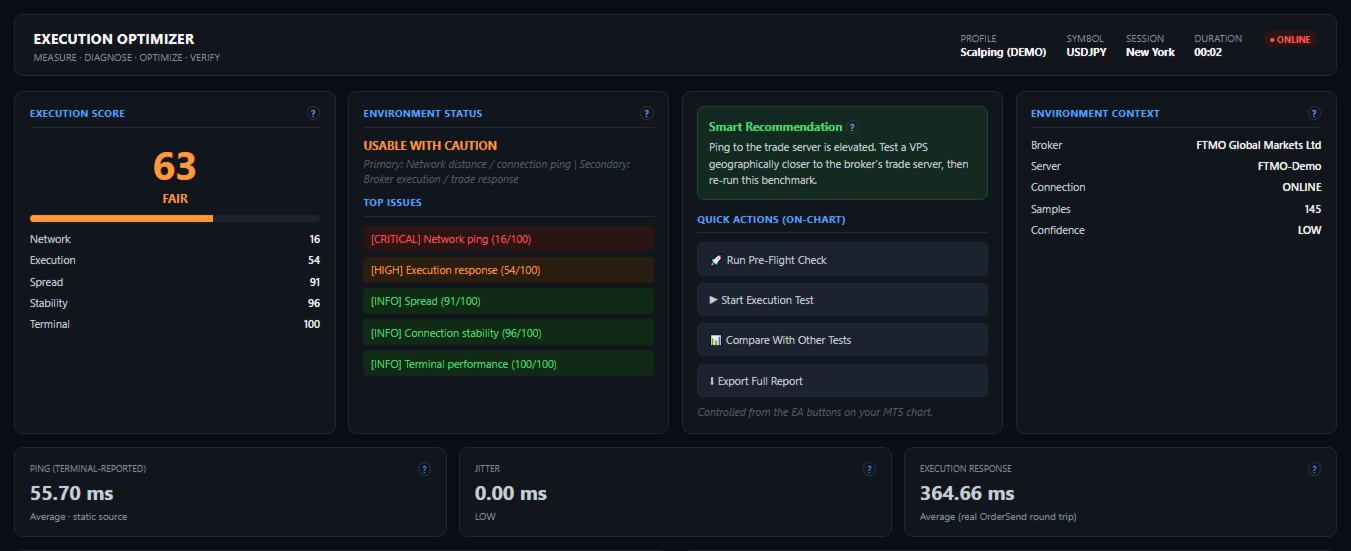
MT5 Execution Optimizer is a professional diagnostic utility that transforms your MT5 terminal into a car-style diagnostic tool for your trading environment. It measures real network latency, broker execution response, spread volatility, and slippage, then generates an actionable Smart Recommendation telling you exactly what to fix.
⚙️ Key Features
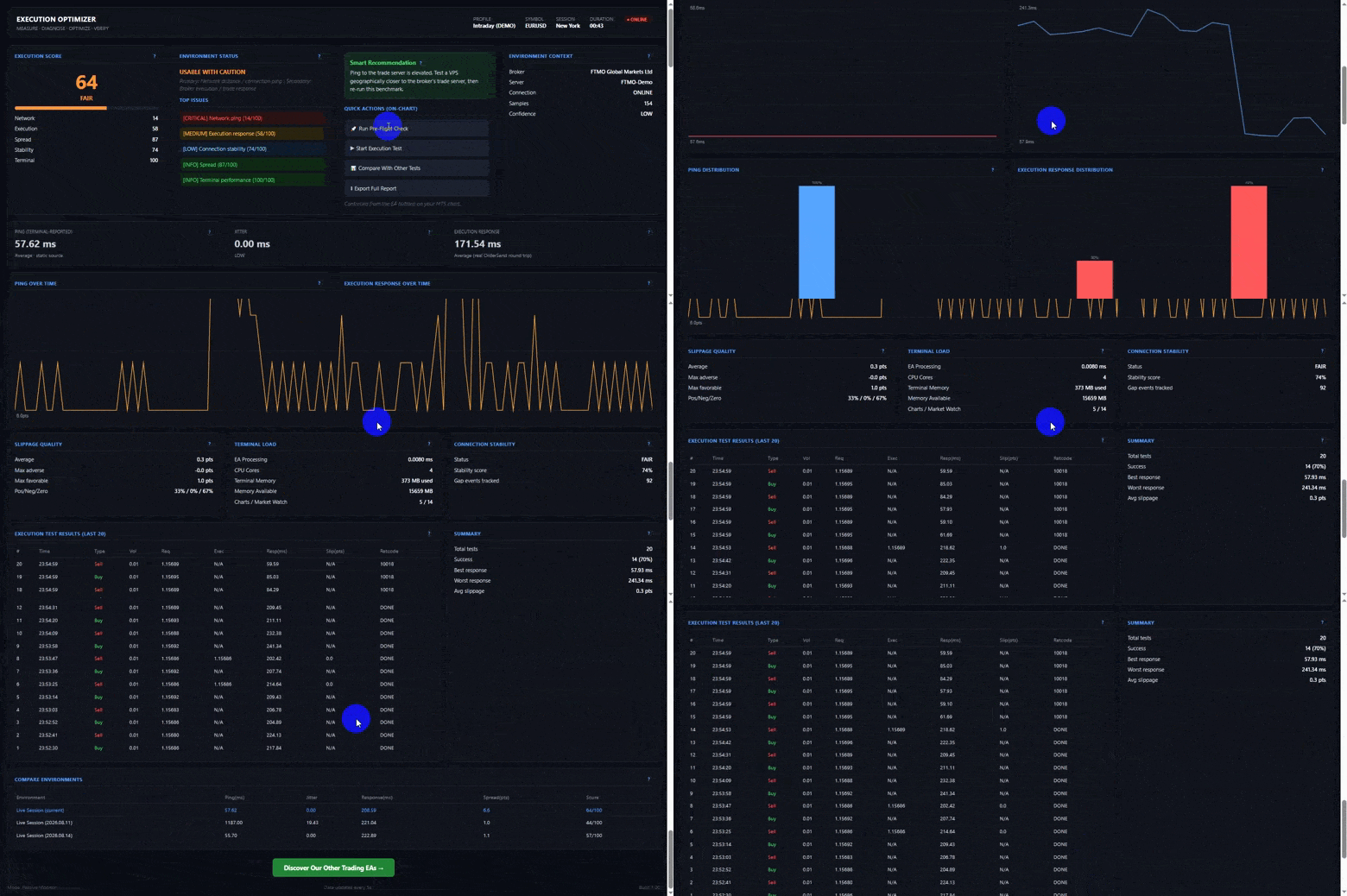
- Modern HTML Dashboard: Say goodbye to cluttered, laggy MT5 chart objects. The EA generates a sleek, auto-refreshing HTML dashboard locally on your PC.
- True Measurement Engine: No fabricated data. Every metric (Ping, Jitter, Spread, Execution Response) is measured independently on every tick and every order.
- Execution Pipeline & Root Cause Analysis: If your execution is slow, the EA tells you why. It separates Network Ping from Broker Response, identifying your primary bottleneck.
- Safe Execution Tester: Sends controlled micro-orders (0.01 lots) on a DEMO account, immediately closes them, and measures the exact millisecond round-trip and slippage.
- Strategy Suitability: Evaluates your setup based on your trading style (Swing, Intraday, Scalping, HFT) and tells you if your environment is ACCEPTABLE or HIGH RISK.
- Compare Environments: Save your sessions to a CSV database. Run a test on your Home PC, then on your VPS, and compare them side-by-side to prove which is better.
📖 How to Use It
Step 1: Setup
- Attach the EA to any chart (e.g., EURUSD M1).
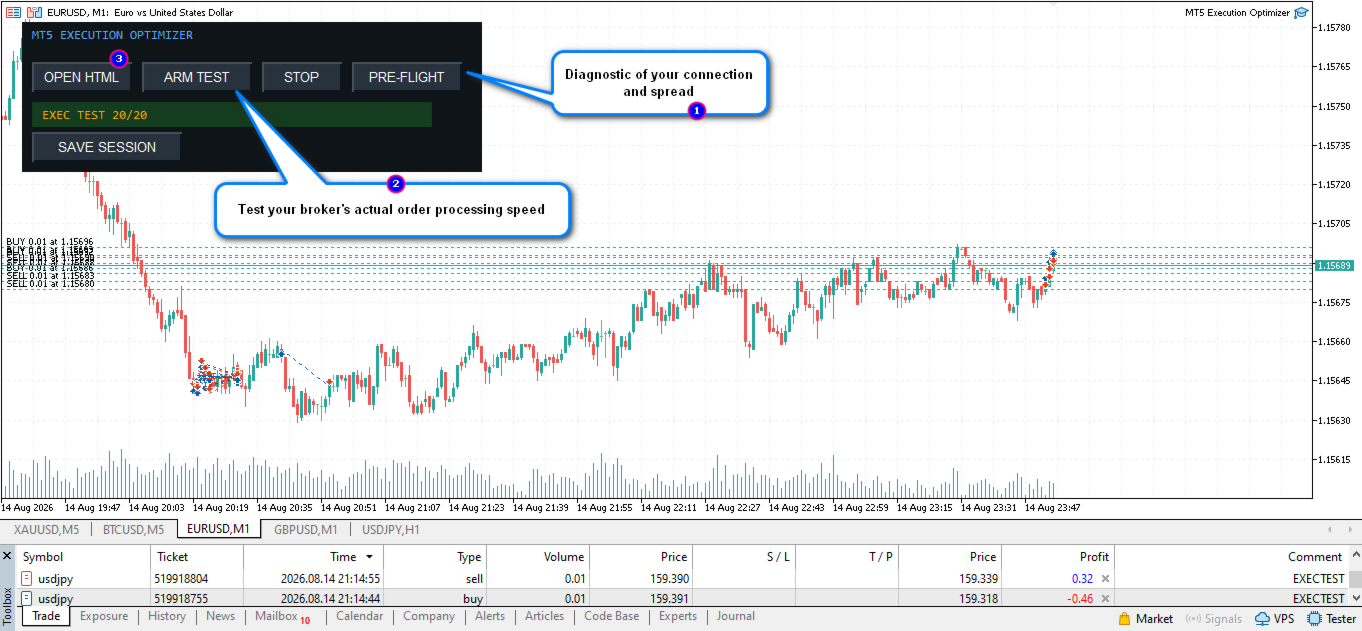
- Click the "OPEN HTML" button on the chart. Your browser will open the live dashboard. Leave this tab open in the background.
- The EA is now in Passive Mode. It will silently measure your network ping, spread volatility, and terminal load in the background.
Step 2: The Pre-Flight Check (Before Live Trading) Before you start your trading day, click the "PRE-FLIGHT" button on the MT5 chart.
- The EA will run a 5-second intensive diagnostic of your connection and spread.
- Check the HTML dashboard. If the "Execution Score" is above 70 and the "Top Issues" panel shows no red warnings, you are clear to trade.
Step 3: Run an Execution Test (DEMO ONLY) To test your broker's actual order processing speed:
- Ensure you are connected to a DEMO account.
- In the EA Inputs tab, set InpEnableExecTest = true .
- Click the "ARM TEST" button on the chart and confirm the warning popup.
- The EA will place 20 micro-orders (0.01 lots), 10 seconds apart, and close them immediately.
- Watch the HTML dashboard populate the "Execution Test Results" table with real response times and slippage points.
Step 4: Compare VPS / Brokers
- After completing a test, click "SAVE SESSION" on the chart.
- Move to your VPS (or another broker), run the same test, and save it.
- Look at the Compare Environments table at the bottom of the HTML dashboard. It will show your current setup side-by-side with your saved history, so you can see exactly which environment yields the lowest latency and highest score.
🛑 What to Check Before Trading (Checklist)
Before risking real capital, use the HTML dashboard to verify these 4 critical areas:
- Execution Score: Must be 70/100 or higher. If it is lower, check the "Smart Recommendation" box to see what needs fixing.
- Jitter: Must be LOW. If your average ping is 10ms but your Jitter is 15ms, your connection is unstable. You will experience random requotes. (Fix: Use a wired connection or a dedicated VPS).
- Execution Response: Must be under 100ms. If your ping is 10ms but your Execution Response is 250ms, your broker's server is slow. Changing your VPS won't help; you need to change brokers.
- Slippage Quality: Check the "Pos/Neg/Zero" ratio. If you see high negative slippage on a DEMO account, expect it to be worse on a LIVE account. (Fix: Avoid trading during high-impact news).
⚠️ Important Note: How to View Your HTML Dashboard
Because the MQL5 Market strictly prohibits the use of external DLLs for security reasons, this Market version saves the live HTML dashboard to your local terminal folder rather than auto-launching it in a browser.
You can find your continuously updating dashboard file saved at: C:\Users\[YourWindowsUsername]\AppData\Roaming\MetaQuotes\Terminal\[TerminalID]\MQL5\Files\BenchmarkDashboard_[Symbol].html
💡 Quick Tip: To make this easy, just click the "OPEN HTML" button on your MT5 chart. The EA will instantly print the exact, full file path directly into your MT5 "Experts" log tab at the bottom of your screen. Simply copy that path and paste it into your web browser to view the live dashboard!
Want the Seamless Version? If you prefer a version that completely bypasses this rule and automatically opens and refreshes your browser dashboard seamlessly in the background, we offer a DLL-enabled version for free to our users. Please contact us with your email to get the DLL version.