Trailing Stop Pro EA
- Утилиты
- Версия: 1.20
- Активации: 15

https://www.mql5.com/tr/users/bilisimprofesoru/seller
Multi Symbol and Multi Magic Trailing Stop Manager with Basket
USER AND INSTALLATION GUIDE
1. QUICK START & PARAMETERS
This Expert Advisor (EA) automatically manages and tracks the Trailing Stop levels for your manual trades or trades opened by other EAs, based on your custom symbol and point settings.
Trailing Mode Settings
-
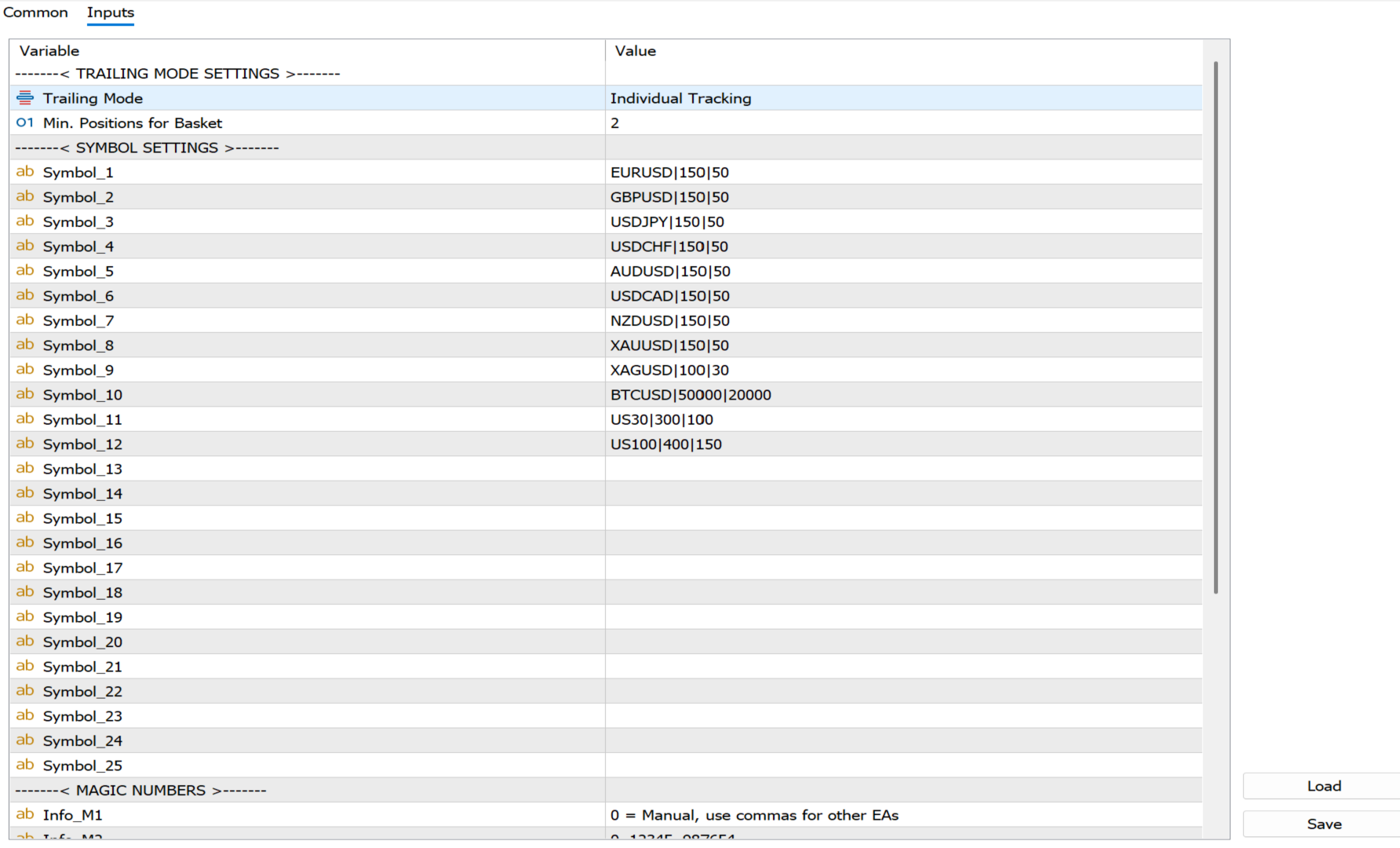
Trailing Mode:
-
Individual : Tracks each trade independently based on its own open price.
-
Basket : Tracks trades of the same symbol and direction together as a single bundle based on their volume-weighted average price.
-
-
Min. Positions for Basket: Specifies the minimum number of open positions required on a symbol to activate the Basket mode.
Symbol Settings
Supports up to 25 different symbols simultaneously. Input format: SYMBOL|TRAILING_START|TRAILING_STEP
-
Example: EURUSD|150|50 (Trailing starts when the trade reaches 15 Pips in profit, and moves the stop loss level every 5 Pips of further movement).
-
Important: Values must be entered in Points, not Pips. For 5-digit pairs, 10 pips = 100 points.
Magic Numbers
-
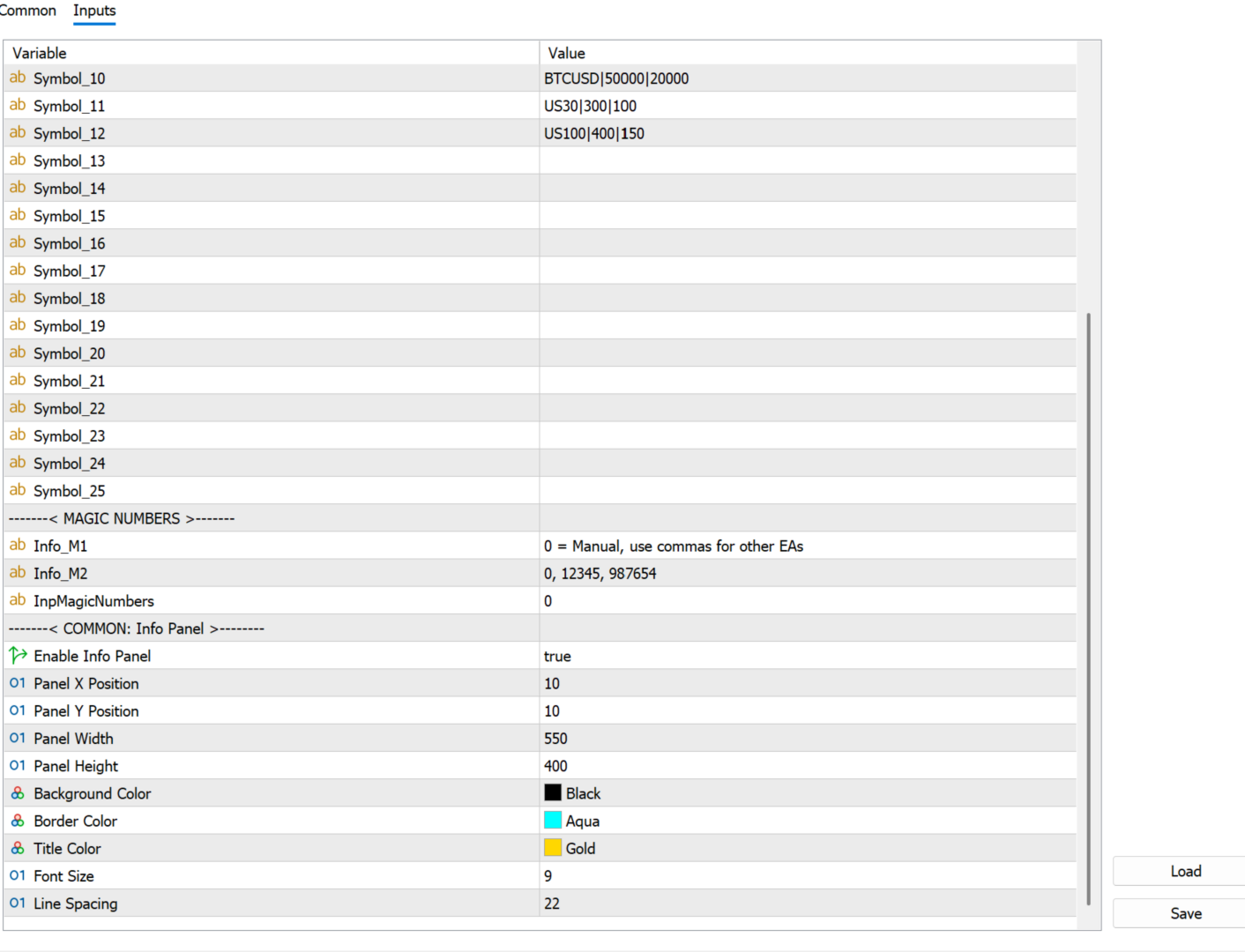
InpMagicNumbers: Determines which trades the EA will manage (separate multiple magic numbers with commas).
-
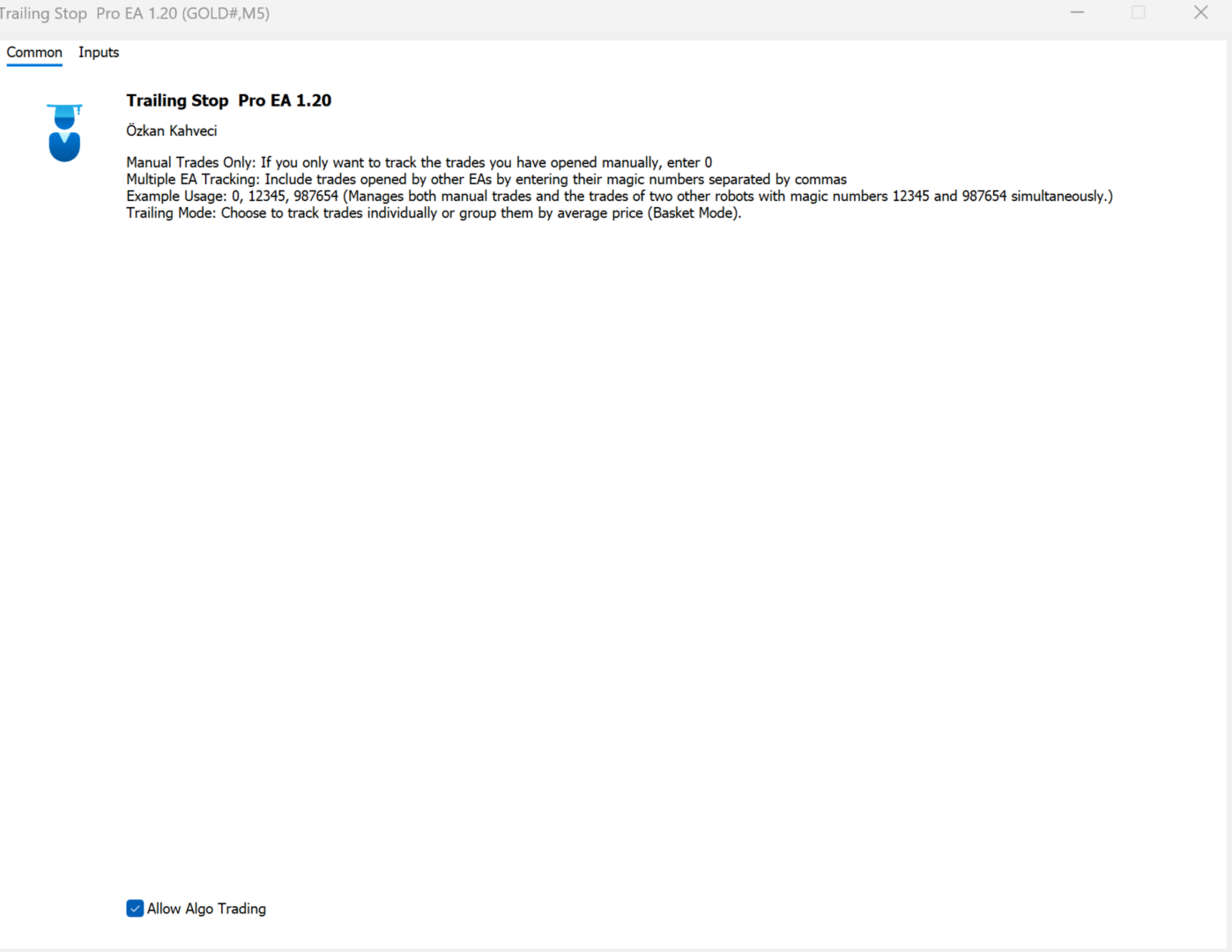
0 : Tracks Manual Trades only.
-
0, 12345, 98765 : Tracks manual trades alongside trades from other EAs with Magic IDs 12345 and 98765 simultaneously.
-
2. ON-SCREEN DASHBOARD STATUSES
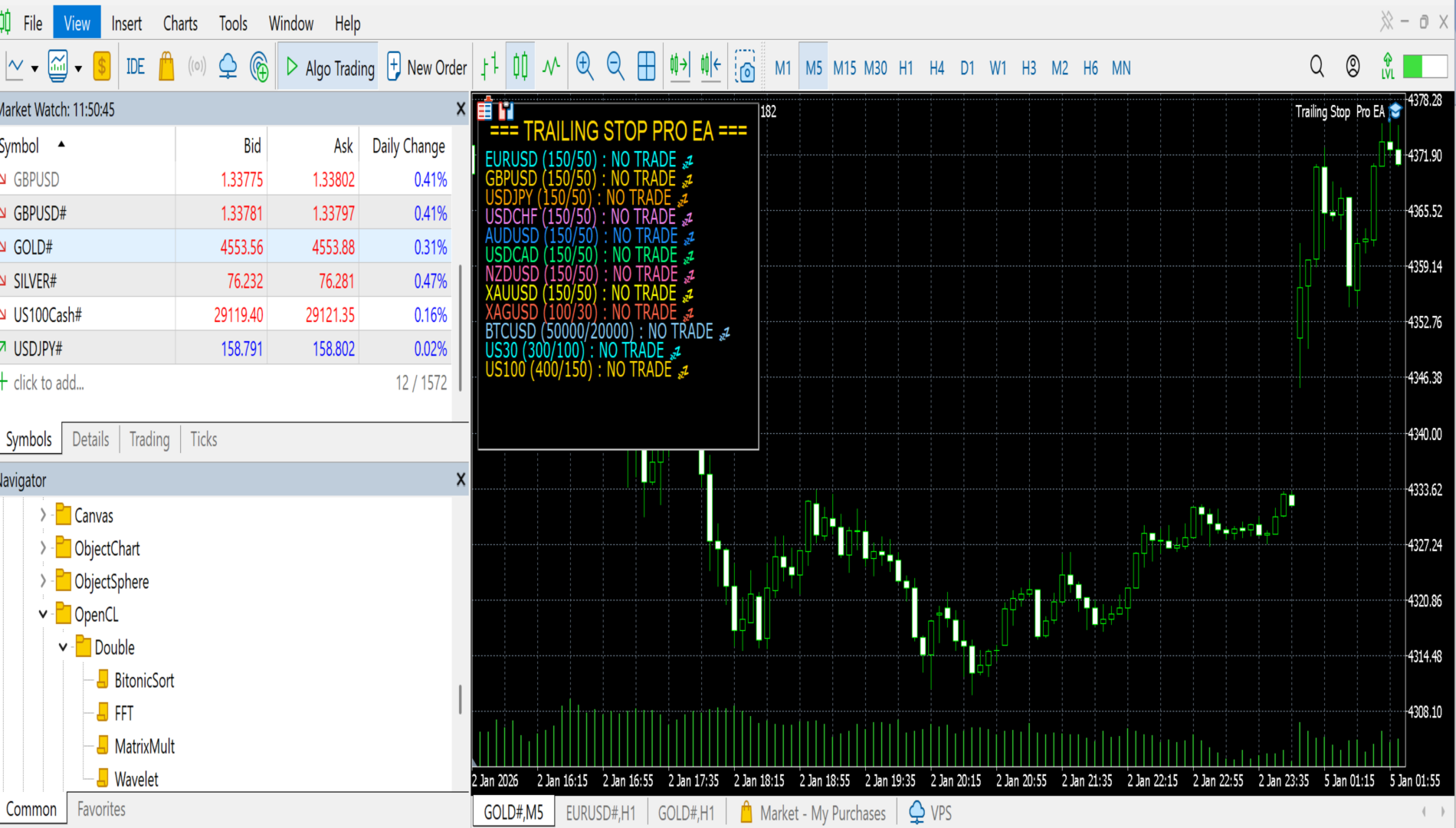
You can monitor the live status of each symbol via the color-coded on-screen panel:
-
NO TRADE : No open positions found for this symbol/magic number. The EA is on standby.
-
PENDING / BASKET PENDING : Open positions exist, but the profit has not yet reached the required Trailing Start distance.
-
STOP MOVED / BASKET STOP MOVED : Trailing has been triggered, and the Stop Loss (SL) has been successfully moved into profit.
-
PROTECTION ACTIVE : The trade is locked in a secure profit zone; the EA is waiting for the next price step ( Trailing Step ).
-
ERROR : Modification failed due to broker limitations (the points specified might be closer than your broker's minimum Allowed Stop Level).
3. INSTALLATION
-
Copy the downloaded file into the MetaTrader 5 directory: MQL5 -> Experts . Right-click and Refresh the Navigator window.
-
Attach the EA to only one chart. Since it features multi-symbol architecture, a single instance scans and manages all configured symbols in the background.
-
In the EA settings window, navigate to the "Common" tab and check "Allow Algo Trading".
-
Ensure the main "Algo Trading" button in the top menu bar of MetaTrader 5 is enabled (displays a green icon).
4. IMPORTANT REQUIREMENTS (VPS Recommendation)
-
24/7 Connectivity (VPS): Trailing Stop operations require constant price feed monitoring. It is highly recommended to run this EA on a VPS (Virtual Private Server). If you close your MetaTrader 5 platform or turn off your PC, the EA cannot modify or update your Stop Loss levels.
-
Execution Speed: Running the utility on a VPS with low latency to your broker's server ensures that trailing adjustments are sent and executed instantly without missing fast market spikes.