
Dom BookHeatMAP Lightning Trading Panel
- Experts
- Versione: 3.0
- Aggiornato: 10 gennaio 2026
- Attivazioni: 5

Dom Book HeatMAP Lightning Trading Panel Professional-Grade Microstructure Lightning Trading Panel · User Manual
Important notice: Before placing an order, please contact me first, and I will provide you with professional answers and services
Major update explanation: On January 10, 2016, automatic trading EA and control panel were added. For detailed parameter configuration, please refer to the latter half of this article.
Important Note:
1、As this is a heatmap, footprint map, and DOM trading panel tool based on EA, its demo version cannot function properly and only works in a live environment!
2、Enabling high-performance mode separates program operations and data retrieval, enabling multi-threaded operation without interference, completely resolving DOM manipulation lag issues under poor network conditions. High-performance mode requires downloading a separate service program, download at: https://www.mql5.com/zh/market/product/159595?source=Site+Market+MT5+Search+Rating006%3abinancedata
1. Product Summary: Giving You a "God's Eye View" of the Market
Say goodbye to blindly guessing market direction from K-line charts—see directly through the formations of institutional capital!
The Dom BookHeatMAP Lightning Trading Panel is an institutional-grade MT5 trading terminal built for Professional Scalpers, Day Traders, and Quants. It breaks the limitations of traditional MT5 that only shows historical prices. Through a proprietary API engine, it synchronizes the world's largest Binance Level 2 Depth Data directly to your chart in real-time. Combined with Microscope Footprint Charts and a Lightning DOM (Depth of Market), it allows you to dissect every price fluctuation with surgical precision.
Why Choose It?
-
See Institutional Intent: The Panoramic Heatmap reveals "Order Walls" (large limit buy/sell orders), helping you identify strong support and resistance levels in advance so you aren't fooled by false breakouts.
-
Insight into Micro-Games: The unique Microscope Footprint Chart reveals the details of the bull-bear battle inside the candles using Delta and POC data, precisely capturing reversal signals.
-
Speed is King: Designed for high-frequency trading, the Lightning DOM Panel supports millisecond-level one-click order placement and cancellation, as well as silky-smooth Drag & Drop Order Modification, ensuring your execution keeps up with your judgment.
2. Core Environment Configuration (Must Read)
This panel relies on external API data. You MUST complete the following two configuration steps for it to work properly.
2.1 Enable WebRequest
Since the program needs to connect to Binance servers, you must add the URLs to the whitelist in MT5:
-
Click the menu bar: Tools -> Options -> Expert Advisors.
-
Check the box "Allow WebRequest for listed URL".
-
Double-click the empty space in the list and add the following 3 URLs one by one:
data-api.binance.vision
api.binance.com
api1.binance.com
Click OK.
2.2 Trading Pair Matching & Gold Configuration (Important)
Principle: The InpSymbolPreset in the EA parameters MUST logically correspond to the MT5 chart symbol; otherwise, the price axis will be misaligned.
Gold (XAUUSD) Traders Please Note:
-
Default Configuration: InpSymbolPreset defaults to PAXGUSDT.
-
Principle: PAXG (Paxos Gold) is a token backed by physical gold, and its price is highly consistent with international gold prices. This EA uses it as the data source for Gold liquidity.
-
Action: When trading XAUUSD, please keep the default parameter PAXGUSDT unchanged.
Crypto Traders:
-
Trading BTC: Select BTCUSDT.
-
Trading ETH: Select ETHUSDT.
-
Other Coins: Select Custom_Input and enter the Binance symbol code (e.g., DOGEUSDT ) in InpCustomSymbol .
STRICTLY FORBIDDEN:
-
Do NOT use the PAXGUSDT parameter on a BTC chart.
-
Do NOT use the BTCUSDT parameter on a Gold chart.
3. Interface Layout & Function Details
The panel interface integrates micro-data with trade execution, mainly divided into five areas:
A. History Heatmap - [Background Layer]
-
Visual Principle: The colored blocks in the background represent the historical Order Book. The brighter/warmer the color (controlled by InpColorSensitivity ), the larger the volume of pending orders at that price level, indicating stronger support/resistance.
-
Transaction Bubbles: Circles on the chart represent actual executed trades.
-
Color: Blue/Green indicates aggressive buying; Purple/Red indicates aggressive selling.
-
Size: The larger the bubble, the larger the volume of that trade.
-
B. Liquidity Histogram - [Left of Price Axis]
-
Function: A horizontal bar chart showing the current total volume of pending orders at each price level.
-
Usage: Helps you identify current market depth thickness at a glance and find the nearest key defensive levels.
C. DOM Lightning Trading Ladder (Trading DOM) - [Right of Price Axis]
This is the core operation area. Each row corresponds to a price level and contains 5 columns of buttons:
-
Trade (Order Column):
-
Above current price: Shows Red background (Sell Limit zone).
-
Below current price: Shows Green background (Buy Limit zone).
-
Click: Directly places a Limit Order.
-
-
Vol (Volume): Shows the market pending order volume at that level. If you have an order there, it displays your order lot size.
-
TP (Take Profit): Click or drag to set/modify Take Profit.
-
SL (Stop Loss): Click or drag to set/modify Stop Loss.
-
Cancel/Close (Operation Column):
-
Cancel: Cancels the pending order at that price.
-
Close: Closes the open position at that price (button turns red).
-
Clear: Clears the TP/SL settings for that price.
-
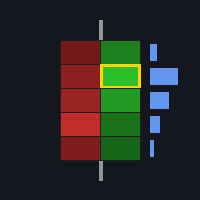
D. Microscope Footprint - [Far Right Area]
-
Function: Magnifies the internal structure of candles like a microscope. Located in the reserved area on the far right.
-
Data Interpretation:
-
Left Wing (Volume): Total volume traded at that price level.
-
Right Wing (Time): Duration the price stayed at that level.
-
Delta (Number): The difference between aggressive buying volume and aggressive selling volume (Positive is Green, Negative is Red).
-
POC (Highlight Box): The price level with the maximum Volume (VPOC) or longest Time (TPOC).
-
E. Imbalance Meter - [Between Bid & Ask]
-
Location: Between the Bid and Ask prices.
-
Function: Real-time calculation of the order imbalance near the spread.
-
Reading: E.g., S:70% indicates heavy selling pressure; B:30% indicates weak buying interest.
4. Trading Operation Guide
4.1 Lightning Order Placement
-
Buy: Click the Trade button in the Green area below the price axis -> Places a Buy Limit.
-
Sell: Click the Trade button in the Red area above the price axis -> Places a Sell Limit.
-
Lot Size: The default order size is controlled by the parameter InpTradeVolume .
4.2 Drag & Drop Modification
The EA supports intuitive chart drag-and-drop operations:
-
Modify Price: Click and hold the Vol number of a pending order row, drag it to a new price, and release to modify the order price.
-
Modify TP/SL: Click and hold the green TP or red SL tag, and drag up or down to quickly adjust TP/SL levels.
-
Tip: While dragging, a floating window will appear on the screen showing the estimated Profit/Loss amount for the adjustment.
4.3 View Control
-
Scroll: Click and hold the left mouse button in the DOM area and drag up/down to view depth above or below.
-
Auto-Center: If InpAutoMirror is enabled, the view will automatically snap back to the latest price when the mouse is released and idle.
-
Zoom: Adjust the parameter InpPriceStep to change the grid granularity.
5. Detailed Parameter Configuration
Data Source
-
InpSymbolPreset: Preset symbol (Default is PAXGUSDT for Gold).
-
InpCustomSymbol: Custom symbol name (Effective when Preset is set to "Custom").
Trading Settings
-
InpTradeVolume: Lot size per click (Default 0.01).
-
InpMagicNumber: EA Order Identification Number.
UI: Dimensions
-
InpBtnWidthTrade ~ InpBtnWidthCancel: Custom pixel width for each button column.
-
InpReservedWidth: Width of the Footprint chart area on the right (Default 400px).
-
InpHistWidth: Width of the Liquidity Histogram.
-
InpFontSize: Global font size.
View Settings
-
InpVisibleRange: Vertical price range displayed on screen (e.g., $30).
-
InpPriceStep: Aggregation Step (Important). Determines the granularity of the Heatmap. Recommended: 0.5-1.0 for Gold, 10-50 for Bitcoin.
-
InpColorSensitivity: Heatmap color sensitivity.
Colors
-
Supports customization of all visual elements including background, grid, buy/sell orders, bubbles, Footprint (Delta/POC/Background), etc.
6. FAQ (Common Troubleshooting)
Q: The panel stays stuck on "Initializing..." and doesn't show the chart? A: Check if InpSymbolPreset is selected correctly, and verify that the 3 Binance URLs have been added to the WebRequest whitelist in options.
Q: The Heatmap is completely black? A: The price axis might be mismatched. For example, using Gold parameters (PAXG) on a BTC chart. Please ensure the EA parameters match the chart symbol.
Q: Why is there no reaction when I click buttons? A: Check if the "Algo Trading" button in the top MT5 toolbar is turned ON.
Q: What if the interface is lagging? A: Try increasing InpDataTimer (Default 1000ms) or decreasing InpDepthLimit (Default 500) to reduce the data load.
Auto Pilot Trading Panel Configuration Manual
1. Overview
Auto Pilot is an automated grid/signal trading panel integrated into the Dom BookHeatMAP tool. It calculates a weighted score by analyzing market microstructure data (such as Depth of Market imbalance, Footprint Delta, and POC alignment). When the score exceeds a set threshold, the system automatically executes opening orders.
The system features risk management protections (maximum position, profit/loss protection) and a trade cooldown mechanism, making it suitable for assisting trades in ranging or specific trending markets.
2. Enabling the Panel (Global Inputs)
In the EA's input parameters window, find the "Auto Grid Panel | 自动交易面板" group to configure the following:
-
InpEnableAutoPanel (Enable Auto Panel): Set to true to display the panel on the chart.
-
InpAutoDefaultLot (Default Auto Lot): The base lot size for automated opening orders.
-
InpAutoMaxPosVol (Max Position Vol): Safety limit. If the current position volume in one direction exceeds this value, no new orders will be opened (0 means unlimited).
-
InpAutoPanelSize (Panel Font Size): Adjusts the display size of the panel on the chart, default is 14.
3. Panel Interface Details (UI Controls)
The panel is displayed on the left side of the chart and contains multiple editable input boxes. Parameter changes take effect immediately.
A. Basic Trading Parameters
| Parameter Name | Description | Calculation Logic |
| Vol (Volume) | Trade volume for a single open order. | Reads the input value directly. |
| MaxPos (Max Position) | Maximum allowed total position volume. Stops opening when reached. | Reads input value, 0 for unlimited. |
| SL / TP (Stop Loss / Take Profit) | Distance Multiplier. Sets the SL/TP distance after opening. | Actual Price = Open Price ± (Input Value × PriceStep ). Example: Input 3, PriceStep is 0.5, then SL distance is 1.5. |
| Risk($) Loss/Prof | Account Currency Risk Control. Closes all and pauses panel when triggered. | Loss (Left): Max floating loss amount (positive number, e.g., input 100 means close at -100). Prof (Right): Max floating profit amount. |
B. Strategy Factors (Factors & Weights)
The core strategy consists of 6 factors. Each factor has two input boxes: Value (Left) and Weight (Right).
Final Score Formula: Total Score = ∑(Individual Score × Weight) / ∑Weights.
| Factor Name | Parameter Value Meaning | Logic Description |
| POC Algn (POC Alignment) | Candle Count. Requires the center of gravity (Mid Price) of the last N historical candles to be consistent in direction. | If the last Value candles' center of gravity continues upward, Score +1; downward Score -1. |
| Imbal Delta (Imbalance Rate) | Percentage Threshold. The percentage difference between Buy and Sell limit orders in the DOM. | Formula: (BuyVol - SellVol) / TotalVol . If difference % > Value , Score +1 or -1. |
| Dlt Rng (Delta Range) | Delta Absolute Value. The net Buy/Sell volume (Delta) of the current Footprint Bar. | If current Bar Delta absolute value > Value , Score +1 or -1. |
| Dlt Str% (Delta Strength) | Strength Percentage. The proportion of Delta to Total Volume. | Formula: (Delta / TotalVolume) * 100 . If Strength > Value , Score +1 or -1. |
| Vol Filt (Volume Filter) | Min Volume. Lower limit for the total volume of the current Bar. | If Total Volume < Value , this factor scores 0 (does not participate in signal), otherwise scores normally. |
| Dur Filt (Duration) | (Reserved) | Specific logic not yet implemented in code, returns 0 by default. |
C. Trigger Settings
-
Thresh (Threshold): Trading trigger threshold. Trades are executed when |Total Score| ≥ Thresh . Default recommendation is 0.9.
4. Operation and Status Control
Start/Pause Button
-
Large button located at the bottom of the panel.
-
PAUSED (Red): System stopped, only monitors SL/TP risk control, does not open new positions.
-
RUNNING (Green): System running, automatically opens positions based on score.
-
Operation: Click the button to toggle status; a sound effect plays when switching.
Status Bar
Displayed below the button, providing real-time system status feedback:
-
CD: 15s: Cooldown countdown. There is a mandatory 30-second cooldown after placing an order.
-
Score: 0.85: The currently calculated comprehensive strategy score.
-
PnL: Floating profit/loss of the current symbol's positions (including swap).
-
Hit Max Loss/Prof: Alert message after risk control is triggered.
5. Trading Logic Summary
-
Frequency: Logic is calculated every 0.5 seconds.
-
Risk Check: Checks Risk($) settings first. If SL/TP amount is reached, closes immediately and pauses.
-
Score Calculation: Calculates weighted average score based on the 6 factors above.
-
Execution Judgment:
-
Currently not in cooldown period (30s CD).
-
|Score| ≥ Threshold .
-
Current position volume < MaxPos .
-
-
Order Placement: Sends Limit/Market order and sets protection based on SL/TP parameters.
6. Important Notes
-
Data Dependency: The panel depends on underlying Bookmap data (such as snapshot aggregation data and footprint history). Please ensure chart data is fully loaded.
-
Parameter Effect: After modifying input box values, the new values are automatically read at the next logic calculation (about 0.5 seconds later); no need to restart the EA.
-
Cooldown Mechanism: After each successful auto-order, the system forcibly locks for 30 seconds. During this period, no orders will be placed even if signals are met, to prevent high-frequency wash trading. If you need to reset the cooldown immediately, you can manually click the button twice (Pause then Start).






































I strongly recommend this indicator to everyone! The support and communication from developers are fantastic! The functions of DOM panel, footprint map, and heatmap are also very smooth and complete, and the operation is very easy. Currently, I am practicing operating them.