How to sync drawings across timeframes and charts in MT5 and MT4
11 November 2026, 03:29

0
15
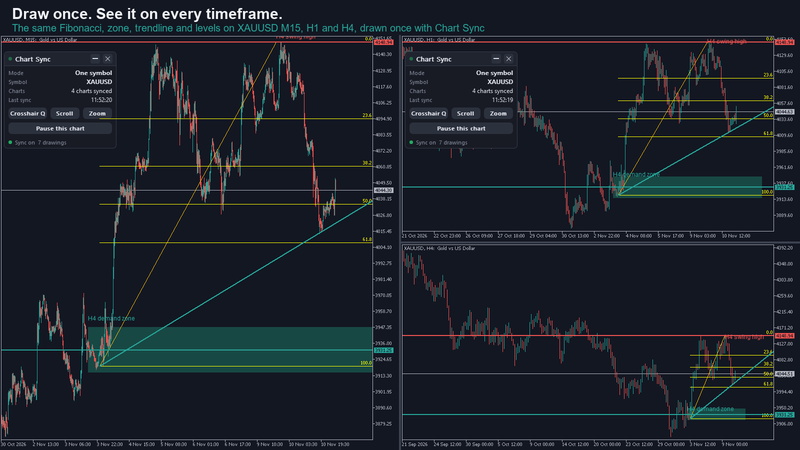
Multi timeframe analysis means the same levels on several charts. You mark support on H4, then draw it again on H1 and M15, then fix all three when price moves. Chart Sync does the copying for you: draw once and the line, zone or Fibonacci shows up on every synced chart. This guide shows a gold (XAUUSD) layout step by step.
What you need
- Chart Sync on MT5 (MT5) or MT4 (MT4). Install steps are in the user manual.
- A few charts you want to keep in line, for example XAUUSD M15, H1 and H4.
Step 1: attach Chart Sync to every chart
- Open XAUUSD M15, H1 and H4 and drag Chart Sync onto each one.
- Each panel shows "3 charts synced". Only charts that run Chart Sync take part.
- Save the layout as a profile or template with Chart Sync on it, so it comes back after a restart.
Step 2: draw your levels once
- On H4, draw the key support and resistance: horizontal lines at the swing high and low, or a rectangle for a supply or demand zone. On gold an H4 zone is often several dollars tall, so a rectangle shows it better than a single line.
- Watch M15 and H1: the same objects appear there, usually in under half a second.
- Draw a Fibonacci retracement over the last H4 swing. Its levels, colours and labels appear on the other charts too, even levels with a blank label.
- Add a text note such as "Weekly high" or a label in any language. Text, descriptions and tooltips travel with the drawing.
Step 3: edit and delete from any chart
- Drag a line on M15 and it moves on H1 and H4. Change its colour or width and the others follow.
- Delete a drawing that the other charts show and the panel asks "Delete 1 drawing on all charts?" while they keep it. Click Delete to remove it everywhere, or Keep to put it back.
- Deleted the wrong one? Click "Undo delete" on the same chart's panel within 15 seconds and it comes back on every chart.
Step 4: choose which timeframes get which drawings
- A level from H4 belongs on lower timeframes, but an M1 scalp marker would clutter your daily chart. The timeframe rules handle that.
- By default a drawing shows from M1 up to a few timeframes above where you drew it: M1 drawings up to M15, M15 up to H1, H1 up to D1, H4 up to W1.
- Change the "Sync ... objects up to" and "down to" inputs to your taste. One change on one chart reaches every chart.
- Want a type everywhere, for example every Fibonacci on every timeframe? Turn on "Force-sync on all timeframes" for that type. Turn off "Sync enabled" for a type you want to keep local.
Step 5: run several markets side by side
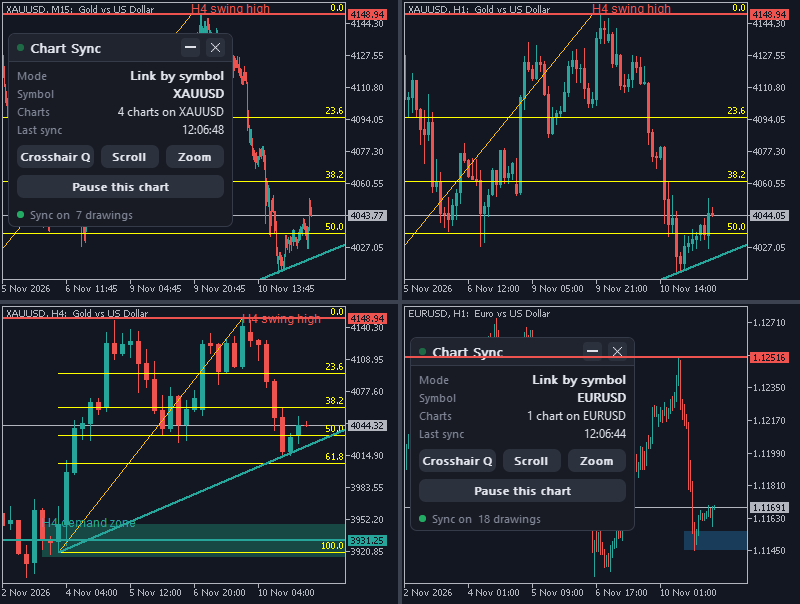
- In the default mode the group shows one symbol: change gold to EURUSD on one chart and the whole layout moves with it. Your gold drawings are saved and come back when you switch back.
- To watch gold and EURUSD at the same time, set "Sync mode" to Link by symbol. Every chart keeps its own symbol, and drawings sync only between charts of the same symbol.
- Your XAUUSD M15, H1 and H4 share their levels, your EURUSD charts share theirs, and nothing crosses over.
- Broker suffixes are handled: XAUUSD.pro or XAUUSDm share drawings with XAUUSD.
Step 6: try ideas on one chart with Pause
- Click "Pause this chart" on one chart's panel. What you draw there now stays on that chart only.
- Changes from your other charts still arrive, so the paused chart keeps your main levels.
- Click "Resume sync on this chart" when you are done. The test drawings stay on that chart and are not pushed to the others.
Tips
- Other indicators draw objects too. If their zones or lines get copied, add their name prefix to "Disable sync for objects by name". On MT4 this matters most, because indicator objects there look like a trader's.
- Chart Sync keeps drawings already on a chart when you attach it, so you can add it to an existing layout.
- Check your broker's contract spec for gold (1 lot is usually 100 oz) before you size any trade from these levels.
Risk note
Chart Sync copies your analysis. It does not tell you where to trade, and levels are not guarantees: price can run through any line, and gold can move tens of dollars in minutes around news. Trading forex and CFDs is high risk. This article is educational, not financial advice.
Learn more
- Chart Sync user manual
- How to sync the crosshair, scroll and zoom across charts in MT5 and MT4
- Multi-timeframe analysis on gold (XAUUSD): draw once on H4, trade on M15
- Keep your drawings when you change templates, profiles or restart MT5 and MT4