Chart Sync user manual: sync drawings, crosshair and scroll (MT5, MT4)
11 November 2026, 03:28

0
11
What it does
- Draw, move, restyle or delete an object on one chart and the same change shows up on every other Chart Sync chart, typically in under half a second.
- Syncs across timeframes of one symbol (multi timeframe analysis) and, with Link by symbol, keeps several markets apart in one layout.
- Syncs the crosshair: move the mouse on one chart and a time and price crosshair follows on the others.
- Optional scroll sync and zoom sync: the other charts follow the chart you scroll, lined up by time.
- Saves your drawings per symbol with a backup copy, so they are back after a restart.
- It is a chart tool. It never trades and needs no DLLs and no internet connection.
Install from the Market and attach
MT5
- Log in to the MQL5 account you bought with (Tools > Options > Community).
- Open the Market in the terminal (Toolbox, Ctrl+T, Market tab), go to Purchased and click Install on "Chart Sync MT5".
- Open Navigator (Ctrl+N), Indicators, Market. Drag Chart Sync onto each chart you want to sync and click OK.
MT4
- Log in to the MQL5 account you bought with (Tools > Options > Community).
- Open the Terminal window (Ctrl+T), Market tab, Purchased. Install "Chart Sync MT4".
- Open Navigator (Ctrl+N), Indicators, Market, and drag Chart Sync onto each chart. "Allow DLL imports" is not needed. Click OK.
Chart Sync syncs only charts that run it, so attach it to every chart in your layout. If you use templates or profiles, save them with Chart Sync on the charts so it comes back after a restart.
Your first 5 minutes
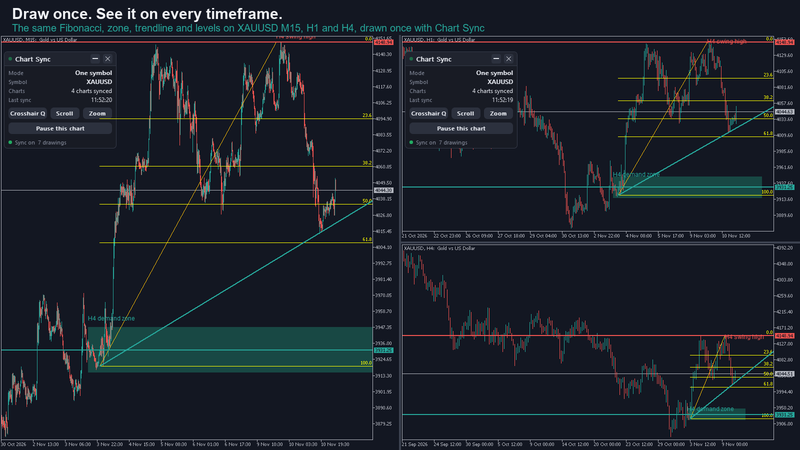
- Open three charts of one symbol, for example XAUUSD M15, H1 and H4, and attach Chart Sync to each.
- The panel opens in the top left corner of each chart. It shows "Sync on", the mode, the symbol, how many charts are synced and the time of the last sync.
- Draw a horizontal line on H1. It appears on M15 and H4. Move it, change its colour, and the others follow.
- Draw a Fibonacci retracement on H4. It shows up on H1 and M15 with the same levels and labels.
- Move the mouse over M15. A dotted time and price crosshair follows on H1 and H4. Press Q to switch it off or on for every chart.
- Click Scroll on the panel, then drag M15 back in time. H1 and H4 follow to the same moment.
The panel explained
- Header: a status dot, the title "Chart Sync", a minimise button and an X. The X removes Chart Sync from that chart; your drawings stay.
- Status line: "Sync on" and the number of drawings, or a warning such as "Paused: drawings file locked, retrying", "Damaged file, backup restored" or "Saving failed, retrying".
- Mode: One symbol, or Link by symbol.
- Symbol and Charts: how many charts sync with this one.
- Last sync: the time of the last change sent or received, with an activity dot.
- Crosshair Q, Scroll, Zoom: switches that act on every Chart Sync chart at once.
- Pause this chart: see "Pause one chart" below.
- Drag the panel by its header to move it. It keeps its place on that chart, also after a timeframe change. Minimise it to a small bar that still shows the symbol and the chart count; click the bar to open it again.
- The panel stays inside the chart area, clear of the price scale. Hide it on a chart with "Show the ChartSync panel (this chart only)" set to false.
Sync modes: one symbol or link by symbol
- One symbol per group (default): all synced charts show the same symbol. Change the symbol on one chart and the others switch with it. Handy to move a whole layout from EURUSD to gold in one go.
- Link by symbol: every chart keeps its own symbol, and drawings sync only between charts of the same symbol. A gold set (XAUUSD M15, H1, H4) and a EURUSD set run side by side. No chart ever switches symbol.
- Set "Sync mode" in the inputs of one chart; every Chart Sync chart follows.
- Drawings are saved per symbol. Come back to a market and your levels are there.
- Broker suffixes match: XAUUSD.pro, XAUUSDm and #XAUUSD share drawings with XAUUSD. Different markets with similar names, such as BTCUSD and BTCUSDT or US500 and US5000, stay apart.
Delete safety and Undo
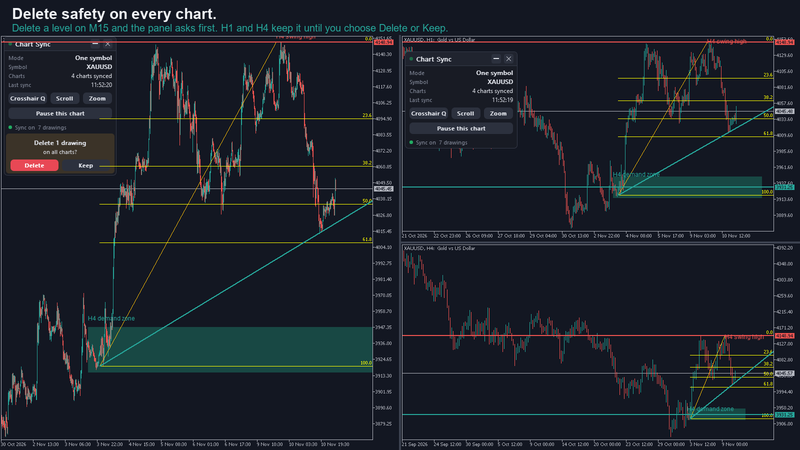
- Delete a drawing that another chart shows and the other charts keep it while the panel asks "Delete 1 drawing on all charts?".
- Delete removes it everywhere. Keep puts it back on the chart you deleted it from.
- Delete several drawings in a row and you get one question for all of them.
- After a delete on all charts, "Undo delete" stays on the panel of the chart you deleted from for 15 seconds and brings the drawings back on every chart. One step only.
- If no other chart shows the drawing (for example an M1 line while your other charts are H4), it is deleted at once, with the same Undo.
- An unanswered question (chart closed, terminal shut down) means kept. Nothing is lost.
- Prefer instant deletes? Set "Ask before deleting on other charts" to false. Undo still works.
Pause one chart
- Click "Pause this chart" to try ideas on one chart without touching the others.
- What you draw while paused stays on that chart only, also after a timeframe change and after you resume.
- Changes from your other charts still arrive on the paused chart.
- Deleting a synced drawing while paused asks: All charts, This chart (removed here only) or Keep.
- Click "Resume sync on this chart" to sync again.
Inputs, in plain words
Shared inputs (change on one chart, every chart follows)
- Sync mode: One symbol per group (default) or Link by symbol.
- Ask before deleting on other charts (on).
- Timeframe sync settings: for each timeframe, how far down and up its drawings go. Defaults: M1 drawings up to M15, M5 up to M30, M15 up to H1, M30 up to H4, H1 up to D1, H4 up to W1, D1 and above up to MN; all down to M1.
- Disable sync for objects by name: name prefixes, separated by ";", that Chart Sync leaves alone. Use it for other programs' objects.
- One group per object type (vertical line, horizontal line, trend, Trend by Angle, cycle lines, arrowed line on MT5, the channels, pitchfork, the six Fibonacci tools, rectangle, triangle, ellipse, text and label): "Sync enabled" and "Force-sync on all timeframes", which ignores the timeframe rules for that type.
- Allow symbol prefix/suffix (on): broker suffixes match their base symbol.
Per chart inputs (this chart only)
- Show the ChartSync panel, Panel theme (auto, dark or light) and the panel start position.
- Crosshair sync (on for new installs), Hotkey (Q, or None), Crosshair color (None uses the chart foreground) and line style (dotted).
- Scroll sync and Zoom sync (both off). The Scroll and Zoom switches on the panel set them for every chart.
What is synced
- Vertical and horizontal lines, trendlines, Trend by Angle, cycle lines, equidistant, standard deviation and regression channels, Andrews' pitchfork, Fibonacci retracement, time zones, fan, arcs, channel and expansion, rectangles, triangles, ellipses, text and text labels, plus arrowed lines on MT5.
- Colour, style, width, Fibonacci levels, text, and each drawing's description and tooltip, in any language.
- Text labels you place yourself. Panels and dashboards drawn by other programs are left alone. On MT4 a label is picked up when you create, move or edit it.
- The symbol (in one symbol mode), the crosshair, and optionally scroll and zoom.
Your drawings stay safe
- Saved per symbol with a backup copy. A damaged file falls back to the backup.
- Drawings already on a chart are kept when you attach Chart Sync or switch symbols.
- Each drawing carries its own edit version and deletes are remembered, so two charts that missed each other's changes merge them.
- Drawings saved by Chart Sync 1.7 load after the upgrade.
FAQ and troubleshooting
A drawing does not appear on another chart.
- Check that Chart Sync runs on that chart (the panel shows), and the timeframe rules: by default an M1 drawing shows only up to M15. Turn on "Force-sync on all timeframes" for that object type to show it everywhere.
- In Link by symbol mode, drawings sync only between charts of the same symbol.
My chart changed symbol when I attached Chart Sync.
- In one symbol mode the whole group shows one symbol. That chart's own drawings are saved under its symbol and come back when you switch to it. Choose Link by symbol to keep every chart's symbol.
Another indicator's zones are copied to my charts.
- Add that indicator's object name prefix to "Disable sync for objects by name". On MT4, where indicators draw objects that look like a trader's, add the prefix of any indicator that draws zones or lines on your Chart Sync charts.
The crosshair does not show.
- Press Q (or your hotkey) or click Crosshair on the panel. After an upgrade from 1.7 it starts off until you switch it on. It shows on the other charts, not on the one under your mouse, so MetaTrader's own crosshair still works there for measuring.
The other charts do not follow my scroll.
- Click Scroll on the panel. For zoom, click Zoom: it switches Scroll on with it.
Does it work in the Strategy Tester?
- It is built for live and demo charts and stays idle in the tester. The tester has one chart, so the Market demo cannot show syncing.
After an update the old version still runs.
- In the Market, Purchased, press Update. Then remove Chart Sync from your charts and attach it again, or reload your template.
Version history
- 2.0, MT5 and MT4: new panel, Link by symbol mode, delete question and Undo, Pause this chart, synced crosshair, scroll and zoom sync, text labels, descriptions and tooltips, per-drawing versions with backup saves, lighter sync next to object-heavy indicators, smarter symbol matching.
Learn more
- How to sync drawings across timeframes and charts in MT5 and MT4
- How to sync the crosshair, scroll and zoom across charts in MT5 and MT4
- Multi-timeframe analysis on gold (XAUUSD): draw once on H4, trade on M15
- Keep your drawings when you change templates, profiles or restart MT5 and MT4
Links
- MT5: https://www.mql5.com/en/market/product/85821
- MT4: https://www.mql5.com/en/market/product/85823
- Website: https://duofxlabs.com/chart-sync/
Trading forex and CFDs is high risk. Chart Sync is a chart analysis tool for educational and informational purposes only. It is not financial advice and does not guarantee results.