Tsurugi Gold EA – User Guide: Setup, Panel and Prop Firm Limits

Product page: https://www.mql5.com/en/market/product/207107
How to set up Tsurugi Gold EA, read the panel and use the prop firm limits. If your question isn't answered here, leave a comment below or send me a message.
1. SETUP
- Use a hedging account. Buy Stop and Sell Stop orders are placed at the same time, so netting accounts are not supported.
- Open one gold chart (XAUUSD, GOLD…) and set it to H1.
- Drag Tsurugi Gold EA onto the chart. In the Common tab, tick "Allow Algo Trading".
- Turn on Algo Trading in the MT5 toolbar.
- Check the four dots at the top of the panel: Algo Trading, Connected, Hedging and Session should all be green while the market is open.
That's it. No set file is needed. Run it on one chart per account only.
A VPS is recommended so the EA runs 24/5. If the terminal or VPS restarts, Tsurugi picks up its own orders and does not place them twice. Your risk level, pause state and limits are remembered.
2. THE PANEL
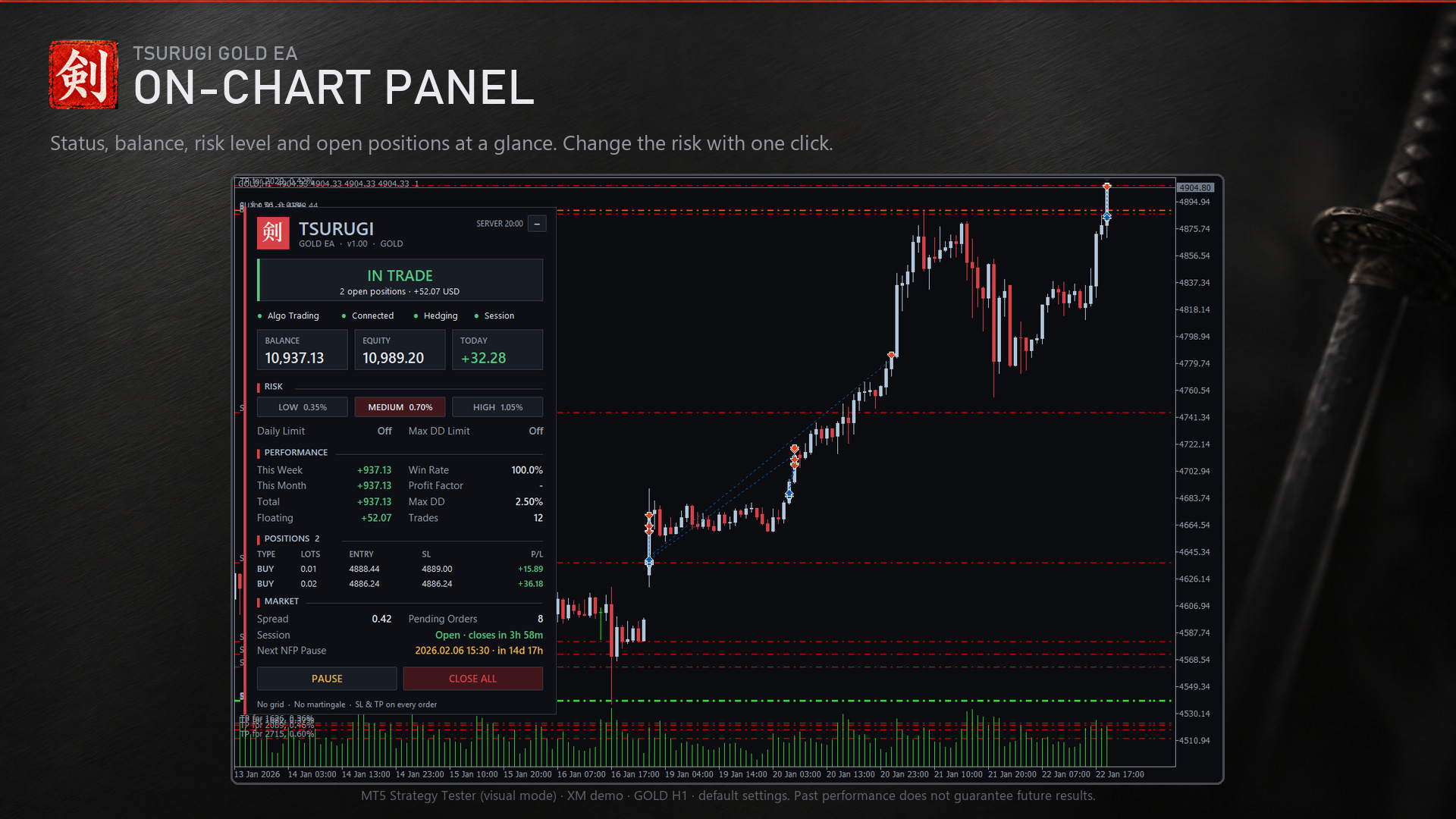
Status (the large line at the top)
- WAITING FOR BREAKOUT – pending orders are in place. This is the normal state.
- IN TRADE – one or more positions are open. The line below shows how many and the floating P/L.
- NEWS PAUSE · NFP – the EA has closed its trades for US Non-Farm Payrolls (NFP) and resumes after the release.
- MARKET CLOSED – outside your broker's trading session. The line below counts down to the next open.
- PAUSED – you clicked PAUSE, or the max drawdown limit was hit. No new orders.
- DAILY LIMIT REACHED – the daily loss limit was hit. Trading resumes on the next day (server time).
- ALGO TRADING OFF – turn on Algo Trading in the toolbar.
Balance, Equity, Today – large figures for a quick check.
RISK – LOW / MEDIUM / HIGH
- LOW = half the risk, MEDIUM = the risk you set (default 0.7%), HIGH = 1.5 times the risk you set.
- Switch any time. The new level applies to new orders. No restart needed.
- If you use a fixed lot, the panel shows the lot instead of the buttons.
PERFORMANCE – this week, this month, total, floating P/L, win rate, profit factor, max drawdown and number of trades. Only Tsurugi's own trades are counted.
POSITIONS – each open trade with lots, entry, stop loss and P/L.
MARKET – spread, number of pending orders, session time left and the next NFP pause.
Buttons
- PAUSE – removes the pending orders and stops new ones. Open positions keep their stop loss and take profit and are still managed. Click RESUME to start again.
- CLOSE ALL – closes every Tsurugi position and order, then pauses. Click twice within 5 seconds to confirm.
- The small button at the top right collapses the panel.
Order, SL and TP lines are hidden by default to keep the chart clean. To see them, set "Show order / SL / TP lines on chart" to true in the inputs. The orders are always listed in the Trade tab of the Toolbox.
3. PROP FIRM ACCOUNTS
Two limits protect a challenge account. Both are off by default.
- Daily loss limit, % of start-of-day balance – when reached, Tsurugi closes its trades and waits until the next day (server time).
- Max drawdown from equity peak, % – when reached, Tsurugi closes its trades and pauses. Click RESUME when you are ready; the drawdown is measured again from that point.
Set them a little inside your prop firm's own limits.
Buyers: message me after purchase and I'll send you the Prop Firm set file (0.35% risk, 4% daily loss limit, 8% max drawdown) and help you set it up.
4. PHONE NOTIFICATIONS
Tsurugi sends a notification for every opened and closed trade, and a daily summary.
- Install MetaTrader 5 on your phone and find your MetaQuotes ID in the app.
- In MT5 on your PC: Tools > Options > Notifications. Tick "Enable Push Notifications" and enter the ID.
You can turn either notification off in the inputs.
5. INPUTS
- Risk per trade (% of balance): 0.7
- Fixed lot (0 = use risk %): 0
- Pause trading around NFP: true
- Auto-detect NFP time (live only): true
- Manual NFP hour / minute (server time): 15 / 30 – used in the Strategy Tester and if auto-detect is off
- Pause before NFP / Resume after NFP (minutes): 100 / 60
- Daily loss limit, % of start-of-day balance: 0 (off)
- Max drawdown from equity peak, %: 0 (off)
- Push notifications on open / close, push daily summary: true / true
- Show information panel, apply Tsurugi chart colors: true / true
- Show order / SL / TP lines on chart: false
- Base magic number, order comment – change the magic number only if another EA on the account uses the same one
Questions? Leave a comment here or send me a message. I answer every one myself.
Tsurugi Gold EA: https://www.mql5.com/en/market/product/207107 (a Free Demo for the Strategy Tester is on the same page)