Strategy Ledger Pro alerts: phone, Telegram and your own dashboard

Strategy Ledger Pro can notify you when recorded account conditions need attention, without placing, changing or closing a trade. This guide explains phone notifications, alerts through your own Telegram bot, and JSON snapshots sent to your own HTTPS address.
Everything is off by default. Nothing leaves your terminal unless you switch on an alert channel. Keep the terminal running for delivery; a VPS can help keep it available. These notifications describe account activity, not trading signals or forecasts.
Product: Strategy Ledger Pro for MetaTrader 5.
Choose what you want to receive
| Function | What it does |
|---|---|
| Daily summary | A summary at the time you choose. |
| Drawdown | Notifies you when drawdown passes your configured limit. |
| Hidden risk | Notifies you when an EA shows HIDDEN RISK. |
| Quiet EA | Notifies you when an EA has gone quiet. |
| Order limit | Notifies you as open positions plus pending orders approach the broker's limit. The order-count display turns amber at 80% and red at 95%. |
| Telegram heartbeat | An optional periodic “alive” message, every 15 minutes by default. |
| JSON push | An account snapshot for your own dashboard or automation, not a phone or Telegram test message. |
In the panel inputs, group 10 · ALERTS: WHAT TRIGGERS THEM controls the alert conditions. Group 11 · ALERT CHANNELS controls delivery. Open the panel chart's Inputs with F7. The status box is at MORE ▾ › ALERTS.
Phone alerts through MetaTrader push
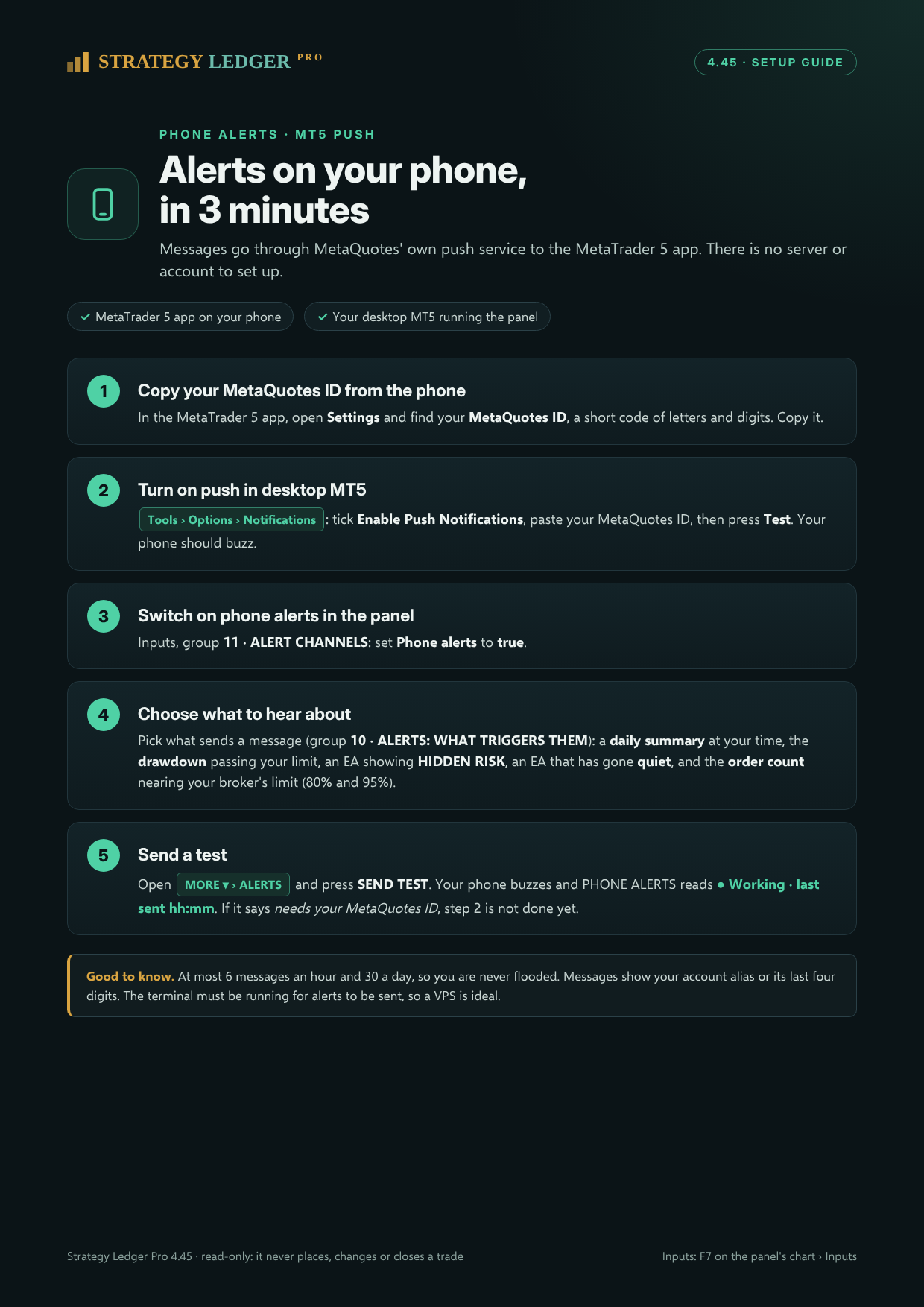
You need the MetaTrader 5 app on your phone and your desktop terminal running the panel.
-
In the phone app, open Settings and find your MetaQuotes ID. Copy it.
-
In desktop MetaTrader, open Tools › Options › Notifications. Tick Enable Push Notifications, enter your MetaQuotes ID, and press Test.
-
In the panel inputs, group 11 · ALERT CHANNELS, set Phone alerts to true.
-
Choose the conditions you want in group 10 · ALERTS: WHAT TRIGGERS THEM.
-
Open MORE ▾ › ALERTS and press SEND TEST. Check both your phone and the PHONE ALERTS status. A working channel shows its last sent time. A message saying it needs your MetaQuotes ID points back to the desktop notification settings.
Phone notifications use MetaQuotes' push service. The supplied phone guide states a limit of six messages per hour and thirty per day. Notification messages identify the account using its alias or last four digits.
Alerts through your own Telegram bot
-
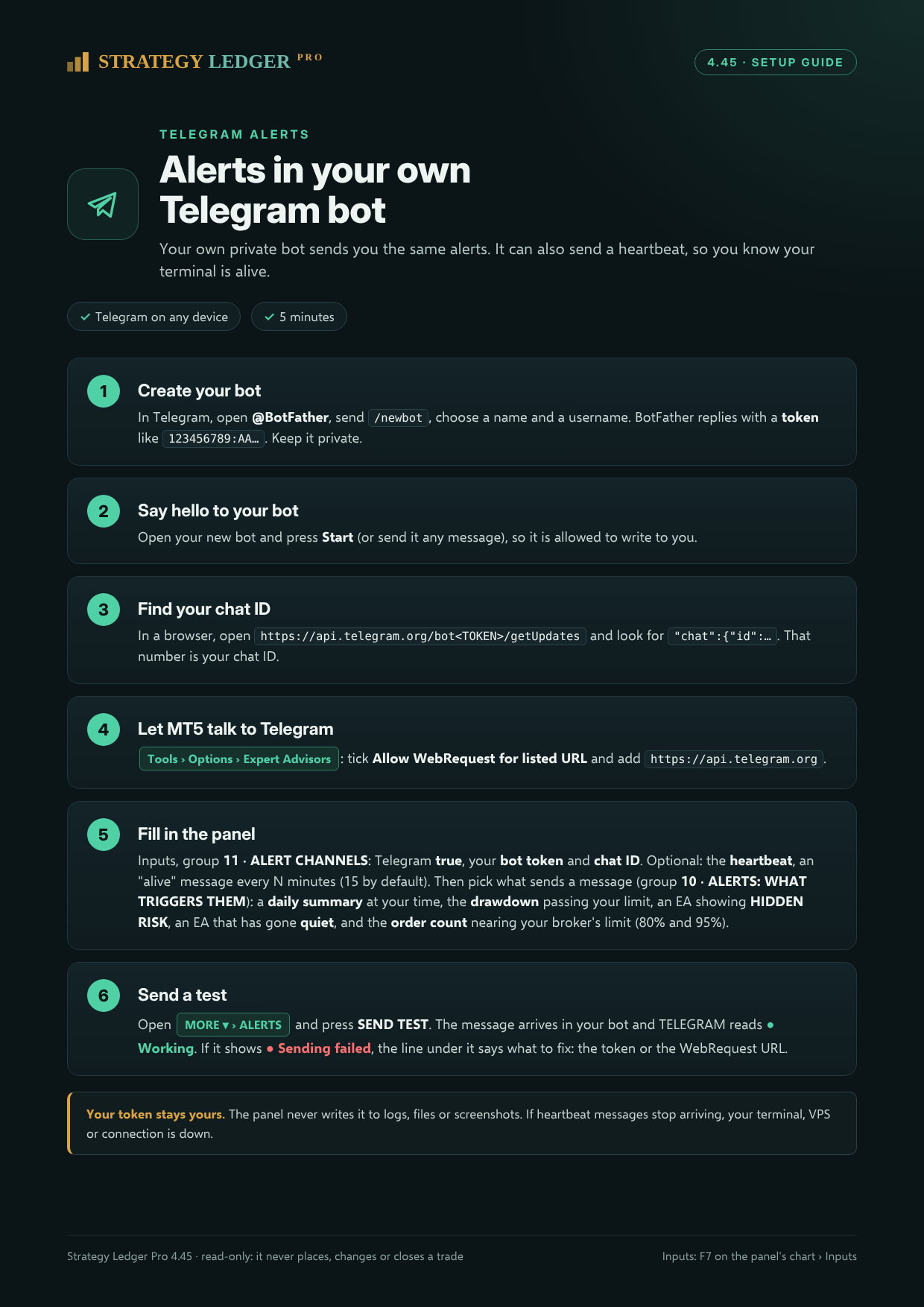
In Telegram, open @BotFather and send /newbot. Choose the bot name and username. Keep the returned bot token private.
-
Open your new bot and press Start, or send it a message, so it can write to you.
-
Find your chat ID using Telegram's getUpdates method. The supplied guide gives this address pattern: https://api.telegram.org/bot<TOKEN>/getUpdates . Replace the placeholder locally with your token and look for the ID inside the chat object. This is a template, not a ready-to-open link. Treat the resulting address as a secret too; do not share it or include it in screenshots.
-
In desktop MetaTrader, open Tools › Options › Expert Advisors. Enable Allow WebRequest for listed URL and add https://api.telegram.org .
-
In group 11 · ALERT CHANNELS, turn Telegram on and enter your own bot token and chat ID. Choose your triggers in group 10 · ALERTS: WHAT TRIGGERS THEM.
-
If wanted, enable the Telegram heartbeat. Its default interval is fifteen minutes.
-
Open MORE ▾ › ALERTS and press SEND TEST. Look for the message in your bot and a Working status. If Sending failed appears, read the explanation beneath it and check the token and WebRequest URL.
The supplied guide states that the panel does not write your bot token to logs, files or screenshots. Keep the token private when configuring or troubleshooting it yourself.
A missing heartbeat is a reason to investigate, not proof that the VPS has failed. The terminal, VPS or connection may be down. Do not rely on the heartbeat as an independent guarantee of uptime.
JSON snapshots to your own HTTPS URL
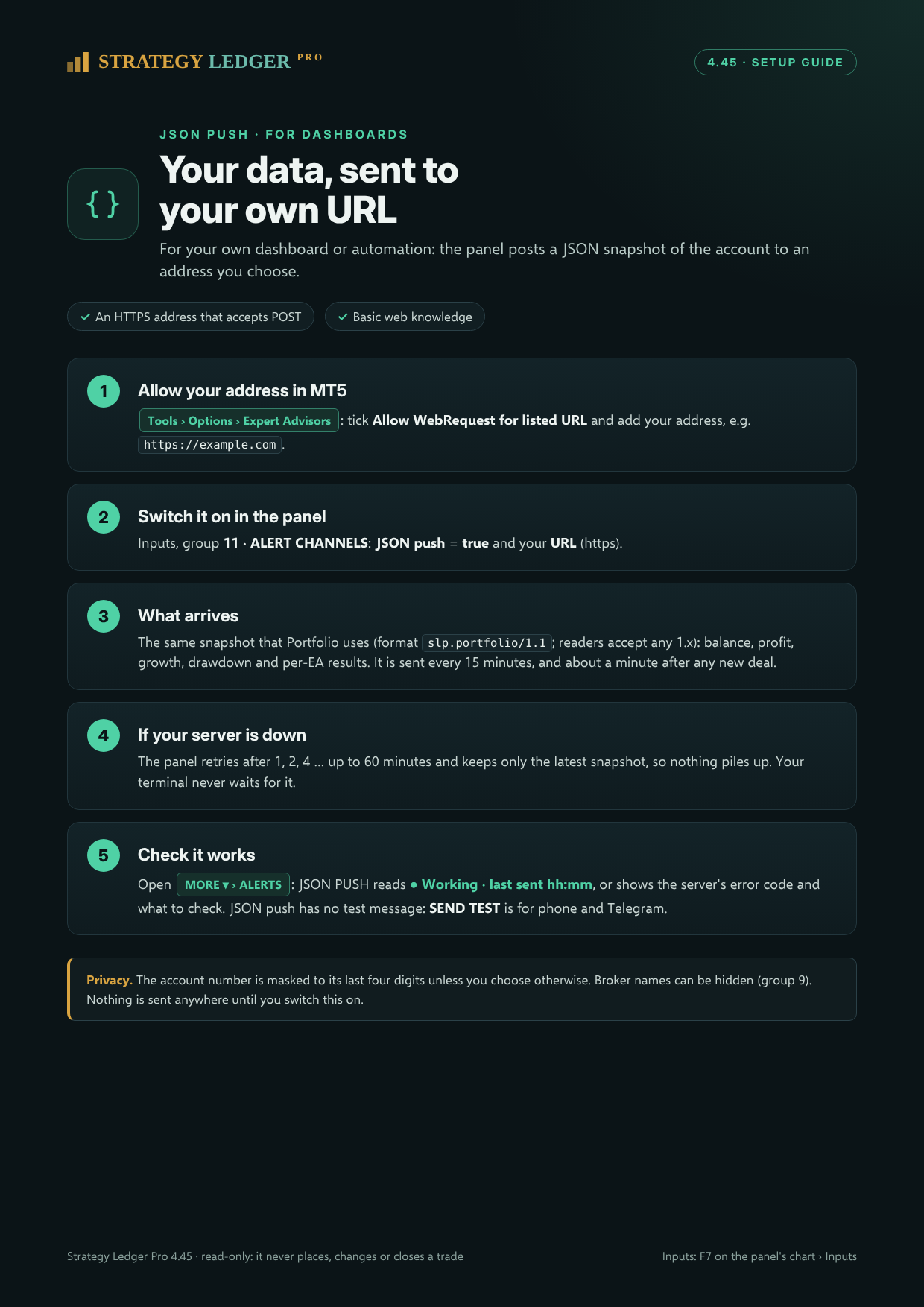
This option is for an existing dashboard or automation endpoint that you control. You need an HTTPS address that accepts POST requests. No receiving server, script or hosted dashboard is included in the supplied alert guides.
-
In Tools › Options › Expert Advisors, allow WebRequest and add your own server address.
-
In group 11 · ALERT CHANNELS, set JSON push to true and enter your own HTTPS URL.
-
The panel sends the same account snapshot used by Portfolio: balance, profit, growth, drawdown and per-EA results. The supplied guide describes delivery every fifteen minutes and approximately one minute after a new deal.
-
If the server is unavailable, retries back off after one, two, four and then progressively longer intervals, up to sixty minutes. Only the latest snapshot is kept, so a backlog does not accumulate.
-
Open MORE ▾ › ALERTS and inspect JSON PUSH. It reports Working with the last sent time, or the server error and what to check. Confirm receipt on your own server.
JSON push has no test message. SEND TEST is for phone and Telegram only. The account number in JSON is masked to its last four digits unless you choose otherwise. Broker names can be hidden in group 9. Review these choices before enabling delivery.
Privacy and delivery checklist
-
Leave unwanted channels off. Nothing is sent until you enable a channel; enabling one allows the corresponding information to leave the terminal.
-
Phone delivery goes through MetaQuotes' push service; Telegram delivery goes through Telegram to your own bot; JSON goes to the URL you choose. Do not describe enabled notifications as entirely local.
-
Keep the terminal running, check the channel status, and verify delivery after setup. Connectivity and destination availability matter.
-
Check your account alias, account-number masking and broker-name settings before sending or sharing anything.
-
Keep credentials and token-bearing URLs out of public posts, screenshots and support attachments.
-
Alerts do not close trades or enforce a loss limit. The panel remains read-only; you remain responsible for trading decisions and account supervision.
One-page setup guides
The three setup-guide images accompanying this post cover Phone alerts, Telegram alerts and JSON push. Use them alongside the steps above. They are documentation, not executable alert scripts.