Available on the MQL5 Market: OCO Panel PRO
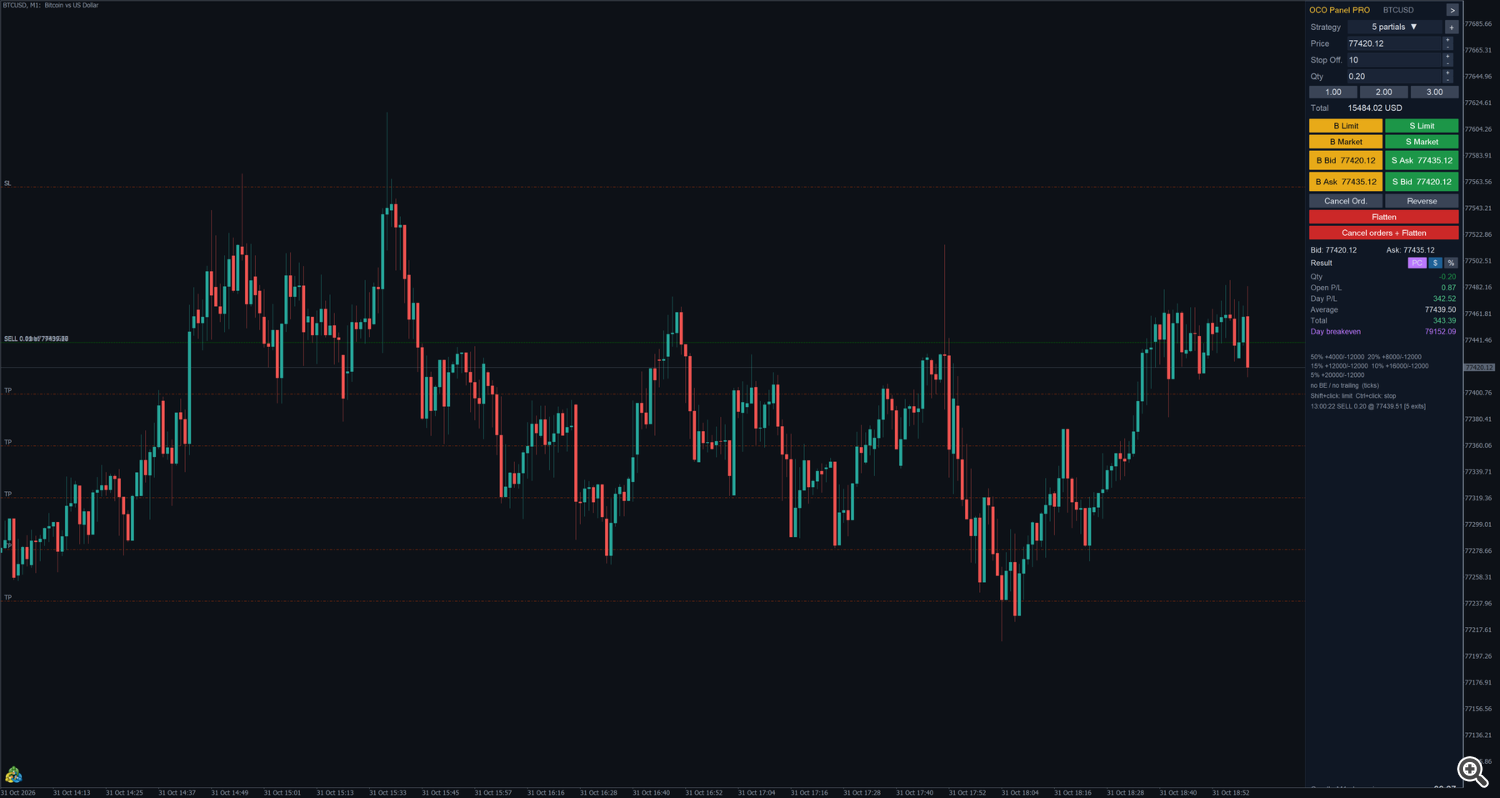
OCO Panel PRO is an order ticket docked on the right side of the MetaTrader 5 chart. You save your exit plans as OCO strategies (up to seven partial exits, each with its own quantity, take profit and stop loss, plus automatic break-even and trailing stop). When an entry is filled, the panel sends the exits of the selected strategy automatically and manages them until the position is closed.
The panel works on netting accounts (B3 futures and stocks, many futures brokers) and on hedging accounts (forex, CFDs, crypto). It speaks English and Portuguese. The screenshots of this manual were taken on a BTCUSD demo chart (English) and on an MNQ futures demo chart (Portuguese).
Risk notice. Trading involves risk of loss. The panel does not analyze the market and does not decide entries: it sends and manages the orders you define. Always test on a demo account first.
1. Installation and first start
- Buy or rent the product on the MQL5 Market and install it from the Market tab of your MetaTrader 5 terminal (Toolbox → Market → Purchased → Install).
- Open a chart of the symbol you want to trade and drag OCO Panel PRO from the Navigator (Expert Advisors → Market) onto the chart.
- On the Common tab of the window that opens, tick Allow Algo Trading. Make sure the Algo Trading button on the terminal toolbar is green.
- Adjust the inputs if you want (section 11) and press OK.
The panel docks on the right side of the chart, between the candles and the price scale. With the input Reserve the right side of the chart (on by default) the chart is shifted to the left, so the last candles never sit behind the panel. The original chart shift is given back when the panel is removed.
The first time the panel runs it creates four example strategies (section 4.1). Your strategies are saved in the common folder of the terminal ( Common\Files\JetOco\strategies.txt ), so they are shared by all the charts and symbols that use the panel.
One panel per symbol. Each chart keeps its own state (strategy in use, position being managed). Use a different Magic number if you run the panel on two charts of the same symbol.
2. The panel
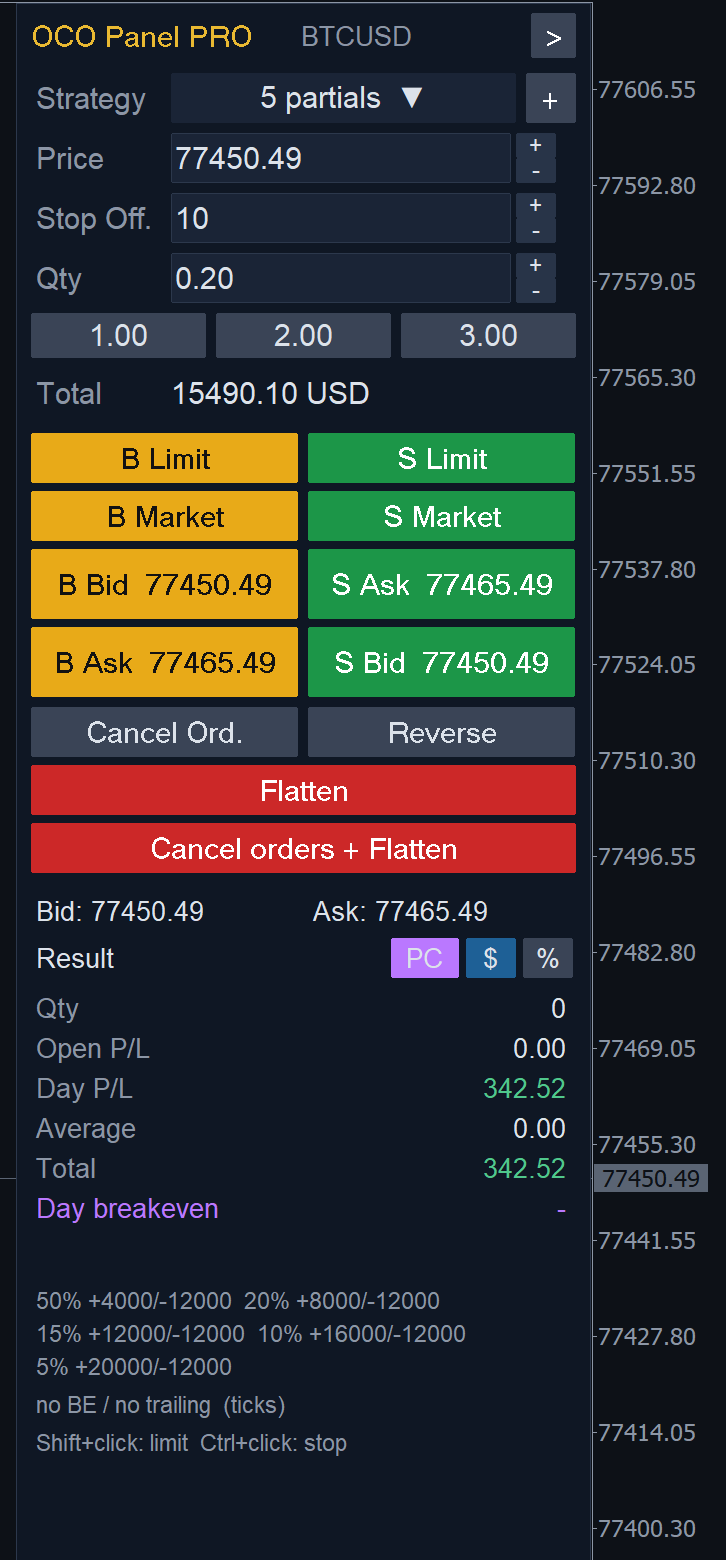
From top to bottom:
- Header: product name, symbol and the > button that collapses the panel to a small tab (section 9).
- Strategy: the OCO strategy that will be attached to the next entry, and the + button that opens the strategy editor (section 4).
- Price: price used by the B Limit / S Limit buttons. It follows the last price until you type a value; after a limit order is sent with B Limit / S Limit it goes back to following the market. The small + / − buttons move it one tick.
- Stop Off.: offset in ticks for stop entries when the symbol only accepts stop-limit orders (section 6).
- Qty: quantity in lots or contracts. Type a value or use the + / − buttons (one volume step) and the three quick quantity buttons below.
- Total: financial value of the order (quantity × price), in the account currency.
- Order buttons (section 3).
- Cancel Ord., Reverse, Flatten, Cancel orders + Flatten (section 3.2).
- Bid / Ask and the Result block (section 8).
- Strategy summary: exits of the selected strategy, break-even / trailing settings and the unit (ticks or money).
- Status line: the last action or error, for example SELL 0.20 @ 77439.51 [5 exits] or Rejected: invalid stops.
- Countdown: time left for the current candle to close, at the bottom of the panel.
3. Sending orders
3.1 Entry buttons
The buy column is gold and the sell column is green:
| Button | What it does |
|---|---|
| B Limit / S Limit | Limit order at the Price field. If that price is already through the market (a buy limit above the ask, a sell limit below the bid), the order is sent at market. |
| B Market / S Market | Market order. |
| B Bid / S Ask | Limit order at the current bid (buy) or at the current ask (sell): you join the queue on your side of the book. |
| B Ask / S Bid | Market order that takes the ask (buy) or the bid (sell). |
Every entry carries the strategy selected in Strategy. Choose <None> to send an order without OCO exits.
3.2 Position buttons
| Button | What it does |
|---|---|
| Cancel Ord. | Cancels the pending orders sent by the panel on this symbol (entries and exits). On netting accounts the open position stays, without exits; the panel stops managing it until it changes. |
| Reverse | Closes the position and opens the same quantity in the opposite direction, with the selected strategy. |
| Flatten | Cancels the exits and closes the position at market. |
| Cancel orders + Flatten | Cancels all the panel's pending orders (entries included) and closes the position. |
4. OCO strategies
4.1 Choosing a strategy
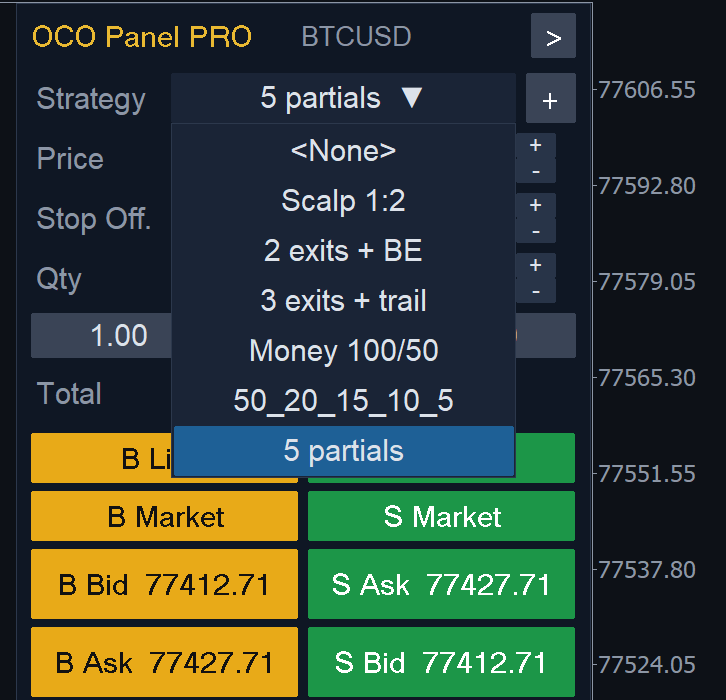
Click the Strategy field to open the list and pick the strategy for the next entry. The panel comes with four examples that you can edit or delete:
| Strategy | Exits | Extras |
|---|---|---|
| Scalp 1:2 | 100% at +20 / −10 ticks | — |
| 2 exits + BE | 50% at +10, 50% at +30, stops −10 | break-even after +10, 1 tick in profit |
| 3 exits + trail | 34% at +10, 33% at +20, 33% without target, stops −15 | break-even after +10; trailing from +20, distance 10, step 2 |
| Money 100/50 | one exit: +100 / −50 in the account currency | — |
The strategy summary under the result block shows the exits of the selected strategy, for example 50% +4000/−12000 20% +8000/−12000 …, and the break-even and trailing settings.
4.2 Strategy editor
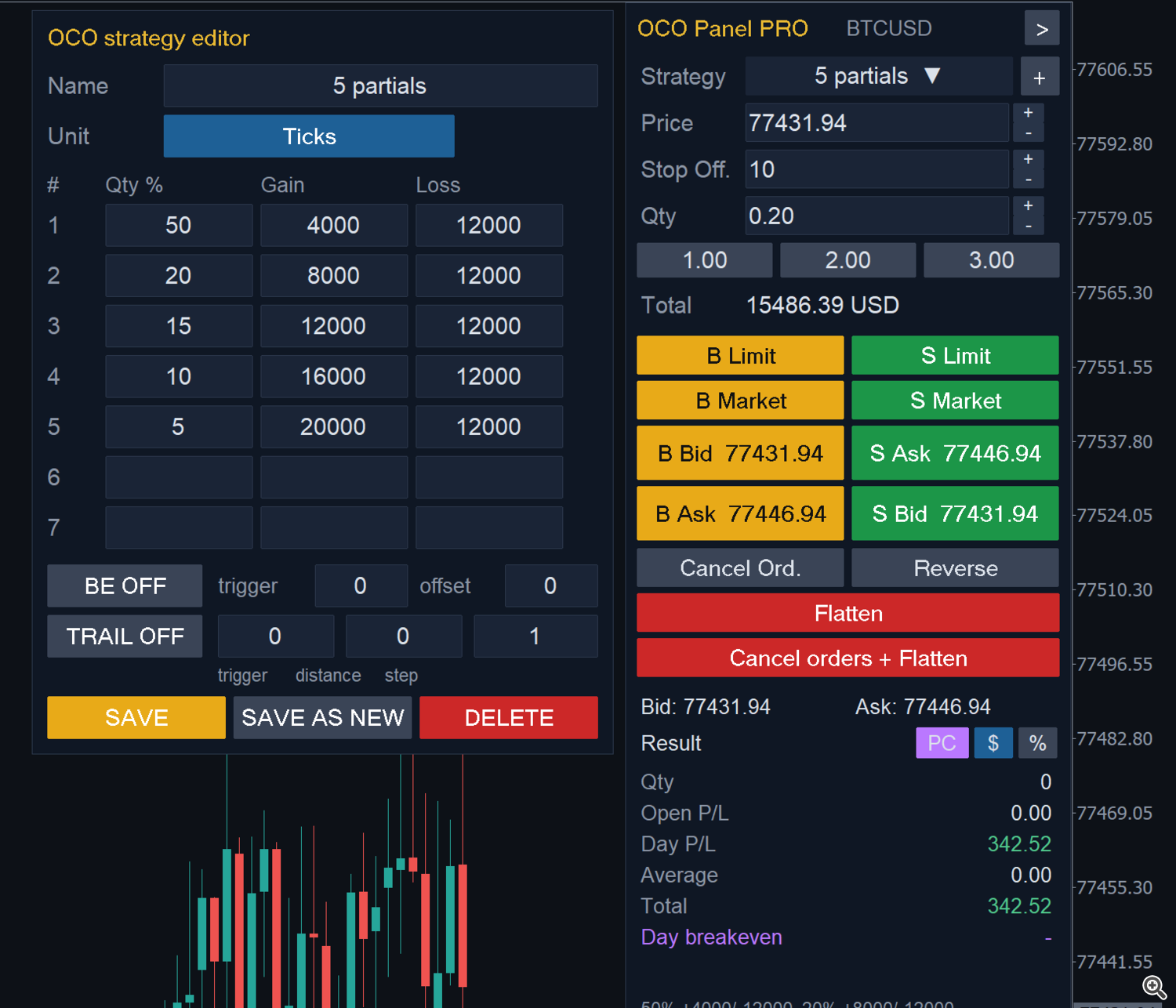
Click + next to the Strategy field. The editor opens to the left of the panel with the selected strategy loaded.
- Name: name shown in the list.
- Unit: Ticks (gains and stops in ticks from the entry price) or Money (1 exit) (one exit, gain and stop in the account currency for the whole position; the panel converts the amount to ticks for the quantity traded).
- Exits 1 to 7: for each exit, Qty % (share of the position), Gain (take profit distance) and Loss (stop distance). Leave Gain empty for an exit without target (it leaves by its stop or by the trailing); leave Loss empty for an exit without stop. The quantities must add up to 100%. Each exit gets its share rounded up to the volume step; the last exit takes the rest, so with small quantities some exits may not be used.
- BE ON / OFF, trigger, offset: automatic break-even (section 5).
- TRAIL ON / OFF, trigger, distance, step: trailing stop (section 5).
- SAVE overwrites the strategy, SAVE AS NEW creates a copy, DELETE removes it (at least one strategy is kept, and the strategy of the position being managed cannot be deleted).
Click + again to close the editor.
5. Break-even and trailing stop
All the values are in the unit of the strategy (ticks, or money for the whole position).
- Break-even: when the profit reaches the trigger, the stops of the open exits move to the entry price plus the offset (for example trigger 10 and offset 1: after 10 ticks of profit, the stops go to 1 tick in profit). A stop that is already better is not moved back.
- Trailing stop: when the profit reaches the trigger, the stops follow the price at the distance you set, and move only when the gain is at least one step. Trailing never moves a stop backwards.
On netting accounts the panel applies them to the stops it manages; on hedging accounts it changes the SL of each exit position at the broker.
6. Chart trading
With the input Chart trading on, you can send orders by clicking on the chart:
- Shift + click places a limit order at the clicked price: a buy limit below the bid, a sell limit above the ask.
- Ctrl + click places a stop order at the clicked price: a buy stop above the ask, a sell stop below the bid. On symbols that do not accept plain stop orders (common on B3), the panel sends a stop-limit with the limit Stop Off. ticks beyond the stop price.
The quantity is the Qty field and the strategy is the one selected. While an entry is pending, its future exits are previewed on the chart as dotted lines (OCO preview gain / stop). Clicks on the panel area are ignored.
7. How the exits are sent
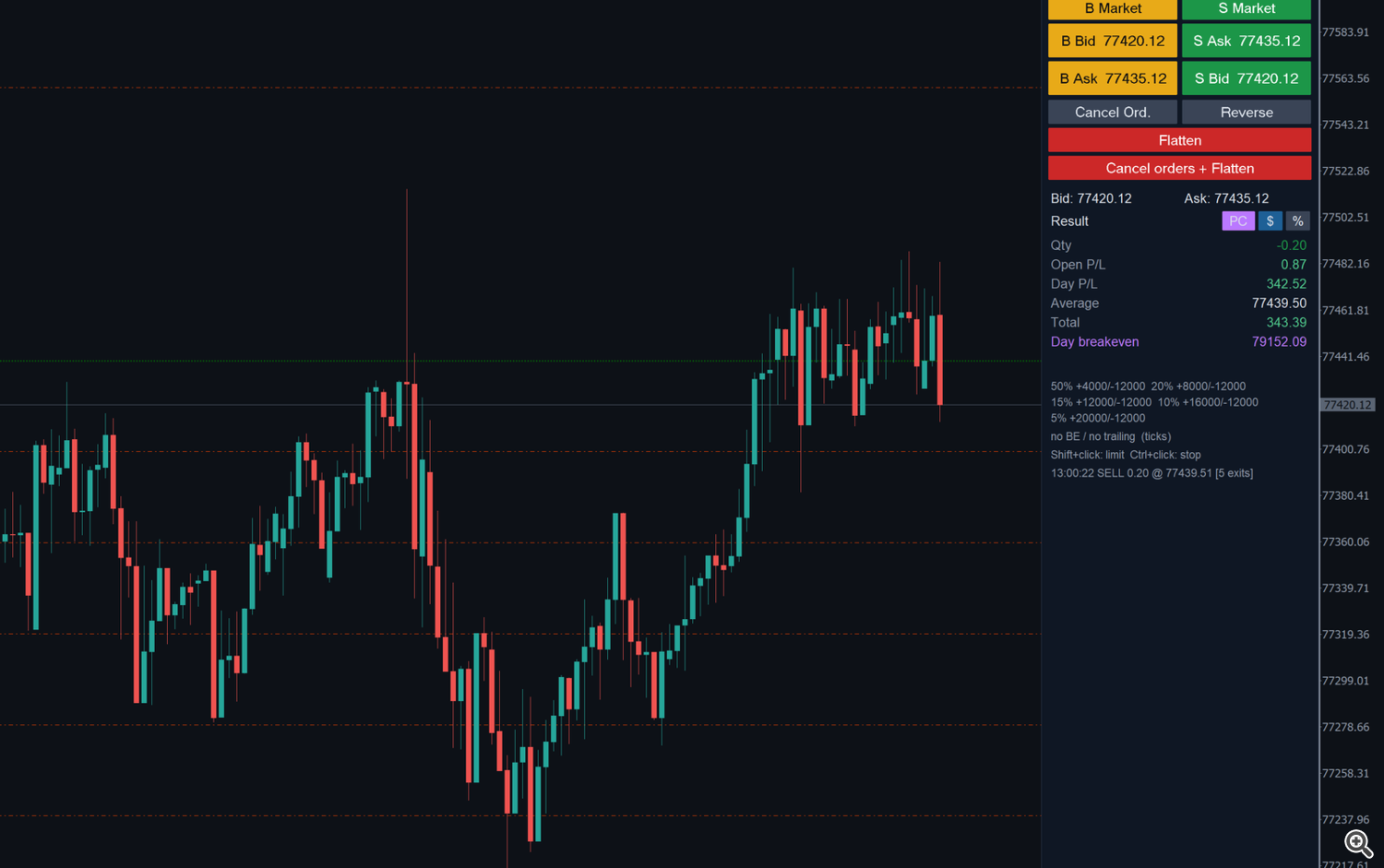
7.1 Netting accounts
- Each take profit is a limit order at the exchange or broker (comment JOC G1, JOC G2…). You can drag these order lines on the chart; the panel follows the new price.
- The stops of the exits are managed by the panel and drawn as dashed red lines (OCO stop 1, OCO stop 2…). Drag them to move each stop. When the price touches a stop, the panel closes that exit at market and cancels its take profit.
- With the input Keep the farthest stop on the position (on by default), the farthest stop is also placed as the position's SL at the broker, so the position stays protected with the terminal closed. If you drag MetaTrader's own SL line of the position, all the strategy stops move by the same distance.
- If a take profit is reached in a fast market before its order is placed, the exit is taken at market.
- If you add to or reduce the position outside the panel, the exits are rebuilt for the new volume with the same strategy.
- The input Also manage positions opened outside the panel makes the panel attach the selected strategy to positions of this symbol opened by hand or by another EA.
7.2 Hedging accounts
- Each exit is a separate position (or pending order) with its own SL and TP at the broker, shown with the terminal's own SL/TP lines. You can drag them like any other SL/TP.
- If an SL or TP is closer than the broker's minimum distance, it is moved out to that minimum and the status line says so.
- Flatten, Reverse and the result block consider only the positions with the panel's magic number.
8. Result and day breakeven
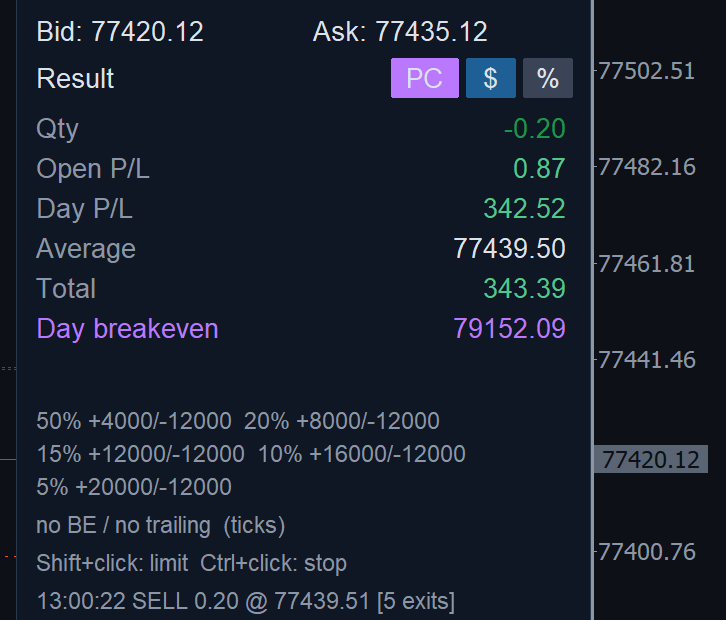
- Bid / Ask: current prices.
- Qty: open quantity (negative for a sell).
- Open P/L: floating result of the open position.
- Day P/L: realized result of the day on this symbol, with commissions, fees and swap.
- Average: average price of the open position.
- Total: open plus day result.
- $ / %: shows the results in money or as a percent of the balance.
- Day breakeven (PC button): price at which the day's result on this symbol would be zero, counting the realized result, the open position and the costs. It is drawn as a dash-dot line on the chart with the label PC at the left edge, and appears from the second trade of the day (it needs a result to compare). If your broker does not report commissions, set Estimated cost per contract per side in the inputs. The PC button turns the line on and off.
9. Collapsed tab and countdown
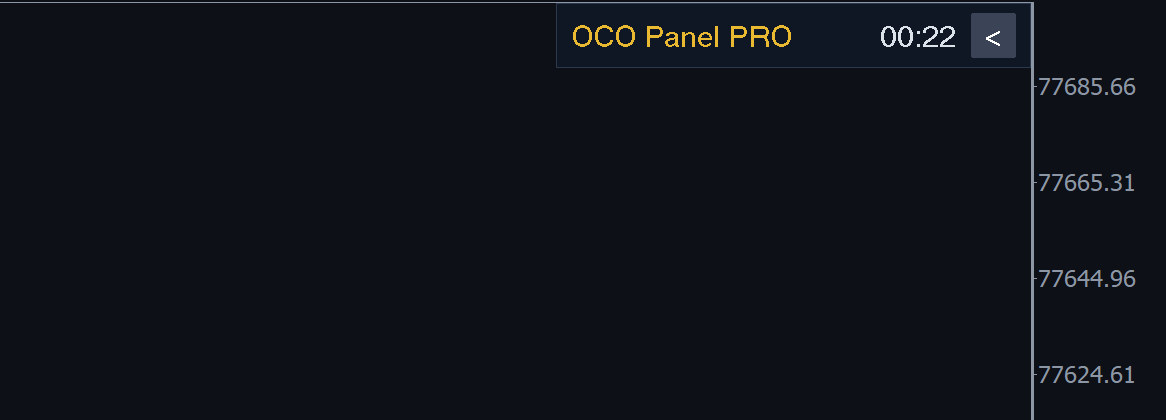
The > button in the header collapses the panel to a small tab at the top right of the chart, with the countdown to the candle close. The chart gets its space back (the chart shift returns to your original setting). Click < to open the panel again. The exits keep being managed while the panel is collapsed.
10. Strategy Tester
The panel runs in the Strategy Tester. In the visual mode you can use the buttons while the test runs. To show the automatic management, the panel makes a market entry every 40 bars when there is no position, alternating buy and sell, with the third strategy of the list (3 exits + trail by default), so the OCO exits, the break-even and the trailing can be watched.
11. Inputs
| Input | Default | Description |
|---|---|---|
| Default quantity | 1 | Quantity loaded in the Qty field. |
| Default stop offset (ticks) | 10 | Initial value of Stop Off. for stop-limit entries. |
| Quick quantity buttons 1, 2, 3 | 1, 2, 3 | Quantities of the three quick buttons. |
| Chart trading | true | Shift + click limit, Ctrl + click stop. |
| Netting: also manage positions opened outside the panel | false | Attach the selected strategy to positions of the symbol opened by hand or by other EAs. |
| Netting: keep the farthest stop on the position | true | The farthest stop is also set as the position's SL at the broker. |
| Show the day breakeven line | true | Initial state of the PC button (afterwards the panel remembers your choice). |
| Estimated cost per contract per side | 0 | Cost used in the day breakeven when the broker does not report commissions. |
| Language | Terminal language | English or Portuguese. |
| Panel width | 230 | Width in pixels at 100% screen scale. |
| Reserve the right side of the chart | true | Shifts the chart so the candles never sit behind the panel. |
| Show the countdown | true | Countdown to the candle close at the bottom of the panel and on the collapsed tab. |
| Font size | 9 | Text size of the panel. |
| Magic number | 260401 | Identifies the orders and positions of the panel. |
12. Questions and messages
- "Algo trading is disabled": turn on the Algo Trading button of the terminal and the option Allow Algo Trading of the EA.
- "Trading is not fully allowed on this symbol": the symbol is close-only or disabled by the broker.
- "Rejected: …": the broker refused the order; the reason follows (invalid volume, invalid stops, market closed, not enough money…).
- "Quantities add up to X%, must be 100%": adjust the Qty % of the exits in the editor.
- The position has no exits: the entry was sent with <None>, or Cancel Ord. was pressed. Select a strategy and use Reverse or send a new entry; on netting accounts the exits are rebuilt when the position changes.
- I closed the terminal: on netting accounts the take profits stay at the exchange and the farthest stop stays on the position; the other stops are managed again when the panel restarts. On hedging accounts every exit has its own SL/TP at the broker.
Support: send a private message on the MQL5 website or a comment on the product page.