Broker Execution Inspector for MT5: Getting Started with Essential and Pro

Your broker's spread changes throughout the trading day. A single value does not tell you whether the current spread is typical, how it behaved around an economic announcement, or how execution costs differ between your Expert Advisors.
Broker Execution Inspector helps you examine these conditions directly in MetaTrader 5. This guide explains how to get started and choose between the free Essential edition and Pro.
What does Broker Execution Inspector do?
Broker Execution Inspector is a passive monitoring utility. It reads quotes, the native MT5 economic calendar and available account history.
It does not open, modify or close orders. It does not provide buy or sell recommendations, and enabling "Allow Algo Trading" is not required for its monitoring functions.
The utility uses native MetaTrader 5 data. No DLL, WebRequest or external API key is required.
Essential or Pro: which edition should you choose?
Essential is the free starting point for monitoring the spread and reviewing basic session information.
- A live spread display and a gauge comparing the current spread with recent quotes.
- Session median, maximum and 95th percentile spread.
- Ping to the trading server.
- The next high-impact USD announcement, with optional alerts.
- Spread analysis before, during and after an announcement, using available tick history.
- A simplified HTML session report.
Download Broker Execution Inspector Essential - free
Pro adds deeper historical and execution analysis, including historical spread profiles around economic announcements, spread peaks and recovery time, slippage and costs grouped by EA magic number, historical spread patterns by hour and weekday, detailed reports, session history and optional CSV exports. Developers can also use its measurement interface in their own EAs.
Explore Broker Execution Inspector Pro
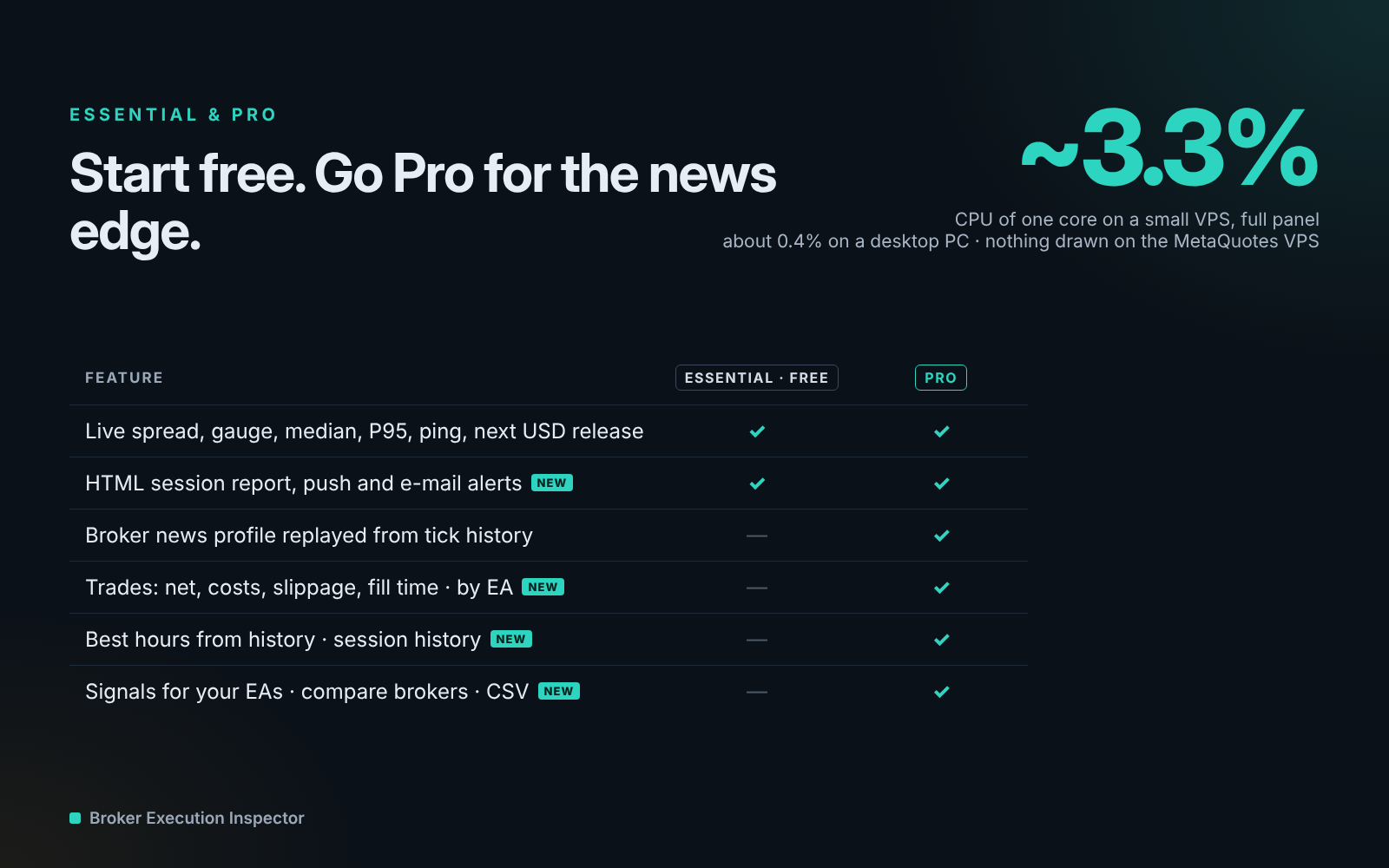
Essential and Pro feature comparison. The CPU figures shown are measurements from previous tests; actual resource usage depends on the system and workload.
1. Add the utility to a chart
Install your chosen edition through the MQL5 Market, then locate it in the MetaTrader 5 Navigator. Open a chart for the symbol you want to observe and attach Broker Execution Inspector.
Use a separate chart if another EA is already running on the chart you trade from. This allows your trading EA and the monitoring utility to operate on separate charts of the same symbol. One monitoring chart per symbol is sufficient.
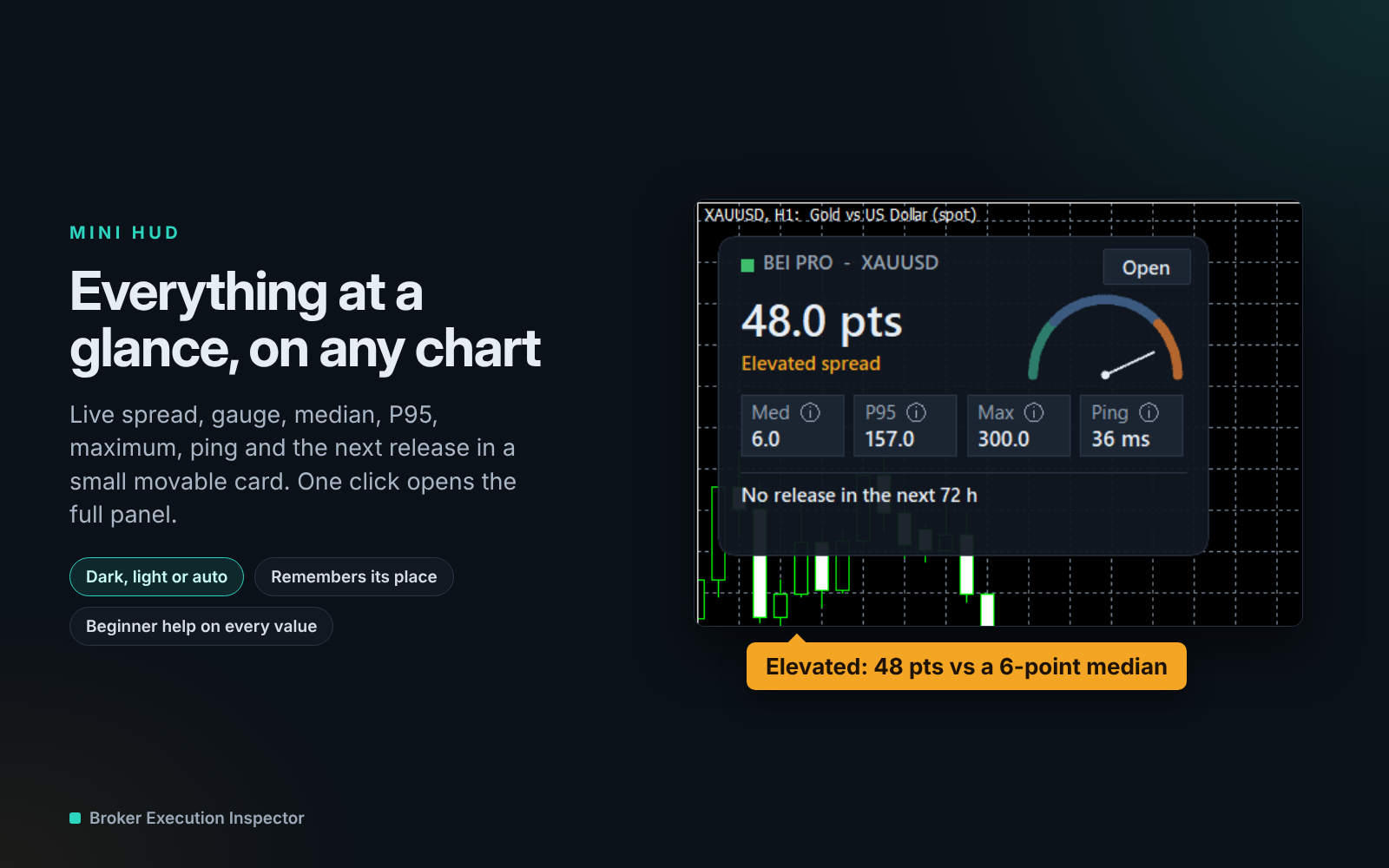
The mini-HUD on an MT5 chart. Pro interface shown; live spread monitoring is also available in Essential.
2. Read the live spread display
The mini-HUD displays the current spread and a relative spread gauge. The current value answers: "What is the spread now?" The gauge adds context by comparing that value with recent quotes.
Spreads are displayed in points of the selected symbol. Points should not automatically be interpreted as pips: check the symbol's quotation format when comparing values. Click Open to access the full panel.
3. Understand the session statistics
Median: the middle value of the observed spreads. It provides a reference for the typical spread during the session.
Maximum: the highest spread recorded during the session.
P95: the 95th percentile of the observed spreads. Approximately 95% of observations fall at or below this value. It is not a maximum or a guaranteed upper limit.
Together, these measurements provide more context than the current spread alone.
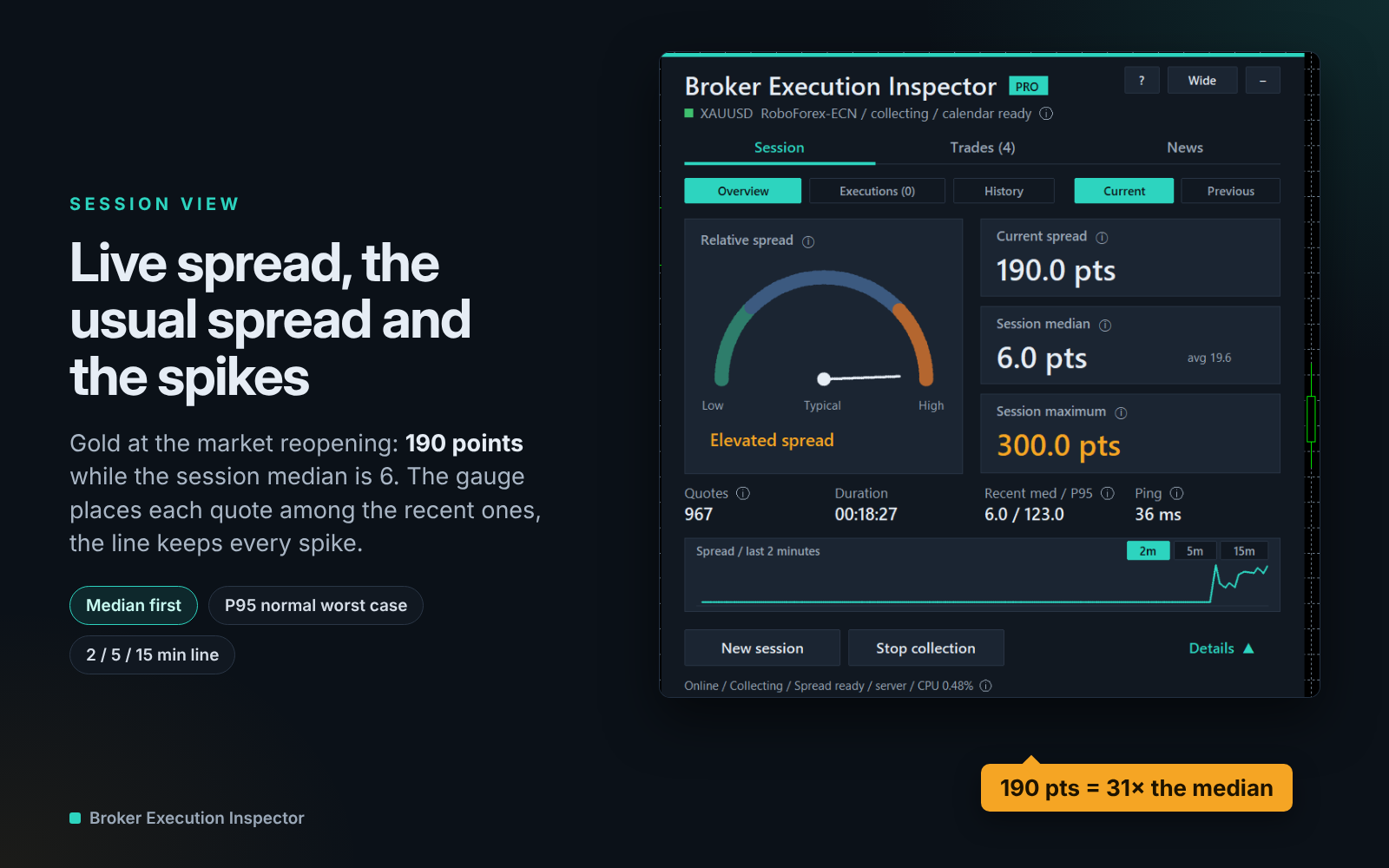
Pro session view showing the gauge and spread statistics. The values belong to the illustrated session and are not guaranteed trading conditions.
4. Explore the News view
In Essential, open News to review the next high-impact USD announcement and the available spread analysis around releases.
In Pro, open News > Broker profile to explore historical spread behaviour around different announcement types.
These profiles use tick history supplied by your broker. Results depend on the selected symbol, available calendar events and the history retained by the broker. Missing data is not invented.
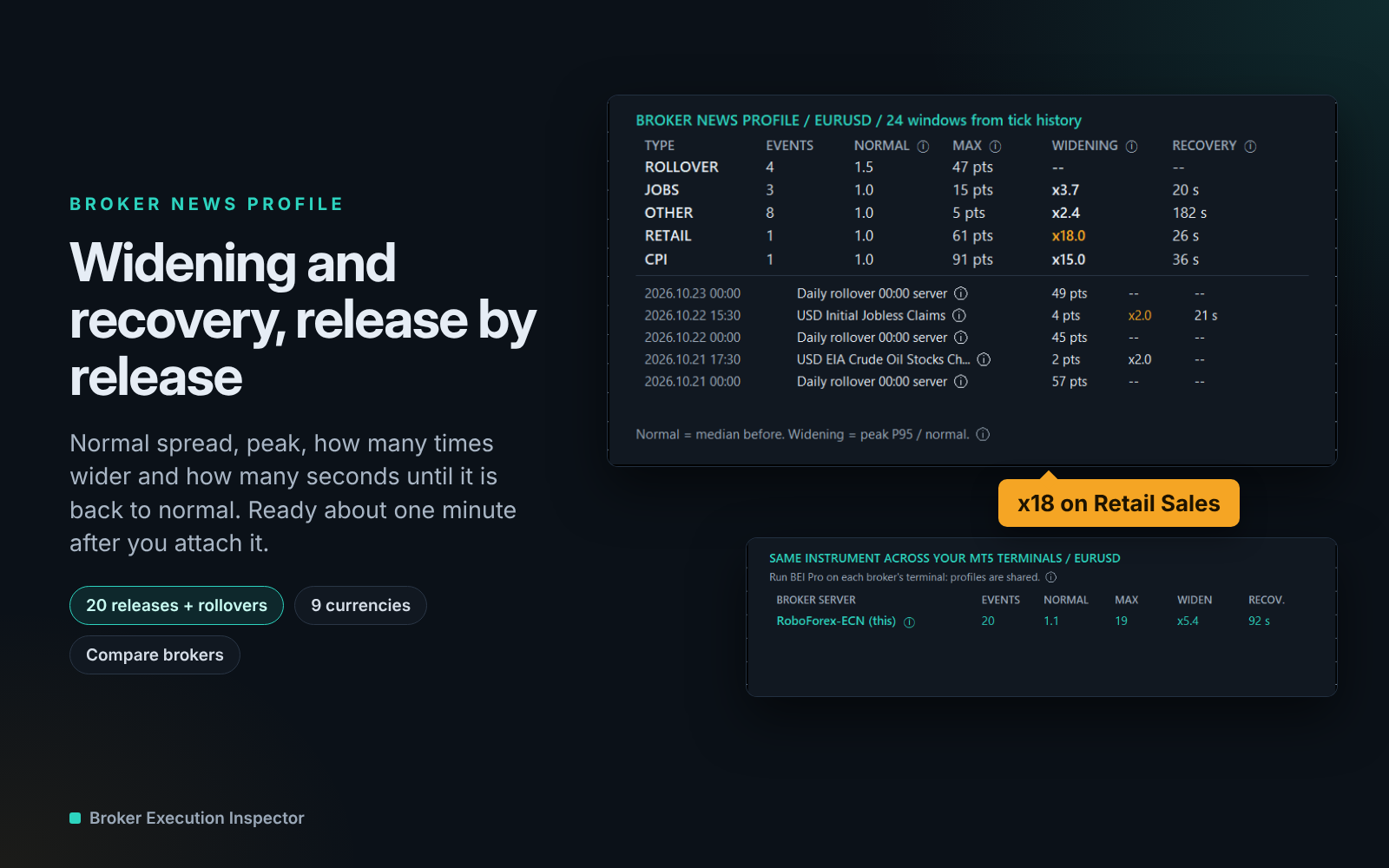
Historical news profiles in Pro. Widening and recovery measurements depend on the available broker tick history.
5. Save a session report
Open Details > HTML report to generate a report that you can read in a browser. Essential provides a simplified summary. Pro adds more detailed analysis, including historical spread patterns, execution information and costs grouped by EA.
Use reports to review observations over time. When comparing sessions or brokers, keep the instrument, period and account conditions in mind.
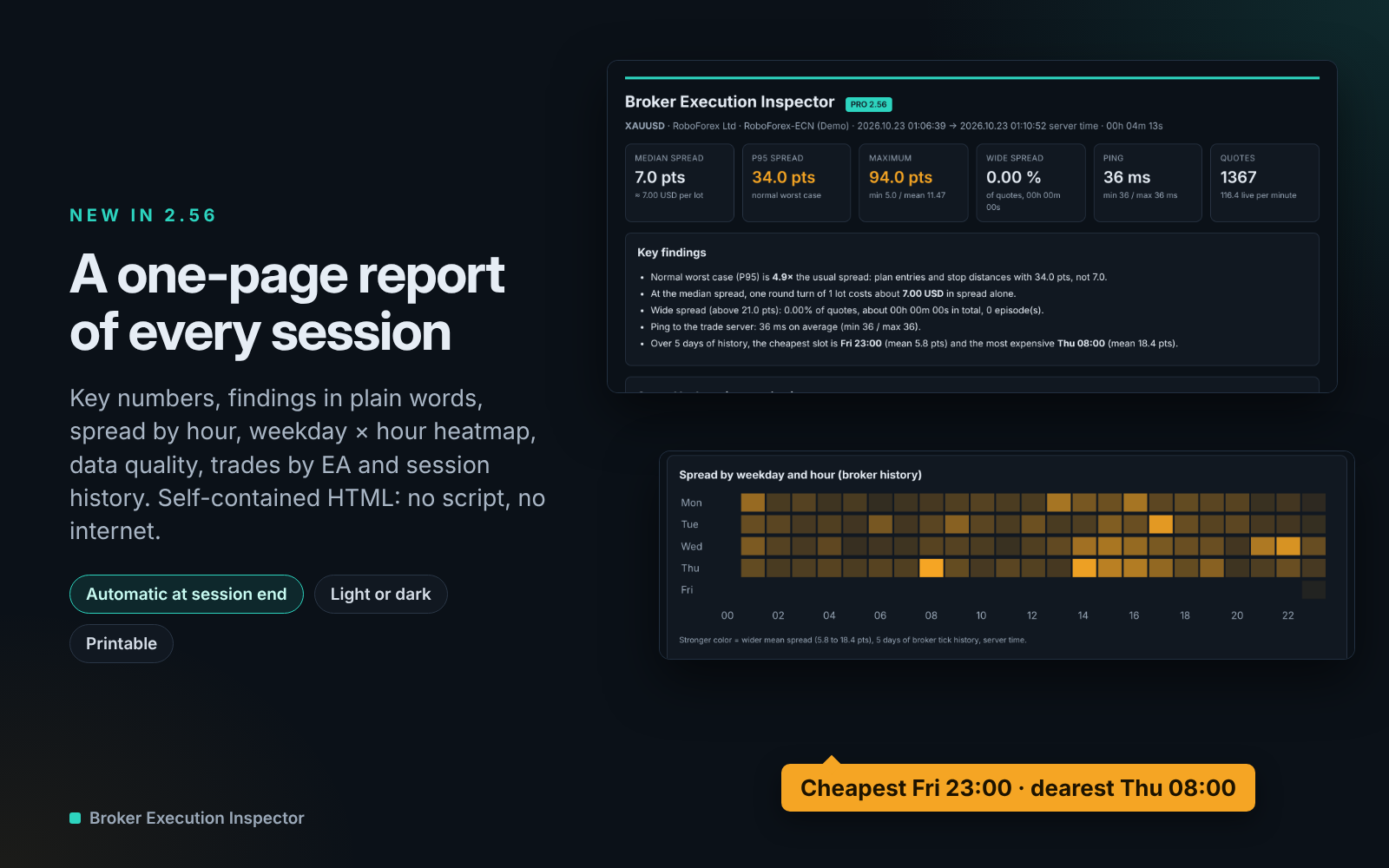
Example of a detailed Pro HTML report. Essential includes a simplified report.
Download the complete user guide
The English user guide for version 2.56 is attached below as BEI_User_Guide_2.56_EN.zip. Extract the archive to open the PDF. It covers installation, screens, parameters, reports, VPS operation and troubleshooting for Essential and Pro.
Start with your own observations
Begin with Essential to become familiar with the live display, relative spread gauge and session report. If you need historical news profiles, execution analysis or costs grouped by EA, explore Pro.
Get Essential - free
View Pro - features and product details
Historical observations describe the data available during the measured period. They do not predict future spreads or execution conditions.
Developed by ZvezdaQuant.