Chart Drawing Toolkit MT5: 58 Tools, and an Illustrated Guide for Every One of Them

Since then, the thing has roughly doubled.
The tool count went from forty-odd to 58. Undo and redo arrived, and so did hide all, lock all, templates, three measuring tools, three volume tools, and a settings window that lets you switch off any part of the interface you do not use. The whole toolkit went through a performance pass. And the piece we want to spend most of this post on: every single one of those 58 tools now has its own page inside the terminal, with an illustration drawn by the same code that draws the tool on your chart. Most of these upgrades was inspired by users who left feedback and suggestions; thank you.
That last part is unusual enough to be worth explaining properly, so we will start there and work outwards.
Before we go deeper, here is where you can find the toolkit on the Market: CLICK HERE TO DOWNLOAD.
Snapshot
Chart Drawing Toolkit is a complete drawing and annotation workspace for MetaTrader 5:
- 58 drawing tools in one sidebar, grouped into categories that open as flyouts
- A settings window for every drawing, with templates so a look can be reused, plus undo, hide all and lock all
- An illustrated guide page for every tool and an eleven chapter manual, both inside the terminal
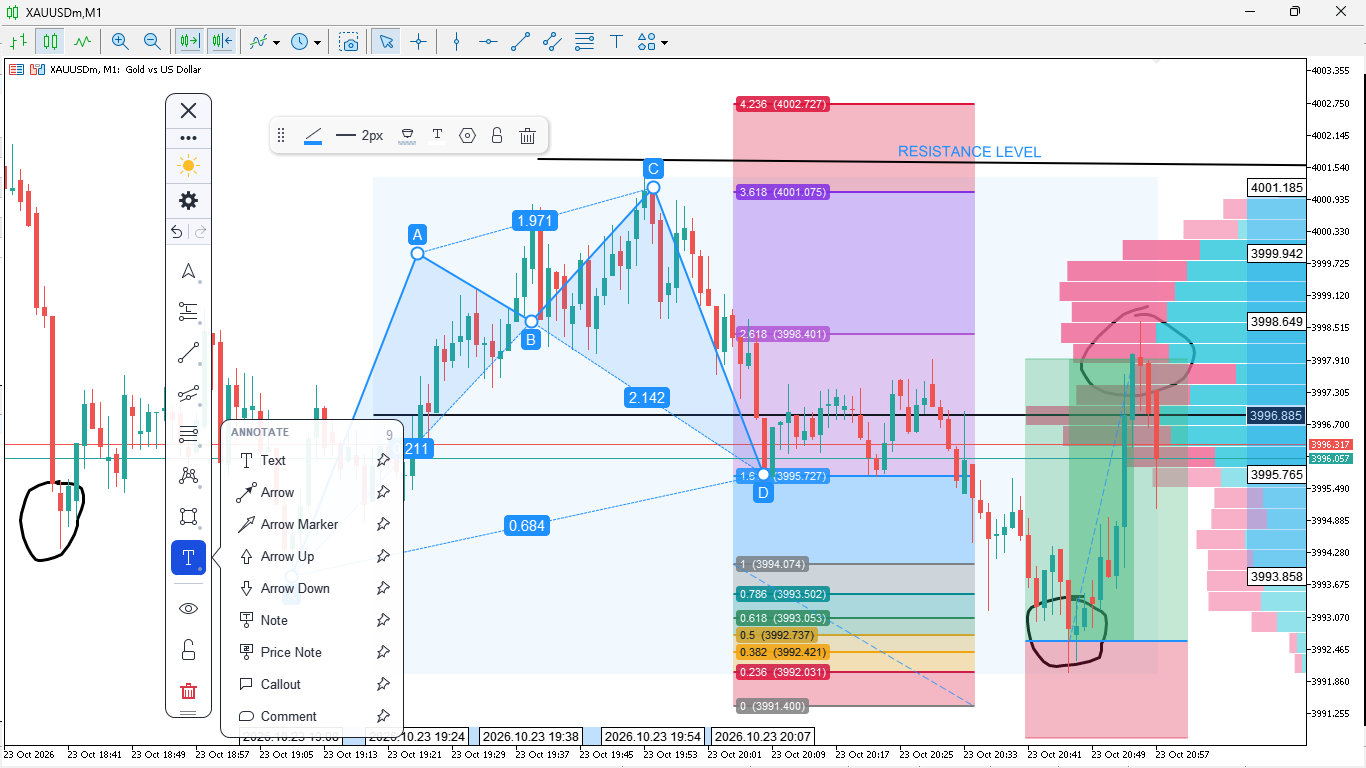
It attaches to any symbol and any timeframe, runs alongside your Expert Advisors and other indicators, and keeps everything it knows in a local SQLite database so your drawings, styles, templates and window positions survive a restart. It is an indicator. It draws and analyses only. It never places a trade.
A page for every tool
Hover any tool in a flyout and a question mark appears beside the pin. Click it. You get that tool's page: what it is for in a trader's words, an illustration, numbered steps that match the real click sequence, how to read it where that means something, and a line for every setting the tool actually has.

The illustrations are the part we are most pleased with. They are not pictures. Each one is drawn live by the same routines that draw the tool on your chart, over a fixed sample price series, with numbered markers on each click point in the order you click them. A pitchfork in the guide is the real pitchfork renderer. If the tool draws it, the page shows it, and the two can never drift apart.
Pages that need more than one illustration get more than one: the finished drawing, the click sequence on its own, and where it means something, a third showing how to read the levels. Tools where a picture would only repeat the icon get none.

You can walk the whole set with Previous and Next, and the same pages are reachable from the manual, so the guide works both as help when you are stuck and as a way to find a tool you did not know was there.
And a manual, in the terminal
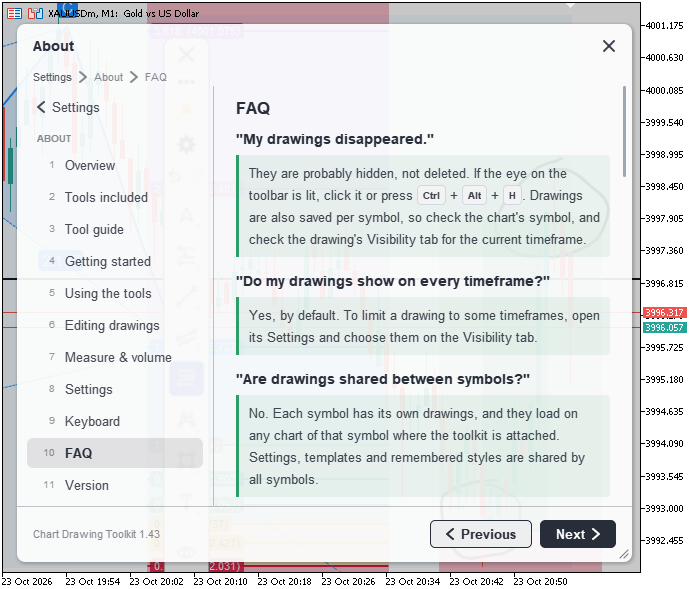
The question mark answers "what does this tool do". The manual answers everything else, in eleven chapters: what the toolkit is, the tools it includes, getting started, using the tools, editing drawings, measuring and volume, settings, keyboard, the tool guide, questions and answers, and the version page. No leaving the chart.
The basics, briefly
If you read the July post, you know this part. In short: the sidebar is the whole interface, each tile is a category, hovering a tile opens its flyout, and the flyout lists that category's tools with their real icons and names. Drag the panel anywhere, dock it to either edge, resize it, and it stays where you left it. Light and dark themes are a single click in the header, and every surface and glyph was drawn for both.
Hover any tool row and a pin appears. Click it and that tool joins the Pinned Tools ribbon, a second strip holding only the tools you actually use. Most traders live on four or five.

Every drawing has settings, and remembers them
Select a drawing and a settings window opens for it. The tabs depend on the tool, because the window only shows what that tool actually has: Style, Text, Labels, Coordinates, Visibility and Inputs.
Change a colour, a width, a line style, a font, the levels on a Fibonacci, or the anchor times and prices as exact numbers rather than by dragging. Changes land as you make them, so you judge the result on the chart instead of a preview. Cancel puts everything back.
Then the part that matters day to day: the toolkit remembers the style you chose, per tool. The next trendline comes out the way you like trendlines.
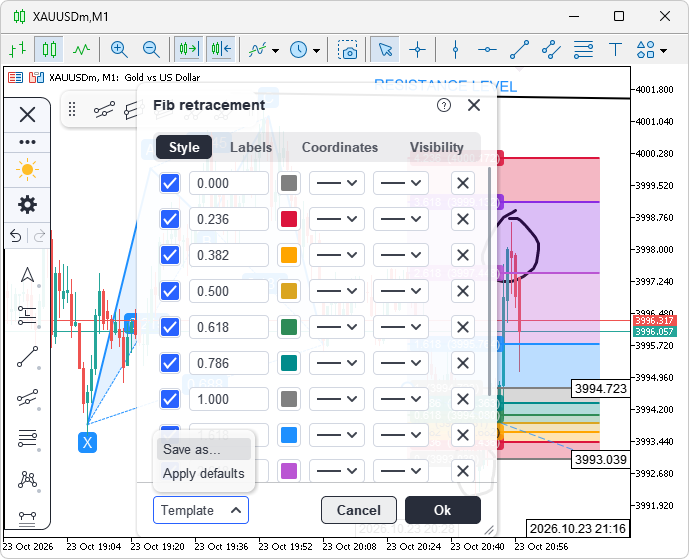
When a look is worth keeping, save it as a template and apply it to any other drawing of a compatible type. Useful when you mark the same structure the same way every session, and useful when your presentation chart needs to differ from your working one.
Measuring and volume
Three measuring tools answer the questions you ask most while reading a chart: Price range, Date range, and Date and price range. Drop one between two points and it reports the move in price, in percent, in pips, the bar count and the time between them.

The volume group holds three tools MetaTrader does not ship with: Anchored VWAP, Fixed range volume profile, and Anchored volume profile. The VWAP is a single click. The profiles take two, to set their range.

Undo, hide, lock, delete
Four things that change how a busy chart feels.
Undo and redo work on drawings the way they work everywhere else. Draw something, decide against it, step back.
Hide all clears the chart to pure price in one click and brings everything back with the next, for when you want to see the structure without your own markup arguing with it.
Lock all, and the per drawing lock, stop a drawing being moved or deleted by accident. A locked drawing can still be selected and read, it just will not move when you drag it: dragging it pans the chart instead, which is what you wanted anyway.

Deleting is deliberate. The bin tells you how many drawings it is about to remove, asks before it clears a chart, and leaves locked drawings alone. If you do want those gone too, a second row in the same menu says so in plain words.

Make it yours
The settings window covers the toolkit itself rather than any one drawing, organised into categories down the left side.
You choose which tool categories appear in the sidebar and which buttons show in it. Never use patterns? Switch the category off and the sidebar gets shorter. Do not want a delete button on your chart? Switch it off, and its keyboard shortcut still works.
You also control interface scale, panel position, opacity and border, icon size, the axis label font, the magnifier, whether the toolkit asks before deleting everything, and whether tooltips appear on every button, on the sidebar and flyouts only, or nowhere.
Everything applies as you change it. Cancel undoes the session. Reset returns the category you are looking at to its defaults, not the whole toolkit.

Where your work lives
Everything goes into a local SQLite database inside your terminal's own folder: drawings stored per symbol so each chart has its own set, plus your settings, templates, remembered tool styles, pinned tools, theme, and the positions of the panel and every window.
Close the terminal, restart, reattach, and your work is where you left it.
About speed
The toolkit draws on its own canvas layer rather than creating a MetaTrader object for everything. That is what makes the look consistent and the hit testing exact, but it also makes every frame the toolkit's responsibility, so performance gets treated as a feature rather than an afterthought.
The current version went through a full pass over the cost of every mouse move, every repaint and every click. Hovering, drawing, panning and resizing were all measured and reduced. Freehand strokes now follow a fast hand as a curve instead of straightening into segments. The aim is a panel that stays out of your way on a busy chart.
Keyboard
The shortcuts cover what you reach for mid analysis: undo and redo, hide and show all drawings, delete the selected drawing, edit a selected drawing's text, and escape to cancel a drawing you started but did not finish. Each can be switched off individually if it collides with something in your own workflow.

Currently, they are not many, but we could increase them in the future when needed.
Closing
Chart Drawing Toolkit does not try to change how you read a chart. It tries to keep the platform out of the way while you do it: tools where your hand expects them, styles that persist, mistakes that are reversible, and when you are not sure what something does, a page that tells you, with a picture, without leaving the terminal.
If you mark up charts in MetaTrader 5, it is worth the five minutes it takes to set the sidebar up the way you work. Any suggestions are welcome. They help make the tool better for the current and future users. Thank you.