
SENDORIQ Discord Signal Copier MT5 – Installation & Setup Guide

SENDORIQ Discord Signal Copier MT5 - Installation & Setup Guide
Version 1.007 | MetaTrader 5 | Standalone Expert Advisor
This guide explains how to install SENDORIQ Discord Signal Copier MT5, connect an authorized Discord bot, configure signal parsing and broker safety settings, and verify operation before enabling live trade execution.
Start on a demo account. Trade execution is disabled by default and must only be enabled deliberately after your Discord and broker configuration has been verified.
Product: SENDORIQ Discord Signal Copier MT5 on MQL5 Market
1. Product architecture
The EA connects directly from MetaTrader 5 to the official Discord Bot API. It includes Discord transport, signal parsing, broker validation, position sizing, order execution, persistent state, reconciliation, and the on-chart dashboard. No SENDORIQ Control Center, desktop bridge, external DLL or external branding file is required at runtime.
- Official bot-token authentication only. Discord user tokens and self-bots are not supported.
- LIVE_ONLY startup prevents older messages from being traded after downtime or re-attachment.
- Input-level execution authorization is separate from the dashboard pause control.
- Duplicate and correlation state is persisted in MT5 Common Files. The bot token is not persisted in that state.
Security: Treat the Discord bot token like a password. Enter it only in the EA input dialog. Never include it in screenshots, shared SET files, support messages, source code, or public logs.
Prerequisites
- MetaTrader 5 connected to your intended broker account.
- An MQL5 Market account entitled to install the product.
- A Discord server where you are authorized to create or add a bot.
- A dedicated signal channel and permission to configure access.
- Symbol mappings wherever Discord and broker symbol names differ.
Begin with a demo account and validate your signal formats. Broker symbols, trade sessions, volume steps, stop levels, margin requirements and order acceptance vary by broker.
2. Install through the MQL5 Market
- Open MetaTrader 5 and sign in to the MQL5.community account used for the purchase or rental.
- Open the Market section, locate SENDORIQ Discord Signal Copier MT5, and select Install.
- In Navigator, expand Expert Advisors and refresh if the product is not visible immediately.
- Open a chart for a supported broker symbol. The chart symbol does not restrict mapped signals, but each logically separate EA instance should have its own magic number and state instance ID.
- Attach the EA to the chart. Leave Algo Trading and InpEnableTradeExecution disabled during initial setup.
Note: Market installations are managed by MetaTrader. Do not copy, rename, or redistribute the protected Market binary outside the normal installation workflow.
3. Create and authorize the Discord bot
- Open the Discord Developer Portal and create an application for the copier.
- Create the bot user on the application's Bot page.
- Enable Message Content Intent so the bot can receive message and embed text.
- Copy the bot token securely. If exposed, rotate it in the Developer Portal before continuing.
- Use the OAuth2 installation flow to add the bot to your authorized server.
Minimum channel permissions
- View Channel
- Read Message History
The EA does not require permission to send or manage messages. Check channel-specific permission overrides, particularly in private channels.
Collect channel and source IDs: Enable Developer Mode in Discord, then use Copy ID for each signal channel. Enter the decimal IDs in InpDiscordChannelIds , separated by commas. For production use, also configure the permitted author IDs and/or webhook IDs in the respective exact allowlist inputs. If both source allowlists are empty, normal text authors and webhooks from configured channels can reach the parser.
Privacy: Do not publish the token or channel IDs. The guide intentionally contains no real credentials or identifiers.
4. Allow Discord WebRequest in MetaTrader 5
- Open Tools > Options > Expert Advisors in MetaTrader 5.
- Enable Allow WebRequest for listed URL.
- Add exactly: https://discord.com
The EA calls the official API base https://discord.com/api/v10 . Do not append a token, channel ID, or query parameter to the allowlist URL.
Strategy Tester: MQL5 WebRequest is unavailable in the Strategy Tester. Version 1.007 disables Discord transport during tests and does not generate synthetic trades.
5. Configure the EA inputs
| Input group | Recommended setup |
|---|---|
| Discord | Enable Discord, enter the bot token and comma-separated channel IDs, configure polling and timeout values, and add exact author/webhook allowlists. |
| Message processing | Keep START_LIVE_ONLY . Configure bounded catch-up pages/messages, signal age, embed processing, and a unique state instance ID. |
| Parsing | Require SL unless an intentional valid default exists. Default SL/TP values are in broker points. Use Reverse Signals with care because it changes trade direction. |
| Symbol mapping | Use SIGNAL=BROKER pairs, such as XAUUSD=GOLD.a . Allowed and blocked symbol lists use exact comma-separated identifiers. |
| Execution | Keep InpEnableTradeExecution=false until validation is complete. Set a unique positive magic number. Pending orders can be disabled separately. |
| Risk | Choose LOT_FIXED or LOT_RISK_PERCENT . Risk mode uses balance or equity and stop distance. Set a maximum lot; keep minimum-lot rejection enabled unless deliberately reviewed. |
| Safety | Set maximum open EA trades, maximum trades per symbol and maximum spread. A maximum spread of zero disables that particular check. |
| Dashboard | Show/hide the dashboard, choose expanded/compact startup, and specify non-negative chart coordinates. |
6. Fixed-lot and risk-percent sizing
Fixed lot: LOT_FIXED submits InpFixedLot after normalization against broker minimum, maximum, lot step, volume limit, and the configured maximum lot.
Risk percent: LOT_RISK_PERCENT calculates a risk amount from balance or equity and InpRiskPercent . Using validated stop distance and OrderCalcProfit , it derives a volume that is then checked against broker volume rules, InpMaximumLot , margin availability, and OrderCheck .
Fail-closed rule: If a risk calculation, stop definition, broker volume rule, margin check, or OrderCheck fails, the signal is rejected. Risk mode does not silently fall back to fixed lot.
7. Symbol mapping and broker validation
Use InpSymbolMappings if the incoming Discord symbol differs from the broker's instrument name. Enter pairs using SIGNAL=BROKER syntax, for example XAUUSD=GOLD.a .
Before sending an order, the EA checks symbol selection and resolution, current ticks, trade mode, direction permissions, tick size, stop/freeze distances, volume limits, filling mode, margin, and OrderCheck .
Even a syntactically valid signal may be rejected when a market is closed, quotes are stale, the pending price is invalid, stops are too close, margin is insufficient, or the broker refuses the request.
Use InpAllowedSymbols as an exact allowlist and InpBlockedSymbols to exclude symbols. A blocked symbol stays blocked even if a mapping exists.
8. Supported signal formats
These examples illustrate accepted syntax only. Prices are examples, not trading recommendations.
| Order type | Example signal |
|---|---|
| Market BUY | MARKET BUY EURUSD / SL 1.0800 / TP 1.0900 |
| Market SELL | MARKET SELL EURUSD / SL 1.0900 / TP 1.0800 |
| Buy Limit | BUY LIMIT EURUSD / ENTRY 1.0800 / SL 1.0750 / TP 1.0900 |
| Sell Limit | SELL LIMIT EURUSD / ENTRY 1.0900 / SL 1.0950 / TP 1.0800 |
| Buy Stop | BUY STOP EURUSD / ENTRY 1.0900 / SL 1.0850 / TP 1.1000 |
| Sell Stop | SELL STOP EURUSD / ENTRY 1.0800 / SL 1.0850 / TP 1.0700 |
| Multi-TP | BUY EURUSD / ENTRY 1.0800 / SL 1.0750 / TP1 1.0850 / TP2 1.0900 / TP3 1.0950 |
The parser expects one direction and one detectable symbol. Conflicting MARKET/LIMIT/STOP keywords, multiple detected symbols, invalid entry ranges or stop/target sides, and unordered targets are rejected.
Multi-TP limitation: Disabled by default. If enabled, up to three ordered legs are supported only on hedging accounts and only when the broker's lot step permits the split. Multi-TP is rejected on netting accounts.
9. Dashboard status reference
| Displayed state | Meaning |
|---|---|
| LIVE | Discord configuration is complete, channels are ready, input-level execution is enabled, and dashboard pause is inactive. |
| PAUSED | Input-level execution is enabled but execution has been paused from the dashboard. Resume remains subject to all other safety gates. |
| DISARMED | InpEnableTradeExecution is false. Signals may be validated, but no order is submitted. |
| BLOCKED | Authentication, transport, configuration, or another safety condition prevents operation. |
| INPUTS MISSING | Discord is enabled but the bot token and/or channel list is incomplete; polling and trading remain blocked. |
| Connected | All configured channels have completed their LIVE_ONLY baseline and are ready for new messages. This indicates connectivity, not permission to trade. |
| Connecting | Channel baselines are being established. |
| Degraded | One or more channels have been disabled after an authorization or repeated transport failure. |
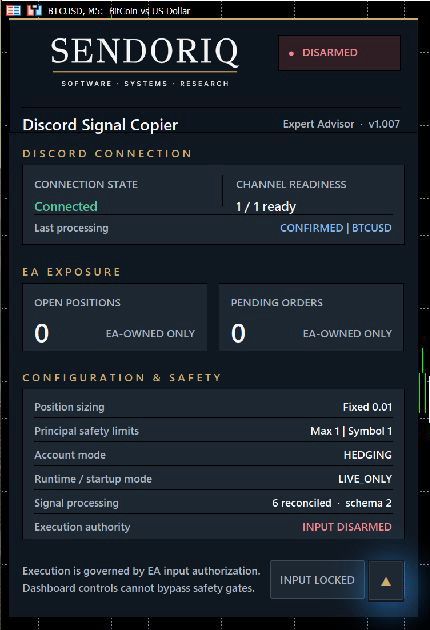
Actual v1.007 expanded dashboard: Discord connected, execution disarmed.
10. INPUTS MISSING and common setup issues
The EA can initialize and display its dashboard even when Discord credentials are not configured. In this state, polling and trading remain blocked.
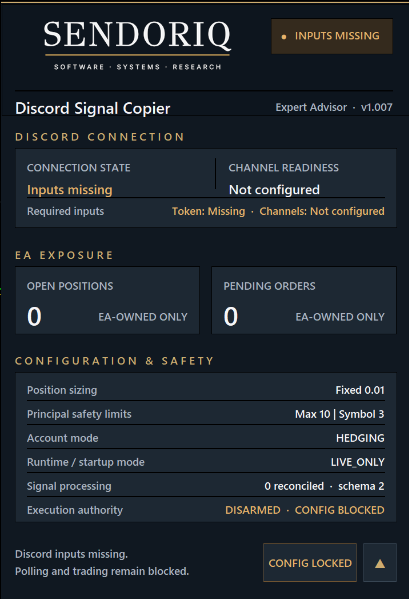
Actual v1.007 dashboard: required Discord inputs missing; execution remains blocked.
| Message / symptom | What to check |
|---|---|
| INPUTS MISSING | Enter both the bot token and at least one channel ID, or deliberately disable Discord if you only need to view the dashboard. |
| No connection | Check the https://discord.com WebRequest allowlist and terminal network access. |
| 401 | Invalid or revoked token. Correct it locally. Repeated authentication failure blocks channels. |
| 403 | The bot lacks visibility/history access to the channel. Check server and channel permission overrides. |
| 404 | Incorrect channel ID or channel not visible to the bot. |
| No new signal | Remember LIVE_ONLY: messages posted before the current ready baseline are intentionally skipped. |
| Signal rejected | Review source allowlists, symbol detection/mapping, entry side, SL/TP geometry, spread, risk limits, and broker rules. |
| No order | Check both Algo Trading and InpEnableTradeExecution ; DISARMED intentionally blocks submission. |
After a 401 authentication failure, correct the token and re-attach the EA. After 403, 404, or repeated transport failures, correct permissions/connectivity and re-attach. Never post credentials in support messages.
11. LIVE_ONLY, restart and duplicate protection
Each attachment, chart change that reinitializes the EA, terminal restart, or state-recovery path creates a latest-message baseline for each channel. Messages older than that baseline are skipped to prevent backlog orders after downtime.
Processed message IDs and trade-leg correlations are persisted. Before submission, the EA records a SENDING state. After the broker response it records CONFIRMED , UNKNOWN , REJECTED , or DRY_RUN . On recovery, it reconciles compact correlation comments against EA-owned positions, pending orders, and recent trade history.
Broker comment truncation varies. Use a unique magic number and state instance ID for logically separate EA instances.
Edited Discord messages: Editing an already handled message does not produce a new message ID, so it is not traded again.
12. Supported and unsupported trade management
Supported: Initial SL/TP, one to three TP legs when hedging and volume rules permit them, EA-owned position/pending-order counting, duplicate state, and restart reconciliation.
Not supported: Remote close, close-all, remote modify, pending cancellation commands, trailing stop, break-even, partial close, add-on/averaging, stop-loss re-entry, AI signal analysis, OCR, and attachment parsing.
13. Safe activation checklist
- Use a demo account. Verify the intended broker server and symbol names.
- Keep InpEnableTradeExecution=false during Discord, mapping, and risk setup.
- Confirm that the dashboard shows Connected and all configured channels are ready.
- Post a harmless supported-format signal while execution is disarmed; verify the parsing/validation result.
- Compare the dashboard's EA-owned open/pending exposure with the account state.
- Review lot mode, risk percentage if applicable, maximum lot, maximum spread, trade limits and mappings.
- Enable Algo Trading only after terminal configuration is ready.
- Enable InpEnableTradeExecution only after demo validation has been reviewed.
- After a restart, wait for LIVE_ONLY channel baselines to be ready before posting new signals.
Risk notice: Trading involves risk. A technically functioning signal copier cannot guarantee Discord availability, broker acceptance, execution prices, profit, or uninterrupted operation. Monitor the terminal and account, and keep credentials secure.
Need help? Use the product Comments section on MQL5 or the MQL5 messaging system. Never share your bot token or other secrets.