This guide takes you from a fresh computer to the first copied trade: download and install the application, attach the expert advisor, connect Telegram, add a signal channel and set the risk. It takes about ten minutes. The same steps work for MetaTrader 4 and MetaTrader 5.
The product has two parts. The expert advisor TSB_BridgeEA comes from the MQL5 Market and lives in your terminal: it opens, manages and protects the positions. The TradingMind Signal Bridge application runs on the same computer or VPS: it reads the Telegram chats you choose, recognises the signals and passes them to the expert advisor through an encrypted file bridge. MetaTrader cannot talk to Telegram on its own, which is why the application is needed.
What you need
| Item | Requirement |
|---|---|
| Operating system | Windows 10, Windows 11 or Windows Server; a VPS works as well as a desktop |
| MetaTrader | MetaTrader 4 and/or MetaTrader 5, any broker, demo or live |
| Expert advisor | TSB_BridgeEA for your platform, from the MQL5 Market |
| Telegram | A regular Telegram account that already sees your signal channels |
| AI (optional) | An API key from Groq, OpenAI, Anthropic or xAI. Groq has a free tier |
Step 1. Download and install the application
The installer is published on GitHub:
https://github.com/smartcontroltoday/TradingMindTelegram/releases/latest
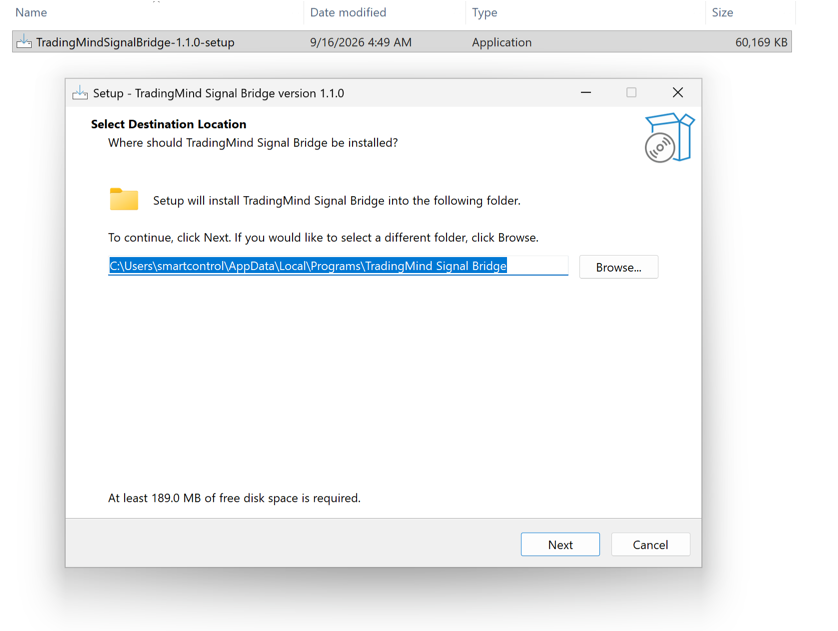
Download TradingMindSignalBridge-1.1.0-setup.exe and run it. The installer is not code-signed yet, so Windows may show "Windows protected your PC". Click More info and then Run anyway. If you want to check the file first, each release also contains SHA256SUMS.txt ; in PowerShell run Get-FileHash .\TradingMindSignalBridge-1.1.0-setup.exe -Algorithm SHA256 and compare the result with the line for the installer.
Step 2. Attach the expert advisor
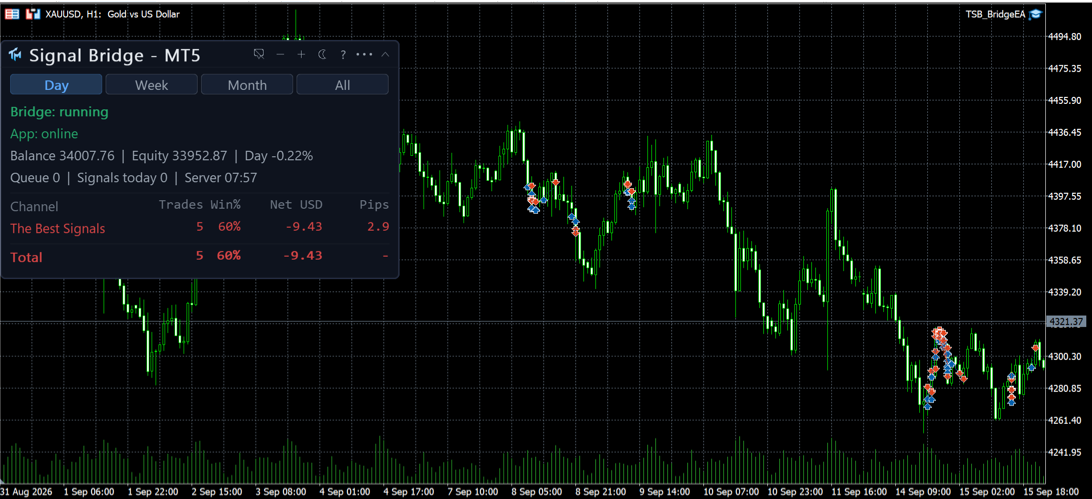
Install TSB_BridgeEA from the MQL5 Market (MT5 version, MT4 version) the usual way, then in MetaTrader open any chart and drag the expert advisor onto it. Allow automated trading: the Algo Trading button in MetaTrader 5, AutoTrading in MetaTrader 4. The symbol and timeframe of the chart do not matter, the expert advisor trades what the signals say.
When it starts, a panel appears on the chart showing Bridge: running and, once the application is open, App: online.
One expert advisor per terminal is enough. If you trade on several terminals, attach it in each of them, and the application will feed them all.
Step 3. First run of the application
Start TradingMind Signal Bridge. The setup wizard opens and walks you through five steps.
Telegram
Enter your phone number and the code Telegram sends you, or sign in with a QR code. The application signs in as your own account, so it sees exactly the channels and groups you already have. It reads only the chats you select later and never joins anything on its own. If you prefer to use your own Telegram API credentials, open the Advanced section on the Accounts screen.

Terminal and the encryption key
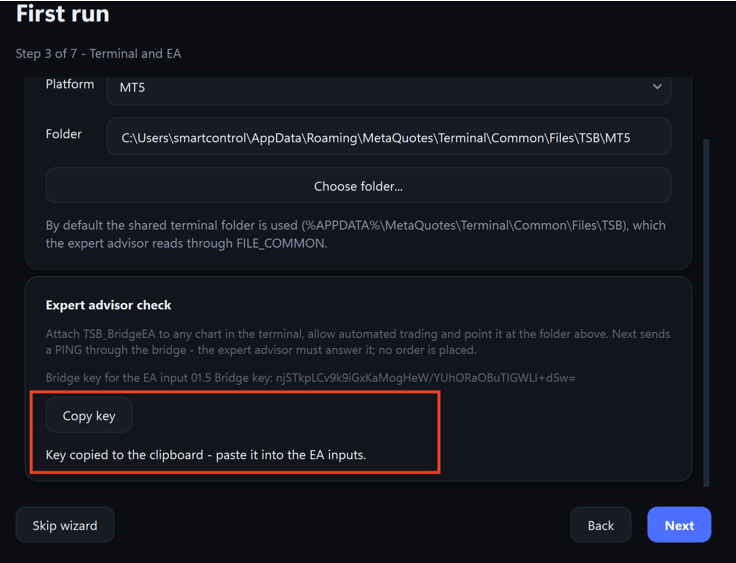
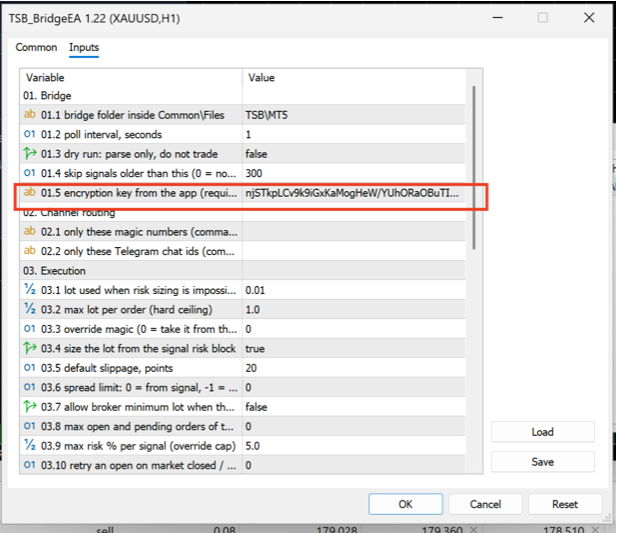
The wizard shows the bridge folder and the encryption key. Every signal between the application and MetaTrader is encrypted, and each terminal has its own key.
- Press Copy key.
- In MetaTrader open the properties of TSB_BridgeEA and paste the key into input 01.5 encryption key from the app.
- Press OK, then press Check the EA and continue in the wizard.
The application sends a ping through the bridge; no order is placed. If the key is missing or different, the wizard says so and the expert advisor shows a warning on the panel, so a mismatch cannot pass unnoticed.
 ]
]
Channel
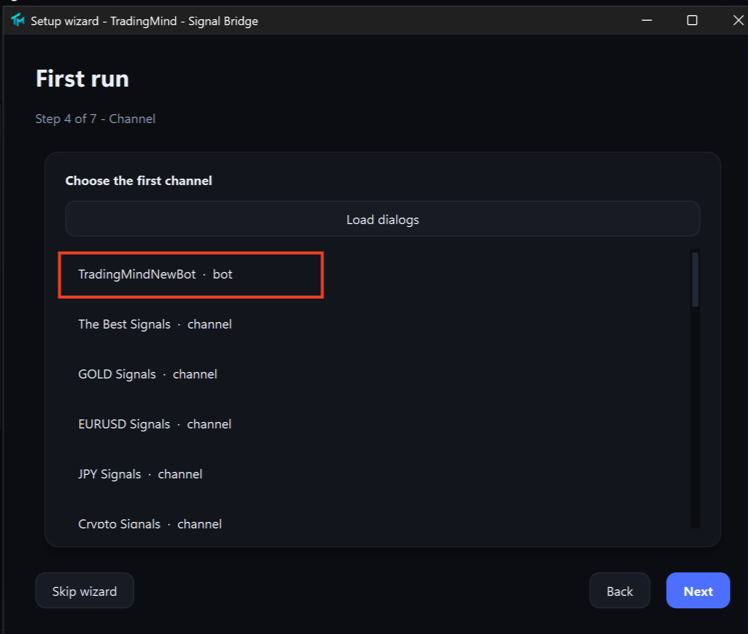
Press Load dialogs, pick the channel or group with signals and continue. The next step shows how its recent messages are recognised, so you can see the result before anything is traded.
Risk
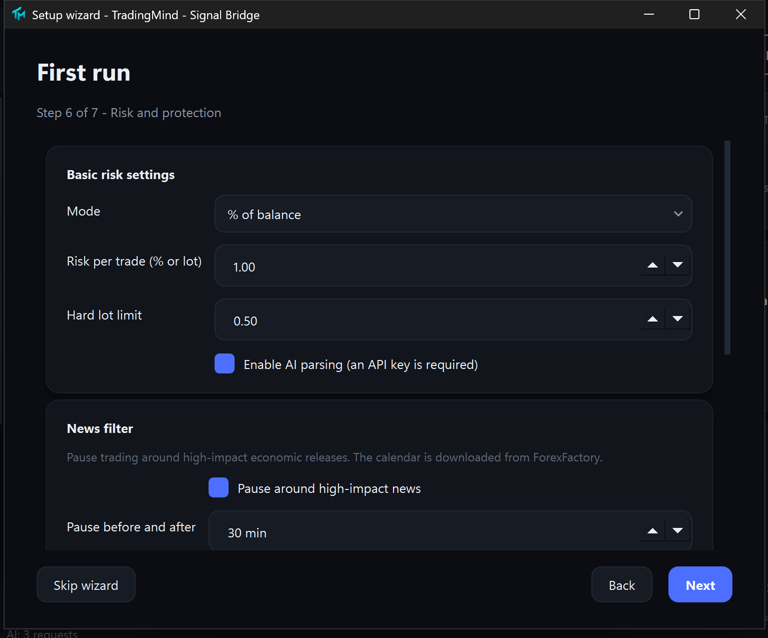
Choose how the lot is calculated: a fixed lot, a percent of balance or of equity, or a fixed money risk. Set a hard lot limit as well, it is the simplest protection against a signal with a huge stop. The news filter is on by default.
Step 4. Switch the channel on
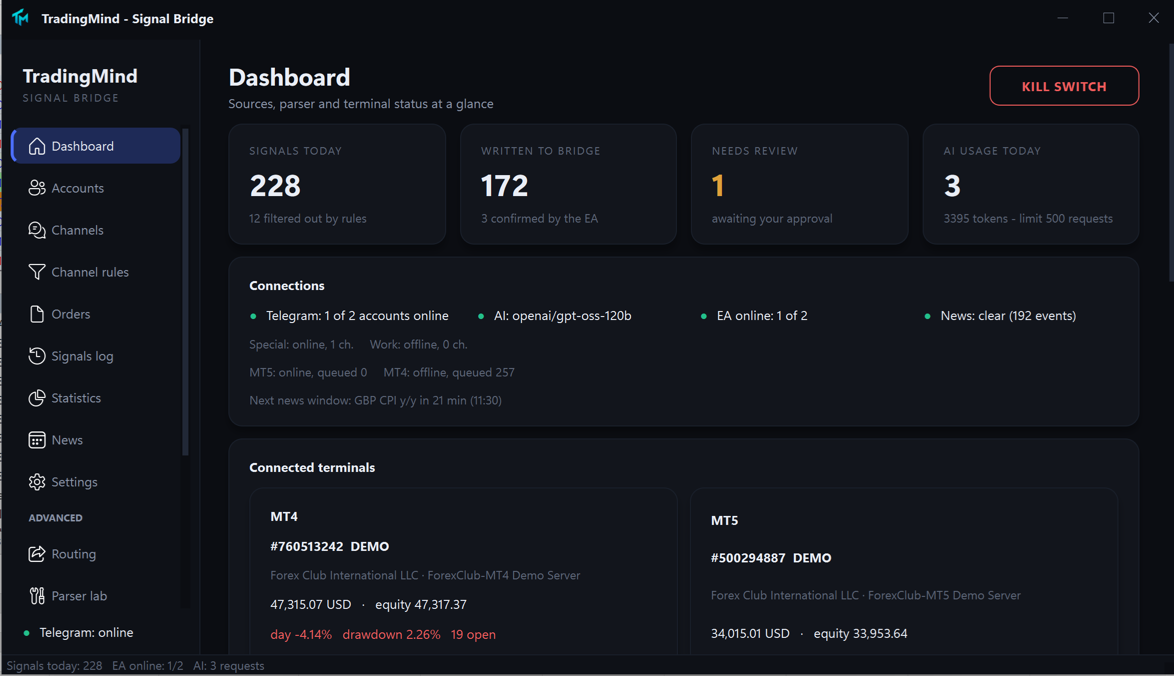
Open the Channels screen, press Test parsing to see the last messages parsed once more, then switch the channel on. From this moment new posts are copied. The Dashboard shows the state of everything: Telegram, the AI model, the expert advisors, the news feed, and a row per channel with open positions and floating profit.
Step 5. Check the first signals
Open Signals log. Every message is there with the result: parsed, written to the bridge, confirmed by the expert advisor, or rejected with the reason in plain words. If a message was not recognised, paste it into Parser lab and see what the rules and the AI model make of it.

Optional: AI parsing
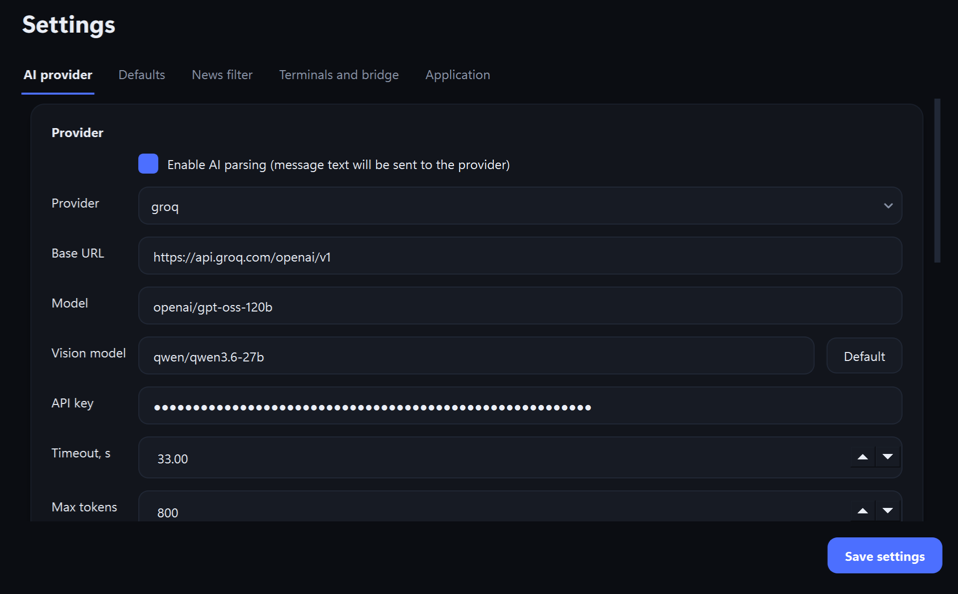
The rules parser handles classic signals instantly and for free. Free-form messages and signals posted as screenshots are handed to an AI model, and for that you need your own API key. Open Settings → AI provider, choose the provider, paste the key and press Test connection. Groq has a free tier that is enough for a normal channel.
Daily limits on requests, tokens and images keep the cost predictable, and a result below your confidence threshold goes to review instead of being traded.
Optional: alerts from TradingView
Alerts from your own strategies can be copied the same way as signals from a channel.
- In Telegram open BotFather, send /newbot and copy the token.
- Create a private group, add the bot to it and allow it to post messages.
- Find the numeric id of the group.
- In the TradingView alert set the webhook URL to the bot API sendMessage address with your token.
- Write the alert message as JSON with two fields: the chat id of the group and the text of the signal, for example XAUUSD BUY NOW SL 4280 TP1 4304 TP2 4312 . TradingView placeholders can fill the numbers from the strategy.
- Add that group as a channel in the application, check the parsing and switch it on.
TradingView sends webhooks on its paid plans. Alerts from several strategies can go to separate groups, each with its own risk settings, symbols and terminals.
Optional: control from your phone
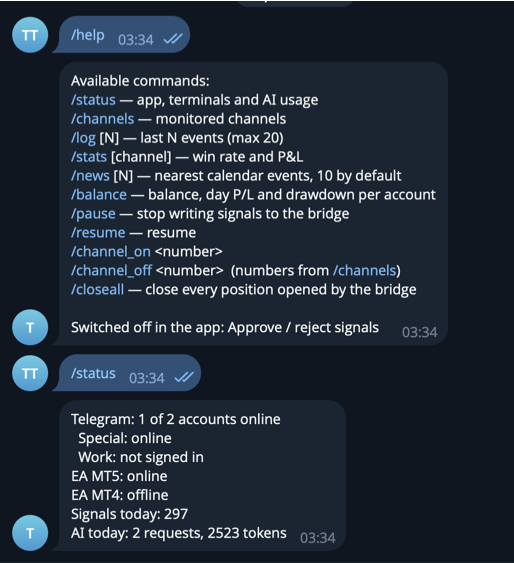
On the Telegram bot screen paste a bot token and your chat id. After that the bot answers /status , /balance , /stats , /news and /channels , can pause everything with /pause and close every position opened by the bridge with /closeall . It also sends notifications when a trade is opened, closed or moved to breakeven, with a screenshot of the chart.
Account protection
Limits live in Settings → Terminals and bridge → Account protection and are enforced by the expert advisor, because only the terminal knows the real balance. Daily, weekly and monthly loss limits, profit targets, drawdown from the equity peak, a limit on the number of trades and a scheduled close before the weekend. They keep working even if the application is closed.

If something does not work
| Symptom | What to check |
|---|---|
| The panel shows App: offline | The application is closed, or its bridge folder differs from input 01.1 of the expert advisor |
| The panel says the encryption key is empty | Paste the key from Settings → Terminals and bridge into input 01.5 |
| Signals are rejected with a key message | The key in the expert advisor is from another terminal; copy it again |
| Nothing is traded from a channel | The channel is switched off, or the signal did not pass a filter. The reason is written in the Signals log |
| Trades open but no orders appear | Automated trading is disabled in the terminal, or the account has no permission to trade |
The Diagnostics screen checks Telegram, the AI model, the bridge folders, the expert advisors and the news feed in one click, and can save a support report that contains no keys or phone numbers.

Links
- Installer and release notes: GitHub releases
- Video walkthrough: youtu.be/Y6IqlX0yt8w
- Product for MetaTrader 5: TradingMind AI Telegram Copier MT5
- Product for MetaTrader 4: TradingMind AI Telegram Copier MT4
The copier does not create signals: the result depends on the provider you follow, so test every channel on a demo account first. If anything is unclear, send me a private message here on MQL5.