
If you are copying MT4-to-MT4 or MT5-to-MT5, you do not need the mixed-platform Shared Journal procedure described below. For normal same-platform use, leave the target at the default Receiver Role, set the source to Sender, keep the same Copy Group and start both sides.
This guide applies to Axivor Bridge Version 1.0 on native Windows desktop or VPS installations. It covers mixed-platform relationships in which one side is MetaTrader 4 or MetaTrader 5 and the other side is a supported third-party desktop platform. Cloud copy is not supported.
Before configuring a new relationship, use demo accounts and make sure there are no Bridge-managed positions that need to be preserved from an existing relationship. Do not build a new relationship around positions that belong to a previous Bridge relationship.
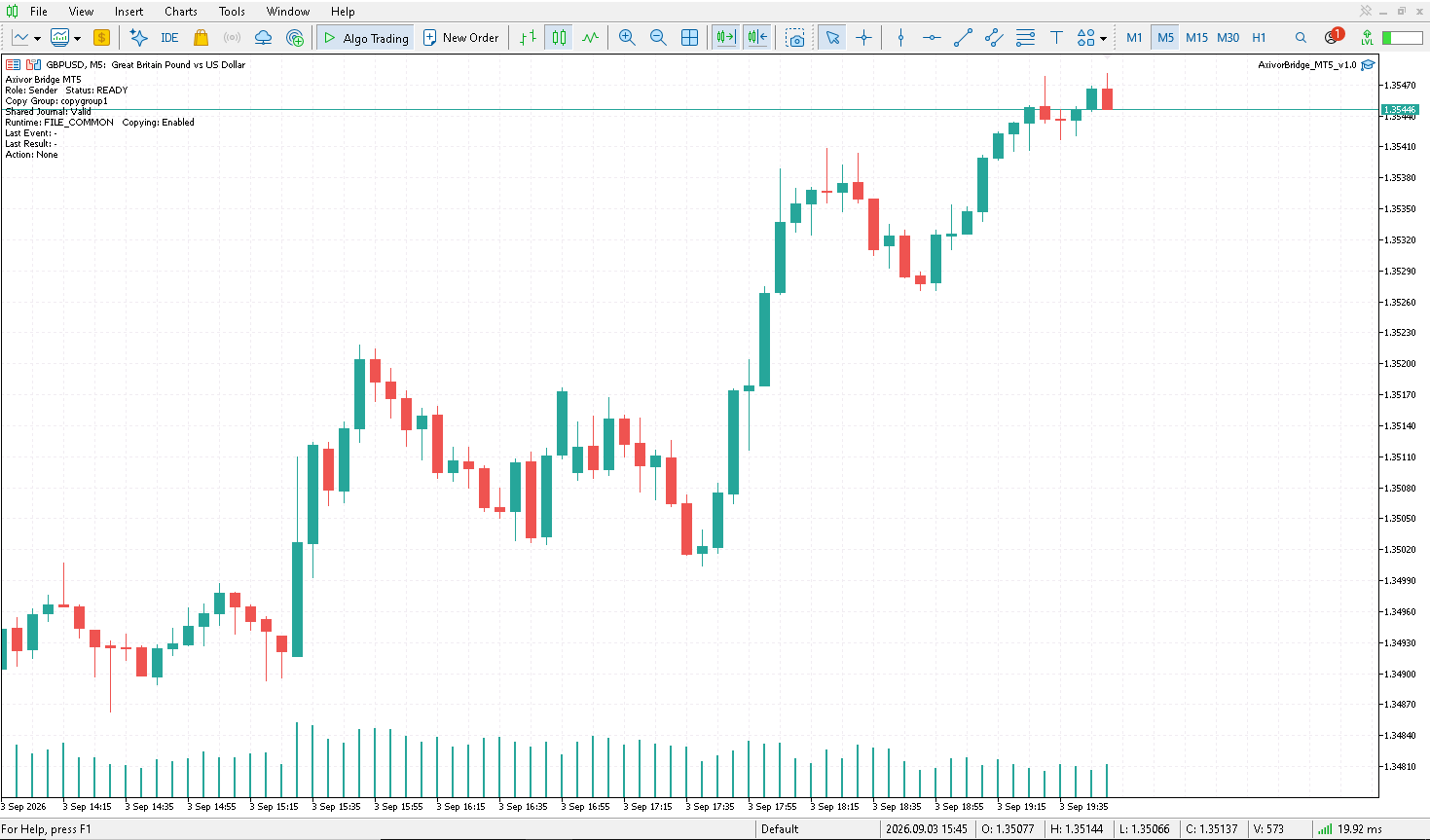
How the Shared Journal Works
The rule is simple: the Sender creates the Shared Journal; the Receiver reads the Shared Journal.
Both sides of a mixed-platform relationship must reference the same local file:
axivor_shared_journal.jsonl
Its standard runtime structure is:
AxivorBridgeRuntime\shared-journal\axivor_shared_journal.jsonl
The file provides local coordination between Bridge instances on the same native Windows computer or VPS. No separate Axivor relay service is required. Do not edit the journal manually while a relationship is active.
Copy Group Must Match
The Sender and every Receiver must use exactly the same Copy Group. The default is copygroup1, and it may be used as supplied. If you operate more than one relationship, choose a clear unique group name for each relationship. Enter the Copy Group identically on every participant.
Find the MetaTrader Shared Common Files Location
Do not hardcode a Windows username or drive. Use this navigation:
- Press Windows + R.
- Enter %APPDATA% and press Enter.
- Open MetaQuotes\Terminal\Common\Files.
- Open AxivorBridgeRuntime\shared-journal.
The complete location below that AppData folder is:
MetaQuotes\Terminal\Common\Files\AxivorBridgeRuntime\shared-journal
On Windows 11, use File Explorer > View > Show > Hidden items. On Windows 10, use View > Hidden items. Also enable File name extensions so the journal is not accidentally saved with a second extension.
MT5 Sender to Supported Third-Party Receiver
In this direction, the MT5 Sender creates the journal.
- Confirm all affected Bridge-managed accounts are flat.
- Attach and configure Axivor Bridge on the MT5 source account.
- Set Role = Sender.
- Keep copygroup1, or enter the intended unique Copy Group.
- Start the MT5 Sender first.
- Wait until its status is READY.
- Open the MetaTrader shared Common Files location and find AxivorBridgeRuntime\shared-journal\axivor_shared_journal.jsonl.
- In the supported third-party Receiver, select that exact Shared Journal.
- Configure the identical Copy Group on the Receiver.
- Start the Receiver.
- Wait until the Receiver shows READY.
- Run the demo lifecycle described later in this guide.
Supported Third-Party Sender to MT5 Receiver
In this direction, the supported third-party Sender creates the journal.
- Confirm all affected Bridge-managed accounts are flat and stop the Bridge instances that will participate.
- Configure the MT5 Bridge instance with Role = Receiver and the intended Copy Group, but do not start the relationship yet.
- Configure the supported third-party instance as Sender with the identical Copy Group.
- Use that platform's documented new-journal process.
- In its native Save flow, navigate through %APPDATA% to MetaQuotes\Terminal\Common\Files\AxivorBridgeRuntime\shared-journal.
- Create axivor_shared_journal.jsonl there. Complete the platform's required create, select and normal-start steps; creating the file may not select it automatically.
- Start the supported third-party Sender.
- Wait until the Sender shows READY.
- Start the MT5 Receiver.
- Wait until the Receiver shows READY.
- Run the demo lifecycle.
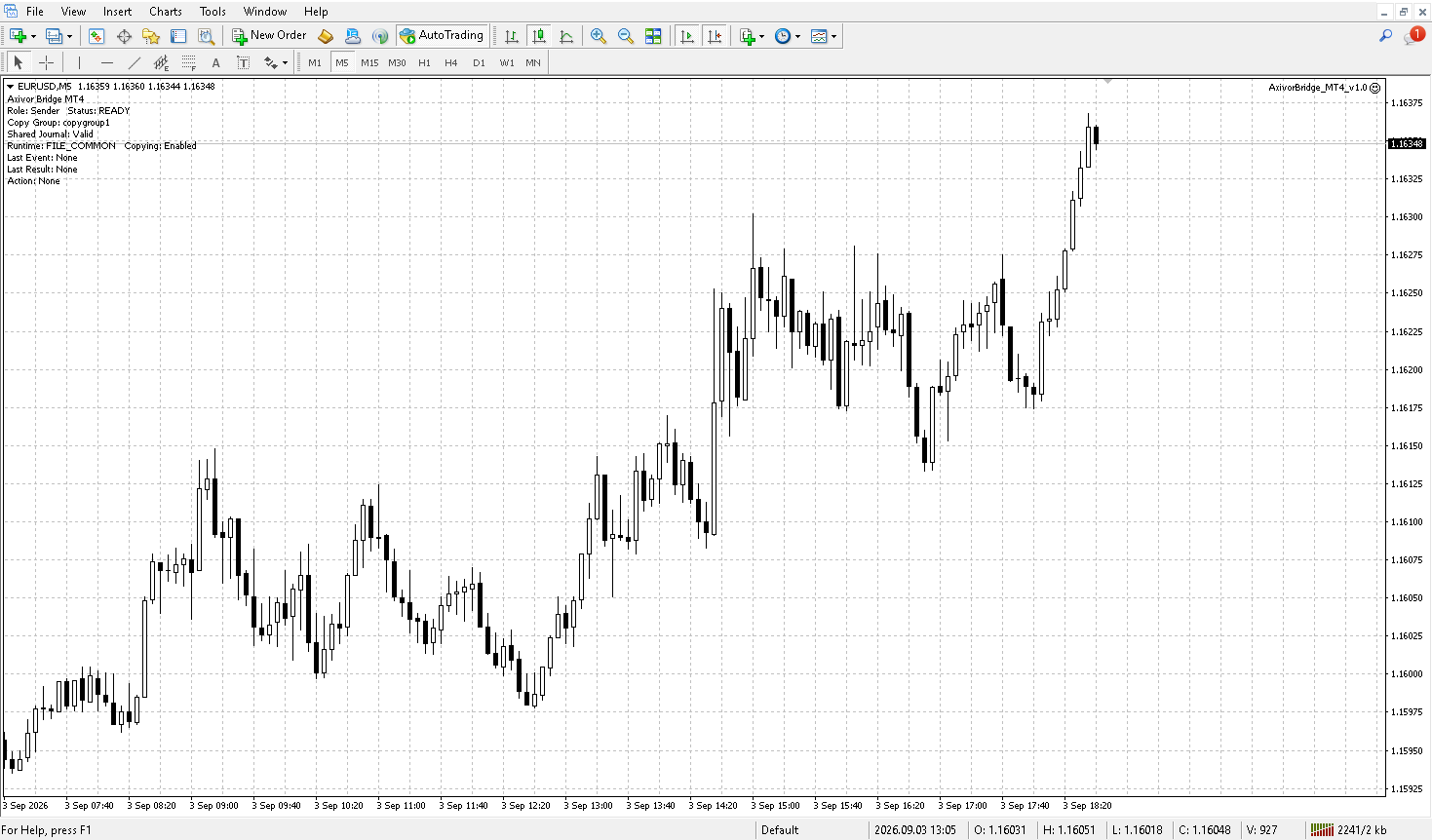
MT4 Sender to Supported Third-Party Receiver
In this direction, the MT4 Sender creates the journal.
- Confirm all affected Bridge-managed accounts are flat.
- Attach and configure Axivor Bridge on the MT4 source account.
- Set Role = Sender.
- Keep copygroup1, or enter the intended unique Copy Group.
- Start the MT4 Sender first.
- Wait until its status is READY.
- Open the MetaTrader shared Common Files location and find AxivorBridgeRuntime\shared-journal\axivor_shared_journal.jsonl.
- In the supported third-party Receiver, select that exact Shared Journal.
- Configure the identical Copy Group on the Receiver.
- Start the Receiver.
- Wait until the Receiver shows READY.
- Run the demo lifecycle.
Supported Third-Party Sender to MT4 Receiver
In this direction, the supported third-party Sender creates the journal.
- Confirm all affected Bridge-managed accounts are flat and stop the Bridge instances that will participate.
- Configure the MT4 Bridge instance with Role = Receiver and the intended Copy Group, but do not start the relationship yet.
- Configure the supported third-party instance as Sender with the identical Copy Group.
- Use that platform's documented new-journal process.
- In its native Save flow, navigate through %APPDATA% to MetaQuotes\Terminal\Common\Files\AxivorBridgeRuntime\shared-journal.
- Create axivor_shared_journal.jsonl there. Complete the platform's required create, select and normal-start steps; creating the file may not select it automatically.
- Start the supported third-party Sender.
- Wait until the Sender shows READY.
- Start the MT4 Receiver.
- Wait until the Receiver shows READY.
- Run the demo lifecycle.
Startup Order Matters
The Sender initializes the relationship first.
When MetaTrader Is Sender
- Start the MetaTrader Sender.
- Wait for READY.
- Start the supported third-party Receiver.
- Wait for READY.
When MetaTrader Is Receiver
- Start the supported third-party Sender.
- Wait for READY.
- Start the MetaTrader Receiver.
- Wait for READY.
If a Receiver shows WAITING, first confirm that the Sender was started and became READY, then check the journal selection and Copy Group.
Symbol Mapping
Broker symbol names may differ between accounts. Enter mappings as exact SOURCE=TARGET pairs. The source symbol is on the left and the Receiver's broker symbol is on the right.
Example:
EURUSD=EURUSD.a
Separate multiple mappings with semicolons:
EURUSD=EURUSD.a;GBPUSD=GBPUSD.pro
Use the exact symbol names shown by each broker. Version 1.0 does not provide universal automatic symbol mapping.
Check Receiver Volume Settings
Each Receiver can use one of three volume modes:
- Same as Sender uses the source requested economic volume, converted for the target symbol.
- Fixed Volume uses the Receiver's configured lot value.
- Multiplier scales the source volume by the configured multiplier.
Maximum Volume is a rejection ceiling, not a sizing mode. If the resolved Receiver volume exceeds a configured non-zero Maximum Volume, Bridge rejects the copy; it does not silently reduce the size. A zero value means there is no separate Bridge ceiling, although broker and platform limits still apply.
Minimum volume, maximum broker volume, volume step, margin, symbol availability and execution conditions may still cause the target broker to normalize or reject an order.
Test the Relationship on Demo First
Do not make the first test on an important live account. Use this complete demo lifecycle:
- Confirm both sides show READY.
- Open one minimum-size market position on the Sender with an initial Stop Loss and Take Profit.
- Confirm one Receiver OPEN.
- Modify the Stop Loss or Take Profit on the Sender.
- Confirm the Receiver MODIFY.
- Fully close the source position.
- Confirm the Receiver CLOSE.
- Restart both sides in the correct Sender-first order.
- Confirm that completed work does not replay.
The sequence is: OPEN > SL/TP > MODIFY > CLOSE > RESTART.
Normal Restart
A normal restart preserves the relationship, Shared Journal, source-target mapping, processing cursor and completed trade progress. Completed copy events are not replayed. Do not recreate or overwrite the Shared Journal for every restart.
A fresh attachment may return to the default Receiver Role, so confirm the intended Role before starting. Leave Receiver Action = Normal during ordinary setup and operation. Re-enrollment is not a setup shortcut.
New Relationship or Changing Sender
Changing Sender is a controlled maintenance operation, not a seamless live migration:
- Ensure all affected Bridge-managed accounts are flat.
- Stop every Sender and Receiver in the relationship.
- Archive or rename the old Runtime relationship, for example: AxivorBridgeRuntime_backup_YYYYMMDD.
- Establish a fresh Copy Group and new relationship.
- Start the new Sender first and wait for READY.
- Start the Receivers and wait for READY.
- Run the full demo lifecycle and restart check before live use.
Do not overwrite an active journal or attempt to move the Sender while copied positions remain open.
Status Guide
| Status | Meaning | What to do |
| READY | Startup validation passed | Proceed when all participants are READY |
| WAITING | Sender or journal setup is pending | Start the Sender first and wait |
| BLOCKED | Configuration or journal prevents processing | Read the displayed action; check Copy Group and journal |
| WARNING | A condition requires review | Read the action and diagnostics before proceeding |
| RECOVERY REQUIRED | Durable state requires preservation-first recovery | Stop and preserve Runtime and journal files |
READY confirms that startup validation passed. It does not guarantee that a future broker order will be accepted.
If you see RECOVERY REQUIRED, do not delete Runtime files, delete the journal, randomly select a Receiver Action or reset everything blindly. Stop, preserve the current files and state, make accounts safe and flat where necessary, and follow documented recovery or support guidance.
Acknowledgement Visibility on Some Routes
On some mixed-platform routes, Sender-side acknowledgement visibility may be limited by platform file-access permissions. Receiver-side execution records remain authoritative. This does not prevent trade copying. The limitation does not apply to every route.
Version 1.0 Limitations
- Pending-order copying is not supported.
- Partial-close copying is not supported.
- Risk-based Receiver sizing is not supported.
- Seamless live Sender migration is not supported.
- Automatic mixed-platform journal discovery is not supported.
- Universal automatic symbol mapping is not supported.
- Advanced recovery tooling is not included.
- Cloud copy is not supported.
Support
For help, use MQL5 product comments or MQL5 messaging. Include the visible Bridge status, Copy Group, affected symbol and approximate UTC time. Never provide an account password or other credentials.
Axivor Bridge Version 1.0 is available for MetaTrader 4 and MetaTrader 5 on MQL5 Market:
- Axivor Bridge — MetaTrader 5: https://www.mql5.com/en/market/product/194873
- Axivor Bridge — MetaTrader 4: https://www.mql5.com/en/market/product/194882
Trading involves risk. Axivor Bridge does not guarantee target fill price, timing, broker acceptance or outcome.




