
Applies to MT5 1.00
1. Find it in the Navigator
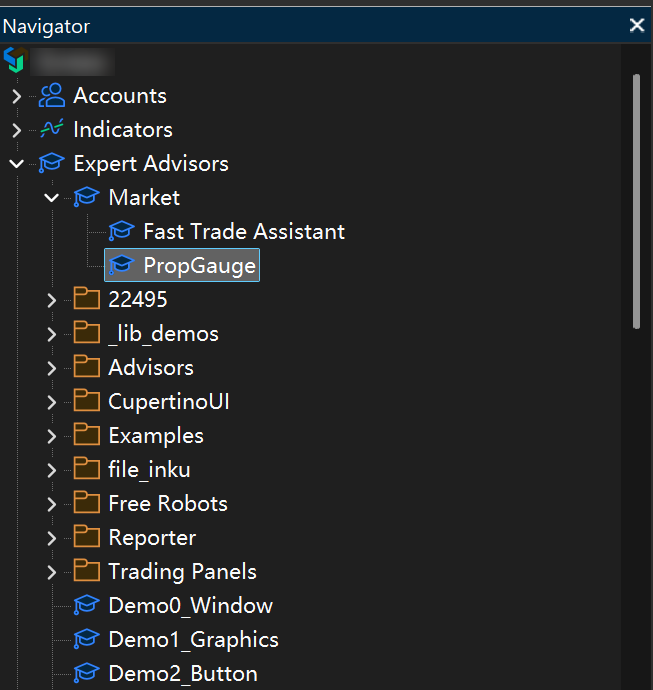
After purchase the product is in the Navigator under Experts → Market. If it is missing, restart the terminal or log in to your MQL5 account in Tools → Options → Community.
2. Attach it to a chart
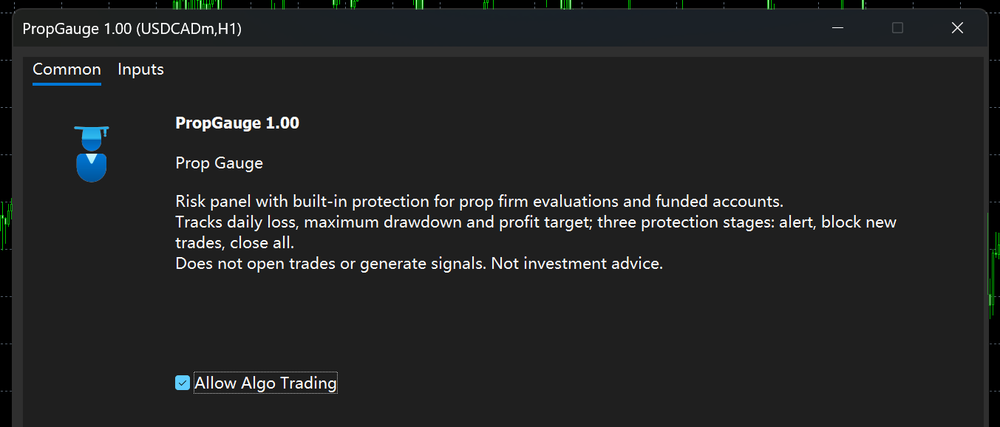
Drag Prop Gauge onto any chart of the account you want to protect. One chart is enough. In the Common tab tick Allow Algo Trading.
3. Check the Algo Trading button
The toolbar button must be on (green). Without it the panel shows numbers but cannot delete orders or close positions, and warns you. 
4. Set the inputs
-
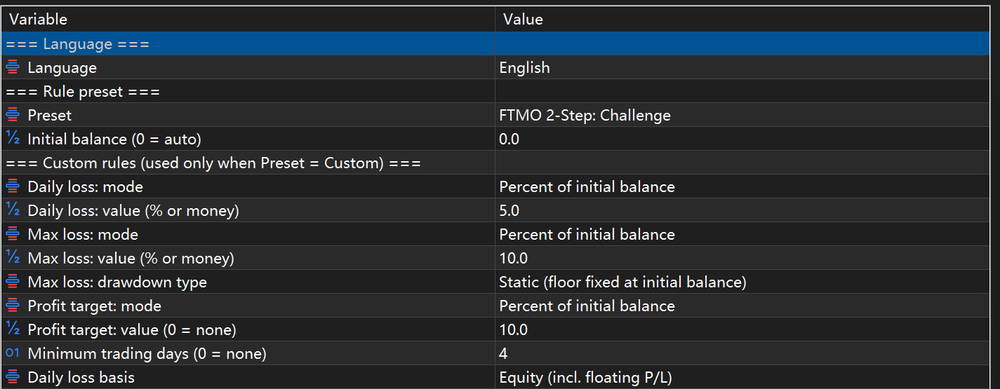
Language: Auto (follow terminal), Chinese or English.
-
Preset: pick your program, or Custom rules and fill in the Custom section.
-
Initial balance (0 = auto): 0 takes the balance at first run. If the account has already traded, enter the real starting balance, otherwise percentage limits are calculated from the wrong base.
-
Daily loss basis: equity (floating P/L included) or balance.
-
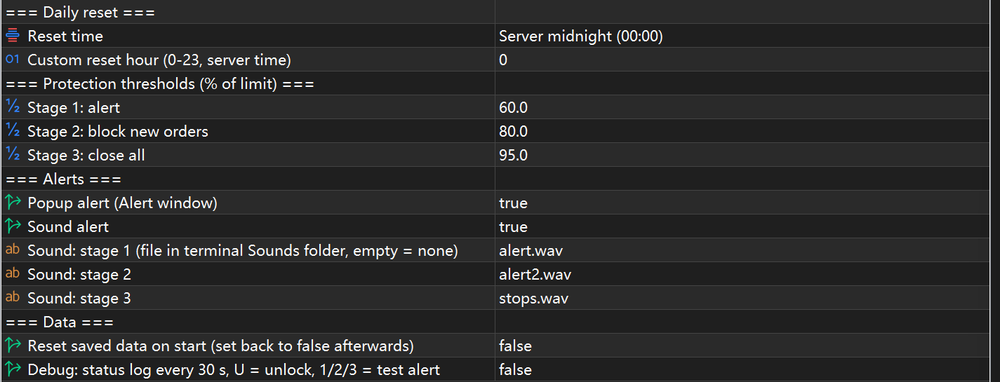
Reset time: server midnight, or a custom hour in server time. If your broker's server time differs from your firm's, set the hour.
-
Stage 1 / 2 / 3: 60 / 80 / 95 by default, % of each limit.
-
Alerts: popup and sound per stage, with file names from the terminal Sounds folder.
-
Reset saved data on start: set true once for a new account or a new challenge, then back to false. Details of every input are in the user guide.
5. Check the panel
The panel appears on the chart.
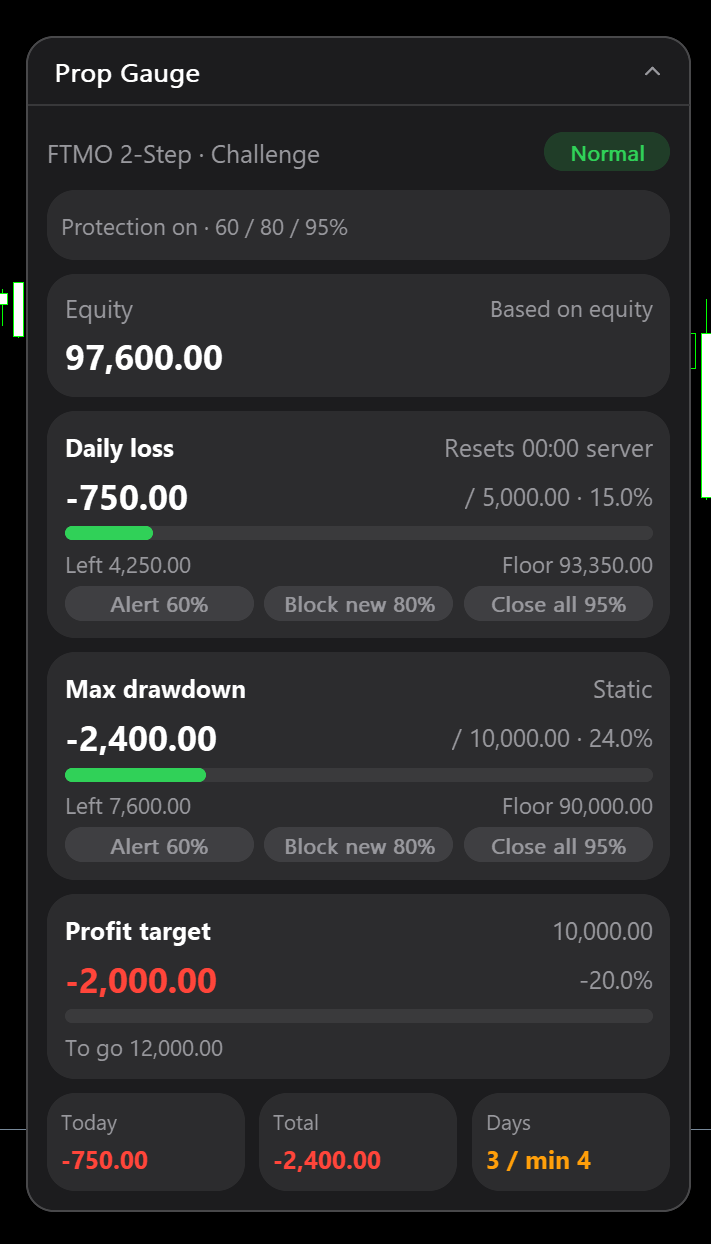
Check that the preset name and the three thresholds match what you chose, and that the daily reset time is right. To move it, drag the title bar; the arrow folds it.
6. Run it where it keeps running
Protection stops when the EA is removed, the terminal is closed, the connection drops or the computer sleeps. A VPS is recommended. Saved state (locks, peaks, trading days) survives restarts, but profit or loss while the EA was offline cannot be reconstructed.
7. Activations
One purchase can be activated on a limited number of computers (see the product page). Moving to a new VPS uses one activation.
Questions: product comments or MQL5 private messages. Product page: https://www.mql5.com/zh/market/product/203058




