
Real Trade Assistant - User Guide
1. Overview
Real Trade Assistant is a trade-management panel for MetaTrader 5. It sits on a chart and lets you size risk, place orders, manage open trades, set alerts and schedules, and practise setups (demo, backtest, replay) without leaving the chart. Its main feature is the seconds chart: price bars of any number of seconds, opened in their own window, where you can trade as on a normal chart. It is a manual-trading tool: it never opens trades on its own strategy.
2. Installation and first start
- In MetaTrader 5, log in to your MQL5.community account (Tools > Options > Community).
- Open the Toolbox (Ctrl+T) and go to the Market tab. Search for Real Trade Assistant and open the product page.
- Press Buy (or Download for a free or demo version) and complete the purchase. The product is installed automatically. You can find it later under Market in the Navigator, or in Toolbox > Market > Purchased.
- Open the chart of the symbol you want to trade. Drag Real Trade Assistant from the Navigator onto the chart, or double-click it.
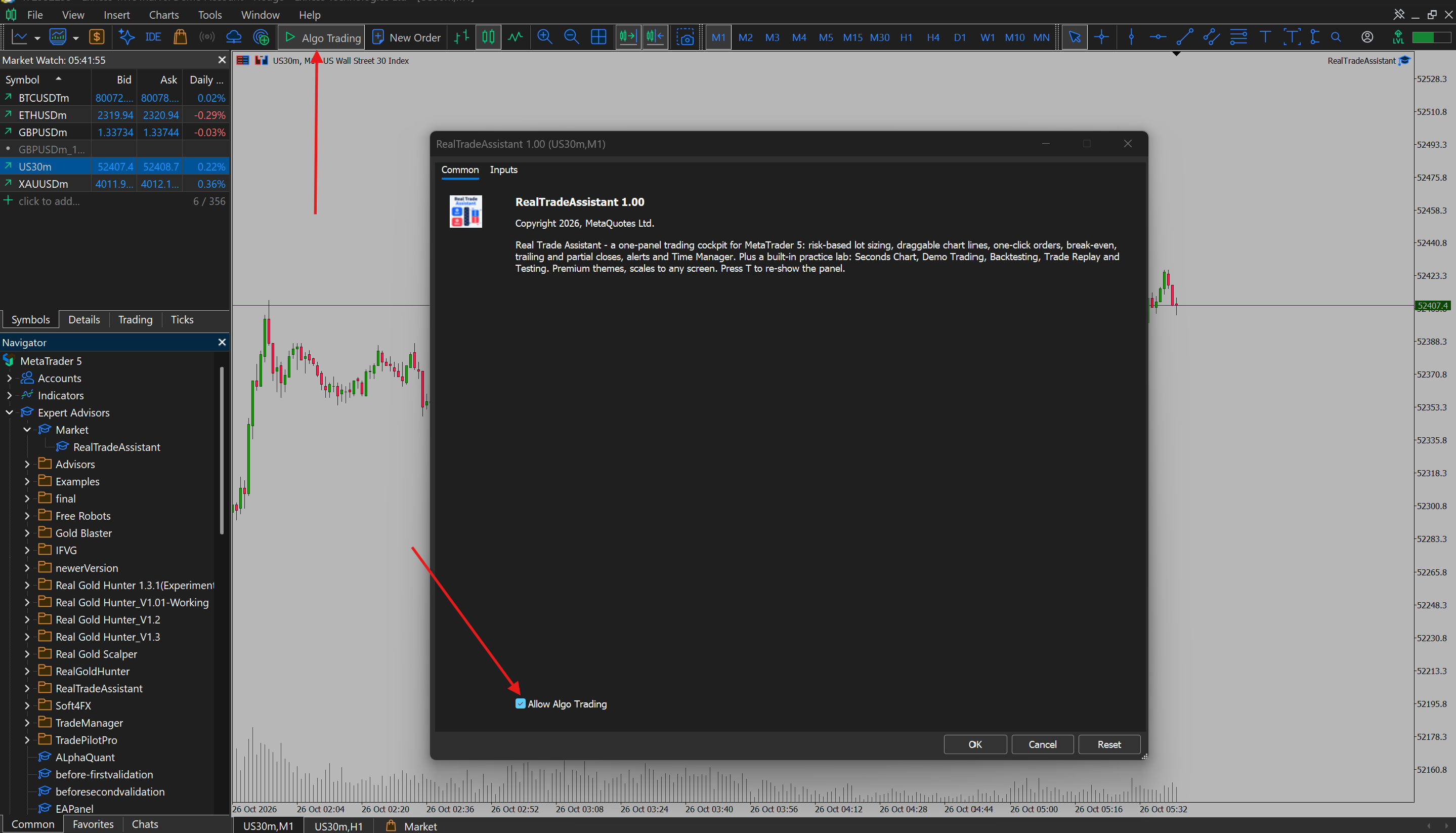
- In the inputs dialog, review the start values (see Input parameters), enable Allow Algo Trading on the Common tab, and press OK.
- Make sure the Algo Trading button in the toolbar is on. Without it, real orders are refused.
Removing the EA from the chart removes the panel, the minimised strip and its chart objects.
3. The panel at a glance
Trade tab
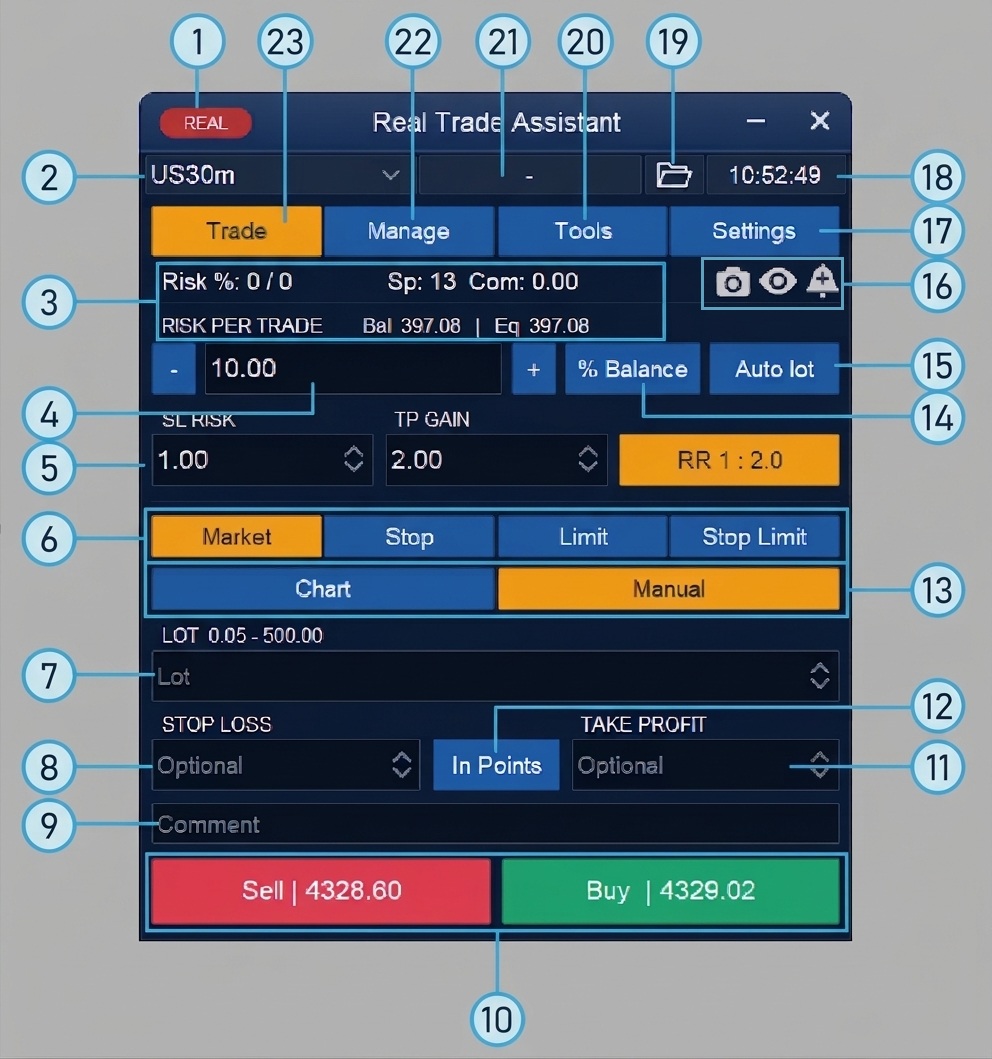
- Mode badge. Shows the current mode: Real, Demo, Backtest or Replay.
- Symbol. Shows the chart symbol. Click it to open the symbol list and switch symbols.
- Information block. Shows the risk of the current symbol / the total risk of all symbols (Risk %), the current spread (Sp), the round-turn commission for the lot (Com), and your balance and equity (Bal | Eq).
- Risk per trade. The amount you accept to lose if the Stop Loss is hit. Enter a value or use the - and + buttons. The unit depends on the Risk calculation button (14).
- SL Risk. Stop Loss size used to calculate the lot, in the unit selected with the In Points / Price button (12).
- Order type. Market, Stop, Limit or Stop Limit. The Sell / Buy buttons (10) open the selected type.
- Lot. The trade volume. The minimum and maximum lot for the symbol are shown above the field. You can type a lot when Auto lot (15) is off.
- Stop Loss. Stop Loss in points or price. If left empty, the order opens without a Stop Loss.
- Comment. Text added to the order comment.
- Sell / Buy. Open a trade with the current settings. Each button shows the current price.
- Take Profit. Take Profit in points or price. If left empty, the order opens without a Take Profit.
- In Points / Price. Switches the Stop Loss and Take Profit fields between points and absolute prices.
- Order entry mode. Chart places the order using the lines on the chart. Manual uses the values typed in the panel. [confirm]
- Risk calculation. Click to choose how risk is measured: $ Currency, % Balance, % Equity, % Free Margin, % Custom value, or % of the previous day’s, week’s or month’s balance.
- Auto lot. Turns automatic lot calculation on or off. When on, the lot is calculated from the risk and the Stop Loss.
- Quick icons. Camera takes a chart screenshot, eye hides or shows the trading levels, bell sets an alert line.
- Settings tab. General settings, themes, account protection and hotkeys.
- Clock. Click to cycle between PC, server and New York time.
- Presets. Opens saved panel settings. [confirm]
- Tools tab. Demo trading, Backtest, Trade replay, Testing window and the Seconds chart.
- Active functions. Shows which functions are currently running. [confirm]
- Manage tab. Quick, Close, In parts, Trailing, Break even+ and other tools for open trades.
- Trade tab. Risk, lot and order entry (this page).
Manage tab
The Manage tab controls trades that are already open. It has five pages: Quick, Close, In parts, Trailing and Break even+.
Quick
The Quick page holds one-click actions. They act on the positions the panel manages, which are this symbol only or all symbols, depending on the “Manage all symbols” setting.
- Close all closes every open position.
- Close buys / Close sells closes only positions of that direction.
- Close profit / Close loss closes only positions that are currently in profit or in loss.
- Close by ticket closes a single position when you enter its ticket number.
- Close % closes the percentage you set, taken from a position’s volume. Use it to take partial profit quickly.
- Delete pending orders removes all pending orders, or only one type (Limit, Stop and so on).
Several of these actions also have a hotkey (see Hotkeys in the Settings tab). Destructive actions can ask for a second press to confirm.
Close
The Close page lets you close everything automatically when the account reaches a profit or loss level you choose.
- Set the level, either a profit or a loss.
- The level appears as a line on the chart. You can drag the line to adjust it.
- When the account reaches the level, the panel closes the positions.
Check the scope (this symbol or all symbols) before you switch it on. It decides which positions count toward the level and which are closed. [confirm: whether the page has the same scope options]
In parts
The In parts page closes a position in several steps, so you can take profit gradually.
- Each step has a closing level, set as a price or as a distance in points.
- Each step closes a part of the position. [confirm: percentage or lot, or both]
- Steps appear as lines on the chart, with the remaining volume after each step.
- Make sure the position is large enough to be divided. If it isn’t, a single step may close all of it.
Trailing
The Trailing page moves the Stop Loss automatically as the trade moves into profit. Choose one method:
- Trailing Stop keeps the Stop Loss at a fixed distance behind the price.
- Fractals places the Stop Loss behind the latest fractal.
- MA follows a moving average.
- Parabolic SAR follows the Parabolic SAR indicator.
- ATR keeps a distance based on the Average True Range.
- By Partial Close moves the Stop Loss to the previous partial-close level.
- High / Low of the previous bar places the Stop Loss at the low (for buys) or high (for sells) of the last closed bar.
You can apply trailing to this symbol’s positions or to all positions. [confirm: start, distance and step parameters]
Break even+
Break even+ moves the Stop Loss to the entry price once the trade has reached the profit you set as the trigger.
- Trigger is the profit at which the move happens.
- Offset is a distance added to the entry price, so the trade closes with a small profit instead of exactly zero. The offset can cover spread and commission.
Chart bar for each position and order
On the chart, each position and order has a small bar with these functions:
- Drag-to-set a Stop Loss or Take Profit where one is missing.
- Hide SL / TP keeps the levels inside the panel instead of at the broker (virtual levels). They work only while MetaTrader is open and connected to the internet.
- Comment field for that order.
- OCO links two pending orders. When one is triggered, the other is cancelled.
Tools tab
The Tools tab opens the practice and analysis tools.
Demo trading
A paper account that uses live prices. Orders stay inside the panel and never reach your broker. The header badge shows Demo, and the panel keeps statistics: profit, win rate, drawdown and history. Reset account restores the starting balance. Close all closes the virtual positions.
Backtest
Lets you trade on past prices. Choose the start time (server time), how many hours to play, the start balance and the data source (Auto, Real only or Synthetic only), then press Start simulation. The Open and History lists show your virtual trades, and statistics appear while the simulation runs. A line at the bottom, starting with “Mode:”, shows which data the run uses.
Trade replay
Replays a closed trade bar by bar, with play, pause, step and speed controls.
Testing window
Places test entries (buy and sell marks) on the chart, lets you review the entry points of past deals on the symbol, and deletes the arrows when you finish.
Seconds chart
Shows price in bars of any number of seconds, in its own window. [to complete: Fetch → Open flow, strip with exit button, order lines and arrows, sounds]
Settings tab
General
Choose whether to manage all symbols or only the current one, turn automatic screenshots on or off, and set what happens when you switch symbols.
Info
Statistics and information pages.
Themes
Choose a built-in theme (dark, light or mid-tone) or Custom. Custom starts as a copy of your active theme. Your colour edits are saved automatically.
Account protection
Locks trading after the loss limit you set. You can also choose to close everything when the lock starts. Unlock trading releases the lock by hand, and a new day, week or month also ends it.
Hotkeys
Turn hotkeys on or off and edit each key. Hotkeys need a modifier unless they are F-keys, do not fire while you type in a field, and do not repeat when held.
Strip options
Strip transparency and Follow the theme control the look of the minimised strip.




